1
Note
The keyboard on the ActionNote is available with different
layouts for different languages. Additionally, you can use
MS-DOS or Windows to reassign the layout of your
keyboard to duplicate that of another country. See your
on-line Windows manual or the MS-DOS help utility for
more information.
Using the Fn Key
When pressed with other keys, the Fn key lets you control
certain operations, as described in the following table. To use
these commands, hold down the Fn key and then press the
second key. If you are using an external keyboard (one without
an Fn key), use the alternative Ctrl Alt key sequence, as
described below.
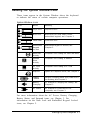
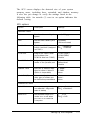
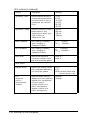
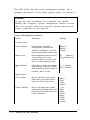
Fn key functions
Key
command
Function
Fn F1 or
Decreases LCD brightness
Ctrl Alt F1
Fn F2 or
Increases LCD brightness
Ctrl Alt F2
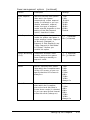
Fn F3 or
Ctrl Alt F3
Fn F4 or
Ctrl Alt F4
Fn F9 or
Ctrl Alt F9
Fn F10 or
Ctrl Alt F10
2-4
Decreases contrast (active matrix LCD does not require this
feature—correct contrast adjusts automatically)
Increases contrast (active matrix LCD does not require this
feature—correct contrast adjusts automatically)
Toggles between disabling and enabling text enhancement
so the characters stand out clearly in text display mode
(monochrome LCD only)
Toggles the video between normal (white characters on
black background) and reverse (black characters on white
background); monochrome LCD only
Using Your Computer