Download Dell Active System Manager Version 7.1 Solution Guide
Transcript
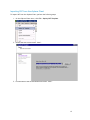
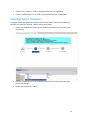
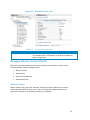
./stopasm.sh Make sure that all of the services are stopped before continuing. 2. Change the passwords using the standard Linux command passwd to change the passwords for any of the three stock accounts. o o o root delladmin oracle You will need root access to modify the passwords. Run the following commands: su <Enter root password> passwd delladmin <Enter new password> <Re-enter new password> 3. Repeat these steps until all three user accounts have been modified. IMPORTANT: Do not rename the user accounts, only change their passwords. 4. Reboot your Active System Manager VM. After you have changed your passwords you must reboot your Active System Manager VM. Before you reboot, make any other changes such as IP address or time (NTP) configurations as described in following sections and then reboot once to encompass all of your changes. 5. Update any already existing software repositories that are running on the Active System Manager appliance. Most of your software repositories depend on credentials to be able to access firmware, ISO files, PXE boot files, etc. If the passwords are changed as part of an initial deployment, there will be fewer repositories to update with the new credentials. If you change passwords on an Active System Manage server that has been in use for a while, you may have many more repositories to update. Assigning IP Address to the Active System Manager To assign the IP Address to the Active System Manager appliance perform the following steps. 1. On the vSphere or Hyper-v manager client, select the deployed Active System Manager appliance and open its console. 15