1
SwitchView User Manual
Scanning PCs
The scanning feature allows you to automatically monitor, or scan, each PC in your SwitchView system. If you
use the keyboard during scanning, the scan will pause
until you finish, then resume with the next PC. The
length of time each PC’s video remains on the screen, or
dwell time, can be changed at any time. Scanning will
be halted if the Halt command is entered or if another
PC is selected.
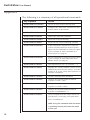
The following key sequences control scanning:
Key Sequence
Action
<CTRL><CTRL>Dnn<Enter>
Configures the dwell time. Substitute nn
with a value from 2 to 60 seconds. The
default value is 5 seconds.
<CTRL><CTRL>SG<Enter>
Enables the scan Go command.
<CTRL><CTRL>SH<Enter>
Enables the scan Halt command.
If you would like mouse and keyboard activity to suspend scanning, see the commands below.
Key Sequence
Action
<CTRL><CTRL>M+<Enter>
Mouse will suspend scanning.
<CTRL><CTRL>M-<Enter>
Mouse will not suspend scanning. (default)
EXAMPLE
Key Sequence
6
Action
1. <CTRL><CTRL>D10<Enter>
Each PC’s video will remain on the
screen for 10 seconds before the
next channel is displayed.
2. <CTRL><CTRL>SG<Enter>
Scanning begins with the current
computer, then continues to the
next PC in sequence.
3. <CTRL><CTRL>SH<Enter>
Scanning is halted until the Go
command is issued again.