1
Chapter 1: A Quick Tour
2.
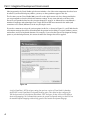
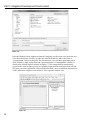
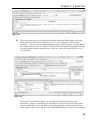
Click on the Toolbox tool window, which will cause the window to expand, followed by the pin
icon, which will pin the tool window open. To add controls to the form, select the appropriate
items from the Toolbox and drag them onto the form. In Figure 1-8, you can see how the Toolbar
tool window appears after being pinned and the result of clicking and dragging a button onto
the form visual designer.
Figure 1-8
3.
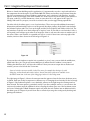
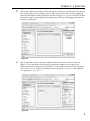
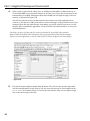
Add a button and textbox to the form so that the layout looks similar to the one shown in
Figure 1-9. Select the textbox and select the Properties tool window (you can press F4 to
automatically open the Properties tool window). Use the scrollbar to locate the (Name) property
and set it to txtToSay. Repeat for the button control, naming it btnSayHello and setting the
Text property to “Say Hello!”
Figure 1-9
9