1
CHAPTER 2
Setting up your SMART Document Camera
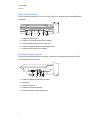
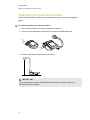
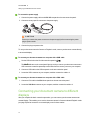
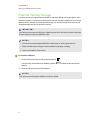
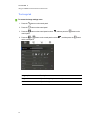
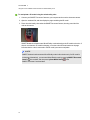
To connect the power supply
1. Connect the power supply cable to the DC 12V receptacle on the rear connection panel.
2. Connect a country-specific connector to the power supply.
3.
C A U TION
Ensure you connect the power connector to the power supply before connecting the power
plug to a power outlet.
4. Connect the plug to a power outlet.
To use your document camera in Camera or Playback mode, connect your document camera directly
to an external display.
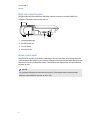
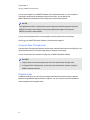
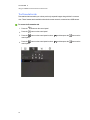
To connect your document camera to a computer with a USB cable
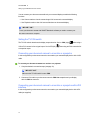
1. Set the USB switch on the left side connection panel to
.
The
indicator on the control panel lights up, and you can use your document camera as a
USB camera or to transfer captured pictures/videos from the memory source to your computer.
2. Connect a USB cable to the USB receptacle on the rear connection panel.
3. Locate the USB connector on your computer, and then connect the cable to it.
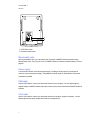
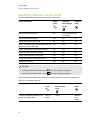
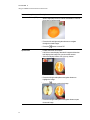
To connect your document camera to a computer with a VGA cable
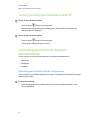
1. Connect a VGA cable to the VGA In receptacle on the rear connection panel.
2. Locate the VGA Out connector on your computer, and then connect the cable to it.
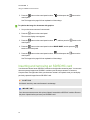
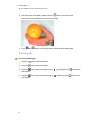
Connecting your document camera to different
displays
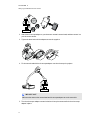
After you complete the basic connection procedure, you can connect your document camera to an
external display. This enables you to use the document camera in Camera mode and Playback mode
(see page 23) and to access the on-screen display menu for those modes.
13