1
CHAPTER 7
Using 3D Tools for SMART Notebook software and Mixed Reality Tools
Inserting 3D models
3D models are available from the 3D Objects folder in Lesson Activity Examples and the
SMART Exchange™ website (exchange.smarttech.com) as well as the Trimble 3D Warehouse (see
Using Trimble 3D Warehouse on page 73). You can also insert your own 3D models if they are in one
of the following formats:
l
COLLADA (.dae)
l
3D Object (.obj)
l
FBX (.fbx)
N OTE
Textures and other information for some 3D models are stored in separate files and folders. When
you insert these 3D models, ensure the 3D model file is located in the correct folder structure with
the supporting files and folders.
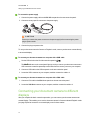
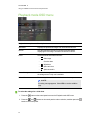
To insert a 3D model
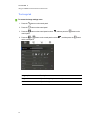
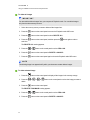
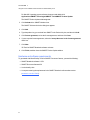
1. Select Insert > 3D File.
The Insert 3D File dialog box appears.
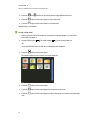
2. Browse to and select the 3D model you want to insert.
3. Press Open.
The 3D model appears on the page.
Manipulating 3D models
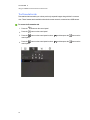
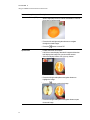
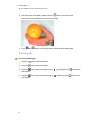
After inserting a 3D model, you can manipulate it in the same way you manipulate other objects in
SMART Notebook software. In particular, you can do the following:
63
l
Cut, copy and paste
l
Clone
l
Move
l
Scale
l
Lock
l
Attach links and sounds
l
Add to the Gallery tab