1
System settings
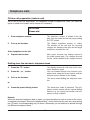
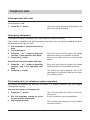
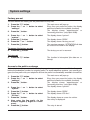
If necessary you can update the operating software on the telephone. This is possible via ISDN
line from our update server or via the USB port of the telephone from your local PC (only tiptel
2030). Before using the ISDN update unplug the USB cable.
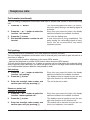
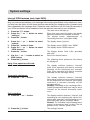
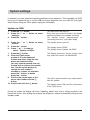
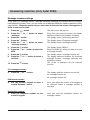
Update via ISDN
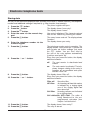
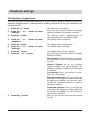
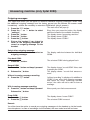
Press the c button.
Press the n or o button to select
"settings".
Press the q button.
The main menu will pop up.
4.
Press the n or o button to select
"system".
The display shows "system".
5.
Press the q button.
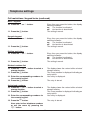
Press n or o in order to
select "Update via ISDN".
Press the f button.
The display shows "ISDN".
6.
1.
2.
3.
7.
8.
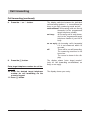
Every time you press the button, the display
switches between the available functions.
The display shows "appointments" or
"answering machine" (only tiptel 2030).
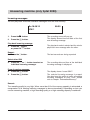
The display shows "Update via ISDN".
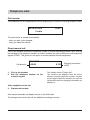
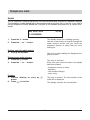
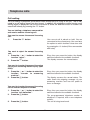
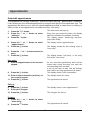
The display shows the "Server number" and
may show the number "02102428438".
Enter the Tiptel server
number if it is not displayed.
Please note when using the telephone on extensions that
you may need to precede this call
number with a code for the outside
line. Use the cursor buttons to
change the call number if
necessary; to enter the numbers
press the p button; to delete
press the q button.
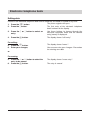
9.
Confirm the correct entry of the
server call number with the f
button.
10. Confirm this with the f button.
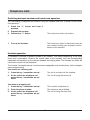
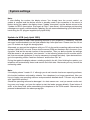
You will be asked whether you really want to
start the update.
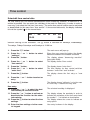
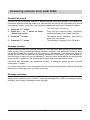
The display shows "Dial" and the call number
of the Tiptel server.
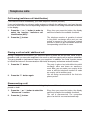
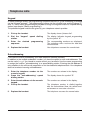
During the update the display will show "Updating, please wait" and a rotating symbol in the
bottom left corner. After ending the process, the telephone restarts automatically and goes into
standby mode.
39