1
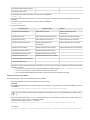
32- or 64-bit
For example, if the source server is 64-bit Windows 2003 R2, Enterprise Edition, the target server should also be 64-bit Windows 2003 R2,
Enterprise Edition.
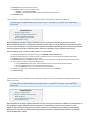
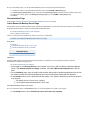
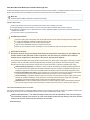
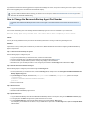
1. Power on the target server, or if it is already running, reboot the target server.
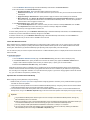
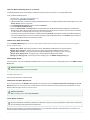
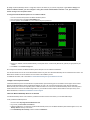
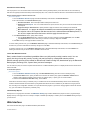
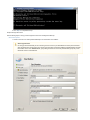
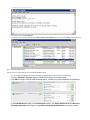
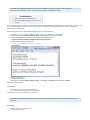
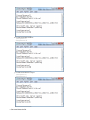
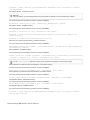
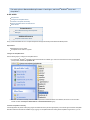
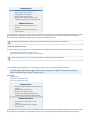
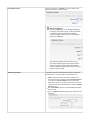
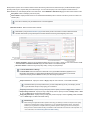
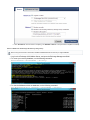
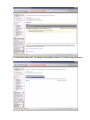
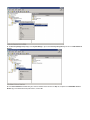
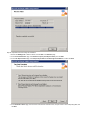
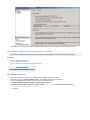
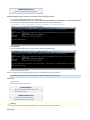
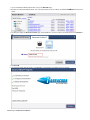
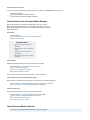
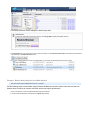
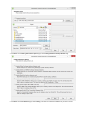
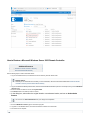
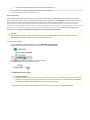
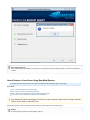
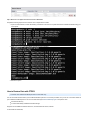
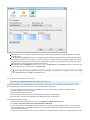
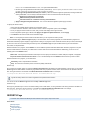
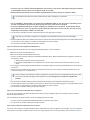
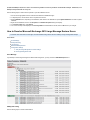
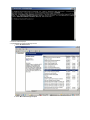
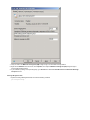
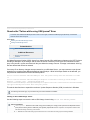
2. Once the target server boots up, hold down the F8 key until the Windows Advanced Options menu displays:
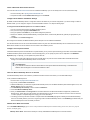
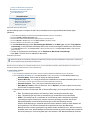
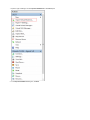
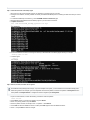
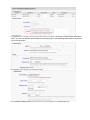
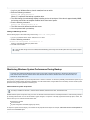
3. Use the Arrow keys on the keyboard to select the Directory Services Restore Mode:
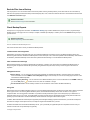
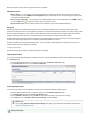
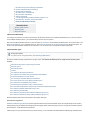
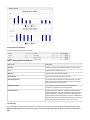
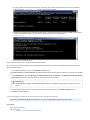
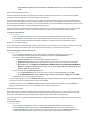
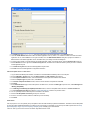
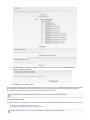
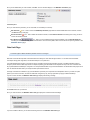
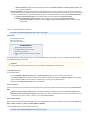
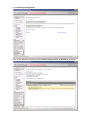
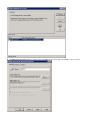
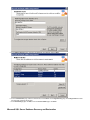
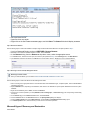
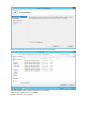
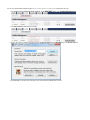
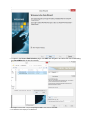
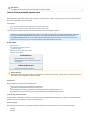
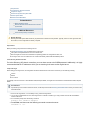
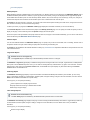
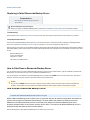
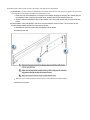
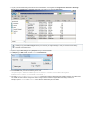
4. Press Enter. The Select Operating System to Boot menu displays; Select the appropriate operating system:
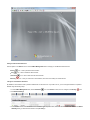
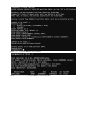
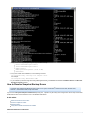
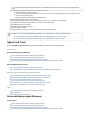
5. Press Enter. Windows reboots in Directory Services Restore Mode; Safe Mode displays onscreen:
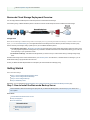
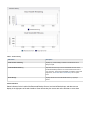
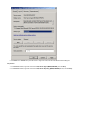
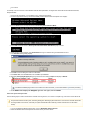
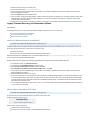
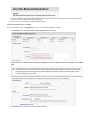
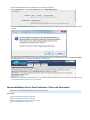
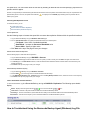
6. When the log in prompt appears, press Ctrl-Alt Delete and log in to Windows using the administrator account.
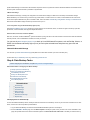
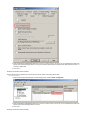
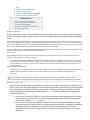
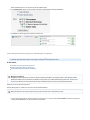
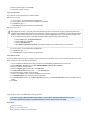
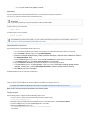
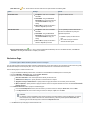
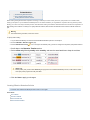
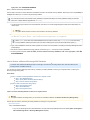
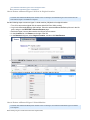
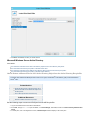
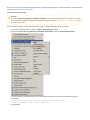
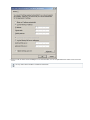
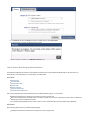
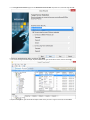
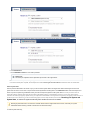
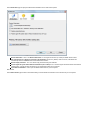
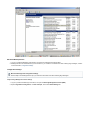
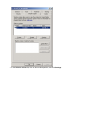
7. The Safe Mode warning dialog displays:
8. Click OK to close the dialog and continue in Safe Mode.
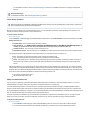
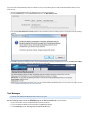
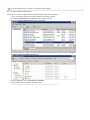
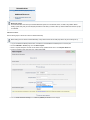
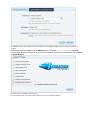
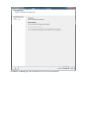
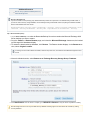
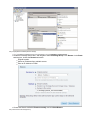
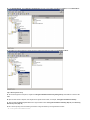
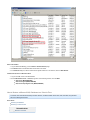
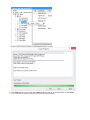
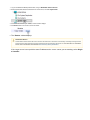
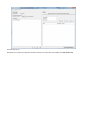
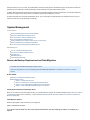
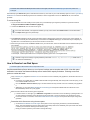
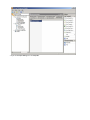
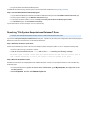
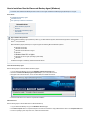
9. Click Start > Run, enter services.msc, and click OK to open Services.
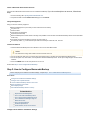
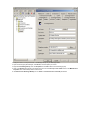
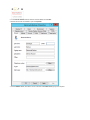
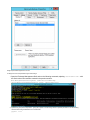
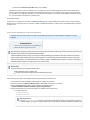
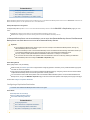
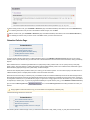
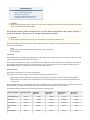
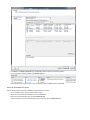
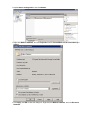
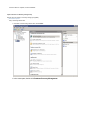
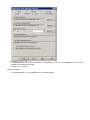
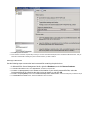
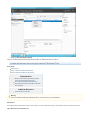
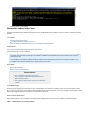
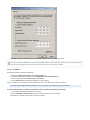
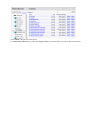
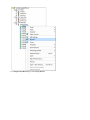
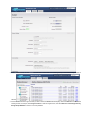
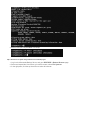
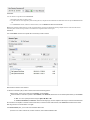
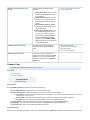
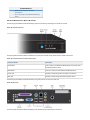
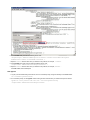
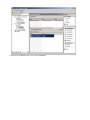
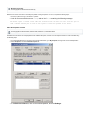
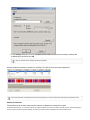
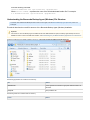
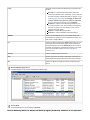
10. Navigate to Barracuda Backup Agent in the list of Services and verify the Status field displays as Started:
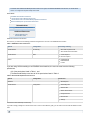
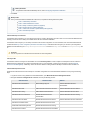
If the Barracuda Backup Agent Service is not listed in the Services window, you must first install the Agent before proceeding.
11.
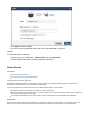
If the Status field displays as Stopped, right click the Agent, and click Start.
Restore File System and System State
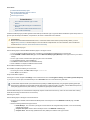
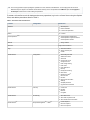
Use the following steps to restore an AD domain controller to the target server, or to restore a complete copy of the source server without AD.
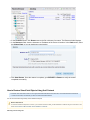
This procedure restores the file system, overwriting existing files. Restoring System State from a source domain controller restores AD
to its original state on that server; check with your system administrator before restoring a domain controller from an old revision
backup.
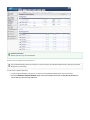
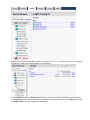
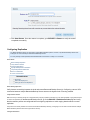
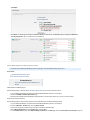
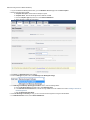
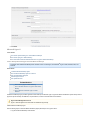
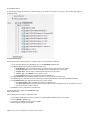
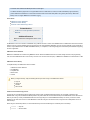
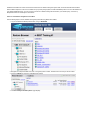
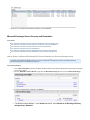
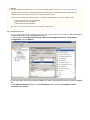
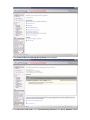
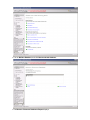
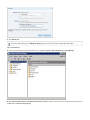
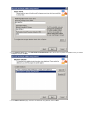
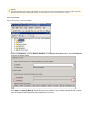
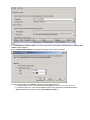
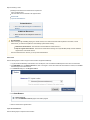
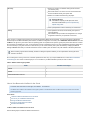
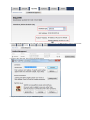
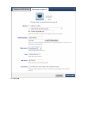
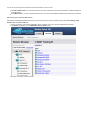
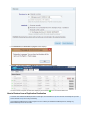
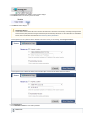
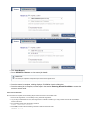
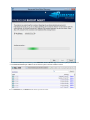
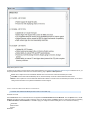
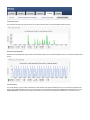
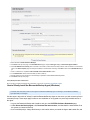
1. Log in to the Barracuda Backup web interface, and go to RESTORE > Restore Browser.
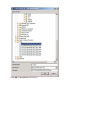
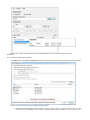
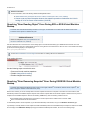
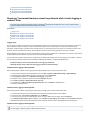
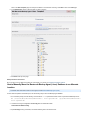
2. Select the Windows Server that represents the source server you wish to restore: