1
GETTING STARTED
CHAPTER
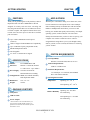
PRODUCT PART IDENTIFICATION
1.
2.
3.
4.
5.
6.
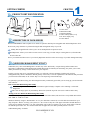
DESCRIPTION OF DOCK-MODES
1
1. Power LED
2. HDD Status LED
3. Duplicator Button
4. USB 3.0 Port [USB 2.0/1.1]
5. DC Power Input [12V]
6. Power Button
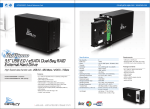
The EN-CAHDD2BU3C-ZB is capable of two modes of operation: dual-bay hot-swappable dock and disk duplicator. All of
the necessary setup functions are performed using the disk management utility of your OS.
Dual-Bay Hot Swappable Dock: Allows you to access multiple disks in rapid succession.
Disk Duplicator: Allows you to make an exact sector-to-sector copy of a disk with pre-existing data on it; all without the
need for a host PC.
The key to smooth and efficient use of your Cavalry Duplicator Dock lies in the correct usage of your disk management utility.
YOUR DISK MANAGEMENT UTILITY
In Windows, they call it “Disk Management”. In Mac, they call it “Disk Utility”. Despite having different names and
appearances, both Windows Disk Management and Mac Disk Utility do basically the same thing: they allow you to create,
modify and delete any storage volume connected to your computer.
In order to get the most out of your Duplicator Dock, you will need to become intimately familiar with your disk
management utility. We have included a detailed glossary of the terms, as well as explanations of the functions and procedures
you will need to understand, on our website: http://www.cavalrystorage.com/manuals.aspx.
It’s generally a good idea to keep your disk management utility continuously open while you are setting up your dock and the
disks within it!
How to Find Your Disk Management Utility
Windows: Navigate to Disk Management: Start Menu>right-click (My) Computer>select “Manage”>select Disk
Management.
Mac: Click an empty space on your Desktop. Then select (from the top of the screen) Go>Utilities>Disk Utility.
“Seeing” Your New Disk in the Disk Management Utility
In Mac, this is a pretty straight-forward affair. Just look at the left-hand column, and search for a newly added disk with the
term “DMI” or “USB” in it’s title.
Windows arbitrarily assigns a “Disk Number” to every new disk that is connected; even if the disk does NOT show up in
(My) Computer. “Disk 0” is always your system or C: drive. Your Cavalry drive will appear somewhere beneath Disk 0. It
will be given a number, like Disk 1 et al. You will probably only be able to recognize it by its size, which will be a little bit
less than the quoted drive size. If a connected disk does not appear here, the disk is probably defective. See the
troubleshooting FAQ for details.
EN-CAHDD2BU3C-ZB
2