1
2-Port eSATA3 RAID PCIe Card
3. Hardware Installation
1.
2.
3.
4.
5.
6.
7.
Power down the computer, remove the computer cover.
Choose an unused PCI Express bus slot, unscrew and remove the slot
cover.
Place the SATA3 RAID PCIe Card into the slot. Carefully press the board
into the slot until it seats firmly.
Secure the SATA3 RAID PCIe Card with the slot cover screw.
Install the SATA cables from the SATA connectors to your SATA devices.
Carefully reinstall the computer cover. Insert and tighten the computer
cover screws.
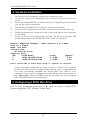
Power up the PC and observe the monitor. The BIOS lists all Serial ATA
devices attached to the SATA3 RAID PCIe Card. For example:
Marvell 88SE91xx Adapter – BIOS Version x.x.x.xxxx
PCIe x1 5.0Gbps
Mode: CPU AHCI
Virtual Disk
No Virtual Disk!
Physical Disk
[ID]
[DISK Name]
[Size]
[Speed]
0
SATA ST32000641AS
1.83TB
6.0G
8
SATA ST32000641AS
1.83TB
6.0G
Press <Ctrl>+<M> to enter BIOS Setup or <Space> to continue
If the information displayed on your monitor is correct (the installed
devices are listed with the correct device name, etc.), congratulations!
You have successfully installed the SATA3 RAID PCIe Card in your
computer. If you want to configure your RAID drives, press and hold the 2
keys, Ctrl and M, to enter the BIOS Setup for this card. You can configure
the SATA RAID modes in the BIOS Setup.
4. Configuring a SATA Disk Array
Turn on your computer and press <Ctrl> and <M> keys to enter BIOS
Setup during the POST (Power-On Self-Test).
2