1
Installation
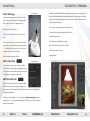
Accessing The Plug-Ins
Windows
Accessing the Plug-Ins in Photoshop or Photoshop Elements
1. Close all open applications.
1. Launch Photoshop, Photoshop Elements, or your image editing application.
2. Insert the Complete Collection CD.
2. Open an image.
3. When the auto-run installer appears, choose the plug-in to install.
4. The installer will appear, review the Read me, accept the License Agreement, and review
the suggested installation location. For example, the appropriate location for Adobe Photoshop CS3 is:
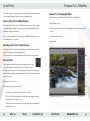
3. Click on the Filters menu and roll over Nik Software. A popup menu appears. Choose the
C:\Program Files\Adobe\Adobe Photoshop CS3\Plug-Ins*
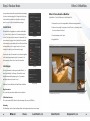
Tip: To access the Nik Selective Tool, navigate to the File > Automate or File > Automation Tools
5. Specify whether the Nik Selective Tool launches automatically when you start Photoshop.
Please see the User Guide for the selected plug-in for more information.
menu and select Nik Selective Tool.
6. When the installation is complete, click the Finish button to close the plug-in installer and
return to the Complete Collection installer to choose another plug-in to install.
*If you are using an image editing application other than Photoshop, please refer to your
plug-in to enhance your image.
Accessing the Plug-Ins in Aperture
application’s user manual.
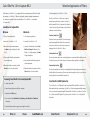
1. Launch Aperture.
Macintosh
2. Highlight the image(s) you wish to enhance with a plug-in.
1. Close all open applications.
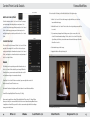
3. Click the Images menu and roll over Edit With. A popup menu appears. Choose the plug-in
2. Insert the Complete Collection CD.
to enhance your image.
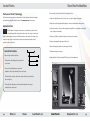
3. Open the CD and double-click on the Complete Collection Setup file.
4. Choose the plug-in to install, and then specify whether to install the plug-in into either
Adobe Photoshop or Apple Aperture. When the plug-in installer appears, click Next to begin
installation.
5. After reading the Read Me and accepting the License Agreement, the installer attempts to
install into the appropriate location. When installing into Photoshop or Photoshop Elements,
check the installation path to ensure the installer located the appropriate folder. The appropriate location for Adobe Photoshop CS3 is:
Macintosh HD : Applications : Adobe Photoshop CS3 : Plug-Ins*
6. When installing into Photoshop, specify whether the Nik Selective Tool launches automatically when you start Photoshop. Please see the User Guide for the selected plug-in for more
information.
7. When the installation is complete, click the Finish button to close the installer and return
to the Complete Collection installer.
4
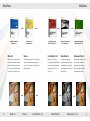
Dfine 2.0
Viveza
Color Efex Pro 3.0
Silver Efex Pro
Sharpener Pro 3.0
5