1
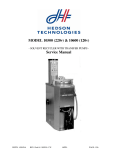
TTP 2000 Kiosk Printer
Service Manual
Publ. No.: 10xxxx, Ed. A, January 12, 2007
Acknowledgments
Adobe and Acrobat are trademarks of Adobe Systems
Incorporated
Windows is a trademark of Microsoft Corporation
This is a publication of Swecoin AB
Box 322, SE-192 30 SOLLENTUNA, Sweden
Phone
+46 8 623 45 60
Fax
+46 8 594 709 89
E-mail
[email protected]
[email protected]
Web site http://www.swecoin.se
© Swecoin AB, 2006
All rights reserved. Reproduction in whole or in parts is prohibited without written consent of the copyright
owner. We have taken great care to ensure that the information in this manual is correct and complete.
However, if you discover any errors or omissions, or if you wish to make suggestions for improvements, you
are welcome to send your comments to us. Swecoin AB disclaims any liability resulting from the use of this
information and reserves the right to make changes without notice.
Edition AX, January 2007
Printed in Sweden
2
Introduction
CONTENTS
1 Introduction...................................................................................................................5
1.1
About this manual............................................................................................5
1.2
Updating ..........................................................................................................5
1.3
Safety precautions...........................................................................................5
2 Product presentation....................................................................................................6
2.2
Controls ...........................................................................................................8
3 Installation...................................................................................................................10
3.1
Installing a paper guide .................................................................................10
3.2
Making a test printout ....................................................................................11
3.3
Clearing paper jams ......................................................................................12
4 Default parameter settings ........................................................................................13
5 Maintenance ................................................................................................................14
5.1
Fault finding...................................................................................................14
5.2
Cleaning the print head .................................................................................15
5.3
Firmware........................................................................................................15
6 Repair...........................................................................................................................17
6.1
Printhead .......................................................................................................17
6.2
Presenter rollers ............................................................................................18
6.3
Presenter table ..............................................................................................20
6.4
Cutter.............................................................................................................21
6.5
Platen ............................................................................................................23
6.6
Presenter drive rollers ...................................................................................25
6.7
Control board.................................................................................................25
6.8
Motors............................................................................................................27
6.9
Sensor board, Paper-out ...............................................................................30
7 Adjustments ................................................................................................................32
8 Replacement parts......................................................................................................33
0701
TTP 2000 Kiosk Printer–Service Manual
3
Introduction
REGISTER NOW!
If you wish to stay informed of product changes, manual updates etc., you are
welcome to subscribe to our bulletin service.
To register as a subscriber, either visit our web site http://www.swecoin.se to fill in
your subscription request, or send e-mail to [email protected].
Enter the text Subscribe bulletins as the subject. Do not enter any text in the message
area.
Registration date (for your own records):
REVISION HISTORY
Edition A: .
4
TTP 2000 Kiosk Printer–Service Manual
0701
Introduction
1
INTRODUCTION
1.1
About this manual
This manual contains information required to repair the TTP 2000 printers.
1.2
Updating
This manual will be updated as, from time to time, printer functions and features may be
added or amended. You will always find the latest edition on our web site
(http://www.swecoin.se). You can order printed copies of the current manual by e-mail,
fax, or phone.
If you require functions not found in the manual edition at your disposal, you are welcome
to consult one of our representatives for information.
1.3
Safety precautions
Handling the printer in a safe way requires that you keep your fingers away from the
cutting mechanism when the power is switched ON.
0701
TTP 2000 Kiosk Printer–Service Manual
5
Product presentation
2
PRODUCT PRESENTATION
The TTP 2000 series are kiosk printers for 58 to 82.5 mm paper using direct thermal
printing. It has integrated guillotine cutter, looping presenter with built in retract and retain
function, and control board. The print speed is 150 mm per second, and the presenting
speed 300 mm/s to ensure high throughput.
The printhead can easily be opened to give the operator access to the paper path, and
print head, for maintenance purposes.
Loop area
Presenter driver
Printhead
ٛ
ٛ
Printout
exit
ٛ
ٛ
ٛ
Paper entry
Cutter
Control
board
Control panel on both
sides of the printer
Retract exit
(to waste basket)
Figure 1 Principle of operation
The capability of the control board differs between the versions of TTP 2000:
Interface
TTP 2010
TTP 2020
TTP 2030
Serial
Parallel
USB
Printer drivers for Microsoft Windows™ and Linux are available, and the printer is
compatible with the Plug and Play standard.
The text capability of TTP 2010 and 2020 makes it easier to print directly from the kiosk
software without using a driver.
6
TTP 2000 Kiosk Printer–Service Manual
0701
Product presentation
2.1.1
Looping presenter
Store printout
in loop
Print
Print
The loop generating presenter
mechanism has many benefits;
ٛ
ٛ
•
It handles documents of
various lengths by storing
the printed paper in a loop.
•
It holds the printout until fully
printed and cut before
presenting the completed
printout to the customer.
•
When presented, only a
portion of the printout is
ejected, and then when the
customer pulls the paper the
pull detector start the motor
to eject the rest.
You can also select to eject
so that the very end of the
printout is held by the
printer, or eject it fully.
•
The retract-and-retain
function can retract
uncollected printouts and
throw them in a wastebasket
inside the kiosk. Retracts
are reported to the driver so
any remaining data for that
printout can be deleted.
Cut
Cut
Present
ٛ
Retract
ٛ
Present
Printout
ٛ
ٛ
ٛ
ٛ
ٛ
Retract to wastebasket
0701
Figure 2 The Swecoin looping presenter
TTP 2000 Kiosk Printer–Service Manual
7
Product presentation
2.2
Controls
Printhead lock/
cutter protection
Feed Button
Paper low
Connector
Power Indicator
Status Indicator
Power
Interface Connector
Connector
Figure 3 Rear view
The controls are duplicated on both sides of the printer so that they are easily accessible
regardless of how the printer is installed.
2.2.1
Feed button
The Blue feed-button has several functions:
8
R
Fe
ed ower tus
P Sta
•
Short press; eject printout from presenter
•
Longer press; feed, cut, and present a complete page.
Any data in the print buffer will be printed. If the buffer is empty the page will be
blank.
In black mark mode, the page will be synchronized with the black mark.
•
Press and hold while turning on the power, or while opening and closing the
printhead to print a self-test printout. See page 11.
TTP 2000 Kiosk Printer–Service Manual
0701
Product presentation
2.2.2
Status indicator
● The status indicator has several functions:
ON constantly — the printer is operational
Flashes rapidly — indicates error. Hold down the feed-forward button and the
number of blinks will reflect the status-code.
1
2
3
4
5
6
Presenter jam, paper cannot be ejected / retracted
Cutter cannot return to home position
Out of paper
Printhead lifted
Paper feed error (under head)
7
8
Fast flashes
Steady light
Temp error, printhead is above 60°C
Presenter jam, motor cannot rotate
Paper jam during retract
Checksum error, firmware
Wrong firmware type or target for firmware loading
Status-codes are reset:
1
2
3
When the conditions causing them are removed
When the printer is turned off/on
When the printhead is lifted and then lowered.
Blink, blink, pause, blink, blink — is the warning-code for paper low1
The warning-code is reset automatically when the condition causing it is removed.
2.2.3
Voltage indicator
24 V
● Green indicator constantly ON:
24 V present
5V
The electronics in the printer runs on 5 V. This voltage is generated from the 24 V supply
by a switched mode regulator on the control board. If the green indicator lights up but the
yellow status indicator stays off, this indicates problems with the 5V generation.
1
0701
This signaling is disabled by default. It can be disabled/enabled by setting parameter p52
TTP 2000 Kiosk Printer–Service Manual
9
Installation
3
INSTALLATION
3.1
Installing a paper guide
The paper guide selects if the printer should use 58, 60, 80, or 82.5 mm paper width. The
printer senses what paper guide is fitted and adjusts to it automatically. The TTP 2000
printers are delivered without paper guide fitted.
1. Select the paper guide you want to install1
2. Open the printhead by pushing green printhead lock plate backwards and lifting
up the printhead, see page 12.
3. Enter the T-shaped tab of the paper guide into the “T”-hole, and fasten the screw.
4. Close the printhead
“T”-hole
Paper
Guide
Width
in mm
Screw
M3 x 4
Figure 4 Fitting a paper guide
1
Evaluation kits contain all input guides available. Regular volume deliveries only contain the appropriate guide for the customer
in question.
10
TTP 2000 Kiosk Printer–Service Manual
0701
Installation
3.2
Making a test printout
1. Load paper
2. Switch OFF the power.
3. Hold the feed-forward button depressed while powering ON
the printer. Keep the button depressed until printing starts.
Self-test
This produces a printout showing the firmware program version
and date, control board revision number and serial number,
name of loaded fonts and logotypes, and the parameter
settings.
4. Each successive press of the button will produce a test
printout.
Switch the printer OFF and ON again to exit self-test mode.
0
If a power button is not available for the printer, follow the
below procedure:
1
1. Lift the printhead
2. Hold the FF-button pressed while lowering the head
and hold it pressed while an auto load of paper is done
3. Release the button and a self-test printout will be printed
4. The printer exits self-test mode and goes on-line
0701
TTP 2000 Kiosk Printer–Service Manual
11
Installation
3.3
Clearing paper jams
Should a paper jam occur, follow the procedure below:
Open the printhead by:
1. Press the green release lever toward the rear of the printer.
2. Lift the head.
Figure 5.
Opening the printhead
3. Remove any paper trash and close the printhead.
ٛ
Figure 6.
12
Remove paper trash
TTP 2000 Kiosk Printer–Service Manual
0701
Default parameter settings
4
DEFAULT PARAMETER SETTINGS
Some of the printer settings can be stored in the flash PROM so that they will be used
also after power OFF.
The stored parameter settings are printed out on the self-test printout.
During diagnostics and repair we recommend you to have default settings loaded into the
printer to avoid unexpected results.
If a customer demands a specific parameter setup, load those parameters to the printer
as a last step of the service.
Parameters can be set with utility programs available on www.swecoin.se
0701
TTP 2000 Kiosk Printer–Service Manual
13
Maintenance
5
MAINTENANCE
5.1
Fault finding
In connection with service of the printer it is good practice to remove paper dust and lint
from the paper path, cutter and sensor areas. Paper dust, when accumulated, may
interfere with printer functions such as optical sensors.
To avoid smudging the paper, do not apply oil on the cutting knife.
Symptom
Suggested actions
Nothing is printed when you press
the feed button in self-test mode,
but the document is transported, cut
and ejected.
•
Check that the paper roll is turned the correct way with
thermal sensitive layer facing up.
•
Check that the paper used meets the paper
•
Check that the printhead cable is fully inserted into the
connectors at each end.
Paper jam
•
Check cutter-home sensor.
Printer does not work at all
•
Check that the printhead is closed.
•
Check that power is supplied to the printer.
•
Check the function of the paper-out sensor.
•
Check that both ends of the interface cable are
properly connected.
•
Application program might be incorrect. Contact system
manager.
No cutting
•
Check that the connector for the cutting motor is fully
seated on the control board.
Bad cutting (uneven top and bottom
document edges).
•
Switch OFF printer and remove any obstructing paper
particles in cutter and presenter modules.
Inconsistent cutter operation
•
Check/clean cutter-home sensor.
Paper is fed straight through the
printer. Paper does not loop.
•
Check/clean presenter sensor.
•
Check setting of parameter p9.
Pull detector does not work.
•
Clean presenter rollers with isopropyl alcohol.
Missing print or irregular spots.
•
Paper may be too humid. Let it adapt to ambient
temperature and humidity for approximately 24 hours
before use.
•
The paper used might not meet the paper specification.
White longitudinal lines in the printout.
•
Faulty print head, replace.
Faint print.
•
The paper used might not meet the paper specification.
•
Clean print head with ethyl or isopropyl alcohol.
•
Adjust print contrast, see Technical manual
•
Might be caused by erroneous data sent from the host.
Check validity of transferred data.
•
Check handshaking setup.
•
Check interface cable.
Self-test prints OK, but the printer
works strangely in normal operation.
Strange characters or graphics
printed, or any kind of strange
printer behavior.
Table 1.
14
Faultfinding
TTP 2000 Kiosk Printer–Service Manual
0701
Maintenance
5.2
Cleaning the print head
The print head can be cleaned without removal.
1. Open the printhead.
2. Clean the heat elements with a cotton swab immersed in ethyl or isopropyl alcohol.
5.3
Firmware
The firmware is stored in flash-PROM on the control board. A replacement control board
may not contain the same firmware version that you are currently using, so if you replace
control board for some reason, upgrade it to the firmware version you want to use.
5.3.1
Loading
REMEMBER! – Always design your kiosk system so that remote upgrade of firmware is
possible. If you need to upgrade firmware in the future, the kiosks can
be spread over a vast area and upgrade can become very expensive.
Fetch the firmware from the Swecoin web site http://www.swecoin.se. There you will also
find a loader program (Windows™ software) facilitating the loading of the firmware into
the printer.
The loader program contains a help file with detailed instructions on how to load the
firmware into the printer.
In non-Windows environments, use the following procedure to load the firmware:
1. Send ESC NUL (1BH 00H) to the printer.
2. Wait 0.5 seconds.
3. Send the firmware file to the printer.
4. Wait until the printer buzzes to confirm that the loading is complete (the presenter
motor runs for a second).
CAUTION! – The loading and burning can take up to one minute. Do not abort before
one minute by turning OFF the power to the printer. Doing so may leave
the printer in a state where new firmware cannot be loaded.
0701
TTP 2000 Kiosk Printer–Service Manual
15
Maintenance
5.4
Bootware
The control board uses a small program that we call bootware to start the board and
makes it ready to receive firmware. Without bootware the board is dead and cannot
communicate. After a proper firmware loading, the bootware is no longer necessary.
To load bootware:
1) Connect a jumper to short the pins of connector JMP1 on the control board.
2) Connect a serial adapter to control board
connector J4.
3) Connect the PC to the serial port through
a 01902-000 boot cable (this is a normal
serial cable but pins 1 and 8 are
interconnected in both ends).
4) Turn the printer ON.
5) Start the H83068.exe loader software.
For TTP 2010
6) Select boot file (1817-xxx.bin), and
application file (1818-xxx.bin)
For TTP 2020 and TTP 2030
6) Select boot file (1816-xxx.bin), and
application file (1814-xxx.bin)
7) Press the load button
8) When loading is complete, remove the
jumper from JMP1, and load fonts and set
up parameters using for example the TTP
editor.
16
TTP 2000 Kiosk Printer–Service Manual
0701
Repair
6
REPAIR
6.1
Printhead
6.1.1
Removal
Remove the two screws holding the printhead. Remove the hub that is under the screw
on the right hand side.
Use a thin bladed flat screwdriver to pry the connector out from the socket and lift out the
printhead.
CAUTION! — NEVER pull the cable to loosen the connector. This will destroy the thin
leads of the cable!
0701
TTP 2000 Kiosk Printer–Service Manual
17
Repair
6.1.2
Installation
When fitting the new printhead, remember that the panhead screw is on the paper low
connector side and the countersunk screw with it’s hub fits on the interface connector
side of the printer.
Press the printhead down while tightening the screws.
Make a self test printout to verify that the new printhead works as it should. See also
“Adjustments”.
6.2
6.2.1
Presenter rollers
Disassembly
Remove the rear roller guide by pressing the tabs inwards and lifting it up.
18
TTP 2000 Kiosk Printer–Service Manual
0701
Repair
Remove the front roller guide by gently lifting it on one side, and then on the next side.
DO NOT pull extensively or you will break the plastic forks that hold the part to the
rotating shaft.
To remove the steel shaft and the rollers, gently lift the tab in the center and press the
shaft sideways.
6.2.2
Assembly
Engage the forks of the front roller guide with the groves in the shaft.
Press on both sides until the part snaps in place.
Put the rear roller guide in place and press it down at one end at a time. Lift the printer in
the guide to verify that it is properly fixated.
6.2.3
Lubrication
Lubricate the rollers on both sides where the shaft enters the hole in the rollers.
CAUTION! – The groves and forks should not be lubricated. If they are the retract
function of the printer may fail.
0701
TTP 2000 Kiosk Printer–Service Manual
19
Repair
6.3
6.3.1
Presenter table
Removal
Loosen the four screws on the sides of the printer, you do not need to remove them, just
loosen a couple of turns.
Lift the presenter table straight up to remove it.
6.3.2 Replacement
Make sure the tabs of the cutter blade passes the
rear edge of the table, press it down and tighten
the four screws.
20
TTP 2000 Kiosk Printer–Service Manual
0701
Repair
6.4
6.4.1
Cutter
Removing the moving blade
Rotate the cogwheel with your fingers so that the cutter comes to it’s top position.
Grab the blade, tilt it slightly forwards and lift it up form the cutter linkage and take it out.
6.4.2 Fitting a new blade
Use Vaseline spray to lubricate the face of the cutter blade where the cutter spring
(arrows) touches the blade before putting the table back.
Insert the blade in the slots of the cutter linkage.
Tilt the blade backwards gently and turn the cogwheel so that the blade goes down. Make
sure that the tab on the blade enters the hole in the control board.
0701
TTP 2000 Kiosk Printer–Service Manual
21
Repair
6.4.3
Removing the fixed blade
Loosen the two screws holding the blade. There is no need to remove them, just open
them a couple of turns.
Open the printhead.
Use a flat screwdriver to keep the spring that rests on the blade in place, and remove the
blade.
Move the screws to the new blade and install it into the printhead module.
Tighten the screws.
22
TTP 2000 Kiosk Printer–Service Manual
0701
Repair
6.5
6.5.1
Platen
Removal
Press the plastic bearing together with your fingertips while lifting the platen with one
finger.
Repeat the above on the other side and lift out the platen and the plastic scraper.
0701
TTP 2000 Kiosk Printer–Service Manual
23
Repair
6.5.2
Assembly
Make sure the bearings are oriented like on the below photo,
Put the scraper and bearings onto the platen and enter the package into the slots in the
side-plates of the printer.
Press firmly downwards until the bearings jumps in place with an audible click.
24
TTP 2000 Kiosk Printer–Service Manual
0701
Repair
6.6
Presenter drive rollers
Bend the bearing plate outwards and lift the roller.
Free the other end of the roller and take it away.
Lubricate the ends of the roller with Vaseline spray before putting the roller back.
6.7
6.7.1
Control board
Removal
Put the printer on it’s front and loosen the four screws holding the bottom plate.
0701
TTP 2000 Kiosk Printer–Service Manual
25
Repair
Paperout/TOF- cable
Printhead cable
Gently loosen the bottom plate and then using a thin bladed screwdriver, pry the
connectors out from their sockets. You must remove the paper out/TOF sensor card
cable, the printhead cable, and the three motor cables.
CAUTION! — NEVER pull the cable to loosen the connector. This will destroy the thin
leads of the cable!
REASSEMBLY
Route the black printhead
cable around the capacitor
(thin arrow) and clamp it
under the yellow component
(wide arrow). This ensures
that the cutter link does not
hit the cable when it moves.
26
TTP 2000 Kiosk Printer–Service Manual
0701
Repair
6.8
Motors
All three motors are the same so you can use a cutter motor from one printer as
replacement part for the presenter motor in the next. To test the windings of a motor that
you suspect is faulty, measure the resistance of the coils and verify that they are 16Ω.
On the left side of the printer is a bracket with two motors. The front one is the presenter
motor and the rear one the platen motor (print motor). On the right side of the printer is a
bracket with the cutter motor.
6.8.1
Presenter and platen motor
Remove the two nuts and the brass hub using a 5 mm spanner.
Lift the motor assembly out from the printer and remove the motor you are to replace.
0701
TTP 2000 Kiosk Printer–Service Manual
27
Repair
6.8.2
Cutter motor
REMOVAL
Remove the C-clip that fixates the cutter link to it’s shaft (Thin yellow arrow)
Remove the two screws indicated in the photo above.
Free the cutter link from the tap in the cogwheel
Lift out the motor assembly.
REASSEMBLING
Reassemble in the reverse order. If the pin that transfers the movement from the
cogwheel to the cutter link has been removed, remember to fit it with the longer end into
the cogwheel and the shorter end into the cutter link.
Press the cables in under the motors so they are out of the way from moving parts.
Apply Vaseline to the cutter link and cogwheels.
28
TTP 2000 Kiosk Printer–Service Manual
0701
Repair
0701
TTP 2000 Kiosk Printer–Service Manual
29
Repair
6.9
Sensor board, Paper-out
The sensor board located at the rear of the printer under the input guide have sensors
that are used to detect the paper with, sense paper out and detect black marks.
REMOVAL
Remove the screws that hold the rear plate (one screw at each side of the printer)
Lift the assembly out of the printer.
Disconnect the cable using a thin-bladed screwdriver.
CAUTION! — NEVER pull the cable to loosen the connector. This will destroy the thin
leads of the cable!
Remove the four nuts holding the board using a 5 mm spanner.
REASSEMBLY
30
TTP 2000 Kiosk Printer–Service Manual
0701
Repair
Put the parts together in the reverse order.
Before tightening the screws, put the printer on a flat surface and press it down while
tightening the screws.
0701
TTP 2000 Kiosk Printer–Service Manual
31
Adjustments
7
ADJUSTMENTS
Tolerances in the mechanical design of the Swecoin TTP 2000 are set so that only a
minimum of adjustments is required:
1) The position of the print line of the thermal printhead was adjusted in the factory. If
the printhead is replaced, this adjustment should be verified, and perhaps readjusted.
Marker line wear patterns
Dot line
(Black)
Marks from marker pen
Move backwards
32
TTP 2000 Kiosk Printer–Service Manual
Move Forwards
0701
Replacement parts
8
REPLACEMENT PARTS
Items coded SP are standard replacement parts.
1. Screws, washers, nuts etc. are available in a common hardware store, and are thus
not supplied as replacement parts.
2. Parts that are considered as not being worn by normal printer use are not
replacement parts, for example the printer chassis.
Should you require any of these "non-replacement parts", contact Swecoin for advice.
Other price and delivery conditions may apply for non-coded items.
Standard hardware
Designation example
How to interpret the designation
Screw MRX-H M3x5
Panhead screw. Thread: M3. Length: 5 mm
Screw MFX-H M3x6
Countersunk screw. Thread: M3. Length: 6 mm
Screw M6S M6x16
Hex head screw. Thread: M6. Length: 16 mm
Screw MC6S M6x12
Allen-head screw. Thread: M6. Length: 12 mm
Screw FXS-H ST 2.9x6.5
Countersunk. Self-threading. ∅2.9 mm. Length: 6.5 mm
Screw, RXK-H ST 2.9x8
Panhead screw, Self-threading. ∅2.9mm. Length:8 mm
Screw RTK ST 2.9x6.5
Torx panhead. Self-threading. ∅2.9mm. Length: 6.5 mm
Nut M6M M2
Hex nut, M2 thread
Illustration
How to
measure
Length
DO NOT OVER-TIGHTEN THE SCREWS!
The max torque for the different screw sizes are as follows:
M2 = 0,13 Nm
M2.5 = 0,26 Nm
M3 = 0,46 Nm
M4 = 1.1 Nm
TOOLS, THREAD LOCKING AND LUBRICATION
Tools
Swecoin Part No.
Screwdriver Phillips No. 1
02542-001
Screwdriver Torx T9
02449-009
Screwdriver Flat blade 2 mm
Wrench 5 mm
Thread lock for screws that hold plastic parts
103650
Vaseline spray to lubricate moving parts
104237
Use Dexron II or III automatic transmission oil.
0701
TTP 2000 Kiosk Printer–Service Manual
33
Replacement parts
This page is intentionally left blank.
34
TTP 2000 Kiosk Printer–Service Manual
0701
Replacement parts
Item.
SP
Part No.
Designation
1
2
3
5
4
6
7
8
9
10
11
12
13
14
15
X
00375-000
01268-000
02096-001
02382-000
02096-002
09022-309
09045-105
09045-107
09100-121
09100-197
09100-218
09101-220
09200-188
09200-189
09200-191
Cog Wheel
Tie wrap 71 x 1.8 mm
Label TTP 2000 Button L
Label, "Swecoin"
Label TTP 2000 Button R
Nut M6M M2.5
Circlip RS 1.9
Circlip RS 3.2
Screw MRX-H M2x6
Screw MRX-H M2.5x12
Screw MFX-H M3x4
Screw MFX-H M3x6
Screw (TX) MRT M2.5x3
Screw (TX) MRT M2.5x4
Screw (TX) MRT M2.5x6
2
1
1
1
1
6
2
4
6
1
1
1
2
2
28
Pcs.
Pcs.
Pcs.
Pcs.
Pcs.
Pcs.
Pcs.
Pcs.
Pcs.
Pcs.
Pcs.
Pcs.
Pcs.
Pcs.
Pcs.
100060
100479
100481
101771
102938
102947
102949
102950
102951
102952
102956
102958
102959
102963
102966
102967
102970
102971
102974
Screw MFX-H M2x6
Screw MFX-H M2.5x12
Spacer DRM 2550x4
Hub
Bottom Protection
Rear Plate
Pressure Plate
Front Plate
Motor Bracket
Stripper
Hub
Cutter Blade, Moving
Side Plate
Cog Wheel 0.5x40
Pressure Roll
Pressure Roll Shaft
Cutter Drive Plate
Drive pin
Leaf Spring
2
1
4
1
1
1
1
1
1
1
5
1
1
3
4
2
1
1
1
Pcs.
Pcs.
Pcs.
Pcs.
Pcs.
Pcs.
Pcs.
Pcs.
Pcs.
Pcs.
Pcs.
Pcs.
Pcs.
Pcs.
Pcs.
Pcs.
Pcs.
Pcs.
Pcs.
103082
103083
103084
103090
103136
103140
103142
103144
103145
103146
104399
103273
Cog Wheel 0.5x48
Shaft Cutter
Cutter Link
Cog Wheel 0.5x54
Hub Nut M2.5x4.0x1.6
Cover Plate Assy
Guide
Spacer M2x35.0
Spacer M2x40.0
Side Plate
Thermal Printhead with connector
Sensor board Assy TTP 2000-80, PCA
1
1
1
1
3
1
1
2
2
1
1
1
Pcs.
Pcs.
Pcs.
Pcs.
Pcs.
Pcs.
Pcs.
Pcs.
Pcs.
Pcs.
Pcs.
Pcs.
16
17
18
19
20
21
22
23
24
25
26
27
28
29
30
31
32
33
34
35
36
37
38
39
40
41
42
43
44
45
46
0701
X
X
X
X
X
X
X
X
X
X
X
X
TTP 2000 Kiosk Printer–Service Manual
Qty.
35
Replacement parts
= Apply on thread:
Loctite 243
Threadlocker,
medium strength,
removable, and
oil tolerant
103650
= Vaseline spray
104237
TOF/BM/sensor
Print motor
Cutter motor
Presenter motor
Sensor, outer
Sensor, inner
Printhead
Figure 7.
36
Exploded view, TTP 2000
TTP 2000 Kiosk Printer–Service Manual
0701
Replacement parts
Item.
SP
Part No.
Designation
47
48
49
50
51
52
53
54
55
56
57
58
58
58
59
60
61
62
X
X
X
X
X
X
X
103274
103275
103276
103289
103306
103350
103351
103361
103362
103688
103690
102677
103015
103716
103725
103726
103747
103748
103845
Printhead Cable assy
Opto Sensor Assy, inner
Opto Sensor Assy, outer
Stepper Motor Assy
Cable, Sensor Board
Platen Assy
Feed Roller Assy
Exit Guide
Guide front
Guide
Light Transmitter
Controller Board TTP 2010 PCA
Controller Board TTP 2020, PCA
Controller Board TTP 2030 MKI, PCA
Hub Nut M2.5x12.5
Compression Spring SF-TF 0.5x5x9.4
Shaft
Cover, Printhead Module
Label TTP 2030
1
1
1
3
1
1
3
1
1
1
2
1
1
1
1
2
1
1
1
Pcs.
Pcs.
Pcs.
Pcs.
Pcs.
Pcs.
Pcs.
Pcs.
Pcs.
Pcs.
Pcs.
Pcs.
Pcs.
Pcs.
Pcs.
Pcs.
Pcs.
Pcs.
Pcs.
104029
104030
104032
104097
103848
Bearing, Platen
Bearing, Feed Roller
Cutter blade, fixed
Compression Spring 0.5x5x9.98
Complete packaging for TTP 20x0
2
2
1
1
1
Pcs.
Pcs.
Pcs.
Pcs.
Pcs.
X
X
X
X
63
64
X
65
X
66
X
67
Not shown
0701
TTP 2000 Kiosk Printer–Service Manual
Qty.
37
Replacement parts
= Apply on thread:
Loctite 243
Threadlocker,
medium strength,
removable, and
oil tolerant
103650
= Vaseline spray
104237
TOF/BM/sensor
Print motor
Cutter motor
Presenter motor
Sensor, outer
Sensor, inner
Printhead
Figure 8.
38
Exploded view, TTP 2000
TTP 2000 Kiosk Printer–Service Manual
0701
Replacement parts
This page is intentionally left blank.
0701
TTP 2000 Kiosk Printer–Service Manual
39
Diagrams
9
40
DIAGRAMS
TTP 2000 Kiosk Printer–Service Manual
0701
Diagrams
0701
TTP 2000 Kiosk Printer–Service Manual
41
Diagrams
42
TTP 2000 Kiosk Printer–Service Manual
0701
Diagrams
0701
TTP 2000 Kiosk Printer–Service Manual
43
Diagrams
44
TTP 2000 Kiosk Printer–Service Manual
0701
Diagrams
0701
TTP 2000 Kiosk Printer–Service Manual
45
Diagrams
46
TTP 2000 Kiosk Printer–Service Manual
0701
USB
RS232
Diagrams
0701
TTP 2000 Kiosk Printer–Service Manual
47