1
Chapter 3: Software Application and Usage
3.2.2. Virtual Media
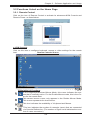
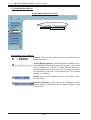
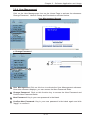
Click on the Virtual Media icon on the Home Page to activate its submenus-Floppy
Disk, CD-ROM, Drive Redirection and Options as listed below.
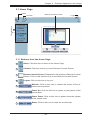
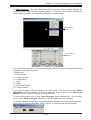
a. Floppy disk
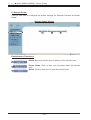
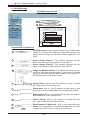
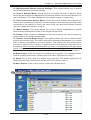
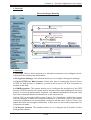
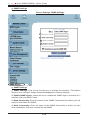
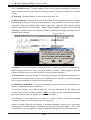
Floppy Disk Screen
2
3
1
4
5
6
7
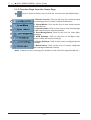
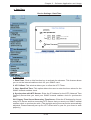
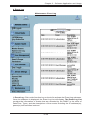
Explanation of Functions
1
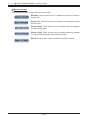
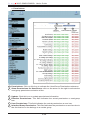
Floppy Disk: Click on this function key to upload the data
stored in the local floppy disk image to the remote host.
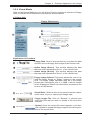
2
Active Image (Drive1): This window displays the data
that has been uploaded to Drive 1 of the remote host.
3
Active Image (Drive2): This window displays the data
that has been uploaded to Drive 2 of the remote host.
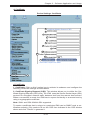
4
5
6
7
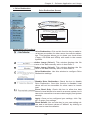
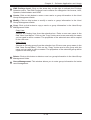
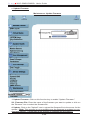
Floppy Image Upload: This option allows the user to upload the floppy image as "floppy" located in the remote
host. The floppy image uploaded shall be in the binary
format with a maximum size of 1.44MB. It will be loaded
to the Supermicro SIMLP card and will be emulated to the
host as a USB device.
Virtual Drive: Select a drive in the remote host as a destination drive for you to upload your image data.
Floppy Image File: Click on "Browse" to preview and
select the files that you wish to upload to the host drive
selected.
Upload: Once the correct file name appears in the box,
click Upload to upload the floppy image to the drive specified in the remote host.
3-7