1
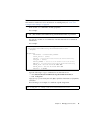
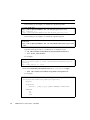
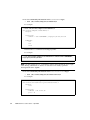
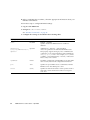
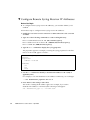
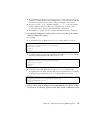
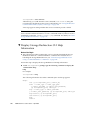
For example:
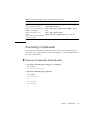
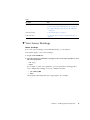
$ ssh username@ipaddress
Or
$ ssh -l username ipaddress
The ILOM login password prompt appears.
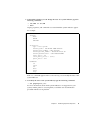
2. Type the user name and password for the user account.
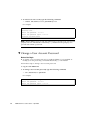
<hostname>: username
Password: password
The ILOM CLI prompt appears (->).
Recovering a Lost Password
You can use the preconfigured default user account to recover a lost password or
to re-create the root user account. For more information about the root and
default user accounts, refer to “root and default User Accounts” in the
Integrated Lights Out Manager (ILOM) 3.0 Concepts Guide.
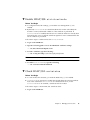
▼ Recover a Lost Password
Before You Begin
■
You must be physically present at the server to perfom this procedure.
To recover a lost password, follow these steps:
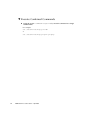
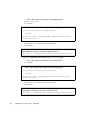
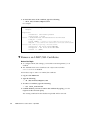
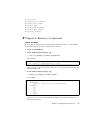
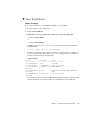
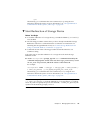
1. Log in to an ILOM serial console using the default user account.
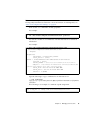
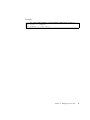
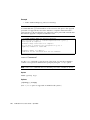
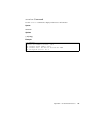
For example:
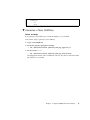
SUNSP-0000000000 login: default
Press and release the physical presence button.
Press return when this is completed...
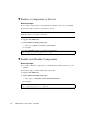
2. Prove physical presence at your server.
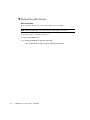
Refer to your platform documentation for instructions on how to prove physical
presence.
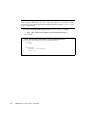
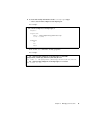
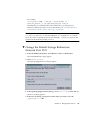
3. Return to your serial console and press Enter.
You will be prompted for a password.
20
ILOM 3.0 CLI Procedures Guide • April 2009