1
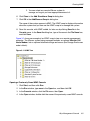
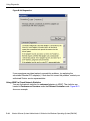
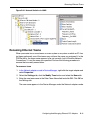
Monitoring ftServer Services To save log files on a Windows Server 2003 system 1. Go to Computer Management, and click Event View to display its subnodes. Alternatively, click Start, Administrative Tools, and Event Viewer. Then click Event View to display its subnodes. 2. Right-click the subnode (for example, Application) of the event whose log file you want to save, and select Save Log File As... . 3. In the Save Log File As dialog box: In the Save In: box, accept the default or enter a new path name. In the File name: box, enter the file name. In the Save as type: box, accept the default type, Event Log (*.evt). This allows you to view the saved file in Event Viewer. 4. Click Save to save the file. 5. After you save the log file, you can clear it. To clear the log, right-click the subnode, and then select Clear all Events. To save log files on a Windows Server 2008 system 1. Go to Computer Management. 2. Expand Event Viewer, then Windows Logs. 3. Right-click the log you want to save, then click Save Events As. 4. In the File name box, enter a name for the saved file. 5. In the Save as type box, select a file format, then click Save. 6. Click OK. See the Windows Server online Help for more options to the Save Events As command. Monitoring ftServer Services A number of ftServer services run on your system as Windows services. If any of these services is not running, the system does not function as designed. The Stratus ftServer Systems: Technical Reference Guide (R550) describes these services. To check the status of a service: 1. Go to Computer Management. 2. Expand Services and Applications, and then click Services. Alternatively, click Start, Administrative Tools, and Services. 2-10 Stratus ftServer System Administrator’s Guide for the Windows Operating System (R014W)