1
•
•
•
•
•
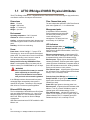
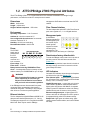
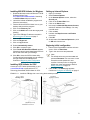
a green power LED; on means power is on; off
means power is off.
a yellow LED on each Ethernet port indicates
100/1000 Mb/sec. speed, where off means 100
Mb/sec. and on means 1000 Mb/sec.
a green LED on each Ethernet port activity,
where off means no activity and on means
activity.
a bicolor LED on each Fibre Channel port
indicates FC speed. Off is 1G FC, green is 2G
FC and yellow indicates 4G FC.
a green LED on each Fibre Channel port
indicates activity, where off means no activity
and on means activity.
• Operating system version
• Service pack version
• Host adapter version
• Host adapter firmware version
• Host adapter device driver version
• iSCSI driver version
If an update is required, perform the update. For an
updated list of supported iPBridge host platforms and
host adapters, visit www.attotech.com.
Check iPBridge product versions and
update firmware
1
2
Check for problems on attached devices
Check the following in order to find problems on
attached devices:
• LEDs
• Display panels
• Firmware levels
• Operability
Check host versions
Check the following to find problems on attached
hosts:
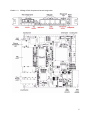
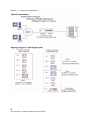
Exhibit 6.0-1
Exhibit 6.0-2
www.attotech.com.
If an update is needed, download the update
from www.attotech.com.
4 Go to the Firmware Update page in ATTO
ExpressNAV and follow the instructions in
Updating Firmware on page 19.
If the update does not work, use the FTP method to
download the firmware update and verify that your
FTP client is set for binary mode
iPBridge 2700C faceplate
Fibre Channel ports
LEDs
3
Enter ATTO ExpressNAV.
Check the version numbers on the Status
page.
For a current list of updates, visit
GbE ports
FC Link FC Activity GbE Speed GbE Activity
iPBridge 2700 R/D front label
21
ATTO Technology Inc. iPBridge Installation and Operation Manual
10/100
Ethernet port
Link Activity
Reset
button
Ready/Fault