1
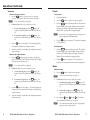
Operations (Continued)
Presets
View ties
View a tie by input selection
1.
N
2.
Save a preset
Press the INPUT button to specify an input to view the tied
output(s). The switcher’s Video LED and Audio LEDs light.
To view video and audio ties, skip step 2.
If desired, specify video-only or audio-only to view:
a.
To view video-only tie(s), press the VIDEO button. The
switcher’s Video LED remains lit and the Audio LED goes
off.
b.
To view audio-only tie(s), press the AUDIO button. The
switcher’s Audio LED remains lit and the Video LED goes
off.
3.
Press the 5 button to select input 5. The switcher displays the
tied outputs as described in the switcher’s manual.
4.
Allow the switcher’s 5-second input and output button timeout to
deselect the input.
1.
Create all desired ties.
2.
Press the
3.
Press the PRESET button to specify preset mode. The switcher’s
Preset LED blinks and, for preset numbers that are within the
switcher’s total number of inputs and outputs, the Input or
Output LEDs` associated with existing presets light.
N
4.
Press the OUTPUT button to specify an output to view the tied
input. The switcher’s Video LED lights and the Audio LED lights
(or blinks if audio is broken away).
N
2.
If desired, specify video-only or audio-only to view:
a.
b.
3.
4.
To view video and audio ties, skip step 2.
To view video-only tie(s), press the VIDEO button. The
switcher’s Video LED remains lit and the Audio LED goes
off.
AUDIO
To view audio-only tie(s), press the
button. The
switcher’s Audio LED remains lit and the Video LED goes
off.
Press the 5 button to select preset 5. The current configuration
is saved as preset 5.
Press the PRESET button to specify preset mode. The switcher’s
Preset LED lights and, for preset numbers that are within the
switcher’s total number of inputs and outputs, the Input or
Output LEDs associated with existing presets light.
2.
Press the 8 button to select preset 8. The ties that were
previously saved as preset 8 become the current configuration.
Mutes
Mute an output
1.
Press the
N
2.
3.
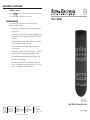
IR 501 Small Matrix Remote Control • Operations
MUTE
button to specify a mute operation.
To mute video and audio output, skip step to 3.
If desired, specify video-only or audio-only to mute:
a.
To mute the video output, press the VIDEO button. The
switcher’s Video LED remains lit and the Audio LED goes
off.
b.
To mute audio output, press the AUDIO button. The
switcher’s Audio LED remains lit and the Video LED goes
off.
Press only one I/O button ( 1 through 8 ). The switcher’s
associated Output LED flashes on for a second.
N
6
If you save the current configuration to an existing preset, that
preset’s configuration will be overwritten.
Recall a preset
Press the 3 button to select output 3. The switcher displays the
tied input and other outputs tied to that input as described in the
switcher’s manual.
Allow the switcher’s 5-second input and output button timeout to
deselect the output.
button to specify a save preset operation.
1.
View a tie by output selection
1.
SAVE
You can mute multiple outputs, but you can only perform the
mute operation on one output at a time.
IR 501 Small Matrix Remote Control • Operations
7