1
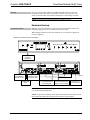
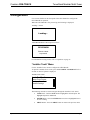
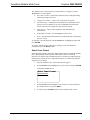
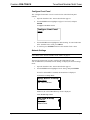
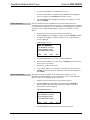
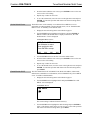
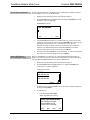
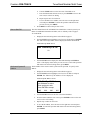
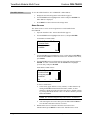
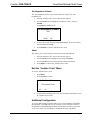
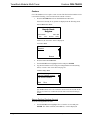
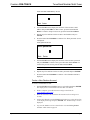
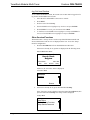
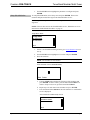
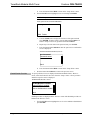
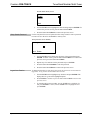
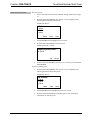
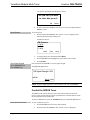
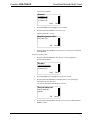
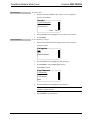
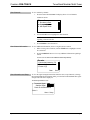
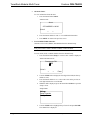
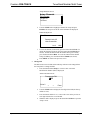
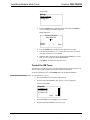
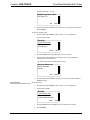
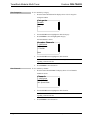
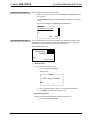
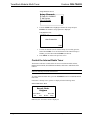
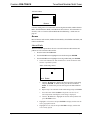
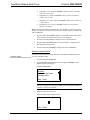
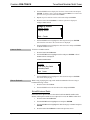
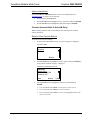
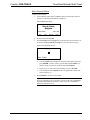
Crestron CEN-TRACK TunerRack Modular Multi-Tuner Configure Front Panel The “Configure Front Panel” screen is used to lock or unlock the front panel controls. 1. Open the “Installer Tools” menu as described on page 19. 2. Turn the TUNE knob to highlight Configure Front Panel, and press ENTER. “Configure Front Panel” Screen Configure Front Panel Unlock Lock 3. Turn the TUNE knob to highlight the desired setting. To cancel and return to the “Installer Tools” menu, press MENU. 4. To confirm, press ENTER and return to the “Installer Tools” menu. Network Settings NOTE: Changes to network settings take effect when the “Installer Tools” menu is exited. Refer to the “Exit the “Installer Tools” Menu” on page 27. The network settings menu is used to configure the CEN-TRACK’s and ATC-AUDIONET’s (if installed) network settings. To display the network settings menu: 1. Open the “Installer Tools” menu as described on page 19. 2. Turn the TUNE knob to highlight Network Settings and press ENTER. If an ATC-AUDIONET is installed, the menu below is displayed. “Select Device To Setup” Menu Select Device To Setup CEN-TRACK Slot 1 ATC-Audionet Otherwise, the “CEN-TRACK Setup” menu is displayed. “CEN-TRACK Setup” Menu CEN-TRACK Setup IP Address Subnet Mask Default Router Operations Guide – DOC. 6646C TunerRack Modular Multi-Tuner: CEN-TRACK 21