1
IR ToolKit FAQ
Why can't I see the output of my IR-232 in Terminal?
You're still in Connect mode. IR ToolKit is linked directly with the IR-232 for IR code capture, Properties, and
database setup.
You need to Disconnect the IR-232 in IR ToolKit (click the Disconnect button) to exit the real-time
programming mode. If you're using RS-232 different than the default settings (9600 baud rate,8,N,1), turn
DIP switch 2 Off.
When you disconnect, you're still "connected" to monitor the IR-232 output, but not in real-time programming
mode.
What are the double vertical bars I see in my Terminal text?
If a command has a linefeed before a carriage return ($0A, $0D), it's an unprintable character in Terminal
text - so Terminal displays a double vertical bar. The command is correct in hex mode, it just can't be shown
in text.
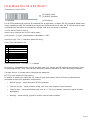
Using the normal ($0D, $0A) return/linefeed convention displays properly.
I connected with my IR-232 - why did some of my Native Codes go away in the database?
When you create the database in IR ToolKit, you can have an entry that has a Name, a Native Code, but no
Custom strings for either a Press or Release. When you Save the file – all that information will be kept.
However, the IR-232 doesn't need to know the native code if there is no corresponding custom string - it
generates native codes automatically. So if there is no custom string, IR ToolKit doesn't send the native
code information to the IR-232. That saves memory.
When you connect with an IR-232, IR ToolKit loads the control database from IR-232 memory, so any native
codes not assigned a custom string will be gone.
The moral is, you should save your IR ToolKit files if you intend on adding custom commands at a later date.
.
Page 19