1
Chapter 8
8.7.2
Advanced Configuration for Compex CGX3224
Simple Application on Port Mirroring
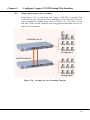
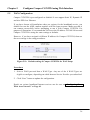
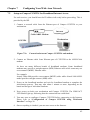
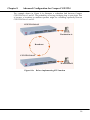
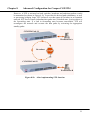
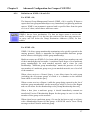
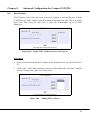
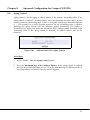
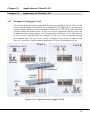
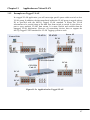
From the example illustrated in Figure 8.7b, we are using Port 22 to monitor
the activities at PC #1 to 3. Notice that Port 22 is set as mirror port, and PC #1
to #3 is connected to Port 6, 12 and 16 respectively. A workstation is
connected to Port 2 to monitor the entire network system.
CGX3224
Workstation
Port 2
PC #1
Port 6
Figure 8.7b
PC #2
Port 12
PC #3 Mirror
Port 16 Port 22
Port Mirroring
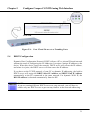
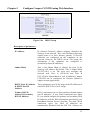
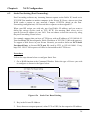
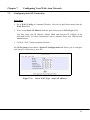
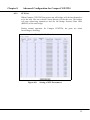
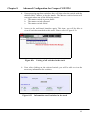
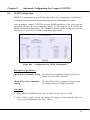
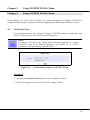
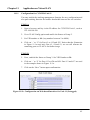
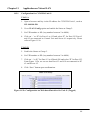
To do the above-mentioned setting, you may simply go to the web interface
management and click on MirrorPort Config in the command window menu.
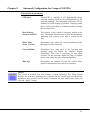
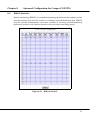
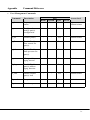
Next, set the configuration as shown in Figure 8.7c and save it.
Figure 8.7c
Configuring Port Mirroring in Web-Based Interface
66