1
DVD Operation (Continued)
General Features (Continued)
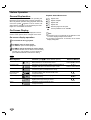
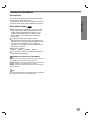
Zoom
Special DVD Features
DVD
DVD
The Zoom function allows you to enlarge the video
image and to move through the enlarged image.
1 Press ZOOM during playback or still playback to activate the Zoom function.
If you press ZOOM repeatedly, the magnification level
increases up to six steps.
2 Use the 1 234 buttons to move through the zoomed
picture.
3 Press CLEAR to resume normal playback or return to
the paused image.
Checking the Contents of DVD Video
Discs: Menus
DVDs may offer menus that allow you to access special
features. To use the disc menu, press MENU. Then, use
the appropriate number button to select an option. Or,
use the 1 234 buttons to highlight your selection, then
press SELECT/ENTER.
Title Menu
DVD
1 Press TITLE.
ote
The zoom function may not work for some DVDs.
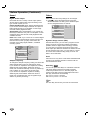
Marker Search
1/9
DVD
If the current title has a menu, the menu will appear on the
screen. Otherwise, a disc menu may appear.
2 The menu can list camera angles, spoken language,
subtitle options, and chapters for the title.
3 To remove the title menu, press TITLE again.
MARKER SEARCH
You can start playback from a memorized point. Up to
nine Marker points can be memorized.
To enter a marker point, follow these steps.
1 During disc playback, press MARKER when
playback reaches the spot that you want to
memorize.
Disc Menu
DVD
1 Press MENU.
The disc menu is displayed.
2 To remove the disc menu, press MENU again.
Camera Angle
DVD
1 /1
The Marker icon will appear on the TV screen briefly.
2 Repeat step 1 to enter up to nine Marker points on a
disc.
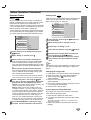
To Recall a Marked Scene
If the disc contains scenes recorded at different camera
angles, you can change to a different camera angle
during playback.
Press ANGLE repeatedly during playback to select a
desired angle.
1 During disc playback, press SEARCH.
The number of the current angle appears on the display.
The MARKER SEARCH menu will appear on the screen.
2 Within 10 seconds, use 1/2 to select a Marker
number that you want to recall.
Changing the Audio Language
3 Press SELECT/ENTER.
Playback will start from the Marked scene.
4 To remove the MARKER SEARCH menu, press
SEARCH.
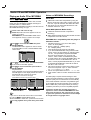
To clear a Marked Scene
1 During disc playback, press SEARCH.
The MARKER SEARCH menu will appear on the screen.
DVD
1 ENG
D
5.1 CH
Press AUDIO repeatedly during playback to hear a different audio language or audio track.
Subtitles
DVD
ABC
1 ENG
Press SUBTITLE repeatedly during playback to see the
different subtitle languages available.
2 Use 1/2 to select the Marker number that you want
to erase.
3 Press CLEAR.
The Marker number will be erased from the list.
4 Repeat steps 2 and 3 to erase additional Marker
numbers.
5 To remove the MARKER SEARCH menu, press
SEARCH.
18
If
ote
appears, the feature is not available on the disc.