1
Cajun P333T QS.qxd
18/07/2000
12:09
Page 5
Connect the cables
Connect PCs, servers, routers, workstations, and hubs
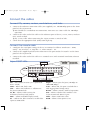
1. Connect the Ethernet connection cable (not supplied) to a 10/100 Mbps port on the front
panel of the Cajun P330.
E You should use standard RJ-45 connections. You must use CAT-5 cable for 100 Mbps
operation.
2. Connect the other end of the cable to the Ethernet port of the PC, server, router, workstation, switch or hub.
E Use a cross cable when connecting the Cajun P330 to a switch or hub.
3. Check that the appropriate link (LNK) LEDs light up.
Connect the console cable
1. Configure the serial port settings of the PC or terminal as follows: Baud Rate – 9600,
Parity – no, Data bits – 8, Stop bits – 1, Flow control – no.
2. Connect the supplied special RJ-45 connector to the port marked “Console” on the front
panel of the Cajun P330.
3. Connect the other end of the cable to a terminal or PC with terminal emulation software
installed.
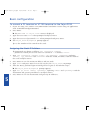
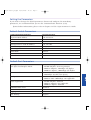
Cajun P333T LEDs
Port LEDs
4
Left/Right &
Reset Switches
FIV switch Function LEDs
FIV – Force Initial Version (see Cajun P330
User’s Guide)
LNK – When ON, link is OK
COL – When ON, indicates a collision on
the port in HDX mode
Tx, Rx – Shows traffic activity for
transmitted and received packets
FDX – Shows Full/Half Duplex mode
FC – When ON, Flow Control is enabled for
a port in FDX mode
Hspd – Shows speed of port (10 Mbps or
100/1000 Mbps)
LAG – When ON, the port is included in a
Link Aggregation Group (LAG).
ROUT – Shows switch’s mode of operation
SYS – Shows whether this module is the
Cajun P330 Stack Master agent
OPR – Shows CPU boot status
PWR – Shows when power is on