1
Thank you purchasing the Korg
ELECTRIBE·M EM-1. In order to
enjoy long and trouble-free use,
please read this manual carefully
and use the instrument correctly.
E 1
To ensure long, trouble-free operation, please read this manual carefully.
Precautions
Location
Using the unit in the following locations can result in a malfunction.
• In direct sunlight
• Locations of extreme temperature or humidity
• Excessively dusty or dirty locations
• Locations where excessive vibration exists
Power supply
Please connect the designated AC adaptor to an AC outlet of the correct voltage. Do not connect it to
an AC outlet of voltage other than that for which your unit is intended.
Interference with other electrical devices
This product contains a microcomputer. Radios and televisions placed nearby may cause reception
interference. Operate this unit at a suitable distance from radios and televisions.
Handling
To avoid breakage, do not apply excessive force to the switches or controls.
Care
If the exterior becomes dirty, wipe it with a clean, dry cloth. Do not use liquid cleaners such as
benzene or thinner, cleaning compounds or flammable polishes.
Keep this manual
After reading this manual, please keep it for later reference.
Keeping foreign matter out of your equipment
• Never set any container with liquid in it near this equipment. If liquid gets into the equipment, it could cause a breakdown, fire, or electrical shock.
• Be careful not to let metal objects get into the equipment. If something does slip into the
equipment, unplug the AC adaptor from the wall outlet. Then contact your nearest Korg
dealer or the store where the equipment was purchased.
THE FCC REGULATION WARNING (for U.S.A.)
This equipment has been tested and found to comply with the limits for a Class B digital device, pursuant to Part 15 of the FCC
Rules. These limits are designed to provide reasonable protection against harmful interference in a residential installation. This
equipment generates, uses, and can radiate radio frequency energy and, if not installed and used in accordance with the instructions, may cause harmful interference to radio communications. However, there is no guarantee that interference will not
occur in a particular installation. If this equipment does cause harmful interference to radio or television reception, which can
be determined by turning the equipment off and on, the user is encouraged to try to correct the interference by one or more of
the following measures:
• Reorient or relocate the receiving antenna.
• Increase the separation between the equipment and receiver.
• Connect the equipment into an outlet on a circuit different from that to which the receiver is connected.
• Consult the dealer or an experienced radio/TV technician for help.
Unauthorized changes or modification to this system can void the user’s authority to operate this equipment.
CE mark for European Harmonized Standards
CE mark which is attached to our company’s products of AC mains operated apparatus until December 31, 1996 means it
conforms to EMC Directive (89/336/EEC) and CE mark Directive (93/68/EEC). And, CE mark which is attached after January
1, 1997 means it conforms to EMC Directive (89/336/EEC), CE mark Directive (93/68/EEC) and Low Voltage Directive (73/
23/EEC).
Also, CE mark which is attached to our company’s products of Battery operated apparatus means it conforms to EMC Directive (89/336/EEC) and CE mark Directive (93/68/EEC).
Concerning data
In rare cases, incorrect operation may cause the contents of memory to be lost. Please save important
data on a system that can record System Exclusive data, like a sequencer or a data filer (storage device).
Korg Corporation can accept no responsibility for any damages resulting from loss of data.
2
Contents
1. Introduction ............................................................................. 6
Main features ................................................................................................................ 6
The data you create on the EM-1 ........................................................................................................ 6
Make connections and play! ........................................................................................7
Example connections ................................................................................................................................ 7
Preparing to play ....................................................................................................................................... 7
2. Front and rear panel ............................................................... 8
Common section ...........................................................................................................8
Effect/Delay section ......................................................................................................9
Part common section ....................................................................................................9
Synth filter section ..................................................................................................... 10
Part Select section ..................................................................................................... 10
Sequence Control section ......................................................................................... 10
Step Key section ........................................................................................................ 11
Connector section ...................................................................................................... 12
3. Basic operation (Quick Start)................................................13
Conceptual diagram of the EM-1 ..............................................................................
Listening to a Song ....................................................................................................
Listening to Patterns ..................................................................................................
Trying out the functions ............................................................................................
13
13
14
14
Changing the tempo of a song or pattern ............................................................................................ 14
• Using the dial to change the tempo ................................................................................................ 14
• Using the Tap Tempo key to change the tempo .............................................................................. 14
Pressing keys to play the sound of a Part ............................................................................................ 15
Playing the sound of a drum part ...................................................................................................... 15
Playing the sound of a synth part (the Keyboard function) ............................................................... 15
Modifying (editing) the sound of a part ................................................................................................ 16
Editing the sound of a drum part ....................................................................................................... 16
Editing the sound of a synth part ....................................................................................................... 16
Editing the effect or delay ...................................................................................................................... 17
Playing the sound of a part along with a song or pattern .................................................................. 17
Editing the sound of a part, effect, or delay while hearing a song or pattern ................................. 18
Modifying (editing) a rhythm or phrase pattern ................................................................................... 18
Realtime recording ............................................................................................................................. 19
Step Recording .................................................................................................................................. 20
Saving a pattern that you create ............................................................................................................ 21
Using a Motion Sequence ....................................................................................................................... 22
Playing with Pattern Set .......................................................................................................................... 23
Using the EM-1 as a tone generator module ........................................................................................ 23
Synchronizing the playback with other ELECTRIBE models ............................................................. 24
4. Pattern mode ..........................................................................25
Selecting a pattern ..................................................................................................... 25
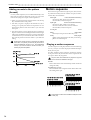
Setting the playback tempo ...................................................................................... 25
• Using the dial to change the tempo .................................................................................................... 25
• Using the Tap Tempo key to change the tempo ................................................................................. 25
3
Playing a pattern (Pattern Play) ................................................................................ 25
The timing at which patterns will change .............................................................................................
Playing from the beginning of a pattern (Reset & Play) .....................................................................
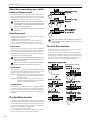
About the tempo when you switch patterns (Tempo Lock) ................................................................
Selecting a part ........................................................................................................................................
Drum parts .........................................................................................................................................
Synth parts .........................................................................................................................................
Accent parts .......................................................................................................................................
The Part Mute function ............................................................................................................................
The Part Solo function ............................................................................................................................
25
25
26
26
26
26
26
26
26
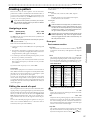
Creating a pattern ...................................................................................................... 27
Assigning a wave .....................................................................................................................................
Editing the sound of a part .....................................................................................................................
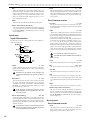
Drum part ...........................................................................................................................................
Synth part ...........................................................................................................................................
Accent parts .......................................................................................................................................
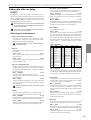
Editing the effect or delay ......................................................................................................................
EFFECT .............................................................................................................................................
DELAY ................................................................................................................................................
Length, Scale/Beat settings ...................................................................................................................
Setting the Length ..............................................................................................................................
Setting the Scale/Beat .......................................................................................................................
Swing settings .........................................................................................................................................
Setting the Roll Type ...............................................................................................................................
Creating a Pattern ....................................................................................................................................
Realtime recording .............................................................................................................................
Step recording ....................................................................................................................................
Note editing ........................................................................................................................................
Adding accents to the pattern (Accent) ................................................................................................
27
27
27
28
28
29
29
30
31
31
31
32
32
32
32
32
32
34
Motion sequence ........................................................................................................ 34
Playing a motion sequence .................................................................................................................... 34
Recording a motion sequence ............................................................................................................... 35
Checking motion sequence data ........................................................................................................... 35
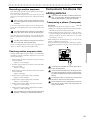
Convenient functions for editing patterns............................................................... 35
Transposing a phrase (Transpose) ........................................................................................................
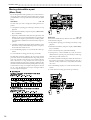
Moving data within a part (Move Data) .................................................................................................
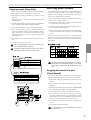
Copying a part (Copy Part) .....................................................................................................................
Data Copy within a pattern .....................................................................................................................
Copying the sound of a part (Copy Sound) ........................................................................................
Erasing motion sequence data from the part, effect, or delay (Clear Motion) .................................
Erasing pattern data from a part ............................................................................................................
Erasing data during playback or recording (Erase) ...........................................................................
Erasing all data from a part (Clear Part) ...........................................................................................
Exchanging data between parts (Swap Part) .......................................................................................
35
36
37
37
37
38
38
38
38
39
Editing motion sequence data .................................................................................. 39
Selecting a motion sequence ................................................................................................................. 39
Editing the parameter values of a motion sequence .......................................................................... 40
Pattern Set................................................................................................................... 40
Using Pattern Set to perform (Pattern Set Play) .................................................................................. 40
Chain Play of pattern sets .................................................................................................................. 40
Assigning a pattern to a Pattern Set ..................................................................................................... 41
Saving a pattern (WRITE) .......................................................................................... 41
4
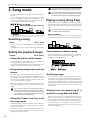
5. Song mode .............................................................................42
Selecting a song ......................................................................................................... 42
Setting the playback tempo ...................................................................................... 42
• Using the dial to set the tempo ........................................................................................................... 42
• Using the tap tempo key to set the tempo ......................................................................................... 42
• Using the Tempo Lock key to fix the song tempo ............................................................................. 42
Playing a song (Song Play) ....................................................................................... 42
Fast-forward or rewind a song ............................................................................................................... 42
Switching songs ...................................................................................................................................... 42
Playing from the beginning of a position or song (Reset & Play) ..................................................... 42
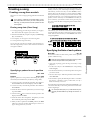
Creating a song .......................................................................................................... 43
Creating a song from scratch ................................................................................................................
Erasing song data (Clear Song) ........................................................................................................
Specifying a pattern for each position ...............................................................................................
Specifying the Note of each pattern ......................................................................................................
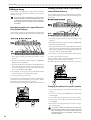
Editing a song ..........................................................................................................................................
Inserting a pattern at a specified position (Insert Pattern) ................................................................
Deleting a pattern from a specified position (Delete Pattern) ...........................................................
Changing the pattern for a specific position ......................................................................................
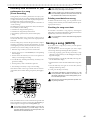
Recording knob movements or your performance in a song (Event Recording) ..............................
Deleting event data from a song ........................................................................................................
Checking for song event data ............................................................................................................
43
43
43
43
44
44
44
44
45
45
45
Saving a song (WRITE) .............................................................................................. 45
6. Global mode ...........................................................................46
Metronome settings ................................................................................................... 46
Synchronizing the EM-1 with external MIDI devices (MIDI Clock) ........................ 46
Synchronizing the EM-1 to a master external MIDI device (Ext) ........................................................ 46
Synchronizing an external MIDI device to the EM-1 as master (int) .................................................. 46
Setting the MIDI channel of each part (MIDI ch) .....................................................
Setting the MIDI note number of a drum part ..........................................................
MIDI filter settings ......................................................................................................
Adjusting the pitch bend range ................................................................................
Transmit/receive dump data ......................................................................................
Memory Protect (Protect) ..........................................................................................
Saving your changes in Global mode (WRITE) .......................................................
47
47
47
47
48
48
48
7. Appendices.............................................................................49
About MIDI ..................................................................................................................
Troubleshooting .........................................................................................................
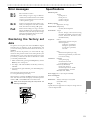
Error messages ..........................................................................................................
Restoring the factory set data ..................................................................................
Specifications .............................................................................................................
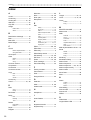
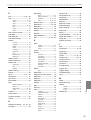
Index ............................................................................................................................
Pattern Name List .......................................................................................................
Song Name List ..........................................................................................................
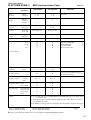
MIDI Implementation Chart .......................................................................................
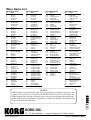
Wave Name List ..........................................................................................................
49
50
51
51
51
52
54
54
55
56
5
1. Introduction
○○○○○○○○○○○○○○○○○○○○○○○○○○○○○○○○○○○○○○○○○
1. Introduction
Thank you for purchasing the ELECTRIBE•M(subsequently referred to as the EM-1).
The EM-1 is a production station designed for dance music that makes it easy for anyone from
beginner to enthusiast to create original music.
You can edit sounds intuitively by using the front panel knobs and keys, and easily create
complete rhythms and phrase patterns without requiring any additional equipment.
The EM-1 is the ideal tool for any musician, DJ, sound creator, or DTM user who wants an
easy way to add originality to their music.
Main features
• The EM-1 has eight drum parts and two synth parts, and you can assign sounds to each
part and edit them.
• By combining rhythm patterns created for each drum part together with phrase patterns
created for each synth part, you can easily create a song using no additional equipment.
• Internal memory contains numerous drum waves (144 types) and synth waves (50 types),
giving you access to a wide range of sonic expression.
• Up to 256 patterns (maximum of 64 steps each) can be created using the Sample data
and stored in internal memory.
• The EM-1 provides a Motion Sequence function that can record and loop knob movements, and can be recorded for each part of each pattern.
• By combining multiple patterns and adding event data such as knob movements, you
can create and save up to sixteen songs.
• You can choose from realtime recording, step recording, and note editing.
• Since sounds and rhythm or phrase patterns can be modified instantly, you can use
these changes as part of your live performance expression.
• Eleven types of effect plus tempo delay are provided, and an Effect/Delay Motion Sequence
function allows knob movements to be recorded.
• A Keyboard function lets you use the sixteen step keys as a keyboard on which to perform.
• The Pattern Set play function lets you assign 64 different patterns to the 16 step keys,
and successively select and play them.
• Tap Tempo and MIDI Clock can be used to synchronize the performance with an external sequencer, turntable, etc.
• The EM-1 can be controlled from an external sequencer or keyboard as a MIDI sound
module.
• The MIDI Dump function lets you save data on a computer or external sequencer etc.
The data you create on the EM-1
Patterns and songs that you create on the EM-1 by editing will return to their un-edited state
if you select a different pattern or song, or turn off the power before performing the Write
operation. If you wish to save an edited pattern, song, or global data, be sure to perform the
Write operation. Even after Writing the edited data, it is still possible to restore all songs and
patterns etc. to the factory settings. (Refer to p.51 “Restoring the factory set data.”)
6
○ ○ ○ ○ ○ ○ ○ ○ ○ ○ ○ ○ ○ ○ ○ ○ ○ ○ ○ ○ ○ ○ ○ ○ ○ ○ ○ ○ ○ ○ ○ ○ ○ ○ ○ ○ ○ ○ ○ ○ ○ 1. Introduction
Make connections and play!
1. Introduction
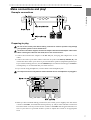
Example connections
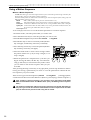
Adapter cable holder
Power switch
AC Local Voltage
Preparing to play
Be sure to turn off the power before making connections. Careless operation may damage
your speaker system or cause malfunctions.
As shown in the above diagram, hook the AC adapter cable around the adapter cable holder.
When removing the cable from the holder, do not use excessive force.
1. Connect the included AC adapter to the DC 9V jack, and plug the adapter into an AC
outlet.
2. Connect one end of your audio cables to the line out jacks of the EM-1 (L/MONO, R), and
connect the other end to your mixer or powered monitor speakers (amplified speakers) etc.
If you will be listening in mono, use the L/MONO jack. To take full advantage of the EM-1's
sound quality, we recommend that you listen in stereo.
3. If you will be using headphones, connect them to the headphone jack.
The output from the line out jacks will not be switched off even if headphones are plugged in.
Master volume
Drum part keys
4. When you have finished making connections, turn on the power. Slightly raise the master
volume of the EM-1, and strike the Drum part keys (1...6B) to check whether connections
have been made correctly. Use the master volume of the EM-1 and the gain and fader controls of your mixer or powered monitor system to adjust the volume to an appropriate
level.
7
2.Front and rear panel
○○○○○○○○○○○○○○○○○○○○○○○○○○○○○○○○○○○○○
2. Front and rear panel
Connector section
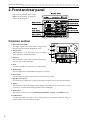
The controls and other parts of the
EM-1 can be broadly grouped as
shown in the diagram.
Effect/Delay section
Common section
Synth filter section
Part common
section
Sequence
control section
Part select section
Step key section
Common section
1. MASTER VOLUME
This knob adjusts the volume that is output from
the line out jacks and the headphone jacks.
2. Tempo Lock
When this key is on, the tempo will not change
when you select different patterns.
1
4
3
2
5
6
7
3. Display
This shows the value of the currently selected parameter, and various messages.
4. Dial
Use this to modify the value shown in the display.
8
9
5. MIDI (LED)
This will light when valid MIDI messages are received.
6. Beat (LED)
This will blink at quarter-note intervals to indicate the tempo.
7. [▲][▼] (cursor keys)
In each mode, use these keys to select parameters from the matrix shown in the display.
8. Matrix
The parameters that will appear in the display are listed here for each mode. Use the
cursor keys to make the desired parameter select LED light.
9. Mode keys
These keys are used to select PATTERN, STEP EDIT , SONG, or GLOBAL modes.
10. WRITE key
Use this key when you wish to save settings that you modified in Pattern, Song, or
Global mode, or to save Pattern Set data.
8
10
○ ○ ○ ○ ○ ○ ○ ○ ○ ○ ○ ○ ○ ○ ○ ○ ○ ○ ○ ○ ○ ○ ○ ○ ○ ○ ○ ○ ○ ○ ○ ○ ○ ○ ○ ○ ○ ○2.Front and rear panel
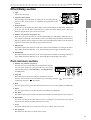
Effect/Delay section
1. Type
Selects the effect type.
2. Original Value (LED)
This will light when the knob etc. that you are currently moving
arrives at the same position as originally programmed in the
pattern.
5
1
6
2
4
3
2.Front and rear panel
3. Delay Edit key
Each time you press this key, Delay Edit will be turned on (lit) or off (dark). When this
is on, you can use the Edit 1 and 2 knobs to control the delay. When you use the Type
knob to switch effects, this will be forced off.
4. Motion Seq (motion sequence) key
Each time you press this key, it will be turned on (lit) or off (dark). When this is on,
movements of the Edit 1 and 2 knobs will be recorded and played back. When Delay
Edit is on, Delay motion sequence will be selected. When Delay Edit is off, the motion
sequence of the effect selected by Type will be selected.
5. Edit 1/T ime
This knob adjusts the character of the effect. The result will differ according to the effect
type. When the Delay Edit key is on, this knob adjusts the length of the delay time.
6. Edit2/Depth
This knob adjusts the character of the effect. The result will differ according to the effect
type. When the Delay Edit key is on, this knob adjusts the depth of the delay.
Part common section
1. Motion Seq (motion sequence)
This key lets you record and play back knob movements
for each part. Each time you press this key, the setting
will alternate between on (Smooth lit), on (Trig Hold lit),
and off (dark)
1
2. Amp EG
Select the amp envelope for each part. Each time you press
this key, the envelope will switch between a decaying envelope “
sustaining envelope “ ” (key dark).
2
5
6
7
8
3
4
” (key lit) and a
3. Roll
For each part, this key switches the roll effect (successive strikes) on (lit) or off (dark).
4. Effect
For each part, this key switches the effect send on (lit) or off (dark).
5. EG Time
This knob adjusts the envelope time (the time until the sound disappears) for each part.
6. Pitch/Glide
This knob sets the pitch of the drum part. For a synth part, it sets the time over which
the pitch will change smoothly between two notes.
7. Level
This knob adjusts the level. For the Accent part, it adjusts the accent level.
8. Pan (panpot)
This knob sets the stereo location of the sound.
9
2.Front and rear panel
○○○○○○○○○○○○○○○○○○○○○○○○○○○○○○○○○○○○○
Synth filter section
These controls let you adjust the brightness of the sound or add a distinctive
tonal character.
1. Cutoff
Adjust the cutoff frequency of the filter.
3. Resonance
Adjust the resonance of the filter.
1
2
3
4
2. EG Int (EG intensity)
Adjust the depth of the filter envelope.
4. Drive
Adjust the degree of distortion for the sound of the filter. Driver makes between warmly
Analog Overdrive and Hard Distortion.
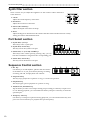
Part Select section
1. (Synth Part) 1, 2 keys
These keys select a synth part
1
2
2. (Synth Part) Accent key
This key selects the synth accent part.
3
4
3. (Drum Part) 1—4, 5A-5B, 6A-6B keys
These keys select a drum part. By pressing a key, you can
hear the sound that is assigned to the corresponding part.
4. (Drum Part) Accent key
This key selects the drum accent part.
Sequence Control section
1. Rec key
Use this key to record rhythms, phrases and movements
of the knobs etc. If you press this key during recording,
recording will end, and playback will continue.
1
2
3
2. Stop/Cancel key
This key stops playback of a pattern or song, or cancels an operation.
3. Play/Pause key
This key begins/pauses playback of a pattern or song.
4. TAP, Rest/T ie, Part Mute key
Tap on this key to enter a new tempo. During step recording, use this key to input a rest
or a tie. During playback, you can hold down this key and press a Part key to mute the
specified part.
5. Transpose, Solo key
Use this key to transpose a phrase. During playback, you can hold down this key and
press one or more Part keys to playback the specified part(s).
10
4
5
○ ○ ○ ○ ○ ○ ○ ○ ○ ○ ○ ○ ○ ○ ○ ○ ○ ○ ○ ○ ○ ○ ○ ○ ○ ○ ○ ○ ○ ○ ○ ○ ○ ○ ○ ○ ○ ○2.Front and rear panel
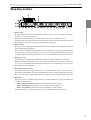
Step Key section
1
2
3
4
2.Front and rear panel
5
1. Select keys
By pressing these keys to turn the Select LEDs on or off, you can use the sixteen step
keys below as up to 64 step keys.
When the Keyboard function is on, these keys are used to switch the octave.
In Song mode, these keys function as rewind and fast-forward keys. When the Pattern
Set function is on, they are used to switch Pattern Set groups.
2. Select LEDs
The upper row of LEDs (green) indicates the location (length 1...4) within the pattern of
the currently-playing pattern.
The lower row of LEDs (red) indicates the location (length 1...4) of the pattern indicated
by the step keys. When the Pattern Set function is on, these LEDs indicate the pattern
set group. When the Keyboard function is on, these LEDs indicate the octave position.
3. Step keys 1...16
Use these keys to modify and audition the rhythm or phrase pattern of each part.
When the Keyboard function key is on, these keys function as a keyboard, allowing
you to play sounds. When the Pattern Set function is on, use these keys to select patterns that you have assigned.
4. Keyboard, Pattern Set key
This makes the sixteen step keys function as a keyboard. Each time you press this key,
the setting will alternate on/off. By holding down this key and pressing one of the step
keys, you can switch to the pattern that you assigned to that key (Pattern Set function).
5. Shift key
This key is used in conjunction with other keys. When held down, it gives an additional
function to another key.
Shift + Play/Pause key:Playback from the beginning of the pattern.
Shift + Rec key:During playback, erase triggers from the pattern.
Shift + Step keys:Execute the function shown below each step key.
For other Shift key combinations, refer to the explanation of each parameter.
11
2.Parts
○○○○○○○○○○○○○○○○○○○○○○○○○○○○○○○○○○○○○○○○○○○
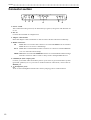
Connector section
1
2
3
4
5
6
1. Power switch
This switch turns the power on/off. Each time you press it, the power will alternate on
or off.
2. DC 9V
Connect the included AC adapter here.
3. Adapter cable holder
Hook the adapter cable around this so that it will not be disconnected accidentally.
4. MIDI connectors
IN
MIDI data is received at this connector to control the EM-1 from an external
MIDI device or to receive a data dump.
OUT MIDI data is transmitted from this connector to control an external MIDI de
vice or to transmit a data dump.
THRU MIDI data received at the MIDI INconnector is re-transmitted without change
from this connector. This is used to "daisy-chain" multiple MIDI devices.
5. L/MONO, R (line output) jacks
Connect your audio cables from these jacks to your mixer or powered monitor system
(powered speakers) etc. If you wish to make monaural connections, connect the L/
MONO jack.
6.
12
(headphone jack)
A set of stereo headphones fitted with a stereo jack plug can be connected here.
○ ○ ○ ○ ○ ○ ○ ○ ○ ○ ○ ○ ○ ○ ○ ○ ○ ○ ○ ○ ○ ○ ○ ○ ○ ○ ○ ○ ○ ○ ○ ○ ○ ○3. Basic operation (Quick Start)
3. Basic operation (Quick Start)
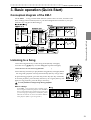
Conceptual diagram of the EM-1
On the EM-1 , a song contains both Patterns (which consist of Parts, and effect and
delay settings) and event data (refer to p.45 "Recording knob movements or your performance in a song (Event Recording)").
Structure of Song
Synth Part
Songs: S.01...S.16
Pattern order Event data
A.03
Part Solo
d.53
Part Mute
b.07
Part Trigger
A.06
á
A.52
á
C.17
á
Parameter
Patterns: A.01...d.64
Pattern data
Part data
Phrase pattern
Wave
Trigger
á
Note No.
Effect On/Off
Gate Time
Motion sequence
EG Time
Tempo
Synth 1
Synth 2
Length
Synth Accent
Glide
á
Resonance
Drum 1
á
Beat/Scale
Drum 2
Drum 3
á
End
Swing
Drum 5A
Effect
Drum 5B
Drum 6A
Delay
Drum Part
Drum 4
Drum 6B
Drum Accent
Parameter
Rhythm pattern
Wave
Motion sequence
Trigger
3. Basic operation (Quick Start)
á
á
Effect On/Off
EG Time
Pitch
Effect
Level
Type
Parameter
Reverb
Edit 1
Flg./Cho.
Edit 2
Motion sequence
Pan
Delay
Parameter
Motion sequence
á
Delay Depth
á
Mod. Delay
Delay Time
Listening to a Song
1.Press the Song Mode key to enter Song mode (the key will light).
3
2.Use the cursor [▲][▼] keys to select Song (the top LED will light).
3.Rotate the dial to select the desired song (S.01...S.16
).
4.Press the Play/Pause key to playback the song (the key will light). When
the song ends, playback will stop automatically (the key will go dark).
To pause during playback, press the Play/Pause key (the key will blink).
To resume playback, press the Play/Pause key once again (the key will
light). To stop playback, press the Stop/Cancel key.
2
1
Stop/
Cancel key
4
It is not possible to change songs during playback.
What is a Song?
On the EM-1, a song is musical data consisting of Patterns arranged in the desired playback order. The EM-1
lets you create and store up to sixteen songs. In each song
you can arrange up to 256 patterns, and rhythm , phrase
and knob movements can also be recorded in addition
to the playback. (Refer to p.42 "Song mode.")
Song
Pattern(A.03)
Pattern(b.01)
Pattern(A.01)
Pattern(A.02)
13
3. Basic operation (Quick Start)
○○○○○○○○○○○○○○○○○○○○○○○○○○○○○○○○○○
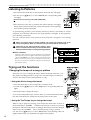
Listening to Patterns
3
1.Press the Pattern mode key to enter Pattern mode (the key will light).
2.Use the cursor [▲][▼] keys to select Pattern (the corresponding LED
will light).
3.Rotatethedialtoselectthedesiredpattern(A.01...A.64,b.01...b.64,
d
6.4C
d
0.160.41,.
.)
2
1
4.Press the Play/Pause key to playback the pattern (the key will light).
When pattern playback ends, the pattern will return to the beginning,
and continue playing repeatedly.
4
Stop/
Cancel key
To pause during playback, press the Play/Pause key (the key will blink). To resume
playback, press the Play/Pause key once again (the key will light). To stop playback,
press the Stop/Cancel key.
You can rotate the dial to select patterns when playback is stopped or even during
playback.
When you change patterns during playback, the change will actually occur at the
end of each pattern. (Refer to p.25 "The timing at which patterns will change.")
Depending on the effect and delay settings, slight
noise or unwanted sound may occur at the transition
between patterns if they are changed during playback.
What is a Pattern?
A pattern is a performance of a specific length that consists of drum
sounds played as a rhythm, together with synth sounds played as
a phrase. The EM-1 lets you create and store 256 patterns. Each
pattern consists of 12 parts (see p.15). In addition to the sounds of
each part, you can also record phrases and knob movements (see
p.25 “Pattern mode”).
Pattern
Part2
Drum
Part1
Edit
Part
Wave
(101)
----------Motion sequence data-------
---
----------Motion sequence data-------
---
Accent
Synth
Part
Part2
Part1
Edit
Wave
(21)
Trying out the functions
Change the tempo of
a pattern
3
Changing the tempo of a song or pattern
There are two ways to change the tempo. When the Tempo Lock key is off
(key dark), switching patterns or songs will cause the tempo you set here to
return to the tempo of the selected pattern or song.
• Using the dial to change the tempo
2
1
Change the tempo of
a song
3
1. Press the Mode key to enter Song mode or Pattern mode.
2. Use the cursor [▲][▼] keys to select Tempo (the corresponding LED will
light).
3. Rotate the dial to change the tempo.
If you wish to adjust the tempo in more detail, you can hold down the Shift
key and rotate the dial to modify the decimal portion of the value.
2
1
• Using the Tap Tempo key to change the tempo
While a song or pattern is playing, press the Tap key three times or more at
the desired tempo. The EM-1 will detect the interval at which you pressed
the Tap key, and will set the tempo accordingly. The tempo can also be changed
in this way even if the EM-1 is not currently playing a song or pattern.
Use the cursor [▲][▼] keys to select Tempo (the corresponding LED will
light),and the tempo you modified will appear in the display.
14
Three times
or more
○ ○ ○ ○ ○ ○ ○ ○ ○ ○ ○ ○ ○ ○ ○ ○ ○ ○ ○ ○ ○ ○ ○ ○ ○ ○ ○ ○ ○ ○ ○ ○ ○ ○3. Basic operation (Quick Start)
Pressing keys to play the sound of a Part
When you strike the drum part keys, or select a synth part, turn on the keyboard function and press the step keys, the sound of the corresponding part will be heard.
The sound of a part will differ depending on the pattern. Turn the dial to select various
parts, and listen to the wide variety of sounds.
When you press a drum part key, the keyboard function of the step keys will be
cancelled, but when you select a synth part once again, the keyboard function will
automatically return to the previous setting.
Parts for which Wave (see p.16 “What is a wave?”) is turned “oFF” cannot produce
sound.
What is a Part?
---
3. Basic operation (Quick Start)
A part is the smallest unit of which a pattern is made, and consists of a
Drum Part
sound and rhythm or phrase, effect on/off settings, and motion seEdit
quences etc. Parts can be one of the following types, and there are a total
Wave
(50)
of 12 parts. (See p.25 “Pattern mode”)
----------Motion sequence data------• Drum parts (1—4, 5A-B, 6A-B)
Synth Part
A drum sound and rhythm pattern (timing of sounds), effect on/off,
Edit
motion sequence etc.
Wave
• Synth parts (1, 2)
(21)
----------Motion sequence data------A synth sound and phrase pattern (trigger, note number, gate time),
effect on/off, motion sequence etc.
• Accent part (drum, synth)
Points at which to emphasize the volume of the pattern (i.e., accent), motion sequence.
---
The sound can also be edited for each part, and you can also store the rhythm, phrase
pattern, effect on/off, and motion sequence etc. for each part. (See p.27 “Editing the
sound of a part”)
Playing the sound of a drum part
When you press drum part keys 1 through 6B, the sound assigned to each key will be
heard. (For each pattern, a different drum sound is assigned to each key.)
Pressing the drum accent part key will not produce sound. It is not possible to simultaneous play drum parts 5A and 5B or 6A and 6B - these parts are intended for
sounds which you want to cut each other off, like open and closed hi-hat etc..
Playing the sound of a synth part (the Keyboard function)
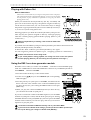
1.Turn on either synth part key 1 or 2 (the key will light).
2.Press the Keyboard key to turn on the Keyboard function (the key will light).
Indication of octave
1
3.The step keys will function as a keyboard, and can be
played.
To change the octave, use the Select keys. The select LEDs
(lower row, red) will light to indicate the octave as follows.
Drum Part
2
3
Synth Part
LED(s) lit
Pitch range
A0...C2
A1...C3
A2...C4
A3...C5
A4...C6
A5...C7
Pressing the synth accent part key will not produce sound.
The Keyboard function cannot be turned on/off unless either synth part key 1 or 2 is
selected.
Each synth part is a monophonic synthesizer, and cannot play multiple notes simultaneously; i.e., it is not polyphonic.
15
3. Basic operation (Quick Start)
○○○○○○○○○○○○○○○○○○○○○○○○○○○○○○○○○○
Modifying (editing) the sound of a part
For a drum part you can select the wave of the drum sound, and for a synth part you
can select the wave of the synth sound.
Use the Level and Pan knobs and the Effect and Amp EG keys to edit the sound of each
part.
The sound of each part in the pattern that you edit in this way can be saved by the Write
operation. (See p.21 “Saving a pattern that you create.”)
When you press a drum part key, the keyboard function of the step keys will be
defeated, but will return to the previous setting when you once again select a synth
part.
The knobs that are valid will differ depending on the part. (See p.27 “Editing the
sound of a part.”)
If a motion sequence is operating for a knob and you have difficulty editing the sound
as you wish, turn off the motion sequence before editing the sound. (See p.34 “Motion sequence.”)
What is a Wave?
“Waves” are the pieces of waveform data inside the EM-1 that are the basis for the sound of each part.
There are 144 waves for use by drum parts, and 50 waves for use by synth parts, making a total of 194
waves. You can freely assign these waves to each part. (See p.27 “Assigning a wave”)
Editing the sound of a drum part
1.Press the PATTERN mode key to enter Pattern Mode.
2.Use the cursor keys [▲][▼] to select Wave (the corresponding LED wil light).
4
Original Value (LED)
3.Press a Drum Part key to select the part that you wish
to edit.
5
4.Turn the dial to select a wave while you press the key
you selected in step 3 to hear the sound.
2
5.Operate the knobs and keys of the Part Common section to modify the sound. When a knob position or key
setting is the same as the original sound, the Original
Value LED
will light to indicate this.
1
3
Editing the sound of a synth part
1.Press the PATTERN mode key to enter Pattern mode.
2.Use the cursor keys [▲][▼] to select Wave (the corresponding LED wil light).
3.Use the Synth Part keys to select the part (1 or 2) whose sound you wish to edit.
4.Turn on the Keyboard function (the key will be lit),
and then press a step key to play the sound.
5
Original Value (LED)
5.While pressing the step keys to hear the sound, turn
the dial to select a wave.
6.Operate the knobs and keys of the Synth Filter section or the Part Common section to modify the sound.
When a knob position or key setting is the same as
the original sound, the Original Value LED
will light
to indicate this.
16
6
6
2
3
1
4
4,5
○ ○ ○ ○ ○ ○ ○ ○ ○ ○ ○ ○ ○ ○ ○ ○ ○ ○ ○ ○ ○ ○ ○ ○ ○ ○ ○ ○ ○ ○ ○ ○ ○ ○3. Basic operation (Quick Start)
Editing the effect or delay
1.Press a drum part key to select a part for which it will be easy to hear the changes you
make to the effect.
2.To use a synth part while editing the effect, turn on the
Keyboard key, and press the step keys to play the sound.
Original Value
(LED)
3.To edit the effect, turn on the Effect key in the Part Common section (the key will light).
5
4
4.To edit the global delay, turn on the Delay Edit key in the
Effect/Delay section.
3
2
5.Operate the knobs and keys of the Effect/Delay section to
modify the effect or delay. When a knob position or key
setting is the same as the original effect or delay setting,
the Original Value LED
will light to indicate this.
1
2
2
3. Basic operation (Quick Start)
The pattern that you edit in this way can be saved by the Write operation (see p.21
“Saving a pattern that you create”).
When you press a drum part key, the keyboard function of the step keys will be
defeated, but will return to the previous setting when you once again select a synth
part.
The delay is a global effect, so it will always be on, regardless of the on/off status of
the Effect key.
The function of the knobs will differ depending on the type of effect. (See p.29 “EFFECT.”)
If a motion sequence is operating for a knob and you have difficulty editing the sound
as you wish, turn off the motion sequence before editing the sound. (See p.34 “Motion sequence.”)
Playing the sound of a part along with a song or pattern
1.Select the synth part (1 or 2) that you wish to play, and turn on the keyboard function.
2.In Song mode or Pattern mode, press the Play/Pause key to begin playback.
3.Press the drum part keys or the step keys to play along
with the song or pattern.
When you press a drum part key, the keyboard function of the step keys will be defeated, but will return
to the previous setting when you once again select
a synth part.
The synth parts are monophonic synthesizers. One
part cannot sound multiple notes simultaneously.
2
1
1
3
3
17
3. Basic operation (Quick Start)
○○○○○○○○○○○○○○○○○○○○○○○○○○○○○○○○○○
Editing the sound of a part, effect, or delay while hearing a
song or pattern
1.In either Song mode or Pattern mode, press the Play/Pause key to begin playback.
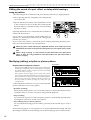
2.Press a part key (the key will light) to select the part that
you wish to edit.
3.Operate the knobs and keys of the Synth Filter section
or Part Common section to modify the sound. Operate
the knobs and keys of the Effect/Delay section to modify
the effect or delay.
3
3
Operating the knobs or keys will modify the sound that is
used by the performance.
2
1
If you wish to save the pattern sound settings that you
edit here, use the Write procedure (see p.21 “Saving a pattern that you create”)
If you re-select the pattern or turn off the power without performing the Write procedure, the sound will return to its un-edited state.
When you press a drum part key, the keyboard function of the step keys will be
defeated, but will return to the previous setting when you once again select a synth
part.
While a Song is playing, it is not possible to write edits made to the part sound,
effect, or delay. It is only possible to write edits made to the part sound while a
Pattern is playing.
Modifying (editing) a rhythm or phrase pattern
Rhythm patterns and phrase patterns
Each pattern of the EM-1 contains a rhythm pattern created using
the drum parts, and phrase patterns created using the synth parts.
The rhythm pattern consists of sequence patterns (note timing
data) for each step of each part.
Phrase patterns consist of trigger (note location), note number
(pitch), and gate time (note length) data at each step for each part.
You can use the sixteen step keys to modify the rhythm and phrase
patterns for the various parts. Rhythm and phrase patterns can
also be recorded (by realtime recording) as you play. (See p.25
“Pattern mode”)
Rhythm pattern
Timing
Accent
Time
Edit
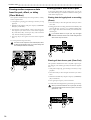
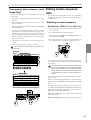
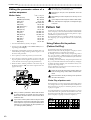
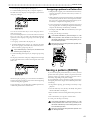
Part 3
Timing of sounds
Part
Time
Timing of sounds
Part 1
Drum
Time
Timing of sounds
Part 2
Edit
Note
Wave
(101)
trigger
Off
1
Time
On Off On Off On Off On Off On Off On Off On Off On
3 4 5 6 7 8 9 10 11 12 13 14 15 16
2
-----------------Motion sequence data----------------------
Phrase pattern
Timing
Accent
Part 2
Part 1
Edit
Time
Timing of sounds
Note
Part
Time
Timing of sounds
trigger
Note
Synth
As described below, there are two ways to edit a rhythm
pattern, and three ways to edit a phrase.
Time
Part 6B Timing of sounds
number
On Off
1 2
C4
Time
On On Off
3 4 5 6
Off
Off
Off
7
8
On Off Off Off On Off Off
9 10 11 12 13 14 15 16
Off
E4 C4
C4
value
-----------------Motion sequence data----------------------
• Realtime recording
While playing back a pattern, you can use the part keys or the keyboard function (for
synth parts only) to record a new phrase along with the playback.
• Step recording
You can use the step keys to create a sequence pattern, or individually input the pitch
and length of each note to record a new phrase.
• Note editing (only for phrase patterns)
You can edit the data (trigger, note number, gate time) of the selected step to create a
phrase.
In the following pages we will explain how to perform Realtime Recording and Step
Recording. For details on Note Editing, refer to Note Editing (p.32) in "Pattern mode."
18
A3
Note
Wave
(21)
○ ○ ○ ○ ○ ○ ○ ○ ○ ○ ○ ○ ○ ○ ○ ○ ○ ○ ○ ○ ○ ○ ○ ○ ○ ○ ○ ○ ○ ○ ○ ○ ○ ○3. Basic operation (Quick Start)
Realtime recording
This method allows you to record while listening to the performance.
To record a rhythm pattern, press the rhythm part keys at the desired timing. To record
a phrase pattern, use the keyboard function and press the step keys at the desired timing.
When you press a drum part key, the keyboard function of the step keys will be
defeated, but will return to the previous setting when you once again select a synth
part.
If you wish to listen to the metronome as you record, refer to p.46 "Metronome settings."
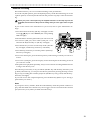
1.Press the Pattern mode key (the key will light). Use the
cursor [▲][▼] keys to select Pattern (the corresponding
LED will light).
2
3.To record a synth part, select either synth part 1 or 2,
and turn the Keyboard key on (the key will light).
4.Press the Rec key to enter record-ready mode. (The Rec
key will light, and the Play/Pause key will blink.)
5.Press the Play/Pause key to start the pattern. (The Play/
Pause key will light.)
3. Basic operation (Quick Start)
2.Turn the dial to select the pattern that you wish to record.
1
3
1
4,7
5
3
6
7
6.To record a drum part, press the drum part key at the timing at which you want it to
sound.
7.To record a synth part, press the step key for the desired pitch at the timing at which
you want it to sound.
8.The pattern will playback repeatedly, and you can continue recording additional notes
as long as the Rec key is lit.
Press the Stop/Cancel key to stop recorded. (The Rec key and the Play/Pause key will
go dark.) Alternatively, you can press the Rec key (instead of pressing the Stop/Cancel
key) to stop recording but continue playback. (The Rec key will go dark, and the Play/
Pause key will light.)
If you wish to save the completed pattern, press the Write key. (Refer to p.21 "Saving a
pattern that you create.")
Erase
If you input a note by mistake, hold down the Shift key while the pattern continues to
play, and then hold down the Rec key. Note triggers will be erased from the selected
part (whose key is lit) while you hold down these keys.
19
3. Basic operation (Quick Start)
○○○○○○○○○○○○○○○○○○○○○○○○○○○○○○○○○○
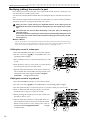
Step Recording
The method will differ, depending on whether you are creating a synth part phrase or a
drum part rhythm.
When you press a drum part key, the keyboard function of the step keys will be
defeated, but will return to the previous setting when you once again select a synth
part.
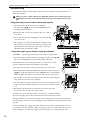
Using the step keys to create a drum part rhythm
2
1.Press the Pattern mode key (the key will light).
Use the cursor [▲][▼] keys to select Pattern (the corresponding LED will light).
2.Rotate the dial to select the pattern that you wish to
record into.
1
1
3.Press a part key (the key will light) to select the part that
you wish to use.
4.The step keys will light to indicate the rhythm of the
selected part. You can press the step keys to modify the
rhythm pattern. Each time you press a key, it will alternate between on (lit) and off (dark).
3
4
4
Using the step keys to create a synth part phrase
If the EM-1
2
is playing, press the Stop/Cancel key to stop playback.
1.Press the Pattern mode key (the key will light). Use the cursor [▲][▼]
keys to select Pattern (the corresponding LED will light).
2.Rotate the dial to select the pattern that you wish to record into.
1
1
3.Turn on the Keyboard function (the key will light).
3
4.Use the Part Select key to select the part that you wish to use.
5.Press the Pattern mode STEP EDIT key, and then use the cursor keys
[▲][▼] to make the parameter select Step Rec (the corresponding
LED will light). The display will indicate the target step (see p.33).
4
6.Press the Rec key to enter recording mode. At this time, pressing the
Play/Pause key will not start playback.
7.Use the step keys to input the pitch for each note of the phrase. (The
target step will automatically advance by one step each time you do
so.)
8.Recording will end when you input the last step or press the
Stop/Cancel key (the Rec key will go dark).
Rest/Tie Key
5
5
6
To input a rest, press the Rest/Tie key. To enter a tie, continue holding
down the step key (the sound will continue) and press the Rest/Tie key.
During recording, you can rotate the dial to move the target step forward or backward.
You can jump to a specific step by holding down the Shift key and pressing the desired
step key.
In step recording, the trigger and note number are recorded simultaneously, but it is
not possible to make detailed settings for the gate time. Use Note Edit (refer to p.32
"Note editing") to re-adjust the trigger and note number, or to adjust the gate time.
20
7
○ ○ ○ ○ ○ ○ ○ ○ ○ ○ ○ ○ ○ ○ ○ ○ ○ ○ ○ ○ ○ ○ ○ ○ ○ ○ ○ ○ ○ ○ ○ ○ ○ ○3. Basic operation (Quick Start)
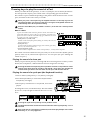
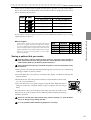
In the case of a pattern with a length of 2 measures or greater, you can use the Select
keys to move the select LED in the lower line (red) in order to change the step location
that is shown by the step keys.
Area shown by the step keys
Select
Length
LED display
1
Steps 1...16
Steps 1...12
2
Steps 17...32
Steps 13...24
3
Steps 33...48
Steps 25..36
4
Steps 49...64
Steps 37...48
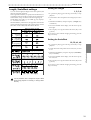
What is Length?
In this context, “Length” refers to the length of the rhythm
pattern. The “Length” of the pattern will be either 16 steps
or 12 steps, depending on the Scale and Beat settings of the
pattern. A rhythm pattern in triple meter will be shown in
triplets. Depending on the Length and Beat settings, a single
pattern can have up to 64 steps. (Refer to p.31 “Length,
Scale/Beat settings.”)
Pattern Length (number of steps)
Scale/Beat
Note value of
display
each step key
=1
=2
=3
=4
16th note
16
32
48
64
32nd note
16
32
48
64
16 (
X 16
)
32 (
X 16 )
3. Basic operation (Quick Start)
If you wish to save the completed pattern, press the WRITE key. (Refer to p.21 “Saving
a pattern that you create.”)
tri (
X 12 )
8th note (triplet)
12
24
36
48
tr2 (
X 12)
16th note (triplet)
12
24
36
48
Saving a pattern that you create
With the factory settings, memory protect will be on, and it will not be possible to
save data. Before you save data, you must turn off the Memory Protect settings in
Global mode. (Refer to p.48 "Memory Protect (Protect).")
Please be aware that when you save data, the pattern in the save destination will be
overwritten.
1.Edit a pattern as described in "Modifying (editing) the sound of a part" or "Modifying
(editing) a rhythm or phrase pattern."
2.Press the Write key once (the key will blink). The display will blink to indicate the
pattern number.
3.Rotate the dial to select the pattern number in which the data will be saved
(i.e., the "save destination").
3
4.Press the Write key once again to begin saving the data. While the data is
being saved, the key will blink. When saving is complete, the key will go
dark.
If you decide to cancel, press the Stop/Cancel key. If you do not wish to save
the pattern you created, simply select a different pattern without performing
the Write operation.
2,4
Never turn off the power while data is being saved to memory (i.e., while the Write
key is lit). Doing so may damage the data.
It is not possible to Write data during playback or recording.
21
3. Basic operation (Quick Start)
○○○○○○○○○○○○○○○○○○○○○○○○○○○○○○○○○○
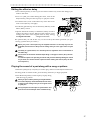
Using a Motion Sequence
What is a Motion Sequence?
The EM-1 has three types of motion sequence that let you record and loop tonal changes created by the
knobs and keys. (See p.35 “Recording a motion sequence”)
The knobs and keys that are valid for each of the three types of motion sequence (effect, delay, part) will
differ depending on the type of part.
Effect
Edit 1, Edit 2 (valid only for parts for which the effect is on)
Delay
Time, Depth (Applies to the entire pattern. Cannot be applied to an individual part.)
Drum part A total of two: either EG Time, Pitch, Level, or Pan; plus either Effect, Roll, or Amp EG
Synth part A total of three: either EG Time, Glide, Level, or Pan; plus either Cutoff, Resonance, EG
Int, or Drive; plus either Effect, Roll, or Amp EG
Accent part Level
As an example, here's how to record the Pitch parameter in a motion sequence.
1.In Pattern mode, select the pattern that you wish to edit.
2.Press the Drum Part key to select the part that you wish to edit.
3.Press the Motion Sequence key to select either Smooth
or Trig Hold
.
4.Press the Rec key to enter record-ready mode (the Rec
key will light, and the Play/Pause key will blink).
1
5.Press the Play/Pause key to start the pattern (the Rec
key and Play/Pause key will light).
6.Move the Pitch knob to create various changes while
the pattern makes one cycle (16 steps x length, or 12
steps x length).
7.When the pattern has completed one cycle after you
began moving the knob, the Rec key will automatically go dark and you will return to Play mode so that
you can listen to the motion sequence that you just
recorded.
3
4
5
2
After pressing the Stop/Cancel key to stop playback, perform step numbers 2 and following for "Saving a pattern that you create" to save the pattern that contains the motion sequence you just recorded.
There are two types of motion sequence (Smooth and Trig Hold
). During playback,
switch between these to hear the difference. (Refer to p.34 "Playing a motion sequence.")
After recording a motion sequence, you can edit it using the Pattern mode STEP
EDIT functions Motion Dest. and Motion Value. (See p.39 “Editing motion sequence
data”)
The number of valid knobs and keys for motion sequences are limited, depending on
the part. If you record more than the valid number of motion sequences for the same
part, the effect for the previous knob or key will be erased.
22
6
○ ○ ○ ○ ○ ○ ○ ○ ○ ○ ○ ○ ○ ○ ○ ○ ○ ○ ○ ○ ○ ○ ○ ○ ○ ○ ○ ○ ○ ○ ○ ○ ○ ○3. Basic operation (Quick Start)
Playing with Pattern Set
What is Pattern Set?
When you hold down the Keyboard key (the key will blink) and
press one of the sixteen step keys, the pattern assigned to that key
will be selected. At this time you can use the Select keys to change
the pattern set group indicated by the red select LEDs (lower line) 1-4, to use 16 x 4 (total of 64) pattern sets.
Pattern Set 1
Pattern Set 3
If during playback you hold down the Keyboard key and press another step key, the pattern assigned to that key will begin playing
when the currently-playing pattern finishes playing. (Refer to p.40
"Pattern Set.")
Hold down the Shift key and
press the Keyboard function key
to hold the Pattern Set function.
While the Keyboard key is blinking, it will control the Pattern Set
function.
3. Basic operation (Quick Start)
Pattern Set is a function that lets you assign favorite patterns to the 16 step keys,
and switch between them as desired. While playing, you can successively select
favorite patterns, or play combinations of patterns as a loop (see p.40 "Chain
playing pattern sets").
If you hold down the Shift key and press the Keyboard key, the Pattern Set function will
be held. (The Keyboard key will blink.)
To defeat this "hold" condition, press the Keyboard key once again.
You can assign new pattern sets. (Refer to p.41, "Assigning a pattern to a Pattern Set.")
Pattern sets cannot be used in Song mode.
If you switch patterns during playback, the change will occur when each pattern
finishes playing. (Refer to p.25 "The timing at which patterns will change.")
Using the EM-1 as a tone generator module
Read this section when you wish to use the EM-1 with other connected MIDI equipment. Use a MIDI cable to connect the MIDI OUT connector of your MIDI keyboard etc.
to the MIDI IN connector of the EM-1 .
1.Press the Global mode key to enter Global mode.
2.Use the cursor [▲][▼] keys to select MIDI ch (the corresponding
LED will light).
3.Press the part key for synth part 1 of the EM-1, and then turn the
dial to select the same channel as the connected MIDI keyboard
(or other device) (see p.47 “Setting the MIDI channel of each part
(MIDI ch)”).
MIDI IN
MIDI cable
MIDI keyboard etc.
MIDI OUT
3
4.When you play the connected MIDI keyboard (or other device),
you will hear the sound of synth part 1.
If you have connected a multi-track MIDI sequencer, set the MIDI
channel of synth parts 1 and 2, and the drum part (see p.47 “Setting
the MIDI channel of each part (MIDI ch)”). Set each part to the MIDI
channel of the track that you want it to play, and start your external
sequencer to play the parts.
2
1
3
For details on the EM-1's MIDI functionality, refer to p.49 "About MIDI."
If you wish to save Global mode settings, you must perform the Write operation (Refer to p.48 “Saving your changes in Global mode (WRITE)”).
23
3. Basic operation (Quick Start)
○○○○○○○○○○○○○○○○○○○○○○○○○○○○○○○○○○
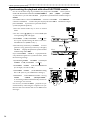
Synchronizing the playback with other ELECTRIBE models
For an even broader range of possibilities, the playback of the EM-1 can be synchronized with other models of the series: the ELECTRIBE•S
(ES-1 ), R (ER-1 ), and A(EA1 ). Here's how you can make the ES-1 playback in synchronization with the tempo of
theEM-1 .
Use a MIDI cable to connect the MIDI OUT connector of the EM-1 to the MIDI IN
connector of the ES-1 . Connect the part output jacks of the EM-1 and the line output
jacks of the ES-1 to your mixer or powered monitor
system (amplified speakers).
1.Press the Global mode key to move to Global
mode.
2.Use the cursor [▲][▼] keys to select Clock (the
corresponding LED will light).
EM-1
3.Set the EM-1 to "int," and the ES-1 to "E t." (Refer to p.46 "Synchronizing the EM-1 with external MIDI devices (MIDI Clock).")
MIDI OUT
4.Press the Play/Pause key of the EM-1 to start a
pattern or song. (The Play/Pause key will light.)
The ES-1 will play the pattern in synchronization
with the tempo of the EM-1 .
MIDI cable
MIDI IN
ES-1
If you want the EM-1 and ES-1 to play the identically-numbered pattern in synchronization, make
the following settings.
• Synchronizing the ES-1 to the EM-1 as master.(Set
the EM-1 to "int," and the ES-1 to "E t.")
• Set the EM-1 and ES-1 to the same MIDI channel
(for example, set both to "01").
3
EM-1
• On the EM-1 and ES-1 , set the MIDI filter setting
"P" to "O" (refer to p.47 "MIDI filter settings").
• On the ES-1 , set the MIDI note number s e t t i n g
toC-1..A-1
orA#8..G9
.(ThiswillpreventtheES1 from being sounded unintentionally when noteon messages are received.
It is also easy to make the EM-1 playback in synchronization by connecting it to a sequencer or synthesizer that can transmit and receive MIDI Clock
messages.
24
2
4
1
ES-1
2
3
1
○ ○ ○ ○ ○ ○ ○ ○ ○ ○ ○ ○ ○ ○ ○ ○ ○ ○ ○ ○ ○ ○ ○ ○ ○ ○ ○ ○ ○ ○ ○ ○ ○ ○ ○ ○ ○ ○ ○ ○ ○ ○ 4.Pattern mode
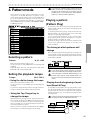
4. Pattern mode
In this mode you can play patterns, edit patterns, or create
new patterns. To edit individual steps of a pattern, use the
Pattern mode Step Edit function. Press the PATTERN mode
key to enter Pattern mode. Although you can also enter Pattern mode by pressing the STEP EDIT key, you should press
the PATTERN mode key if you wish to edit the Pattern, Tempo,
and Wave parameters.
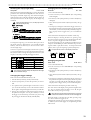
Pattern (A.01)
256 patterns A.01...d.64
Synth Parts
Phrase patterns (maximum 64 steps)
Synthesizer 1
(Wave, 11 Parameters,
Motion Sequence)
(Wave, 11 Parameters,
Motion Sequence)
Synth Accent
(Level, Motion Sequence)
D2
G2
C2
1
2
3
4
5
6
G2
7
8
(Wave,
7 Parameters, Motion Sequence)
Drum 2
(Wave,
7 Parameters, Motion Sequence)
Drum 3
(Wave,
7 Parameters, Motion Sequence)
Drum 4
(Wave,
7 Parameters, Motion Sequence)
Drum 5A
9
10
11
12
13
14
15
16
17
18
D2
E2
E2
19
20
21
22
C2
C2
23
24
25
26
C2
E2
27
28
29
30
31
32
D2
Step Step Step Step Step Step Step Step Step Step Step Step Step Step Step Step Step Step Step Step Step Step Step Step Step Step Step Step Step Step Step Step
1
2
3
4
5
6
7
8
9
10
11
12
13
14
15
16
17
18
19
20
21
22
23
24
25
26
27
28
29
30
31
32
Step Step Step Step Step Step Step Step Step Step Step Step Step Step Step Step Step Step Step Step Step Step Step Step Step Step Step Step Step Step Step Step
1
2
3
4
5
6
7
8
9
10
11
12
13
14
15
16
17
18
19
20
21
22
23
24
25
26
27
28
29
30
31
32
Rhythm patterns (maximum 64 steps)
Drum Parts
Drum 1
D2
E2
Step Step Step Step Step Step Step Step Step Step Step Step Step Step Step Step Step Step Step Step Step Step Step Step Step Step Step Step Step Step Step Step
Synthesizer 2
Step Step Step Step Step Step Step Step Step Step Step Step Step Step Step Step Step Step Step Step Step Step Step Step Step Step Step Step Step Step Step Step
1
2
3
4
5
6
7
8
9
10
11
12
13
14
15
16
17
18
19
20
21
22
23
24
25
26
27
28
29
30
31
32
Step Step Step Step Step Step Step Step Step Step Step Step Step Step Step Step Step Step Step Step Step Step Step Step Step Step Step Step Step Step Step Step
1
2
3
4
5
6
7
8
9
10
11
12
13
14
15
16
17
18
19
20
21
22
23
24
25
26
27
28
29
30
31
32
Step Step Step Step Step Step Step Step Step Step Step Step Step Step Step Step Step Step Step Step Step Step Step Step Step Step Step Step Step Step Step Step
1
2
3
4
5
6
7
8
9
10
11
12
13
14
15
16
17
18
19
20
21
22
23
24
25
26
27
28
29
30
31
32
Step Step Step Step Step Step Step Step Step Step Step Step Step Step Step Step Step Step Step Step Step Step Step Step Step Step Step Step Step Step Step Step
1
2
3
4
5
6
7
8
9
10
11
12
13
14
15
16
17
18
19
20
21
22
23
24
25
26
27
28
29
30
31
32
(Wave,
If you switch to a different pattern without writing the
pattern whose tempo you modified, the pattern tempo
will return to the previous value. If you wish to keep the
modified tempo, you must perform the Write operation
(refer to p.41 "Saving a pattern (WRITE)").
Playing a pattern
(Pattern Play)
Press the Play/Pause key to start pattern playback. When the
pattern finishes playing, it will return to the beginning and
continue playing.
To check the pattern that is playing, make sure that the PATTERN mode key is lit, and use the cursor keys to select Pattern (the corresponding LED will light).
You can use the keyboard function to play on the step keys
along with the pattern, press the drum part keys, or operate
the knobs and keys to modify the sound.
By taking advantage of the various functions of Pattern mode
as part of your performance technique, you can enjoy even
wider possibilities.
7 Parameters, Motion Sequence)
(Wave,
7 Parameters, Motion Sequence)
Drum 6A
Step Step Step Step Step Step Step Step Step Step Step Step Step Step Step Step Step Step Step Step Step Step Step Step Step Step Step Step Step Step Step Step
1
2
3
4
5
6
7
8
9
10
11
12
13
14
15
16
17
18
19
20
21
22
23
24
25
26
27
28
29
30
31
32
(Wave,
7 Parameters, Motion Sequence)
Drum 6B
(Wave,
7 Parameters, Motion Sequence)
Drum Accent
(Level, Motion Sequence)
Step Step Step Step Step Step Step Step Step Step Step Step Step Step Step Step Step Step Step Step Step Step Step Step Step Step Step Step Step Step Step Step
1
2
3
4
5
6
7
8
9
10
11
12
13
14
15
16
17
18
19
20
21
22
23
24
25
26
27
28
29
30
31
32
Step Step Step Step Step Step Step Step Step Step Step Step Step Step Step Step Step Step Step Step Step Step Step Step Step Step Step Step Step Step Step Step
1
2
3
4
5
6
7
8
9
10
11
12
13
14
15
16
17
18
19
20
21
22
23
24
25
26
27
28
29
30
31
32
Selecting a pattern
Pattern
A.01...d.64
Make sure that the Pattern mode key is lit.
Use the cursor keys to select Pattern (the corresponding LED
will light).
Rotate the dial to select one of the 256 patterns: A.01...A.64,
b.01...b.64, C.01...C.64, and d.01...d.64.
Setting the playback tempo
Tempo
The timing at which patterns will
change
20.0...300.0
• Using the dial to change the tempo
Make sure that the Pattern mode key is lit.
Use the cursor keys to select Tempo (the corresponding LED
will light).
If you wish to change the tempo units to the right of the decimal place, hold down the Shift key and rotate the dial.
• Using the Tap Tempo key to
change the tempo
While the pattern is playing, press the Tap key three times or
more at the desired tempo. The EM-1 will calculate the interval at which you pressed the Tap key, and will change the
tempo accordingly. You can change the tempo in the same way
even when playback is stopped.
When you use the cursor keys to LEDs indicate select Tempo,
and the tempo you modified will appear in the display.
When you switch patterns during playback, the change will
occur when the currently playing pattern finishes its last step.
Until the pattern actually changes, the pattern number selected
in the display will blink.
4.Pattern mode
Drum 5B
Pattern is changed Begins playing
Pattern A01
Pattern A21
If you change patterns during playback, some slight
noise may be heard due to the change in delay time etc.
If the same effect is used with different settings in the
previous pattern and the newly-selected pattern, the
sound you hear will be the same as if those knobs were
turned.
Playing from the beginning of a pattern (Reset & Play)
If you hold down the Shift key when pressing the Play/Pause
key, the playback will be forced to playback from the beginning. By using this function in conjunction with setting the
tempo by the Tap key, you can synchronize the playback without using MIDI.
In order to ensure that the phrase always matches, you
will need to perform this adjustment each time.
Pattern A01
Pattern A01
25
4.Pattern mode
○○○○○○○○○○○○○○○○○○○○○○○○○○○○○○○○○○○○○○○○○○
About the tempo when you switch
patterns (Tempo Lock)
Display when no parts
are muted.
When the Tempo Lock key is off (key unlit), switching patterns even during playback will cause the tempo to change to
the tempo of the newly selected pattern. If you want to keep
the same tempo, turn the Tempo Lock key on (key lit).
Mute Synth part 1 and
Drum part 4.
If the Tempo Lock key is on, the tempo will be held even
if you stop playback. To return to the tempo that is stored
for each pattern, turn the Tempo Lock key off (key dark),
and then re-select the pattern.
The state of the Tempo Lock key cannot be saved as
pattern data.
Display when Synth
part 1 and Drum
part 4 are muted.
Selecting a part
Use the Part keys to select the part that you will edit or play
using the keyboard function.
The EM-1 has the following 12 parts.
• Eight drum parts to which you can assign a drum wave
• Two synth parts to which you can assign a synth wave
• Two accent parts that contain dynamics data for each step
Drum parts
When you press a drum part key, the accented sound will be
heard, and that part will be selected (the part key will light).
At this time, the step keys will light for the trigger locations in
the rhythm pattern of that part. During playback, the step that
is playing will also light simultaneously.
If you want to select a part during playback without causing the sound to be heard, hold down the Shift key and
press a drum part key.
When you press a drum part key to sound it, the sound
will be heard at the volume of when accent is on.
When you hold down the Part Mute key (Tap key) to
select the Mute function, pressing a part key will not
sound that part.
The Part Solo function
By pressing the Solo key (the key will light) and pressing a
part key, you can hear only that part.
To solo two or more parts, hold down the Solo key and select
the desired parts. While the Solo key is lit, you can hold down
the Solo key (or Mute key) and press other part keys to add
more solo parts. If you press and then release the Solo key, the
Solo function will be canceled (the key will go dark).
Display when no parts are soloed
Solo more than one part
Synth parts
When you press a synth part key the key will light, and that
part will be selected. At this time, the step key indications will
depend on whether the Keyboard function is on or off.
On (lit):
During playback, keys of the corresponding pitch
will light consecutively at the timing at which the
selected part plays.
Off (dark): The phrase pattern trigger locations for the part
will light. During playback, the currently-playing
step will also light simultaneously.
Select Drum parts 1 and 4
Solo one part
Select Slice sample part
Display when Drum parts 1
and 4 are soloed
Accent parts
When you press an accent part key, the key will light, and that
part will be selected. At this time, the step keys will light to
indicates the accent-on locations for that accent pattern. During playback, the currently-playing step will also light simultaneously.
The Part Mute function
By holding down the Part Mute key (Tap key) while you press
a part key, you can mute (temporarily silence) that part. While
you hold down the Part Mute key (Tap key), the mute status
of each part will be displayed. The part key of unmuted parts
will light, and muted part keys will be dark.
You can also mute two or more parts.
To cancel the mute setting, press the Solo key. To cancel muting for an individual part, press the key of that part.
26
Display when Slice
sample part is soloed
Add Drum part 6A to the
soloed parts Drum 1 and 4
○ ○ ○ ○ ○ ○ ○ ○ ○ ○ ○ ○ ○ ○ ○ ○ ○ ○ ○ ○ ○ ○ ○ ○ ○ ○ ○ ○ ○ ○ ○ ○ ○ ○ ○ ○ ○ ○ ○ ○ ○ ○ 4.Pattern mode
The parameters that are valid will depend on the type of part,
as listed below.
There are two ways to create a pattern. You can start with a
pattern that is similar to the desired result and then edit it, or
you can create a sound and rhythm-, phrase pattern for each
part from scratch. Either way, the EM-1 makes it easy for you
to create your own original patterns.
If you wish to save a pattern you create, you must perform the Write operation before you select a different
pattern or turn off the power.
Assigning a wave
Wave
(Drum parts)
off, 1...144
(Synth parts)
off, 1...50
The EM-1 has 194 waves (144 for drum, 50 for synth) that you
can assign to each part.
A wave cannot be specified for an accent part. (The display will indicate “- - -.”)
Make sure that the PATTERN mode key is lit.
1. Use the cursor keys to select Wave (the corresponding LED
will light).
2. Press the key of the drum or synth part to which you wish
to assign a wave (the key will light). The number of the wave
assigned to that key will appear in the display.
3. For a drum part, turn the dial and press the part key to hear
the wave as you make your selection.
4. For a synth part, turn on the keyboard function, turn the
dial, and press the step keys to hear the wave as you make
your selection.
If you do not wish to specify a wave, select “oFF.”
Chord splits
Several of the synth part waves sound as a chord. In some of
these, different chords are arranged across the keyboard within
the single wave. These are referred to as “chord splits.” Synth
part waves 43, 45, 46, and 47 are chord splits.
In some cases, the pitch may be discontinuous at the point
where chords change within a chord split. Be aware that if
you change the Transpose (p.35) or Song mode Note Ofs. (p.43)
settings, the chord or octave may be different from when you
created the pattern.
Editing the sound of a part
Drum part
EG Time, Pitch, Level Pan, Effect, Roll, Amp EG
Synth part
EG Time, Glide, Level, Pan, Effect, Roll, Amp EG,
Cutoff, Resonance, EG Int, Drive
Accent part
Level
If the sound does not change when you rotate a knob or
switch the setting of a key, either another knob or key
has been set so that the parameter you are attempting
to adjust has no effect, or the Motion Sequence function (p.34 "Motion sequence") is operating.
Although drum parts 5A and 5B, and 6A and 6B can be
edited independently, they cannot be played simultaneously. If triggers for both exist at the same step, the
5B or 6B part will sound.
Drum part
Part common section
EG Time
0...127
This sets the time over which the EG will decay. The way
in which the volume decays will depend on the Amp EG
setting.
Pitch
4.Pattern mode
Creating a pattern
–64...63
This specifies the playback pitch of the wave. Raising the
pitch will speed up the playback, and lowering it will slow
down the playback. The pitch can be adjusted over a range
of +/–2 octaves, and will change in the following way.
Pitch Offset Values
Value
63
61
59
57
55
53
51
49
47
45
43
41
39
36
33
30
27
Step
+12 (2 oct. up)
+11 1/2
+11
+10 1/2
+10
+9 1/2
+9
+8 1/2
+8
+7 1/2
+7
+6 1/2
+6 (1 oct. up)
+5 1/2
+5
+4 1/2
+4
Value
24
21
18
15
12
09
06
00
-07
-10
-13
-16
-19
-22
-25
-28
-31
Step
+3 1/2
+3
+2 1/2
+2
+1 1/2
+1
+1/2
actual pitch
-1/2
-1
-1 1/2
-2
-2 1/2
-3
-3 1/2
-4
-4 1/2
Value
-34
-37
-40
-42
-44
-46
-48
-50
-52
-54
-56
-58
-60
-62
-64
Step
-5
-5 1/2
-6 (1 oct. down)
-6 1/2
-7
-7 1/2
-8
-8 1/2
-9
-9 1/2
-10
-10 1/2
-11
-11 1/2
-12 (2 oct. down)
Noise may occur when you raise the pitch.
Select the pattern whose sound you wish to edit. While striking the part keys or pressing the step keys (with the Keyboard
function turned on) to hear the sound, turn the knobs or switch
the keys to edit the sound. At this time, the Original Value
LED will light when the knob etc. that you are currently moving reaches the same value as the original sound of the pattern.
You can also edit while playing back a pattern. It is also possible to use an external MIDI device to control the value of
each knob (refer to p.49 "About MIDI").
Level
0...127
Adjusts the output level. Rotating the knob toward the
right will increase the level.
Pan
L64...r63
Adjusts the stereo position (panpot) of the sound. When
the knob is located at the center, the sound is panned to
the center. Rotating the knob toward the left will move
the sound toward the left, and rotating it toward the right
will move the sound toward the right.
Amp EG
This switches the operation of the Amp EG. Pressing the
key will switch between an envelope that decays (
: key
lit) and an envelope that does not decay (
: key dark).
27
4.Pattern mode
○○○○○○○○○○○○○○○○○○○○○○○○○○○○○○○○○○○○○○○○○○
Roll
Drive
This turns the Roll (successive strike) effect on (lit) or off
(dark) for each part. The roll interval is determined by the
tempo of the pattern and by the roll type (see p.32 “Setting the roll type”). If you press and hold a part key when
Roll is on, roll playback will continue as long as you continue holding the part key.
Part Common section
Effect
This turns the effect on (lit) or off (dark) for each part.
Motion Seq (motion sequence)
This records and plays back knob movements. Each time
you press this key, it will alternate between on (Smooth
lit), on (Trig Hold lit), and off (dark). (see p.34 “Playing
motion sequences”)
Synth part
Synth Filter section
The filter processes the sound produced by the oscillator to
make it less bright, etc.
Cutoff frequency
EG Int
Cutoff
Trigger on
Cutoff frequency
Cutoff
EG Int > 0
EG Time
Time
EG Time
0...127
This has the same function as for a drum part (see p.27).
By setting EG Int in the negative direction, this can be used
as the attack time.
Glide
0...127
“Glide” (also called portamento) is a function that, when
the gate time length extends beyond the timing of the next
note, smoothly changes the pitch from the previous note
to the next note without re-triggering.
The time from when the next note is played until that pitch
is reached can be specified as a multiple of steps (0, 1/4,
1/2, 1, 2, 4, 8, 16, 32, 64, 128 times) relative to the pattern
tempo. As this value increases, a longer time will be required before the target pitch is reached. Conversely if this
value is set to 0, the target pitch will be reached immediately, and since the note is not retriggered, this is suitable
when you wish to simulate a legato performance on a bass,
etc.
For some settings, slight noise may occur.
EG Int < 0
The Glide effect will be defeated when the Roll key
is on (lit).
EG Int
EG Time
Trigger on
Cutoff
Level
Time
0...127
Depending on the settings of this parameter, the
sound may be distorted or you may hear virtually no
sound.
Resonance
0...127
This parameter adds character to the sound by boosting
the region around the cutoff frequency. If you raise the
resonance and turn the Cutoff knob (or adjust EG Int and
EG Time), you will hear the typical "meow-ing" sound
typical of analog synthesizers.
If the resonance is raised, the sound may be distorted depending on the cutoff frequency or on the
pitch that you play.
EG Int (EG intensity)
0...127
This has the same function as for a drum part (see p.27).
Set the cutoff frequency of the low-pass filter. Overtones
higher than the cutoff frequency will be cut, making the
sound more mellow.
–64...63
Specify the depth and direction of the effect that the EG
(envelope generator) will have on the cutoff frequency. The
EG will start when trigger-on occurs (the instant you play
the keyboard). If this knob is in the center position, the EG
will have no effect.
If the gate time length of a step extends beyond the
point at which the next step is sounded, the EG will
not be re-triggered for the next step.
28
0 ... 127
This adjusts the degree of distortion for the sound of the
filter. By using this parameter in conjunction with the synth
filter Cutoff and Resonance to make the sound distort, you
can generate overtones that were not present in the original waveform.
Pan
L64...r63
This has the same function as for a drum part (see p.27).
Amp EG
This has the same function as for a drum part (see p.27).
Roll
This has the same function as for a drum part (see p.28).
When Roll is on, the sound will be played as a roll as long
as you hold down the step key (if the keyboard function is
on).
Effect
This has the same function as for a drum part (see p.28).
Motion Seq (motion sequence)
This lets you record and play back knob movements of
the Part Common section and Synthesizer section. Each
time you press this, it will alternate between on (Smooth
lit), off (Trig Hold lit), and off (dark). (See p.34 “Playing a
motion sequence”)
Accent parts
Part Common section
Level
0...127
This adjusts the accent level (the amount of volume emphasis when accent is on). (See p.34 “Adding accents to
the pattern(Accent)”) Effect or delay edit.
○ ○ ○ ○ ○ ○ ○ ○ ○ ○ ○ ○ ○ ○ ○ ○ ○ ○ ○ ○ ○ ○ ○ ○ ○ ○ ○ ○ ○ ○ ○ ○ ○ ○ ○ ○ ○ ○ ○ ○ ○ ○ 4.Pattern mode
EFFECT
On the EM-1, you can select and use one of eleven types of
effect for each pattern. The effect can be turned on/off for each
part by using the Effect key in the Part Edit section. Use the
two knobs (Edit 1, Edit 2) to adjust the parameters, which will
differ depending on the selected effect.
Although the effect can be turned on/off independently
for each part, the type and parameter values cannot be
changed independently.
Some time may be required for the effect to begin applying when you switch patterns.
Effect types and parameters
Motion Seq (motion sequence)
This is the motion sequence for the effect (see p.34 “Motion sequence”). Each time you press the key, this will alternate between on (lit) and off (dark).
When Delay Editing is on, this will be the delay motion sequence key.
Reverb
This simulates the reverberation and acoustics of a plate
reverb unit.
Edit 1 _ Time
0...127
The reverb time will lengthen as the knob is rotated toward the right.
Edit 2 _ Level
0...127
The level of the reverberation will increase as the knob is
rotated toward the right.
Flg./Cho. (flanger/chorus)
Flanger and chorus are effects that modulate the pitch of
a slightly time-delayed copy of the sound and add it to
the original sound to create a sense of spaciousness, modulation, and vibrato.
Edit 1 _ LFO Rate
0...127
Adjusts the LFO speed of the flanger/chorus.
The LFO speed will become faster as the knob is rotated
toward the right.
Edit 2 _ Depth
0...127
Adjusts the depth of the flanger/chorus effect. The effect
will change from chorus to flanger as the knob is rotated
toward the right.
Raising the depth excessively may cause the sound
to distort.
Phaser
This effect adds modulation to the sound by mixing a cyclically phase-shifted sound with the original sound.
Edit 1 _ LFO Rate
0...127
Adjusts the LFO speed of the phaser. The LFO speed will
become faster as the knob is rotated toward the right.
Edit 2 _ Depth
0...127
Adjusts the depth of the phaser. The modulation will become greater as the knob is rotated toward the right.
Ring Mod. (ring modulation)
This effect applies modulation to the sound in order to
create metallic resonances or unusual sound effects.
Edit 1 _ Frequency
0...127
Specifies the frequency of the modulation that will be applied. The frequency will rise as the knob is rotated toward the right.
Edit 2 _ Balance
0...127
Specifies the balance of the effect sound and direct sound.
As the knob is rotated toward the right, the effect sound
will increase and the direct sound will decrease.
Pitch Shifter
This effect shifts the pitch.
Edit 1 _ Pitch
0...127
Specifies the amount of pitch shift. When the knob is in
the center position, the output pitch will be the same as
the input pitch. As the knob is rotated toward the left the
pitch will become lower, and as the knob is rotated toward
the right the pitch will become higher. The available range
of pitch shift is +/-2 octaves, and will change as shown
below.
Pitch Offset Values
Value
127
125
123
121
119
117
115
113
111
109
107
105
103
100
97
94
91
Step
Value
Step
+12 (2 oct. up) 88 +3 1/2
+11 1/2
85 +3
+11
82 +2 1/2
+10 1/2
79 +2
+10
76 +1 1/2
+9 1/2
73 +1
+9
70 +1/2
+8 1/2
64 actual pitch
+8
57 -1/2
+7 1/2
54 -1
+7
51 -1 1/2
+6 1/2
48 -2
+6 (1 oct. up)
45 -2 1/2
+5 1/2
42 -3
+5
39 -3 1/2
+4 1/2
36 -4
+4
33 -4 1/2
Value
30
27
24
22
20
18
16
14
12
10
8
6
4
2
0
Step
-5
-5 1/2
-6 (1 oct. down)
-6 1/2
-7
-7 1/2
-8
-8 1/2
-9
-9 1/2
-10
-10 1/2
-11
-11 1/2
-12 (2 oct. down)
4.Pattern mode
Editing the effect or delay
Edit 2 _ Dry level
0...127
This adds the original sound to the pitch-shifted sound.
As the knob is rotated toward the right, increasing amounts
of the original sound will be added to the effect sound.
Compressor
A compressor boosts low level sounds and reduces high
level sounds in order to minimize differences in volume
and make the sound more consistent.
Edit 1 _ Sensitivity
0...127
Specifies the sensitivity of the compressor. When the knob
is in the far left position, there will be no effect. As the
knob is rotated toward the right, the effect will apply more
strongly.
Edit 2 _ Attack
0...127
Specifies the attack speed until the compressor begins to
take effect. The attack will become slower as the knob is
rotated toward the right.
Distortion
By boosting the volume appropriately, this effect causes the
sound to distort and produces a rich overtone structure.
Edit 1 _ Gain
0...127
Specifies the degree of distortion. The sound will be distorted more greatly as the knob is rotated toward the right.
Edit 2 _ Level
0...127
Adjusts the output level. The output level will increase as
the knob is rotated toward the right.
29
4.Pattern mode
○○○○○○○○○○○○○○○○○○○○○○○○○○○○○○○○○○○○○○○○○○
Decimator
This effect lowers the sampling frequency and the number of sampling bits, producing a grainy sound characteristic of cheap samplers.
Edit 1 _ Sampling frequency
0...127
Rotating the knob toward the right produces a more lo-fi
sound, and rotating it toward the left produces a more hifi sound.
Edit 2 _ Number of sampling bits
0...127
Rotating the knob toward the right will produce a sound
typical of fewer bits (lo-fi), and rotating it toward the left
will produce a sound typical of more bits (hi-fi).
If the input volume is extremely low, there may be
no output. If there is a high noise level during silent
times, noise may be generated.
Resonator
This adds a specific frequency region to the original waveform that has been boosted by a band pass filter.
Edit 1 _ Cutoff frequency
0...127
This adjusts the cutoff frequency of the band pass filter.
The cutoff frequency will rise as you turn the knob toward
the right.
Edit 2 _ Resonance
0...127
This boosts the sound in the region of the cutoff frequency,
adding a distinctive character to the sound. The resonance
will increase as you turn the knob toward the right.
Depending on the cutoff frequency or input sound,
high resonance settings may cause the sound to
distort.
Filter
This is a low pass filter with resonance. It cuts the overtones that are above the cutoff frequency, producing a
milder tone.
Edit 1 _ Cutoff Frequency
0...127
Adjusts the cutoff frequency of the low pass filter. The cutoff frequency will rise as the knob is rotated toward the
right.
Edit 2 _ Resonance
0...127
This emphasizes the sound in the region of the cutoff frequency, adding a distinctive character to the sound.
Depending on the cutoff frequency or input sound,
high resonance settings may cause the sound to
distort.
DELAY
Delay is an effect that adds one or more delayed “echoes” to
the sound. The delay effect of the EM-1 is a “cross-feedback
delay.” This feeds the delayed L and R signal back into the
opposite side to produce a greater feeling of spaciousness from
left to right.
This delay is a tempo delay in which the delay time is automatically synchronized to the tempo of the pattern, and movements of the delay knob can also be recorded as a motion sequence.
Left input
Right input
Edit 2 _ Depth
0...127
This adjusts the LFO depth and the feedback amount of
the delay. Turning the knob toward the right will deepen
the LFO and increase the amount of feedback.
30
Delay
Left output
Right output
Press the delay edit key (the key will light) to enter Delay Edit.
Use the two knobs (Time, Depth) to edit.
The delay effect will apply to the entire pattern, and it is
not possible to change the effect independently for each
part.
To edit the delay, you must make sure that the Delay
Edit key is lit. If you move the effect type knob, you will
return to effect edit.
Slight noise may be heard when you change patterns,
due to the change in delay time.
Motion Seq (motion sequence)
This is the delay motion sequence (see p.34 “Motion sequence”). Each time you press the key, the setting will alternate between on (lit) and off (dark).
Time (delay time)
0...127
Set the delay time in synchronization with the tempo. Relative to the step, you can set this in the range of 1/1500...1/
4, 1/3, 1/2, 2/3, 3/4, 1, 1.5, 2, 2.5, 3, 4, 5, 6, 7, or 8 times.
Turning the knob toward the left will shorten the delay
time, producing a doubling effect (a sound similar to multiple instruments playing together).
If the MIDI Clock setting is Ext (external), you can synchronize the delay time to the clock of an external device.
(Refer to p.46 “Synchronizing the EM-1 and an external
MIDI devices (MIDI Clock)”)
Mod. Delay (modulation delay)
This is a delay with an added chorus effect produced by
using an LFO to sweep the delay time. It produces an effect in which the sound is spread to left and right. This
delay is a tempo delay in which the delay time is automatically synchronized to the tempo of the pattern.
Edit 1 _ Time
0...127
This sets the delay time. The available settings are multiples of tempo-synchronized steps: 1/4, 1/3, 1/2, 2/3, 3/
4, 1, 4/3, 1.5, 2, 2.5, 3, 4, 5, 6, 7, and 8 times.
If the MIDI Clock setting is Ext (external), you can synchronize the delay time to the clock of an external device.
(Refer to p.46 “Synchronizing the EM-1 and an external
MIDI devices ( MIDI Clock)”)
Delay
If the Time value is lowered excessively, the sound
may distort (clip).
If you change the delay time during playback, the
pitch of the delayed sound will change.
If the tempo settings cause the delay time to exceed 1.5 seconds, the delay time will automatically
be halved to stay within 1.5 seconds.
Depth
0...127
Adjusts the level of the delay sound and the amount of
feedback (the number of delay repeats).
Rotating the knob toward the right will increase the level
of the delay sound, and will also increase the amount of
feedback.
The further left or right the Pan of each part is set, the
more the sound will be spread to left and right.
Raising the Depth excessively may cause the sound
to distort (clip).
○ ○ ○ ○ ○ ○ ○ ○ ○ ○ ○ ○ ○ ○ ○ ○ ○ ○ ○ ○ ○ ○ ○ ○ ○ ○ ○ ○ ○ ○ ○ ○ ○ ○ ○ ○ ○ ○ ○ ○ ○ ○ 4.Pattern mode
Setting the Length
Length, Scale/Beat settings
You can set the length (the length of the entire pattern) and
the basic beat (time signature).
The Length and Scale/Beat you specify here will affect the correspondence between step keys and note values, and the maximum number of steps as shown in the following diagram.
If Scale/Beat is set to “tri” (3 x 12) or “tr2” (3 x 12), step keys
13—16 will have no effect.
While the Shift key is held down, the upper line of select LEDs
(green) will indicate the length of the current pattern, and the
lower line of select LEDs (red) will indicate the beat.
Maximum number of steps
Length
16
32
16 or
16
tri
tr2
12 or
12
1. If a pattern is playing, press the Stop/Cancel key to stop
playback.
2. Use the dial to select the pattern whose length you wish to
set.
3. Hold down the Shift key and press step key 1 (Length). (Key
1 will blink.)
4. The value will blink in the display. Use the dial to specify
the length.
5. Press step key 1 once again to finalize the value. (Key 1 will
go dark.)
If you wish to cancel without changing the setting, press the
Stop/Cancel key.
Select LED
1 (green) lit
Select LEDs
1, 2 (green) lit
Setting the Scale/Beat
16, 32, tri, tr2
Select LEDs
1 to 3 (green) lit
1. If a pattern is playing, press the Stop/Cancel key to stop
playback.
Select LEDs
1 to 4 (green) lit
Correspondence between step keys
and note values
2. Use the dial to select the pattern whose scale/beat you wish
to set.
3. Hold down the Shift key and press step key 2 (Scale/Beat).
(Key 2 will blink.)
Select
4.Pattern mode
Scale/Beat
1, 2, 3, 4
4. The value will blink in the display. Use the dial to specify
the scale/beat.
LED 1 (red) lit
5. Press step key 2 once again to finalize the value. (Key 2 will
go dark.)
Select
LED 2 (red) lit
12
3
3
3
3
3
3
If you wish to cancel without changing the setting, press the
Stop/Cancel key.
Select
LED 3 (red) lit
12
3
3
Select
LED 4 (red) lit
It is not possible to view or change the Length or Beat/
Scale during playback or recording, or during Pattern
Set Play.
31
4.Pattern mode
○○○○○○○○○○○○○○○○○○○○○○○○○○○○○○○○○○○○○○○○○○
Swing settings
Creating a Pattern
50...75
By adjusting the Swing settings you can offset the note timing
of the steps. For example, you can change a straight 16-beat
by adding a slight "bounce" or shuffle. The Swing value can
be adjusted from 50 to 75 (%), and will affect the note timing
of even-numbered steps. A setting of 50 will produce a perfect
16-beat, and a setting of 66 will produce a shuffle.
1. If a pattern is playing back, press the Stop/Cancel key to
stop playback.
2. Rotate the dial to select the pattern for which you wish to
make Swing settings.
3. Hold down the Shift key, and press step key 3 (Swing). Key
3 will light.
4. A value will blink in the display. Rotate the dial to set the
Swing value.
5. Once again press step key 3 to execute the Swing setting
(key 3 will go dark).
If you decide to cancel without making the setting, press the
Stop/Cancel key.
The Swing setting has no effect if Length or Scale/Beat
is set to “tri” (3 x 12) or “tr2” (3 x 12).
It is not possible to view or adjust the Swing parameter
during playback or recording, or during Pattern Set Play.
The patterns of the EM-1 consist of a rhythm pattern created
by the drum parts, and a phrase pattern created by the synth
parts.
The rhythm pattern consists of a sequence pattern (note timing data) for each step of each part.
The phrase pattern consists of trigger (note timing data), note
number (pitch), and gate time (note length) data for each step
of each part.
As listed below, there are two ways to create a rhythm pattern
and three ways to create a phrase pattern.
• Realtime recording
Use the rhythm part keys and step keys (keyboard function: on) to record the rhythm or phrase by playing it just as
you want it to sound.
• Step recording
With pattern playback stopped, use the step keys to create a
sequence pattern, or input pitch and note length for individual notes at each step to create the pattern.
• Note edit (only for a phrase pattern)
Create a phrase by editing the data (trigger, note number,
gate time) of the selected step.
If you wish to erase the rhythm and phrase data of each part
before you create a pattern, refer to p.38 “Erasing pattern data
from a part.”
Realtime recording
Please refer to "Realtime recording " (p.19) in chapter 3. Basic
operation (Quick Start).
Setting the Roll Type
2, 3, 4
If you specify the Roll Type, the part steps for which Roll is
“on” will be subdivided. You can select a subdivision of either 2, 3, or 4.
1. If a pattern is playing, press the Stop/Cancel key to stop
playback.
Step recording
Please refer to "Step recording " (p.20) in chapter 3. Basic operation (Quick Start).
Note editing
2. Use the dial to select the pattern whose roll type you wish
to set.
A phrase pattern consists of the following three data items for
each step. For each step, you can set these three items.
3. Hold down the Shift key and press step key 4 (Roll Type).
(Key 4 will blink.)
• Trigger: Whether or not a note will sound
4. The value will blink in the display. Use the dial to specify
the number of subdivisions for the roll type.
• Gate time: The duration of the sound
• Note number: The pitch that will be sounded
5. Press step key 4 once again to finalize the value. (Key 4 will
go dark.)
If you wish to cancel without changing the setting, press the
Stop/Cancel key.
Step
It is not possible to change the Roll Type during playback, recording, or sampling, nor during Pattern Set Play.
Trigger
Note number
Gate time
It is not possible to apply a roll to note-on messages
from an external MIDI device.
32
1
On
2
On
C2 G2
1.25
2.00
3
4
On
F2
0.5
5
6
7
8
10
11
On On
On
On
D2 D2
A1
E2
1.50
2.00
0.5
(duration of
the sound)
Scale/Beat : 32
4.00
9
12
13
On
A2
1.00
14
○ ○ ○ ○ ○ ○ ○ ○ ○ ○ ○ ○ ○ ○ ○ ○ ○ ○ ○ ○ ○ ○ ○ ○ ○ ○ ○ ○ ○ ○ ○ ○ ○ ○ ○ ○ ○ ○ ○ ○ ○ ○ 4.Pattern mode
Selecting the step (Target Step)
Step Rec
1.01...4.16
When the Pattern mode STEP EDIT key is on (key lit) and the
parameter select LEDs indicate Step Rec, the value shown in
the display is called the “target step.” The value in the display
indicates the location of the step within the phrase pattern. If
the keyboard function is off, the step key for the target step
will blink.
When the Keyboard key is on, the step keys will not
indicate the target step.
Example display
Length 1
Step 5(37)
3. Press the key of the synth part that you wish to edit (the key
will light).
4. Turn off the keyboard function (the keyboard key will go
dark).
In the case of a pattern with a length of 2 measures or greater,
you can use the Select keys to move the select LED in the lower
line (red) in order to change the length that is shown by the
step keys, and verify or modify the trigger locations.
When the display is showing the Note. No, pressing a step
key will not switch its trigger on/off. Changing the note number of a step whose trigger is off will have no effect.
If you turn that trigger on, the specified pitch will be used. To
transpose an individual part, refer to Shift Note in p.36 “Moving data within a part (Move Data).” To transpose the entire
pattern, refer to p.35 “Transposing a pattern (Transpose).”
The pitch will be shown in the display as follows.
4.Pattern mode
To change the target step, you can use the dial or press one of
the sixteen step keys. Alternatively, you can hold down the
Shift key and use the Select keys to move forward or backward in single steps.
Select
2. Use the cursor keys to select Note No. (the corresponding
LED will light).
6. Rotate the dial to modify the note number of that step.
Length 3
LED display
C1...G9
1. Press the STEP EDIT key.
5. The step keys will light to indicate the trigger locations of
the pattern for that part. Press the step key for the step whose
note number you wish to edit (the key will blink). By pressing a step key where a trigger exists, you can audition its
pitch.
Step 10
Length
Changing the note number (pitch)
Note.No
Area shown by the step keys
For 16, 32
For tri, tr2
1
Steps 1...16
Steps 1...12
2
Steps 17...32
Steps 13...24
Changing the gate time
Gate Time
3
Steps 33...48
Steps 25...36
1. Press the STEP EDIT key.
4
Steps 49...64
Steps 37...48
The maximum number of steps will depend on the length
and scale/beat settings.
Changing the trigger settings
Make sure that the PATTERN mode key is lit.
1. Turn off the Keyboard key (the key will be dark).
2. Use the Synth part key to select the part that you wish to
edit.
3. For a pattern with a pattern length of 2 measures or more,
you can use the Select keys to move the red select LEDs to
left or right to change the length location that you will edit.
4. The step keys will light to indicate the trigger locations of
the pattern for that part. You can press each key to switch
the trigger on/off for that step. Each time you press a step
key, the trigger will alternate on (lit) and off (dark).
0.25...64.0
2. Use the cursor keys to select Gate Time (the corresponding
LED will light).
3. Press the key of the synth part that you wish to edit (the key
will light).
4. Turn off the keyboard function (the keyboard key will go
dark).
5. The step keys will light to indicate the trigger locations of
the pattern for that part. Press the step key for the step whose
gate time you wish to edit (the key will blink). By pressing a
step key where a trigger exists, you can audition its pitch.
6. Rotate the dial to modify the gate time of that step.
The value shown in the display is the gate time length in units
of a step. For example if the gate time is set to 1.0, the gate
time will be exactly as long as one step.
If the gate time length extends into the timing of the next
note, the filter EG of the next note will not be retriggered.
When the display is showing the Gate Time, pressing a step
key will not switch its trigger on/off.
Changing the gate time of a step whose trigger is off will have
no effect. If you turn that trigger on, the specified gate time
will be used.
33
4.Pattern mode
○○○○○○○○○○○○○○○○○○○○○○○○○○○○○○○○○○○○○○○○○○
Adding accents to the pattern
(Accent)
Accents (volume emphasis) can be added individually to the
drum part and synth part. When the accent is on, notes at the
same location (step) of each part will be emphasized.
1. When you press the part key for the desired accent, the step
keys will indicate the accent pattern.
2. Each time you press a step key it will alternate on/off, allowing you to specify the desired accent pattern. You can
playback the pattern to hear the results as you create the
accent part.
3. The amount of the accent is adjusted by the Level knob in
the part common section. Rotating the knob toward the right
will increase the difference between on and off. If the knob
is rotated all the way toward the left, there will be no effect.
Play back the pattern to hear the results as you make this
setting.
Pressing the Accent part key by itself will not produce
sound. Also, if a part key is struck to play the sound, it
will be sounded with Accent on (i.e., the emphasized
sound). If you wish to hear the results of Accent, you
need to play back the pattern.
Level(Velocity)
127
Accent On
100
Motion sequence
There are three types of motion sequence: part, effect, and delay. The knobs and keys that are valid for each part, for effect,
and for delay are listed below.
Drum part
total 2: one knob and one key
one from EG Time, Pitch, Level, and Pan
one from Effect, Roll, and Amp EG
Synth part
total 3: two knobs and one key
one from EG Time, Glide, Level, and Pan
one from Cutoff, Resonance, EG Int, and Drive
one from Effect, Roll, and Amp EG
Accent part
Level
Effect
Edit1, Edit2
Valid only for the part whose Effect key is on.
Delay
Time, Depth
Applies to the entire pattern. The delay cannot be applied to an individual part.
Playing a motion sequence
A motion sequence can be played back in one of the following
two ways, and you can select the playback method independently for each part.
For effect and delay motion sequences, the motion sequence
of the part will be only Smooth. The motion sequence of the
accent part will be only Trig Hold.
Amp EG, Roll, and Effect will be played as Trig Hold
even if Smooth is selected as the type.
30
Accent Off
Accent Level
Smooth:
Knob values will be connected smoothly, and the sound will
change smoothly.
Trig Hold (trigger hold):
The value of the motion sequence knob will be held at the
note timing of that part.
Playback the motion sequence
with Smooth setting
Knob movements when the motion
sequence was recorded
1 2 3 4 5 6 7 8 9 10 11 12 13 14 15 16
On
On
On On
On On
On
On
1 2 3 4 5 6 7 8 9 10 11 12 13 14 15 16
On
On
On On
On On
On
On
Playback the motion sequence
with Trig Hold setting
1 2 3 4 5 6 7 8 9 10 11 12 13 14 15 16
On
On
On On
On On
On
On
There will be no effect when the Motion Sequence LED
is dark (off).
34
○ ○ ○ ○ ○ ○ ○ ○ ○ ○ ○ ○ ○ ○ ○ ○ ○ ○ ○ ○ ○ ○ ○ ○ ○ ○ ○ ○ ○ ○ ○ ○ ○ ○ ○ ○ ○ ○ ○ ○ ○ ○ 4.Pattern mode
Recording a motion sequence
Knob and key movements (motion sequences) for each part,
effect, and delay can be recorded.
To record a motion sequence for a part, select the part, and
then turn on the Motion Sequence key of the Part Common
section.
When you newly record a motion sequence for a part,
the motion sequence for the previous knob or key will
be erased.
To record an effect motion sequence, turn on the Motion Sequence key of the Effect/Delay section (turn the Delay Edit
key off).
To enable the effect motion sequence, turn the effect on
(lit) for each part to which you want the effect to apply.
To record a delay motion sequence, turn on both the Delay
Edit key and the Motion Sequence key of the Effect/Delay section.
The delay motion sequence will apply to the entire pattern. It cannot be set for individual parts.
For the recording procedure, refer to p.22 "Using a motion sequence" in section 3. Basic operation (Quick Start).
Convenient functions for
editing patterns
If you wish to save the pattern you edit using these functions, you must perform the Write operation before selecting a different pattern or turning off the power.
Transposing a phrase (Transpose)
Transpose
–24...24
This transposes the phrase of synth parts 1 and 2.
1. While you continue pressing the Transpose key, the display
will indicate the current transposition status.
2. While holding down the Transpose key, rotate the dial to
transpose the phrase in semitone steps. +/–1 transposes the
pitch by a semitone, +/–2 by a whole tone, +/–7 by a fifth,
and +/–12 by one octave.
While holding down the Transpose key you can also use the
step keys or Select keys to transpose.
When you hold down the Transpose key and use the step keys
to specify the transposition, step key 4 will correspond to the
C pitch.
2
Checking motion sequence data
• If motion sequence data for the knobs of the Part Common
section is included
Step keys 1 and 2 will light
• If motion sequence data for the knobs of the Synth Filter
section is included
Step key 3 will light
• If motion sequence data for the knobs of the Part Common
section is included
Step key 4 will light
• If effect motion sequence (Edit 1 data) is included
Step keys 5 and 6 will light
• If effect motion sequence (Edit 2 data) is included
Step keys 7 and 8 will light
• If delay motion sequence (delay time data) is included
Step keys 9 and 10 will light
4.Pattern mode
If motion sequence data has been recorded, you can hold down
the Shift key and press the Motion Sequence key to view the
status in the step keys.
1,2
To transpose an individual part, use the Shift note operation described below.
If solo has been specified, the key will remain lit when
you specify a transposition, and will not change to blinking. When you defeat the solo setting, the key will begin
blinking.
The Transpose value is not saved. The next time that
the power is turned on, the value will be 0.
If a chord split (see p.27) is selected as the wave for the
synth part, the chord or octave may change when you
specify a transposition.
• If delay motion sequence (delay depth data) is included
Step keys 11 and 12 will light
It is not possible to check motion sequence data during
playback, or recording, nor during Pattern Set Play.
35
4.Pattern mode
○○○○○○○○○○○○○○○○○○○○○○○○○○○○○○○○○○○○○○○○○○
Moving data within a part
(Move Data)
4
By executing the Move Data operation you can move the location of the pattern and motion sequence data for the selected
part (Shift Data), or transpose the notes of the entire part (Shift
Note).
Shift Data
–16...16
Use this when you want to change the starting location of a
pattern.
1. If the pattern is playing, press the Stop/Cancel key to stop
playback.
2. Hold down the Shift key and press step key 5 (Move Data).
(Key 5 will blink.)
3. All part keys and the effect/delay motion sequence key will
blink. If you do not want to shift the data of a specific part
or of the motion sequence, press that key to make it go dark.
You will be able to audition the sound each time you press a
part key.
4. A number will blink in the display. Rotate the dial to select
the number of steps and the direction (positive or negative)
in which the data will be moved.
5. Press the blinking step key 5 to execute the Move Data operation.
To cancel without executing, press the Stop/Cancel key.
The Shift Data operation applied to all steps of the selected
part. Data that is moved beyond the last step of the pattern
will "wrap around" to the first step. For example if 64-step
data is moved for "5" steps, the data that was in steps 60
through 64 will be moved to steps 1 through 5. Likewise, data
that is moved earlier than the first step of the pattern will "wrap
around"to the last step. For example if 48-step data is moved
for "–3 " steps, the data that was in steps 1 through 3 will be
moved to steps 46 through 48.
3
2,5
2
Shift Note
–24...24
This function simultaneously shifts the note data of all steps
in the selected synth part.
1. If the pattern is playing, press the Stop/Cancel key to stop
playback.
2. Hold down the Shift key and press step key 5 (Move Data).
(Key 5 will blink.)
3. Turn on the Transpose key (the LED will blink).
4. Synth part keys 1 and 2 will blink. If you do not want to
shift the data of a specific part, press that key to make it go
dark. (The part will sound at C4.)
5. A number will blink in the display. Rotate the dial to select
the amount of pitch shift. +/–1 transposes the pitch by a
semitone, +/–2 by a whole tone, +/–7 by a fifth, and +/–12 by
one octave.
6. Press the blinking step key 5 to execute the Move Data operation.
To cancel without executing, press the Stop/Cancel key.
With a setting of 3
5
The data of each step will be moved three steps toward
the end of the pattern.
Example: 2
5, 6
9, 10
13, 14
1
Step
Step
Step
Step
Step
Step
Step
Step
Step
Step
Step
Step
Step
Step
Step
Step
1
2
3
4
5
6
7
8
9
10
11
12
13
14
15
16
Step
Step
Step
Step
Step
Step
Step
Step
Step
Step
Step
Step
Step
Step
Step
Step
1
2
3
4
5
6
7
8
9
10
11
12
13
14
15
16
4
With a setting of Ð2
3
The data of each step will be moved two steps toward
the beginning of the pattern.
Example: 1
36
15, 3
1, 6
4, 10
8, 14
12
2
Step
Step
Step
Step
Step
Step
Step
Step
Step
Step
Step
Step
Step
Step
Step
Step
1
2
3
4
5
6
7
8
9
10
11
12
13
14
15
16
Step
Step
Step
Step
Step
Step
Step
Step
Step
Step
Step
Step
Step
Step
Step
Step
1
2
3
4
5
6
7
8
9
10
11
12
13
14
15
16
3
2,6
○ ○ ○ ○ ○ ○ ○ ○ ○ ○ ○ ○ ○ ○ ○ ○ ○ ○ ○ ○ ○ ○ ○ ○ ○ ○ ○ ○ ○ ○ ○ ○ ○ ○ ○ ○ ○ ○ ○ ○ ○ ○ 4.Pattern mode
Copying a part (Copy Part)
You can copy the sound settings and pattern data (including
motion sequence) from a selected part to another part.
1. If the pattern is playing, press the Stop/Cancel key to stop
playback.
2. Press the Part key to select the copy destination part (the
LED will light).
3. Hold down the Shift key and press step key 6 (Copy Part).
(Key 6 will blink.) The display will begin blinking.
4. Rotate the dial to select the copy source pattern number.
5. Press a part key to select the copy source part. (The copy
source key will blink, and the copy destination key will be
dark.) At this time, you will be able to audition the sound
each time you press the copy source part key. (Synth parts
will sound at C4.)
6. Press step key 6 once again to execute the Copy Part operation.
Data Copy within a pattern
Phrase pattern data (including motion sequence data) that you
create for a pattern of length 1 can be copied to the steps of
lengths 2...4. This function is a convenient way to create a pattern that uses similar phrases repeatedly.
1. Create a pattern with a length of 1, and Write it into memory.
(Refer to p.41 "Saving a pattern.")
2. At this point, the same data as in length 1 will automatically
be copied to the steps of lengths 2...4.
3. Change the pattern length to the desired length. (Refer to
p.31, "Length, Scale/Beat settings.")
4. The steps of lengths 2...4 will contain the same data as length
1. Now you can edit the data of lengths 2...4 to complete the
pattern.
The data will be copied in a similar way when the pattern
length is 2 or 3 (refer to the table below). If you shorten a pattern you create, the data will be copied according to the shortened length.
To cancel, press the Stop/Cancel key.
For details on data copy within the same part, refer to
the following section "Data Copy within a part."
Example
C.20
A.01
Copy Pattern data
Pattern data before
writing
Pattern data
after writing
1
A Ñ Ñ Ñ
A
A
A
A
2
A
B Ñ Ñ
A
B A
B
3
A
B
A
B C
C
Pattern
length
C Ñ
4.Pattern mode
When copying between a synth part and a drum part,
only the trigger data will be copied.
Copy source
Synth part 1 (sound, phrase pattern)
Synth part 1
Synth part 2 (sound, phrase pattern)
Synth part 2
Drum part 1 (sound, rhythm pattern)
Drum part 1
d.01
The data that is copied automatically when you Write a
pattern does not force the pattern length (1...4) to change.
If the length is 4, data will not be copied within the pattern.
Copying the sound of a part
(Copy Sound)
Copy destination
Synth part 1 (copy of C.20 Synth part 2)
Synth part 2 (copy of A.01 Synth part 1)
Drum part 1 (sound, rhythm pattern)
You can copy the sound of another part to the selected part.
(Step data and motion sequence data will not be included.)
1. If the pattern is playing, press the Stop/Cancel key to stop
playback.
2. Press a part key to select the copy destination part. (The key
will light.)
4
3. Hold down the Shift key and press step key 7 (Copy Sound)
(key 7 will light). The display will begin blinking.
4. Use the dial to select the copy source pattern number.
2
3
3,6
5
5. Press a part key to select the copy source part. (The copy
source key will blink, and the copy destination key will be
dark.) At this time, you can audition the sound by pressing
the copy source key. (Synth parts will sound at C4.)
6. Press step key 7 once again to execute the Copy Sound operation.
To cancel, press the Stop/Cancel key.
It is not possible to copy sounds between a synth part
and a drum part.
37
4.Pattern mode
○○○○○○○○○○○○○○○○○○○○○○○○○○○○○○○○○○○○○○○○○○
Erasing motion sequence data
from the part, effect, or delay
(Clear Motion)
This operation simultaneously erases the part, effect, or delay
motion sequence data.
1. If the pattern is playing, press the Stop/Cancel key to stop
playback.
2. Hold down the Shift key and press step key 8 (Clear Motion). (Key 8 will blink.)
3. Press the key of the part (drum, synth, accent) whose motion sequence you wish to erase, or the motion sequence
key of the effect/delay section (you may select more than
one). The selected key(s) will blink.
Erasing pattern data from a part
To erase the pattern data for the selected part, you can use
one of the following two methods in addition to turning each
of the sixteen step keys off.
Erasing data during playback or recording
(Erase)
1. Press the Part key to select the part from which you wish to
erase data.
2. During playback or recording, hold down the Shift key and
press the Rec key. As long as you continue holding these
keys, trigger data will be automatically be erased from the
selected part.
If you execute Erase on a synth part, only the trigger
data will be erased, and the note number and gate time
data of each step will remain.
4. Press step key 8 once again to clear the motion sequence
data.
To cancel, press the Stop/Cancel key.
The entire motion sequence of the selected part, effect,
or delay will be erased at once. (If you select delay, both
time and depth data will be erased.)
2
1
2
3
3
2
2,4
Erasing all data from a part (Clear Part)
This operation simultaneous erases a rhythm or phrase pattern (trigger, note number, gate time) and motion sequence
data.
1. If the pattern is playing, press the Stop/Cancel key to stop
playback.
2. Press the Part key to select the part whose data you wish to
erase.
3. Hold down the Shift key and press step key 9 (Clear Part).
(Key 9 will blink.)
4. Once again press step key 9 to clear the data.
To cancel without clearing the data, press the Stop/Cancel key.
When you execute Clear Part for a synth part, all steps
of the phrase pattern will be set to a pitch of “C4” and a
gate time of “1.00”.
2
3
38
3,4
○ ○ ○ ○ ○ ○ ○ ○ ○ ○ ○ ○ ○ ○ ○ ○ ○ ○ ○ ○ ○ ○ ○ ○ ○ ○ ○ ○ ○ ○ ○ ○ ○ ○ ○ ○ ○ ○ ○ ○ ○ ○ 4.Pattern mode
Exchanging data between parts
(Swap Part)
All data of the selected part can be exchanged with a part of
same pattern.
1. If the pattern is playing, press the Stop/Cancel key to stop
playback.
2. Press a part key to select the parts that you wish to swap
(the key will light).
3. Hold down the Shift key and press step key 10 (Swap Part)
(key 10 will blink).
4. If you selected a synth part in step 2, both keys will blink
automatically. If you selected a drum part in step 2, select
the other drum part that you wish to swap (both of the two
keys being swapped will blink). At this time, you can audition the sound by pressing the respective part key. (Synth
parts will sound at C4.)
5. Press step key 10 once again to execute the Swap Part operation.
Editing motion sequence
data
You can edit the motion sequence of each part or the effect
and delay motion sequence. The data can be edited in units of
individual steps.
Selecting a motion sequence
Motion Dest. EGt(EG Time)...tin(Time)
1. Select the pattern that contains the motion sequence data
you wish to edit.
2. Press the STEP EDIT key (the key will light).
3. Use the cursor keys [▲][▼] to select Motion Dest (the corresponding LED will light).
4. By turning the dial you can select parameters from the motion sequence which is currently recorded for that part.
1,4
To cancel the operation, press the Stop/Cancel key.
It is not possible to swap between a synth part and a
drum part.
A.01
Before swapping
4.Pattern mode
Example
3
2
Synth part 1 (sound, phrase pattern)
Synth part 2 (sound, phrase pattern)
Drum part 1 (sound, rhythm pattern)
If you wish to select a parameter for which no motion sequence
is recorded for the part, hold down the Shift key while you
turn the dial.
Drum part 2 (sound, rhythm pattern)
Drum part 3 (sound, rhythm pattern)
For motion sequences which have been recorded using
the EG Time, Pitch/Glide, Level, Pan, Cutoff, Resonance,
EG Int, and Drive parameters, their values will be initialized to “diS” when you hold down the Shift key and select a parameter for which no motion sequence is recorded.
Swap drum part 1 and drum part 3,
swap synth part 1 and synth part 2.
A.01
After swapping
Synth part 1 (sound and phrase pattern of part 2)
Synth part 2 (sound and phrase pattern of part 1)
Drum part 1 (sound and rhythm pattern of part 3)
Drum part 2 (sound, rhythm pattern)
Drum part 3 (sound and rhythm pattern of part 1)
The parameters and valid number of parameters for each part
are given below.
Only one of the following parameters is valid for each part:
EGt (EG Time), PCh/GLd (Pitch/Glide), LEU (Level), PAn
(Pan).
Only one of the following parameters is valid for each synth
part: Cut (Cutoff), rES (Resonance), EGi (EG Int), drU (Drive).
Only one of the following parameters is valid for each part:
AnP (Amp EG), roL (Roll), EFF (Effect).
Ed1 (Edit 1) and Ed2 (Edit 2) are valid for parts for which the
effect is turned on.
tin (Time) and dPt (Depth) are valid for the pattern (all parts).
4
3
2
3,5
39
4.Pattern mode
○○○○○○○○○○○○○○○○○○○○○○○○○○○○○○○○○○○○○○○○○○
Editing the parameter values of a
motion sequence
*Only synth part
Motion Value
EGt (EG time)
PCh/GLd (Pitch/Glide*)
LEU (Level)
Pan (Pan)
Cut (Cutoff)
rES (Resonance*)
EGi (EG Int*)
AnP (EG Int*)
EFF (Effect)
roL (Roll)
rEU (Reverse)
Ed1 (Edit 1)
Ed2 (Edit 2)
Tin (Time)
dPt (Depth)
dis, –64...63
dis, –64...63
dis, 0...127
dis, L.64...r.63
dis, 0...127
dis, 0...127
dis, 0...127
dis, 0...127
dis, oFF...on
dis, oFF...on
dis, oFF...on
dis, 0...127
dis, 0...127
dis, 0...127
dis, 0...127
1. Press the STEP EDIT key (the key will light).
2. Use the cursor keys [▲][▼] to select Motion Value (the corresponding LED will light).
3. The display will alternately show the parameter name you
selected in the preceding “Selecting a motion sequence,” and
the value of the parameter.
4. Press a part key to select the part that you wish to edit.
5. Press a step key to select the step that you wish to edit. The
steps of a pattern whose length is two measures or greater
can be selected successively by pressing the Select key.
6. Rotate the dial to edit the parameter value at that step. If
the display indicates “diS,” the motion sequence does not
apply to that step.
6
While editing a motion sequence, it is not possible to
use the step keys to switch steps on/off.
Depending on the part, some parameters cannot be
selected.
While editing a motion sequence, the Rec key has no
effect.
If you modify the motion sequence values for Edit1, Edit2,
Time, and Depth in a single part, the change will apply
to all parts.
Pattern Set
Pattern Set is a function that lets you assign favorite patterns
to the 16 step keys, and switch between them as desired. While
playing, you can successively select favorite patterns, or play
combinations of patterns as a loop.
By using the Select key in conjunction with this to switch pattern set groups, you can register and select 16 x 4 (total of 64)
patterns.
Using Pattern Set to perform
(Pattern Set Play)
Press the Play/Pause key to begin playback.
Hold down the Pattern Set key and press a step key to switch
to the pattern that was assigned to that step key.
By holding down the Pattern Set key and pressing a Select
key, you can switch to a different group of assigned pattern
sets. The pattern set group will be indicated by the lower line
of the Select LEDs (red).
By holding down the Shift key and pressing the Pattern Set
key, you can hold the Pattern Set function (the key will light).
To defeat the Hold condition, press the Pattern Set key once
again (the key will go dark).
Tempo adjustment, and functions such as Reset & Play etc.
are the same as for Pattern Play.
Pattern Set cannot be used during recording. When you
enter recording (ready) mode, Pattern Set will be cancelled.
When the Pattern Set key is blinking, it will operate as
the Pattern Set function.
2
Chain Play of pattern sets
1
4
5
When you select a parameter in Motion Dest for which
no motion sequence is recorded, and then change a
Motion Value, all Motion Values in same section will be
initialized to “diS.”
If you move to another pattern without writing the edited
motion sequence, it will revert to the state of the original
motion sequence. If you wish to keep the edited motion
sequence, you must perform the Write operation (see
p.41 “Saving a pattern (WRITE)”).
40
This function lets you select the starting and ending pattern
sets, and play them as a loop. While the Pattern Set function is
held, press the two step keys to which the patterns you wish
to play are assigned.
For example if patterns are assigned to the step keys as shown
in the table below, the operation described below will cause
playback to loop in the order of A.01, A.20, b.03, b.04, and A.51.
(A.01 is step key 1 of group 1, and A.51 is step key 5.)
Step key
Select LED
1
2
3
4
5
14
15
16
1
A.01 A.20 b.03 b.04
A.51
A.20 b.43 b.61
2
C.21 C.23 C.56 C.64 C.28
C.21 A.07 A.08
3
b.01 b.02 b.04 b.62
A.01
A.05 A.45 A.64
4
d.01 d.02 d.03 d.04 d.05
d.07 d.08 d.09
○ ○ ○ ○ ○ ○ ○ ○ ○ ○ ○ ○ ○ ○ ○ ○ ○ ○ ○ ○ ○ ○ ○ ○ ○ ○ ○ ○ ○ ○ ○ ○ ○ ○ ○ ○ ○ ○ ○ ○ ○ ○ 4.Pattern mode
1. Press the group 1 (select LED1 is lit) step key 1.
2. Continue holding down step key 1, and press step key 5.
The indicators from step key 1 through step key 5 (chosen for
chain play) will light.
1,2
Assigning a pattern to a Pattern Set
1. With playback stopped, press and hold the Pattern Set key
and press the step key for the location that you wish to assign a pattern.
2. While continuing to press the Pattern Set key (or while Hold
is still in effect), rotate the dial to select the pattern number
that you wish to assign. Release the Pattern Set key (or defeat Hold) to complete the assignment process.
2
3. To save the pattern set assignments, press the Stop/Cancel
key to stop playback. Continue pressing the Pattern Set key,
and press the Write key (the Write key will blink).
Hold down the Shift key and
press the Pattern Set key to
hold the function
You can also use the Select key to create chain play that extends across groups.
If you want chain playback to occur in the order of A.20, b.43,
b.61, C.21, C.23, C.56, C.64, and C.28, perform the following
operation. (A.20 is step key 14 of group 1, and A.28 is step key
5 of group 2.)
1. Press group 1 (select LED 1 lit) step key 14.
2. Continue holding down step key 14, and press the Select
key to select group 2 (select LED 2 lit). At this time, the selection extends to group 2 step key 14.
4. The display will blink "PSt." Press the Write key once again
to save the data.
To cancel, press the Stop/Cancel key.
If the Global mode Memory Protect setting is on, it will
not be possible to write the data. In this case, turn off
the Global mode Memory Protect setting before you execute the Write operation.
Never turn the power off during the Write operation. This
may damage the data.
2
4.Pattern mode
If you release step key 14 at this point, the selection will
extend to group 2 step key 14.
3. Continue holding down step key 14, and press group 2 step
key 5.
3,4
The step keys selected for chain play will light from 1 through
5 when select LED 2 is lit, and from 14 through 16 when select
LED 1 is lit.
2,3
2
3
1
Hold down the Shift key and
press the Pattern Set key to
hold the function
1
Saving a pattern (WRITE)
While chain play is playing, you can hold down the Shift key
and press the Play/Stop key to play back from the beginning
of the currently-playing pattern.
If you wish to keep the pattern data that you create, you must
perform this Write operation. When you perform the Write
operation, "Data Copy within a pattern" (p.37) will occur automatically, depending on the pattern length.
If you intentionally want to discard your edits and revert to
the original pattern data, simply select a different pattern without Writing.
To stop chain play, you can either select a different pattern set,
or defeat the pattern select Hold function.
1. If the pattern is playing, press the Stop/Cancel key to stop
playback.
2. Press the Write key once (the key will blink). The pattern
number will blink in the display.
3. Rotate the dial to select the writing destination pattern number.
4. Press the Write key once again to write the data.
To cancel, press the Stop/Cancel key.
If the Global mode Memory Protect setting is on, it will
not be possible to Write. In this case, you must turn off
the Global mode Memory Protect setting before you execute the Write operation.
Never turn off the power during the Write operation. This
can damage the data.
41
5.Song mode
○○○○○○○○○○○○○○○○○○○○○○○○○○○○○○○○○○○○○○○○○○○
You can use the dial or the TAP key to change the tempo
regardless of the on/off state of the Tempo Lock key.
5. Song mode
A song consists of patterns arranged in the desired order of
playback.
You can create and save up to sixteen songs in the internal
memory of the EM-1. In addition to pattern playback, songs
can also record overdubbed phrases and knob movements.
Press the Song mode key to enter Song mode.
Song (S.01)
S.01...S.16 16 songs
Pattern d.01
Pattern A.10
Pattern b.01
Pattern b.20
Pattern A.01
Pattern b.01
Pattern A.01
(32Steps)
(64Steps)
(36Steps)
(24Steps)
(16Steps)
(36Steps)
(16Steps)
End
Position
Position
Position
Position
Position
Position
Position
Position
1
2
3
4
5
6
50
51
Playing a song (Song Play)
Press the Play/Pause key to begin playing the song. The song
will begin playing from the pattern of the currently selected
position. When the song ends, playback will automatically
stop.
It is not possible to save edited sounds in a song. Please
use Pattern mode to edit sounds.
What is Position?
+ Event data
"Position" refers to the playback or recording order of the patterns within the song, and is the unit by which you edit a song.
Selecting a song
Song
The on/off state of the Tempo Lock key can be saved as
part of each song. To save the modified tempo, perform
the Write operation (see p.45 “Saving a song (WRITE)”).
S.01...S.16
Use the cursor keys to select Song (the corresponding LED
will light)
Rotate the dial to select one of the sixteen songs S.01 to S.16.
Setting the playback tempo
Tempo
20.0...300.0
• Using the dial to set the tempo
Pattern d.01
Pattern A.10
Pattern b.01
Pattern b.20
Pattern A.01
Pattern b.01
Pattern A.01
(32Steps)
(64Steps)
(36Steps)
(24Steps)
(16Steps)
(36Steps)
(16Steps)
End
Position
Position
Position
Position
Position
Position
Position
Position
1
2
3
4
5
6
50
51
Fast-forward or rewind a song
During song playback, you can use the select keys to fast-forward or rewind. To fast-forward, press the [ ] select key. To
rewind, press the [ ] select key.
Use the cursor keys to select Tempo (the corresponding LED
will light). Rotate the dial to set the tempo.
If you wish to change the tempo units to the right of the decimal place, hold down the Shift key and rotate the dial.
• Using the tap tempo key to set the
tempo
While the song is playing, strike the Tap key three times or
more in succession at the desired tempo. The EM-1 will calculate the interval at which the Tap key was pressed, and will
set the tempo accordingly. The tempo can be set in the same
way even when playback is stopped.
When you use the cursor keys to make the parameter select
LEDs indicate Tempo, the current tempo will appear in the
display.
If you modify the tempo of a song but then switch to
another song without Writing, the first song will return to
its original tempo. If you wish to keep the tempo setting
you modified, you must perform the Write operation (refer to p.45 "Saving a song (WRITE)").
• Using the Tempo Lock key to fix
the song tempo
If the Tempo Lock key is turned on (lit), the playback will maintain the current tempo even when the song moves to the pattern at the next position.
If the Tempo Lock key is turned off (dark), the tempo will
change to the tempo of the pattern at that position when the
song moves to the next position.
42
Rewind
Fast-forward
Switching songs
It is not possible to switch songs during playback, but it is
possible to select the song number beforehand. If you select a
song number during playback, the display will blink to indicate the selected number. When the currently playing song
ends, playback will stop, and the newly selected number will
now be steadily lit. Press the Play/Pause key to playback the
selected song.
Playing from the beginning of a
position or song (Reset & Play)
While a song is playing, you can hold down the Shift key and
press the Play/Pause key to start playback from the beginning of the pattern specified for the currently-playing position. In addition, you can press the Play/Pause key while a
song is playing to pause the playback, and then hold down
the Shift key and press the Play/Pause key to playback from
the beginning of the song.
○ ○ ○ ○ ○ ○ ○ ○ ○ ○ ○ ○ ○ ○ ○ ○ ○ ○ ○ ○ ○ ○ ○ ○ ○ ○ ○ ○ ○ ○ ○ ○ ○ ○ ○ ○ ○ ○ ○ ○ ○ ○ ○5.Song mode
Creating a song
Creating a song from scratch
Here's how to create a song by placing patterns in the desired
order.
If you switch to a different song while editing a song,
your edited data will be lost. If you wish to keep the edited song, you must perform the Write operation to save
the song data.
To play back the completed song from the beginning, press
the Play/Pause key once, and then press the Stop/Cancel key.
Alternatively, use the cursor keys to select Position, and rotate the dial or use the select keys to set the position to "001."
Then press the Play/Pause key. If you wish to view the order
of patterns in the song, or to re-select the pattern for a specific
position, use the cursor keys to select Pattern. Each time you
press a select key, you will move to the next or previous position. You can use the dial to change the pattern number that is
displayed.
Use the select keys to move through the positions,
and use the dial to select patterns
Erasing song data (Clear Song)
1. If a song is playing, press the Stop/Cancel key to stop playback. Then select the song that you wish to erase.
2. Hold down the Shift key and press step key 13 (Clear Song).
(Key 13 will blink.)
3. Press step key 13 once again to erase the song data.
Pattern
Alternatively, you can use the cursor keys to select Position,
and use the dial or select key to select the position you wish to
check. Then use the cursor keys to select Pattern, and view or
change the pattern.
At the Position setting use the select keys or dial to move;
then select Pattern and use the dial to select or view the pattern.
To cancel, press the Stop/Cancel key.
Position
If you erase the song data by mistake, rotate the dial to reselect the song before you save it. This will restore the data to
its original condition.
Pattern
Specifying the Note of each pattern
Note Ofs.
–24...24
This function offsets the Note of the pattern at the specified
position within the song.
Note Ofs. simply offsets the pitch within the song. It does
not affect the pitch data of the pattern itself.
1. If the song is playing, press the Stop/Cancel key to stop
playback.
5.Song mode
2
2,3
2. Use the cursor keys to select Position (the corresponding
LED will light).
Specifying a pattern for each position
Position
Pattern
001...256
A.01...d.64
Specify a pattern for each position. When doing this, please
turn the Keyboard function key off (the key will go dark).
1. Use the cursor keys to make the parameter select LEDs indicate Position. Notice that the display indicates "001."
2. Use the cursor keys to make the parameter select LEDs indicate Pattern.
3. Rotate the dial to select the pattern that you wish to assign
to position "001."
4. Press the select [ ] key to advance to the next position. The
display will indicate "End."
3. Use the dial or Select keys to select the position whose pitch
you wish to offset.
4. Use the cursor keys to make the parameter select LEDs indicate Note Ofs..
5. Use the dial to specify the desired pitch offset. +/–1 offsets
the pitch by a semitone, +/–2 by a whole tone, +/–7 by a
fifth, and +/–12 by one octave.
Even when the parameter select LEDs indicate Note Ofs., you
can use the Select keys to move the position forward or backward in single steps.
If a chord split wave (see p.27) is selected for the part,
changing the Note Offset may change the chord or octave.
5. Rotate the dial to select the pattern. The pattern you select
here will be the pattern for position "002."
6. When you select a pattern for the "End" position, the "End"
will move to the next position. Repeat steps 4 and 5 to assign as many patterns as you wish.
43
○○○○○○○○○○○○○○○○○○○○○○○○○○○○○○○○○○○○○○○○○○○
5.Song mode
Editing a song
You can insert a new pattern into a song, or delete an existing
pattern. You can also add knob movements or your own performance to a song.
If you wish to keep the edited song, you must perform
the Write operation. If you select a different song or turn
off the power without performing the Write operation,
the song will return to the state in which it was before
you edited it.
Deleting a pattern from a specified position (Delete Pattern)
You can delete a pattern from a specified position, and subsequent patterns will be moved forward (toward the beginning
of the song).
Delete the pattern at position 5
Before
deleting
Pattern A.01
Pattern d.01
Pattern b.01
Pattern b.20
Pattern A.10
Pattern b.01
Pattern A.01
(16Steps)
(32Steps)
(36Steps)
(24Steps)
(64Steps)
(36Steps)
(16Steps)
End
Position
Position
Position
Position
Position
Position
Position
1
2
3
4
5
6
7
Position
Inserting a pattern at a specified position (Insert Pattern)
You can insert a pattern at a specified position, and subsequent
patterns will be moved backward (toward the end of the song).
After
deleting
Insert a new pattern at position 3
Before
inserting
After
inserting
Pattern A.01
Pattern b.01
Pattern d.01
Pattern A.01
(16Steps)
(36Steps)
(32Steps)
(16Steps)
Position
Position
Position
Position
1
2
3
4
Pattern A.01
Pattern d.01
Pattern b.01
Pattern b.20
Pattern b.01
Pattern A.01
(16Steps)
(32Steps)
(36Steps)
(24Steps)
(36Steps)
(16Steps)
End
Position
Position
Position
Position
Position
Position
Position
1
2
3
4
5
6
7
8
1. If the song is playing, press the Stop/Cancel key to stop
playback.
Pattern b.20
Pattern b.01
(24Steps)
(36Steps)
Position
Position
Position
6
7
5
End
2. Hold down the Shift key and press step key 12 (Delete Pattern). (The 12 key will blink.)
Pattern A.01
Pattern b.01
Pattern d.01
Pattern d.01
Pattern A.01
Pattern b.20
Pattern b.01
(16Steps)
(36Steps)
(32Steps)
(32Steps)
(16Steps)
(24Steps)
(36Steps)
End
Position
Position
Position
Position
Position
Position
Position
Position
1
2
3
4
5
6
7
8
1. If the song is playing, press the Stop/Cancel key to stop
playback.
2. Hold down the Shift key and press step key 11 (Insert Pattern). (The 11 key will blink.)
3. The position indication in the display will blink. Rotate the
dial to select the position from which you wish to delete the
pattern. (For example if you wish to delete the pattern from
position 5. make the display blink "005.")
4. Press step key 12 once again, and the pattern will be deleted.
To cancel, press the Stop/Cancel key.
When you delete a pattern, the event data (refer to the following page) at that position will also be deleted.
Data following the inserted pattern will be moved forward.
3
3. The position indication in the display will blink. Rotate the
dial to select the position at which you wish to insert a pattern. (For example if you wish to insert a pattern into position 3. make the display blink "003.")
4. Press step key 11 once again, and a pattern will be inserted
in front of that position. (The key will go dark.)
To cancel, press the Stop/Cancel key.
The pattern that is inserted will be the pattern which had previously been at that position. Now you can specify the desired pattern for the position that was inserted.
Data following the inserted pattern will be moved backward.
2
2,4
Changing the pattern for a specific position
3
1. If you are playing back, press the Stop/Cancel key to stop
playback.
2. Use the cursor keys to select Position (the corresponding
LED will light).
3. Use the dial to select the position that you wish to modify.
4. Use the cursor keys to make the parameter select LEDs indicate Pattern.
2
2,4
5. Use the dial to select the pattern that you wish to assign to
the selected position.
If you wish to audition the patterns as you select one,
press the Pattern mode key to enter Pattern mode, and
listen to the playback. To return to Song mode, press
the Stop/Cancel key to stop playback, and then press
the Song mode key.
44
○ ○ ○ ○ ○ ○ ○ ○ ○ ○ ○ ○ ○ ○ ○ ○ ○ ○ ○ ○ ○ ○ ○ ○ ○ ○ ○ ○ ○ ○ ○ ○ ○ ○ ○ ○ ○ ○ ○ ○ ○ ○ ○5.Song mode
In Song mode you can create a performance not only by combining patterns, but also recording a realtime performance that
you play on the drum part keys and step keys (using the keyboard function), and by turning the knobs.
Recording such a performance in Song mode is referred to as
“event recording.”
The following four types of performance data (event data) can
be recorded by event recording.
• Performances using the drum part keys
• Performances using the keyboard function
• Knob and key operations (only for the selected part)
• Tempo
Event recording allows you to record two or more types of
events in the same area, as long as the events are played at the
same time.
Event recording always rewrites the previous data ("replace
recording"), and when you record your performance, any event
recording data previously in that area will be erased. (It is not
possible to layer event recording over the same area.)
1. Select the song on which you wish to record events.
2. Use the cursor keys to select Position (the corresponding
LED will light).
3. Use the dial or the Select keys to move to the position at
which you wish to begin recording.
4. Press the Rec key, and then press the Play/Pause key to begin event recording.
5. Use the part keys and/or the knobs to perform.
6. Press the Stop/Cancel key to stop event recording.
If the musical data of the song coincides with the event-recorded data, the event data will be given priority during playback.
1,3
After rewinding a song, it may not be possible to playback exactly according to the event data.
If during playback you operate a knob that had been
event-recorded, playback of the events of that knob will
be cancelled until it reaches the next position.
Deleting event data from a song
To delete event data from a song, you can perform event recording over the area that you wish to delete (without operating any knobs or keys).
Checking for song event data
If event data is recorded in a song, step keys 13 through 16
will light if you hold down the Shift key and press the Motion
Sequence key of the Part Common section.
It is not possible to check for event data during playback
or recording.
Saving a song (WRITE)
If you wish to save a song that you create, you must perform
this Write operation.
If you decide not to save the song data you create, simply
switch songs without performing the Write operation.
1. If the song is playing, press the Stop/Cancel key to stop
playback. Use the cursor keys to select Song (the corresponding LED will light).
2. Press the Write key once (the key will blink). The song number will blink in the display.
3. Rotate the dial to select the desired destination song number.
5.Song mode
Recording knob movements or your
performance in a song
(Event Recording)
4. Press the Write key once again to save the data. (The key
will light, and then go dark.)
To cancel, press the Stop/Cancel key.
If the Global mode Memory Protect setting is on, it will
not be possible to write the data. In this case, turn off
the Global mode Memory Protect setting before you execute the Write operation.
Never turn the power off during the Write operation. This
may damage the data.
5
2
4
4
5
5
Knob movements that are event-recorded in Song mode will
always playback in a way that corresponds to the Smooth type
motion sequence setting (and not the Trig Hold type).
If you wish to save the event recording, you must perform the Write operation. If you switch songs or turn off
the power without performing the Write operation, the
data that was recorded will be lost.
45
6.Global mode
○○○○○○○○○○○○○○○○○○○○○○○○○○○○○○○○○○○○○○○○○○
Synchronizing the EM-1 to a master external MIDI device (Ext)
6. Global mode
In Global mode you can set parameters such as Metronome or
Protect. Press the Global mode key to enter Global mode.
To exit Global mode, press a different mode key.
1. Use a MIDI cable to connect the MIDI IN connector of the
EM-1 to the MIDI OUT connector of the external MIDI device (sequencer or synthesizer etc.).
The settings you make in Global mode will be cancelled
if you turn off the power without Writing. If you wish to
save the settings you make, you must perform the Write
operation (refer to p.48 "Saving your changes in Global
mode").
2. Use the cursor keys to select Clock (the corresponding LED
will light).
Metronome settings
Metronome
3. Rotate the dial to select "E t" (external clock).
4. Make settings on the external MIDI device (master) so that
it will transmit MIDI Clock messages.
5. Return to Pattern mode or Song mode.
oFF, r-0, r-1, r-2, on
Specify how the metronome will function. If you will be using
realtime recording to create a pattern from scratch, it is convenient to use the metronome. The metronome will sound at
quarter-note timing.
oFF: The metronome will not sound.
r-0: The metronome will sound only during recording
(when the Rec and Play/Cancel keys are lit).
r-1: When recording, a one-measure count will be sounded
before recording begins. The metronome will sound only
during recording.
r-2: When recording, a two-measure count will be sounded
before recording begins. The metronome will sound only
during recording.
on: The metronome will sound during playback and recording. There will be no count before recording begins.
6. When you start the sequencer of the external MIDI device,
the EM-1 will simultaneously begin playback.
7. If MIDI Clock data is being received at the MIDI IN connector, you can make the EM-1 playback in synchronization with the external MIDI device by pressing the EM-1's
Play/Pause key.
1
3
MIDI IN
MIDI cable
MIDI keyboard or
MIDI OUT
sequencer etc.
2
1
1. Use the cursor keys to select Metronome (the corresponding LED will light).
2. Rotate the dial to make the metronome setting.
3. Press the PATTERN, STEP EDIT, or SONG key to return to
the previous mode.
The metronome setting cannot be written. When you turn
on the power, it will always be "oFF."
Synchronizing the EM-1
with external MIDI devices
(MIDI Clock)
Clock
int, Ext
The Global mode Clock setting allows the tempo of the EM-1
to be synchronized with the tempo of an external MIDI device
that is able to send or receive MIDI Clock messages.
For details on synchronization settings of your external MIDI
device, refer to the owner's manual for your device.
Even if you set Clock to Ext, the EM-1 will operate with
its own internal clock if no MIDI Clock messages are
being received at its MIDI IN connector.
If the MIDI Clock parameter is set to "Ext" and the EM-1
is synchronized to the external MIDI clock, it will synchronize to the tempo of the external sequencer, and it
will not be possible to change the tempo on the EM-1.
If a MIDI Start message is received while the EM-1 is
already playing in synchronization with MIDI Clock, the
EM-1 will begin playback from the beginning of the currently playing pattern (or in the case of a song, from the
beginning of the pattern that was playing when the Start
message was received).
Synchronizing an external MIDI device to the EM-1 as master (int)
1. Use a MIDI cable to connect the MIDI OUT connector of
the EM-1 to the MIDI IN connector of the external MIDI
device (sequencer or synthesizer etc.).
2. Use the cursor keys to select Clock (the corresponding LED
will light).
3. Rotate the dial to select "Int" (internal clock).
4. Make settings on the external MIDI device (slave) so that it
will receive MIDI Clock messages.
5. When you start playback on the EM-1, the external MIDI
device will begin playback in synchronization.
When you perform the Reset & Play operation to begin
playback from the beginning of the pattern, the EM-1
will transmit only a MIDI Start message.
46
○ ○ ○ ○ ○ ○ ○ ○ ○ ○ ○ ○ ○ ○ ○ ○ ○ ○ ○ ○ ○ ○ ○ ○ ○ ○ ○ ○ ○ ○ ○ ○ ○ ○ ○ ○ ○ ○ ○ ○ ○ ○ 6.Global mode
The factory settings are as follows.
Part
1
2
3
4
3
MIDI OUT
MIDI cable
MIDI keyboard or
sequencer etc.
MIDI IN
2
1
Name
C2
D2
E2
F2
Note No.
36
38
40
41
Part
5A
5B
6A
6B
Name Note No.
C4
60
C#4
61
F#2
42
A#2
46
The correspondence between note names and note
numbers will differ by manufacturer. Please refer to the
owner’s manual for the device you have connected.
Setting the MIDI channel of MIDI filter settings
Here you can select the types of MIDI message that will be
each part (MIDI ch)
transmitted and received.
MIDI ch
1...16
You can set the MIDI channel of synth part 1, synth part 2, and
the drum part. The same MIDI channel will be used for transmission and reception. The factory settings are listed below.
Part
Synth part 1 (global)
Synth part 2
Drum part (1—6B)
Channel
1
2
10
For each character "PCE" in the display, select "O" if you want
that type of message to be transmitted and received, or select
"-" if you do not want that type of message to be transmitted
or received.
1. Use the cursor keys to select MIDI Filter (the corresponding LED will light).
2. Rotate the dial to select the combination of message types
that will be transmitted and received; "O" allows transmission and reception, and "-" disables it.
1. Use the cursor keys to select MIDI ch (the corresponding
LED will light).
P: Transmission/reception of Program Change, Bank Select, and Song Select messages.
2. Press the part key for which you wish to change the MIDI
channel (the key will light). For the drum part, press any
one of the eight part keys (all of the drum part keys will
light).
C: Transmission/reception of Control Change messages.
E: Transmit/receive exclusive data. However while you are
operating the Dump settings, this data will be transmitted and received regardless of the setting here.
3. Turn the dial to select the channel.
Displayed alternately
Program changes and exclusive data will be transmitted and received on the MIDI channel you specify here
for synth part 1 (i.e., this will be the global MIDI channel).
None will be
transmitted/received
Only P will be
transmitted/received
All will be
Drums Note No.
C-1...G9
For each drum part, you can specify the MIDI note number as
a note name.
If you specify the same note number for two or more parts,
the sounds of those parts will be played simultaneously when
that note is received from an external MIDI device.
transmitted/received
(Factory settings)
6.Global mode
Setting the MIDI note number
of a drum part
Adjusting the pitch bend
range
Bend Range
–12...12
You can adjust the range of the pitch bend that will occur when
MIDI Pitch Bend messages are received.
1. Use the cursor keys to select Drums Note No (the corresponding LED will light).
1. Hold down the Shift key and press step key 14 (Bend Range)
(key 14 will blink).
2. Press the part key whose note number you wish to change
(the key will light).
2. Turn the dial to select the pitch range. +/-1 is a semitone, +/
-2 is a whole step, +/-7 is a fifth, and +/-12 is an octave.
3. Rotate the dial to select the note number.
3. Press step key 14 once again to finalize the pitch range (key
14 will go dark).
To cancel without making the setting, press the Stop/Cancel
key.
For some sounds, the pitch may not rise all the way to
the specified range.
47
6.Global mode
○○○○○○○○○○○○○○○○○○○○○○○○○○○○○○○○○○○○○○○○○○
Transmit/receive dump data
Dump
Pt.A, Pt.b, Pt.C, Pt.d, SnG, ALL
Transmission
Here's how system exclusive data (pattern data, song data, or
Global mode settings) can be transmitted from the EM-1 to an
external MIDI data filer or computer connected to the MIDI
OUT connector.
1. Connect the MIDI OUT connector of the EM-1 to the MIDI
IN connector of an external MIDI device that is able to receive MIDI data dumps (another EM-1, or a computer that
is running a MIDI data filer program or editing program,
etc.).
2. Set the MIDI channel of the external MIDI device and the
EM-1 to match. However when transmitting to a data filer,
it is not normally necessary to match the MIDI channel.
3. Hold down the Shift key and press step key 15 (key 15 will
light).
4. Turn the dial to select the data that you wish to transmit.
Pt.A: pattern bank A data (A.01—A.64)
Pt.b: pattern bank b data (b.01—b.64)
Pt.C: pattern bank C data (C.01—C.64)
Pt.d: pattern bank d data (d.01—d.64)
SnG: all song data
GLb: global data
5. Press step key 15 once again to finalize the data that will be
transmitted. (The Play/Pause key will blink.)
6. Press the Play/Pause key to transmit the data.
If you wish to cancel before transmitting the data dump, press
the Stop/Cancel key.
When the parameter select LEDs indicate Dump, system exclusive data can be transmitted or received even
if the MIDI Filter parameter "E" is set to "-."
When the EM-1 receives a data dump, it will take up to
ten seconds to write the data into memory (the Write
key will light). Never turn off the power of the EM-1 during this time. Doing so may damage the data. Also, new
MIDI data cannot be received during this time. If you
want the EM-1 to receive multiple data dumps in succession, you must leave an interval between each of
the transmitted data dumps.
Memory Protect (Protect)
This is the protect setting for Pattern mode and Song mode.
When protect is “on,” the Write key will not function, and it
will not be possible to rewrite data or receive a MIDI data dump.
When you wish to save edited data or receive a data dump,
turn protect “oFF.”
1. Press the Stop/Cancel key to stop playback.
2. Hold down the Shift key and press step key 16 (Protect).
(Key 16 will blink.)
3. Rotate the dial to change the blinking display to either “on”
or “oFF.”
4. Press step key 16 once again to finalize the protect on/off
setting (key 16 will go dark).
If you decide to cancel without changing the setting, press the
Stop/Cancel key.
If you wish to save the protect setting, perform the Global mode
Write operation (described below).
With the factory settings, this is turned on.
This setting is valid in Pattern mode and Song mode. In
Global mode, it is always possible to execute Write regardless of the Memory Protect setting.
Reception
Here's how EM-1 system exclusive data can be received from
an external MIDI data filer or computer connected to the MIDI
IN connector.
When the Global mode Protect setting is "on," it is not
possible to receive MIDI dump data outside of Global
mode.
1. Connect the MIDI IN connector of the EM-1 to the MIDI
OUT connector of the external MIDI device that will transmit the MIDI data dump (another EM-1, or a computer that
is running a MIDI data filer program or editing program,
etc.).
2. Set the MIDI channel (Synth part 1) of the external MIDI
device and the EM-1 to match. However when transmitting
from a data filer, it is not normally necessary to match the
MIDI channel.
Here’s how you can save the changes you made in Global
mode.
If you wish to save the changes you made, you must perform
this Write operation. The settings will take effect whenever
the power is turned on. Conversely, if you do not want to save
the changes you made, simply turn off the power without
Writing.
1. Press the Stop/Cancel key to stop playback.
2. Press the Global mode key.
3. Press the Write key once (the key will blink). The display
will indicate “– – –.”
3. Hold down the Shift key and press step key 15 (key 15 will
light).
4. Press the Write key once again to complete the operation.
4. Transmit the data dump from the external MIDI device.
If you decide to cancel, press the Stop/Cancel key.
Details on data dumps are provided in the MIDI implementation chart of the EM-1.
Consult your local Korg distributor for more information on
MIDI implementation
In Global mode it is always possible to write, regardless of the
Memory Protect setting (preceding section).
Do not touch the keys of the EM-1 while a data dump is
in progress.
48
Saving your changes in Global mode (WRITE)
Never turn off the power while data is being written into
memory. Doing so may destroy the data.
○ ○ ○ ○ ○ ○ ○ ○ ○ ○ ○ ○ ○ ○ ○ ○ ○ ○ ○ ○ ○ ○ ○ ○ ○ ○ ○ ○ ○ ○ ○ ○ ○ ○ ○ ○ ○ ○ ○ ○ ○ ○ ○ ○ ○ 7.Data
7. Appendices
About MIDI
1. MIDI channels
Similarly to a television, data can be received when the channel of the receiving device matches the channel on which the
data is being transmitted.
On the EM-1, the transmit/receive channels for synth part 1,
synth part 2, and all drum parts are set by the MIDI ch parameter of Global mode.
2. Note-on/off
NRPN (Non-Registered Parameter Number) is a category of
messages for which each manufacturer is free to assign a function to a parameter number and use it as desired. NRPN messages are assigned to each knob and key of the EM-1's
Effect/Delay section (except for Delay Edit). To edit, first use
NRPN (LSB) [Bn, 62, rr] and NRPN (MSB) [Bn, 63, mm] (control change #98 and 99) (rr, mm: lower and upper bytes of the
parameter no.) to select the parameter. Then transmit Data
Entry (MSB) [Bn, 06, mm] and Data Entry (LSB) [Bn, 26, vv]
(control change #06 and 38) (mm, vv: upper and lower bytes
of the value, together expressing 16,384 steps) to set the value.
The EM-1 uses only the MSB value (128 steps) of the Data Entry
message.
6. If "stuck notes" occur
3. Switching patterns
When you switch patterns, Program Change and Bank Select
messages [Bn, 00, mm] (control change #00), [Bn, 20, bb] (control change #32) (mm: bank number upper byte, bb: bank number lower byte, together allowing 16,384 banks to be selected)
will be transmitted.
If a Program Change is received on the MIDI channel of the
EM-1, patterns will be switched within the same group (e.g.,
from A.01 to b.64). After a Bank Select has been received, the
next-received Program Change will be able to switch to a pattern of a different group (e.g., from A.01 to C.01).
Transmission and reception of Program Change messages can
be controlled by the Global mode MIDI Filter setting.
Program Change
Pattern number
0...127
0...127
A.01...b.64
C.01...d.64
4 Applying pitch bend
The EM-1 does not transmit pitch bend messages [En, vv, vv]
(vv, vv: lower and upper places of the value, together expressing a range of 16384 steps where 8192 [vv, vv=00H, 40H] is the
center value). However when the EM-1 receives pitch bend
messages, a pitch bend effect will be applied to the synth parts.
The range of the pitch bend can be specified by editing the
Global mode Pitch Bend Range parameter.
If for some reason a note fails to stop sounding, you can usually switch modes to stop the sound. If a note played via MIDI
fails to stop, you can simultaneously press the Shift key and
the Stop/Cancel key to perform a MIDI Reset.
7. About synchronization
Two or more sequencers can be connected via MIDI and made to
playback in synchronization. Messages used for synchronization
(realtime messages) include Timing Clock [F8], Start [FA], Continue [FB], and Stop [FC]. In a synchronized system, one synthesizer (the master) will transmit these messages, and the other
sequencer(s) (the slave(s)) will receive these messages. The slave
devices will playback according to the tempo specified by the
Timing Clock messages transmitted by the master. Twenty-four
Timing Clock messages are transmitted for each quarter note.
When the EM-1’s Global mode parameter Clock is set to INT, it
will be the master device, and will transmit these realtime messages. When Clock is set to EXT, it will be the slave device, and
will receive these realtime messages. However even when Clock
is set to EXT, the EM-1 will operate according to its own internal
clock if no Timing Clock messages are being received. The Start
message specifies when playback will begin. When the Start/
Pause key is pressed on the master device, it will transmit a Start
message. Slave devices that receive this Start message will synchronize to the Timing Clock messages subsequently received,
and will begin playback from the beginning. If the Start/Pause
key is pressed on the master devices when it is paused, the master will transmit a Continue message. When a slave device receives the Continue message, it will resume playback from the
point where it is currently stopped. If the Stop key is pressed
during playback, the master will transmit a Stop message. Slave
devices will stop playback when they receive a Stop message.
7.Data
When you strike a drum part key, the note number assigned
to that drum part key will be transmitted on the specified MIDI
channel. When you play the step keys using the keyboard function, a note-on message [9n, kk, vv] (n: channel, kk: note number, vv: velocity) will be transmitted on the MIDI channel specified for the part, with the note number assigned to each step
key, and a velocity corresponding to the force with which you
pressed the step key.
On the EM-1, the vv: velocity value is determined by the Accent level. When you release a pad, a note-off message [8n, kk,
vv] is transmitted. However, most devices do not transmit
note-off velocity, and neither does the EM-1. When note-on/
off messages for a note number assigned to a part are received,
that part will sound.
Bank Select
MSB LSB
00
00
00
01
5. Using NRPN messages to edit
8. Synchronization in Song mode
In Song mode, the EM-1 can transmit and receive Song Select
and Song Position Pointer messages. When you switch songs,
a Song Select [F3 ss] message will be transmitted (ss: song number, where one of 128 songs can be selected. On the EM-1 you
can select 16 songs.) If the EM-1 receives a Song Select message in Song mode, it will switch songs. Transmission and reception of Song Select messages can be restricted by the MIDI
Filter settings of Global mode. If you change the current position on the master device (i.e., the device whose Clock is set to
INT) when the song is stopped, a Song Position Pointer message [F2 pp pp] will be transmitted. (pp: the number of MIDI
beats from the beginning of the song; i.e., the number of Timing Clocks divided by six.)
49
7.Data
○○○○○○○○○○○○○○○○○○○○○○○○○○○○○○○○○○○○○○○○○○○○○
Song Position Pointer indicates the location at which the sequencer is currently stopped. When Song Position Pointer is
received in Song mode by a slave device (i.e., a device whose
Clock is set to EXT), it will change the location at which its
song is currently stopped to match the location of the master.
However on the EM-1, the length of each pattern may be different, so the master and slave will not necessarily be in the
same location. When the Start/Pause key is pressed on the
master device, a Continue message is transmitted, and the song
will begin playback from the currently selected position. When
the slave device receives the Continue message, it will synchronize to the Timing Clock messages and begin playback
from the current point in the song. In the same way as synchronizing the playback from the beginning of the song, you
can specify the location at which playback will start, and then
playback in synchronization. If you use the dial or Select keys
to fast-forward or rewind while the song is playing, Song Position Pointer messages will not be transmitted. Be aware that
if you perform these operations during synchronized playback,
the synchronization will be lost. Also, even if Song Position
Pointer messages are received during playback, the playback
location will not change.
9. About system exclusive messages
Manufacturers are free to use system exclusive messages in
any way they choose, and these messages are used mainly to
transmit and receive parameters that are specific to particular
devices, such as sound data and editing data.
The system exclusive message format of the EM-1 is [F0, 42,
3n, 61, ... F7] (n: exclusive channel).
However, some system exclusive messages have been defined
for use in a specific way, and these are called "universal system exclusive messages."
Of the various types of universal system exclusive message,
the EM-1 supports the following two.
• When an Inquiry Message Request [F0, 7E, nn, 06, 01, F7] is
received, the EM-1 will transmit an Inquiry Message [F0,
7E, nn, 06, 02, (9 bytes), F7] that means “I am a Korg EM-1,
my system version is ...”
• When a Master Volume [F0, 7F, nn, 04, 01, vv, vv, F7] message is received, the volume of the entire system will change.
The exclusive channel is the same as the MIDI channel of synth
part 1
10. Transmitting sound setting
data (Data Dump)
Song, Pattern, or Global data can be transmitted as MIDI exclusive data, and stored on an external device. This data is
transmitted by the Global mode Dump command. The channel used for transmission and reception of this data is set by
the Global mode MIDI ch setting. Data dumps are also transmitted when a Data Dump Request message is received.
11. Editing sounds etc.
By sending MIDI exclusive data dumps, you can rewrite all
patterns or individual programs. By using NRPN messages in
Pattern mode, you can edit the knobs that are active for each
part.
50
Troubleshooting
The display does not light up when I press the
Power switch!
• Is the AC adapter connected?
• Is the AC adapter plugged into an AC outlet?
No sound!
• Is your amp, mixer, or headphones connected to the correct
jack? (Can you playback a pattern? If so, the connections
are correct.)
• Are your amp or mixer powered-on and set correctly?
• Is the master volume knob of the EM-1 raised?
Sound does not stop!
• When a pattern is played back, it will continue playing repeatedly. When you are finished listening to a pattern, press
the Stop/Cancel key (p.14).
Sounds or operations are different than when I
edited!
• Did you perform the Write operation after editing? (p.41, 45)
After you have edited, you must perform the Write operation before switching songs or patterns, or turning off the
power.
• Did you edit the selected pattern or song after writing it?
Can't control via MIDI!
• Is the MIDI cable connected correctly?
When playing the EM-1 from an external device
• Has the EM-1 been set to receive MIDI data on the channel
on which the data is being transmitted? (p.47)
• Is the Global mode MIDI Channel parameter set to the desired channel? (p.47)
• Are the Global mode MIDI Filter settings set appropriately?
(p.47)
When playing an external device from the EM-1
• Does the MIDI channel of the EM-1 match the MIDI channel
of the receiving device? (p.47)
Cannot write a pattern or song!
• Is the Global mode Protect setting turned "on"? (p.48)
Playing the step keys does not sound the specified sound!
• After editing the sound of a part, did you perform the Write
operation? (p.41)
• Is the Keyboard function turned on?
• Is a motion sequence being used? (p.34)
○ ○ ○ ○ ○ ○ ○ ○ ○ ○ ○ ○ ○ ○ ○ ○ ○ ○ ○ ○ ○ ○ ○ ○ ○ ○ ○ ○ ○ ○ ○ ○ ○ ○ ○ ○ ○ ○ ○ ○ ○ ○ ○ ○ ○ 7.Data
Error messages
Specifications
Er.1
Er.2
Data could not be written.
Er.9
Protect was turned "on" for the memory into
which you attempted to write data. In Global
mode, turn the Protect setting "oFF" (p.48).
Full
When event-recording on a song, event data
memory has filled up. If you attempt to record
additional events, the "memory full" message
will appear immediately. Please erase event
data to free up memory (p.45).
When writing a song to a song of a different
number, the maximum number of recordable
events was exceeded. Please erase event data
to free up memory (p.45).
Restoring the factory set
data
The pattern and song data with which the EM-1 is shipped
from the factory is referred to as the "preloaded data," and
you can restore this preloaded data back into the memory of
the EM-1.
When you do this, the patterns you created and the songs
which use these patterns will be erased, and replaced by the
preloaded data. If you wish to keep the patterns and songs
you created, you must save the data on a data filer etc. before
you load the preloaded data.
Number of parts:
12 parts
Synth parts x 2
Drum parts x 8
Synth Accent part
Drum Accent part
Memory capacity:
256 patterns, 16 songs
Master effects: Tempo Delay,
Normal, Motion Sequence
Insert effects: 11 Type
Reverb, Flanger/Chorus,Phaser, Ring
Modulator, Pitch Shifter, Compressor, Distortion, Decimator, Resonator, Filter,
Modulation Delay
Sequencer:
Song
Maximum 256 patterns per song
Maximum approximately 35,700 events
for event recording
Connectors:
1. While simultaneously pressing the Transpose key and the
Write key, turn on the power.
2. The display will indicate "PLd," and the Play/Pause key
will blink.
3. To load the factory preloaded data, press the blinking Play/
Pause key.
This will require apporoximately 30 seconds.
To cancel, press the Stop/Cancel key.
When loading is complete, the EM-1 will return to its initial
state. After several seconds the display will indicate pattern
number "A.01," and the EM-1 will be in Pattern mode.
Never turn off the power during the Load process. The
data may be damaged.
Pattern
Maximum 64 steps for each part,
Motion sequence,
Synth part: 3 parameters,
Drum part: 2 parameters,
Accent part: 1 parameter,
64 events
PHONES
Stereo phone plug
Nominal level: 35 mW
Load impedance: 33 ohms
OUTPUT (L/MONO, R)
Phone jacks: mono x 2
Nominal output level: -10 dBu
Output impedance: 1 k-ohms
MIDI (IN, OUT, THRU)
Power supply: DC 9 V (AC adapter included)
Power consumption:
5W
Dimensions:
300 (W) x 222.5 (D) x 55.4 (H) mm
(with rubber feet)
Weight:
1.25 kg
7.Data
* Specifications and appearance are subject to change with out
notice for improvement.
1
3
Cancel
51
○○○○○○○○○○○○○○○○○○○○○○○○○○○○○○○○○○○○○○○○○○○○○
7.Data
Index
A
Accent ----------------------------Accent key -----------------------Accent part ------------------ 15,
AMP EG --------------------------Amp EG ----------------------- 9,
Assign
34
10
26
27
28
Distortion ------------------------Drive -------------------------- 10,
Drum part -------------------- 15,
Dump data ------------------------
Delay ------------------------- 17, 30
drum part ------------------------- 16
Effect ------------------------- 17, 29
Motion sequence data --------- 39
Note -------------------------------- 32
Part --------------------------------- 16
Phrase pattern ------------------- 18
Rhythm pattern ------------------ 18
Song ------------------------------- 44
Sound of a part ------------ 18, 27
Synth part ------------------------- 16
Bank Select message --------- 49
Beat -------------------------------- 31
Beat LED --------------------------- 8
Bend Range---------------------- 47
Motion sequence data --------- 35
Song event data ----------------- 45
Chord split ------------------------ 27
Clear
Motion ----------------------------- 38
Part --------------------------------- 38
Song ------------------------------- 43
Common section ------------------ 8
Compressor ---------------------- 29
Connection ------------------------- 7
Connector section -------------- 12
Copy
Data -------------------------------- 37
Part --------------------------------- 37
Sound ------------------------------ 37
Cursor key -------------------------- 8
Cutoff ------------------------- 10, 28
D
Data
Copy -------------------------------- 37
Dump ------------------------------ 50
Decimator ------------------------- 30
Delay
Edit --------------------------------- 17
Edit Key ----------------------------- 9
Time -------------------------------- 30
Delete
Event data ------------------------ 45
Pattern ----------------------------- 44
Depth ------------------------------ 30
Diagram --------------------------- 13
52
Length ------------------------ 21, 31
Level ---------------------- 9, 27, 28
Listen
Pattern ----------------------------- 14
Song ------------------------------- 13
Edit
B
Check
L
E
Pattern Set ------------------------ 41
Wave ------------------------------- 27
C
29
28
26
48
Effect -------------------------- 28, 29
Effect Edit ------------------------- 17
Effect Key --------------------------- 9
Effect/Delay section -------------- 9
EG Intensity ----------------- 10, 28
EG Time------------------ 9, 27, 28
Erase ------------------------- 19, 38
Error message ------------------- 51
Event Recording ---------------- 45
F
Factory set data ----------------Fast-forward ---------------------Filter -------------------------------Flanger/Chorus -----------------
51
42
30
29
M
MASTER VOLUME -------------- 8
Metronome ----------------------- 46
MIDI
Channel --------------------- 47, 49
Clock ------------------------------- 46
Connector ------------------------- 12
Filter -------------------------------- 47
Implementation Chart ---------- 55
LED ----------------------------------- 8
Note number --------------------- 47
MIDI Implementation Chart -- 55
Mode
Global ------------------------------ 46
Pattern ----------------------------- 25
Song ------------------------------- 42
Mode key --------------------------- 8
Modulation Delay --------------- 30
Motion Dest. --------------------- 39
Motion Sequence --------------- 22
Motion sequence ---- 28, 30, 34
Motion sequence Key ----------- 9
Motion Value --------------------- 40
Move Data ------------------------ 36
Mute -------------------------------- 26
N
G
Gate time ------------------------- 33
Glide --------------------------- 9, 28
Global mode --------------------- 46
H
Headphone ----------------------- 12
Name
Pattern ----------------------------- 54
Song ------------------------------- 54
Wave ------------------------------- 56
Note editing ---------------------Note number ---------------- 33,
Note-on/off ----------------------NRPN ------------------------------
18
47
49
49
I
Insert Pattern -------------------- 44
O
K
Offset Note ----------------------- 43
Original Value LED --------------- 9
Keyboard function -------------- 15
Keyboard Key -------------------- 11
○ ○ ○ ○ ○ ○ ○ ○ ○ ○ ○ ○ ○ ○ ○ ○ ○ ○ ○ ○ ○ ○ ○ ○ ○ ○ ○ ○ ○ ○ ○ ○ ○ ○ ○ ○ ○ ○ ○ ○ ○ ○ ○ ○ ○ 7.Data
Event ------------------------------Motion sequence ---------------Realtime ---------------- 18, 19,
Step --------------------- 18, 20,
Pan ------------------------ 9, 27, 28
Part --------------------------------- 15
Accent ----------------------- 15,
Clear ------------------------------Copy -------------------------------Drum ------------------------- 15,
Edit --------------------------------Swap ------------------------------Synth ------------------------- 15,
26
38
37
26
16
39
26
Part common section ------------ 9
Part Mute ------------------------- 26
Part Mute Key ------------------- 10
Part Select section ------------- 10
Pattern
Change ---------------------------- 25
Creating --------------------- 27, 32
Delete ------------------------------ 44
Insert ------------------------------- 44
Listening -------------------------- 14
Name List ------------------------- 54
Play --------------------------------- 25
Reset & Play --------------------- 25
Selecting -------------------------- 25
Reset & Play ---------------- 25,
Resonance ------------------ 10,
Resonator -----------------------Rest/Tie Key --------------------Reverb ----------------------------Rewind ---------------------------Ring Modulation ----------------Roll ------------------------ 9, 28,
Pattern Set key -----------------Phaser ----------------------------Pitch ----------------------- 9, 27,
Pitch bend -----------------------pitch bend -----------------------Pitch Shifter ---------------------Play
Motion sequence ---------------Pattern ----------------------------Pattern Set ------------------ 23,
Song -------------------------------
Position ---------------------------Power switch --------------------Program Change --------------Protect -----------------------------
11
29
33
47
49
29
34
25
40
42
43
12
49
48
R
Realtime recording -- 18, 19, 32
Reception ------------------------- 48
42
28
30
10
29
42
29
32
S
Save
Global ------------------------------ 48
Pattern ----------------------- 21, 41
Song ------------------------------- 45
Scale ------------------------------- 31
Section
Common ---------------------------- 8
Connector ------------------------- 12
Effect/Delay ------------------------ 9
Part common ----------------------- 9
Part Select ------------------------ 10
Sequence Control -------------- 10
Step Key -------------------------- 11
Synth filter ------------------------ 10
Pattern mode -------------------- 25
Pattern Name List -------------- 54
Pattern Set ----------------------- 23
Chain Play ------------------------ 40
Play --------------------------------- 40
Register --------------------------- 41
45
35
32
32
Select
Part --------------------------------- 26
Select LED ----------------------Sequence Control section ---Shift Data ------------------------Shift key --------------------------Shift Note ------------------------Smooth ---------------------------Solo -------------------------------Solo key --------------------------Song ------------------------------Creating --------------------------Deleting event data ------------Editing ----------------------------Erasing ---------------------------Fast-forward ---------------------Listening -------------------------Name List ------------------------Reset & Play --------------------Rewind ----------------------------Select -----------------------------Switching -------------------------Write -------------------------------
11
10
36
11
36
34
26
10
13
43
45
44
43
42
13
54
42
42
42
42
45
Song mode ----------------------Song Name List ----------------Song Play ------------------------Specification --------------------Step key --------------------------Step Key section ---------------Step Recording ----------------Step recording -------------- 18,
Swap Part -----------------------Swing -----------------------------Synchronization ------ 24, 46,
Synth filter section -------------Synth part ------------------- 15,
System exclusive ---------------
42
54
42
51
11
11
20
32
39
32
49
10
26
50
T
TAP --------------------------------- 10
Tap Tempo ------------------- 14, 25
Tap tempo ------------------------ 42
Target Step ----------------------- 33
Tempo ------------------ 14, 25, 42
Tempo Lock ----------------- 26, 42
Tempo Lock key ------------------- 8
Transmission --------------------- 48
Transpose ------------------------ 35
Transpose key ------------------- 10
Trigger hold ---------------------- 34
Trigger setting ------------------- 33
Troubleshooting ----------------- 50
Type ---------------------------------- 9
W
Wave ------------------------------- 27
Wave Name List ---------------- 56
WRITE
Global ------------------------------ 48
Pattern ----------------------- 21, 41
Song ------------------------------- 45
7.Data
Recording
P
WRITE key ------------------------- 8
53
7.Data
○○○○○○○○○○○○○○○○○○○○○○○○○○○○○○○○○○○○○○○○○○○○○
Pattern Name List
* Patterns and initial data for the demo song are assigned to bank d.
* The first pattern of each style is assigned to step keys 1...16 of the Pattern Set function.
Style -
b.51~C.09 : Drum’n’Bass
C.10~C.38 : R&B/Hip Hop/Trip Hop
C.39~C.56 : Nu Skool Breaks/Big Beat
C.57~C.64 : Other
b Bank
C Bank
A.01~A.32 : Best Selection
A.33~b.50 : House/Techno
A Bank
No. Pattern Name
Tempo
No. Pattern Name
Tempo
No. Pattern Name
Tempo
A.01
A.02
A.03
A.04
A.05
A.06
A.07
A.08
A.09
A.10
Dream Trance 1
Epic Trance 1
Epic Trance 2
Epic Trance 3
Progressive Trance 1
Psychedelic Trance 1
Psychedelic Trance 2
Breakstep
2 Step/UK Garage 1
2 Step/UK Garage 2
140
133
141
144
139
143
144
130
131
139
b.01
b.02
b.03
b.04
b.05
b.06
b.07
b.08
b.09
b.10
2 Step/UK Garage 11
2 Step/UK Garage 12
2 Step/UK Garage 13
2 Step/UK Garage 14
House 3
House 4
House 5
House 6
House 7
House 8
135
138
133
135
124
122
132
125
129
130
C.01
C.02
C.03
C.04
C.05
C.06
C.07
C.08
C.09
C.10
Cyber/Tech Step 11
Cyber/Tech Step 12
Digital D’n’B 3
Artcore 1
Artcore 2
Artcore 3
Jump Up 1
Jump Up 2
Breaks
R&B 3
170
165
190
175
164
177
178
174
147
76
A.11
A.12
A.13
A.14
A.15
A.16
A.17
A.18
A.19
A.20
2 Step/UK Garage 3
House 1
House 2
NY Hard House 1
Minimal 1
Minimal 2
Happy Hardcore 1
Gabba 1
Cyber/Tech Step 1
Cyber/Tech Step 2
132
114
128
134
138
138
168
185
177
176
b.11
b.12
b.13
b.14
b.15
b.16
b.17
b.18
b.19
b.20
House 9
Chicago House
NY Hard House 2
NY Hard House 3
Minimal 3
Minimal 4
Minimal 5
Minimal 6
Minimal 7
Minimal 8
124
124
132
136
139
139
135
137
136
130
C.11
C.12
C.13
C.14
C.15
C.16
C.17
C.18
C.19
C.20
R&B 4
R&B 5
R&B 6
R&B 7
R&B 8
R&B 9
R&B 10
R&B 11
Hip Hop 4
Hip Hop 5
109
90
96
77
96
89
92
103
92
88
A.21
A.22
A.23
A.24
A.25
A.26
A.27
A.28
A.29
A.30
Cyber/Tech Step 3
Cyber/Tech Step 4
Digital D’n’B 1
Digital D’n’B 2
R&B 1
R&B 2
Hip Hop 1
Hip Hop 2
Hip Hop 3
Nu Skool Breaks 1
177
175
190
190
116
100
70
91
96
129
b.21
b.22
b.23
b.24
b.25
b.26
b.27
b.28
b.29
b.30
Minimal 9
Techno 1
Techno 2
Techno 3
Techno 4
Techno 5
Techno 6
Techno 7
Electro 1
Electro 2
132
134
130
128
140
137
132
119
128
131
C.21
C.22
C.23
C.24
C.25
C.26
C.27
C.28
C.29
C.30
Hip Hop 6
Hip Hop 7
Hip Hop 8
Hip Hop 9
Hip Hop 10
Hip Hop 11
Hip Hop 12
Hip Hop 13
Hip Hop 14
Hip Hop 15
93
83
82
89
80
91
113
86
91
96
A.31
A.32
A.33
A.34
A.35
A.36
A.37
A.38
A.39
A.40
Nu Skool Breaks 2
Big Beat 1
Epic Trance 4
Epic Trance 5
Epic Trance 6
Epic Trance 7
Epic Trance 8
Dream Trance 2
Dream Trance 3
Dream Trance 4
127
128
140
141
143
140
148
144
143
141
b.31
b.32
b.33
b.34
b.35
b.36
b.37
b.38
b.39
b.40
Tek House 1
Tek House 2
Tek House 3
Tek House 4
Tek House 5
Tek House 6
Tek House 7
Progressive House 1
Progressive House 2
Progressive House 3
125
135
130
130
140
126
130
127
129
124
C.31
C.32
C.33
C.34
C.35
C.36
C.37
C.38
C.39
C.40
Trip Hop 1
Trip Hop 2
Trip Hop 3
Trip Hop 4
Trip Hop 5
Trip Hop 6
Trip Hop 7
Trip Hop 8
Nu Skool Breaks 3
Nu Skool Breaks 4
75
87
90
81
82
88
95
90
133
132
A.41
A.42
A.43
A.44
A.45
A.46
A.47
A.48
A.49
A.50
Dream Trance 5
Dream Trance 6
Dream Trance 7
Dream Trance 8
Trance 1
Trance 2
Trance 3
Progressive Trance 2
Progressive Trance 3
Progressive Trance 4
145
140
140
140
134
140
132
139
140
139
b.41
b.42
b.43
b.44
b.45
b.46
b.47
b.48
b.49
b.50
Progressive House 4
Euro Hard House 1
Euro Hard House 2
Euro Hard House 3
Euro Hard House 4
Euro Hard House 5
Hardcore 1
Hardcore 2
Happy Hardcore 2
Gabba 2
129
140
136
135
142
137
135
151
164
170
C.41
C.42
C.43
C.44
C.45
C.46
C.47
C.48
C.49
C.50
Nu
Nu
Nu
Nu
Nu
Nu
Nu
Nu
Nu
Nu
130
134
122
138
133
122
129
130
135
120
A.51
A.52
A.53
A.54
A.55
A.56
A.57
A.58
A.59
A.60
Progressive Trance 5
Progressive Trance 6
Progressive Trance 7
Psychedelic Trance 3
Psychedelic Trance 4
Psychedelic Trance 5
Goa Trance
2 Step/UK Garage 4
2 Step/UK Garage 5
2 Step/UK Garage 6
138
140
139
146
148
140
145
129
130
132
b.51
b.52
b.53
b.54
b.55
b.56
b.57
b.58
b.59
b.60
Drum’n’Bass 1
Drum’n’Bass 2
Drum’n’Bass 3
Drum’n’Bass 4
Drum’n’Bass 5
Jazzstep 1
Jazzstep 2
Jazzstep 3
Cyber/Tech Step 5
Cyber/Tech Step 6
172
172
172
173
175
178
168
170
175
170
C.51
C.52
C.53
C.54
C.55
C.56
C.57
C.58
C.59
C.60
Big Beat 2
Big Beat 3
Big Beat 4
Big Beat 5
Hardcore Breakbeat
Industrial
Disco 1
Disco 2
Disco 3
Funk 1
138
129
141
140
130
81
110
107
120
90
A.61
A.62
A.63
A.64
2 Step/UK Garage 7
2 Step/UK Garage 8
2 Step/UK Garage 9
2 Step/UK Garage 10
132
132
130
137
b.61
b.62
b.63
b.64
Cyber/Tech Step 7
Cyber/Tech Step 8
Cyber/Tech Step 9
Cyber/Tech Step 10
170
170
170
175
C.61
C.62
C.63
C.64
Funk 2
Latin House 1
Latin House 2
Reggae
91
132
128
90
Skool Breaks
Skool Breaks
Skool Breaks
Skool Breaks
Skool Breaks
Electro 1
Electro 2
Electro 3
Electro 4
Electro 5
5
6
7
8
9
Song Name List
S.01: Drum’n’Bass Demo
S.02: Dream Trance Demo
S.03: Nu Skool Breaks Demo
S.04: 2 Step/UK Garage Demo
S.05: R&B/Hip Hop Demo
S.06...S.16: Blank
All Patterns and All Songs - ©2001 KORG Inc. All rights reserved.
54
[Production station]
ELECTRIBE·M (EM-1)
MIDI Implementation Chart
Transmitted
2001.2.3
Recognized
Remarks
Function ...
Basic
channel
Default
Changed
1 – 16
1 – 16
1 – 16
1 – 16
Mode
Default
Messages
Altered
×
3
×
Note
number :
**************
True voice
0– 127
**************
0– 127
0– 127
Velocity
Note ON
Note OFF
O 9n, v=30– 127
×
O 9n, v=1– 127
×
After
Touch
Polyphonic
Channel
×
×
×
×
×
O
O
O
O
×
O
O
O
O
O 0 – 127
**************
O 0 – 127
0 – 127
O
O
O
O 0 – 15
×
O
O 0 – 15
×
System Realtime : Clock
: Commands
O
O
O
O
Aux Messages
×
×
O
×
O
O
O
×
Pitch Bender
0,32
98, 99
8
121
Memorized
*C
Bank Select(MSB,LSB)
NRPN(LSB,MSB)
Data Entry(MSB)
Reset All Controllers
*P
*C
*C
Control Change
Program
Change :
True#
System Exclusive
System Common
: Song Pos
: Song Sel
: Tune
: Local ON/OFF
: All Notes OFF
: Active Sense
: Reset
Notes
Mode 1: OMNI ON, POLY
Mode 3: OMNI OFF, POLY
Transmitted/received in Pattern mode *P
Can always be transmitted/received
*2 *E
in the MIDI Dump page
Transmitted/received in Song mode
*1
*P
*1
*1
*P, *C, *E: Sent and received when MIDI mode MIDI Filter (P, C, E) respectively
are set to "O"
*1: Sent but not received when Global mode Clock is "Int."When set to "Ext,"
received but not sent.
*2: In addition to Korg exclusive messages, also responds to Inquiry messages.
Mode 2: OMNI ON, MONO
Mode 4: OMNI OFF, MONO
O : Yes
× : No
❋ Consult your local Korg distributor for more information on MIDI IMPLEMENTATION.
55
Wave Name List
Drum Wave Name
Drum Wave Name
Drum Wave Name
Synth Wave Name
No.
1
2
3
4
5
6
7
8
9
10
11
12
13
14
15
16
17
18
19
20
21
22
23
24
25
26
27
28
29
30
31
32
33
34
35
36
37
38
39
40
41
42
43
44
45
46
47
48
49
50
No.
51
52
53
54
55
56
57
58
59
60
61
62
63
64
65
66
67
68
69
70
71
72
73
74
75
76
77
78
79
80
81
82
83
84
85
86
87
88
89
90
91
92
93
94
95
96
97
98
99
100
No.
101
102
103
104
105
106
107
108
109
110
111
112
113
114
115
116
117
118
119
120
121
122
123
124
125
126
127
128
129
130
131
132
133
134
135
136
137
138
139
140
141
142
143
144
No.
1
2
3
4
5
6
7
8
9
10
11
12
13
14
15
16
17
18
19
20
21
22
23
24
25
26
27
28
29
30
31
32
33
34
35
36
37
38
39
40
41
42
43
44
45
46
47
48
49
50
Name
BD-Dark
BD-99 1
BD-99 2
BD-Analog
BD-ZAP
BD-99 Dist 1
BD-99 Dist 2
BD-99 Dist 3
BD-Squash
BD-88 1
BD-88 2
BD-Dry 1
BD-Dry 2
BD-Dry 3
BD-Dry 4
BD-Hip
BD-R&B
BD-Ambi
BD-Defness
BD-Defness/OHH
BD-Jungle
BD-Jungle/Crash
SD-99 1
SD-99 2
SD-88 1
SD-88 2
SD-Analog R&B
SD-77
SD-Disco
SD-Dry 1
SD-Dry 2
SD-Dry 3
SD-Dry 4
SD-Ambi 1
SD-Ambi 2
SD-Piccolo 1
SD-Piccolo 2
SD-Hip
SD-Brash Dist
SD-Crackle
SD-Jungle
SD-R&B 1
SD-R&B 2
SD-R&B 3
SD-R&B 4
SD-Rim 1
SD-Rim 2
SD-88 Rim
Clap-99
Clap-88
Name
Clap-Hardhouse
Clap-R&B
HH-99 Cl
HH-99 Op
HH-88 Cl
HH-88 Op
HH-R&B Cl
HH-R&B Op
HH-Std 1 Cl
HH-Std 1 Op
HH-Std 2 Cl
HH-Std 2 Op
HH-Crisp Cl
HH-Crisp Op
HH-Old Cl
HH-Old Op
HH-Big Chunk Cl
HH-Big Chunk Op
Ride-99
Ride-Edge 1
Ride-Edge 2
Crash-99
Crash-Normal
Tom-99
Tom-88
Tom-Std Hi
Tom-Std Lo
Tom-Std Floor
Tom-Jazz Hi Rim
Tom-Jazz Hi
Tom-Jazz Floor
Bongo-Hi Op
Bongo-Slap
Bongo-Lo 1
Bongo-Lo 2
Conga-Hi Slap 1
Conga-Hi Slap 2
Conga-Hi MtSlap
Conga-Lo Slap 1
Conga-Lo Slap 2
Conga-Lo MtSlap
Timbales-Hi Rim
Timbales-Hi Edge
Timbales-Lo Rim
Timbales-Lo Open
Timbales-Paila
Claves
Cowbell
Cha Cha Bell
Mambo BellDrum
Name
Agogo
Triangle
Tambourine-Acc
Sleigh Bell
Cabasa-Normal
Cabasa-Dist Up
Cabasa-Dist Down
Shaker
Guiro-Short
Guiro-Long
Samba Whistle
Tabla-Baya Ghe
Tabla-Baya Mute 1
Tabla-Baya Mute 2
Tabla-Na
Tabla-Tin
Tabla-Mute 1
Tabla-Mute 2
Djembe-Open
Djembe-Mute
Djembe-Slap
Udu
Taiko-Open
Taiko-Rim
Tsuzumi
Zap-ER
Zap-MG
Synth SE-MG
Synth SE-MS 1
Synth SE-MS 2
Filtered Perc
Synth Perc-ER 1
Synth Perc-ER 2
Synth Perc-MG 1
Synth Perc-MG 2
Synth Perc-MG 3
Filtered Noise
Reverse-BD
Reverse-SD 1
Reverse-SD 2
Reverse-Crash
Scratch-1
Scratch-2
Scratch-3
Name
Saw-ProSynth
Boost Saw
Pulse 15%-MG
Pulse 25%-MG
Square
Triangle-MG
Sine
Sine Kick Bass
Dark Bass
Xmod Bass
Additive Sine
DWGS Bell
DWGS FM Bass
HPF Saw-MS2k
SynthBass Oct
Square Oct Mix
Saw Oct Mix
DWGS Wire
DWGS Digital
5th Sine
5th Square
5th Saw
5th Stab Saw
Detuned Saw-A26k
Unison Saw-MS2k
Sync Triangle-MS2k
Sync Saw-MS2k
HPF Sweep-MS2k
Cyber Bass-Z1
Ring Bass-MS2k
Vibrato Sine
Reso Noise
NRG Hit
Ac.Bass
Finger Bass
Pick Bass-M1
Slap Bass Mix
Organ-M1
Combo Organ
DWGS Clav
Voice-VS
DWGS Voice
Synth Chord Set
Pad Chord
M1 Piano Chord Set
E.Piano Chord Set
Guitar Chord Set
Organ Chord
Vibe Chord
Noise
NOTICE
KORG products are manufactured under strict specifications and voltages required by each
country. These products are warranted by the KORG distributor only in each country. Any
KORG product not sold with a warranty card or carrying a serial number disqualifies the
product sold from the manufacturer’s/distributor’s warranty and liability. This requirement is
for your own protection and safety.
E 1
KORG INC.
15 - 12, Shimotakaido 1 - chome, Suginami-ku, Tokyo, Japan.
©2001 KORG INC.
1304 TH Printed in Japan