1
3
3-22
5.
Managing Print Jobs
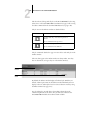
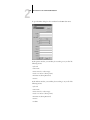
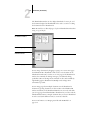
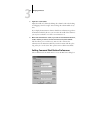
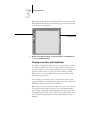
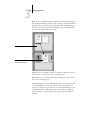
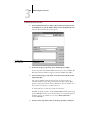
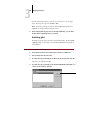
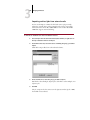
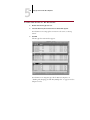
Select the filename and click Add.
The File name field displays the name of the selected file before you click
Add.
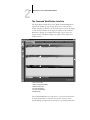
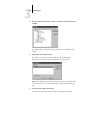
You can navigate to different drives and directories to select files and fonts to
download.
To select multiple sequential files, select the first file and then Shift-click the
last file. Ctrl-click to select multiple non-sequential files.
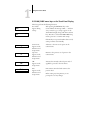
If you change your mind about a file, select the filename in the Files to be
Downloaded list and click Remove.
6.
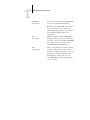
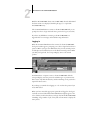
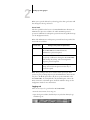
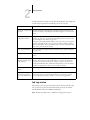
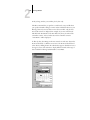
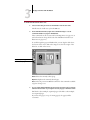
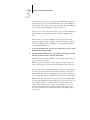
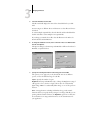
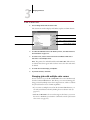
To change the attributes of a file, select it from the “Files to be Downloaded”
list and click Options.
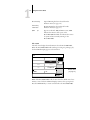
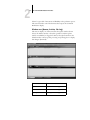
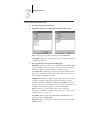
The Options dialog box for PostScript and EPS files is different from that for
PDF files, as explained below.
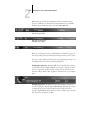
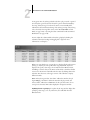
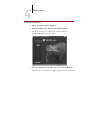
PostScript options
7.
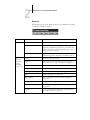
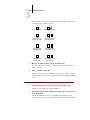
PDF options
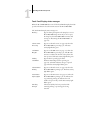
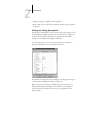
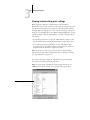
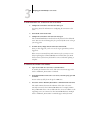
Specify the following information in the dialog box and click OK.
The options you set apply only to the selected file. You can set different
options, or leave the default settings, for each file.
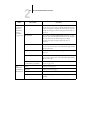
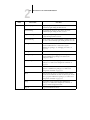
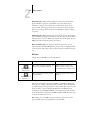
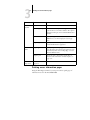
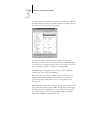
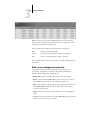
Copies—Specify the number of copies.
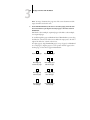
Brightness (PostScript and EPS files only)—Change the Brightness setting if
a file appears to be too dark or too light. Choose 85% for a substantially
lighter image, 115% for a substantially darker image, or one of the options in
between.
N OTE : Some applications, including Adobe Photoshop, provide transfer
functions that let you specify density settings for an image. If the file you are
printing includes transfer functions, the Brightness option has no effect. For
more information on using transfer functions, see the documentation for
your application.