1
Operational procedures
Procedure
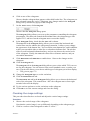
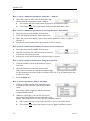
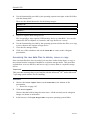
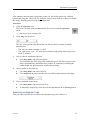
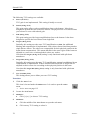
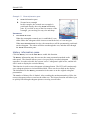
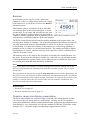
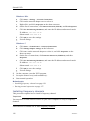
1 Click the Active icon.
2
This icon is located under the Main menu. It is used to open the Active
menu.
→ Active menu on page 112
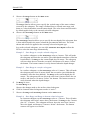
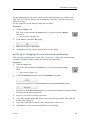
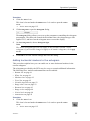
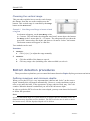
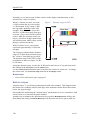
Click Echogram to open the Echogram dialog.
3
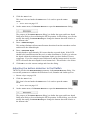
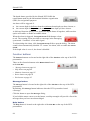
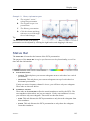
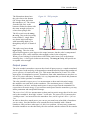
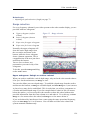
The Echogram dialog allows you to set up the parameters controlling the echogram
presentation. The three tabs control the horizontal lines, the echogram type with
applied TVG, and how fast the echogram moves across the display.
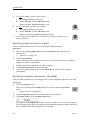
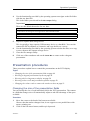
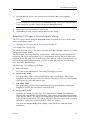
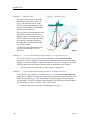
On the Echogram tab, choose Echogram Type.
Note
The chosen echogram type will only apply to the currently selected “active”
echogram. If you wish the changes to apply to all similar echograms, click Apply
To All.
4
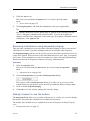
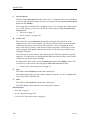
Click OK to save the current settings and close the dialog.
Adding horizontal markers to the echogram
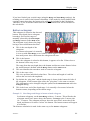
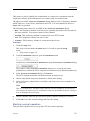
This procedure explains how you can enable one or more horizontal markers in the
current echogram.
The echograms provided by the ES70 may be set up to contain additional information.
The following lines, markers and annotations can be enabled:
• Bottom line on page 91
• White line on page 91
• Hardness line on page 92
• Trawl line on page 92
• Variable depth line on page 93
• Range other lines on page 93
• Biomass line on page 93
• Range scales on page 94
• Vertical ticks on page 94
• Annotations on page 95
Procedure
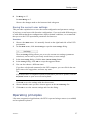
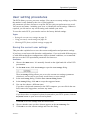
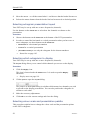
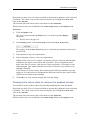
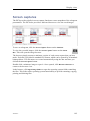
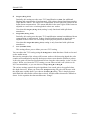
1 Click the Active icon.
This icon is located under the Main menu. It is used to open the Active
menu.
→ Active menu on page 112
343539/C
55