1
CHAPTER 4: Designing and Installing Your HAL System
Step
Task
Location
Choose physical hardware.
3
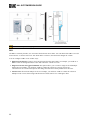
Decide which physical hardware components you will need to implement
your design. Which HAL host do you need: HAL1x, HAL2, HAL3s, or
HAL4? Will you be using RADs? If so, which ones and how many do you
need? If you need additional RADs, DRs, Zone Processing, or analog inputs or
outputs, you may need some Expansion Units. How about remote control? Do
you need some DRs?
Inside or Outside
of Halogen
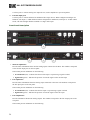
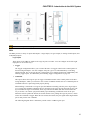
As a convenience, you may want to open the Halogen software at this point
and use its Hardware Workspace to experiment with and quickly test different
hardware configurations.
To learn more about the hardware available for your HAL System, see "Introduction to the HAL System" on page 8.
Specify hardware in Halogen.
4
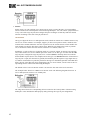
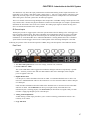
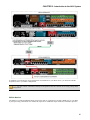
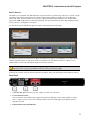
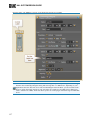
Open the Halogen software application. In this step, you'll be working in the
Halogen Hardware Workspace specifying the hardware components of your
audio system. The host always defaults to HAL1x, but you can change this by
using the New button to create a new configuration that uses the HAL of your
choice. Once you have a suitable HAL, you drag hardware objects from the
hardware palette onto the appropriate hardware port displayed in the Hardware
Workspace, and then configure the hardware as desired.
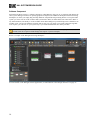
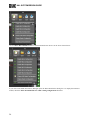
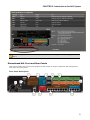
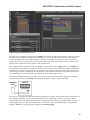
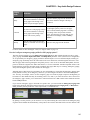
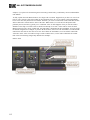
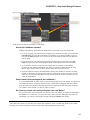
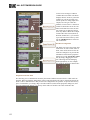
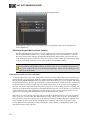
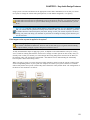
Halogen Hardware
Workspace
For more details, see Working in the Halogen Hardware Workspace in the Halogen Help System.
Specify inputs and outputs.
5
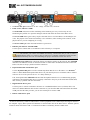
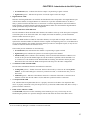
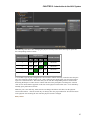
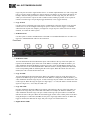
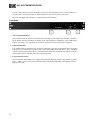
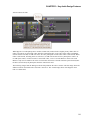
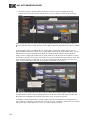
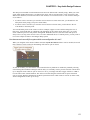
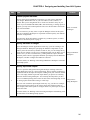
You now open the Halogen Processing tab and begin working in the Processing Workspace. First up is the I/O Processing. The I/O palette in Halogen is
populated with all the inputs and outputs resulting from your selection of hardware. You simply find the input and output blocks you plan to use and drag
them into the Processing Workspace. You can drop them anywhere you like,
but we recommend placing them on the left side of the Processing Map. You'll
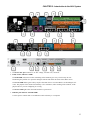
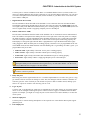
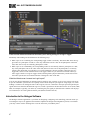
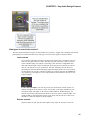
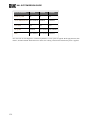
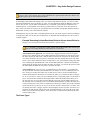
Halogen Procbe setting up the actual audio routing in a later step.
essing Workspace
You can work with these input/output blocks any way you like. For example,
some designers prefer setting up all of their inputs first and then setting up
their outputs, while others prefer to configure all the way from input to output
at the same time.
For more details, see Working in the Processing Workspace and Working with
the I/O Palette in the Halogen Help System.
160