1
Chapter 3: Entering Information
3.1 On-Screen Keyboard
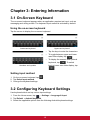
The on-screen keyboard appears when an application requires text input, such as
messaging and writing emails. The keyboard input method is activated by default.
Using the on-screen keyboard
Tap the screen to display the on-screen keyboard.
Lowercase keyboard
Uppercase keyboard
•
Tap the keys to enter the characters.
•
To toggle between upper and lower
case letter display, tap
.
•
To display the numeric and symbols
keyboard, tap
. To switch
back to lower case letter display, tap
.
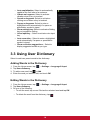
Numbers and symbols
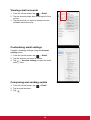
Setting input method
1. On the on-screen keyboard, tap
2. Tap Select input method.
3. Change the keyboard settings.
.
3.2 Configuring Keyboard Settings
Use keyboard aids to set up various input settings.
1. From the Home screen, tap
> Settings > Language & input.
2. Tap Default > Android keyboard.
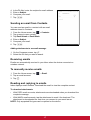
3. Select the applicable options from the following Android keyboard settings:
13