1
SECTION 3: SYSTEM SETUP
2.
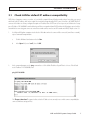
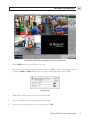
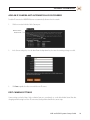
In the Welcome window, enter your assigned Username, Password, and Customer name. The default administrative
username/password for NVRs and hDVRs is admin/admin. For local login, the customer name should be digiop.
3.
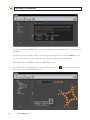
Click Login. After a successful log on, the NVR/hDVR Home page will appear.
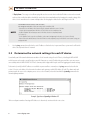
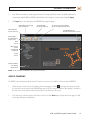
Edit Button (to change
object options)
Delete Button (to delete objects)
Home Button
(return to here)
Secure/Permissions Button (to set an object permission)
Log Off Button (to disconnect from the server)
New Button (to add objects to the tree)
Data
Server
Object Tree
(Items
Configured
in System)
Video
Server
Refresh Button
(to update
object tree)
NOTE: In this example, C5WSDP1 is the system hostname
ADD IP CAMERAS
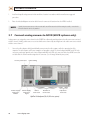
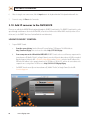
The DIGIOP® server will automatically discover the IP cameras it can connect to. To add these IP cameras to the NVR/hDVR:
1.
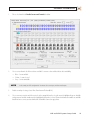
Find the Systems entry in the list in the left frame of the home page,then click the
icon to open the Systems list. Inside
the Systems list are two entries for the NVR/hDVR you connected to. The one prefaced with the blue “display” icon identifies
the video server. The one below it with the yellow “barrel” icon identifies the data server.
2.
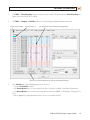
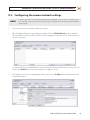
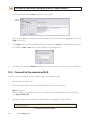
In the Systems list, click the hostname of the video server, then click the New button at the top of the Home page. The Add
Camera pane will open in the right frame.
NVR and hDVR Systems Setup Guide
21