1
CDD-880 Multi Receiver Router
Flash Upgrading
4.2
Revision 0
MN-CDD880
Ethernet FTP Upload Procedure
Step
1
Procedure
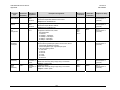
Identify the reflashable product, firmware number, and version for download.
a)
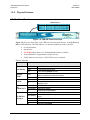
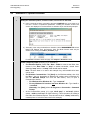
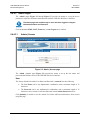
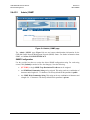
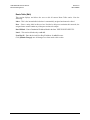
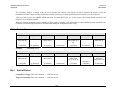
Using a terminal emulator connected to the serial CONSOLE port, upon power-up of
the unit a number of operational parameters, including the firmware number and
version, are displayed on the Command Line Interface as per the following example:
b)
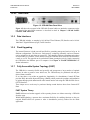
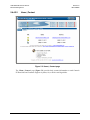
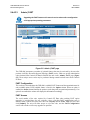
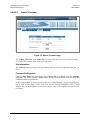
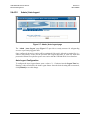
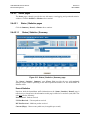
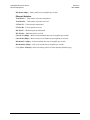
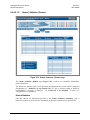
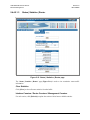
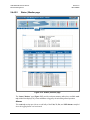
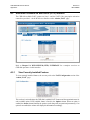
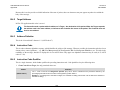
Alternately, when using the Web Server Interface (via the MANAGEMENT FE 10/100
BaseT Fast Ethernet port), the Bootrom, Slot1 and Slot2 firmware loads may be
obtained from viewing the ‘Admin | Firmware’ page:
For detailed information about this page, see Chapter 5, Section 5.4.4.3.4.
2
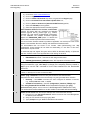
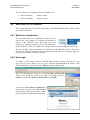
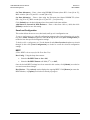
Create a temporary folder (directory) on an external PC:
•
For Windows Explorer: Select File > New > Folder to create a new folder, then
rename it from “New Folder” to "temp" or another convenient, unused name.
Assuming "temp" works, a "c:\temp" folder should now be created.
Note: The drive letter c: is used in this example. Any valid writable drive letter
can be used.
•
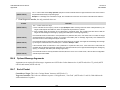
For Windows Command-line: Click [Start] on the Windows taskbar, then click
the “Run...” icon (or, depending on Windows OS versions prior to Windows 95,
click the “MS-DOS Prompt” icon from the Main Menu). Then, to open a
Command-line window…
o For Windows 95 or Windows 98 – Type “command”.
o For any Windows OS versions later than Windows 98 – Type “cmd” or
“command”.
Alternately, from [Start], select All Programs > Accessories > Command
Prompt.
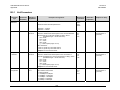
At the Command-line prompt (c:\>), type “mkdir temp” or “md temp” (without
quotes – mkdir and md stand for make directory). This is the same as creating a
new folder from Windows Explorer. There should now be a "c:\temp" subdirectory
created (where c: is the drive letter used in this example).
•
4–2