1
User’s Guide
NPD4436-00 EN
Downloaded from ManualsPrinter.com Manuals
Epson AcuLaser C2900 Series
User’s Guide
Contents
Preface
Copyright and Trademarks. . . . . . . . . . . . . . . . . . . . . . . . . . . . . . . . . . . . . . . . . . . . . . . . . . . . . . . . . . . . . . . 8
About License. . . . . . . . . . . . . . . . . . . . . . . . . . . . . . . . . . . . . . . . . . . . . . . . . . . . . . . . . . . . . . . . . . . . . . . . . 10
Using This Guide. . . . . . . . . . . . . . . . . . . . . . . . . . . . . . . . . . . . . . . . . . . . . . . . . . . . . . . . . . . . . . . . . . . . . . 11
Conventions. . . . . . . . . . . . . . . . . . . . . . . . . . . . . . . . . . . . . . . . . . . . . . . . . . . . . . . . . . . . . . . . . . . . . . 11
Product Features. . . . . . . . . . . . . . . . . . . . . . . . . . . . . . . . . . . . . . . . . . . . . . . . . . . . . . . . . . . . . . . . . . . . . . . 11
Features. . . . . . . . . . . . . . . . . . . . . . . . . . . . . . . . . . . . . . . . . . . . . . . . . . . . . . . . . . . . . . . . . . . . . . . . . . 11
Chapter 1 Specifications
Specifications. . . . . . . . . . . . . . . . . . . . . . . . . . . . . . . . . . . . . . . . . . . . . . . . . . . . . . . . . . . . . . . . . . . . . . . . . . 13
Chapter 2 Basic Operation
Main Components. . . . . . . . . . . . . . . . . . . . . . . . . . . . . . . . . . . . . . . . . . . . . . . . . . . . . . . . . . . . . . . . . . . . . 17
Front View. . . . . . . . . . . . . . . . . . . . . . . . . . . . . . . . . . . . . . . . . . . . . . . . . . . . . . . . . . . . . . . . . . . . . . . . 17
Rear View. . . . . . . . . . . . . . . . . . . . . . . . . . . . . . . . . . . . . . . . . . . . . . . . . . . . . . . . . . . . . . . . . . . . . . . . . 18
Operator Panel. . . . . . . . . . . . . . . . . . . . . . . . . . . . . . . . . . . . . . . . . . . . . . . . . . . . . . . . . . . . . . . . . . . . 18
Securing the Printer. . . . . . . . . . . . . . . . . . . . . . . . . . . . . . . . . . . . . . . . . . . . . . . . . . . . . . . . . . . . . . . . 19
Preparing Printer Hardware. . . . . . . . . . . . . . . . . . . . . . . . . . . . . . . . . . . . . . . . . . . . . . . . . . . . . . . . . . . . . . 20
Installing Optional Accessories. . . . . . . . . . . . . . . . . . . . . . . . . . . . . . . . . . . . . . . . . . . . . . . . . . . . . . . . . . . 21
Installing the Additional Memory Module. . . . . . . . . . . . . . . . . . . . . . . . . . . . . . . . . . . . . . . . . . . . . . 21
Installing the Optional Duplex Unit. . . . . . . . . . . . . . . . . . . . . . . . . . . . . . . . . . . . . . . . . . . . . . . . . . . 25
Installing the Optional 250-Sheet Paper Cassette Unit. . . . . . . . . . . . . . . . . . . . . . . . . . . . . . . . . . . . 29
Printing a Panel Settings Page. . . . . . . . . . . . . . . . . . . . . . . . . . . . . . . . . . . . . . . . . . . . . . . . . . . . . . . . . . . . 33
Power Saver Mode. . . . . . . . . . . . . . . . . . . . . . . . . . . . . . . . . . . . . . . . . . . . . . . . . . . . . . . . . . . . . . . . . . . . . . 34
Exiting the Power Saver Mode. . . . . . . . . . . . . . . . . . . . . . . . . . . . . . . . . . . . . . . . . . . . . . . . . . . . . . . . 34
Chapter 3 Printer Management Software
Print Drivers. . . . . . . . . . . . . . . . . . . . . . . . . . . . . . . . . . . . . . . . . . . . . . . . . . . . . . . . . . . . . . . . . . . . . . . . . . 35
EpsonNet Config. . . . . . . . . . . . . . . . . . . . . . . . . . . . . . . . . . . . . . . . . . . . . . . . . . . . . . . . . . . . . . . . . . . . . . . 35
Creating an Administrative Password. . . . . . . . . . . . . . . . . . . . . . . . . . . . . . . . . . . . . . . . . . . . . . . . . 35
Contents
Downloaded from ManualsPrinter.com Manuals
2
Epson AcuLaser C2900 Series
User’s Guide
Status Monitor (Windows Only). . . . . . . . . . . . . . . . . . . . . . . . . . . . . . . . . . . . . . . . . . . . . . . . . . . . . . . . . . 36
Chapter 4 Network Basics
Overview of Network Setup and Configuration. . . . . . . . . . . . . . . . . . . . . . . . . . . . . . . . . . . . . . . . . . . . . . 38
Connecting Your Printer. . . . . . . . . . . . . . . . . . . . . . . . . . . . . . . . . . . . . . . . . . . . . . . . . . . . . . . . . . . . . . . . 38
Connecting Printer to Computer or Network. . . . . . . . . . . . . . . . . . . . . . . . . . . . . . . . . . . . . . . . . . . 39
Setting the IP Address. . . . . . . . . . . . . . . . . . . . . . . . . . . . . . . . . . . . . . . . . . . . . . . . . . . . . . . . . . . . . . . . . . . 41
TCP/IP and IP Addresses. . . . . . . . . . . . . . . . . . . . . . . . . . . . . . . . . . . . . . . . . . . . . . . . . . . . . . . . . . . . 41
Automatically Setting the Printer’s IP Address. . . . . . . . . . . . . . . . . . . . . . . . . . . . . . . . . . . . . . . . . . 42
Dynamic Methods of Setting the Printer’s IP Address. . . . . . . . . . . . . . . . . . . . . . . . . . . . . . . . . . . . 42
Assigning an IP Address (for IPv4 Mode). . . . . . . . . . . . . . . . . . . . . . . . . . . . . . . . . . . . . . . . . . . . . . 43
Verifying the IP Settings. . . . . . . . . . . . . . . . . . . . . . . . . . . . . . . . . . . . . . . . . . . . . . . . . . . . . . . . . . . . . 45
Printing and Checking the Printer Settings Page. . . . . . . . . . . . . . . . . . . . . . . . . . . . . . . . . . . . . . . . . 46
Installing Print Driver on Computers Running Windows. . . . . . . . . . . . . . . . . . . . . . . . . . . . . . . . . . . . . 46
Identifying Print Driver Pre-install Status (For Network Connection Setup). . . . . . . . . . . . . . . . . 46
Inserting the Software Disc. . . . . . . . . . . . . . . . . . . . . . . . . . . . . . . . . . . . . . . . . . . . . . . . . . . . . . . . . . 48
USB Connection Setup. . . . . . . . . . . . . . . . . . . . . . . . . . . . . . . . . . . . . . . . . . . . . . . . . . . . . . . . . . . . . . 48
Network Connection Setup. . . . . . . . . . . . . . . . . . . . . . . . . . . . . . . . . . . . . . . . . . . . . . . . . . . . . . . . . . 49
Setting Up for Shared Printing. . . . . . . . . . . . . . . . . . . . . . . . . . . . . . . . . . . . . . . . . . . . . . . . . . . . . . . 50
Installing Print Driver on Computers Running Mac OS X. . . . . . . . . . . . . . . . . . . . . . . . . . . . . . . . . . . . . 56
Installing Print Driver on Computers Running Linux (CUPS). . . . . . . . . . . . . . . . . . . . . . . . . . . . . . . . . 56
Installing the Print Driver. . . . . . . . . . . . . . . . . . . . . . . . . . . . . . . . . . . . . . . . . . . . . . . . . . . . . . . . . . . 56
Setting Up the Queue. . . . . . . . . . . . . . . . . . . . . . . . . . . . . . . . . . . . . . . . . . . . . . . . . . . . . . . . . . . . . . . 57
Setting the Default Queue. . . . . . . . . . . . . . . . . . . . . . . . . . . . . . . . . . . . . . . . . . . . . . . . . . . . . . . . . . . 61
Specifying the Printing Options. . . . . . . . . . . . . . . . . . . . . . . . . . . . . . . . . . . . . . . . . . . . . . . . . . . . . . 62
Setting the Password for Authority as the Printer Administrator. . . . . . . . . . . . . . . . . . . . . . . . . . . 64
Uninstalling the Print Driver. . . . . . . . . . . . . . . . . . . . . . . . . . . . . . . . . . . . . . . . . . . . . . . . . . . . . . . . . 64
Chapter 5 Printing Basics
About Print Media. . . . . . . . . . . . . . . . . . . . . . . . . . . . . . . . . . . . . . . . . . . . . . . . . . . . . . . . . . . . . . . . . . . . . 67
Print Media Usage Guidelines. . . . . . . . . . . . . . . . . . . . . . . . . . . . . . . . . . . . . . . . . . . . . . . . . . . . . . . . 67
Print Media That Can Damage Your Printer. . . . . . . . . . . . . . . . . . . . . . . . . . . . . . . . . . . . . . . . . . . . 68
Supported Print Media. . . . . . . . . . . . . . . . . . . . . . . . . . . . . . . . . . . . . . . . . . . . . . . . . . . . . . . . . . . . . . . . . . 69
Print Media Dimensions. . . . . . . . . . . . . . . . . . . . . . . . . . . . . . . . . . . . . . . . . . . . . . . . . . . . . . . . . . . . 69
Usable Print Media. . . . . . . . . . . . . . . . . . . . . . . . . . . . . . . . . . . . . . . . . . . . . . . . . . . . . . . . . . . . . . . . . 69
Loading Print Media. . . . . . . . . . . . . . . . . . . . . . . . . . . . . . . . . . . . . . . . . . . . . . . . . . . . . . . . . . . . . . . . . . . . 72
Contents
Downloaded from ManualsPrinter.com Manuals
3
Epson AcuLaser C2900 Series
User’s Guide
Capacity. . . . . . . . . . . . . . . . . . . . . . . . . . . . . . . . . . . . . . . . . . . . . . . . . . . . . . . . . . . . . . . . . . . . . . . . . . 73
Loading Print Media in the Standard 250-Sheet Tray and the Optional 250-Sheet Paper Cassette
Unit. . . . . . . . . . . . . . . . . . . . . . . . . . . . . . . . . . . . . . . . . . . . . . . . . . . . . . . . . . . . . . . . . . . . . . . . . . . 73
Loading Print Media in the Single Sheet Feeder (SSF). . . . . . . . . . . . . . . . . . . . . . . . . . . . . . . . . . . . 78
Setting Paper Sizes and Types. . . . . . . . . . . . . . . . . . . . . . . . . . . . . . . . . . . . . . . . . . . . . . . . . . . . . . . . . . . . 81
Setting Paper Sizes. . . . . . . . . . . . . . . . . . . . . . . . . . . . . . . . . . . . . . . . . . . . . . . . . . . . . . . . . . . . . . . . . 82
Setting Paper Types. . . . . . . . . . . . . . . . . . . . . . . . . . . . . . . . . . . . . . . . . . . . . . . . . . . . . . . . . . . . . . . . 82
Printing. . . . . . . . . . . . . . . . . . . . . . . . . . . . . . . . . . . . . . . . . . . . . . . . . . . . . . . . . . . . . . . . . . . . . . . . . . . . . . 82
Sending a Job to Print. . . . . . . . . . . . . . . . . . . . . . . . . . . . . . . . . . . . . . . . . . . . . . . . . . . . . . . . . . . . . . . 83
Canceling a Print Job. . . . . . . . . . . . . . . . . . . . . . . . . . . . . . . . . . . . . . . . . . . . . . . . . . . . . . . . . . . . . . . 83
Using the Stored Print Function. . . . . . . . . . . . . . . . . . . . . . . . . . . . . . . . . . . . . . . . . . . . . . . . . . . . . . 84
Duplex Printing. . . . . . . . . . . . . . . . . . . . . . . . . . . . . . . . . . . . . . . . . . . . . . . . . . . . . . . . . . . . . . . . . . . . 87
Selecting Printing Options. . . . . . . . . . . . . . . . . . . . . . . . . . . . . . . . . . . . . . . . . . . . . . . . . . . . . . . . . . . 89
Printing Custom Size Paper. . . . . . . . . . . . . . . . . . . . . . . . . . . . . . . . . . . . . . . . . . . . . . . . . . . . . . . . . . 94
Auditron. . . . . . . . . . . . . . . . . . . . . . . . . . . . . . . . . . . . . . . . . . . . . . . . . . . . . . . . . . . . . . . . . . . . . . . . . 97
Checking Status of Print Data. . . . . . . . . . . . . . . . . . . . . . . . . . . . . . . . . . . . . . . . . . . . . . . . . . . . . . . . 99
Printing a Report Page. . . . . . . . . . . . . . . . . . . . . . . . . . . . . . . . . . . . . . . . . . . . . . . . . . . . . . . . . . . . . . 99
Printer Settings. . . . . . . . . . . . . . . . . . . . . . . . . . . . . . . . . . . . . . . . . . . . . . . . . . . . . . . . . . . . . . . . . . . 100
Printing With Web Services on Devices (WSD). . . . . . . . . . . . . . . . . . . . . . . . . . . . . . . . . . . . . . . . . . . . 101
Adding Roles of Print Services. . . . . . . . . . . . . . . . . . . . . . . . . . . . . . . . . . . . . . . . . . . . . . . . . . . . . . 101
Printer Setup. . . . . . . . . . . . . . . . . . . . . . . . . . . . . . . . . . . . . . . . . . . . . . . . . . . . . . . . . . . . . . . . . . . . . 102
Chapter 6 Using the Operator Panel Menus
Understanding the Printer Menus. . . . . . . . . . . . . . . . . . . . . . . . . . . . . . . . . . . . . . . . . . . . . . . . . . . . . . . . 104
Report/List. . . . . . . . . . . . . . . . . . . . . . . . . . . . . . . . . . . . . . . . . . . . . . . . . . . . . . . . . . . . . . . . . . . . . . . 104
Billing Meters. . . . . . . . . . . . . . . . . . . . . . . . . . . . . . . . . . . . . . . . . . . . . . . . . . . . . . . . . . . . . . . . . . . . 105
Admin Menu. . . . . . . . . . . . . . . . . . . . . . . . . . . . . . . . . . . . . . . . . . . . . . . . . . . . . . . . . . . . . . . . . . . . . 106
Tray Settings. . . . . . . . . . . . . . . . . . . . . . . . . . . . . . . . . . . . . . . . . . . . . . . . . . . . . . . . . . . . . . . . . . . . . 134
Panel Lock Function. . . . . . . . . . . . . . . . . . . . . . . . . . . . . . . . . . . . . . . . . . . . . . . . . . . . . . . . . . . . . . . . . . . 139
Enabling the Panel Lock. . . . . . . . . . . . . . . . . . . . . . . . . . . . . . . . . . . . . . . . . . . . . . . . . . . . . . . . . . . . 139
Disabling the Panel Lock. . . . . . . . . . . . . . . . . . . . . . . . . . . . . . . . . . . . . . . . . . . . . . . . . . . . . . . . . . . 139
Setting the Power Saver Time Option. . . . . . . . . . . . . . . . . . . . . . . . . . . . . . . . . . . . . . . . . . . . . . . . . . . . . 140
Resetting to Factory Defaults. . . . . . . . . . . . . . . . . . . . . . . . . . . . . . . . . . . . . . . . . . . . . . . . . . . . . . . . . . . . 140
Chapter 7 Troubleshooting
Clearing Jams. . . . . . . . . . . . . . . . . . . . . . . . . . . . . . . . . . . . . . . . . . . . . . . . . . . . . . . . . . . . . . . . . . . . . . . . . 142
Contents
Downloaded from ManualsPrinter.com Manuals
4
Epson AcuLaser C2900 Series
User’s Guide
Avoiding Jams. . . . . . . . . . . . . . . . . . . . . . . . . . . . . . . . . . . . . . . . . . . . . . . . . . . . . . . . . . . . . . . . . . . . 142
Identifying the Location of Paper Jams. . . . . . . . . . . . . . . . . . . . . . . . . . . . . . . . . . . . . . . . . . . . . . . . 143
Clearing Paper Jams From the SSF. . . . . . . . . . . . . . . . . . . . . . . . . . . . . . . . . . . . . . . . . . . . . . . . . . . 144
Clearing Paper Jams From the Standard 250-Sheet Tray. . . . . . . . . . . . . . . . . . . . . . . . . . . . . . . . . 147
Clearing Paper Jams From the Fuser Unit. . . . . . . . . . . . . . . . . . . . . . . . . . . . . . . . . . . . . . . . . . . . . 151
Clearing Paper Jams From the Optional Duplex Unit. . . . . . . . . . . . . . . . . . . . . . . . . . . . . . . . . . . 153
Clearing Paper Jams From the Optional 250-Sheet Paper Cassette Unit. . . . . . . . . . . . . . . . . . . . 154
Jam Problems. . . . . . . . . . . . . . . . . . . . . . . . . . . . . . . . . . . . . . . . . . . . . . . . . . . . . . . . . . . . . . . . . . . . 158
Basic Printer Problems. . . . . . . . . . . . . . . . . . . . . . . . . . . . . . . . . . . . . . . . . . . . . . . . . . . . . . . . . . . . . . . . . 162
Display Problems. . . . . . . . . . . . . . . . . . . . . . . . . . . . . . . . . . . . . . . . . . . . . . . . . . . . . . . . . . . . . . . . . . . . . 163
Printing Problems. . . . . . . . . . . . . . . . . . . . . . . . . . . . . . . . . . . . . . . . . . . . . . . . . . . . . . . . . . . . . . . . . . . . . 163
Print Quality Problems. . . . . . . . . . . . . . . . . . . . . . . . . . . . . . . . . . . . . . . . . . . . . . . . . . . . . . . . . . . . . . . . . 165
The Output Is Too Light. . . . . . . . . . . . . . . . . . . . . . . . . . . . . . . . . . . . . . . . . . . . . . . . . . . . . . . . . . . 165
Toner Smears or Print Comes Off. . . . . . . . . . . . . . . . . . . . . . . . . . . . . . . . . . . . . . . . . . . . . . . . . . . . 167
Random Spots/Blurred Images. . . . . . . . . . . . . . . . . . . . . . . . . . . . . . . . . . . . . . . . . . . . . . . . . . . . . . 168
The Entire Output Is Blank. . . . . . . . . . . . . . . . . . . . . . . . . . . . . . . . . . . . . . . . . . . . . . . . . . . . . . . . . 168
Streaks Appear on the Output. . . . . . . . . . . . . . . . . . . . . . . . . . . . . . . . . . . . . . . . . . . . . . . . . . . . . . . 170
Part or the Entire Output Is Black. . . . . . . . . . . . . . . . . . . . . . . . . . . . . . . . . . . . . . . . . . . . . . . . . . . . 170
Pitched Color Dots. . . . . . . . . . . . . . . . . . . . . . . . . . . . . . . . . . . . . . . . . . . . . . . . . . . . . . . . . . . . . . . . 171
Vertical Blanks. . . . . . . . . . . . . . . . . . . . . . . . . . . . . . . . . . . . . . . . . . . . . . . . . . . . . . . . . . . . . . . . . . . 172
Mottle. . . . . . . . . . . . . . . . . . . . . . . . . . . . . . . . . . . . . . . . . . . . . . . . . . . . . . . . . . . . . . . . . . . . . . . . . . . 173
Ghosting. . . . . . . . . . . . . . . . . . . . . . . . . . . . . . . . . . . . . . . . . . . . . . . . . . . . . . . . . . . . . . . . . . . . . . . . 173
Light-Induced Fatigue. . . . . . . . . . . . . . . . . . . . . . . . . . . . . . . . . . . . . . . . . . . . . . . . . . . . . . . . . . . . . 174
Fog. . . . . . . . . . . . . . . . . . . . . . . . . . . . . . . . . . . . . . . . . . . . . . . . . . . . . . . . . . . . . . . . . . . . . . . . . . . . . 175
Bead-Carry-Out (BCO). . . . . . . . . . . . . . . . . . . . . . . . . . . . . . . . . . . . . . . . . . . . . . . . . . . . . . . . . . . . 175
Jagged Characters. . . . . . . . . . . . . . . . . . . . . . . . . . . . . . . . . . . . . . . . . . . . . . . . . . . . . . . . . . . . . . . . . 176
Banding. . . . . . . . . . . . . . . . . . . . . . . . . . . . . . . . . . . . . . . . . . . . . . . . . . . . . . . . . . . . . . . . . . . . . . . . . 177
Auger Mark. . . . . . . . . . . . . . . . . . . . . . . . . . . . . . . . . . . . . . . . . . . . . . . . . . . . . . . . . . . . . . . . . . . . . . 178
Wrinkled/Stained Paper. . . . . . . . . . . . . . . . . . . . . . . . . . . . . . . . . . . . . . . . . . . . . . . . . . . . . . . . . . . . 178
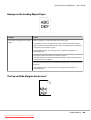
Damage on the Leading Edge of Paper. . . . . . . . . . . . . . . . . . . . . . . . . . . . . . . . . . . . . . . . . . . . . . . . 180
The Top and Side Margins Are Incorrect. . . . . . . . . . . . . . . . . . . . . . . . . . . . . . . . . . . . . . . . . . . . . . 180
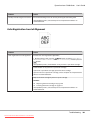
Color Registration Is out of Alignment. . . . . . . . . . . . . . . . . . . . . . . . . . . . . . . . . . . . . . . . . . . . . . . 181
Protrudent/Bumpy Paper. . . . . . . . . . . . . . . . . . . . . . . . . . . . . . . . . . . . . . . . . . . . . . . . . . . . . . . . . . . 182
Adjusting Color Registration. . . . . . . . . . . . . . . . . . . . . . . . . . . . . . . . . . . . . . . . . . . . . . . . . . . . . . . . . . . . 182
Performing Auto Adjust. . . . . . . . . . . . . . . . . . . . . . . . . . . . . . . . . . . . . . . . . . . . . . . . . . . . . . . . . . . . 182
Printing the Color Registration Chart . . . . . . . . . . . . . . . . . . . . . . . . . . . . . . . . . . . . . . . . . . . . . . . . 183
Determining Values. . . . . . . . . . . . . . . . . . . . . . . . . . . . . . . . . . . . . . . . . . . . . . . . . . . . . . . . . . . . . . . 183
Entering Values. . . . . . . . . . . . . . . . . . . . . . . . . . . . . . . . . . . . . . . . . . . . . . . . . . . . . . . . . . . . . . . . . . . 185
Problems With Installed Optional Accessories. . . . . . . . . . . . . . . . . . . . . . . . . . . . . . . . . . . . . . . . . . . . . 187
Other Problems. . . . . . . . . . . . . . . . . . . . . . . . . . . . . . . . . . . . . . . . . . . . . . . . . . . . . . . . . . . . . . . . . . . . . . . 187
Contents
Downloaded from ManualsPrinter.com Manuals
5
Epson AcuLaser C2900 Series
User’s Guide
Understanding Printer Messages. . . . . . . . . . . . . . . . . . . . . . . . . . . . . . . . . . . . . . . . . . . . . . . . . . . . . . . . . 187
Contacting Service. . . . . . . . . . . . . . . . . . . . . . . . . . . . . . . . . . . . . . . . . . . . . . . . . . . . . . . . . . . . . . . . . . . . . 197
Getting Help. . . . . . . . . . . . . . . . . . . . . . . . . . . . . . . . . . . . . . . . . . . . . . . . . . . . . . . . . . . . . . . . . . . . . . . . . 197
LCD Panel Messages. . . . . . . . . . . . . . . . . . . . . . . . . . . . . . . . . . . . . . . . . . . . . . . . . . . . . . . . . . . . . . . 197
Status Monitor Alerts. . . . . . . . . . . . . . . . . . . . . . . . . . . . . . . . . . . . . . . . . . . . . . . . . . . . . . . . . . . . . . 197
Non-Genuine Mode. . . . . . . . . . . . . . . . . . . . . . . . . . . . . . . . . . . . . . . . . . . . . . . . . . . . . . . . . . . . . . . . . . . 198
Chapter 8 Maintenance
Cleaning the Printer. . . . . . . . . . . . . . . . . . . . . . . . . . . . . . . . . . . . . . . . . . . . . . . . . . . . . . . . . . . . . . . . . . . 199
Cleaning Inside the Printer. . . . . . . . . . . . . . . . . . . . . . . . . . . . . . . . . . . . . . . . . . . . . . . . . . . . . . . . . 199
Cleaning the Color Toner Density (CTD) Sensor. . . . . . . . . . . . . . . . . . . . . . . . . . . . . . . . . . . . . . . 203
Replacing Toner Cartridges. . . . . . . . . . . . . . . . . . . . . . . . . . . . . . . . . . . . . . . . . . . . . . . . . . . . . . . . . . . . . 206
Overview. . . . . . . . . . . . . . . . . . . . . . . . . . . . . . . . . . . . . . . . . . . . . . . . . . . . . . . . . . . . . . . . . . . . . . . . 206
Removing the Toner Cartridges. . . . . . . . . . . . . . . . . . . . . . . . . . . . . . . . . . . . . . . . . . . . . . . . . . . . . 207
Installing a Toner Cartridge. . . . . . . . . . . . . . . . . . . . . . . . . . . . . . . . . . . . . . . . . . . . . . . . . . . . . . . . . 208
Replacing the Drum Cartridge. . . . . . . . . . . . . . . . . . . . . . . . . . . . . . . . . . . . . . . . . . . . . . . . . . . . . . . . . . . 210
Removing the Drum Cartridge. . . . . . . . . . . . . . . . . . . . . . . . . . . . . . . . . . . . . . . . . . . . . . . . . . . . . . 210
Installing the Drum Cartridge. . . . . . . . . . . . . . . . . . . . . . . . . . . . . . . . . . . . . . . . . . . . . . . . . . . . . . . 212
Replacing the Fuser Unit. . . . . . . . . . . . . . . . . . . . . . . . . . . . . . . . . . . . . . . . . . . . . . . . . . . . . . . . . . . . . . . 215
Removing the Fuser Unit. . . . . . . . . . . . . . . . . . . . . . . . . . . . . . . . . . . . . . . . . . . . . . . . . . . . . . . . . . . 215
Installing the Fuser Unit. . . . . . . . . . . . . . . . . . . . . . . . . . . . . . . . . . . . . . . . . . . . . . . . . . . . . . . . . . . . 217
Resetting the Counter of the Fuser Unit. . . . . . . . . . . . . . . . . . . . . . . . . . . . . . . . . . . . . . . . . . . . . . . 219
Replacing the Feed Roll Unit. . . . . . . . . . . . . . . . . . . . . . . . . . . . . . . . . . . . . . . . . . . . . . . . . . . . . . . . . . . . 219
Removing the Feed Roll Unit in the Standard 250-Sheet Tray. . . . . . . . . . . . . . . . . . . . . . . . . . . . . 220
Installing the Feed Roll Unit in the Standard 250-Sheet Tray. . . . . . . . . . . . . . . . . . . . . . . . . . . . . 221
Ordering Supplies. . . . . . . . . . . . . . . . . . . . . . . . . . . . . . . . . . . . . . . . . . . . . . . . . . . . . . . . . . . . . . . . . . . . . 222
Consumables. . . . . . . . . . . . . . . . . . . . . . . . . . . . . . . . . . . . . . . . . . . . . . . . . . . . . . . . . . . . . . . . . . . . . 222
When to Order Supplies. . . . . . . . . . . . . . . . . . . . . . . . . . . . . . . . . . . . . . . . . . . . . . . . . . . . . . . . . . . . 222
Storing Print Media. . . . . . . . . . . . . . . . . . . . . . . . . . . . . . . . . . . . . . . . . . . . . . . . . . . . . . . . . . . . . . . . . . . . 223
Storing Consumables. . . . . . . . . . . . . . . . . . . . . . . . . . . . . . . . . . . . . . . . . . . . . . . . . . . . . . . . . . . . . . . . . . 223
Managing the Printer. . . . . . . . . . . . . . . . . . . . . . . . . . . . . . . . . . . . . . . . . . . . . . . . . . . . . . . . . . . . . . . . . . 224
Checking or Managing the Printer with EpsonNet Config. . . . . . . . . . . . . . . . . . . . . . . . . . . . . . . . 224
Checking Printer Status with Status Monitor (Windows Only). . . . . . . . . . . . . . . . . . . . . . . . . . . . 224
Conserving Supplies. . . . . . . . . . . . . . . . . . . . . . . . . . . . . . . . . . . . . . . . . . . . . . . . . . . . . . . . . . . . . . . . . . . 225
Checking Page Counts. . . . . . . . . . . . . . . . . . . . . . . . . . . . . . . . . . . . . . . . . . . . . . . . . . . . . . . . . . . . . . . . . 225
Moving the Printer. . . . . . . . . . . . . . . . . . . . . . . . . . . . . . . . . . . . . . . . . . . . . . . . . . . . . . . . . . . . . . . . . . . . 226
Removing Options. . . . . . . . . . . . . . . . . . . . . . . . . . . . . . . . . . . . . . . . . . . . . . . . . . . . . . . . . . . . . . . . . . . . 228
Removing the Additional Memory Module. . . . . . . . . . . . . . . . . . . . . . . . . . . . . . . . . . . . . . . . . . . . 228
Contents
Downloaded from ManualsPrinter.com Manuals
6
Epson AcuLaser C2900 Series
User’s Guide
Removing the Optional Duplex Unit. . . . . . . . . . . . . . . . . . . . . . . . . . . . . . . . . . . . . . . . . . . . . . . . . 230
Removing the Optional 250-Sheet Paper Cassette Unit. . . . . . . . . . . . . . . . . . . . . . . . . . . . . . . . . . 232
Appendix A Where To Get Help
Contacting Epson Support. . . . . . . . . . . . . . . . . . . . . . . . . . . . . . . . . . . . . . . . . . . . . . . . . . . . . . . . . . . . . . 235
Before Contacting Epson. . . . . . . . . . . . . . . . . . . . . . . . . . . . . . . . . . . . . . . . . . . . . . . . . . . . . . . . . . . 235
Help for Users in Europe. . . . . . . . . . . . . . . . . . . . . . . . . . . . . . . . . . . . . . . . . . . . . . . . . . . . . . . . . . . 235
Help for Users in Taiwan. . . . . . . . . . . . . . . . . . . . . . . . . . . . . . . . . . . . . . . . . . . . . . . . . . . . . . . . . . . 235
Help for Users in Singapore. . . . . . . . . . . . . . . . . . . . . . . . . . . . . . . . . . . . . . . . . . . . . . . . . . . . . . . . . 237
Help for Users in Thailand. . . . . . . . . . . . . . . . . . . . . . . . . . . . . . . . . . . . . . . . . . . . . . . . . . . . . . . . . . 237
Help for Users in Vietnam. . . . . . . . . . . . . . . . . . . . . . . . . . . . . . . . . . . . . . . . . . . . . . . . . . . . . . . . . . 238
Help for Users in Indonesia. . . . . . . . . . . . . . . . . . . . . . . . . . . . . . . . . . . . . . . . . . . . . . . . . . . . . . . . . 238
Help for Users in Hong Kong. . . . . . . . . . . . . . . . . . . . . . . . . . . . . . . . . . . . . . . . . . . . . . . . . . . . . . . 240
Help for Users in Malaysia. . . . . . . . . . . . . . . . . . . . . . . . . . . . . . . . . . . . . . . . . . . . . . . . . . . . . . . . . . 240
Help for Users in India. . . . . . . . . . . . . . . . . . . . . . . . . . . . . . . . . . . . . . . . . . . . . . . . . . . . . . . . . . . . . 241
Help for Users in the Philippines. . . . . . . . . . . . . . . . . . . . . . . . . . . . . . . . . . . . . . . . . . . . . . . . . . . . 242
Index
Contents
Downloaded from ManualsPrinter.com Manuals
7
Epson AcuLaser C2900 Series
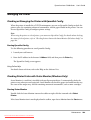
User’s Guide
Preface
Copyright and Trademarks
No part of this publication may be reproduced, stored in a retrieval system, or transmitted in any form
or by any means, mechanical, photocopying, recording, or otherwise, without the prior written
permission of Seiko Epson Corporation. No patent liability is assumed with respect to the use of the
information contained herein.
Neither is any liability assumed for damages resulting from the use of the information contained
herein. Neither Seiko Epson Corporation nor its affiliates shall be liable to the purchaser of this
product or third parties for damages, losses, costs, or expenses incurred by purchaser or third parties
as a result of: accident, misuse, or abuse of this product or unauthorized modifications, repairs, or
alterations to this product, or (excluding the U.S.) failure to strictly comply with Seiko Epson
Corporation’s operating and maintenance instructions.
Seiko Epson Corporation and its affiliates shall not be liable against any damages or problems arising
from the use of any options or any consumable products other than those designated as Original
Epson Products or Epson Approved Products by Seiko Epson Corporation.
®
®
®
®
®
Apple , Bonjour , ColorSync , Macintosh , and Mac OS are trademarks of Apple Inc. in the
United States and/or other countries.
®
®
®
®
Microsoft , Windows Vista , Windows , and Windows Server are trademarks of Microsoft
Corporation in the United States and/or other countries.
®
PCL is a trademark of Hewlett-Packard Corporation in the United States and/or other countries.
Linux is a registered trademark of Linus Torvalds.
Novell is a registered trademark and SUSE is a trademark of Novell, Inc. in the United States and other
countries.
Red Hat and Red Hat Enterprise Linux are registered trademarks of Red Hat, Inc. in the U.S. and other
countries.
EPSON is a registered trademark and EPSON AcuLaser is a trademark of Seiko Epson Corporation.
General Notice: Other product names used herein are for identification purposes only and may be
trademarks of their respective owners. Epson disclaims any and all rights in those marks.
Preface
Downloaded from ManualsPrinter.com Manuals
8
Epson AcuLaser C2900 Series
User’s Guide
Copyright © 2011 Seiko Epson Corporation. All rights reserved.
Preface
Downloaded from ManualsPrinter.com Manuals
9
Epson AcuLaser C2900 Series
User’s Guide
About License
RSA BSAFE
RSA BSAFE software, produced by RSA Security Inc., has been installed on this printer.
DES
This product includes software developed by Eric Young.
([email protected])
AES
Copyright© 2003, Dr BrianGladman, Worcester, UK. All rights reserved. This product uses published
AES software provided by Dr Brian Gladmanunder BSD licensing terms.
TIFF(libtiff)
LibTIFFCopyright© 1988-1997 SamLeffler
Copyright© 1991-1997 Silicon Graphics, Inc.
ICC Profile (Little cms)
LittlecmsCopyright© 1998-2004 Marti Maria
JPEG
Our printer software uses some of the codes defined by the Independent JPEG Group.
Preface
Downloaded from ManualsPrinter.com Manuals
10
Epson AcuLaser C2900 Series
User’s Guide
Using This Guide
Conventions
1. In this guide, personal computers and workstations are collectively called “computers”.
2. The following terms are used throughout this guide:
Important:
Important information that must be read and followed.
Note:
Additional information that merits emphasis.
See Also:
References within this guide.
Product Features
Features
This section describes the product features and indicates their links.
Preface
Downloaded from ManualsPrinter.com Manuals
11
Epson AcuLaser C2900 Series
User’s Guide
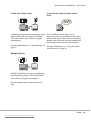
2 Sided Print (Duplex Print)
Using the Stored Print Function (Stored
Print)
2 Sided Print is to print two or more pages on the
front and back side of a single sheet of paper.
This feature allows you to reduce the paper
consumption.
The Stored Print feature allows you to
temporarily store your print data in the printer
memory and output it later. You can effectively
manage your time when you print confidential
data or large-volume data at off-peak hours.
For more information, see “Duplex Printing” on
page 87.
For more information, see “Using the Stored
Print Function” on page 84.
Multiple-Up Print
Multiple-Up enables you to print multiple pages
on a single sheet of paper. This feature allows
you to reduce the paper consumption.
For more information, see the print driver’s
help.
Preface
Downloaded from ManualsPrinter.com Manuals
12
Epson AcuLaser C2900 Series
User’s Guide
Chapter 1
Specifications
Specifications
Items
Description
Type
Console
Printing method
Laser Xerography
Important:
Laser + electrophotographic system
Fusing system
Thermal fusing system
Continuous print speed*1
A4 plain paper
Color 1 Sided*2: 23 sheets/min; 2 Sided*3: 16 pages/min
Monochrome 1 Sided: 23 sheets/min; 2 Sided: 16 pages/min
Important:
*1 Print speed may decrease due to factors such as paper type, paper size, and
printing conditions.
*2 When continuously printing a single document of A4
*3 A4
.
continuous printing
Resolution
Output Resolution: 600 × 600 dpi
Tone/Color
256 tones/color (16.7 million colors)
Paper Size
A4, B5, A5, Legal (8.5 × 14"), Folio (8.5 × 13"), Letter (8.5 × 11"), Executive,
Com-10, Monarch, DL, C5, Custom Paper (Width: 76.2 – 215.9 mm, Length: 127 –
355.6 mm)
Image loss: 4.1 mm from the top, bottom, left, and right edges
Specifications
Downloaded from ManualsPrinter.com Manuals
13
Epson AcuLaser C2900 Series
User’s Guide
Items
Description
Paper Type
Plain Paper, Card Stock (Thin/Thick), Envelope, Labels (Normal/Thick),
Letterhead, Glossy Paper (Normal/Thick), Pre-Punched, Colored Paper, Special
Important:
Paper capacity
❏
Use only the recommended paper. Using paper other than that
recommended for the printer can cause printing problems. Do not use
special ink jet paper.
❏
Note that poor printing quality due to paper-related printing problems
can occur when using the printer in an environment that is dry, cold, or
very humid.
❏
Printing over the printed side or on the reverse side of paper that already
has been printed on can result in poor print quality.
❏
When printing on envelopes, use envelopes that do not have adhesive
applied.
❏
The type of paper being used and environmental conditions can affect
printing quality. Because of this, it is recommended that you test print and
confirm proper print quality before using the printer.
Standard:
Standard 250-sheet tray: 250 sheets
Optional 250-sheet paper cassette unit: 250 sheets
SSF: 1 sheet
Output tray capacity
Standard: approximately 150 sheets (face down)
2-sided Printing Feature
Standard
Memory capacity
Standard: 256 MB (Onboard)
Maximum: 768 MB (Onboard256 MB + DIMM512 MB)
Important:
The above memory capacity does not guarantee print quality depending on
the type and content of print data.
Hard disk
—
Fonts
Build-in fonts
PCL5 and PCL6 fonts: 81 fonts and 36 symbol sets
PostScript 3: 136 fonts
Page Description Language
PCL 5e, PCL 5c, PCL 6, PostScript 3
Specifications
Downloaded from ManualsPrinter.com Manuals
14
Epson AcuLaser C2900 Series
Items
Description
Supported OS
Standard: PCL6 and PostScript drivers
User’s Guide
® Windows® XP,
Microsoft Windows Server 2003,
®
®
Microsoft Windows Server 2008,
®
®
Microsoft Windows Vista ,
®
®
Microsoft Windows 7,
®
®
Microsoft Windows XP x64,
®
®
Microsoft Windows Server 2003 x64,
®
®
Microsoft Windows Server 2008 x64,
®
®
Microsoft Windows Vista x64,
®
®
Microsoft Windows Server 2008 R2 x64,
®
®
Microsoft Windows 7 x64,
®
®
Mac OS X 10.4 – 10.6,
®
Microsoft
Red Hat Enterprise Linux 4 WS/5 Client (x86),
SUSE Linux Enterprise Desktop 10/11 (x86)
Important:
For information about the latest supported OS, contact our Customer Support
Center.
Interface
Standard: Ethernet (1000BASE-TX/100BASE-TX/10BASE-T), USB 2.0
Supported protocol
TCP/IP (LPD, Port9100, WSD, HTTP, SMTP, RARP, AutoIP, WINS, DDNS, IPP, SMB),
SNMP, DHCP, BOOTP, Bonjour (mDNS)
Power
AC 110 - 127 V ± 10%; 10 A or less; both 50/60 Hz ± 3%
AC 220 - 240 V ± 10%; 5 A or less; both 50/60 Hz ± 3%
Power consumption
Maximum: 1100 W, During the Sleep mode: 8 W or less
Average:
During standby: 60 W,
During continuous color printing: 365 W,
During continuous monochrome printing: 365 W
Important:
Sleep Mode: 8 W average
(The printer does not use electricity when the power is switched off even with
the power cord is plugged in.)
Dimensions (main unit only)
400 (W) x 406 (D) x 457 (H) mm
Specifications
Downloaded from ManualsPrinter.com Manuals
15
Epson AcuLaser C2900 Series
User’s Guide
Items
Description
Weight
Main Unit: 18.4 kg (main unit only, including consumables)
Usage Environment
During Use: Temperature: 10 - 32 ˚C; Humidity: 10 - 85% (except malfunctions
due to dew condensation)
Non-Use: Temperature: -20 - 40 ˚C; Humidity: 5 - 85% (except malfunctions due
to dew condensation)
Important:
Until the conditions (temperature and humidity) inside the printer become
acclimated to the installation environment, certain qualities of the paper can
cause poor printing.
Specifications
Downloaded from ManualsPrinter.com Manuals
16
Epson AcuLaser C2900 Series
User’s Guide
Chapter 2
Basic Operation
Main Components
This section provides an overview of your Epson AcuLaser C2900 Series.
Front View
10
11
9
1
8
2
3
12
15
13
7
4
5
6
14
1
Operator Panel
2
Front Cover
3
Single Sheet Feeder (SSF)
4
Width Guides
5
Standard 250-Sheet Tray
6
Optional 250-Sheet Paper Cassette Unit
7
Side Cover
8
Side Button
9
Output Tray
10
Output Tray Extension
11
Fuser Unit
12
Drum Cartridge
13
Belt Unit
14
Optional Duplex Unit
15
Toner Cartridge
Basic Operation
Downloaded from ManualsPrinter.com Manuals
17
Epson AcuLaser C2900 Series
User’s Guide
Rear View
1
6
2
5
4
3
1
USB Port
2
Ethernet Port
3
Power Switch
4
Power Connector
5
Security Slot
6
Control Board Cover
Operator Panel
The operator panel has a liquid crystal display (LCD) and buttons.
1
2
3
4 5
6
OK
C
10
M
Y
9
K
8
7
1. LCD Panel
Basic Operation
Downloaded from ManualsPrinter.com Manuals
18
Epson AcuLaser C2900 Series
User’s Guide
❏ Displays various settings, instructions, and error messages.
2.
(Back) button
❏ Switches to the Print mode from the top menu of the Menu mode.
❏ Returns to the upper hierarchy of the menu from the submenu of the Menu mode.
3.
buttons
❏ Scrolls through menus or items in the Menu mode. To enter numbers or passwords, press
these buttons.
4.
buttons
❏ Selects submenus or setting values in the Menu mode.
5.
button
❏ Displays the selected menu or item and determines the selected value in the Menu mode.
6.
(Energy Saver) button
❏ Lights up in the Sleep mode. Press this button to exit the Sleep mode.
7.
(Cancel Job) button
❏ Cancels the current print job.
8.
(Menu) button
❏ Moves to the top menu.
9.
(Error) LED
❏ Lights up when the printer has an error.
10.
(Ready) LED
❏ Lights up when the printer is ready.
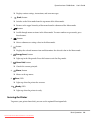
Securing the Printer
To protect your printer from theft, you can use the optional Kensington lock.
Basic Operation
Downloaded from ManualsPrinter.com Manuals
19
Epson AcuLaser C2900 Series
User’s Guide
Attach the Kensington lock to the security slot on your printer.
* Security slot
For details, see the operating instructions supplied with the Kensington lock.
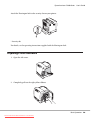
Preparing Printer Hardware
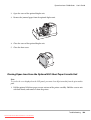
1. Open the side cover.
2. Completely pull out the eight yellow ribbons.
Basic Operation
Downloaded from ManualsPrinter.com Manuals
20
Epson AcuLaser C2900 Series
User’s Guide
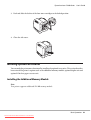
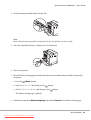
3. Push and slide the latches of the four toner cartridges to the locked position.
4. Close the side cover.
Installing Optional Accessories
You can make the printer more functional by installing the optional accessories. This section describes
how to install the printer’s options such as the additional memory module, optional duplex unit and
optional 250-sheet paper cassette unit.
Installing the Additional Memory Module
Note:
Your printer supports additional 512 MB memory module.
Basic Operation
Downloaded from ManualsPrinter.com Manuals
21
Epson AcuLaser C2900 Series
User’s Guide
1. Turn off the printer.
2. Turn the screw on the control board cover counterclockwise, and open the cover.
Note:
Loosen the screw. You do not need to remove the screw.
3. Align the connector of the memory module with the slot and insert the memory module into the
slot.
Basic Operation
Downloaded from ManualsPrinter.com Manuals
22
Epson AcuLaser C2900 Series
User’s Guide
4. Push the memory module firmly into the slot.
Note:
Ensure that the memory module is firmly fixed in the slot and does not move easily.
5. Close the control board cover, and turn the screw clockwise.
6. Turn on the printer.
7. Print the Printer Settings page to confirm that the newly installed memory module is detected by
the printer.
a Press the
(Menu) button.
b Select Report/List, and then press the
button.
c Select Printer Settings, and then press the
button.
The Printer Settings page is printed.
8. Confirm the amount of Memory Capacity listed under General in the Printer Settings page.
Basic Operation
Downloaded from ManualsPrinter.com Manuals
23
Epson AcuLaser C2900 Series
User’s Guide
If the memory capacity has not increased, turn off the printer, unplug the power cord, and
re-install the memory module.
9. If you installed the additional memory module after installing the print driver, update your driver
by following the instructions for the operating system you are using. If the printer is on a network,
update the driver for each client.
Updating Your Driver to Detect Additional Memory Module
®
®
The following procedure uses Microsoft Windows and the PCL 6 driver as an example.
®
®
Microsoft Windows 7/
Windows 7 x64/
Windows Server 2008 R2
x64
®
1. Click Start — Devices and Printers.
2. Right-click the printer icon of the Epson AcuLaser C2900 Series and select Printer
properties.
3. Click the Options tab, and then click Get Information from Printer.
4. Click Apply, and then click OK.
5. Close the Devices and Printers folder.
®
Windows Vista /
Windows Vista x64
1. Click Start — Control Panel — Hardware and Sound — Printers.
2. Right-click the printer icon of the Epson AcuLaser C2900 Series and select
Properties.
3. Click the Options tab, and then click Get Information from Printer.
4. Click Apply, and then click OK.
5. Close the Printers folder.
Windows Server 2008/
Windows Server 2008 x64
1. Click Start — Control Panel — Printers.
2. Right-click the printer icon of the Epson AcuLaser C2900 Series and select
Properties.
3. Click the Options tab, and then click Get Information from Printer.
4. Click Apply, and then click OK.
5. Close the Printers folder.
Windows XP/
Windows XP x64/
Windows Server 2003/
Windows Server 2003 x64
1. Click Start (start for Windows XP) — Printers and Faxes.
2. Right-click the printer icon of the Epson AcuLaser C2900 Series and select
Properties.
3. Click the Options tab, and then click Get Information from Printer.
4. Click Apply, and then click OK.
5. Close the Printers and Faxes folder.
Basic Operation
Downloaded from ManualsPrinter.com Manuals
24
Epson AcuLaser C2900 Series
User’s Guide
If the printer information is not updated automatically after clicking Get Information from Printer,
follow these steps:
1. Click the Options tab, and then select Memory Capacity in Items.
2. Select the total amount of the installed printer memory in Memory Capacity.
3. Click Apply, and then click OK.
4. Close the Printers and Faxes (, Printers, or Devices and Printers) folder.
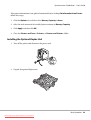
Installing the Optional Duplex Unit
1. Turn off the printer and disconnect the power cord.
2. Unpack the optional duplex unit.
Basic Operation
Downloaded from ManualsPrinter.com Manuals
25
Epson AcuLaser C2900 Series
User’s Guide
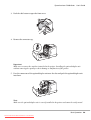
3. Push the side button to open the front cover.
4. Remove the connector cap.
Important:
Make sure to remove the cap that is attached to the printer. Installing the optional duplex unit
without removing the cap may result in damage or malfunction of the printer.
5. Face the connectors of the optional duplex unit over the slots and push the optional duplex unit
into them.
Note:
Make sure the optional duplex unit is securely installed in the printer and cannot be easily moved.
Basic Operation
Downloaded from ManualsPrinter.com Manuals
26
Epson AcuLaser C2900 Series
User’s Guide
6. Close the front cover.
7. Reconnect the power cord to the power connector and turn on the printer.
8. If you installed the optional duplex unit after installing the print driver, update your driver by
following the instructions for each operating system. If the printer is on a network, update the
driver for each client.
Updating Your Driver to Detect Optional Duplex Unit
®
®
The following procedure uses Microsoft Windows and the PCL 6 driver as an example.
Microsoft Windows 7/
Windows 7 x64/
Windows Server 2008 R2 x64
1. Click Start — Devices and Printers.
2. Right-click the printer icon of the Epson AcuLaser C2900 Series and select Printer
properties.
3. Click the Options tab, and then click Get Information from Printer.
4. Click Apply, and then click OK.
5. Close the Devices and Printers folder.
Basic Operation
Downloaded from ManualsPrinter.com Manuals
27
Epson AcuLaser C2900 Series
Windows Vista/
Windows Vista x64
User’s Guide
1. Click Start — Control Panel — Hardware and Sound — Printers.
2. Right-click the printer icon of the Epson AcuLaser C2900 Series and select
Properties.
3. Click the Options tab, and then click Get Information from Printer.
4. Click Apply, and then click OK.
5. Close the Printers folder.
Windows Server 2008/
Windows Server 2008 x64
1. Click Start — Control Panel — Printers.
2. Right-click the printer icon of the Epson AcuLaser C2900 Series and select
Properties.
3. Click the Options tab, and then click Get Information from Printer.
4. Click Apply, and then click OK.
5. Close the Printers folder.
Windows XP/
Windows XP x64/
Windows Server 2003/
Windows Server 2003 x64
1. Click Start (start for Windows XP) — Printers and Faxes.
2. Right-click the printer icon of the Epson AcuLaser C2900 Series and select
Properties.
3. Click the Options tab, and then click Get Information from Printer.
4. Click Apply, and then click OK.
5. Close the Printers and Faxes folder.
If the printer information is not updated automatically after clicking Get Information from Printer,
follow these steps:
1. Click the Options tab, and then select Duplexer in Items.
2. Select Available for the optional duplex unit setting in Duplexer.
3. Click Apply, and then click OK.
4. Close the Printers and Faxes (, Printers, or Devices and Printers) folder.
Basic Operation
Downloaded from ManualsPrinter.com Manuals
28
Epson AcuLaser C2900 Series
User’s Guide
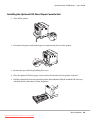
Installing the Optional 250-Sheet Paper Cassette Unit
1. Turn off the printer.
2. Disconnect the power cord from the power connector on the rear of the printer.
3. Remove the tape and the bag holding the screws.
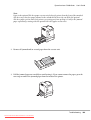
4. Place the optional 250-sheet paper cassette unit in the location that the printer is located.
5. Pull the standard 250-sheet tray out of the printer about 200 mm. Hold the standard 250-sheet tray
with both hands, and remove it from the printer.
Basic Operation
Downloaded from ManualsPrinter.com Manuals
29
Epson AcuLaser C2900 Series
User’s Guide
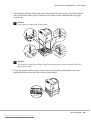
6. Lift the printer and align the five guide pins of the optional 250-sheet paper cassette unit with the
holes at the bottom of the printer. Gently lower the printer onto the optional 250-sheet paper
cassette unit.
c
Caution:
Two people are required to lift the printer.
c
Caution:
Be careful not to pinch your fingers when lowering the printer onto the optional 250-sheet
paper cassette unit.
7. Secure the optional 250-sheet paper cassette unit to the printer by tightening the two screws
provided with the cassette unit with a coin or similar object.
Basic Operation
Downloaded from ManualsPrinter.com Manuals
30
Epson AcuLaser C2900 Series
User’s Guide
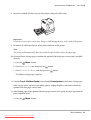
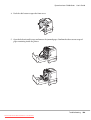
8. Insert the standard 250-sheet tray into the printer, and push until it stops.
Important:
Do not use excessive force on the tray. Doing so could damage the tray or the inside of the printer.
9. Reconnect all cables into the rear of the printer and turn on the printer.
Note:
The printer will automatically detect the attached tray but will not detect the paper type.
10. Print the Printer Settings page to confirm the optional 250-sheet paper cassette unit is installed
correctly.
a Press the
(Menu) button.
b Select Report/List, and then press the
button.
c Select Printer Settings, and then press the
button.
The Printer Settings page is printed.
11. Confirm Tray 2 (250 Sheet Feeder)is listed under Printer Options in the Printer Settings page.
If the cassette unit is not listed, turn off the printer, unplug the power cord, and re-install the
optional 250-sheet paper cassette unit.
12. After loading paper in the optional 250-sheet paper cassette unit, specify the paper type from the
printer operator panel.
a Press the
(Menu) button.
Basic Operation
Downloaded from ManualsPrinter.com Manuals
31
Epson AcuLaser C2900 Series
b Select Tray Settings, and then press the
c Select Tray 2, and then press the
User’s Guide
button.
button.
d Select Paper Type, and then press the
button.
e Select the paper type for the optional 250-sheet paper cassette unit, and then press the
button.
13. If you installed the optional 250-sheet paper cassette unit after installing the print driver, update
your driver by following the instructions for each operating system. If the printer is on a network,
update the driver for each client.
Updating Your Driver to Detect Optional 250-Sheet Paper Cassette Unit
®
®
The following procedure uses Microsoft Windows and the PCL 6 driver as an example.
Microsoft Windows 7/
Windows 7 x64/
Windows Server 2008 R2 x64
1. Click Start — Devices and Printers.
2. Right-click the printer icon of the Epson AcuLaser C2900 Series and select Printer
properties.
3. Click the Options tab, and then click Get Information from Printer.
4. Click Apply, and then click OK.
5. Close the Devices and Printers folder.
Windows Vista/
Windows Vista x64
1. Click Start — Control Panel — Hardware and Sound — Printers.
2. Right-click the printer icon of the Epson AcuLaser C2900 Series and select
Properties.
3. Click the Options tab, and then click Get Information from Printer.
4. Click Apply, and then click OK.
5. Close the Printers folder.
Windows Server 2008/
Windows Server 2008 x64
1. Click Start — Control Panel — Printers.
2. Right-click the printer icon of the Epson AcuLaser C2900 Series and select
Properties.
3. Click the Options tab, and then click Get Information from Printer.
4. Click Apply, and then click OK.
5. Close the Printers folder.
Basic Operation
Downloaded from ManualsPrinter.com Manuals
32
Epson AcuLaser C2900 Series
Windows XP/
Windows XP x64/
Windows Server 2003/
Windows Server 2003 x64
User’s Guide
1. Click Start (start for Windows XP) — Printers and Faxes.
2. Right-click the printer icon of the Epson AcuLaser C2900 Series and select
Properties.
3. Click the Options tab, and then click Get Information from Printer.
4. Click Apply, and then click OK.
5. Close the Printers and Faxes folder.
If the printer information is not updated automatically after clicking Get Information from Printer,
follow these steps:
1. Click the Options tab, and then select Paper Tray Configuration in Items.
2. Select Two trays for the optional 250-sheet paper cassette unit setting in Paper Tray
Configuration.
3. Click Apply, and then click OK.
4. Close the Printers and Faxes (, Printers, or Devices and Printers) folder.
Printing a Panel Settings Page
The Panel Settings page shows current settings for the operator panel menus.
1. Press the
(Menu) button.
2. Select Report/List, and then press the
3. Select Panel Settings, and then press the
button.
button.
The Panel Settings page is printed.
Basic Operation
Downloaded from ManualsPrinter.com Manuals
33
Epson AcuLaser C2900 Series
User’s Guide
Power Saver Mode
The printer has a power saving feature that reduces power consumption during periods of inactivity.
This feature operates in two modes: the Low Power mode and Sleep mode. As delivered, the printer
switches to the Low Power mode three minutes after the last print job is printed. The printer then
switches to the Sleep mode after another six minutes of inactivity. When the printer is in the Low
Power mode, the LCD backlight turns off. In the Sleep mode, (Energy Saver) button lights up. The
display also goes blank and displays nothing.
The factory default settings of three minutes (Low Power mode) and six minutes (Sleep mode) are
changeable within the range of 3 to 60 minutes (Low Power mode) and 1 to 6 minutes (Sleep mode).
The printer returns to the ready-to-print state in about 30 seconds when re-activated.
See Also:
“Setting the Power Saver Time Option” on page 140.
Exiting the Power Saver Mode
The printer automatically exits the Power Saver mode when it receives a print job from a computer. To
manually exit the Low Power mode, press any button on the operator panel. To exit the Sleep mode,
press the (Energy Saver) button.
Note:
❏ Opening and closing a cover will cause the printer to exit the Low Power mode and the Sleep mode.
❏ When the printer is in the Sleep mode, all buttons on the operator panel except for the (Energy
Saver) button do not function. To use the buttons on the operator panel, press the (Energy Saver)
button to exit the Sleep mode.
See Also:
“Setting the Power Saver Time Option” on page 140.
Basic Operation
Downloaded from ManualsPrinter.com Manuals
34
Epson AcuLaser C2900 Series
User’s Guide
Chapter 3
Printer Management Software
Print Drivers
To access all of your printer’s features, install the print drivers from the Software Disc.
❏ The print drivers enable your computer and printer to communicate and provide access to your
printer features.
EpsonNet Config
This section provides information on EpsonNet Config, a hyper text transfer protocol (HTTP)-based
web page service that is accessed through your web browser.
These pages give you instant access to printer status, and printer configuration options. Anyone on
your network can access the printer using their web browser software. In administrative mode you can
change the configuration of the printer, and manage your printer settings without leaving your
computer.
Note:
Users who are not given passwords by the administrator can still view the configuration settings and
options in user mode. They will not be able to save or apply any changes to the current configuration.
Creating an Administrative Password
1. Launch your web browser.
2. Enter the IP address in the browser’s Address field, and then press the Enter key.
3. Click the Properties tab.
4. In the left navigation panel, scroll down to Security and select Administrator Settings.
5. Select Enabled for Administrator Mode.
6. In the Administrator Login ID field, enter a name for the administrator.
Printer Management Software
Downloaded from ManualsPrinter.com Manuals
35
Epson AcuLaser C2900 Series
User’s Guide
Note:
The default ID and password are both blank (NULL).
7. In the Administrator Password and Re-enter Password fields, enter a password for the
administrator.
8. In the Maximum Login Attempts field, enter the number of login attempts allowed.
9. Click Apply. Your new password has been set and anyone with the administrator name and
password can log in and change the printer configuration and settings.
Status Monitor (Windows Only)
You can check the printer status with Status Monitor. Double-click the Status Monitor printer icon on
the taskbar at the bottom right of the screen. The Select Printer window appears, which displays the
printer name, printer connection ports, and printer status. Check the column Status to know the
current status of your printer.
Status Settings button: Displays the Status Settings dialog box and allows you to modify the Status
Monitor settings.
Click the name of the desired printer listed on the Select Printer window. The Printer Status
window appears.
The Printer Status window alerts you when there is a warning or when an error occurs, for example,
when a paper jam occurs or toner is running low.
By default, the Printer Status window launches when printing and an error occurs. When an error
occurs, the error message appears on the Printer Status window. You can specify the conditions for
starting the Printer Status window in Auto start setup.
To change the pop-up settings for the Printer Status window:
®
®
The following procedure uses Microsoft Windows XP as an example.
1. Click start — All Programs — EPSON — Status Monitor — Activate Status Monitor.
The Select Printer window appears.
2. Click Status Settings.
Printer Management Software
Downloaded from ManualsPrinter.com Manuals
36
Epson AcuLaser C2900 Series
User’s Guide
The Status Settings dialog box appears.
3. Select the Pop up setting tab, and then select the type of the pop-up from Auto start setup.
You can also check the toner level of your printer.
The Status Monitor is installed with your Epson print driver.
Printer Management Software
Downloaded from ManualsPrinter.com Manuals
37
Epson AcuLaser C2900 Series
User’s Guide
Chapter 4
Network Basics
Overview of Network Setup and Configuration
To set up and configure the network:
1. Connect the printer to the network using the recommended hardware and cables.
2. Turn on the printer and the computer.
3. Print the Printer Settings page and keep it for referencing network settings.
4. Install the driver software on the computer from the Software Disc. For information on driver
installation, see the section in this chapter for the specific operating system you are using.
5. Configure the printer’s TCP/IP address, which is required to identify the printer on the network.
❏ Microsoft Windows operating systems: Run the Installer on the Software Disc to
automatically set the printer’s IP address if the printer is connected to an established TCP/IP
network. You can also manually set the printer’s IP address on the operator panel.
®
®
❏ Mac OS X and Linux systems: Manually set the printer’s TCP/IP address on the operator
panel.
®
6. Print a Printer Settings page to verify the new settings.
See Also:
“Printing a Printer Settings Page” on page 100
Connecting Your Printer
Your Epson AcuLaser C2900 Series interconnection cables must meet the following requirements:
Connection Type
Connection Specifications
USB
USB 2.0
Network Basics
Downloaded from ManualsPrinter.com Manuals
38
Epson AcuLaser C2900 Series
Ethernet
User’s Guide
10 Base-T/100 Base-TX/1000 Base-TX
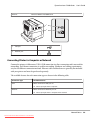
1
2
1
USB port
2
Ethernet port
Connecting Printer to Computer or Network
Connect the printer via Ethernet or USB. A USB connection is a direct connection and is not used for
networking. An Ethernet connection is used for networking. Hardware and cabling requirements
vary for the different connection methods. Ethernet cable and hardware are generally not included
with your printer and must be purchased separately.
The available features for each connection type are shown in the following table.
Connection Type
Available Features
USB
When connected via USB you can:
❏
Ethernet
Instruct print jobs from a computer.
When connected via Ethernet you can:
❏
Instruct print jobs from a computer on the network.
Network Basics
Downloaded from ManualsPrinter.com Manuals
39
Epson AcuLaser C2900 Series
User’s Guide
USB Connection
A local printer is directly connected to your computer using the USB cable. If your printer is connected
to a network instead of your computer, skip this section and go to “Network Connection” on
page 41.
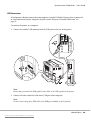
To connect the printer to a computer:
1. Connect the smaller USB connector into the USB port on the rear of the printer.
Note:
Ensure that you match the USB symbol on the cable to the USB symbol on the printer.
2. Connect the other end of the cable into a USB port of the computer.
Note:
Do not connect the printer USB cable to the USB port available on the keyboard.
Network Basics
Downloaded from ManualsPrinter.com Manuals
40
Epson AcuLaser C2900 Series
User’s Guide
Network Connection
To connect the printer to a network:
1. Connect an Ethernet cable.
To connect the printer to the network, connect one end of the Ethernet cable into the Ethernet port on
the rear of the printer, and the other end to a LAN drop or hub.
Setting the IP Address
TCP/IP and IP Addresses
If your computer is on a large network, contact your network administrator for the appropriate TCP/
IP addresses and additional system settings information.
If you are creating your own small Local Area Network or connecting the printer directly to your
computer using Ethernet, follow the procedure for automatically setting the printer’s IP address.
Computers and printers primarily use TCP/IP protocols to communicate over an Ethernet network.
With TCP/IP protocols, each printer and computer must have a unique IP address. It is important that
the addresses are similar, but not the same; only the last digit needs to be different. For example, your
printer can have the address 192.168.1.2 while your computer has the address 192.168.1.3. Another
device can have the address 192.168.1.4.
Network Basics
Downloaded from ManualsPrinter.com Manuals
41
Epson AcuLaser C2900 Series
User’s Guide
Many networks have a Dynamic Host Configuration Protocol (DHCP) server. A DHCP server
automatically programs an IP address into every computer and printer on the network that is
configured to use DHCP. A DHCP server is built into most cable and Digital Subscriber Line (DSL)
routers. If you use a cable or DSL router, see your router’s documentation for information on IP
addressing.
Automatically Setting the Printer’s IP Address
If the printer is connected to a small established TCP/IP network without a DHCP server, use the
installer on the Software Disc to detect or assign an IP address to your printer. For further
instructions, insert the Software Disc into your computer’s CD/DVD drive. After the Installer
launches, follow the prompts for installation.
Note:
For the automatic installer to function, the printer must be connected to an established TCP/IP network.
Dynamic Methods of Setting the Printer’s IP Address
There are two protocols available for dynamically setting the printer’s IP address:
❏ DHCP (enabled by default)
❏ AutoIP
You can turn on/off both protocols using the operator panel, or use EpsonNet Config to turn on/off
DHCP.
Note:
You can print a report that includes the printer’s IP address. On the operator panel, press the (Menu)
button, select Report/List, press the
button, select Printer Settings, and then press the
button. The IP address is listed on the Printer Settings page.
Using the Operator Panel
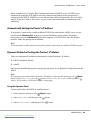
To turn on/off either the DHCP or AutoIP protocol:
1. On the operator panel, press the
(Menu) button.
2. Select Admin Menu, and then press the
3. Select Wired Network, and then press the
button.
button.
Network Basics
Downloaded from ManualsPrinter.com Manuals
42
Epson AcuLaser C2900 Series
4. Select TCP/IP, and then press the
5. Select IPv4, and then press the
User’s Guide
button.
button.
6. Select Get IP Address, and then press the
button.
7. Select DHCP / Autonet, and then press the
button.
Using EpsonNet Config
To turn on/off the DHCP protocol:
1. Launch your web browser.
2. Enter the IP address in the browser’s Address field, and then press the Enter key.
3. Select Properties.
4. Select the Protocol Settings folder on the left navigation panel.
5. Select TCP/IP.
6. In the Get IP Address field, select the DHCP / Autonet option.
7. Click the Apply button.
Assigning an IP Address (for IPv4 Mode)
Note:
❏ When you assign an IP address manually in IPv6 mode, use the EpsonNet Config. To display the
EpsonNet Config, use the link local address. To check a link local address, see “Printing and Checking
the Printer Settings Page” on page 46.
❏ Assigning an IP address is considered as an advanced function and is normally done by a system
administrator.
❏ Depending on the address class, the range of the IP address assigned may be different. On Class A, for
example, an IP address in the range from 0.0.0.0 to 127.255.255.255 will be assigned. For
assignment of IP addresses, contact your system administrator.
You can assign the IP address by using the operator panel.
Network Basics
Downloaded from ManualsPrinter.com Manuals
43
Epson AcuLaser C2900 Series
User’s Guide
1. Turn on the printer.
Ensure that Ready message appears on the LCD panel.
2. On the operator panel, press the
(Menu) button.
3. Select Admin Menu, and then press the
button.
4. Select Wired Network, and then press the
5. Select TCP/IP, and then press the
6. Select IPv4, and then press the
button.
button.
7. Select Get IP Address, and then press the
8. Select Panel, and then press the
button.
button.
button.
9. Ensure that the message Restart Printer to apply setting appears, and then press any
button.
10. Press the
button to select IP Address, and then press the
button.
The cursor is located at the first octet of the IP address.
11. Specify the value of the IP address using the
12. Press the
or
button.
button.
The cursor moves to the next octet.
13. Repeat steps 11 to 12 to set all of the digits in the IP address, and then press the
button.
14. Ensure that the message Restart Printer to apply setting appears, and then press any
button.
15. Press the
button to select Subnet Mask, and then press the
button.
The cursor is located at the first octet of the subnet mask.
16. Specify the value of the subnet mask using the
17. Press the
or
button.
button.
Network Basics
Downloaded from ManualsPrinter.com Manuals
44
Epson AcuLaser C2900 Series
User’s Guide
The cursor moves to the next octet.
18. Repeat steps 16 to 17 to set subnet mask, and then press the
button.
19. Ensure that the message Restart Printer to apply setting appears, and then press any
button.
20. Press the
button to select Gateway Address, and then press the
button.
The cursor is located at the first octet of the gateway address.
21. Specify the value of the gateway address using the
22. Press the
or
button.
button.
The cursor moves to the next octet.
23. Repeat steps 21 to 22 to set gateway address, and then press the
button.
24. Ensure that the message Restart Printer to apply setting appears, and then press any
button.
25. Turn off and turn on the printer.
See Also:
“Operator Panel” on page 18
Verifying the IP Settings
You can confirm the settings by printing the system settings report or using the ping command.
The following procedure uses Windows XP as an example.
1. Print the Printer Settings page.
2. Look under the IPv4 heading on the Printer Settings page to ensure that the IP address, subnet
mask, and gateway are appropriate.
To verify if the printer is active on the network, run the ping command in your computer:
1. Click start, and select Run.
Network Basics
Downloaded from ManualsPrinter.com Manuals
45
Epson AcuLaser C2900 Series
User’s Guide
2. Enter cmd, and then click OK.
A black window is displayed.
3. Enter ping xx.xx.xx.xx (where xx.xx.xx.xx is the IP address of your printer), and then press the
Enter key.
4. Reply from the IP address denotes printer is active on the network.
See Also:
“Printing and Checking the Printer Settings Page” on page 46
Printing and Checking the Printer Settings Page
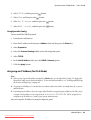
Print the Printer Settings page and check your printer’s IP address by using the operator panel.
1. On the operator panel, press the
(Menu) button.
2. Select Report/List, and then press the
button.
3. Select Printer Settings, and then press the
button.
The Printer Settings page is printed.
4. Confirm the IP address next to IP Address under Network (Wired) on the Printer Settings page.
If the IP address is 0.0.0.0, wait for a few minutes to resolve the IP address automatically, and then
print the Printer Settings page again.
If the IP address is not resolved automatically, see “Assigning an IP Address (for IPv4 Mode)” on
page 43.
Installing Print Driver on Computers Running Windows
Identifying Print Driver Pre-install Status (For Network Connection Setup)
Before installing the print driver on your computer, print the Printer Settings page to check the IP
address of your printer.
Network Basics
Downloaded from ManualsPrinter.com Manuals
46
Epson AcuLaser C2900 Series
User’s Guide
The Operator Panel
1. Press the
(Menu) button.
2. Select Report/List, and then press the
button.
3. Select Printer Settings, and then press the
button.
The Printer Settings page is printed.
4. Find the IP address under Network (Wired) on the Printer Settings page.
If the IP address is 0.0.0.0, wait for a few minutes to resolve the IP address automatically, and then
print the Printer Settings page again.
If the IP address is not resolved automatically, see “Assigning an IP Address (for IPv4 Mode)” on
page 43.
Disabling the Firewall Before Installing Your Printer
Note:
For Windows XP, Service Pack 2 or 3 must be installed.
If you are running one of the following operating systems, you must disable the firewall before
installing the Epson printer software:
❏ Windows 7
❏ Windows Vista
❏ Windows Server 2008 R2
❏ Windows Server 2008
❏ Windows XP
The following procedure uses Windows XP as an example.
1. Click start — Help and Support.
Note:
For Windows Vista, Windows Server 2008, Windows Server 2008 R2 and Windows 7 operating
systems, if you use Online Help, switch to Offline Help on Windows Help and Support window.
Network Basics
Downloaded from ManualsPrinter.com Manuals
47
Epson AcuLaser C2900 Series
User’s Guide
2. In the Search box, enter firewall and then press the Enter key.
In the list, click Turn Windows Firewall on or off and then follow the instructions on the screen.
Enable the firewall after the installation of the Epson printer software is complete.
Inserting the Software Disc
For Installing PCL Print Driver
1. Insert the Software Disc into your computer to start Easy Install.
Note:
If the Software Disc does not automatically launch, click Start (start for Windows XP) — All Programs
(for Windows Vista and Windows 7) — Accessories (for Windows Vista and Windows 7) — Run, and
then enter D:\setup.exe (where D is the drive letter), and then click OK.
For Installing PostScript Print Driver
1. Insert the Software Disc into your computer.
USB Connection Setup
For Installing PCL Print Driver
1. Turn on the printer.
2. Click Easy Install.
The SOFTWARE LICENSE AGREEMENT appears.
3. If you agree to the terms of the SOFTWARE LICENSE AGREEMENT, select Agree and then click
Next.
The Easy Install Navi launches.
4. Click Installing Driver and Software.
5. Click Print Driver.
Network Basics
Downloaded from ManualsPrinter.com Manuals
48
Epson AcuLaser C2900 Series
User’s Guide
6. Click Connect via USB.
7. Follow the procedures described in the Help to install the print driver.
USB Printing
A personal printer is a printer attached to your computer or a print server using a USB. If your printer
is attached to a network and not your computer, see “Network Connection Setup” on page 49.
For Installing PostScript Print Driver
Windows users should read the PostScript User's Guide for information on how to install the print
driver.
Network Connection Setup
Note:
❏ To use this printer in a Linux environment, you need to install a Linux driver. For more information
on how to install and use these, see also “Installing Print Driver on Computers Running Linux
(CUPS)” on page 56.
❏ When using a CD drive in a Linux environment, you need to mount the CD according to your system
environment. The command strings are mount/media/CD-ROM.
For installing PCL print driver
1. Turn on the printer.
2. Click Easy Install.
The SOFTWARE LICENSE AGREEMENT appears.
3. If you agree to the terms of the SOFTWARE LICENSE AGREEMENT, select Agree and then click
Next.
The Easy Install Navi launches.
4. Click Installing Driver and Software.
5. Click Print Driver.
Network Basics
Downloaded from ManualsPrinter.com Manuals
49
Epson AcuLaser C2900 Series
User’s Guide
6. Select Standard or Custom setup.
7. Follow the on-screen instructions to install the print driver.
For installing PostScript print driver
Windows users should read the PostScript User's Guide for information on how to install the print
driver.
Setting Up for Shared Printing
You can share your new printer on the network using the Software Disc that comes with your printer,
or using Microsoft peer-to-peer method. However, if you use the Microsoft method, some features,
such as the Status Monitor and other printer utilities, installed with the Software Disc, may not be
available.
If you want to use the printer on a network, share the printer and install its drivers on all the computers
on the network.
Note:
You need to purchase an Ethernet cable for shared printing.
For Windows XP, Windows XP 64-bit Edition, Windows Server 2003, and Windows Server
2003 x64 Edition
1. Click Start (start for Windows XP) — Printers and Faxes.
2. Right-click the printer icon and select Properties.
3. On the Sharing tab, select the Share this printer radio button, and then enter a name in Share
name text box.
4. Click Additional Drivers and select the operating systems of all network clients that print to the
printer.
5. Click OK.
If you are missing files, you are prompted to insert the server operating system CD.
6. Click Apply, and then click OK.
Network Basics
Downloaded from ManualsPrinter.com Manuals
50
Epson AcuLaser C2900 Series
User’s Guide
For Windows Vista and Windows Vista 64-bit Edition
1. Click Start — Control Panel — Hardware and Sound — Printers.
2. Right-click the printer icon and select Sharing.
3. Click Change sharing options.
The message Windows needs your permission to continue appears.
4. Click Continue.
5. Select the Share this printer check box, and then enter a name in Share name.
6. Click Additional Drivers and select the operating systems of all network clients that print to the
printer.
7. Click OK.
8. Click Apply, and then click OK.
For Windows Server 2008 and Windows Server 2008 64-bit Edition
1. Click Start — Control Panel — Printers.
2. Right-click the printer icon and select Sharing.
3. Select the Share this printer check box, and then enter a name in Share name.
4. Click Additional Drivers and select the operating systems of all network clients that print to the
printer.
5. Click OK.
6. Click Apply, and then click OK.
For Windows 7, Windows 7 64-bit Edition, and Windows Server 2008 R2
1. Click Start — Devices and Printers.
2. Right-click the printer icon and select Printer properties.
Network Basics
Downloaded from ManualsPrinter.com Manuals
51
Epson AcuLaser C2900 Series
User’s Guide
3. On the Sharing tab, select the Share this printer check box, and then enter a name in Share
name text box.
4. Click Additional Drivers and select the operating systems of all network clients that print to the
printer.
5. Click OK.
6. Click Apply, and then click OK.
To confirm that the printer is properly shared:
❏ Ensure that the printer object in the Printers, Printers and Faxes or Devices and Printers
folder is shared. The shared icon is shown under the printer icon.
❏ Browse Network or My Network Places. Find the host name of the server and the shared name
you assigned to the printer.
Now that the printer is shared, you can install the printer on network clients using the peer-to-peer
method.
Peer-to-Peer
If you use the peer-to-peer method, the print driver is fully installed on each client computer. Network
clients retain control of driver modifications. The client computer handles the print job processing.
For Windows XP, Windows XP 64-bit Edition, Windows Server 2003, and Windows Server
2003 x64 Edition
1. Click start (Start for Windows Server 2003 / Windows Server 2003 x64 Edition) — Printers and
Faxes.
2. Click Add a printer (Add Printer for Windows Server 2003 / Windows Server 2003 x64 Edition)
to launch the Add Printer Wizard.
3. Click Next.
Network Basics
Downloaded from ManualsPrinter.com Manuals
52
Epson AcuLaser C2900 Series
User’s Guide
4. Select A network printer, or a printer attached to another computer, and then click Next. If
the printer is not listed, enter the path to the printer in the text box.
For example:\\[server host name]\[shared printer name]
The server host name is the name of the server computer that identifies it on the network. The
shared printer name is the name assigned during the server installation process.
5. Click Browse for a printer, and then click Next.
6. Select the printer, and then click Next.
If this is a new printer, you may be prompted to install a print driver. If no system driver is
available, you need to specify the path to available drivers.
7. Select Yes if you want this printer to be set as the default printer, and then click Next.
If you want to verify installation, click Yes to print a test page.
8. Click Finish.
When a test page prints successfully, installation is complete.
For Windows Vista and Windows Vista 64-bit Edition
1. Click Start — Control Panel — Hardware and Sound — Printers.
Network Basics
Downloaded from ManualsPrinter.com Manuals
53
Epson AcuLaser C2900 Series
User’s Guide
2. Click Add a Printer to launch the Add Printer wizard.
3. Select Add a network, wireless or Bluetooth printer, and then click Next. If the printer is
listed, select the printer and click Next, or select The printer that I want isn’t listed and enter the
path of the printer in Select a shared printer by name and click Next.
For example:\\[server host name]\[shared printer name]
The server host name is the name of the server computer that identifies it on the network. The
shared printer name is the name assigned during the server installation process.
4. If this is a new printer, you may be prompted to install a print driver. If no system driver is
available, you need to specify the path to available drivers.
5. Select Yes if you want this printer to be set as the default printer, and then click Next.
6. If you want to verify installation, click Print a test page.
7. Click Finish.
When a test page prints successfully, installation is complete.
For Windows Server 2008 and Windows Server 2008 64-bit Edition
1. Click Start — Control Panel — Printers.
Network Basics
Downloaded from ManualsPrinter.com Manuals
54
Epson AcuLaser C2900 Series
User’s Guide
2. Click Add a Printer to launch the Add Printer wizard.
3. Select Add a network, wireless or Bluetooth printer, and then click Next. If the printer is
listed, select the printer and click Next, or select The printer that I want isn’t listed and enter the
path to the printer in Select a shared printer by name and click Next.
For example: \\[server host name]\[shared printer name]
The server host name is the name of the server computer that identifies it on the network. The
shared printer name is the name assigned during the server installation process.
4. If this is a new printer, you may be prompted to install a print driver. If no system driver is
available, you will need to provide a path to available drivers.
5. Select Yes if you want this printer to be set as the default printer, and then click Next.
6. Click Print a test page if you want to verify installation.
7. Click Finish.
When a test page prints successfully, installation is complete.
For Windows 7, Windows 7 64-bit Edition, and Windows Server 2008 R2
1. Click Start — Devices and Printers.
2. Click Add a Printer to launch the Add Printer wizard.
3. Select Add a network, wireless or Bluetooth printer. If the printer is listed, select the printer
and click Next, or select The printer that I want isn’t listed. Click Select a shared printer by
name and enter the path of the printer in the text box, and then click Next.
For example: \\[server host name]\[shared printer name]
The server host name is the name of the server computer that identifies it to the network. The
shared printer name is the name assigned during the server installation process.
4. If this is a new printer, you may be prompted to install a print driver. If no system driver is
available, you will need to provide the path to the available driver.
5. Confirm the printer name, and then click Next.
Network Basics
Downloaded from ManualsPrinter.com Manuals
55
Epson AcuLaser C2900 Series
User’s Guide
6. Select Yes if you want this printer to be set as the default printer, and then click Next.
7. Click Print a test page if you want to verify installation.
8. Click Finish.
When a test page prints successfully, installation is complete.
Installing Print Driver on Computers Running Mac OS X
For information on how to install the print driver, refer to the PostScript User's Guide.
Installing Print Driver on Computers Running Linux (CUPS)
This section provides information for installing or setting up the print driver with CUPS (Common
UNIX Printing System) on Red Hat Enterprise Linux 4 WS/5 Client or SUSE Linux Enterprise
Desktop 10/11.
®
®
®
Installing the Print Driver
Note:
❏ The print driver Epson-AcuLaser_C2900-x.x-y.noarch.rpm is included in the Linux folder in the
Common folder on the Software Disc.
❏ In the file name, “x.x” represents the version number and “y” represents the release number.
For Red Hat Enterprise Linux 4 WS/5 Client
Important:
Before you install the print driver on Red Hat Enterprise Linux 4, confirm that Update 8 or higher is
applied to your operating system. Consult your Linux distributor for the upgrade of your system.
1. Double-click Epson-AcuLaser_C2900-x.x-y.noarch.rpm in the Software Disc.
2. Enter the administrator’s password.
3. Click Continue in the Completed System Preparation window.
Network Basics
Downloaded from ManualsPrinter.com Manuals
56
Epson AcuLaser C2900 Series
User’s Guide
Installation starts. When the installation is complete, the window is automatically closed.
For SUSE Linux Enterprise Desktop 10
1. Double-click Epson-AcuLaser_C2900-x.x-y.noarch.rpm in the Software Disc.
2. Enter the administrator password, and click Install.
Installation starts. When the installation is complete, the window is automatically closed.
For SUSE Linux Enterprise Desktop 11
1. Double-click Epson-AcuLaser_C2900-x.x-y.noarch.rpm in the Software Disc.
2. Enter the administrator password, and click Continue.
Installation starts. When the installation is complete, the window is automatically closed.
Setting Up the Queue
To execute printing, you must set up the print queue on your workstation.
Note:
When you have finished setting up the queue, you can print jobs from the applications. Start the print job
from the application, and specify the queue in the print dialog box.
However, you may be able to print only from the default queue depending on the application (for
example Mozilla). In these cases, before you start printing, set queue you want to print to as the default
queue. For information on specifying the default queue, see also “Setting the Default Queue” on
page 61.
For Red Hat Enterprise Linux 4 WS/5 Client
1. Open the URL “http://localhost:631” using a web browser.
2. Click Administration.
3. Enter root as the user name, and enter the administrator password.
4. Click Add Printer.
Enter the name of the printer in Name in the Add New Printer window, and click Continue.
Network Basics
Downloaded from ManualsPrinter.com Manuals
57
Epson AcuLaser C2900 Series
User’s Guide
You can optionally specify the location and description of the printer for further information.
For network connections:
a Select LPD/LPR Host or Printer from the Device menu, and click Continue.
b Enter the IP address of the printer in Device URI.
c Format: lpd://xxx.xxx.xxx.xxx (the IP address of the printer)
For USB connections with Red Hat Enterprise Linux 4 WS:
a Select USB Printer #1 from the Device menu.
For USB connections with Red Hat Enterprise Linux 5 Client:
a Select Epson AcuLaser C2900 USB #1 or Epson AcuLaser C2900 from the Device menu.
5. Select Epson from the Make menu, and click Continue.
6. Select Epson AcuLaser C2900 from the Model menu, and click Continue.
The message Printer Epson AcuLaser C2900 has been added successfully. appears.
The setup is complete.
For SUSE Linux Enterprise Desktop 10
1. Select Computer — More Applications... and select YaST on the Application Browser.
2. Enter the administrator password.
YaST Control Center is activated.
3. Select Hardware on YaST Control Center, and select Printer.
4. Printer setup: Autodetected printers is activated.
For network connections:
Network Basics
Downloaded from ManualsPrinter.com Manuals
58
Epson AcuLaser C2900 Series
User’s Guide
a Click Add.
b Select Network Printers as Printer Type, and click Next.
c Select the Print via LPD-Style Network Server as Printer Type, and click Next.
d Enter the IP address of the printer in Host name of the printer server.
e Enter the name of the printer queue in Name of the remote queue, and click Next.
f Enter the printer name in Name for printing.
Note:
The Description of Printer and Location of Printer do not have to be specified.
g Select the Do Local Filtering check box, and click Next.
h Select Epson as Select manufacturer. Select Epson AcuLaser C2900 as Select Model,
and click Next.
i Confirm the settings in Edit configuration, and click OK.
For USB connections:
a Select Epson AcuLaser C2900 on USB (//Epson/AcuLaser C2900 or /dev/usblp*) as
Available are, and click Configure….
b Confirm the settings in Edit configuration, and click OK.
5. Click Finish.
For SUSE Linux Enterprise Desktop 11
1. Select Computer — More Applications..., and select YaST on the Application Browser.
2. Enter the administrator password.
YaST Control Center is activated.
3. Select Hardware on YaST Control Center, and select Printer.
Network Basics
Downloaded from ManualsPrinter.com Manuals
59
Epson AcuLaser C2900 Series
User’s Guide
The Printer Configurations dialog box opens.
For network connections:
a Click Add.
The Add New Printer Configuration dialog box opens.
b Click Connection Wizard.
The Connection Wizard dialog box opens.
c Select Line Printer Daemon (LPD) Protocol from Access Network Printer or
Printserver Box via.
d Enter the IP address of the printer in IP Address or Host Name:.
e Select Epson in Select the printer manufacturer:.
f Click OK.
The Add New Printer Configuration dialog box appear.
g Select Epson AcuLaser C2900 v3018.102 PS [Epson/AcuLaser_C2900.ppd.gz] from
the Search for Drivers: list.
Note:
You can specify the printer name in Set Name:.
h Confirm the settings, and click OK.
For USB connections:
a Click Add.
The Add New Printer Configuration dialog box opens.
The printer name is displayed in the Determine Connection list.
Network Basics
Downloaded from ManualsPrinter.com Manuals
60
Epson AcuLaser C2900 Series
User’s Guide
b Select Epson AcuLaser C2900 v3018.102 PS [Epson/AcuLaser_C2900.ppd.gz] from
the Search for Drivers: list.
Note:
You can specify the printer name in Set Name:.
Setting the Default Queue
For Red Hat Enterprise Linux 4 WS/5 Client
1. Select Applications — System Tools — Terminal.
2. Enter the following command in the terminal window.
su
(Enter the administrator password)
lpadmin -d (Enter the queue name)
For SUSE Linux Enterprise Desktop 10
1. To activate the Printer setup: Autodetected printers, do the following.
a Select Computer — More Applications... and select YaST on the Application Browser.
b Enter the administrator password.
YaST Control Center is activated.
c Select Hardware on YaST Control Center, and select Printer.
2. Select the printer you want to set to default on the Printer Configuration, and select Set default
in the Other button menu.
3. Click Finish.
For SUSE Linux Enterprise Desktop 11
1. Select Computer — More Applications... and select YaST on the Application Browser.
Network Basics
Downloaded from ManualsPrinter.com Manuals
61
Epson AcuLaser C2900 Series
User’s Guide
2. Enter the administrator password.
YaST Control Center is activated.
3. Select Hardware on YaST Control Center, and select Printer.
The Printer Configurations dialog box opens.
4. Click Edit.
A dialog box to modify the specified queue opens.
5. Confirm that the printer you want to set is selected in the Connection list.
6. Select the Default Printer check box.
7. Confirm the settings, and click OK.
Specifying the Printing Options
You can specify the printing options such as the color mode or 2-sided printing.
For Red Hat Enterprise Linux 4 WS/5 Client
1. Open the URL “http://localhost:631” using a web browser.
2. Click Manage Printers.
3. Click Configure Printer of the queue for which you want to specify the printing options.
4. Enter root as the user name, and enter the administrator password.
5. Specify the required settings, and click Continue.
The message Printer Epson AcuLaser C2900 has been configured successfully. appears.
The setting is complete.
For SUSE Linux Enterprise Desktop 10
1. Open a web browser.
Network Basics
Downloaded from ManualsPrinter.com Manuals
62
Epson AcuLaser C2900 Series
User’s Guide
2. Enter http://localhost:631/admin in Location, and press the Enter key.
3. Enter root as the user name, and enter the administrator password.
The CUPS window appears.
Note:
Set the password for authority as the printer administrator before setting the printer queue. If you
have not set it, go to “Setting the Password for Authority as the Printer Administrator” on
page 64.
4. Click Manage Printers.
5. Specify the required settings, and click Continue.
The message Printer Epson AcuLaser C2900 has been configured successfully. appears.
The setting is complete. Execute printing from the application.
For SUSE Linux Enterprise Desktop 11
1. Open a web browser.
2. Enter http://localhost:631/admin in Location, and press the Enter key.
3. Enter root as the user name, and enter the administrator password.
The CUPS window appears.
Note:
Set the password for authority as the printer administrator before setting the printer queue. If you
have not set it, go to “Setting the Password for Authority as the Printer Administrator” on
page 64.
4. Click Manage Printers.
5. Specify the required settings, and click Continue.
The message Printer Epson AcuLaser C2900 has been configured successfully. appears.
The setting is complete. Execute printing from the application.
Network Basics
Downloaded from ManualsPrinter.com Manuals
63
Epson AcuLaser C2900 Series
User’s Guide
Setting the Password for Authority as the Printer Administrator
For SUSE Linux Enterprise Desktop 10 and 11, you must set the password for authority as the printer
administrator to do operations as the printer administrator.
For SUSE Linux Enterprise Desktop 10
1. Select Computer — More Applications... and select Konsole on the Application Browser.
2. Enter the following command in the terminal window.
su
(Enter the administrator password)
lppasswd -g sys -a root
(Enter the password for authority as the printer administrator after the Enter password prompt.)
(Reenter the password for authority as the printer administrator after the Enter password again prompt.)
For SUSE Linux Enterprise Desktop 11
1. Select Computer — More Applications... and select GNOME Terminal on the Application
Browser.
2. Enter the following command in the terminal window.
su
(Enter the administrator password)
lppasswd -g sys -a root
(Enter the password for authority as the printer administrator after the Enter password prompt.)
(Reenter the password for authority as the printer administrator after the Enter password again prompt.)
Uninstalling the Print Driver
For Red Hat Enterprise Linux 4 WS/5 Client
1. Select Applications — System Tools — Terminal.
2. Enter the following command in the terminal window to delete the print queue.
Network Basics
Downloaded from ManualsPrinter.com Manuals
64
Epson AcuLaser C2900 Series
User’s Guide
su
(Enter the administrator password)
/usr/sbin/lpadmin -x (Enter the print queue name)
3. Repeat the command above for all queues for the same model.
4. Enter the following command in the terminal window.
su
(Enter the administrator password)
rpm -e Epson-AcuLaser_C2900
The print driver is uninstalled.
For SUSE Linux Enterprise Desktop 10
1. Select Computer — More Applications... and select Konsole on the Application Browser.
2. Enter the following command in the terminal window to delete the print queue.
su
(Enter the administrator password)
/usr/sbin/lpadmin -x (Enter the print queue name)
3. Repeat the command above for all queues for the same model.
4. Enter the following command in the terminal window.
su
(Enter the administrator password)
rpm -e Epson-AcuLaser_C2900
The print driver is uninstalled.
For SUSE Linux Enterprise Desktop 11
1. Select Computer — More Applications... and select GNOME Terminal on the Application
Browser.
Network Basics
Downloaded from ManualsPrinter.com Manuals
65
Epson AcuLaser C2900 Series
User’s Guide
2. Enter the following command in the terminal window to delete the print queue.
su
(Enter the administrator password)
/usr/sbin/lpadmin -x (Enter the print queue name)
3. Repeat the command above for all queues for the same model.
4. Enter the following command in the terminal window.
su
(Enter the administrator password)
rpm -e Epson-AcuLaser_C2900
The print driver is uninstalled.
Network Basics
Downloaded from ManualsPrinter.com Manuals
66
Epson AcuLaser C2900 Series
User’s Guide
Chapter 5
Printing Basics
About Print Media
Using paper that is not appropriate for the printer can cause paper jams, image quality problems, or
printer failure. To achieve the best performance from your printer, we recommend you to use only the
paper described in this section.
When using paper other than that recommended, contact the Epson local representative office or an
authorised dealer.
Print Media Usage Guidelines
The printer tray accommodates most sizes and types of paper and other specialty media. Follow these
guidelines when loading paper and media in the tray:
❏ Envelopes can be printed from the single sheet feeder (SSF) and standard 250-sheet tray.
❏ Fan paper or other specialty media before loading in the paper tray.
❏ Do not print on label stock once a label has been removed from a sheet.
❏ Use only paper envelopes. Do not use envelopes with windows, metal clasps, or adhesives with
release strips.
❏ Print all envelopes single-sided only.
❏ Some wrinkling and embossing may occur when printing envelopes.
❏ Do not overload the paper tray. Do not load print media above the fill line on the inside of the paper
width guides.
❏ Adjust the paper width guides to fit the paper size.
❏ If excessive jams or wrinkles occur, use paper or other media from a new package.
w
Warning:
Do not use conductive paper such as origami paper, carbonic paper or conductively-coated paper.
When paper jam occurs, it may cause short-circuit and eventually a fire accident.
Printing Basics
Downloaded from ManualsPrinter.com Manuals
67
Epson AcuLaser C2900 Series
User’s Guide
See Also:
❏ “Loading Print Media in the Standard 250-Sheet Tray and the Optional 250-Sheet Paper Cassette
Unit” on page 73
❏ “Loading Envelope in the Standard 250-Sheet Tray” on page 75
❏ “Loading Print Media in the Single Sheet Feeder (SSF)” on page 78
❏ “Loading Envelope in the Single Sheet Feeder (SSF)” on page 79
❏ “Printing on Custom Size Paper” on page 96
Print Media That Can Damage Your Printer
The following paper types are not recommended for use with the printer:
❏ Chemically treated paper used to make copies without carbon paper, also known as carbonless
paper, carbonless copy paper (CCP), or no carbon required (NCR) paper.
❏ Preprinted paper with chemicals that may contaminate the printer.
❏ Preprinted paper that can be affected by the temperature in the fuser unit.
❏ Preprinted paper that requires a registration (the precise print location on the page) greater than
±0.09 inches, such as optical character recognition (OCR) forms.
In some cases, you can adjust registration with your software program to successfully print on
these forms.
❏ Coated paper (erasable bond), synthetic paper, and thermal paper.
❏ Rough-edged, rough or heavily textured surface paper, or curled paper.
❏ Recycled paper containing more than 25% post-consumer waste that does not meet DIN 19 309.
❏ Multiple-part forms or documents.
❏ Print quality may deteriorate (blank spaces or blotches may appear in the text) when you print on
talc or acid paper.
w
Warning:
Do not use conductive paper such as origami paper, carbonic paper or conductively-coated paper.
When paper jam occurs, it may cause short-circuit and eventually a fire accident.
Printing Basics
Downloaded from ManualsPrinter.com Manuals
68
Epson AcuLaser C2900 Series
User’s Guide
Supported Print Media
Using unsuitable print media may lead to paper jams, poor print quality, breakdown and damage to
your printer. To use the features of this printer effectively, use the suggested print media that is
recommended here.
Important:
The toner may come off the print media, if it gets wet by water, rain, steam and so on. For details, contact
the Epson local representative office or an authorised dealer.
Print Media Dimensions
The maximum dimensions of print media that the standard 250-sheet tray and SSF can handle are:
❏ Width: 76.2 mm (3.00 inches) to 215.9 mm (8.5 inches)
❏ Length: 127 mm (5.00 inches) to 355.6 mm (14.00 inches)
The maximum dimensions of print media that the optional 250-sheet paper cassette unit can handle
are:
❏ Width: 148 mm (5.83 inches) to 215.9 mm (8.5 inches)
❏ Length: 210 mm (8.27 inches) to 355.6 mm (14.00 inches)
Usable Print Media
The types of print media that can be used on this printer are as follows:
Printing Basics
Downloaded from ManualsPrinter.com Manuals
69
Epson AcuLaser C2900 Series
User’s Guide
Single Sheet Feeder (SSF)
Paper Size
A4 SEF (210 × 297 mm)
A5 SEF (148 × 210 mm)
B5 SEF (182 × 257 mm)
Letter SEF (8.5 × 11 inches)
Folio SEF (8.5 × 13 inches)
Legal SEF (8.5 × 14 inches)
Executive SEF (7.25 × 10.5 inches)
Com-10 SEF (4.125 × 9.5 inches)
Monarch Envelope SEF (3.875 × 7.5 inches)
DL Envelope SEF (110 × 220 mm)
C5 Envelope SEF (162 × 229 mm)
Custom Size:
Width: 76.2–215.9 mm (3–8.5 inches)
Length: 127–355.6 mm (5 –14 inches)
Paper Type (Weight)
Plain
Lightweight Cardstock
Heavyweight Cardstock
Envelope
Letterhead
Lightweight Glossy Cardstock
Heavyweight Glossy Cardstock
Hole Punched
Colored
Special
Loading Capacity
1 sheet of standard paper
Printing Basics
Downloaded from ManualsPrinter.com Manuals
70
Epson AcuLaser C2900 Series
User’s Guide
Standard 250-Sheet Tray
Paper Size
A4 SEF (210 × 297 mm)
A5 SEF (148 × 210 mm)
B5 SEF (182 × 257 mm)
Letter SEF (8.5 × 11 inches)
Folio SEF (8.5 × 13 inches)
Legal SEF (8.5 × 14 inches)
Executive SEF (7.25 × 10.5 inches)
Com-10 SEF (4.125 × 9.5 inches)
Monarch Envelope SEF (3.875 × 7.5 inches)
Monarch Envelope LEF (7.5 × 3.8 inches)
DL Envelope SEF (110 × 220 mm)
DL Envelope LEF (220 × 110 mm)
C5 Envelope SEF (162 × 229 mm)
Custom Size:
Width: 76.2–215.9 mm (3–8.5 inches)*1
Length: 127–355.6 mm (5 –14 inches)*2
Paper Type (Weight)
Plain
Lightweight Cardstock
Heavyweight Cardstock
Envelope
Labels
Letterhead
Hole Punched
Colored
Special
Loading Capacity
250 sheets of standard paper
*1 Maximum width 220 mm for envelope (DL LEF)
DL and Monarch can be supported by LEF with flap opened.
*2 Minimum length 98.4 mm for envelope (Monarch LEF)
Printing Basics
Downloaded from ManualsPrinter.com Manuals
71
Epson AcuLaser C2900 Series
User’s Guide
Optional 250-Sheet Paper Cassette Unit
Paper Size
A4 SEF (210 × 297 mm)
A5 SEF (148 × 210 mm)
B5 SEF (182 × 257 mm)
Letter SEF (8.5 × 11 inches)
Folio SEF (8.5 × 13 inches)
Legal SEF (8.5 × 14 inches)
Executive SEF (7.25 × 10.5 inches)
Paper Type (Weight)
Plain
Letterhead
Hole Punched
Colored
Loading Capacity
250 sheets of standard paper
Note:
SEF and LEF indicate the paper feed direction; SEF stands for short-edge feed. LEF stands for long-edge
feed.
See Also:
❏ “Loading Print Media in the Standard 250-Sheet Tray and the Optional 250-Sheet Paper Cassette
Unit” on page 73
❏ “Loading Envelope in the Standard 250-Sheet Tray” on page 75
❏ “Loading Letterhead in the Standard 250-Sheet Tray and the Optional 250-Sheet Paper Cassette
Unit” on page 78
❏ “Loading Print Media in the Single Sheet Feeder (SSF)” on page 78
❏ “Loading Envelope in the Single Sheet Feeder (SSF)” on page 79
Printing on print media that differs from the paper size or paper type selected on the print driver, or
loading print media into an unsuitable paper tray for printing, may lead to paper jams. To ensure that
printing is correctly done, select the correct paper size, paper type, and paper tray.
Loading Print Media
Loading print media properly helps prevent jams and ensures trouble-free printing.
Printing Basics
Downloaded from ManualsPrinter.com Manuals
72
Epson AcuLaser C2900 Series
User’s Guide
Before loading any print media, identify the recommended print side of the print media. This
information is usually indicated on the print media package.
Capacity
The standard 250-sheet tray and optional 250-sheet paper cassette unit can hold:
❏ 250 sheets of the standard paper.
The SSF can hold:
❏ 1 sheet of the standard paper.
Loading Print Media in the Standard 250-Sheet Tray and the Optional
250-Sheet Paper Cassette Unit
Note:
❏ To avoid paper jams, do not remove the tray while printing is in progress.
❏ Use only laser print media. Do not use ink jet paper in your printer.
1. Pull the tray out of the printer about 200 mm. Hold the tray with both hands, and remove it from
the printer.
Printing Basics
Downloaded from ManualsPrinter.com Manuals
73
Epson AcuLaser C2900 Series
User’s Guide
2. Adjust the paper guides.
Note:
Extend the rear side of the tray when you load Legal size paper.
3. Before loading the print media, flex the sheets and fan them. Straighten the edges of the stack on a
level surface.
4. Load the print media into the tray with the recommended print side facing up.
Note:
❏ Do not exceed the maximum fill line in the tray. Overfilling the tray may cause paper jams.
❏ When loading coated paper, load coated paper one sheet at a time.
Printing Basics
Downloaded from ManualsPrinter.com Manuals
74
Epson AcuLaser C2900 Series
User’s Guide
5. Align the width guides against the edges of the paper.
Note:
When loading user-specified print media, adjust the width guides and slide the extendable part of the
tray by pinching the length guide and sliding it until it rests lightly against the edge of the paper.
6. After confirming that the guides are securely adjusted, insert the tray into the printer.
7. On the operator panel, select the desired paper size, and then press the
8. Select the desired paper type, and then press the
button.
button.
Loading Envelope in the Standard 250-Sheet Tray
Use the following guidelines when loading envelopes in the standard 250-sheet tray:
Printing Basics
Downloaded from ManualsPrinter.com Manuals
75
Epson AcuLaser C2900 Series
User’s Guide
Note:
If you do not load envelopes in the standard 250-sheet tray right after they have been removed from the
packaging, they may bulge. To avoid jams, flatten them as shown below before loading the envelopes in
the tray.
Com-10
Load the envelopes short edge feed with the flaps closed and the print side up. Ensure that the flaps
come at the right when you face towards the printer.
Monarch or DL
The Monarch or DL envelopes can be loaded in one of the following ways:
Printing Basics
Downloaded from ManualsPrinter.com Manuals
76
Epson AcuLaser C2900 Series
User’s Guide
Load the envelopes short edge feed with the flaps closed and the print side up. Ensure that the flaps
come at the right when you face towards the printer.
OR
Load the envelopes long edge feed with the flaps open and the print side up. Ensure that the flaps come
at the top when you face towards the printer.
C5
Load the envelopes short edge feed with the flaps closed and the print side up. Ensure that the flaps
come at the bottom when you face towards the printer.
Printing Basics
Downloaded from ManualsPrinter.com Manuals
77
Epson AcuLaser C2900 Series
User’s Guide
Loading Letterhead in the Standard 250-Sheet Tray and the Optional 250-Sheet Paper
Cassette Unit
When you use the standard 250-sheet tray and optional 250-sheet paper cassette unit, letterhead and
hole punched paper enter the printer with the print side facing up.
Loading Print Media in the Single Sheet Feeder (SSF)
1. Adjust the width guides to the print media’s width.
2. Hold both sides of the print media face down close to the SSF, and push it 8 cm to 9 cm (4 inches)
into the printer until it automatically feeds.
Printing Basics
Downloaded from ManualsPrinter.com Manuals
78
Epson AcuLaser C2900 Series
User’s Guide
Note:
❏ Do not force the print media into the SSF.
❏ Load letterhead face down, with the top of the sheet entering the printer first.
❏ If you experience problems with paper feed, turn the paper around.
Loading Envelope in the Single Sheet Feeder (SSF)
Com-10, Monarch, or DL
To load an envelope into the SSF, insert the envelope short edge feed with the flap closed and the print
side down. Ensure that the flap comes at the right when you face towards the printer.
Important:
Never use envelopes with windows, coated linings, or self-stick adhesives. These lead to paper jams and
can cause damage to the printer.
Note:
❏ Ensure that you load an envelope with the flap completely closed.
❏ Insert an envelope with the flap side face up and with the stamp area on the top right side.
Printing Basics
Downloaded from ManualsPrinter.com Manuals
79
Epson AcuLaser C2900 Series
User’s Guide
C5
To load an envelope into the SSF, insert the envelope short edge feed with the flap open and the print
side down. Ensure that the flap comes at the bottom when you face towards the printer.
OR
Important:
Never use envelopes with windows, coated linings, or self-stick adhesives. These lead to paper jams and
can cause damage to the printer.
Note:
❏ Ensure that you load an envelope with the flap completely opened.
❏ Insert an envelope with the flap side face up and with the stamp area on the bottom right side.
Printing Basics
Downloaded from ManualsPrinter.com Manuals
80
Epson AcuLaser C2900 Series
User’s Guide
Loading Letterhead in the Single Sheet Feeder (SSF)
When you use the SSF letterhead enters the printer first with the print side facing down.
Using the Single Sheet Feeder (SSF)
❏ Load only one size and type of print media during a single print job.
❏ To achieve the best possible print quality, use only high-quality print media that is designed for use
in laser printer. For more guidelines on print media, see “Print Media Usage Guidelines” on
page 67.
❏ Do not add or remove print media when the printer is printing from the SSF. This may result in a
paper jam.
❏ Print media should be loaded with the recommended print side down and the top of the print
media going into the SSF first.
❏ Do not place objects on the SSF. Also, avoid pressing down or applying excessive force on it.
❏ The icons on the SSF show how to load the SSF with paper, and how to turn an envelope for
printing.
Setting Paper Sizes and Types
When loading print media in the standard 250-sheet tray and optional 250-sheet paper cassette unit,
set the paper size and type on the operator panel before printing.
Note:
When loading print media in the SSF, use the print driver to set the paper size and type. For more
information, refer to the online help of the driver.
This section describes how to set the paper size and type on the operator panel.
Printing Basics
Downloaded from ManualsPrinter.com Manuals
81
Epson AcuLaser C2900 Series
User’s Guide
See Also:
“Understanding the Printer Menus” on page 104
Setting Paper Sizes
1. On the operator panel, press the
(Menu) button.
2. Select Tray Settings, and then press the
button.
3. Select Tray 1 or Tray 2, and then press the
4. Select Paper Size, and then press the
button.
button.
5. Select the correct paper size for the print media loaded, and then press the
button.
Setting Paper Types
Important:
Paper type settings must match those of the actual print media loaded in the tray or the cassette unit.
Otherwise, print-quality problems can occur.
1. On the operator panel, press the
(Menu) button.
2. Select Tray Settings, and then press the
button.
3. Select Tray 1 or Tray 2, and then press the
4. Select Paper Type, and then press the
button.
button.
5. Select the correct paper type for the print media loaded, and then press the
button.
Printing
This section covers how to print certain lists of information from your printer and how to cancel a
job.
Printing Basics
Downloaded from ManualsPrinter.com Manuals
82
Epson AcuLaser C2900 Series
User’s Guide
Sending a Job to Print
To support all of the printer features, use the print driver. When you choose Print from a software
program, a window representing the print driver opens. Select the appropriate settings for the specific
job that you are sending to print. Print settings selected from the driver override the default menu
settings selected from the operator panel.
You may need to click Preferences from the initial Print box to see all of the available system settings
you can change. If you are not familiar with a feature in the print driver window, open the online Help
for more information.
®
®
To print a job from a typical Microsoft Windows application:
1. Open the file you want to print.
2. From the File menu, select Print.
3. Verify that the correct printer is selected in the dialog box. Modify the system settings as
appropriate (such as the pages you want to print or the number of copies).
4. Click Preferences to adjust system settings that are not available from the first screen, and then
click OK.
5. Click OK or Print to send the job to the selected printer.
Canceling a Print Job
There are several methods for canceling a job.
Canceling a Job From the Operator Panel
To cancel a job after it has started printing:
1. Press the Stop button.
2. From Active Jobs, select Print, and then press the Stop button.
Printing is canceled only for the current job. All the following jobs will continue to print.
Printing Basics
Downloaded from ManualsPrinter.com Manuals
83
Epson AcuLaser C2900 Series
User’s Guide
Canceling a Job From the Computer Running Windows
Canceling a Job From the Taskbar
When you send a job to print, a small printer icon appears in the bottom right corner of the taskbar.
1. Double-click the printer icon.
A list of print jobs appears in the printer window.
2. Select the job you want to cancel.
3. Press Delete key on the keyboard.
Canceling a Job From the Desktop
1. Click start — Printers and Faxes (for Windows XP).
Click Start — Printers and Faxes (for Windows Server 2003).
Click Start — Devices and Printers (for Windows 7 and Windows Server 2008 R2).
Click Start — Control Panel — Hardware and Sound — Printers (for Windows Vista).
Click Start — Control Panel — Printers (for Windows Server 2008).
2. Double-click the printer that you selected when you sent the job for print.
A list of print jobs appears in the printer window.
3. Select the job you want to cancel.
4. Press Delete key on the keyboard.
Using the Stored Print Function
When you send a job to the printer, you can specify in the driver that you want the printer to store the
job in the memory. When you are ready to print the job, go to the printer and use the operator panel
menus to identify which job in the memory you want to print.
The stored print function includes the following job types:
Printing Basics
Downloaded from ManualsPrinter.com Manuals
84
Epson AcuLaser C2900 Series
User’s Guide
❏ “Secure Print” on page 85
❏ “Sample Print” on page 85
Note:
❏ Stored Print function is available when:
❏ The additional memory module is installed.
❏ The RAM disk is enabled in the operator panel menu.
❏ RAM Disk is set to Available in the print driver.
❏ The data in memory is cleared when the printer is turned off.
Secure Print
You can store print jobs temporarily in printer memory and print them later from the operator panel.
This feature can be used to print confidential documents. A stored print job will be deleted after you
print it or at a designated time.
Note:
❏ Secure Print is available when you use the PCL driver.
❏ Secure Print requires specifying a password for confidentiality.
Sample Print
When you specify multiple copies for a collated job, this feature allows you to print only the first set for
checking, before proceeding to print the remaining copies at the printer. You can select whether the
remaining data is printed or deleted.
Note:
❏ If a print job is too large for the memory available, the print may display error messages.
❏ If a document name is not assigned to your print job in the print driver, the job’s name will be
identified using the printer’s time and date of submission to distinguish it from other jobs you have
stored under your name.
❏ Sample Print is available when you use the PCL driver.
Printing Basics
Downloaded from ManualsPrinter.com Manuals
85
Epson AcuLaser C2900 Series
User’s Guide
Storing Print Jobs
In the print driver, you can specify a setting that enables you to store print jobs in temporary memory.
For example, select a job type other than Normal Print in the Paper / Output tab of the PCL 6 driver.
The job will be stored in temporary memory until you request to print it from the operator panel or
turn off the printer.
Printing the Stored Jobs
Once jobs are stored, you can use the operator panel to specify printing. Select the job type you are
using from Secure Print and Sample Print. Then, select your user ID from a list. Secure Print requires
the password you specified in the driver when you sent the job.
To print the stored documents, use the procedure below.
1. Press the
button.
2. Select Secure Print or Sample Print, and then press the
3. Select your user ID, and then press the
button.
button.
4. Select the document you want to print, and then press the
5. Select the desired job type, and then press the
button.
button.
6. Select Use PC Settings or Input Number, and then press the
button.
Note:
When you select Input Number, you can specify the number of copies to be printed before pressing
the
button.
The stored document will be printed.
Specifying Your Password on the Operator Panel (Secure Print)
When you select your user ID for Secure Print, the following prompt appears:
[_ ]
Use the buttons on the operator panel to enter the numeric password you specified in the print driver.
The password you entered will be displayed as asterisks (*******) to ensure confidentiality.
Printing Basics
Downloaded from ManualsPrinter.com Manuals
86
Epson AcuLaser C2900 Series
User’s Guide
If you enter an invalid password, the message “Wrong password Re-enter” appears. Wait three
seconds, or press the
button to return to the screen for user selection.
When you enter a valid password, you have access to all print jobs matching the user name and
password you entered. The print jobs matching the password you entered appear on the screen. You
can then choose to print or to delete jobs matching the password you entered. (See “Printing the Stored
Jobs” on page 86 for more information.)
Deleting Stored Jobs
With Secure Print, a job that has been stored will be deleted after printing if entered on the operator
panel or at turning off the printer.
For Sample Print, these jobs remain stored until you delete them on the operator panel or turn off the
printer.
Duplex Printing
Automatic Duplex Printing
Automatic duplex printing (or 2-sided printing) allows you to print on both sides of a sheet of paper.
A4, Letter, Folio, and Legal paper sizes are acceptable.
The following procedure uses the PCL 6 driver as an example.
1. Click start — Printers and Faxes (for Windows XP).
Click Start — Printers and Faxes (for Windows Server 2003).
Click Start — Devices and Printers (for Windows 7 and Windows Server 2008 R2).
Click Start — Control Panel — Hardware and Sound — Printers (for Windows Vista).
Click Start — Control Panel — Printers (for Windows Server 2008).
A list of available printers appears.
2. Right-click the printer and select Printing Preferences.
The Paper / Output tab appears.
Printing Basics
Downloaded from ManualsPrinter.com Manuals
87
Epson AcuLaser C2900 Series
User’s Guide
3. From Paper Tray, select Tray1, Tray2, or Auto Paper Select.
4. From 2 Sided Print, select 2 Sided Print or 2 Sided, Flip on Short Edge.
Note:
For details on the 2 Sided Print and 2 Sided, Flip on Short Edge options, see “Using Booklet Print”
on page 88.
5. Click OK.
Using Booklet Print
To use the Booklet Print feature, select Booklet Creation in the Booklet / Poster / Mixed
Document / Rotation dialog box displayed by clicking the Booklet / Poster / Mixed Document /
Rotation button in the Layout tab of the printer printing preferences dialog box. 2 Sided Print
binding position is selected by default. If you want to change the position, select 2 Sided, Flip on
Short Edge from the 2 Sided Print menu in the Paper / Output tab of the printer printing
preferences dialog box.
Note:
To use the booklet printing, select Tray1, Tray2, or Auto Paper Select for Paper Tray in the Paper /
Output tab. Do not select Manual Feeder.
2 Sided Print
Assumes binding along the long edge of the page (left edge for portrait orientation and top edge
for landscape orientation). The following illustration shows long-edge binding for portrait and
landscape pages:
Portrait
Landscape
Printing Basics
Downloaded from ManualsPrinter.com Manuals
88
Epson AcuLaser C2900 Series
2 Sided, Flip on
Short Edge
User’s Guide
Assumes binding along the short edge of the page (top edge for portrait orientation and left edge
for landscape orientation). The following illustration shows short-edge binding for portrait and
landscape pages:
Portrait
Landscape
Selecting Printing Options
Selecting Printing Preferences (Windows)
Printer preferences control all of your print jobs, unless you override them specifically for a job. For
example, if you want to use duplex printing for most jobs, set this option in printer settings.
The following procedure uses the PCL 6 driver as an example.
To select printer preferences:
1. Click start — Printers and Faxes (for Windows XP).
Click Start — Printers and Faxes (for Windows Server 2003).
Click Start — Devices and Printers (for Windows 7 and Windows Server 2008 R2).
Click Start — Control Panel — Hardware and Sound — Printers (for Windows Vista).
Click Start — Control Panel — Printers (for Windows Server 2008).
A list of available printers appears.
Printing Basics
Downloaded from ManualsPrinter.com Manuals
89
Epson AcuLaser C2900 Series
User’s Guide
2. Right-click the icon for your printer, and then select Printing Preferences.
3. Select the Advanced Settings tab, and then click Defaults.
4. Make selections on the driver tabs, and then click OK to save your selections.
Note:
For more information about Windows print driver options, click Help on the print driver tab to view the
online help.
Selecting Options for an Individual Job (Windows)
If you want to use special printing options for a particular job, change the driver settings before
sending the job to the printer. For example, if you want to use Photo print-quality mode for a
particular graphic, select this setting in the driver before printing that job.
The following procedure uses the PCL 6 driver as an example.
1. With the desired document or graphic open in your application, access the Print dialog box.
2. Select the printer and click Preferences to open the print driver.
3. Make selections on the driver tabs. See the following table for specific printing options.
Note:
In Windows XP, Windows Server 2003, Windows Server 2008, Windows Vista, Windows Server
2008 R2, and Windows 7, you can save current printing options with a distinctive name and apply
them to other print jobs. Select either the Paper / Output, Image Options, Layout, Watermarks /
Forms, or Advanced Settings tab, and then click Save on the Paper / Output tab. Click Help for
more information.
4. Click OK to save your selections.
5. Print the job.
See the following table for specific printing options:
The table shown below uses the PCL 6 driver as an example.
Printing Basics
Downloaded from ManualsPrinter.com Manuals
90
Epson AcuLaser C2900 Series
User’s Guide
Printing Options for Windows
Operating System
Driver Tab
Printing Options
Windows XP, Windows XP x
64bit, Windows Server 2003,
Windows Server 2003 x
64bit, Windows Vista,
Windows Vista x 64bit,
Windows Server 2008,
Windows Server 2008 x
64bit, Windows Server 2008
R2, Windows 7, or Windows 7
x 64bit
Paper / Output tab
❏
Job Type
❏
Saved Settings
❏
2 Sided Print
❏
Output Color
❏
Quantity
❏
Paper Summary
❏
Paper Size
❏
Paper Tray
❏
Paper Type
❏
Manual Feeder Feed Orientation
❏
Covers / Separators
❏
Envelope/Paper Setup Wizard
❏
Printer Status
❏
Defaults
❏
Output Color
❏
Image Quality
❏
Output Recognition
❏
Image Adjustment Mode
❏
Image Types
❏
Image Auto Correction
❏
Image Settings
❏
Color Balance
❏
Profile Settings
❏
Defaults
❏
Image Orientation
❏
Multiple-Up
❏
Booklet / Poster / Mixed Document / Rotation
❏
Fit to New Paper Size
❏
Specify Zoom
❏
Image Shift / Print Position
❏
Defaults
Image Options tab
Layout tab
Printing Basics
Downloaded from ManualsPrinter.com Manuals
91
Epson AcuLaser C2900 Series
Operating System
Driver Tab
Printing Options
Windows XP, Windows
Server 2003, Windows Vista,
Windows Server 2008, or
Windows 7
Watermarks / Forms tab
❏
❏
Windows XP, Windows XP x
64bit, Windows Server 2003,
Windows Server 2003 x
64bit, Windows Vista,
Windows Vista x 64bit,
Windows Server 2008,
Windows Server 2008 x
64bit, Windows Server 2008
R2, Windows 7, or Windows 7
x 64bit
Advanced Settings tab
User’s Guide
Watermarks
❏
New Watermark
❏
New Watermark (Bitmap)
❏
Edit Watermark
❏
Delete Watermark
❏
Apply to First Page Only
Forms
❏
No Forms
❏
Create / Register Forms
❏
Image Overlay
❏
Annotation
❏
Defaults
❏
Skip Blank Pages
❏
Draft Mode
❏
Banner Sheet
❏
Substitute Tray
❏
Other Settings (Graphics Settings)
❏
Items
❏
Settings for
❏
Paper Tray Selection Method
❏
Specify Font
❏
About
❏
Defaults
Selecting Options for an Individual Job (Mac OS X)
To select print settings for a particular job, change the driver settings before sending the job to the
printer.
1. With the document open in your application, click File, and then click Print.
2. Select the desired printing options from the menus and drop-down lists that are displayed.
Note:
In Mac OS X, click Save as on the Presets menu screen to save the current printer settings. You can
create multiple presets and save each with its own distinctive name and printer settings. To print jobs
using specific printer settings, click the applicable saved preset in the Presets list.
®
3. Click Print to print the job.
Printing Basics
Downloaded from ManualsPrinter.com Manuals
92
Epson AcuLaser C2900 Series
User’s Guide
Mac OS X Print Driver Printing Options:
The table shown below uses Mac OS X 10.6 TextEdit as an example.
Printing options for Mac OS X
Item
Layout
Color Matching
Paper Handling
Paper Feed
Cover Page
Scheduler
Job Accounting
Job Type
Printing Options
❏
Copies
❏
Collated
❏
Pages
❏
Paper Size
❏
Orientation
❏
Pages per Sheet
❏
Layout Direction
❏
Border
❏
Two-Sided
❏
ColorSync
❏
Profile
❏
Pages to Print
❏
Page Order
❏
Destination Paper Size
❏
All pages From
❏
First Pages From
❏
Remaining From
❏
Print Cover Page
❏
Cover Page Type
❏
Billing Info
❏
Print Document
❏
Priority
❏
Account Mode
❏
User Details Setup
❏
Job Type
❏
Setup
❏
Defaults
Printing Basics
Downloaded from ManualsPrinter.com Manuals
93
Epson AcuLaser C2900 Series
Item
Printing Options
Image Options
❏
Output Color
❏
Image Quality
❏
Brightness
❏
Basic Features/Advanced Features
❏
Image Type
❏
Image Adjustment
❏
Screen
❏
Color Balance
❏
Defaults
❏
Feature Sets
❏
Gray Guaranteed
❏
Feed Orientation
❏
Paper Type
❏
Substitute Tray
❏
Custom Paper Auto Orientation
❏
Image Enhancement
❏
Draft Mode
❏
Skip Blank Pages
❏
Halftone Screen Lock
❏
High speed for monochrome documents
❏
Trapping
❏
Letterhead Duplex Mode
Printer Features
User’s Guide
Summary
Printing Custom Size Paper
This section explains how to print on custom size paper using the print driver.
Custom size paper can be loaded in the SSF and standard 250-sheet tray. The way to load custom size
paper in the SSF is the same as the one to load standard size paper. The way to load custom size paper in
the standard 250-sheet tray is the same as the one to load standard size paper.
Note:
Custom size paper cannot be loaded in the optional 250-sheet paper cassette unit.
See Also:
❏ “Loading Print Media in the Single Sheet Feeder (SSF)” on page 78
Printing Basics
Downloaded from ManualsPrinter.com Manuals
94
Epson AcuLaser C2900 Series
User’s Guide
❏ “Loading Print Media in the Standard 250-Sheet Tray and the Optional 250-Sheet Paper Cassette
Unit” on page 73
❏ “Setting Paper Sizes and Types” on page 81
Defining Custom Paper Sizes
Before printing, set the custom size on the print driver.
Note:
When setting the paper size on the print driver and the operator panel, be sure to specify the same size as
the actual print media used. Setting the wrong size for printing can cause printer failure. This is especially
true if you configure a bigger size when using a narrow width paper.
Using the Windows Print Driver
On the Windows print driver, set the custom size in the Custom Paper Size dialog box. This section
explains the procedure using Windows XP and the PCL 6 driver as an example.
For Windows XP or later, an administrator’s password only allows users with administrator rights to
change the settings. Users without the rights of administrator can only view the contents.
1. Click start — Printers and Faxes.
2. Right-click the printer, and then select Properties.
3. Select the Configuration tab.
4. Click Custom Paper Size.
5. Select the custom setup you want to define from Details.
6. Specify the length of the short edge and long edge under Settings for. You can specify the values
either by entering them directly or using the Up Arrow and Down Arrow buttons. The length of
the short edge cannot be longer than the long edge, even if it is within the specified range. The
length of the long edge cannot be shorter than the short edge, even if it is within the specified
range.
7. To assign a paper name, select the Name Paper Size check box, and then enter the name in Paper
Name. Up to 14 characters can be used for the paper name.
8. If necessary, repeat steps 5 to 7 to define another custom size.
Printing Basics
Downloaded from ManualsPrinter.com Manuals
95
Epson AcuLaser C2900 Series
User’s Guide
9. Click OK twice.
Printing on Custom Size Paper
Use the following procedures to print using either the Windows or Mac OS X print drivers.
Using the Windows Print Driver
To print on custom size paper using the PCL 6 driver as an example:
Note:
The way to display the printer Properties dialog box differs according to the application software. Refer
to the manual of each application software.
1. From the File menu, select Print.
2. Select the printer as the printer to be used and click Preferences.
3. Select the Paper / Output tab.
4. Select the size of the original document from Paper Size.
5. Select the appropriate paper type from Paper Type.
6. Click the Layout tab.
7. From Fit to New Paper Size, select Same as Paper Size.
8. Click OK.
9. Click Print in the Printer dialog box to start printing.
Using the Mac OS X Print Driver
This section explains the procedure using Mac OS X 10.6 TextEdit as an example.
1. From the File menu, select Page Setup.
2. Select the printer as the printer to be used from Format For.
3. From Paper Size, select Manage Custom Sizes.
Printing Basics
Downloaded from ManualsPrinter.com Manuals
96
Epson AcuLaser C2900 Series
User’s Guide
4. In the Custom Page Sizes window, click +.
A newly created setting “Untitled” is displayed in the list.
5. Double-click “Untitled” and enter the name for the setting.
6. Enter the size of the original document in the Width and Height boxes of Paper Size.
7. Specify Non-Printable Area if necessary.
8. Click OK.
9. From the File menu, select Print.
10. Click Print in the Print dialog box to start printing.
Auditron
Auditron contains an authentication function that can set limits on what processes can be used, as well
as an account management that can be used to control usage based on authentication.
Printing Basics
Downloaded from ManualsPrinter.com Manuals
97
Epson AcuLaser C2900 Series
User’s Guide
The following table shows how the printer works with Auditron.
Registered user A
Can print up to 10,000 pages in black
and white
Registered user B
Can print up to 10,000 pages in color
or black and white
System administrator C
Reference account report for each
registered user
Normal user D
Print account report
Cannot print if not a registered user,
or if the printed pages exceeds the
limit
Printing Basics
Downloaded from ManualsPrinter.com Manuals
98
Epson AcuLaser C2900 Series
User’s Guide
Checking Status of Print Data
Checking Status (Windows Only)
Printer information and status are displayed on the Status Monitor window. Double-click the Status
Monitor printer icon on the taskbar at the bottom right of the screen. From the displayed window,
check the column Status.
You can change the display contents with the button on the left of the Status Monitor window.
Status Settings button: Displays the Status Settings dialog box and allows you to check the printer
name, printer connection port, and printer status.
For more information about Status Monitor, see Help: The following procedure uses Windows XP as
an example:
1. Click start — All Programs.
2. Select EPSON.
3. Select Status Monitor.
4. Select Status Monitor Help.
See Also:
“Status Monitor (Windows Only)” on page 36
Checking Status in EpsonNet Config (Windows & Mac OS X)
You can check the status of the print job sent to the printer at the Status tab of EpsonNet Config.
See Also:
“Printer Management Software” on page 35
Printing a Report Page
You can print a variety of settings for your printer including printer settings, panel settings, job
history, error history, print meter, font list, macro list, and stored document list. This section describes
how to print a report page.
Printing Basics
Downloaded from ManualsPrinter.com Manuals
99
Epson AcuLaser C2900 Series
User’s Guide
Printing a Printer Settings Page
To verify detailed printer settings, print a printer settings page. A printed printer settings page also
allows you to verify whether or not options have been installed properly.
See Also:
“Understanding the Printer Menus” on page 104
1. Press the
(Menu) button.
2. Select Report/List, and then press the
button.
3. Select Printer Settings, and then press the
button.
The printer settings page is printed.
If any message appears when you print this page, see the online Help for more information.
Printer Settings
You can select menu items and corresponding values from the operator panel.
When you first browse through the menus from the operator panel, you see some menu items marked
with an asterisk (*).
These items are the factory default and original system settings.
Note:
Factory defaults may vary for different regions.
When you select a new setting from the operator panel, the item selected is marked with an asterisk (*)
to identify it as the current user default menu setting.
These settings are active until new ones are selected or the factory defaults are restored.
To select a new value as a setting:
1. Press the
(Menu) button.
2. Select the desired menu, and then press the
button.
3. Select the desired menu or menu item, and then press the
button.
Printing Basics
Downloaded from ManualsPrinter.com Manuals
100
Epson AcuLaser C2900 Series
User’s Guide
❏ If the selection is a menu, the menu is opened and the first system setting in the menu appears.
❏ If the selection is a menu item, the default menu setting for the menu item appears. (The
current user default menu setting is marked with an asterisk (*).)
Each menu item has a list of values for the menu item. A value can be:
❏ A phrase or word to describe a setting
❏ A numerical value that can be changed
❏ An On or Off setting
4. Select the desired value, and then press the
5. Press the
(Back) or
button.
button to return to the previous menu.
To continue setting other items, select the desired menu. To quit setting new values, press the
(Back) button.
Driver settings may override changes previously made and may require you to change the operator
panel defaults.
Printing With Web Services on Devices (WSD)
This section provides information for network printing with WSD, the new Microsoft protocol for
Microsoft Windows Vista, Windows Server 2008, Windows Server 2008 R2, and Windows 7.
Adding Roles of Print Services
When you use Windows Server 2008 or Windows Server 2008 R2, you need to add the roles of print
services to the Windows Server 2008 or Windows Server 2008 R2 client.
For Windows Server 2008:
1. Click Start — Administrative Tools — Server Manager.
2. Select Add Roles from the Action menu.
3. Select the Print Services check box on the Server Roles window in the Add Roles Wizard, and
then click Next.
Printing Basics
Downloaded from ManualsPrinter.com Manuals
101
Epson AcuLaser C2900 Series
User’s Guide
4. Click Next.
5. Select the Print Server check box, and then click Next.
6. Click Install.
For Windows Server 2008 R2:
1. Click Start — Administrative Tools — Server Manager.
2. Select Add Roles from the Action menu.
3. Select the Print and Document Services check box on the Server Roles window in the Add
Roles Wizard, and then click Next.
4. Click Next.
5. Select the Print Server check box, and then click Next.
6. Click Install.
Printer Setup
You can install your new printer on the network using the Software Disc that shipped with your
printer, or using Microsoft Windows’ Add Printer wizard. The following procedure uses the PCL 6
driver as an example.
Installing a Print Driver Using the Add Printer Wizard
1. Click Start — Control Panel — Hardware and Sound — Printers (Start — Devices and
Printers for Windows Server 2008 R2 and Windows 7).
2. Click Add a printer to launch the Add Printer wizard.
3. Select Add a network, wireless or Bluetooth printer.
4. In the list of available printers, select the one you want to use, and then click Next.
Note:
❏ In the list of available printers, the WSD printer is displayed in the form of http://IP address/
ws/.
Printing Basics
Downloaded from ManualsPrinter.com Manuals
102
Epson AcuLaser C2900 Series
User’s Guide
❏ If no WSD printer is displayed in the list, enter the printer’s IP address manually to create a WSD
printer. To enter the printer’s IP address manually, follow the instructions below.
For Windows Server 2008 R2, to create a WSD printer, you must be a member of Administrators
group.
1. Click The printer that I want isn’t listed.
2. Select Add a printer using a TCP/IP address or hostname and click Next.
3. Select Web Services Device from Device type.
4. Enter the printer’s IP address in Hostname or IP address and click Next.
❏ Before installing the driver using the Add Printer wizard on Windows Server 2008 R2 or
Windows 7, perform one of the following:
- Establish the Internet connection so that Windows Update can scan your computer.
- Add the print driver to your computer.
5. If prompted, install the print driver on your computer. If you are prompted for an administrator
password or confirmation, enter the password or provide confirmation.
6. Complete the additional steps in the wizard, and then click Finish.
7. Print a test page to verify print installation.
a Click Start — Control Panel — Hardware and Sound — Printers (Start — Devices and
Printers for Windows Server 2008 R2 and Windows 7).
b Right-click the printer you just created, and then click Properties (Printer properties for
Windows Server 2008 R2 and Windows 7).
On the Options tab, set each setting item, and then click Apply.
c On the General tab, click Print Test Page. When a test page prints successfully, installation
is complete.
Printing Basics
Downloaded from ManualsPrinter.com Manuals
103
Epson AcuLaser C2900 Series
User’s Guide
Chapter 6
Using the Operator Panel Menus
Understanding the Printer Menus
When your printer is connected to a network and available to a number of users, the access to the
Admin Menu can be limited. This prevents other users from using the operator panel to inadvertently
change a user default that has been set by the administrator.
However, you can use your print driver to override user defaults and select settings for individual print
jobs.
Report/List
Use the Report/List menu to print various types of reports and lists.
Printer Settings
Purpose:
To print a list of the current user default values, the installed options, the amount of installed print
memory, and the status of printer supplies.
Panel Settings
Purpose:
To print a detailed list of all the settings on the operator panel menus.
PCL Fonts List
Purpose:
To print a sample of the available PCL fonts.
PCL Macro List
Purpose:
To print the information on the downloaded PCL macro.
Using the Operator Panel Menus
Downloaded from ManualsPrinter.com Manuals
104
Epson AcuLaser C2900 Series
User’s Guide
PS Fonts List
Purpose:
To print a sample of the available PS fonts.
Job History
Purpose:
To print a detailed list of the print jobs that have been processed. This list contains the last 20 jobs.
Error History
Purpose:
To print a detailed list of paper jams and fatal errors.
Print Meter
Purpose:
To print the reports for the total number of pages printed.
Stored Documents
Note:
Stored Documents feature is available only when the 512 MB additional memory module is installed on
the printer and RAM Disk under System Settings is enabled.
Purpose:
To print a list of all files stored for Secure Print and Sample Print in the RAM disk.
Billing Meters
Purpose:
To check the total number of printed pages.
Values:
Total Impression
Displays the total number of color and monochrome prints (Color Impression +
Black Impression).
Color Impression
Displays the total number of color prints.
Black Impression
Displays the total number of monochrome prints.
Using the Operator Panel Menus
Downloaded from ManualsPrinter.com Manuals
105
Epson AcuLaser C2900 Series
User’s Guide
Admin Menu
Use the Admin Menu menu to configure a variety of printer features.
PCL Settings
Use the PCL Settings menu to change printer settings that only affect jobs using the PCL emulation
printer language.
Note:
Values marked by an asterisk (*) are the factory default menu settings.
Paper Tray
Purpose:
To specify the default paper tray.
Values:
Auto*
Tray 1
Tray 2*1
Manual Feed
*1 Tray
2 is available only when the optional 250-sheet paper cassette unit is installed.
Output Size
Purpose:
To specify the default paper size.
Values:
mm series
A4 - 210x297*1
A5 - 148x210
B5 - 182x257
Letter - 8.5x11
Using the Operator Panel Menus
Downloaded from ManualsPrinter.com Manuals
106
Epson AcuLaser C2900 Series
User’s Guide
US Folio-8.5x13
Legal - 8.5x14
Executive
Monarch Env.
DL Env - 110x220
C5 Env - 162x229
#10Env - 4.1x9.5
New Custom Size
Portrait (Y)
297 mm*
Specifies the length of the
custom size paper.
127 - 355 mm
Landscape (X)
210 mm*
Specifies the width of the
custom size paper.
77 - 215 mm
*1 The default for Output
Size varies depending on country-specific factory.
inch series
Letter - 8.5x11*1
US Folio-8.5x13
Legal - 8.5x14
A4 - 210x297
A5 - 148x210
B5 - 182x257
Executive
Monarch Env.
DL Env- 110x220
C5 Env- 162x229
#10Env- 4.1x9.5
Using the Operator Panel Menus
Downloaded from ManualsPrinter.com Manuals
107
Epson AcuLaser C2900 Series
New Custom Size
Portrait (Y)
11.7 inch*
User’s Guide
Specifies the length of the
custom size paper.
5.0-14.0 inches
Landscape (X)
8.3 inch*
Specifies the width of the
custom size paper.
3.0-8.5 inches
*1 The default for Output
Size varies depending on country-specific factory.
Note:
Selecting a custom size for the paper size prompts you to enter a custom length and width.
Orientation
Purpose:
To specify how text and graphics are oriented on the page.
Values:
Portrait*
Prints text and graphics parallel to the short edge of the paper.
Landscape
Prints text and graphics parallel to the long edge of the paper.
2-Sided
Purpose:
To specify whether to print on both sides of a sheet of paper.
Values:
2-Sided Print
Binding Edge
Off*
Does not print on both sides of a sheet of paper.
On
Prints on both sides of a sheet of paper.
Long Edge Flip*
Prints on both sides of a sheet of paper to be bound by long edge.
Short Edge Flip
Prints on both sides of a sheet of paper to be bound by short edge.
Font
Purpose:
To specify the default font from the fonts registered in the printer.
Using the Operator Panel Menus
Downloaded from ManualsPrinter.com Manuals
108
Epson AcuLaser C2900 Series
User’s Guide
Values:
Courier*
Helvetica
ITC A G Go Dm
Courier It
Helvetica Ob
ITC A G Go DmOb
Courier Bd
Helvetica Bd
ZapfC MdIt
Courier BdIt
Helvetica BdOb
ZapfDingbats
LetterGothic
CourierPS
CG Times
LetterGothic It
CourierPS Ob
CG Times It
LetterGothic Bd
CourierPS Bd
CG Times Bd
Albertus Md
CourierPS BdOb
CG Times BdIt
Albertus XBd
SymbolPS
Univers Md
Clarendon Cd
Palatino Roman
Univers MdIt
Coronet
Palatino It
Univers Bd
Marigold
Palatino Bd
Univers BdIt
Arial
Palatino BdIt
Univers MdCd
Arial It
ITCBookman Lt
Univers MdCdIt
Arial Bd
ITCBookman LtIt
Univers BdCd
Arial BdIt
ITCBookmanDm
Univers BdCdIt
Times New
ITCBookmanDm It
AntiqueOlv
Times New It
HelveticaNr
AntiqueOlv It
Times New Bd
HelveticaNr Ob
AntiqueOlv Bd
Times New BdIt
HelveticaNr Bd
CG Omega
Symbol
HelveticaNrBdOb
CG Omega It
Wingdings
N C Schbk Roman
CG Omega Bd
Line Printer
N C Schbk It
CG Omega BdIt
Times Roman
N C Schbk Bd
GaramondAntiqua
Times It
N C Schbk BdIt
Garamond Krsv
Times Bd
ITC A G Go Bk
Garamond Hlb
Using the Operator Panel Menus
Downloaded from ManualsPrinter.com Manuals
109
Epson AcuLaser C2900 Series
Times BdIt
ITC A G Go BkOb
User’s Guide
GaramondKrsvHlb
Symbol Set
Purpose:
To specify a symbol set for a specified font.
Values:
ROMAN-8*
WIN L1
ISO-6
ISO L1
WIN L2
ISO-11
ISO L2
WIN L5
ISO-15
ISO L5
DESKTOP
ISO-17
ISO L6
PS TEXT
ISO-21
PC-8
MC TEXT
ISO-60
PC-8 DN
MS PUB
ISO-69
PC-775
MATH-8
WIN 3.0
PC-850
PS MATH
WINBALT
PC-852
PI FONT
SYMBOL
PC-1004
LEGAL
WINGDINGS
PC-8 TK
ISO-4
DNGBTSMS
Font Size
Purpose:
To specify the font size for scalable typographic fonts, within the range of 4.00 to 50.00. The default is
12.00.
Font size refers to the height of the characters in the font. One point equals approximately 1/72 of an
inch.
Note:
The Font Size menu is only displayed for typographic fonts.
Using the Operator Panel Menus
Downloaded from ManualsPrinter.com Manuals
110
Epson AcuLaser C2900 Series
User’s Guide
Font Pitch
Purpose:
To specify the font pitch for scalable mono spaced fonts, within the range of 6.00 to 24.00. The default
is 10.00.
Font pitch refers to the number of fixed-space characters in a horizontal inch of type. For
nonscheduled mono spaced fonts, the pitch is displayed, but cannot be changed.
Note:
The Font Pitch menu is only displayed for fixed or mono spaced fonts.
Form Line
Purpose:
To set the number of lines in a page.
Values:
64*1 (mm series)/60*1 (inch series)
Sets the value in increments of 1.
5–128
*1 Denotes country-specific factory default values.
The printer sets the amount of space between each line (vertical line spacing) based on the Form Line
and Orientation menu items. Select the correct Form Line and Orientation before changing
Form Line.
Quantity
Purpose:
To set the default print quantity, within the range of 1 to 999. The default is 1. (Set the number of copies
required for a specific job from the print driver. Values selected from the print driver always override
values selected from the operator panel.)
Image Enhance
Purpose:
To specify whether to enable the Image Enhance feature, which makes the boundary line between
black and white smoother to decrease jagged edges and enhance the visual appearance.
Using the Operator Panel Menus
Downloaded from ManualsPrinter.com Manuals
111
Epson AcuLaser C2900 Series
User’s Guide
Values:
On*
Enables the Image Enhance feature.
Off
Disables the Image Enhance feature.
Hex Dump
Purpose:
To help isolate the source of a print job problem. With Hex Dump selected, all data sent to the printer is
printed in hexadecimal and character representation. Control codes are not executed.
Values:
Disable*
Disables the Hex Dump feature.
Enable
Enables the Hex Dump feature.
Draft Mode
Purpose:
To save toner by printing in the draft mode. The print quality is reduced when you print in the draft
mode.
Values:
Disable*
Does not print in the draft mode.
Enable
Prints in the draft mode.
LineTermination
Purpose:
To add the line termination commands.
Values:
Off*
The line termination command is not added.
CR=CR, LF=LF, FF=FF
Add-LF
The LF command is added.
CR=CR-LF, LF=LF, FF=FF
Using the Operator Panel Menus
Downloaded from ManualsPrinter.com Manuals
112
Epson AcuLaser C2900 Series
Add-CR
User’s Guide
The CR command is added.
CR=CR, LF=CR-LF, FF=CR-FF
CR-XX
The CR and LF commands are added.
CR=CR-LF, LF=CR-LF, FF=CR-FF
Output Color
Purpose:
To specify the color mode to Color or Black and White. This setting is used for a print job that does
not specify a print mode.
Values:
Black and White*
Prints in the black and white mode.
Color
Prints in the color mode.
PS Settings
Use the PS Settings menu to change printer settings that only affect jobs using the PostScript
emulation printer language.
Note:
Values marked by an asterisk (*) are the factory default menu settings.
PS Error Report
Purpose:
To specify whether to print the contents of PostScript errors.
Values:
Off
Dose not print the PS error report.
On*
Prints the PS error report.
PS Job Time-out
Purpose:
To specify the runtime of one PostScript job.
Using the Operator Panel Menus
Downloaded from ManualsPrinter.com Manuals
113
Epson AcuLaser C2900 Series
User’s Guide
Values:
Does not set the runtime of a PostScript job.
Off*
On
1 min.
Sets the runtime of a PostScript job.
1-900 min.
Paper Select Mode
Purpose:
To set the way to select the paper tray for PostScript mode.
Values:
Auto*
Automatically selects the paper tray for PostScript mode.
Select FromTray
Manually selects the paper tray for PostScript mode.
Output Color
Purpose:
To set the default color for PostScript.
Values:
Color*
Prints in color mode.
Black and White
Prints in black and white mode.
Wired Network
Use the Wired Network menu to change the printer settings affecting jobs sent to the printer through
the wired network.
Note:
Values marked by an asterisk (*) are the factory default menu settings.
Ethernet
Purpose:
To specify the communication speed and the duplex settings of Ethernet. The change becomes
effective after the printer is turned off and then on again.
Using the Operator Panel Menus
Downloaded from ManualsPrinter.com Manuals
114
Epson AcuLaser C2900 Series
User’s Guide
Values:
Auto*
Detects the Ethernet settings automatically.
10BASE-T Half
Uses 10BASE-T Half-duplex.
10BASE- T Full
Uses 10BASE-T Full-duplex.
100BASE- TX Half
Uses 100BASE-TX Half-duplex.
100BASE- TX Full
Uses 100BASE-TX Full-duplex.
1000BASE- T Full
Uses 1000BASE-T Full-duplex.
TCP/IP
Purpose:
To configure TCP/IP settings.
Values:
IP
Mode
Dual Stack*
Uses both IPv4 and IPv6 to set the IP address.
IPv4
Uses IPv4 to set the IP address.
IPv6
Uses IPv6 to set the IP address.
Using the Operator Panel Menus
Downloaded from ManualsPrinter.com Manuals
115
Epson AcuLaser C2900 Series
IPv4
IPsec
Get IP Address
User’s Guide
DHCP /
Autonet*
Sets the IP address automatically. A random value in the range of
169.254.1.0 to 169.254.254.255 that is not currently in use on the
network is set as the IP address. The subnet mask is set as 255.255.0.0.
BOOTP
Sets the IP address using BOOTP.
RARP
Sets the IP address using RARP.
DHCP
Sets the IP address using DHCP.
Panel
Use this option when you want to set the IP address manually on the
operator panel.
IP Address
When an IP address is being set manually, the IP is allocated to the
printer using the format nnn.nnn.nnn.nnn. Each octet that makes up
nnn.nnn.nnn.nnn is a value in the range of 0 to 254. 127 and any value in
the range of 224 to 254 cannot be specified for the first octet of a
gateway address.
Subnet Mask
When an IP address is being set manually, the subnet mask is specified
using the format nnn.nnn.nnn.nnn. Each octet that makes up
nnn.nnn.nnn.nnn is a value in the range of 0 to 255. 255.255.255.255
cannot be specified as the subnet mask.
Gateway Address
When an IP address is being set manually, the gateway address is
specified using the format nnn.nnn.nnn.nnn. Each octet that makes up
nnn.nnn.nnn.nnn is a value in the range of 0 to 254. 127 and any value in
the range of 224 to 254 cannot be specified for the first octet of a
gateway address.
Disable*
Disables IPsec.
Note:
To enable IPsec, use “EpsonNet Config” on page 35. For details, refer to the Help on the Software Disc.
Protocol
Purpose:
To enable or disable each protocol. The change becomes effective after the printer is turned off and
then on again.
Values:
LPD
Disable
Disables the Line Printer Daemon (LPD) port.
Enable*
Enables the LPD port.
Using the Operator Panel Menus
Downloaded from ManualsPrinter.com Manuals
116
Epson AcuLaser C2900 Series
Port9100
IPP
SMB (TCP/IP)
WSD
SNMP (UDP/IP)
StatusMessenger
InternetServices
Bonjour(mDNS)
HTTP-SSL/TLS
User’s Guide
Disable
Disables the Port9100 port.
Enable*
Enables the Port9100 port.
Disable
Disables IPP port.
Enable*
Enables IPP port.
Disable*
Disables SMB TCP/IP port.
Enable
Enables SMB TCP/IP port.
Disable
Disables WSD port.
Enable*
Enables WSD port.
Disable
Disables the Simple Network Management Protocol (SNMP) UDP port.
Enable*
Enables the SNMP UDP port.
Disable
Disables the E-Mail Alert feature.
Enable*
Enables the E-Mail Alert feature.
Disable
Disables an access to EpsonNet Config embedded in the printer.
Enable*
Enables an access to EpsonNet Config embedded in the printer.
Disable
Disables Bonjour (mDNS).
Enable*
Enables Bonjour (mDNS).
Disable
Disables HTTP-SSL/TLS.
Enable*
Enables HTTP-SSL/TLS.
IP Filter
Note:
IP Filter feature is available only when Protocol is set to LPD or Port9100.
Purpose:
To block data received from certain IP addresses through the wired network. You can set up to five IP
addresses. The change becomes effective after the printer is turned off and then on again.
Values:
No. n / Address (n is 1–5.)
Sets the IP address for Filter n.
Using the Operator Panel Menus
Downloaded from ManualsPrinter.com Manuals
117
Epson AcuLaser C2900 Series
Sets the address mask for Filter n.
No. n / Mask (n is 1–5.)
No. n / Mode (n is 1–
5.)
User’s Guide
Off*
Disables the IP Filter feature for Filter n.
Accept
Accepts an access from the specified IP address.
Reject
Rejects an access from the specified IP address.
IEEE 802.1x
Note:
❏ IEEE 802.1x feature is available only when the printer is connected using LAN cable and it is
available only when the IEEE 802.1 authentication is enabled.
❏ To enable IEEE 802.1x, use “EpsonNet Config” on page 35. For details, refer to the Help on the
Software Disc.
Purpose:
To disable IEEE 802.1x authentication. The change becomes effective after the printer is turned off
and then on again.
Value:
Disable
Disables IEEE 802.1x.
Initialize NVM
Purpose:
To initialize wired network data stored in non-volatile memory (NVM). After executing this function
and rebooting the printer, all wired network settings are reset to their default values.
Adobe Protocol
Purpose:
To set the PostScript communications protocol.
Values:
Auto*
Sets the PostScript communications protocol automatically.
Standard
Sets the PostScript communications protocol to Standard.
BCP
Sets the PostScript communications protocol to BCP.
Using the Operator Panel Menus
Downloaded from ManualsPrinter.com Manuals
118
Epson AcuLaser C2900 Series
TBCP
Sets the PostScript communications protocol to TBCP.
Binary
Sets the PostScript communications protocol to Binary.
User’s Guide
USB Settings
Use the USB Settings menu to change printer settings affecting a USB port.
Note:
Values marked by an asterisk (*) are the factory default menu settings.
Port Status
Purpose:
To specify whether to enable the USB port. The change becomes effective after the printer is turned off
and then on again.
Values:
Disable
Disables the USB interface.
Enable*
Enables the USB interface.
Adobe Protocol
Purpose:
To set the PostScript communications protocol.
Values:
Auto
Sets the PostScript communications protocol automatically.
Standard
Sets the PostScript communications protocol to Standard.
BCP
Sets the PostScript communications protocol to BCP.
TBCP*
Sets the PostScript communications protocol to TBCP.
Binary
Sets the PostScript communications protocol to Binary.
System Settings
Use System Settings to configure a variety of printer features.
Using the Operator Panel Menus
Downloaded from ManualsPrinter.com Manuals
119
Epson AcuLaser C2900 Series
User’s Guide
Note:
Values marked by an asterisk (*) are the factory default menu settings.
Power Saver Time
Purpose:
To specify the time for transition to power saver mode.
Values:
Low Power
Timer
3min*
Specifies the time taken by the printer to enter Low Power mode after it finishes
a job.
3–60 min.
Sleep Timer
6min*
Specifies the time taken by the printer to enter Sleep mode after it has entered
Low Power mode.
1–6 min.
Enter 5 to put the printer in power saver mode five minutes after it finishes a job. This uses much less
energy, but requires more warm-up time for the printer. Enter 5 if your printer shares an electrical
circuit with room lighting and you notice lights flickering.
Select a high value if your printer is in constant use. In most circumstances, this keeps the printer ready
to operate with minimum warm-up time. Select a value between 5 and 30 minutes for power saver
mode if you want a balance between energy consumption and a shorter warm-up period.
The printer automatically returns to the standby mode from the power saver mode when it receives
data from the computer. You can also change the status of the printer to the standby mode by pressing
the (Energy Saver) button on the operator panel.
Auto Reset
Purpose:
To automatically reset the settings to the default settings and return to the standby mode after you do
not specify any settings for the specified time.
Values:
45sec*
1min
2min
3min
Using the Operator Panel Menus
Downloaded from ManualsPrinter.com Manuals
120
Epson AcuLaser C2900 Series
User’s Guide
4min
Fault Time-out
Purpose:
To specify the amount of time the printer waits before canceling a job that stops abnormally. The print
job is cancelled if the time-out time is exceeded.
Values:
Disables the fault time-out.
Off
On*
Sets the amount of time the printer waits before canceling a job that stops
abnormally.
60sec*
3–300 sec.
Job Time-out
Purpose:
To specify the amount of time the printer waits for data to arrive from the computer. The print job is
cancelled if the time-out time is exceeded.
Values:
Disables the job time-out.
Off
On*
Sets the time the printer waits for data to arrive from the computer.
30sec*
5–300 sec.
Clock Settings
Purpose:
To specify the date and time formats.
Values:
Set Date & Time
Time Zone
Sets the time zone.
Set Date
Sets the date depending on the Date Format settings.
Set Time
Sets the time.
Using the Operator Panel Menus
Downloaded from ManualsPrinter.com Manuals
121
Epson AcuLaser C2900 Series
Date Format
yy/mm/dd
User’s Guide
Sets the date format.
mm/dd/yy
dd/mm/yy*
Time Format
*1 The default for Date
12H
Sets the time in 12-hour format.
24H*
Sets the time in 24-hour format.
Format varies depending on country-specific factory default.
Audio Tones
Purpose:
To configure settings for tones emitted by the printer during operation or when a warning message
appears.
Values:
Control Panel
Invalid Key
Machine Ready
Job Completed
Fault Tone
Alert Tone
Out of Paper
Low Toner Alert
Off*
Does not emit a tone when the operator panel input is correct.
On
Emits a tone when the operator panel input is correct.
Off*
Does not emit a tone when the operator panel input is incorrect.
On
Emits a tone when the operator panel input is incorrect.
Off
Does not emit a tone when the printer is ready to process a job.
On*
Emits a tone when the printer is ready to process a job.
Off
Does not emit a tone when a job is complete.
On*
Emits a tone when a job is complete.
Off
Does not emit a tone when a job ends abnormally.
On*
Emits a tone when a job ends abnormally.
Off
Does not emit a tone when a problem occurs.
On*
Emits a tone when a problem occurs.
Off
Does not emit a tone when the printer runs out of paper.
On*
Emits a tone when the printer runs out of paper.
Off
Does not emit a tone when a toner is low.
On*
Emits a tone when a toner is low.
Using the Operator Panel Menus
Downloaded from ManualsPrinter.com Manuals
122
Epson AcuLaser C2900 Series
AutoClear Alert
All Tones
User’s Guide
Off*
Does not emit a tone 5 seconds before the printer performs auto clear.
On
Emits a tone 5 seconds before the printer performs auto clear.
Off
Disables all the alert tones.
On*
Sets the volume of all the alert tones at once.
mm / inch
Purpose:
To specify the default measurement unit displayed after the numeric value on the operator panel.
Values:
Millimeters (mm)*
Selects millimeter as the default measurement unit.
Inches (")
Selects inch as the default measurement unit.
Note:
The default for mm/inch varies depending on other settings, such as Country and Document Size.
DefaultPaperSize
Purpose:
To specify the default paper size.
Values:
A4 - 210x297
Letter - 8.5x11
Note:
The default for DefaultPaperSize varies depending on country-specific factory default.
Auto Job History
Purpose:
To automatically print a job history report after every 20 jobs.
Using the Operator Panel Menus
Downloaded from ManualsPrinter.com Manuals
123
Epson AcuLaser C2900 Series
User’s Guide
Values:
Off*
Does not automatically print a job history report.
On
Automatically prints a job history report.
The Job History report can also be printed using the Report/List menu.
Print ID
Purpose:
To specify a location where the user ID is printed.
Values:
Off*
Does not print the user ID.
Top Left
Prints the user ID on the top left of the page.
Top Right
Prints the user ID on the top right of the page.
Bottom Left
Prints the user ID on the bottom left of the page.
Bottom Right
Prints the user ID on the bottom right of the page.
Note:
When you print on DL size paper, a part of the user ID may not be printed correctly.
Print Text
Purpose:
To specify whether the printer outputs PDL data, which is not supported by the printer, as text when
the printer receives it. Text data is printed on A4 or Letter size paper.
Values:
Off
Does not print the received data.
On*
Prints the received data as text data.
Using the Operator Panel Menus
Downloaded from ManualsPrinter.com Manuals
124
Epson AcuLaser C2900 Series
User’s Guide
Banner Sheet
Note:
Banner Sheet feature is available only when the optional 250-sheet paper cassette unit is installed on the
printer.
Purpose:
To specify the position of banner sheet, and also specify the tray in which the banner sheet is loaded.
Values:
Insert Position
Select Tray
Off*
Does not print the banner sheet.
Start Sheet
Inserted before the first page of every job.
End Sheet
Inserted after the last page of every job.
Start&End
Sheet
Inserted before the first page of every job and after the last page of every job.
Tray 1*
The banner sheet is loaded in the standard 250-sheet tray.
Tray 2
The banner sheet is loaded in the optional 250-sheet paper cassette unit.
RAM Disk
Note:
RAM Disk feature is available only when the 512 MB additional memory module is installed on the
printer.
Purpose:
To allocate memory to the RAM disk file system for the Secure Print and Sample Print features. The
change becomes effective after the printer is turned off and then on again.
Values:
Does not allocate memory to the RAM disk file system. Secure Print and Sample
Print jobs will abort and be recorded to the job log.
Disable
Enable*
300MB*
Sets the allocation of memory to the RAM disk file system in increments of 50
MB.
50-500MB
Note:
Restart your printer when you change the settings for the RAM Disk menu.
Using the Operator Panel Menus
Downloaded from ManualsPrinter.com Manuals
125
Epson AcuLaser C2900 Series
User’s Guide
Substitute Tray
Purpose:
Specifies whether to use paper of a different size when the paper that is loaded in the specified tray does
not match the paper size settings for the current job.
Values:
Off*
No tray size substitute accepted.
Larger Size
Substitutes paper of next largest size. When there is no larger paper size, the
printer substitutes paper of nearest size.
Closest Size
Substitutes paper of nearest size.
Auditron Mode
Purpose:
To specify whether to limit the functions that can be used per user by Auditron authentication.
Values:
Off*
Does not limit functions by Auditron authentication.
On
Limits functions by Auditron authentication.
No Acct User Prt
Purpose:
To specify whether to permit the printing of data without authentication information.
Values:
Off*
Does not permit non-account user to print the data.
On
Permits non-account user to print the data.
LetterH Dup Mode
Purpose:
To specify whether to print on both sides when you use letterhead.
Using the Operator Panel Menus
Downloaded from ManualsPrinter.com Manuals
126
Epson AcuLaser C2900 Series
User’s Guide
Values:
Disable*
Does not print on both sides of letterhead.
Enable
Prints on both sides of letterhead.
Low Toner Msg
Purpose:
To specify whether to show the alert message when the toner is low.
Values:
Off
Does not show the alert message when the toner is low.
On*
Shows the alert message when the toner is low.
Maintenance Mode
Use the Maintenance Mode menu to initialize the NV (non-volatile) memory, configure the plain
paper quality adjustment settings, and configure the security settings.
Note:
Values marked by an asterisk (*) are the factory default menu settings.
F/W Version
Purpose:
To confirm the current F/W version.
Adjust PaperType
Purpose:
To specify paper density settings.
Values:
Plain
Lightweight
Heavyweight*
Labels
Lightweight
Heavyweight*
Using the Operator Panel Menus
Downloaded from ManualsPrinter.com Manuals
127
Epson AcuLaser C2900 Series
User’s Guide
Adjust BTR
Purpose:
To specify the transfer roller voltage adjustment for each paper type.
The default settings may not give the best output on all paper types. If you see mottles on the print
output, try to increase the voltage. If you see white spots on the print output, try to decrease the
voltage.
Note:
The print quality changes depending on the setting values you select for this item.
Values:
Plain
0*
-6 to +6
Light Card
0*
-6 to +6
Heavy Card
0*
-6 to +6
Envelope
0*
-6 to +6
Labels
0*
-6 to +6
LW Gloss Card
0*
-6 to +6
HW Gloss Card
0*
-6 to +6
Adjust Fuser
Purpose:
To adjust the fusing temperature setting for each paper type.
Using the Operator Panel Menus
Downloaded from ManualsPrinter.com Manuals
128
Epson AcuLaser C2900 Series
User’s Guide
The default settings may not give the best output on all paper types. When the printed paper has
curled, try to lower the temperature. When the toner does not fuse on the paper properly, try to
increase the temperature.
Note:
The print quality changes depending on the setting values you select for this item.
Values:
Plain
0*
-6 to +6
Light Card
0*
-6 to +6
Heavy Card
0*
-6 to +6
Envelope
0*
-6 to +6
Labels
0*
-6 to +6
LW Gloss Card
0*
-6 to +6
HW Gloss Card
0*
-6 to +6
Auto Adjust Regi
Purpose:
To specify whether to automatically perform color registration adjustment.
Values:
Off
Does not automatically perform color registration adjustment.
On*
Automatically performs color registration adjustment.
Using the Operator Panel Menus
Downloaded from ManualsPrinter.com Manuals
129
Epson AcuLaser C2900 Series
User’s Guide
Adjust ColorRegi
Purpose:
To manually perform color registration adjustment.
Manual Color Registration Adjustments are required when the printer is initially installed and after
the printer is moved.
Note:
The Adjust ColorRegi feature can be configured when Auto Adjust Regi is set to Off.
Values:
Auto Adjust
Automatically performs color registration correction.
ColorRegi Chart
Prints a color registration chart. The color registration chart prints a
lattice pattern of yellow, magenta, and cyan lines. On the chart, find the
values on the right side that are next to the line that is perfectly straight
for each of the three colors. If the value for this line is 0, color registration
adjustment is not required. If the value for this line is any value other
than 0, specify the adjustment values for lateral adjustment and process
adjustment under Enter Number.
Enter Number
LY
-9 to +9
LM
LC
RY
Sets lateral (perpendicular to paper feed direction) and process (paper
feed direction) color adjustment values individually for Yellow,
Magenta, and Cyan. Enter a number in order of lateral adjustment (left),
lateral adjustment (right), and process adjustment. Press the
button to save all the settings.
-9 to +9
RM
RC
PY
-9 to +9
PM
PC
Note:
Ensure that you remove the paper from the single sheet feeder (SSF) before performing Auto Adjust.
Clean Developer
Purpose:
To stir the toner in a new toner cartridge.
Using the Operator Panel Menus
Downloaded from ManualsPrinter.com Manuals
130
Epson AcuLaser C2900 Series
User’s Guide
Toner Refresh
Purpose:
To clean the toner in each toner cartridge.
Values:
Yellow Crtrdg
Cleans the toner in the yellow toner cartridge.
Magenta Crtrdg
Cleans the toner in the magenta toner cartridge.
Cyan Crtrdg
Cleans the toner in the cyan toner cartridge.
Black Crtrdg
Cleans the toner in the black toner cartridge.
Drum Refresh
Purpose:
To clean the surface of the drum cartridge.
Initialize NVM
Purpose:
To initialize the non-volatile (NV) memory. After executing this function and rebooting the printer,
all the menu parameters are reset to their default values.
See Also:
“Resetting to Factory Defaults” on page 140.
Init Print Meter
Purpose:
To initialize the print meter of the printer. When the print meter is initialized, the meter count is reset
to zero.
Reset Fuser
Purpose:
To initialize the Machine Control Unit life counter.
Clear Storage
Note:
Clear Storage feature is available only when the 512 MB additional memory module is installed.
Using the Operator Panel Menus
Downloaded from ManualsPrinter.com Manuals
131
Epson AcuLaser C2900 Series
User’s Guide
Purpose:
To clear all files stored as Secure Print, Sample Print, and Stored Print in the RAM disk.
Values:
All Clear
Deletes all files stored as Secure Print and Sample Print in the RAM disk.
Secure Document
Deletes all files stored as Secure Print in the RAM disk.
Stored Document
Deletes all files stored as Stored Print in the RAM disk.
Non-Genuine
Purpose:
To use toner cartridge of another manufacturer.
Note:
Using a non-Epson toner cartridge may severely damage your printer. The warranty does not cover
damages caused by using non-Epson toner cartridges.
Values:
Toner
Off*
Does not use toner cartridge of another manufacturer.
On
Uses toner cartridge of another manufacturer.
Adjust Altitude
Purpose:
To specify the altitude of the location where the printer is installed.
The discharge phenomenon for charging the photo conductor varies with barometric pressure.
Adjustments are performed by specifying the altitude of the location where the printer is being used.
Note:
An incorrect altitude adjustment setting leads to problems such as poor printing quality and incorrect
indication of remaining toner.
Using the Operator Panel Menus
Downloaded from ManualsPrinter.com Manuals
132
Epson AcuLaser C2900 Series
User’s Guide
Values:
Sets the altitude of the location where the printer is installed.
0m*
1000m
2000m
3000m
Secure Settings
Use the Secure Settings menu to set a password to limit access to the menus. This prevents items
from being changed accidentally.
Note:
Values marked by an asterisk (*) are the factory default menu settings.
Panel Lock
Purpose:
To set a limited access to Admin Menu with a password, and to set or change the password.
See Also:
“Panel Lock Function” on page 139
Values:
Panel Lock Set
Change Password*1
Disable*
Disables password protection for Admin Menu.
Enable
Enables password protection for Admin Menu.
0000–9999
Sets or changes the password required to access Admin Menu.
*1 This item is available only when Panel
Lock Set is set to Enable.
Login Error
Note:
Login Error feature is available only when Panel Lock Set is set to Enable.
Purpose:
To specify the number of error entry attempts allowed when you log in as an administrator in the
Admin Menu and Report/List menu.
Using the Operator Panel Menus
Downloaded from ManualsPrinter.com Manuals
133
Epson AcuLaser C2900 Series
User’s Guide
Values:
Does not allow an administrator to log in after one error entry attempt.
Off*
On
5 times*
Sets the number of error entry attempts allowed when an administrator logs
in.
1-10
Tray Settings
Use the Tray Settings menu to define the print media loaded in the standard 250-sheet tray and the
optional 250-sheet paper cassette unit.
Note:
Values marked by an asterisk (*) are the factory default menu settings.
Tray 1
Purpose:
To specify the paper loaded in the standard 250-sheet tray.
Using the Operator Panel Menus
Downloaded from ManualsPrinter.com Manuals
134
Epson AcuLaser C2900 Series
User’s Guide
Values:
Paper Size
A4 - 210x297*
mm series
A5 - 148x210
B5 - 182x257
Letter - 8.5x11
US Folio-8.5x13
Legal - 8.5x14
Executive
Monarch Env.
Monarch Env. L
DL Env- 110x220
DL Env. L
C5 Env- 162x229
#10Env- 4.1x9.5
New Custom Size
Portrait (Y)
297 mm*
127 - 355 mm
Landscape (X)
210 mm*
77 - 215 mm
Specifies the length
of the custom size
paper.
Specifies the width
of the custom size
paper.
Using the Operator Panel Menus
Downloaded from ManualsPrinter.com Manuals
135
Epson AcuLaser C2900 Series
inch series
User’s Guide
Letter - 8.5x11*
US Folio-8.5x13
Legal - 8.5x14
A4 - 210x297
A5 - 148x210
B5 - 182x257
Executive
Monarch Env.
Monarch Env. L
DL Env- 110x220
DL Env. L
C5 Env- 162x229
#10Env- 4.1x9.5
New Custom Size
Portrait (Y)
11.7 inch*
5.0-14.0 inches
Landscape (X)
8.3 inch*
3.0-8.5 inches
Specifies the length
of the custom size
paper.
Specifies the width
of the custom size
paper.
Using the Operator Panel Menus
Downloaded from ManualsPrinter.com Manuals
136
Epson AcuLaser C2900 Series
Paper Type
User’s Guide
Plain*
Light Card
Heavy Card
Envelope
Labels
Letterhead
LW Gloss Card
HW Gloss Card
Hole Punched
Colored
Special
Display Screen
*1 The default for Paper
Off
Does not display a popup menu that prompts to set Paper Type and
Paper Size when paper is loaded in the standard 250-sheet tray.
On*
Displays a popup menu that prompts to set Paper Type and Paper
Size when paper is loaded in the standard 250-sheet tray.
Size varies depending on country-specific factory default.
Note:
For more information on supported paper sizes, see also “Usable Print Media” on page 69.
Tray 2
Note:
Tray 2 feature is available only when the optional 250-sheet paper cassette unit is installed.
Purpose:
To specify the paper loaded in the optional 250-sheet paper cassette unit.
Using the Operator Panel Menus
Downloaded from ManualsPrinter.com Manuals
137
Epson AcuLaser C2900 Series
User’s Guide
Values:
Paper Size
mm series
A4 - 210x297*1
A5 - 148x210
B5 - 182x257
Letter - 8.5x11
US Folio - 8.5x13
Legal - 8.5x14
Executive
inch series
Letter - 8.5x11*1
US Folio - 8.5x13
Legal - 8.5x14
A4 - 210x297
A5 - 148x210
B5 - 182x257
Executive
Paper Type
Plain*
Letterhead
Hole Punched
Colored
Display Screen
*1 The default for Paper
Off
Does not display a popup menu that prompts to set Paper Type and
Paper Size when paper is loaded in the optional 250-sheet paper
cassette unit.
On*
Displays a popup menu that prompts to set Paper Type and Paper
Size when paper is loaded in the optional 250-sheet paper cassette
unit.
Size varies depending on country-specific factory default.
Note:
For more information on supported paper sizes, see also “Usable Print Media” on page 69.
Using the Operator Panel Menus
Downloaded from ManualsPrinter.com Manuals
138
Epson AcuLaser C2900 Series
User’s Guide
Panel Lock Function
This feature prevents unauthorized users from changing settings made by the administrator.
However, you can select settings for individual print jobs using the print driver.
Enabling the Panel Lock
1. Press the
(Menu) button.
2. Select Admin Menu, and then press the
button.
3. Select Secure Settings, and then press the
4. Select Panel Lock, and then press the
button.
5. Select Panel Lock Set, and then press the
6. Select Enable, and then press the
button.
button.
button.
7. Enter the new password, and then press the
button.
8. Re-enter the password to confirm the password that you entered, and then press the
button.
Note:
❏ The factory-default panel password is 0000.
❏ If you forget your password, turn off the printer. Then, while holding the (Menu) button, turn on
the printer. Continue to hold the (Menu) button until the display indicates to enter the new
password. Enter the new password, and then press the
button. Re-enter the password, and then
press the
button. The display will briefly indicate the password has been initialized.
❏ If you change the password, perform steps 1 to 2. Enter the current password, and then press the
button. Perform steps 3 to 4. Select Change Password, and then press the
button. Enter the
current password, and then press the
button. Perform steps 7 and 8. This will change the
password.
Disabling the Panel Lock
1. Press the
(Menu) button.
2. Select Admin Menu, and then press the
button.
Using the Operator Panel Menus
Downloaded from ManualsPrinter.com Manuals
139
Epson AcuLaser C2900 Series
3. Enter the password, and then press the
button.
4. Select Secure Settings, and then press the
5. Select Panel Lock, and then press the
button.
button.
6. Select Panel Lock Set, and then press the
7. Select Disable, and then press the
User’s Guide
button.
button.
8. Enter the current password, and then press the
button.
Setting the Power Saver Time Option
You can set the power saver time for the printer. The printer switches to the Power Saver mode after
the specified time.
1. Press the
(Menu) button.
2. Select Admin Menu, and then press the
button.
3. Select System Settings, and then press the
4. Select Power Saver Time, and then press the
button.
button.
5. Select Low Power Timer or Sleep Timer, and then press the
6. Press the
or
button.
button or enter the desired value, and then press the
button.
You can select from 3–60 minutes for Low Power Timer or 1–6 minutes for Sleep Timer.
7. To return to the previous screen, press the
(Back) button.
Resetting to Factory Defaults
After executing Initialize NVM and rebooting the printer, all the menu parameters or data are reset to
their default values.
1. Press the
(Menu) button.
Using the Operator Panel Menus
Downloaded from ManualsPrinter.com Manuals
140
Epson AcuLaser C2900 Series
2. Select Admin Menu, and then press the
User’s Guide
button.
3. Select Maintenance Mode, and then press the
4. Select Initialize NVM, and then press the
button.
button.
5. Ensure that Are You Sure? appears, and then press the
button.
The printer restarts automatically to apply the settings.
Using the Operator Panel Menus
Downloaded from ManualsPrinter.com Manuals
141
Epson AcuLaser C2900 Series
User’s Guide
Chapter 7
Troubleshooting
Clearing Jams
Careful selection of appropriate print media and proper loading allow you to avoid most jams.
See Also:
❏ “About Print Media” on page 67
❏ “Supported Print Media” on page 69
Note:
Before buying large quantities of any print media, it is recommended that you try a sample first.
Avoiding Jams
❏ Use only recommended print media.
❏ See “Loading Print Media in the Standard 250-Sheet Tray and the Optional 250-Sheet Paper
Cassette Unit” on page 73 and “Loading Print Media in the Single Sheet Feeder (SSF)” on page 78
to load print media properly.
❏ Do not overload the print media sources. Ensure that the print media stack height does not exceed
the maximum height indicated by the load-line labels in the tray.
❏ Do not load wrinkled, creased, damp, or curled print media.
❏ Flex, fan, and straighten print media before you load it. If a jam occurs with print media, try
feeding one sheet at a time through the single sheet feeder (SSF).
❏ Do not use print media that you have cut or trimmed.
❏ Do not mix print media sizes, weights, or types in the same print media source.
❏ Ensure that the recommended print side is face up when you load the print media in the standard
250-sheet tray and the optional 250-sheet paper cassette unit. Also, the recommended print side
should be face down when you use the SSF.
❏ Keep print media stored in an acceptable environment.
❏ Do not remove the feeding tray during a print job.
Troubleshooting
Downloaded from ManualsPrinter.com Manuals
142
Epson AcuLaser C2900 Series
User’s Guide
❏ Push the tray in firmly after loading.
❏ Ensure that all cables that connect to the printer are correctly attached.
❏ Overtightening the guides may cause jams.
❏ Wipe the feed roll in the tray or SSF with a cloth that is slightly dampened with water if jams caused
by misfeeding paper occur frequently.
See Also:
❏ “About Print Media” on page 67
❏ “Supported Print Media” on page 69
Identifying the Location of Paper Jams
c
Caution:
Do not attempt to remove a paper jammed deeply inside the product, particularly a paper wrapped
around a Fuser Unit or a heat roller. Otherwise, it may cause injuries or burns. Switch off the
product promptly and contact your local Epson representative.
Important:
Do not attempt to clear any jams using tools or instruments. This may permanently damage the printer.
The following illustration shows where paper jams may occur along the print media path.
1
6
2
5
4
3
Troubleshooting
Downloaded from ManualsPrinter.com Manuals
143
Epson AcuLaser C2900 Series
1
Fuser Unit
2
Optional Duplex Unit
3
Optional 250-Sheet Paper Cassette Unit
4
Standard 250-Sheet Tray
5
Single Sheet Feeder (SSF)
6
Front Cover
User’s Guide
Clearing Paper Jams From the SSF
Important:
Protect the drums of the drum cartridge against bright light. If the front cover remains open for more
than 5 minutes, print quality may deteriorate.
Note:
To resolve the error displayed on the LCD panel, you must clear all print media from the print media
path.
1. Pull the jammed paper out of the SSF. If you cannot remove the jammed paper or cannot find any
jammed paper there, go to the next step to remove the jammed paper from the inside of the
printer.
Troubleshooting
Downloaded from ManualsPrinter.com Manuals
144
Epson AcuLaser C2900 Series
User’s Guide
2. Remove the standard 250-sheet tray from the printer, and then pull out the jammed paper
remaining inside the printer. If you cannot remove the jammed paper or cannot find any jammed
paper there, go to the next step to remove the jammed paper from the inside of the printer.
3. Push the side button to open the front cover.
Troubleshooting
Downloaded from ManualsPrinter.com Manuals
145
Epson AcuLaser C2900 Series
User’s Guide
4. Open the belt unit until it stops and remove the jammed paper. Confirm that there are no scraps of
paper remaining inside the printer.
5. Close the belt unit, and push at the top of the unit until it clicks.
Troubleshooting
Downloaded from ManualsPrinter.com Manuals
146
Epson AcuLaser C2900 Series
User’s Guide
6. Close the front cover.
7. Insert the standard 250-sheet tray into the printer, and push until it stops.
Important:
Do not use excessive force on the tray. Doing so could damage the tray or the inside of the printer.
Clearing Paper Jams From the Standard 250-Sheet Tray
Important:
Protect the drums of the drum cartridge against bright light. If the front cover remains open for more
than 5 minutes, print quality may deteriorate.
Note:
To resolve the error displayed on the LCD panel, you must clear all print media from the print media
path.
Troubleshooting
Downloaded from ManualsPrinter.com Manuals
147
Epson AcuLaser C2900 Series
User’s Guide
1. Pull the standard 250-sheet tray out of the printer carefully. Hold the tray with both hands, lift the
front slightly, and remove it from the printer.
2. Remove all the jammed and/or creased paper from the tray.
3. Pull the jammed paper out carefully to avoid tearing it. If you cannot remove the paper, go to the
next step to remove the jammed paper from the inside of the printer.
Troubleshooting
Downloaded from ManualsPrinter.com Manuals
148
Epson AcuLaser C2900 Series
User’s Guide
4. Push the side button to open the front cover.
5. Open the belt unit until it stops and remove the jammed paper. Confirm that there are no scraps of
paper remaining inside the printer.
Troubleshooting
Downloaded from ManualsPrinter.com Manuals
149
Epson AcuLaser C2900 Series
User’s Guide
6. Close the belt unit, and push at the top of the unit until it clicks.
7. Close the front cover.
8. Insert the standard 250-sheet tray into the printer, and push until it stops.
Important:
Do not use excessive force on the tray. Doing so could damage the tray or the inside of the printer.
Troubleshooting
Downloaded from ManualsPrinter.com Manuals
150
Epson AcuLaser C2900 Series
User’s Guide
Clearing Paper Jams From the Fuser Unit
Important:
❏ Ensure nothing touches or scratches the surface (black-colored film) of the belt unit. Scratches, dirt,
or oil from your hands on the film of the belt unit may reduce print quality.
❏ Protect the drums of the drum cartridge against bright light. If the front cover remains open for more
than 5 minutes, print quality may deteriorate.
Note:
To resolve the error displayed on the LCD panel, you must clear all print media from the print media
path.
1. Turn off the printer and wait for 40 minutes.
2. Push the side button to open the front cover.
3. Open the belt unit.
Troubleshooting
Downloaded from ManualsPrinter.com Manuals
151
Epson AcuLaser C2900 Series
User’s Guide
4. Lift the levers at both ends of the fuser unit, and remove the jammed paper. If you are still unable to
remove the paper, go to the next step.
c
Caution:
The fuser unit is hot. Do not touch it, doing so may cause burns.
5. Open the cover of the fuser unit and remove the jammed paper.
6. Close the cover of the fuser unit and press down the levers at both ends of the fuser unit.
Troubleshooting
Downloaded from ManualsPrinter.com Manuals
152
Epson AcuLaser C2900 Series
User’s Guide
7. Confirm that there are no scraps of paper remaining inside the printer, and then close the belt
unit.
8. Close the front cover.
Clearing Paper Jams From the Optional Duplex Unit
Note:
To resolve the error displayed on the LCD panel, you must clear all print media from the print media
path.
1. Push the side button to open the front cover.
Troubleshooting
Downloaded from ManualsPrinter.com Manuals
153
Epson AcuLaser C2900 Series
User’s Guide
2. Open the cover of the optional duplex unit.
3. Remove the jammed paper from the optional duplex unit.
4. Close the cover of the optional duplex unit.
5. Close the front cover.
Clearing Paper Jams From the Optional 250-Sheet Paper Cassette Unit
Note:
To resolve the error displayed on the LCD panel, you must clear all print media from the print media
path.
1. Pull the optional 250-sheet paper cassette unit out of the printer carefully. Hold the cassette unit
with both hands, and remove it from the printer.
Troubleshooting
Downloaded from ManualsPrinter.com Manuals
154
Epson AcuLaser C2900 Series
User’s Guide
Note:
Paper in the optional 250-sheet paper cassette unit feeds to the printer from the front of the standard
250-sheet tray, therefore paper jammed in the standard 250-sheet tray can block the optional
250-sheet paper cassette unit in the printer, preventing you from opening it. Look for the jammed
paper sequentially, starting with the optional 250-sheet paper cassette unit.
2. Remove all jammed and/or creased paper from the cassette unit.
3. Pull the jammed paper out carefully to avoid tearing it. If you cannot remove the paper, go to the
next step to remove the jammed paper from the inside of the printer.
Troubleshooting
Downloaded from ManualsPrinter.com Manuals
155
Epson AcuLaser C2900 Series
User’s Guide
4. Push the side button to open the front cover.
5. Open the belt unit until it stops and remove the jammed paper. Confirm that there are no scraps of
paper remaining inside the printer.
Troubleshooting
Downloaded from ManualsPrinter.com Manuals
156
Epson AcuLaser C2900 Series
User’s Guide
6. Close the belt unit, and push at the top of the unit until it clicks.
7. Close the front cover.
Note:
If the paper jam message is not cleared after you close the front cover, pull out the standard 250-sheet
tray and check if there is a jammed paper in the opening of the tray.
8. Insert the optional 250-sheet paper cassette unit into the printer, and push until it stops.
Important:
Do not use excessive force on the tray. Doing so could damage the tray or the inside of the printer.
Troubleshooting
Downloaded from ManualsPrinter.com Manuals
157
Epson AcuLaser C2900 Series
User’s Guide
Jam Problems
Standard 250-Sheet Tray Misfeed Jam
Problem
Action
Print media misfeeds occur in the
standard 250-sheet tray.
Ensure that the standard 250-sheet tray is properly inserted.
If the problem persists, verify that the correct print media is being used.
Verify that the correct print media is being used.
See Also:
“Usable Print Media” on page 69
If not, use the print media recommended for the printer.
If the problem persists, ensure that the print media is not damp.
Ensure that the print media is not curled.
If the problem persists, fan the print media.
Ensure that the print media is not damp.
If the print media is damp, turn over the print media.
If the problem persists, use print media that is not damp.
If the print media is not damp, fan the print media.
Fan the print media.
If the problem persists, wipe the feed roll in the standard 250-sheet tray with a cloth
moistened with water.
Wipe the feed roll in the standard 250-sheet tray with a cloth moistened with water.
If the problem persists, replace the drum cartridge if you have a spare cartridge.
Replace the drum cartridge if you have a spare cartridge.
If the problem persists, contact the Epson local representative office or an
authorised dealer.
Troubleshooting
Downloaded from ManualsPrinter.com Manuals
158
Epson AcuLaser C2900 Series
User’s Guide
SSF Misfeed Jam
Problem
Action
Print media misfeeds occur in the SSF.
Ensure that the SSF is properly inserted.
If the problem persists, verify that the correct print media is being used.
Verify that the correct print media is being used.
See Also:
“Usable Print Media” on page 69
If not, use the print media recommended for the printer.
If the problem persists, ensure that the print media is not damp.
Ensure that the print media is not curled.
If the problem persists, fan the print media.
Ensure that the print media is not damp.
If the print media is damp, turn over the print media.
If the problem persists, use print media that is not damp.
If the print media is not damp, fan the print media.
Fan the print media.
If the problem persists, wipe the feed roll in the SSF with a cloth moistened with
water.
Wipe the feed roll in the SSF with a cloth moistened with water.
If the problem persists, replace the drum cartridge if you have a spare cartridge.
Replace the drum cartridge if you have a spare cartridge.
If the problem persists, contact the Epson local representative office or an
authorised dealer.
Troubleshooting
Downloaded from ManualsPrinter.com Manuals
159
Epson AcuLaser C2900 Series
User’s Guide
Optional 250-Sheet Paper Cassette Unit Misfeed Jam
Problem
Action
Print media misfeeds occur in the
optional 250-sheet paper cassette unit.
Ensure that the optional 250-sheet paper cassette unit is properly inserted.
If the problem persists, ensure that the side cover is closed.
Ensure that the side cover is closed.
If the problem persists, verify that the correct print media is being used.
Verify that the correct print media is being used.
See Also:
“Usable Print Media” on page 69
If not, use the print media recommended for the printer.
If the problem persists, ensure that the print media is not damp.
Ensure that the print media is not curled.
If the problem persists, fan the print media.
Ensure that the print media is not damp.
If the print media is damp, turn over the print media.
If the problem persists, use print media that is not damp.
If the print media is not damp, fan the print media.
Fan the print media.
If the problem persists, wipe the feed roll in the optional 250-sheet paper cassette
unit with a cloth moistened with water.
Wipe the feed roll in the optional 250-sheet paper cassette unit with a cloth
moistened with water.
If the problem persists, contact the Epson local representative office or an
authorised dealer.
Troubleshooting
Downloaded from ManualsPrinter.com Manuals
160
Epson AcuLaser C2900 Series
User’s Guide
Regi Jam (Exit Sensor On JAM)
Problem
Action
Regi jam (Exit Sensor On JAM) occurs.
Ensure that the drum cartridge is installed correctly.
If the problem persists, replace the drum cartridge if you have a spare cartridge as
instructed in “Replacing the Drum Cartridge” on page 210.
Replace the drum cartridge if you have a spare cartridge as instructed in “Replacing
the Drum Cartridge” on page 210.
If the problem persists, contact the Epson local representative office or an
authorised dealer.
Exit Jam (Exit Sensor Off JAM)
Problem
Action
Exit jam (Exit Sensor Off JAM) occurs.
Ensure that the fuser unit is installed correctly.
Replace the fuser unit.
If the problem persists, contact the Epson local representative office or an
authorised dealer.
Standard 250-Sheet Tray/Optional 250-Sheet Paper Cassette Unit Multi-feed Jam
Problem
Action
Print media multiple feeds occur in the
standard 250-sheet tray or optional
250-sheet paper cassette unit.
Ensure that the tray is properly inserted.
If using coated paper, load coated paper one sheet at a time.
If using other type of print media, use print media that is not dump.
Load coated paper one sheet at a time.
If the problem persists, fan the print media.
Use print media that is not dump.
If the problem persists, fan the print media.
Fan the print media.
If the problem persists, wipe the feed roll in the tray where the multifeed occurred
with a cloth moistened with water.
Wipe the feed roll in the tray where the multifeed occurred with a cloth moistened
with water.
If the problem persists, contact the Epson local representative office or an
authorised dealer.
Troubleshooting
Downloaded from ManualsPrinter.com Manuals
161
Epson AcuLaser C2900 Series
User’s Guide
SSF Multi-feed Jam
Problem
Action
Print media multiple feeds occur in the
SSF.
Ensure that the media type you are using.
If using coated paper, load coated paper one sheet at a time.
If using other type of print media, use print media that is not dump.
Load coated paper one sheet at a time.
If the problem persists, fan the print media.
Use print media that is not dump.
If the problem persists, fan the print media.
Fan the print media.
If the problem persists, wipe the feed roll in the tray where the multifeed occurred
with a cloth moistened with water.
Wipe the feed roll in the tray where the multifeed occurred with a cloth moistened
with water.
If the problem persists, contact the Epson local representative office or an
authorised dealer.
Basic Printer Problems
Some printer problems can be easily resolved. If a problem occurs with your printer, check each of the
following:
❏ The power cord is connected to the printer, and to a properly grounded electrical outlet.
❏ The printer is turned on.
❏ The electrical outlet is not turned off at any switch or breaker.
❏ Other electrical equipment plugged into the outlet is working.
❏ The additional memory module is properly installed.
If you have checked all of the above and still have a problem, turn off the printer, wait for 10 seconds,
and then turn on the printer. This often fixes the problem.
Troubleshooting
Downloaded from ManualsPrinter.com Manuals
162
Epson AcuLaser C2900 Series
User’s Guide
Display Problems
Problem
Action
After the printer is turned on, the
display on the LCD panel is blank, keeps
showing Please wait..., or the back
light is not lit.
Turn off the printer, wait for 10 seconds, and turn on the printer. Self Test Message
appears on the LCD panel. When the test is completed, Ready is displayed.
Menu settings changed from the
operator panel have no effect.
Settings in the software program, the print driver, or the printer utilities have
precedence over the settings made on the operator panel.
Printing Problems
Problem
Action
Job did not print or incorrect characters
printed.
Ensure that the top menu appears on the LCD panel before you send a job to print.
Press the
(Menu) button to return to the top menu.
Ensure that the print media is loaded in the printer. Press the
return to the top menu.
(Menu) button to
Verify that you are using the correct print driver.
Ensure that the correct USB or Ethernet cable is securely connected to the printer.
Verify that the correct print media size is selected.
If you are using a print spooler, verify that the spooler has not stalled.
Check the printer’s interface from the Admin Menu.
Determine the host interface you are using. Print a panel settings page to verify that
the current interface settings are correct.
Troubleshooting
Downloaded from ManualsPrinter.com Manuals
163
Epson AcuLaser C2900 Series
User’s Guide
Problem
Action
Print media misfeeds or multiple feeds
occur in the standard 250-sheet tray or
SSF.
Ensure that the print media you are using meets the specifications for your printer.
See Also:
“Usable Print Media” on page 69
Fan the print media before loading it in the standard 250-sheet tray.
Ensure that the print media is loaded correctly.
Ensure that the width and length guides of the print media sources are adjusted
correctly.
Ensure that the standard 250-sheet tray is securely inserted.
Do not overload the tray.
Do not force print media into the SSF when you load it; otherwise, it may skew or
buckle.
Ensure that the print media is not curled.
Face the recommended print side up or down appropriately for the type of print
media you are using.
See Also:
“Loading Print Media” on page 72
Turn the print media over or around and try printing again to see if feeding
improves.
Do not mix print media types.
Do not mix reams of print media.
Remove the top and bottom curled sheets of a ream before loading the print media.
Load print media only when the tray is empty.
Wipe the feed roll in the standard 250-sheet tray or SSF with a cloth moistened with
water.
Replace the feed roll.
The envelope is creased after printed.
Make sure that the envelope is loaded in the standard 250-sheet tray or SSF as
instructed in “Loading Envelope in the Standard 250-Sheet Tray” on page 75 or
“Loading Envelope in the Single Sheet Feeder (SSF)” on page 79.
Page breaks in unexpected places.
Increase the value for the time-out on the operator panel or EpsonNet Config.
Print media does not stack neatly in the
output bin.
Turn the print media stack over in the tray.
Troubleshooting
Downloaded from ManualsPrinter.com Manuals
164
Epson AcuLaser C2900 Series
Problem
Action
Cannot print from the standard
250-sheet tray because the print media
in the tray is curled.
Load the print media into the SSF.
User’s Guide
Print Quality Problems
Note:
In this section, some procedures use the operator panel or EpsonNet Config.
See Also:
❏ “Understanding the Printer Menus” on page 104
❏ “EpsonNet Config” on page 35
The Output Is Too Light
Troubleshooting
Downloaded from ManualsPrinter.com Manuals
165
Epson AcuLaser C2900 Series
User’s Guide
Problem
Action
The output is too light.
The toner cartridges may be low or need to be replaced. Confirm the amount of
toner in each toner cartridge.
1. Check the toner level in the Printer Status window.
2. Replace the toner cartridges as necessary.
If the problem persists, disable Draft Mode in the print driver.
Disable Draft Mode in the print driver. The following procedure uses the PCL 6
driver as an example.
1. On the Advanced Settings tab, ensure that the Draft Mode check box is not
selected.
If the problem persists, try changing the Paper Type setting in the print driver.
The print media surface may be uneven. Try changing the Paper Type setting in the
print driver. For example, change the plain paper to heavy using a PCL 6 driver.
1. On the Paper / Output tab, change the Paper Type setting.
If the problem persists, verify that the correct print media is being used.
Verify that the correct print media is being used.
See Also:
“Usable Print Media” on page 69
If not, use the print media recommended for the printer.
If the problem persists, ensure that the eight yellow ribbons are correctly removed
from the drum cartridge.
Ensure that the eight yellow ribbons are correctly removed from the drum
cartridge.
See Also:
❏
“Installing a Toner Cartridge” on page 208
❏
“Installing the Drum Cartridge” on page 212
If not, remove the ribbons.
If the problem persists, replace the drum cartridge if you have a spare cartridge.
Replace the drum cartridge if you have a spare cartridge.
See Also:
❏
“Replacing the Drum Cartridge” on page 210
❏
“Installing the Drum Cartridge” on page 212
If the problem persists, contact the Epson local representative office or an
authorised dealer.
Troubleshooting
Downloaded from ManualsPrinter.com Manuals
166
Epson AcuLaser C2900 Series
User’s Guide
Toner Smears or Print Comes Off
Problem
Action
Toner smears or print comes off.
The print media surface may be uneven. Try changing the Paper Type setting in the
print driver. For example, change the plain paper to heavy using a PCL 6 driver.
1. On the Paper / Output tab, change the Paper Type setting.
If the problem persists, verify that the correct print media is being used.
Verify that the correct print media is being used.
See Also:
“Usable Print Media” on page 69
If not, use the print media recommended for the printer.
If the problem persists, replace the drum cartridge if you have a spare cartridge.
Replace the drum cartridge if you have a spare cartridge.
1. Replace the drum cartridge.
See Also:
❏
“Replacing the Drum Cartridge” on page 210
❏
“Installing the Drum Cartridge” on page 212
2. After you replace the drum cartridge, test print your document again.
If the problem persists, contact the Epson local representative office or an
authorised dealer.
Troubleshooting
Downloaded from ManualsPrinter.com Manuals
167
Epson AcuLaser C2900 Series
User’s Guide
Random Spots/Blurred Images
Problem
Action
The printed result has random spots or
is blurred.
Ensure that the toner cartridges are installed correctly.
See Also:
“Installing a Toner Cartridge” on page 208
If the problem persists, ensure that the drum cartridge is installed correctly.
Ensure that the drum cartridge is installed correctly.
See Also:
❏
“Replacing the Drum Cartridge” on page 210
❏
“Installing the Drum Cartridge” on page 212
If the problem persists, replace the drum cartridge if you have a spare cartridge.
Replace the drum cartridge if you have a spare cartridge.
See Also:
❏
“Replacing the Drum Cartridge” on page 210
❏
“Installing the Drum Cartridge” on page 212
If the problem persists, contact the Epson local representative office or an
authorised dealer.
The Entire Output Is Blank
Troubleshooting
Downloaded from ManualsPrinter.com Manuals
168
Epson AcuLaser C2900 Series
User’s Guide
Problem
Action
The entire output is blank.
The toner cartridges may be low or need to be replaced. Confirm the amount of
toner in each toner cartridge.
1. Check the toner level in the Printer Status window.
2. Replace the toner cartridges as necessary.
If the problem persists, disable Draft Mode in the print driver.
Disable Draft Mode in the print driver. The following procedure uses the PCL 6
driver as an example.
1. On the Advanced Settings tab, ensure that the Draft Mode check box is not
selected.
If the problem persists, try changing the Paper Type setting in the print driver.
The print media surface may be uneven. Try changing the Paper Type setting in the
print driver. For example, change the plain paper to heavy using the PCL 6 driver.
1. On the Paper / Output tab, change the Paper Type setting.
If the problem persists, verify that the correct print media is being used.
Verify that the correct print media is being used.
See Also:
“Usable Print Media” on page 69
If not, use the print media recommended for the printer.
If the problem persists, ensure that the eight yellow ribbons are correctly removed
from the drum cartridge.
Ensure that the eight yellow ribbons are correctly removed from the drum
cartridge.
See Also:
❏
“Installing a Toner Cartridge” on page 208
❏
“Installing the Drum Cartridge” on page 212
If not, remove the ribbons.
If the problem persists, replace the drum cartridge if you have a spare cartridge.
Replace the drum cartridge if you have a spare cartridge.
See Also:
❏
“Replacing the Drum Cartridge” on page 210
❏
“Installing the Drum Cartridge” on page 212
If the problem persists, contact the Epson local representative office or an
authorised dealer.
Troubleshooting
Downloaded from ManualsPrinter.com Manuals
169
Epson AcuLaser C2900 Series
User’s Guide
Streaks Appear on the Output
Problem
Action
Streaks appear on the output.
The toner cartridges may be low or need to be replaced. Confirm the amount of
toner in each toner cartridge.
1. Check the toner level in the Printer Status window.
2. Replace the toner cartridges as necessary.
If the problem persists, replace the drum cartridge if you have a spare cartridge.
Replace the drum cartridge if you have a spare cartridge.
See Also:
❏
“Replacing the Drum Cartridge” on page 210
❏
“Installing the Drum Cartridge” on page 212
If the problem persists, contact the Epson local representative office or an
authorised dealer.
Part or the Entire Output Is Black
Troubleshooting
Downloaded from ManualsPrinter.com Manuals
170
Epson AcuLaser C2900 Series
User’s Guide
Problem
Action
Part or the entire output is black.
Ensure Output Color is set to Color in the print driver. The following procedure
uses the PCL 6 driver as an example.
1. On the Image Options tab, ensure that the Output Color is set to Color.
If the problem persists, replace the drum cartridge if you have a spare cartridge.
Replace the drum cartridge if you have a spare cartridge.
See Also:
❏
“Replacing the Drum Cartridge” on page 210
❏
“Installing the Drum Cartridge” on page 212
If the problem persists, contact the Epson local representative office or an
authorised dealer.
Pitched Color Dots
Problem
Action
The printed result has pitched color
dots.
Replace the drum cartridge if you have a spare cartridge.
See Also:
❏
“Replacing the Drum Cartridge” on page 210
❏
“Installing the Drum Cartridge” on page 212
If the problem persists, contact the Epson local representative office or an
authorised dealer.
Troubleshooting
Downloaded from ManualsPrinter.com Manuals
171
Epson AcuLaser C2900 Series
User’s Guide
Vertical Blanks
Problem
Action
The printed result has vertical blanks.
Ensure the light path is not covered.
1. Remove the drum cartridge, and keep it in the dark place.
See Also:
“Replacing the Drum Cartridge” on page 210
2. Check the light path, and then remove the shielding.
3. Re-install the drum cartridge.
See Also:
“Installing the Drum Cartridge” on page 212
If the problem persists, replace the drum cartridge if you have a spare cartridge.
Replace the drum cartridge if you have a spare cartridge.
See Also:
❏
“Replacing the Drum Cartridge” on page 210
❏
“Installing the Drum Cartridge” on page 212
If the problem persists, contact the Epson local representative office or an
authorised dealer.
Troubleshooting
Downloaded from ManualsPrinter.com Manuals
172
Epson AcuLaser C2900 Series
User’s Guide
Mottle
Problem
Action
The printed result has mottled
appearance.
Verify that the print media recommended for the printer is being used.
If you use non-recommended print media, use the print media recommended for
the printer.
If the problem persists, contact the Epson local representative office or an
authorised dealer.
Adjust the transfer bias.
1. On the operator panel, press the
(Menu) button and select Admin Menu —
Maintenance Mode — Adjust BTR.
2. Adjust the setting for the type of print media being used.
If the problem persists, contact the Epson local representative office or an
authorised dealer.
Ghosting
Troubleshooting
Downloaded from ManualsPrinter.com Manuals
173
Epson AcuLaser C2900 Series
Problem
Action
The printed result has ghosting.
If the type of the ghosting is positive ghost:
User’s Guide
Replace the drum cartridge if you have a spare cartridge.
See Also:
❏
“Replacing the Drum Cartridge” on page 210
❏
“Installing the Drum Cartridge” on page 212
If the problem persists, contact the Epson local representative office or an
authorised dealer.
If the type of the ghosting is negative ghost:
Verify that the print media recommended for the printer is being used.
If you are using non-recommended print media, use the print media
recommended for the printer.
If the problem is solved, adjust the transfer bias.
If the problem persists, replace the drum cartridge if you have a spare cartridge.
Adjust the transfer bias.
(Menu) button and select Admin Menu —
1. On the operator panel, press the
Maintenance Mode — Adjust BTR.
2. Adjust the setting for the type of print media being used.
If the problem persists, contact the Epson local representative office or an
authorised dealer.
Light-Induced Fatigue
Troubleshooting
Downloaded from ManualsPrinter.com Manuals
174
Epson AcuLaser C2900 Series
Problem
Action
The printed result has light-induced
fatigue pattern.
Replace the drum cartridge if you have a spare cartridge.
User’s Guide
See Also:
❏
“Replacing the Drum Cartridge” on page 210
❏
“Installing the Drum Cartridge” on page 212
If the problem persists, contact the Epson local representative office or an
authorised dealer.
Fog
Problem
Action
The printed result is foggy.
Replace the drum cartridge if you have a spare cartridge.
See Also:
❏
“Replacing the Drum Cartridge” on page 210
❏
“Installing the Drum Cartridge” on page 212
If the problem persists, contact the Epson local representative office or an
authorised dealer.
Bead-Carry-Out (BCO)
Troubleshooting
Downloaded from ManualsPrinter.com Manuals
175
Epson AcuLaser C2900 Series
Problem
Action
Bead-Carry-Out (BCO) is happening.
Replace the drum cartridge if you have a spare cartridge.
User’s Guide
See Also:
❏
“Replacing the Drum Cartridge” on page 210
❏
“Installing the Drum Cartridge” on page 212
If the problem persists, contact the Epson local representative office or an
authorised dealer.
Jagged Characters
Troubleshooting
Downloaded from ManualsPrinter.com Manuals
176
Epson AcuLaser C2900 Series
User’s Guide
Problem
Action
The printed result has jagged
characters.
Set Screen to Fineness in the print driver. The following procedure uses the PCL 6
driver as an example.
1. On the Advanced Settings tab, set Screen under Items: to Fineness.
If the problem persists, set Image Quality to High Quality in the print driver.
Set Image Quality to High Quality in the print driver. The following procedure
uses the PCL 6 driver as an example.
1. On the Image Options tab, select High Quality from Image Quality.
If the problem persists, enable Bitmap Smoothing in the print driver.
Enable Bitmap Smoothing in the print driver. The following procedure uses the
PCL 6 driver as an example.
1. On the Advanced Settings tab, set Bitmap Smoothing under Items: to On.
If the problem persists, enable Bitmap Text Smoothing in the print driver.
Enable Bitmap Text Smoothing in the print driver. The following procedure uses
the PCL 6 driver as an example.
1. On the Advanced Settings tab, set Bitmap Text Smoothing under Items: to
On.
If the problem persists, check whether or not the downloaded font you are using is
recommended.
If using a downloaded font, ensure that the font is recommended for the printer,
operating system, and the application being used.
If the problem persists, contact the Epson local representative office or an
authorised dealer.
Banding
Troubleshooting
Downloaded from ManualsPrinter.com Manuals
177
Epson AcuLaser C2900 Series
Problem
Action
The printed result has banding.
Replace the drum cartridge if you have a spare cartridge.
User’s Guide
See Also:
❏
“Replacing the Drum Cartridge” on page 210
❏
“Installing the Drum Cartridge” on page 212
If the problem persists, contact the Epson local representative office or an
authorised dealer.
Auger Mark
Problem
Action
The printed result has auger mark.
Replace the drum cartridge if you have a spare cartridge.
See Also:
❏
“Replacing the Drum Cartridge” on page 210
❏
“Installing the Drum Cartridge” on page 212
If the problem persists, contact the Epson local representative office or an
authorised dealer.
Wrinkled/Stained Paper
Troubleshooting
Downloaded from ManualsPrinter.com Manuals
178
Epson AcuLaser C2900 Series
User’s Guide
Problem
Action
The output is wrinkled.
Verify that the correct print media is being used.
The output is stained.
If excessive wrinkles occur, use paper or other media from a new package.
See Also:
❏
“Usable Print Media” on page 69
❏
“About Print Media” on page 67
If not, use the print media recommended for the printer.
If the problem with printing on an envelope persists, check the wrinkle of the
envelope.
If the problem with printing on a print media other than envelopes persists, contact
the Epson local representative office or an authorised dealer.
Check whether the wrinkle of the four edges of the envelope is within 30 mm.
If the wrinkle of the four edges of the envelope is within 30 mm, this type of wrinkle
is considered normal. Your printer is not at fault.
If not, take following actions:
❏
If the envelope is 220 mm or longer (C5 or Com-10), load the envelope in the
standard 250-sheet tray in the short edge feed orientation with the flap closed
and print side up.
❏
If the envelope is shorter than 220 mm (Monarch or DL), load the envelope in
the standard 250-sheet tray in the short edge feed orientation with the flap
closed and print side up, or in the long edge feed orientation with the flap open
and print side up.
Load the envelopes in the standard 250-sheet tray in the short edge feed
orientation with the flap closed and print side up.
See Also:
“Loading Envelope in the Standard 250-Sheet Tray” on page 75
If the problem persists, contact the Epson local representative office or an
authorised dealer.
Load the envelopes in the standard 250-sheet tray in the long edge feed
orientation with the flap open and print side up.
See Also:
“Monarch or DL” on page 76
If the problem persists, contact the Epson local representative office or an
authorised dealer.
Troubleshooting
Downloaded from ManualsPrinter.com Manuals
179
Epson AcuLaser C2900 Series
User’s Guide
Damage on the Leading Edge of Paper
Problem
Action
The output is damaged on its leading
edge.
When using the SSF, reverse the paper and then try again.
If the problem persists, change the paper with another one and then try again.
When using the standard 250-sheet tray or optional 250-sheet paper cassette unit,
change the paper and then try again.
If the problem persists, contact the Epson local representative office or an
authorised dealer.
Change the paper with another one and then try again.
If the problem persists, use the standard 250-sheet tray or optional 250-sheet paper
cassette unit in place of the SSF.
Use the standard 250-sheet tray or optional 250-sheet paper cassette unit in place
of the SSF.
If the problem persists, contact the Epson local representative office or an
authorised dealer.
The Top and Side Margins Are Incorrect
Troubleshooting
Downloaded from ManualsPrinter.com Manuals
180
Epson AcuLaser C2900 Series
Problem
Action
The top and side margins are incorrect.
Ensure that the margins are set correctly on the application being used.
User’s Guide
If the problem persists, contact the Epson local representative office or an
authorised dealer.
Color Registration Is out of Alignment
Problem
Action
Color registration is out of alignment.
Execute auto color registration adjustment.
(Menu) button and select Admin Menu —
1. On the operator panel, press the
Maintenance Mode — Adjust ColorRegi — Auto Adjust, and then press the
button.
If the problem persists, check whether or not you have a spare drum cartridge.
Check whether or not you have a spare drum cartridge.
If you have a spare drum cartridge, replace the drum cartridge.
If you do not have a spare drum cartridge, contact the Epson local representative
office or an authorised dealer.
Replace the drum cartridge if you have a spare cartridge.
See Also:
❏
“Replacing the Drum Cartridge” on page 210
❏
“Installing the Drum Cartridge” on page 212
If the problem persists, contact the Epson local representative office or an
authorised dealer.
Troubleshooting
Downloaded from ManualsPrinter.com Manuals
181
Epson AcuLaser C2900 Series
User’s Guide
Protrudent/Bumpy Paper
Problem
Action
Printed surface got protrudent/bumpy.
Clean up the fuser unit.
1. Load one sheet of paper on the SSF, and then print a solid image all over paper.
2. Load the printed sheet with the side to be printed on facing down, and then print
a blank sheet of paper.
If the problem persists, contact the Epson local representative office or an
authorised dealer.
Adjusting Color Registration
This section describes how to adjust the color registration when you first install the printer or after
moving it to a new location.
Performing Auto Adjust
Auto Adjust allows you to correct the color registration automatically.
The Operator Panel
1. Press the
(Menu) button.
2. Select Admin Menu, and then press the
button.
3. Select Maintenance Mode, and then press the
button.
4. Select Adjust ColorRegi, and then press the
button.
Troubleshooting
Downloaded from ManualsPrinter.com Manuals
182
Epson AcuLaser C2900 Series
5. Select Auto Adjust, and then press the
User’s Guide
button.
6. Ensure that Are You Sure? appears, and then press the
button.
Auto adjust is performed.
Printing the Color Registration Chart
1. Press the
(Menu) button.
2. Select Admin Menu, and then press the
button.
3. Select Maintenance Mode, and then press the
button.
4. Select Adjust ColorRegi, and then press the
button.
5. Select ColorRegi Chart, and then press the
button.
6. Ensure that Are You Sure? appears, and then press the
button.
The color registration chart is printed.
Determining Values
On the color registration chart, there are two types of charts: Chart 1 (fast scan) and Chart 2 (slow
scan).
The Chart 1 is used to adjust the color registration for the fast scan direction, which is vertical to paper
feed direction. The Chart 2 is used to adjust the color registration for the slow scan direction, which is
horizontal to paper feed direction.
The following sections explain how to determine the adjustment values for the fast scan and the slow
scan using Chart 1 and Chart 2.
Fast Scan
On the Chart 1 of the color registration chart, find the straightest lines where the two black lines and
the colored line are most closely aligned for each color (Y, M, and C). If you find the straightest line,
make a note of the value (-9 to +9) indicated by the straightest line for each color.
Troubleshooting
Downloaded from ManualsPrinter.com Manuals
183
Epson AcuLaser C2900 Series
User’s Guide
When the value is 0 for each color, you do not need to adjust the color registration for the fast scan.
When the value is not 0, enter the value using the procedure in “Entering Values” on page 185.
* Straightest line
Slow Scan
On the Chart 2 of the color registration chart, find the medium line within the range of white area for
each color pattern (Y, M, and C). If you find the medium line, make a note of the value (-9 to +9)
indicated by the medium line for each color.
When the value is 0 for each color, you do not need to adjust the color registration for the slow scan.
When the value is not 0, enter the value using the procedure in “Entering Values” on page 185.
Troubleshooting
Downloaded from ManualsPrinter.com Manuals
184
Epson AcuLaser C2900 Series
User’s Guide
Entering Values
* Lattice pattern
Using the operator panel, enter the values found in the color registration chart to make adjustments.
1. Press the
(Menu) button.
2. Select Admin Menu, and then press the
button.
3. Select Maintenance Mode, and then press the
button.
4. Select Adjust ColorRegi, and then press the
button.
5. Select Enter Number, and then press the
button.
6. Ensure that Enter (LY, LM, LC) appears.
7. Press the
or
button to specify the values for LY, LM, and LC.
Note:
To move the cursor to the next value, press the
8. Press the
button.
button.
Troubleshooting
Downloaded from ManualsPrinter.com Manuals
185
Epson AcuLaser C2900 Series
User’s Guide
9. Ensure that Enter (RY, RM, RC) appears.
10. Press the
or
button to specify the values for RY, RM, and RC.
Note:
To move the cursor to the next value, press the
11. Press the
button.
button.
12. Ensure that Enter (PY, PM, PC) appears.
13. Press the
or
button to specify the values for PY, PM, and PC.
Note:
To move the cursor to the next value, press the
14. Press the
button.
button.
15. Select ColorRegi Chart, and then press the
button.
16. Ensure that Are You Sure? appears, and then press the
button.
The color registration chart is printed with the new values.
If the straightest line is not at the value of 0, adjust the values again. Checking the charts before and
after the adjustments will help you to determine the values to enter.
After printing the color registration chart, do not turn off the printer until the printer motor has
stopped running.
Note:
If 0 is not next to the straightest lines, determine the values and adjust the printer again.
Troubleshooting
Downloaded from ManualsPrinter.com Manuals
186
Epson AcuLaser C2900 Series
User’s Guide
Problems With Installed Optional Accessories
Problem
Action
The optional 250-sheet paper cassette
unit does not work correctly.
Ensure that the optional 250-sheet paper cassette unit is correctly installed on the
printer. Re-install the optional 250-sheet paper cassette unit.
See Also:
❏
“Removing the Optional 250-Sheet Paper Cassette Unit” on page 232
❏
“Installing the Optional 250-Sheet Paper Cassette Unit” on page 29
If the problem persists, contact customer support.
Ensure that the print media is loaded correctly.
See Also:
“Loading Print Media in the Standard 250-Sheet Tray and the Optional 250-Sheet
Paper Cassette Unit” on page 73
If the problem persists, contact customer support.
The additional memory module does
not work correctly.
Ensure that the additional memory module is securely connected to the memory
connector.
If the problem persists, contact customer support.
Other Problems
Problem
Action
Condensation has occurred inside the
printer.
This usually occurs within several hours after you heat the room in winter. This also
occurs when the printer is operating in a location where relative humidity reaches
85% or more. Adjust the humidity or relocate the printer to an appropriate
environment.
"092-310", “092-910", or “092-410" is
displayed.
Clean the CTD sensor.
See Also:
“Cleaning the Color Toner Density (CTD) Sensor” on page 203
Understanding Printer Messages
The printer LCD panel displays messages describing the current state of the printer and indicates
possible printer problems you must resolve. This section describes messages, their meanings, and how
to clear the messages.
Troubleshooting
Downloaded from ManualsPrinter.com Manuals
187
Epson AcuLaser C2900 Series
User’s Guide
Important:
When an error message is displayed, the print data remaining on the printer and the information
accumulated in the memory of the printer are not secured.
Message
What You Can Do
Insert Fuser
Turn off the printer and wait for 40 minutes. Open the front cover and make sure
that the fuser unit is fully installed.
010-317
Insert Fuser
Restart Printer
Fuser Error
Restart Printer
Turn off the printer. Confirm that the fuser unit is correctly installed, and turn on
the printer. Contact customer support if this failure is repeated.
Error 010-397
Restart Printer
Certificate Fail
Contact your system administrator.
Contact Admin.
Error 016-404
Restart Printer
Certificate Fail
Contact Admin.
Error 016-405
Restart Printer
Troubleshooting
Downloaded from ManualsPrinter.com Manuals
188
Epson AcuLaser C2900 Series
User’s Guide
Message
What You Can Do
Erase Flash Err
Turn off the printer, and turn it on again. Contact customer support if this failure
is repeated.
Restart Printer
Error 016-500
Restart Printer
Write Flash Err
Restart Printer
Error 016-501
Restart Printer
Verify Flash Err
Restart Printer
Error 016-502
Restart Printer
Troubleshooting
Downloaded from ManualsPrinter.com Manuals
189
Epson AcuLaser C2900 Series
Message
What You Can Do
Certificate Fail
Contact your system administrator.
User’s Guide
Contact Admin.
Error 016-520
Restart Printer
Certificate Fail
Contact Admin.
Error 016-521
Restart Printer
Certificate Fail
Contact Admin.
Error 016-522
Restart Printer
Certificate Fail
Contact Admin.
Error 016-523
Restart Printer
Certificate Fail
Contact Admin.
Error 016-524
Restart Printer
Certificate Fail
Contact your system administrator.
Contact Admin.
Error 016-527
Restart Printer
Troubleshooting
Downloaded from ManualsPrinter.com Manuals
190
Epson AcuLaser C2900 Series
User’s Guide
Message
What You Can Do
Format Error
Turn off the printer, and turn it on again. Contact customer support if this failure
is repeated.
Press Ok Button
Error 016-737
Press Ok Button
Protection Error
Press Ok Button
Error 016-741
Press Ok Button
Check Sum Error
Press Ok Button
Error 016-744
Press Ok Button
Job Ticket Error
Press the
button, or wait for 30 seconds for the printer to recover.
Press Ok Button
Error 016-750
Press Ok Button
Wrong Password
Press Ok Button
Error 016-753
Press Ok Button
Invalid User
The account is not registered. Contact your system administrator.
Press Ok Button
Error 016-757
Press Ok Button
Disabled Func
The function cannot be used. Contact your system administrator.
Press Ok Button
Error 016-758
Press Ok Button
Troubleshooting
Downloaded from ManualsPrinter.com Manuals
191
Epson AcuLaser C2900 Series
Message
What You Can Do
Limit Exceeded
Printable page limit is exceeded. Contact your system administrator.
User’s Guide
Press Ok Button
Error 016-759
Press Ok Button
Invalid Job
Press Ok Button
Press the button to clear the message and cancel the current print job.
Confirm the configuration of the printer on the print driver.
Error 016-799
Press Ok Button
USB Host Error
The device is not supported. Remove it from the USB port.
Unsupported
Error 016-930
Unsupported
USB Host Error
The USB hub is not supported. Remove it from the USB port.
Unsupported
Error 016-931
Unsupported
Load NNN
XXX
Reload the specified paper on the standard 250-sheet tray or optional 250-sheet
paper cassette unit.
Load NNN
YYY
Tray Missing
Insert the standard 250-sheet tray or optional 250-sheet paper cassette unit.
Insert Tray N
Error 024-xxx
Insert Tray N
IPv6 Duplicate
Change IP address to avoid duplication. Turn off the printer, and turn it on again.
Change IPaddress
IPv4 Duplicate
Change IPaddress
Troubleshooting
Downloaded from ManualsPrinter.com Manuals
192
Epson AcuLaser C2900 Series
Message
What You Can Do
Over Heat
Wait for a while until the printer cools down.
User’s Guide
Please Wait...
Error 042-700
Please Wait...
Jam at Tray 1
Remove the standard 250-sheet tray and jammed paper. Open and close the
front cover.
Check Tray 1
Open Front Cover
Press Ok Button
Press the
button.
to continue
Jam at Tray 2
Remove the optional 250-sheet paper cassette unit and jammed paper. Open
and close the front cover.
Check Tray 2
Open Front Cover
Jam at Tray 2
Remove the standard 250-sheet tray or the optional 250-sheet paper cassette
unit, and remove the jammed paper. Open and close the front cover.
Open Tray 2
Open Front Cover
250 Feeder Error
Restart Printer
Turn off the printer. Confirm that the optional 250-sheet paper cassette unit is
correctly installed, and turn on the printer. Contact customer support if this
failure is repeated.
Error 072-215
Restart Printer
Jam at
Tray 1 or 2
Remove the standard 250-sheet tray or the optional 250-sheet paper cassette
unit, and remove the jammed paper. Open and close the front cover.
Open Tray 1 or 2
Open Front Cover
Jam at Front
Cover
Open the front cover and remove the jammed paper, and then open and close
the front cover.
Open Front Cover
and Remove Paper
Troubleshooting
Downloaded from ManualsPrinter.com Manuals
193
Epson AcuLaser C2900 Series
User’s Guide
Message
What You Can Do
Chk Manual Feed
Pull the jammed paper out of the SSF. Open and close the front cover.
Remove Paper
Open and close
Front Cover
Remove paper
Remove the paper from the SSF.
from Manual Feed
Reseat paper
Pull the paper out of the SSF. Reload the paper in the SSF.
of Manual Feed
Duplexer Error
Restart Printer
Turn off the printer. Confirm that the optional duplex unit is correctly installed,
and turn on the printer. Contact customer support if this failure is repeated.
Error 077-215
Restart Printer
Front Cover Open
Close the front cover.
Close FrontCover
Side Door Open
Close the side cover.
Close Side Door
Check Unit
Drum Cartridge
Drum CRUM Error
Restart Printer
Remove the ribbon from the drum cartridge. Contact customer support if this
failure is repeated.
Open the front cover. Remove the unsupported drum cartridge, and install a
supported cartridge.
Error 091-916
Restart Printer
Waste Full
Yellow Cartridge
Waste Full
MagentaCartridge
Waste Full
Cyan Cartridge
Open the side cover. Remove the used yellow cartridge, and install a new cartridge.
Open the side cover. Remove the used magenta cartridge, and install a new
cartridge.
Open the side cover. Remove the used cyan cartridge, and install a new cartridge.
Troubleshooting
Downloaded from ManualsPrinter.com Manuals
194
Epson AcuLaser C2900 Series
User’s Guide
Message
What You Can Do
Waste Full
Black Cartridge
Open the side cover. Remove the used black cartridge, and install a new cartridge.
Insert
Open the front cover, and make sure that the drum cartridge is fully installed.
Drum Cartridge
XXXXXXXXXXXXXXXX
Clean the CTD sensor.
CTD Sensor
Check Unit
CTD Sensor
Low Density
Yellow Cartridge
Low Density
MagentaCartridge
Low Density
Cyan Cartridge
Low Density
Black Cartridge
Blk - CRUM Error
Restart Printer
Remove and shake the yellow cartridge. Contact customer support if this failure
is repeated.
Remove and shake the magenta cartridge. Contact customer support if this
failure is repeated.
Remove and shake the cyan cartridge. Contact customer support if this failure is
repeated.
Remove and shake the black cartridge. Contact customer support if this failure is
repeated.
Turn off the printer. Confirm the black cartridge is correctly installed, and turn
on the printer. Contact customer support if this failure is repeated.
Error 093-925
Restart Printer
Invalid Black
Open the side cover. Remove the unsupported black cartridge, and install a
supported cartridge.
Y - CRUM Error
Turn off the printer. Confirm the yellow cartridge is correctly installed, and turn
on the printer. Contact customer support if this failure is repeated.
Restart Printer
Error 093-950
Restart Printer
Troubleshooting
Downloaded from ManualsPrinter.com Manuals
195
Epson AcuLaser C2900 Series
User’s Guide
Message
What You Can Do
M - CRUM Error
Turn off the printer. Confirm the magenta cartridge is correctly installed, and
turn on the printer. Contact customer support if this failure is repeated.
Restart Printer
Error 093-951
Restart Printer
C - CRUM Error
Restart Printer
Turn off the printer. Confirm the cyan cartridge is correctly installed, and turn on
the printer. Contact customer support if this failure is repeated.
Error 093-952
Restart Printer
Invalid Yellow
Open the side cover. Remove the unsupported yellow cartridge, and install a
supported cartridge.
Invalid Magenta
Open the side cover. Remove the unsupported magenta cartridge, and install a
supported cartridge.
Invalid Cyan
Open the side cover. Remove the unsupported cyan cartridge, and install a
supported cartridge.
Insert
Open the side cover, and make sure that the yellow cartridge is fully installed.
Yellow Cartridge
Insert
Open the side cover, and make sure that the magenta cartridge is fully installed.
MagentaCartridge
Insert
Open the side cover, and make sure that the cyan cartridge is fully installed.
Cyan Cartridge
Insert
Open the side cover, and make sure that the black cartridge is fully installed.
Black Cartridge
RAM Error
Restart Printer
Turn off the printer. Remove the 512 MB additional memory module from the
slot, and then reattach it firmly. Turn on the printer. Contact customer support if
this failure is repeated.
Error 116-316
Restart Printer
Controller Error
Restart Printer
Turn off the printer, and turn it on again. Contact customer support if this failure
is repeated.
Error 116-317
Restart Printer
Troubleshooting
Downloaded from ManualsPrinter.com Manuals
196
Epson AcuLaser C2900 Series
User’s Guide
Message
What You Can Do
RAM Error
Remove the unsupported additional memory module. Contact customer support if this failure is repeated.
Restart Printer
Error 116-320
Restart Printer
Contacting Service
When you call for printer service, be prepared to describe the problem you are experiencing or the
error message on the LCD panel.
You need to know the model type and serial number of your printer. See the label located inside the
side cover of your printer.
Getting Help
Epson provides several automatic diagnostic tools to help you produce and maintain print quality.
LCD Panel Messages
The LCD panel provides you with information and troubleshooting help. When an error or warning
condition occurs, the LCD panel displays a message informing you of the problem.
See Also:
“Understanding Printer Messages” on page 187
Status Monitor Alerts
The Status Monitor is a tool that is included on the Software Disc. It automatically checks the printer
status when you send a print job. If the printer is unable to print your job, the Status Monitor
automatically displays an alert on your computer screen to let you know that the printer needs
attention.
Troubleshooting
Downloaded from ManualsPrinter.com Manuals
197
Epson AcuLaser C2900 Series
User’s Guide
Non-Genuine Mode
When toner within a toner cartridge is end of its service life, the Replace XXXX Print Cartridge
(XXXX: Yellow, Magenta, Cyan, or Black) message appears.
When you want to use the printer in Non-Genuine mode, program the mode and replace the toner
cartridge.
Important:
If you use the printer in the Non-Genuine mode, the performance of the printer may not be at its
optimum. And any problems that may arise from the use of the Non-Genuine mode are not covered by
our quality guarantee. The continuous use of the Non-Genuine mode can also cause the printer to break
down, and any repair charges for such break down will be incurred by users.
Note:
Before starting the operation described below, confirm that Ready is displayed on the LCD panel.
1. Press the
(Menu) button.
2. Select Admin Menu, and then press the
button.
3. Select Maintenance Mode, and then press the
4. Select Non-Genuine, and then press the
5. Select Toner, and then press the
6. Select On, and then press the
7. Press the
button.
button.
button.
button.
button twice.
The printer switches to the Non-Genuine mode.
Troubleshooting
Downloaded from ManualsPrinter.com Manuals
198
Epson AcuLaser C2900 Series
User’s Guide
Chapter 8
Maintenance
Cleaning the Printer
This section describes how to clean the printer in order to maintain it in good condition and print
clean printouts all the time.
w
Warning:
When cleaning this product, use the designated cleaning materials exclusive to it. Other cleaning
materials may result in poor performance of the product. Never use aerosol cleaners, or it may
catch fire and cause explosion.
c
Caution:
When cleaning this product, always switch off and unplug it. Access to a live machine interior may
cause electric shock.
Cleaning Inside the Printer
Clean the feed roll inside the printer if print media does not feed correctly.
1. Turn off the printer and disconnect the power cord.
2. Pull the standard 250-sheet tray out of the printer about 200 mm. Hold the standard 250-sheet tray
with both hands, and remove it from the printer.
Maintenance
Downloaded from ManualsPrinter.com Manuals
199
Epson AcuLaser C2900 Series
User’s Guide
3. Push the side button to open the front cover.
4. Open the belt unit.
5. Turn the four drum cartridge lock levers 90-degrees counterclockwise.
Maintenance
Downloaded from ManualsPrinter.com Manuals
200
Epson AcuLaser C2900 Series
User’s Guide
6. Hold the drum cartridge levers, and then pull out the drum cartridge.
Note:
Keep the drum cartridge in a dark place. If the front cover remains open for more than 5 minutes,
print quality may deteriorate.
7. Clean the feed roll inside the printer with a dry cloth.
8. Insert the drum cartridge until the line on the handle aligns with the white line on the printer.
Maintenance
Downloaded from ManualsPrinter.com Manuals
201
Epson AcuLaser C2900 Series
User’s Guide
9. Turn the four drum cartridge lock levers 90-degrees clockwise to lock the drum cartridge.
10. Close the belt unit, and push at the top of the unit until it clicks.
11. Close the front cover.
Maintenance
Downloaded from ManualsPrinter.com Manuals
202
Epson AcuLaser C2900 Series
User’s Guide
12. Insert the standard 250-sheet tray into the printer, and push until it stops.
Important:
Do not use excessive force on the tray. Doing so could damage the tray or the inside of the printer.
Cleaning the Color Toner Density (CTD) Sensor
Clean the Color Toner Density (CTD) sensor only when an alert for the CTD sensor is shown on the
Printer Status window or operator panel.
1. Turn off the printer and disconnect the power cord.
2. Pull the standard 250-sheet tray out of the printer about 200 mm. Hold the standard 250-sheet tray
with both hands, and remove it from the printer.
Maintenance
Downloaded from ManualsPrinter.com Manuals
203
Epson AcuLaser C2900 Series
User’s Guide
3. Push the side button to open the front cover.
4. Open the belt unit.
5. Clean the CTD sensor inside the printer with a clean dry cotton swab.
Maintenance
Downloaded from ManualsPrinter.com Manuals
204
Epson AcuLaser C2900 Series
User’s Guide
6. Close the belt unit, and push at the top of the unit until it clicks.
7. Close the front cover.
8. Insert the standard 250-sheet tray into the printer, and push until it stops.
Important:
Do not use excessive force on the tray. Doing so could damage the tray or the inside of the printer.
Maintenance
Downloaded from ManualsPrinter.com Manuals
205
Epson AcuLaser C2900 Series
User’s Guide
Replacing Toner Cartridges
Epson toner cartridges are available only through Epson.
It is recommended that you use Epson toner cartridges for your printer. Epson does not provide
warranty coverage for problems caused by using accessories, parts, or components not supplied by
Epson.
w
Warning:
❏ Use a broom or a wet cloth to wipe off spilled toner. Never use a vacuum cleaner for the spills.
It may catch fire by electric sparks inside the vacuum cleaner and cause explosion. If you spill a
large volume of toner, contact your local Epson representative.
❏ Never throw a toner cartridge into an open flame. Remaining toner in the cartridge may catch
fire and cause burn injuries or explosion.
If you have a used toner cartridge no longer needed, contact your local Epson representative for
its disposal.
c
Caution:
❏ Keep toner cartridges out of the reach of children. If a child accidentally swallows toner, spit it
out, rinse mouth with water, drink water and consult a physician immediately.
❏ When replacing toner cartridges, be careful not to spill the toner. In case of any toner spills,
avoid contact with clothes, skin, eyes and mouth as well as inhalation.
❏ If toner spills onto your skin or clothing, wash it off with soap and water.
If you get toner particles in your eyes, wash it out with plenty of water for at least 15 minutes
until irritation is gone. Consult a physician if necessary.
If you inhale toner particles, move to a fresh air location and rinse your mouth with water.
If you swallow toner, spit it out, rinse your mouth with water, drink plenty of water and consult
a physician immediately.
Important:
❏ Do not shake the used toner cartridge to avoid spilling of the toner.
❏ Replace the toner cartridge with the printer turned on. If you turn off the printer, print data
remaining in the printer, and information stored on the printer’s memory are erased.
Overview
The printer has toner cartridges of four colors: black (K), yellow (Y), magenta (M), and cyan (C).
Maintenance
Downloaded from ManualsPrinter.com Manuals
206
Epson AcuLaser C2900 Series
User’s Guide
When a toner cartridge reaches its usable life-span, the following messages appear on the LCD panel.
Message
Action
Replace XXXX Toner Cartridge
Soon
The toner cartridge has become end of its service life. Replace the old toner
cartridge with a new one.
Important:
❏ When placing a used toner cartridge on the floor or on a table, place a few sheets of paper under the
toner cartridge to catch any toner that may spill.
❏ Do not reuse old toner cartridges once you remove them from the printer. Doing so can impair print
quality.
❏ Do not shake or pound the used toner cartridges. The remaining toner may spill.
❏ We recommend you to use up the toner cartridges within one year after removing them from the
packaging.
Removing the Toner Cartridges
1. Open the side cover.
Maintenance
Downloaded from ManualsPrinter.com Manuals
207
Epson AcuLaser C2900 Series
User’s Guide
2. Push the latch(es) backwards to pop open the toner cartridge(s) that you want to replace.
3. Pull the cartridge holder until it clicks, and then pull out the toner cartridge.
Important:
Always pull the toner cartridge out slowly so you do not spill any toner.
Installing a Toner Cartridge
1. Unpack a new toner cartridge of the desired color and shake it five to six times to distribute the
toner evenly.
Maintenance
Downloaded from ManualsPrinter.com Manuals
208
Epson AcuLaser C2900 Series
User’s Guide
Note:
❏ Ensure that the color of the new toner cartridge matches that on the handle before replacing it.
❏ Handle the toner cartridge carefully to avoid spilling of the toner.
2. Insert the toner cartridge into the associated cartridge holder, and then slide the latch of the toner
cartridge.
3. Close the side cover.
Maintenance
Downloaded from ManualsPrinter.com Manuals
209
Epson AcuLaser C2900 Series
User’s Guide
Replacing the Drum Cartridge
This section describes how to replace the drum cartridge.
Important:
❏ Protect the drums of the drum cartridge against bright light. If the front cover remains open for more
than 5 minutes, print quality may deteriorate.
❏ Ensure nothing touches or scratches the surface (black-colored film) of the belt unit. Scratches, dirt,
or oil from your hands on the film of the belt unit may reduce print quality.
❏ Replace the drum cartridge with the printer turned on. If you turn off the printer, print data
remaining in the printer, and information stored on the printer’s memory are erased.
Removing the Drum Cartridge
1. Pull the standard 250-sheet tray out of the printer about 200 mm. Hold the standard 250-sheet tray
with both hands, and remove it from the printer.
2. Push the side button to open the front cover.
Maintenance
Downloaded from ManualsPrinter.com Manuals
210
Epson AcuLaser C2900 Series
User’s Guide
3. Open the belt unit.
4. Turn the four drum cartridge lock levers 90-degrees counterclockwise.
5. Hold the drum cartridge levers, and then pull out the drum cartridge.
Maintenance
Downloaded from ManualsPrinter.com Manuals
211
Epson AcuLaser C2900 Series
User’s Guide
Installing the Drum Cartridge
1. Open the drum cartridge packaging.
2. Take out the drum cartridge from the packaging.
3. Completely pull out the eight yellow ribbons from the drum cartridge.
4. Remove the rear protective cover from the drum cartridge.
Maintenance
Downloaded from ManualsPrinter.com Manuals
212
Epson AcuLaser C2900 Series
User’s Guide
Note:
Do not remove the front protective cover at this moment.
5. Insert the drum cartridge until the line on the handle aligns with the white line on the printer.
6. Turn the four drum cartridge lock levers 90-degrees clockwise to lock the drum cartridge.
7. Remove the front protective cover from the drum cartridge.
Maintenance
Downloaded from ManualsPrinter.com Manuals
213
Epson AcuLaser C2900 Series
User’s Guide
Important:
Ensure that you do not hit the belt unit when removing the front protective cover.
8. Close the belt unit, and push at the top of the unit until it clicks.
9. Close the front cover.
Maintenance
Downloaded from ManualsPrinter.com Manuals
214
Epson AcuLaser C2900 Series
User’s Guide
10. Insert the standard 250-sheet tray into the printer, and push until it stops.
Important:
Do not use excessive force on the tray. Doing so could damage the tray or the inside of the printer.
Replacing the Fuser Unit
This section describes how to replace the fuser unit.
c
Caution:
Before removing the fuser unit, turn off the printer and wait for 40 minutes until the fuser unit
cools down.
Important:
❏ To prevent electric shock, always turn off the printer and disconnect the power cord from the
grounded outlet before performing maintenance.
❏ Avoid bright light and try to finish the replacement within 5 minutes.
Removing the Fuser Unit
1. Turn off the printer and disconnect the power cord.
Maintenance
Downloaded from ManualsPrinter.com Manuals
215
Epson AcuLaser C2900 Series
User’s Guide
2. Remove any paper in the output tray.
3. Push the side button to open the front cover.
4. Open the belt unit.
Maintenance
Downloaded from ManualsPrinter.com Manuals
216
Epson AcuLaser C2900 Series
User’s Guide
5. Pinch the gray lever on the right side of the fuser unit and lower the lever toward you.
6. Hold both sides of the fuser unit. Next, slightly raise the right side while holding down the left side,
and slide out the fuser unit.
Installing the Fuser Unit
1. Insert the protrusions of the new fuser unit into the two slots of the printer.
Note:
❏ Hold both sides of the fuser unit with your hands.
Maintenance
Downloaded from ManualsPrinter.com Manuals
217
Epson AcuLaser C2900 Series
User’s Guide
❏ Make sure that the fuser unit is firmly set in the slots and cannot be moved easily.
2. Push the fuser unit forward until the right groove of the snaps into place.
3. Close the belt unit, and push at the top of the unit until it clicks.
Maintenance
Downloaded from ManualsPrinter.com Manuals
218
Epson AcuLaser C2900 Series
User’s Guide
4. Close the front cover.
5. Reconnect the power cord to the power connector and turn on the printer.
Resetting the Counter of the Fuser Unit
After replacing the fuser unit, use the operator panel to reset the counter of the fuser unit.
1. Press the
(Menu) button.
2. Select Admin Menu, and then press the
button.
3. Select Maintenance Mode, and then press the
4. Select Reset Fuser, and then press the
button.
button.
5. Ensure that Are You Sure? appears, and then press the
button.
Replacing the Feed Roll Unit
This section describes how to replace the feed roll unit in the standard 250-sheet tray. Regularly
replacing the feed roll helps ensure the best quality output.
Epson feed rolls are available only through Epson.
It is recommended that you use Epson feed rolls for your printer. Epson does not provide warranty
coverage for problems caused by using accessories, parts, or components not supplied by Epson.
Maintenance
Downloaded from ManualsPrinter.com Manuals
219
Epson AcuLaser C2900 Series
User’s Guide
Removing the Feed Roll Unit in the Standard 250-Sheet Tray
1. Pull the standard 250-sheet tray out of the printer about 200 mm. Hold the standard 250-sheet tray
with both hands, and remove it from the printer.
Note:
Ensure that you remove all the paper from the standard 250-sheet tray before removing the feed roll
unit.
2. Holding the feed roll tabs with your fingers, pull the feed roll unit out of the groove in the axle.
Maintenance
Downloaded from ManualsPrinter.com Manuals
220
Epson AcuLaser C2900 Series
User’s Guide
Installing the Feed Roll Unit in the Standard 250-Sheet Tray
1. Align the new feed roll unit with the groove on the axle.
2. Insert the feed roll unit into the axle until it snaps. The protrusions fit completely into the slots and
the roller hook reseats into the groove on the axle.
3. Load paper in the standard 250-sheet tray, and then insert the standard 250-sheet tray into the
printer and push until it stops.
Important:
Do not use excessive force on the tray. Doing so could damage the tray or the inside of the printer.
Maintenance
Downloaded from ManualsPrinter.com Manuals
221
Epson AcuLaser C2900 Series
User’s Guide
Ordering Supplies
Certain consumables and routine maintenance items need to be ordered occasionally. Each supply
includes installation instructions on the box.
Consumables
Important:
Use of consumables/periodical replacement parts not recommended by Epson can impair machine
quality and performance. Use only consumables/periodical replacement parts recommended by Epson.
Product Name
Product Code
TONER CARTRIDGE(YELLOW)
0627
TONER CARTRIDGE(MAGENTA)
0628
TONER CARTRIDGE(CYAN)
0629
TONER CARTRIDGE(BLACK)
0630
DOUBLE TONER CARTRIDGE PACK(BLACK)
0631
DRUM CARTRIDGE
1211
FUSER UNIT(220-240V)
3043
FUSER UNIT(110-120V)
3044
Note:
❏ Each toner cartridge includes installation instructions on the box.
❏ A feed roll unit is included with the fuser unit.
When to Order Supplies
The LCD panel displays a warning when the supply nears its replacement time. Verify that you have
replacements on hand. It is important to order these supplies when the messages first appear to avoid
interruptions to your printing. The LCD panel displays an error message when the supply must be
replaced.
Maintenance
Downloaded from ManualsPrinter.com Manuals
222
Epson AcuLaser C2900 Series
User’s Guide
Important:
This printer is designed to provide the most stable performance and print quality when used with the
consumables recommended by Epson. Not using consumables recommended for this machine degrades
the performance and printing quality of the printer. You could also incur charges if the machine breaks
down. To receive customer support and achieve the optimum performance of the printer, be sure to use
consumables recommended by Epson.
Storing Print Media
To avoid potential paper feeding problems and uneven print quality, there are several things you can
do:
❏ To achieve the best possible print quality, store print media in an environment where the
temperature is approximately 70 ˚F/21 ˚C and the relative humidity is 40%.
❏ Store cartons of print media on a pallet or shelf, rather than directly on the floor.
❏ If you store individual packages of print media out of the original carton, ensure that they rest on a
flat surface so the edges do not buckle or curl.
❏ Do not place anything on top of the print media packages.
Storing Consumables
Store consumables in their original packaging until you need to use them. Do not store consumables
in:
❏ Temperatures greater than 104 ˚F/40 ˚C.
❏ An environment with extreme changes in humidity or temperature.
❏ Direct sunlight.
❏ Dusty places.
❏ A car for a long period of time.
❏ An environment where corrosive gases are present.
❏ A humid environment.
Maintenance
Downloaded from ManualsPrinter.com Manuals
223
Epson AcuLaser C2900 Series
User’s Guide
Managing the Printer
Checking or Managing the Printer with EpsonNet Config
When the printer is installed in a TCP/IP environment, you can use EpsonNet Config to check the
printer status, the remaining volume of consumables, and the paper loaded in this printer. You can
also use EpsonNet Config to configure printer settings.
Note:
When using the printer as a local printer, you cannot use EpsonNet Config. For details about checking
the status of a local printer, refer to “Checking Printer Status with Status Monitor (Windows Only)” on
page 224.
Starting EpsonNet Config
Use the following procedure to start EpsonNet Config.
1. Launch your web browser.
2. Enter the IP address in the browser’s Address field, and then press the Enter key.
The EpsonNet Config screen appears.
Using Online Help
For details about each item, refer to the Help on the Software Disc.
Checking Printer Status with Status Monitor (Windows Only)
Status Monitor is a tool that is installed with your Epson print driver. It automatically checks the
printer status when you send a print job. Status Monitor can check the paper size loaded into the tray,
the status of the output tray, and the remaining amount of consumables, such as toner cartridges.
Starting Status Monitor
Double-click the Status Monitor icon on the taskbar or right-click the icon and select Select
Printer.
If the Status Monitor icon is not displayed on the taskbar, open Status Monitor from the Start menu:
Maintenance
Downloaded from ManualsPrinter.com Manuals
224
Epson AcuLaser C2900 Series
®
User’s Guide
®
The following procedure uses Microsoft Windows XP as an example.
1. Click start — All Programs — EPSON — Status Monitor — Activate Status Monitor.
The Select Printer window appears.
2. Click the name of the desired printer from the list.
3. The Printer Status window appears.
For details about the functions of Status Monitor, refer to the online Help.
Conserving Supplies
You can change several settings in your print driver to conserve toner cartridge and paper.
The following descriptions use the PCL 6 driver as an example.
Supply
Setting
Function
Toner cartridge
Draft Mode in the
Advanced Settings tab
This check box allows the users to select a print mode that uses
less toner. The image quality will be lower when this feature is
used.
Print media
Multiple-Up in the Layout
tab
The printer prints two or more pages on one side of a sheet.
Values for Multiple-Up are 2 Pages Up, 4 Pages Up, 8 Pages Up,
16 Pages Up, 32 Pages Up. Combined with the duplex setting,
Multiple-Up allows you to print up to 64 pages on one sheet of
paper (32 images on the front and 32 on the back).
Checking Page Counts
The total number of printed pages can be checked at the operator panel. Three meters are available:
Total Impression, Color Impression, and Black Impression.
The Billing Meters counts the number of pages printed properly. Single side color print (including
N-up) is counted as one job, and 2-sided print (including N-up) is counted as two. During 2-sided
printing, if an error occurs after one side is printed properly, it is counted as one.
Maintenance
Downloaded from ManualsPrinter.com Manuals
225
Epson AcuLaser C2900 Series
User’s Guide
When printing color data, which has been converted by using ICC profile on an application, with the
Color (Auto) setting, the data is printed by color even if it seems to be black and white data on the
monitor. In that case, Total Impression is increased.
When doing 2-sided printing, a blank page may be inserted automatically depending on the settings of
the application. In this case, the blank page is counted as one page.
For information about the individual meter, see “Billing Meters” on page 105.
Use the following procedure to check a meter:
1. Press the
(Menu) button.
2. Select Billing Meters, and then press the
button.
3. Select the desired meter to check the number of pages.
Moving the Printer
This section describes how to move the printer.
Important:
❏ Two people are required to move the printer.
❏ To prevent you from dropping the printer and getting backache or injuries, lift the printer by firmly
gripping the recessed areas on both sides of the printer. Never lift the printer by gripping any other
areas.
Note:
If the optional 250-sheet paper cassette unit has been installed, uninstall the optional 250-sheet paper
cassette unit before moving the printer. If the optional 250-sheet paper cassette unit is not fixed securely
to the printer, it may fall to the ground and cause injuries. For details on how to uninstall the optional
250-sheet paper cassette unit, see “Removing the Optional 250-Sheet Paper Cassette Unit” on
page 232.
1. Turn off the printer and disconnect the power cord, interface cable, and any other cables.
Maintenance
Downloaded from ManualsPrinter.com Manuals
226
Epson AcuLaser C2900 Series
User’s Guide
2. Remove any paper in the output tray and slide the output tray extension inside the printer.
3. Pull the standard 250-sheet tray out of the printer about 200 mm. Hold the standard 250-sheet tray
with both hands, and remove it from the printer.
4. Lift the printer and move it gently.
Note:
If you move the printer over a long distance, remove the toner cartridges from the printer to prevent
toner from spilling, and pack the printer inside a box.
Maintenance
Downloaded from ManualsPrinter.com Manuals
227
Epson AcuLaser C2900 Series
User’s Guide
5. Insert the standard 250-sheet tray into the printer, and push until it stops.
Important:
Do not use excessive force on the tray. Doing so could damage the tray or the inside of the printer.
6. Adjust the color registration before using your printer.
See Also:
“Adjusting Color Registration” on page 182
Removing Options
If the printer location needs to be changed or the printer and print media handling options need to be
shipped to a new location, all print media handling options must be removed from the printer. For
shipping, pack the printer and print media handling options securely to avoid damage.
Removing the Additional Memory Module
1. Turn off the printer.
Maintenance
Downloaded from ManualsPrinter.com Manuals
228
Epson AcuLaser C2900 Series
User’s Guide
2. Turn the screw on the control board cover counterclockwise, and open the cover.
Note:
Loosen the screw. You do not need to remove the screw.
3. Push the clips on both sides of the slot outward.
4. Hold the memory module and pull it straight out.
Maintenance
Downloaded from ManualsPrinter.com Manuals
229
Epson AcuLaser C2900 Series
User’s Guide
5. Close the control board cover, and turn the screw clockwise.
6. Turn on the printer.
Removing the Optional Duplex Unit
1. Turn off the printer and disconnect the power cord.
2. Push the side button to open the front cover.
Maintenance
Downloaded from ManualsPrinter.com Manuals
230
Epson AcuLaser C2900 Series
User’s Guide
3. Lift the lever of the optional duplex unit.
4. Hold both sides of the optional duplex unit, and then pull out the optional duplex unit.
5. Close the front cover.
Maintenance
Downloaded from ManualsPrinter.com Manuals
231
Epson AcuLaser C2900 Series
User’s Guide
6. Reconnect the power cord to the power connector and turn on the printer.
Removing the Optional 250-Sheet Paper Cassette Unit
1. Turn off the printer.
2. Disconnect the power cord from the power connector on the rear of the printer.
Maintenance
Downloaded from ManualsPrinter.com Manuals
232
Epson AcuLaser C2900 Series
User’s Guide
3. Pull the standard 250-sheet tray out of the printer about 200 mm. Hold the standard 250-sheet tray
with both hands, and remove it from the printer.
4. Remove the two screws joining the printer and the optional 250-sheet paper cassette unit by
unscrewing them with a coin or similar object.
5. Gently lift the printer off the optional 250-sheet paper cassette unit, and place it on a level surface.
Maintenance
Downloaded from ManualsPrinter.com Manuals
233
Epson AcuLaser C2900 Series
c
User’s Guide
Caution:
Two people are required to lift the printer.
6. Insert the standard 250-sheet tray into the printer, and push until it stops.
7. Reconnect all cables into the rear of the printer and turn on the printer.
Maintenance
Downloaded from ManualsPrinter.com Manuals
234
Epson AcuLaser C2900 Series
User’s Guide
Appendix A
Where To Get Help
Contacting Epson Support
Before Contacting Epson
If your Epson product is not operating properly and you cannot solve the problem using the
troubleshooting information in your product documentation, contact Epson support services for
assistance. If Epson support for your area is not listed below, contact the dealer where you purchased
your product.
Epson support will be able to help you much more quickly if you give them the following information:
❏ Product serial number
(The serial number label is usually on the back of the product.)
❏ Product model
❏ Product software version
(Click About, Version Info, or similar button in the product software.)
❏ Brand and model of your computer
❏ Your computer operating system name and version
❏ Names and versions of the software applications you normally use with your product
Help for Users in Europe
Check your Pan-European Warranty Document for information on how to contact Epson support.
Help for Users in Taiwan
Contacts for information, support, and services are:
Where To Get Help
Downloaded from ManualsPrinter.com Manuals
235
Epson AcuLaser C2900 Series
User’s Guide
World Wide Web (http://www.epson.com.tw)
Information on product specifications, drivers for download, and products enquiry are available.
Epson HelpDesk (Phone: +0800212873)
Our HelpDesk team can help you with the following over the phone:
❏ Sales enquiries and product information
❏ Product usage questions or problems
❏ Enquiries on repair service and warranty
Repair service center:
Telephone number
Fax number
Address
02-23416969
02-23417070
No.20, Beiping E. Rd., Zhongzheng Dist., Taipei City 100,
Taiwan
02-27491234
02-27495955
1F., No.16, Sec. 5, Nanjing E. Rd., Songshan Dist., Taipei City
105, Taiwan
02-32340688
02-32345299
No.1, Ln. 359, Sec. 2, Zhongshan Rd., Zhonghe City, Taipei
County 235, Taiwan
039-605007
039-600969
No.342-1, Guangrong Rd., Luodong Township, Yilan County
265, Taiwan
038-312966
038-312977
No.87, Guolian 2nd Rd., Hualien City, Hualien County 970,
Taiwan
02-82273300
02-82278866
5F.-1, No.700, Zhongzheng Rd., Zhonghe City, Taipei County
235, Taiwan
03-2810606
03-2810707
No.413, Huannan Rd., Pingzhen City, Taoyuan County 324,
Taiwan
03-5325077
03-5320092
1F., No.9, Ln. 379, Sec. 1, Jingguo Rd., North Dist., Hsinchu City
300, Taiwan
04-23291388
04-23291338
3F., No.510, Yingcai Rd., West Dist., Taichung City 403, Taiwan
04-23805000
04-23806000
No.530, Sec. 4, Henan Rd., Nantun Dist., Taichung City 408,
Taiwan
05-2784222
05-2784555
No.463, Zhongxiao Rd., East Dist., Chiayi City 600, Taiwan
Where To Get Help
Downloaded from ManualsPrinter.com Manuals
236
Epson AcuLaser C2900 Series
User’s Guide
Telephone number
Fax number
Address
06-2221666
06-2112555
No.141, Gongyuan N. Rd., North Dist., Tainan City 704,
Taiwan
07-5520918
07-5540926
1F., No.337, Minghua Rd., Gushan Dist., Kaohsiung City 804,
Taiwan
07-3222445
07-3218085
No.51, Shandong St., Sanmin Dist., Kaohsiung City 807,
Taiwan
08-7344771
08-7344802
1F., No.113, Shengli Rd., Pingtung City, Pingtung County 900,
Taiwan
Help for Users in Singapore
Sources of information, support, and services available from Epson Singapore are:
World Wide Web (http://www.epson.com.sg)
Information on product specifications, drivers for download, Frequently Asked Questions (FAQ),
Sales Enquiries, and Technical Support via e-mail are available.
Epson HelpDesk (Phone: (65) 6586 3111)
Our HelpDesk team can help you with the following over the phone:
❏ Sales enquiries and product information
❏ Product usage questions or problems
❏ Enquiries on repair service and warranty
Help for Users in Thailand
Contacts for information, support, and services are:
World Wide Web (http://www.epson.co.th)
Information on product specifications, drivers for download, Frequently Asked Questions (FAQ),
and e-mail are available.
Where To Get Help
Downloaded from ManualsPrinter.com Manuals
237
Epson AcuLaser C2900 Series
User’s Guide
Epson Hotline (Phone: (66)2685-9899)
Our Hotline team can help you with the following over the phone:
❏ Sales enquiries and product information
❏ Product usage questions or problems
❏ Enquiries on repair service and warranty
Help for Users in Vietnam
Contacts for information, support, and services are:
Epson Hotline (Phone):
84-8-823-9239
Service Center:
80 Truong Dinh Street, District 1, Hochiminh City
Vietnam
Help for Users in Indonesia
Contacts for information, support, and services are:
World Wide Web (http://www.epson.co.id)
❏ Information on product specifications, drivers for download
❏ Frequently Asked Questions (FAQ), Sales Enquiries, questions through e-mail
Epson Hotline
❏ Sales enquiries and product information
❏ Technical support
Phone
(62) 21-572 4350
Fax
(62) 21-572 4357
Where To Get Help
Downloaded from ManualsPrinter.com Manuals
238
Epson AcuLaser C2900 Series
User’s Guide
Epson Service Center
Jakarta
Mangga Dua Mall 3rd floor No 3A/B
Jl. Arteri Mangga Dua,
Jakarta
Phone/Fax: (62) 21-62301104
Bandung
Lippo Center 8th floor
Jl. Gatot Subroto No.2
Bandung
Phone/Fax: (62) 22-7303766
Surabaya
Hitech Mall lt IIB No. 12
Jl. Kusuma Bangsa 116 – 118
Surabaya
Phone: (62) 31-5355035
Fax: (62)31-5477837
Yogyakarta
Hotel Natour Garuda
Jl. Malioboro No. 60
Yogyakarta
Phone: (62) 274-565478
Medan
Wisma HSBC 4th floor
Jl. Diponegoro No. 11
Medan
Phone/Fax: (62) 61-4516173
Makassar
MTC Karebosi Lt. Ill Kav. P7-8
JI. Ahmad Yani No.49
Makassar
Phone: (62)411-350147/411-350148
Where To Get Help
Downloaded from ManualsPrinter.com Manuals
239
Epson AcuLaser C2900 Series
User’s Guide
Help for Users in Hong Kong
To obtain technical support as well as other after-sales services, users are welcome to contact Epson
Hong Kong Limited.
Internet Home Page
Epson Hong Kong has established a local home page in both Chinese and English on the Internet to
provide users with the following information:
❏ Product information
❏ Answers to Frequently Asked Questions (FAQs)
❏ Latest versions of Epson product drivers
Users can access our World Wide Web home page at:
http://www.epson.com.hk
Technical Support Hotline
You can also contact our technical staff at the following telephone and fax numbers:
Phone:
(852) 2827-8911
Fax:
(852) 2827-4383
Help for Users in Malaysia
Contacts for information, support, and services are:
World Wide Web (http://www.epson.com.my)
❏ Information on product specifications, drivers for download
❏ Frequently Asked Questions (FAQ), Sales Enquiries, questions through e-mail
Epson Trading (M) Sdn. Bhd.
Head Office.
Where To Get Help
Downloaded from ManualsPrinter.com Manuals
240
Epson AcuLaser C2900 Series
Phone:
603-56288288
Fax:
603-56288388/399
User’s Guide
Epson Helpdesk
❏ Sales enquiries and product information (Infoline)
Phone:
603-56288222
❏ Enquiries on repair services & warranty, product usage and technical support (Techline)
Phone:
603-56288333
Help for Users in India
Contacts for information, support, and services are:
World Wide Web (http://www.epson.co.in)
Information on product specifications, drivers for download, and products enquiry are available.
Epson India Head Office - Bangalore
Phone:
080-30515000
Fax:
30515005
Epson India Regional Offices:
Location
Telephone number
Fax number
Mumbai
022-28261515 /16/17
022-28257287
Delhi
011-30615000
011-30615005
Chennai
044-30277500
044-30277575
Kolkata
033-22831589 / 90
033-22831591
Hyderabad
040-66331738/ 39
040-66328633
Where To Get Help
Downloaded from ManualsPrinter.com Manuals
241
Epson AcuLaser C2900 Series
Location
Telephone number
Fax number
Cochin
0484-2357950
0484-2357950
Coimbatore
0422-2380002
NA
Pune
020-30286000 /30286001/30286002
020-30286000
Ahmedabad
079-26407176 / 77
079-26407347
User’s Guide
Helpline
For Service, Product info or to order a cartridge - 18004250011 (9AM - 9PM) - This is a Toll-free
number.
For Service (CDMA & Mobile Users) - 3900 1600 (9AM - 6PM) Prefix local STD code
Help for Users in the Philippines
To obtain technical support as well as other after sales services, users are welcome to contact the Epson
Philippines Corporation at the telephone and fax numbers and e-mail address below:
Trunk Line:
(63-2) 706 2609
Fax:
(63-2) 706 2665
Helpdesk Direct Line:
(63-2) 706 2625
E-mail:
[email protected]
World Wide Web (http://www.epson.com.ph)
Information on product specifications, drivers for download, Frequently Asked Questions (FAQ),
and E-mail Enquiries are available.
Toll-Free No. 1800-1069-EPSON(37766)
Our Hotline team can help you with the following over the phone:
❏ Sales enquiries and product information
❏ Product usage questions or problems
Where To Get Help
Downloaded from ManualsPrinter.com Manuals
242
Epson AcuLaser C2900 Series
User’s Guide
❏ Enquiries on repair service and warranty
Where To Get Help
Downloaded from ManualsPrinter.com Manuals
243
Epson AcuLaser C2900 Series
User’s Guide
Index
2
C
2 Sided Print.........................................................................88
2 Sided, Flip on Short Edge................................................89
2-Sided................................................................................108
Cancel Job button................................................................19
Canceling a print job...........................................................83
Canceling print job
From Operator panel.......................................................83
From your computer.......................................................84
Checking Page Counts......................................................225
checking printed pages
how to check the meter.................................................226
Checking Status of Print Data...........................................99
Clean Developer................................................................130
Cleaning Inside the Printer..............................................199
Cleaning the CTD Sensor.................................................203
Clear Storage......................................................................131
Clearing jam.......................................................................142
Clearing Paper Jam
From Fuser Unit............................................................151
From Optional 250-Sheet Paper Cassette Unit.........154
From Optional Duplex Unit.........................................153
From SSF.........................................................................144
From Standard 250-sheet Tray....................................147
Clock Settings....................................................................121
Color registration chart....................................................183
Connecting local printer.....................................................40
Connecting printer..............................................................38
Connection specification....................................................38
Connection type..................................................................38
Conserving supplies..........................................................225
consumables.......................................................................222
Contacting Epson..............................................................235
Contacting service.............................................................197
Control Board Cover...........................................................18
Counter of the Fuser Unit................................................219
CTD Sensor........................................................................203
A
Adjust Altitude..................................................................132
Adjust BTR.........................................................................128
Adjust ColorRegi...............................................................130
Adjust Fuser.......................................................................128
Adjust PaperType..............................................................127
Adjusting Color Registration...........................................182
Admin Menu......................................................................106
Adobe Protocol..........................................................118, 119
Assigning an IP Address.....................................................43
Audio Tones.......................................................................122
Auditron...............................................................................97
Auditron Mode..................................................................126
Auto Adjust Regi...............................................................129
Auto Job History...............................................................123
Auto Reset..........................................................................120
Automatic Duplex Printing...............................................87
Automatically Setting the IP Address...............................42
Avoiding jam......................................................................142
B
Back button..........................................................................19
Banner Sheet......................................................................125
Basic Printer Problems.....................................................162
Belt Unit................................................................................17
Billing Meters.....................................................................105
billing meters
total printed pages.........................................................225
Bonjour (mDNS)...............................................................117
Booklet Print........................................................................88
BOOTP...............................................................................116
D
DefaultPaperSize...............................................................123
Determining Values..........................................................183
DHCP..................................................................................116
DHCP / AutoIP.................................................................116
Index
Downloaded from ManualsPrinter.com Manuals
244
Epson AcuLaser C2900 Series
Disabling the Panel Lock..................................................139
Display Problems...............................................................163
Draft Mode.........................................................................112
Drum Cartridge...................................................................17
Drum Refresh.....................................................................131
Dual Stack...........................................................................115
Duplex Printing...................................................................87
Dynamic Methods of Setting the IP Address..................42
E
Enabling the Panel Lock...................................................139
Energy Saver button............................................19, 34 , 120
Entering Values.................................................................185
Envelope.....................................................................128, 129
EpsonNet Config.................................................................35
managing printer...........................................................224
online help for................................................................224
starting.............................................................................224
Error History......................................................................105
Error LED.............................................................................19
Ethernet..............................................................................114
Ethernet Port..................................................................18, 39
F
F/W Version.......................................................................127
Fast Scan.............................................................................183
Fault Time-out...................................................................121
Font.....................................................................................108
Font Pitch...........................................................................111
Font Size.............................................................................110
Form Line...........................................................................111
Front Cover..................................................................17, 144
Fuser Unit.....................................................................17, 144
G
Gateway Address...............................................................116
Get IP Address...................................................................116
getting help.........................................................................197
Status Monitor Alerts....................................................197
User’s Guide
H
Heavy Card................................................................128, 129
Help
Epson...............................................................................235
Hex Dump..........................................................................112
how to check the meter.....................................................226
How to install option..........................................................21
How to remove option......................................................228
How to replace feed roll unit...........................................219
HW Gloss Card.........................................................128, 129
I
IEEE 802.1x........................................................................118
Image Enhance..................................................................111
Init Print Meter..................................................................131
Initialize NVM...........................................................118, 131
Installing a Toner Cartridge............................................208
Installing Optional Accessories.........................................21
Installing Print Driver
print driver (Linux).........................................................56
print driver (Macintosh).................................................56
print driver (Windows)...................................................46
Installing the Additional Memory Module......................21
Installing the Drum Cartridge.........................................212
Installing the Feed Roll Unit............................................221
Installing the Fuser Unit...................................................217
Installing the Optional 250-Sheet Paper Cassette Unit
.....................................................................................29
Installing the Optional Duplex Unit.................................25
InternetServices.................................................................117
IP Address..........................................................................116
IP Filter...............................................................................117
IP Mode..............................................................................115
IPP.......................................................................................117
IPv4.............................................................................115, 116
IPv6......................................................................................115
J
Jam Problems.....................................................................158
Job History.........................................................................105
Job Time-out......................................................................121
Index
Downloaded from ManualsPrinter.com Manuals
245
Epson AcuLaser C2900 Series
K
Kensington lock...................................................................20
L
Labels..........................................................................128, 129
Landscape...........................................................................108
Lattice pattern....................................................................185
LCD.......................................................................................18
LCD Panel............................................................................18
messages..........................................................................197
LetterH Dup Mode............................................................126
Light Card..................................................................128, 129
Line Termination..............................................................112
LineTermination...............................................................112
Liquid crystal display..........................................................18
Loading Envelope in the SSF.............................................79
Loading Envelope in the Standard 250-Sheet Tray........75
Loading Letterhead in the Optional 250-Sheet Paper
Cassette Unit.............................................................78
Loading Letterhead in the SSF...........................................81
Loading Letterhead in the Standard 250-Sheet Tray......78
Loading print media............................................................72
Optional 250-Sheet Paper Cassette Unit......................73
SSF......................................................................................78
Standard 250-Sheet Tray.................................................73
Login Error.........................................................................133
Low Toner Msg..................................................................127
LPD......................................................................................116
LW Gloss Card..........................................................128, 129
M
main components................................................................17
Maintenance..............................................................127, 199
Maintenance Mode...........................................................127
managing
printer..............................................................................224
Memory Module..................................................................21
Menu button
...19, 23 , 31 , 33 , 42 , 44 , 46 , 47 , 82 , 100 , 139
, 140 , 163 , 173 , 174 , 181 , 182 , 183 , 185 , 198
,
219
,
226
Message...............................................................................188
User’s Guide
messages
LCD panel.......................................................................197
Status Monitor................................................................197
meters
total page counts............................................................225
mm / inch...........................................................................123
Mottle..................................................................................173
moving
printer..............................................................................226
Multiple-Up.......................................................................225
N
network basics......................................................................38
Network Connection..........................................................41
Network connection setup.................................................49
No Acct User Prt...............................................................126
Non-Genuine.....................................................................132
Non-Genuine Mode..........................................................198
O
OK button.............................................................................19
Operator Panel...............................................................17, 18
Optional 250-Sheet Paper Cassette Unit..................17, 144
Optional Duplex Unit.................................................17, 144
Ordering supplies..............................................................222
Orientation.........................................................................108
Other Problems.................................................................187
Output Color.............................................................113, 114
Output Size.........................................................................106
Output Tray..........................................................................17
Output Tray Extension.......................................................17
P
Panel....................................................................................116
Panel Lock..................................................................133, 139
Panel Settings.....................................................................104
Panel Settings Page..............................................................33
Paper jam location.............................................................143
Paper Select Mode.............................................................114
Paper Tray..........................................................................106
Parts name............................................................................17
PCL Fonts List...................................................................104
Index
Downloaded from ManualsPrinter.com Manuals
246
Epson AcuLaser C2900 Series
PCL Macro List..................................................................104
PCL Settings.......................................................................106
Peer-to-Peer.........................................................................52
Plain............................................................................128, 129
Port Status..........................................................................119
Port9100..............................................................................117
Portrait................................................................................108
Power Connector.................................................................18
Power Saver Time.....................................................120, 140
Power Switch........................................................................18
Preparing Printer Hardware..............................................20
print deriver (Macintosh)
Installing print driver......................................................56
print driver (Linux)
Installing print driver......................................................56
print driver (Windows)
Installing print driver......................................................46
print driver pre-install status.............................................46
Print ID...............................................................................124
Print Media
Optional 250-Sheet Paper Cassette Unit......................72
Single Sheet Feeder (SSF)................................................70
Standard 250-Sheet Tray.................................................71
Print media.........................................................................225
print media
dimentions........................................................................69
Print Meter.........................................................................105
Print Quality Problems.....................................................165
Print Text............................................................................124
printer
managing.........................................................................224
moving.............................................................................226
Printer Settings..........................................................100, 104
Printer software...................................................................35
printer status
checking with Status Monitor......................................224
Printing.................................................................................82
Printing a Report Page........................................................99
printing basics......................................................................67
Printing Custom Size Paper...............................................94
Printing on Custom Size Paper
with Mac OS X driver......................................................96
with Windows print driver.............................................96
Printing Problems.............................................................163
Problems
User’s Guide
contacting Epson...........................................................235
solving.............................................................................235
Problems With Installed Optional Accessories.............187
Product Features..................................................................11
Protocol...............................................................................116
PS Error Report.................................................................113
PS Fonts List.......................................................................105
PS Job Time-out................................................................113
PS Settings..........................................................................113
Q
Quantity..............................................................................111
R
RAM Disk...........................................................................125
RARP...................................................................................116
Ready LED............................................................................19
Removing options.............................................................228
Removing Paper Jam........................................................142
From Fuser Unit............................................................151
From Optional 250-Sheet Paper Cassette Unit.........154
From Optional Duplex Unit.........................................153
From SSF.........................................................................144
From Standard 250-sheet Tray....................................147
Removing the additional memory module....................228
Removing the Drum Cartridge.......................................210
Removing the Feed Roll Unit..........................................220
Removing the Fuser Unit.................................................215
Removing the optional 250-Sheet Paper Cassette Unit
...................................................................................232
Removing the optional Duplex Unit..............................230
Removing the Toner Cartridges......................................207
Replacing the Feed Roll Unit...........................................219
Report/List..........................................................................104
Reset Fuser.........................................................................131
Resetting to Factory Defaults...........................................140
S
Sample Print.........................................................................85
Secure Print..........................................................................85
Secure Settings...................................................................133
Securing the Printer............................................................19
Index
Downloaded from ManualsPrinter.com Manuals
247
Epson AcuLaser C2900 Series
Security Slot...................................................................18, 20
Selecting Options (Macintosh)..........................................92
Selecting Options (Windows)............................................90
Selecting Printing Options.................................................89
Selecting Printing Preferences (Windows)......................89
Sending print job.................................................................83
Service.................................................................................235
Setting Paper Sizes...............................................................82
Setting Paper Types.............................................................82
Setting the IP Address.........................................................41
Shared printing....................................................................50
Side Button...........................................................................17
Side Cover.............................................................................17
Single Sheet Feeder (SSF)...........................................17, 144
Slow Scan............................................................................184
SMB (TCP/IP)....................................................................117
SNMP (UDP/IP)................................................................117
Specification.........................................................................13
Standard 250-Sheet Tray............................................17, 144
Status Monitor.....................................................................36
alerts.................................................................................197
StatusMessenger................................................................117
Stored Documents.............................................................105
Stored Print..........................................................................84
Storing consumables.........................................................223
Storing print media...........................................................223
Straightest lines..................................................................183
Subnet Mask.......................................................................116
Substitute Tray...................................................................126
Supplies
when to order.................................................................222
Supported Print Media.......................................................69
Symbol Set..........................................................................110
System Settings..........................................................104, 119
User’s Guide
U
Usable Print Media..............................................................69
USB Connection Setup.......................................................48
USB port.........................................................................18, 39
USB Settings.......................................................................119
Using the Single Sheet Feeder............................................81
V
Verifying IP settings............................................................45
W
Web Services on Devices..................................................101
When to Order Supplies...................................................222
Width Guides.......................................................................17
width guides.........................................................................75
Wired Network..................................................................114
WSD............................................................................101, 117
T
TCP/IP................................................................................115
TCP/IP and IP Addresses...................................................41
Toner Cartridge...................................................................17
Toner Refresh....................................................................131
Tray 1..................................................................................134
Tray 2..................................................................................137
Tray Settings......................................................................134
Troubleshooting................................................................142
Index
Downloaded from ManualsPrinter.com Manuals
248