1
WP-4511/4515/4521/4525/4530/4531/4535/4540/4545
User’s Guide
Maintaining Your Printer and Software
Using the Head Cleaning utility for Mac OS X
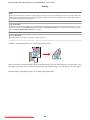
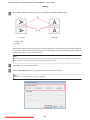
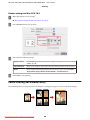
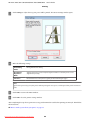
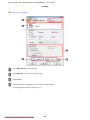
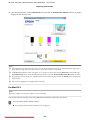
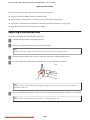
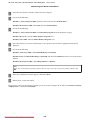
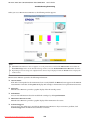
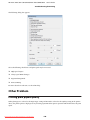
Follow the steps below to clean the print head using the Head Cleaning utility.
A
Make sure that no warnings or errors are displayed on the LCD screen.
B
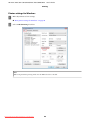
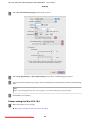
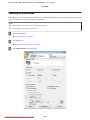
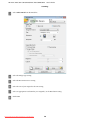
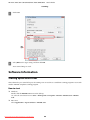
Access the Epson Printer Utility 4.
C
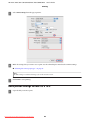
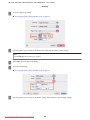
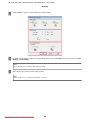
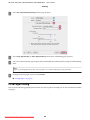
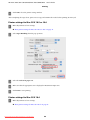
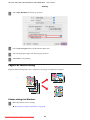
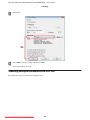
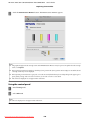
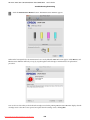
Click the Head Cleaning button.
D
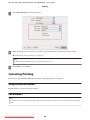
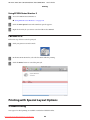
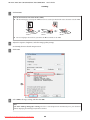
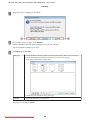
Follow the on-screen instructions.
& “Accessing the printer driver for Mac OS X” on page 38
c Caution:
Do not open the front cover or turn off the printer during head cleaning.
Note:
❏ To maintain print quality, we recommend printing a few pages on a regular basis.
❏
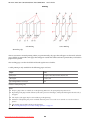
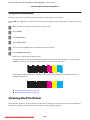
If print quality does not improve, make sure you selected the appropriate color according to the nozzle check result.
Note only for printers with fax function:
If print quality has not improved after repeating this procedure about four times, leave the printer on and wait for at least six
hours. Then run the nozzle check again and repeat the head cleaning if necessary. If print quality has still not improved,
contact Epson support.
Note only for printers without fax function:
If print quality has not improved after repeating this procedure about four times, turn the printer off and wait for at least six
hours. Then run the nozzle check again and repeat the head cleaning if necessary. If print quality has still not improved,
contact Epson support.
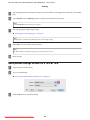
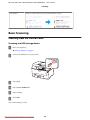
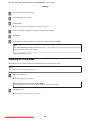
Using the control panel
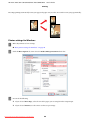
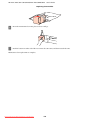
Follow the steps below to clean the print head using the printer control panel.
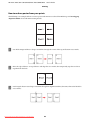
Use the l, r, u, or d buttons to change the LCD screen view to find the menu, setting item, or option you want to
enter.
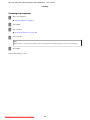
A
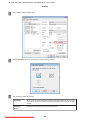
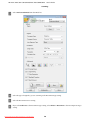
Press F Setup.
B
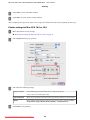
Select Maintenance.
C
Select Head Cleaning.
Downloaded from ManualsPrinter.com Manuals
137