1
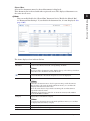
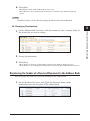
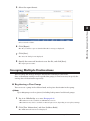
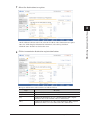
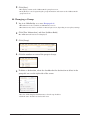
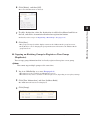
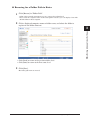
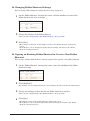
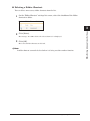
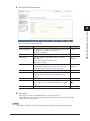
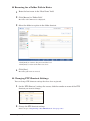
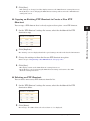
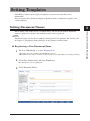
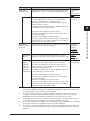
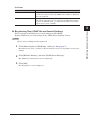
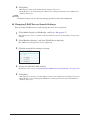
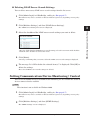
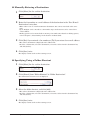
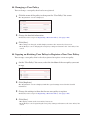
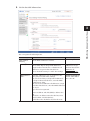
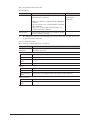
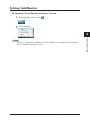
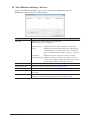
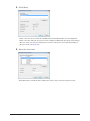
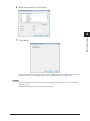
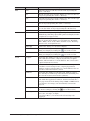
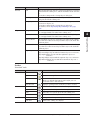
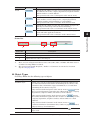
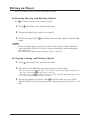
Editing an Object You can edit objects using the menu commands and tools. Selecting, Moving, and Deleting Objects Use (the “Select” tool) to select and move objects. 11 Click (the “Select” tool), and select the object. 22 To move the object, drag it while it is selected. 33 To delete the object, click (the “Delete” tool). Or, select “Delete” from the “Edit” menu. Note •• To select multiple objects together, drag over all those objects with the left mouse button held down. To select any object, click the desired object while holding down the <Shift> key. •• You can select all objects by pressing the <Ctrl> + <A> keys. Copying, Cutting, and Pasting Objects 11 Click (the “Select” tool), and select the object. 22 Perform one of the following operations to copy or cut the object. ••To copy the object, click (the “Copy” tool). Or, select “Copy” from the “Edit” menu. You can also copy an object by pressing the <Ctrl> + <C> keys. (the “Cut” tool). Or, select “Cut” from the “Edit” menu. You can also ••To cut the object, click cut an object by pressing the <Ctrl> + <X> keys. 33 To paste the copied or cut object, click (the “Paste” tool). Or, select “Paste” from the “Edit” menu. You can also paste an object by pressing the <Ctrl> + <V> keys. 4-42 Creating Cover Pages (CoverPage Editor)