1
Table 8: Defining microphone behavior during a meeting
Field
Description
Allow users to join a meeting with their
microphone on
When selected, this field enables the microphone by default, so
participants must select the microphone button to mute themselves.
Force users to join a meeting with their
microphone off
(Recommended) When selected, this field disables the microphone by
default, so participants must select the microphone button to unmute
themselves.
This is eliminates background noise from a videoconference until the
participant is ready to contribute.
Force users to hold down their
microphone button while speaking
When selected, this field requires participants to select and hold down
the microphone button to activate their microphones and send their
audio.
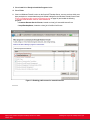
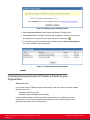
6. Configure the Security section to determine encryption parameters.
Figure 24: Security Settings
Enter the fields as described in Table 9: Defining security settings between Scopia XT
Desktop Server and Scopia XT Desktop Client on page 32.
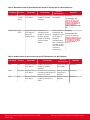
Table 9: Defining security settings between Scopia XT Desktop Server and Scopia XT Desktop Client
Field
Encrypt Media
Description
Determines whether to encrypt the media (audio, video and
presentation) using SRTP between the Scopia XT Desktop Server
and Scopia XT Desktop Client/Scopia Mobile.
Important:
Using encryption is subject to local regulation. In some countries it
is restricted or limited for usage. For more information, consult your
local reseller.
7. Select OK or Apply.
Rolling-Out Scopia XT Desktop Client to End Users
About this task
This section provides the recommended procedures for rolling-out your deployment to end users.
Deployment Guide for Scopia XT Desktop Server for IP Office
Version 8.2.1
Configuring Your Deployment | 32