1
8.
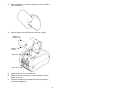
Allow the printhead and platen roller to dry for one minute
before you close the cover or supply door and resume printing.
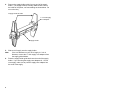
For thermal transfer printers, close the supply door by
lifting the supply door slightly and pulling the bottom of the
supply door support forward towards the front of the
printer. Close the supply door slowly and make sure it
latches securely.
Note:
9.
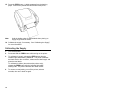
If you do not latch the cover or supply door completely,
poor print quality may result.
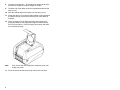
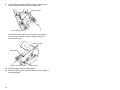
If necessary, lightly dampen a cloth with water and wipe the
exterior surfaces clean. Use a dry, soft-bristled brush to clean
paper dust out of the printer’s interior.
Troubleshooting
Problem
Action
Indicator light is off
when the printer is
turned on.
Check the power connections from the
power supply to the printer and the AC
outlet. See “Connecting the Power
Supply,” for more information.
Indicator light is
GREEN, but the printer
will not print.
Check the cable connections from the
host to the printer.
Make sure the supply is loaded
correctly.
Clean the printhead.
Make sure the cover or supply door is
closed completely.
Printing stops and
indicator light turns
RED.
Or,
Printing is not lined up
correctly on supply.
Calibrate the supply. See “Calibrating
the Supply,” for more information.
Problem with the supply. Load different
supply.
Make sure the ribbon is not empty
(thermal transfer printers only).
Make sure the black mark/die cut
sensor is set correctly for your supply
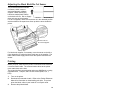
type. See “Adjusting the Black
Mark/Die Cut Sensor,” for more
information.
Clear a label jam.
18