1
Introduction
Congratulations on your new 3G/UMTS WX-T81 phone.
About This User Guide
This user guide is carefully designed to help you learn
about your phone’s features and operations quickly and
effectively.
NOTICE
• The rights to the software in this phone are the
property of Sharp and other companies. Acts such as
reproduction and modification of software protected
by copyright are punishable by law.
• We strongly recommend that you keep separate
permanent written records of all important data. Data
may be lost or altered in virtually any electronic
memory product under certain circumstances.
Therefore, we assume no responsibility for data lost
or otherwise rendered unusable, whether as a result of
improper use, repairs, defects, battery replacement,
use after the specified battery life has expired or any
other cause.
• We assume no responsibility, directly or indirectly,
for financial losses or claims from third parties
resulting from the use of this product and any of its
functions, such as stolen credit card numbers, the loss
or alteration of stored data, etc.
• All company and/or product names are trademarks
and/or registered trademarks of their respective
holders.
• Screen layout may differ from that illustrated in this
user guide.
The information described in this user guide is
subject to change without notice.
• All the functions described in this user guide may not
be supported by all networks.
• We assume no responsibility for downloaded
contents, information, etc. from the network.
• Occasionally, a few black or bright pixels may appear
on the screen. Please note that this will not have any
impact on any of the features or on performance.
Copyright
According to copyright laws, the reproduction,
alteration and use of material which is protected by
copyright (music, pictures, etc.) is only permitted for
personal or private use. If the user is not in possession
of more extensive copyright or has not received the
explicit permission from the copyright owner to
reproduce, alter or use a copy which has been made or
modified in this way, this is considered to be a violation
of the copyright laws and gives the copyright owner the
right to claim for damages. For this reason, avoid the
illegal use of material which is protected by copyright.
Windows is a registered trademark of Microsoft
Corporation in the United States and/or other countries.
Introduction
1
Powered by JBlend™ Copyright
1997-2006 Aplix Corporation. All rights
reserved.
JBlend and all JBlend-based trademarks
and logos are trademarks or registered
trademarks of Aplix Corporation in Japan
and other countries.
Powered by Mascot Capsule®/Micro3D Edition™
Mascot Capsule® is a registered trademark of HI
Corporation
©2002-2006 HI Corporation. All Rights Reserved.
Licensed by Inter Digital Technology Corporation under one
or more of the following United States Patents and/or their
domestic or foreign counterparts and other patents
pending, including U.S. Patents: 4,675,863: 4,779,262:
4,785,450: 4,811,420: 5,228,056: 5,420,896: 5,799,010:
5,166,951: 5,179,571 & 5,345,467
T9 Text Input is licensed under one or more of the following:
U.S. Pat. Nos. 5,818,437, 5,953,541, 5,187,480,
5,945,928, and 6,011,554; Australian Pat. No. 727539;
Canadian Pat. No. 1,331,057; United Kingdom Pat. No.
2238414B; Hong Kong Standard Pat. No. HK0940329;
Republic of Singapore Pat. No. 51383; Euro. Pat. No. 0 842
463 (96927260.8) DE/DK, FI, FR, IT, NL,PT.ES,SE,GB;
Republic of Korea Pat. Nos. KR201211B1 and
KR226206B1; and additional patents are pending
worldwide.
2
Introduction
microSD™ is a trade mark of SD Card Association.
Bluetooth is a trademark of the Bluetooth SIG, Inc.
The Bluetooth word mark and logos are owned by the
Bluetooth SIG, Inc. and any use of such marks by Sharp is
under license. Other trademarks and trade names are
those of their respective owners.
Contains Macromedia® Flash™ technology
by Macromedia, Inc.
Copyright © 1995-2005 Macromedia, Inc.
All rights reserved.
Macromedia, Flash, Macromedia Flash,
and Macromedia Flash Lite are trademarks
or registered trademarks of Macromedia,
Inc. in the United States and other
countries.
Licensed by QUALCOMM Incorporated under one or more
of the following United States Patents and/or their
counterparts in other nations ;
4,901,307 5,490,165 5,056,109 5,504,773 5,101,501
5,506,865 5,109,390 5,511,073 5,228,054 5,535,239
5,267,261 5,544,196 5,267,262 5,568,483 5,337,338
5,600,754 5,414,796 5,657,420 5,416,797 5,659,569
5,710,784 5,778,338
This device includes RSA® BSAFE™
Cryptographic software from RSA
Security Inc. RSA is a registered
trademark of RSA Security Inc. BSAFE
is a registered trademark of RSA
Security Inc. in the United States and
other countries.
[FarEasTone and Logo] are trademarks or registered
trademarks of FarEasTone Telecommunications Co., Ltd. in
Taiwan and other countries.
Customer Service Call: 0800-058-885
Also Sharp Corp. is authorized with bona fide use of the
foregoing trademark in relating course of trade in Japan.
Information contained in this manual is the property of
FarEasTone and Sharp.
FarEasTone and Sharp reserve the right to change product
specifications without prior notice.
FarEasTone and Sharp reserve the right to change
information contained in this manual without prior notice.
This product is licensed under the MPEG-4 Visual Patent
Portfolio License for the personal and non-commercial use of
a consumer to (i) encode video in compliance with the
MPEG-4 Video Standard (“MPEG-4 Video”) and/or (ii) decode
MPEG-4 Video that was encoded by a consumer engaged in
a personal and non-commercial activity and/or was obtained
from a licensed video provider. No license is granted or
implied for any other use. Additional information may be
obtained from MPEG LA. See http://www.mpegla.com.
CP8 PATENT
Introduction
3
This product is licensed under the MPEG-4 Systems Patent
Portfolio License for encoding in compliance with the
MPEG-4 Systems Standard, except that an additional license
and payment of royalties are necessary for encoding in
connection with (i) data stored or replicated in physical media
which is paid for on a title by title basis and/or (ii) data which
is paid for on a title by title basis and is transmitted to an end
user for permanent storage and/or use. Such additional
license may be obtained from MPEG LA, LLC.
See http://www.mpegla.com for additional details.
MPEG Layer-3 audio coding technology licensed from
Fraunhofer IIS and Thomson.
4
Introduction
Useful Functions and Services
Your phone offers you the following features:
• Video Calling. You can talk while viewing each other
on respective screens.
• 3D and colour Java™ games and applications with a
graphic accelerator. You can also download various
games and applications from FarEasTone via the
mobile Internet.
• Advanced Super View (ASV) colour LCD main
display with images that are clearer and easier to
view.
• A built-in digital camera for taking pictures and
video clips.
• A message function for reading and creating SMS
messages.
• MMS (Multimedia Messaging Services) for
personalising your phone in various ways.
• Email for sending up to 300 KB and receiving mail
with attachments.
• A colour WAP browser for accessing information on
the mobile Internet.
• Your own ringtones and ringvideos. You can use
downloaded sound or video clip files as a ringtone or
ring video clip.
• A music player that can play back MP3, AAC and
AAC+ format sound files.
• Playback of the downloaded sound and video clip
files.
• A voice recorder function for recording and playing
back voice clips.
• A Bluetooth ® wireless technology interface for
establishing contact and transmitting data with
certain devices. You can transmit pictures, sounds,
and video clips to OBEX-enabled phones.
• A schedule alarm for creating and sending schedule
entries with alarm settings.
• A microSD™ memory card slot that expands
connectivity with a PC using the memory card.
Introduction
5
Contents
Introduction ................................................. 1
Your Phone .................................................. 9
Optional Accessories ................................... 9
Getting Started .......................................... 10
Inserting the SIM/USIM Card and the
Battery ....................................................... 14
Removing the SIM/USIM Card and the
Battery ....................................................... 15
Charging the Battery ................................. 16
Inserting/Removing the Memory Card ..... 18
Connecting the Stereo Headset ................. 19
Turning Your Phone On and Off ............... 20
Keypad Lock ............................................. 20
Display Indicators (Main Display) ............ 21
Display Indicators (External Display) ....... 23
Navigating Functions ................................ 24
Voice Call/Video Calling Functions ......... 25
Making a Voice Call ................................. 25
Speed Dialling ........................................... 26
Redialling .................................................. 26
Answering a Voice Call ............................ 26
Incall Menu (Voice Call) ........................... 27
Making a Video Calling ............................ 30
6
Contents
Answering a Video Calling ....................... 30
Incall Menu (Video Calling) ...................... 31
Using the Menu ..........................................34
Top Menu .................................................. 34
List of Menu Functions .............................. 35
Entering Characters ..................................37
Changing the Input Language .................... 38
Changing the Input Method ....................... 38
Chinese User Dictionary ............................ 43
Using Templates ........................................ 45
Copying, Cutting and Pasting Text ............ 45
Insert Phonebook Entries ........................... 45
Call Manager ..............................................46
Changing the List Displayed ..................... 47
Selecting the Storage Memory .................. 47
Sorting the Phonebook List Order ............. 47
Selecting the Search Mode ........................ 47
Add New .................................................... 47
Viewing My Card ...................................... 48
Copying Phonebook Entries between SIM/
USIM Card and Handset ............................ 48
Dialling from the Phonebook .................... 48
Editing Phonebook Entries ........................ 49
Assigning a Ringtone or a Ring Video Clip
File to Each Entry ...................................... 49
Deleting Phonebook Entries ...................... 49
Manage Group ........................................... 50
Message Groups ......................................... 50
Memory Status ........................................... 51
Speed Dial List .......................................... 51
Sending a Phonebook Entry ....................... 52
Receiving a Phonebook Entry .................... 52
Sending a Voice Clip Message or Video
Clip Message Using an Address from the
Phonebook ................................................. 52
Camera ....................................................... 53
Taking Pictures .......................................... 53
Recording Video Clips .............................. 54
Common Functions in the Photo and Video
Camera Modes ........................................... 54
Functions in the Photo Camera Mode ....... 57
Functions in the Video Camera Mode ....... 59
Messages ................................................... 61
SMS ........................................................... 61
Long SMS .................................................. 61
MMS .......................................................... 61
Email .......................................................... 61
Creating a New Message ........................... 61
Cell Broadcasts ..........................................66
Area Info ....................................................67
Messaging Settings ....................................67
FET Mobile Internet ................................... 70
Navigating a WAP Page ............................71
Browser Settings ........................................73
Media Player ............................................... 74
TV & Video ...............................................74
Music Player ..............................................76
Gallery ........................................................ 79
Picture Gallery ...........................................79
Video Gallery .............................................80
Sound Gallery ............................................81
Other Documents .......................................82
Common Option Menus .............................82
Text Templates ...........................................85
Memory Status ...........................................85
Java™ ......................................................... 86
Java™ Gallery ............................................86
Set Java™ Wallpaper .................................87
Java™ Settings ...........................................88
Java™ Information .....................................89
Organiser .................................................... 90
Calendar .....................................................90
Alarms ........................................................93
Contents
7
Calculator .................................................. 95
Voice Recorder .......................................... 95
Stopwatch .................................................. 96
Tasks .......................................................... 97
World Clock .............................................. 98
Countdown Timer ..................................... 99
Expenses Memo ........................................ 99
Phone Help .............................................. 100
SIM Application ....................................... 101
Settings .................................................... 102
Profiles .................................................... 102
Setting the Display .................................. 106
Sound Settings ......................................... 109
Date & Time ............................................ 109
Language Setting ..................................... 110
Call Settings ............................................ 111
Video Calling Settings ............................ 115
Security Settings ...................................... 116
Card Settings ........................................... 118
Master Reset ............................................ 118
Call Log .................................................... 119
Call Timers .............................................. 119
Data Counter ........................................... 120
Connectivity ............................................. 121
Bluetooth ................................................. 121
8
Contents
Network Settings ..................................... 124
Internet Settings ....................................... 125
Off Line Mode ......................................... 127
Backup/Restore ........................................ 127
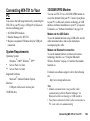
Connecting WX-T81 to Your PC .............129
System Requirements .............................. 129
3G/GSM GPRS Modem .......................... 129
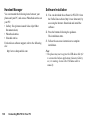
Handset Manager ..................................... 130
Software Installation ................................ 130
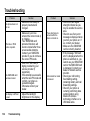
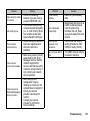
Troubleshooting ......................................132
Safety Precautions and Conditions of
Use ............................................................134
Conditions of Use .................................... 134
Environment ............................................ 137
Precautions Concerning Vehicle Use ...... 137
SAR ......................................................... 137
FCC NOTICE .......................................... 138
Out of Warranty List ................................140
Index .........................................................141
Quick Reference ......................................147
Your Phone
Please check the following carefully. Your phone
should come complete with:
• 3G (UMTS)/GSM 900/1800/1900/GPRS phone
• Lithium-Ion Battery
• Battery Cover
• AC Charger
• Stereo Headset
• Chinese User Manual
Optional Accessories
• Lithium-Ion Battery
• Cigarette Lighter Charger
• USB Data Cable
The above accessories may not be available in all
regions.
For details, please contact your dealer.
Your Phone
9
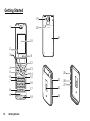
Getting Started
19
1
20
10
21
2
3
4
5
6
7
8
9
10
Getting Started
11
12
13
14
15
16
25
22
17
23
18
24
26
27
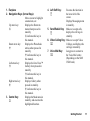
1. Earpiece
2. Navigation Keys (Arrow Keys):
Moves cursor to highlight
a menu item, etc.
Up arrow key:
Displays the Shortcuts
menu when pressed in
a
stand-by.
a indicates this key in
this manual.
Down arrow key:
Displays the Phonebook
entries when pressed in
b
stand-by.
b indicates this key in
this manual.
Left arrow key:
Displays the list of Java™
Gallery when pressed in
c
stand-by.
c indicates this key in
this manual.
Right arrow key:
Displays Gallery when
pressed in stand-by.
d
d indicates this key in
this manual.
3. Centre Key:
Displays the Main menu in
stand-by, and executes the
B
highlighted function.
4. Left Soft Key:
A
Executes the function in
the lower left of the
screen.
Displays Messaging menu
in stand-by.
5. Send/Redial Key: Makes or accepts calls,
displays the call logs in
D
stand-by.
6. Video Calling Key: Makes or accepts Video
Callings, and displays the
S
call logs in stand-by.
7. Voice Mail Key:
Long press to connect to
the Voice Mail centre.
G
(Depending on the SIM/
USIM card.)
Getting Started
11
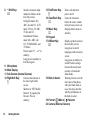
8. * /Shift Key:
P
Switches character input
method as follows on the
text entry screen.
In English mode: Abc,
ABC, abc and 123. In T9
mode, T9 Abc, T9 ABC,
T9 abc and 123.
In traditional Chinese
mode: Abc, ABC, abc,
123, T9 BoPoMoFo, and
T9 Stroke.
Press to enter P, ?, – or * in
stand-by.
Long press in stand-by to
lock the keypad.
9. Microphone
10. Main Display
11. Sub Camera (Internal Camera)
12. Right Soft Key:
Executes the function in
the lower right of the
C
screen.
Shortcut to “FET Mobile
Internet” by opening the
browser. Press in
stand-by.
12
Getting Started
13. End/Power Key:
F
14. Clear/Back Key:
U
15. Music Key:
E
16. Keypad
17. #/Silent Key:
R
Ends a call and turns
power on/off.
Clears the characters
before the cursor, returns
to the previous screen, etc.
Displays Music menu in
stand-by.
Displays symbol screen on
the text entry screen.
Long press to switch
languages on the text entry
screen.
Long press in stand-by to
switch Profiles settings
between the mode most
recently activated and
Silent mode.
18. Built-in Aerial:
Warning: Do not cover the
lower part of the phone
with your hand when in
use as this may interfere
with the performance of
the built-in aerial.
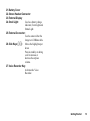
19. Portrait ( )/Macro ( ) Selector
20. Camera (External Camera)
21. Battery Cover
22. Stereo Headset Connector
23. External Display
24. Small Light:
Used as a battery charge
indicator, Event Light and
Status Light.
25. External Connector:
Used to connect either the
charger or a USB data cable.
26. Side Keys (V/W): Moves the highlight up or
down.
Press in stand-by or during
a call to increase or
decrease the earpiece
volume.
27. Voice Recorder Key:
Activates the Voice
Recorder.
Getting Started
13
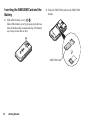
Inserting the SIM/USIM Card and the
Battery
2. Slide the SIM/USIM card into the SIM/USIM
holder.
1. Slide off the battery cover (
).
Slide off the battery cover by pressing down the two
sides of the three tabs located on the top. The battery
cover may stick a little at first.
SIM/USIM card
14
Getting Started
3. Hold the battery so that the metal contacts of the
battery are facing down, slide the guides on the top
of the battery into the battery slots
, and then
insert it
.
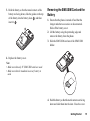
Removing the SIM/USIM Card and the
Battery
1. Ensure that the phone is turned off and that the
charger and other accessories are disconnected.
Slide off the battery cover.
2. Lift the battery using the protruding edge and
remove the battery from the phone.
3. Slide the SIM/USIM card out of the SIM/USIM
holder.
4. Replace the battery cover.
Note
• Make sure that only 3V SIM/USIM cards are used.
• Make sure that the standard accessory battery is
used.
4. Hold the battery so that the metal contacts are facing
down and slide them into the slots. Close the cover.
Getting Started
15
Battery Disposal
The device is battery-powered. In order to protect the
environment, please read the following points
concerning battery disposal:
• Take the used battery to your local waste depot,
dealer or customer service centre for recycling.
• Do not expose the used battery to a naked flame,
immerse in water or dispose with the household
waste.
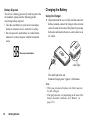
Charging the Battery
Using the Charger
1. Open and rotate the cover of the external connector
halfway around, connect the charger to the external
socket located on the side of the phone by pressing
both sides indicated with arrows, and connect to an
AC outlet.
Please recycle waste batteries
small light
The small light turns red.
Standard charging time: Approx. 140 minutes
Note
• When you purchase this phone, the battery may not
be fully charged.
• Charging time may vary depending on the state of the
battery and other conditions. (See “Battery” on
page 135.)
16
Getting Started
To Disconnect the Charger
When charging is complete, the small light turns off.
1. Unplug the charger from the AC outlet, then unplug
the charger connector from the phone.
2. Close the cover.
Note
• Do not use any non-approved chargers as they may
damage your phone and invalidate any warranties,
see “Battery” on page 135 for details.
IMPORTANT SAFETY INSTRUCTIONS — SAVE
THIS INSTRUCTION
DANGER — TO REDUCE THE RISK OF FIRE
OR ELECTRIC SHOCK, CAREFULLY FOLLOW
THIS INSTRUCTION
If the shape and size of the plug do not match the power
socket, use a plug adapter that matches.
To Charge Using the Cigarette Lighter Charger
The optional cigarette lighter charger supplies power
for charging from the cigarette lighter socket of a car.
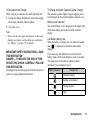
Battery Level Indicator
The current battery level is displayed in the upper right
of the main display and in the left of the external
display.
Low Battery during Use
When the battery is running low, an alarm will sound
and “
” is displayed on the main and external
displays.
If you are using your phone and you hear the low
battery alarm, attach your charger as soon as possible.
The phone may not be able to continue normal
operation if you continue to use it.
Battery Indicators
Charge Level
Sufficiently charged
Charging recommended
Charging required
Empty
Getting Started
17
Inserting/Removing the Memory Card
Note
• Do not push or pull on the card holder excessively as
it could break. The holder is thin and particularly
fragile.
• Do not touch the metal terminals with your hands or
metal objects.
• Make sure that the phone is turned off before
inserting/removing the memory card.
• Be sure to insert the card in the correct direction and
orientation.
• Keep all memory cards out of the reach of small
children.
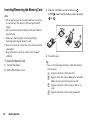
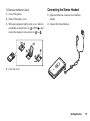
To Insert the Memory Card
1. Turn off the phone.
2. Slide off the battery cover.
18
Getting Started
3. Slide the card holder as shown below in
(OPEN
to
) and insert the memory card as shown in
.
4. Close the cover.
Tip
• You see the following indicators when the memory
card is in use:
: Appears when the card is inserted.
: Appears when the card is damaged or unusable.
Make sure the card is properly inserted.
: Appears when the card is being written to or
read.
: Appears when the card is being formatted.
To Remove the Memory Card
1. Turn off the phone.
2. Slide off the battery cover.
3. While pressing down lightly on the cover, slide the
Connecting the Stereo Headset
1. Open and rotate the connector cover halfway
around.
2. Connect the Stereo Headset.
card holder as shown below in
(OPEN ) and
remove the memory card as shown in
to
.
4. Close the cover.
Getting Started
19
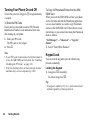
Turning Your Phone On and Off
To turn the power on, long press F for approximately
2 seconds.
To Enter the PIN Code
If activated you are asked to enter a PIN (Personal
Identification Number) code and handset lock code
after turning on your phone.
1. Enter your PIN code.
The PIN code is 4 to 8 digits.
2. Press B.
Note
• If your PIN code is entered incorrectly three times in
a row, the SIM/USIM card is locked. See “Enabling/
Disabling the PIN Code” on page 116.
• If the clock settings have not been entered, the date
and time entry screen is displayed (p. 109).
To Copy All Phonebook Entries from the SIM/
USIM Card
When you insert the SIM/USIM card into your phone
for the first time and start the Phonebook application,
you are asked whether you wish to copy Phonebook
entries on the SIM/USIM card. Follow the on-screen
instructions, or you can do it later using the Phonebook
menu as follows:
“Call Manager” → “Advanced” → “Copy All
Entries”
1. Select “From SIM to Handset”.
Keypad Lock
You can lock the keypad to prevent it from being
pressed accidentally.
Locking the Keypad
1. Long press P in stand-by.
To unlock, long press P.
Tip
• Emergency numbers (112, etc.) can be entered and
dialled regardless of the keypad lock.
20
Getting Started
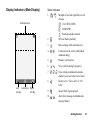
Display Indicators (Main Display)
Status Indicators
1.
/
: Strength of received signal/Service out
of range
Indicator area
: 3G (UMTS)/GPRS
: GSM/GPRS
: Roaming outside network
Left
Centre key Right
soft key
soft key
2.
:
Off Line Mode [enabled]
3.
:
Data exchange with external device
4.
/
5.
:
6.
/
:
7.
/
/
8.
:
9.
:
10.
/
:
Connection to the server [established/
communicating]
Memory card inserted
Voice call [incoming/in progress]
: Video calling communication mode
enabled [voice and video/voice/video]
Diverts set to “Voice calls” of “All
Calls”
Secure WAP page displayed
:
Alerts [text message and multimedia
message/Email]
Getting Started
21
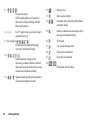
11.
12.
/
/
/
/
:
:
Connection status
[USB working/Bluetooth stand-by/
Bluetooth working/Talking with the
Bluetooth headset]
16.
Java™ application [executed (colour)/
suspended (grey)]
13. (No display)/ / / / / :
Current profile [Normal/Meeting/
Activity/Car/Headset/Silent]
14.
15.
22
/
/
/
/
/
/ :
Silent/vibration setting [silent/
increasing volume/vibration enabled/
silent and vibration enabled/increasing
volume and vibration enabled]
: Speaker mode [speaker phone/speaker
activated/microphone muted]
Getting Started
:
17.
:
18.
/
19.
:
Battery level
Daily alarm enabled
:
Schedule entry enabled [with/without
reminder alarm]
Outbox contains unsent messages [text
message/multimedia/email]
20.
:
WAP alert
21.
:
Voice mail message alert
22.
:
Function Lock enabled
23.
:
Keypad Lock enabled
24.
/
:
Phonebook Search Mode
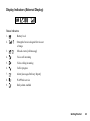
Display Indicators (External Display)
Status Indicators
1.
:
2.
Battery level
/
: Strength of received signal/Service out
of range
3.
/
:
Missed events [call/message]
4.
:
Voice call incoming
5.
:
Video calling incoming
6.
:
Call in progress
7.
:
Alerts [messages/Delivery Report]
8.
:
WAP Push service
9.
:
Daily alarm enabled
Getting Started
23
Navigating Functions
All applications are accessed from the Main menu. To
open the Main menu, press the centre key (B) in
stand-by.
To launch applications, you will need to highlight menu
items, and make selections. To select a menu item
(indicated in quotation marks), move the cursor using
a, b, c and d, and press B to select.
In certain procedures, you will need to press one of the
soft keys (indicated in square brackets), which are
displayed in the lower left and right of the screen. Press
the corresponding soft key (A or C).
To return to the previous screen, press the right soft key
if it displays Back. To close the Main menu, press the
right soft key if it displays Exit.
Each section in this user guide starts with a list of items
you will need to select in order (indicated in italics)
before performing the procedures shown. Select each
item to reveal the next set of items that you have to
select. Open subsection items after opening those listed
in the main section.
Example:
“Call Manager” → “Phonebook” → “Add New”
24
Navigating Functions
Voice Call/Video Calling
Functions
2. Enter the country code, followed by the area code
Making a Voice Call
Adding an Entered Phone Number to the
Phonebook
1. After entering a phone number, press [Options] and
select “Save Number”.
For details on creating a new entry, see “Add New”
on page 47.
1. Enter the area code and the phone number you wish
to dial and press D to dial.
If you enter the wrong number, press U to delete
the number to the left of the cursor.
Emergency Calls
1. Enter 112 (international emergency number) using
the keypad and press D to dial.
Note
• Emergency calls may not be able to be made on all
mobile phone networks when certain network
services and/or phone features are in use. Contact
your service provider for more information.
• This emergency number can normally be used to
make an emergency call in any country, with or
without a SIM/USIM card inserted, if a 3G (UMTS)/
GSM network is within range.
(without the leading zero) and the phone number,
and press D to dial.
Showing or Hiding My Phone Number on the
Display of the Called Party
1. After entering a phone number, press [Options] and
select “Show My ID” or “Hide My ID”.
International Calls
1. Long press Q until a + (international dialling
prefix) sign is displayed.
Voice Call/Video Calling Functions
25
Speed Dialling
Answering a Voice Call
Up to 8 phone numbers from the Phonebook memory
(Handset and SIM/USIM) can be assigned to speed
dials. You can call the numbers using the digit keys
(G to O). The phone number of the Voicemail
centre is assigned to G.
For details on setting the speed dial list, see “Speed Dial
List” on page 51.
1. To dial a number using the speed dial, long press
any of the digit keys (G to O).
The phone number saved in the speed dial list is
dialled.
When an incoming call is detected, the phone rings.
1. Press D or [Options] and select “Answer” to
answer the call.
Or press any key (except F, U and [Busy]) when
the “Any Key Answer” function is enabled. Set the
Any Key Answer function in the profile of each
mode (p. 105).
Redialling
You can redial numbers in the call log. Select from
specific categories or “All Calls”. Specific categories
contain up to 30 numbers and the “All Calls” list
contains up to 90.
1. Press D in stand-by.
2. Select the category from “All Calls”, “Dialled
Numbers”, “Missed Calls” or “Received Calls”.
To switch logs, press c or d.
3. Highlight the phone number you wish to call.
4. Press D to redial the call.
26
Voice Call/Video Calling Functions
Tip
• If you have subscribed to the Calling Line
Identification (CLI) service and the caller’s network
sends the number, the caller’s number is displayed on
the screen. If the caller’s name and number are saved
in the Phonebook, the caller’s name and phone
number are displayed on the screen.
• If the number is a restricted number, the display
shows “Withheld”.
• When you receive a call from the person whose
picture is registered in the Phonebook, the picture,
name and phone number are displayed.
Rejecting an Incoming Call
1. Press [Options] and select “Reject Call” while the
phone is ringing to reject a call you do not wish to
answer.
Forwarding an Incoming Call to the Voice Mail
Centre
1. Press [Busy] or F while the phone is ringing to
forward the call to the Voice Mail centre.
Incall Menu (Voice Call)
Turning the Speaker On and Off
You can talk via the loudspeaker on the phone when it
is on.
1. During a call, press [Options] and select
“Loudspeaker On”.
Putting a Call on Hold
This function allows you to manage two calls at the
same time. If you wish to make another call while you
are talking to someone, you can put the current call on
hold to call someone else.
Your phone has additional functions available while a
call is in progress.
Adjusting the Earpiece Volume
During a call, you can adjust the earpiece volume (and
Stereo Headset volume, if connected).
1. Press V or W to display the Earpiece Volume
screen.
2. Press V (or a/d) to increase the volume of the call
or press W (or b/c) to decrease the volume.
3. Press B when the volume is set to the desired level.
Voice Call/Video Calling Functions
27
To Make Another Call during a Call
1. During a call, press [Options] and select “Hold”.
The current call is put on hold.
2. Press [Options] and select “Dial New Number”.
3. Enter the phone number you wish to make another
call to, then press D.
Tip
• You can also make another call by entering the phone
number during a call instead of step 1. The current
call is automatically put on hold.
Accessing SMS/MMS Menu during a Call
1. During a call, press [Options] and select
“Messages”.
The following options are available: “Create
Message” to make an SMS and MMS, or “Inbox”,
“Sent” or “Drafts” to access these folders. For
details on SMS, see “SMS” and “MMS” on
page 61.
28
Voice Call/Video Calling Functions
Call Waiting
This service notifies you of another incoming call while
you have a call in progress.
1. During a call, press [Options] and select “Hold &
Answer” to answer the second call.
The first call is put on hold and you can now talk to
the second caller.
Note
• You need to set “Call Waiting” to “On” if you use the
Call Waiting service (p. 112).
• Call Waiting service may not be available on all
networks. Contact your network operator for more
information.
• If you do not wish to answer the second call, press
[Options] and select “Busy” in step 1. If “Reject” is
selected, the log of the second call is saved as a
missed call.
Conference Call
Conference call is a call with more than 2 participants.
You may include up to 5 participants in a conference
call.
To Make a Conference Call
You must have one active call and one held call.
1. During a call, press [Options] and select “Multi
Party”.
2. Select “Conference All” to join the conference call.
3. Press F to end the conference call.
Note
• The conference call service may not be available on
all networks. Contact your network operator for
more information.
• You have more options for the Conference call in step
2:
• To put all participants on hold, select “Hold All”.
• To put all participants except the current call on
hold, select “Private”.
• To end the call with all participants, select “End
Active Call(s)” or “End Held Call(s)”.
• To reject adding more participants to the current
party, press [Options] and select “Reject”, or you
can forward the call to the Voice Mail centre by
selecting “Busy” or F.
To Add New Participants to the Conference Call
1. Press [Options] and select “Dial New Number”.
2. Enter the number you wish to include in the
conference call and press D to dial.
3. Press [Options] and select “Multi Party”.
4. Select “Conference All” to join the conference call.
If you wish to add other participants, repeat steps 1
to 4.
To End the Call with a Conference Call Participant
1. During a conference call, highlight the person that
you wish to disconnect from the conference call.
2. Press [Options] and select “End This Call”.
To Have a Private Conversation with One of the
Participants
If you wish to have a private conversation with one of
the participants, you may select the participant from the
conference list and put the other participants on hold.
1. During a conference call, select the person that you
wish to talk to.
2. Press [Options] and select “Multi Party”.
3. Select “Private”.
4. Once you have finished the private conversation,
press [Options] and select “Multi Party”.
Voice Call/Video Calling Functions
29
5. Select “Conference All” to return to the conference
call.
Muting the Microphone
1. During a call, press [Mute].
To unmute the microphone, press [Unmute].
Making a Video Calling
Note
• Use this function with only the video calling enabled
phones.
• Make sure that the battery is fully charged and the
signal is strong before using this function.
• Turn the loudspeaker on or use a switch-equipped
Stereo Headset so that you can talk while looking at
the video calling screen on the main display.
Making a Video Calling
1. Enter the area code and the phone number you wish
to dial and press S, or press [Options] and select
“Video Calling” to dial.
If you enter the wrong number, press U to delete
the number to the left of the cursor.
When the line is connected, the image of the called
party is displayed upper on the screen, and yours
lower left.
30
Voice Call/Video Calling Functions
Tip
• If the called party’s phone is not video calling
enabled, you can press F and enter the phone
number again to make a voice call.
Answering a Video Calling
When an incoming call is detected, the phone rings.
1. Press S or D to answer the video calling or press
A to select “Hide Picture”, “Show Picture”,
“Reject Call” or “Busy”.
Tip
• If you have subscribed to the Calling Line
Identification (CLI) service and the caller’s network
sends the number, the caller’s number is displayed on
the screen. If the caller’s name and number are saved
in the Phonebook, the caller’s name and phone
number are displayed on the screen.
Rejecting an Incoming Call
1. Press [Options] and select “Reject Call” while the
phone is ringing to reject a call you do not wish to
answer.
Forwarding an Incoming Call to the Voice Mail
Centre
1. Press [Busy] or F while the phone is ringing to
forward the call to the Voice Mail centre.
Incall Menu (Video Calling)
Muting the Microphone
1. During a video calling, press [Mute].
To unmute the microphone, press [Unmute].
Switching Images
You can switch images between the main and sub
screens.
1. During a video calling, press [Options] and select
“Switch Images”.
Changing the Image of Yourself
1. During a video calling, press [Options] and select
“Camera Picture”.
2. Select “Internal Camera”, “External Camera” or
“Alternative Image”.
“Internal Camera”:
The image through the
internal camera is displayed
and sent to the party.
“External Camera”: The image through the
external camera is displayed
and sent to the party.
“Alternative Image”: The camera is turned off and
the image selected in
“Alternative Image” of
“Video Calling Settings”
(p. 115) is used.
Tip
• You can also switch the image shown to the caller by
pressing c or d during a video calling.
Tip
• You can also switch images between the main and
sub screens by pressing B during a video calling.
Voice Call/Video Calling Functions
31
Turning the Speaker On and Off
You can talk via the loudspeaker on the phone when it
is on.
1. During a video calling, press [Options] and select
“Loudspeaker On”.
Note
• In a high-noise environment, you may not be able to
continue a call, or make a clear call. We recommend
that you use the Stereo Headset.
• With this option, you may not be able to continue a
call without interruption if you increase the earpiece
volume. We recommend that you decrease the
earpiece volume or use the Stereo Headset.
Video Calling Settings
To Change the Quality of the Incoming Image
You can adjust the quality of the called party’s image.
1. During a video calling, press [Options] and select
“Video Calling Settings”.
2. Select “Incoming Picture Quality”.
32
Voice Call/Video Calling Functions
3. Select “Normal”, “Quality Priority” or “Frame Rate
Priority”.
“Normal”:
The standard quality is
used.
“Quality Priority”:
The quality of the picture
takes precedence over the
frame rate.
“Frame Rate Priority”: The frame rate takes
precedence over the
quality.
To Turn the Backlight On or Off
You can turn on the backlight of your screen.
1. During a video calling, press [Options] and select
“Video Calling Settings”.
2. Select “Backlight”.
3. Select “Always On”, “Always Off ” or “As Normal
Setting”.
When “Always On” is selected, the backlight will
always be on during a video calling.
When “As Normal Setting” is selected, the
backlight will time out depending on the Backlight
setting (p. 107).
To Adjust the Video Exposure
1. During a video calling, press [Options] and select
“Video Calling Settings”.
2. Select “Exposure”.
3. Press a (Bright) or b (Dark).
Mirror Image
During a video calling, you can reverse your image on
the sub screen.
1. During a video calling, press [Options] and select
“Video Calling Settings”.
To Change the Sub Camera Image to the
Alternative Image
During a video calling, you can switch the image shown
to the caller between the sub camera image and an
alternative image or display an image while putting a
call on hold from the saved picture files.
1. During a video calling, press [Options] and select
“Video Calling Settings”.
2. Select “Alternative Image” or “Hold Guidance
Picture”.
3. Select “Preset Picture” or “Picture Gallery”.
2. Select “Mirror Image”.
3. Select “On” or “Off ”.
Voice Call/Video Calling Functions
33
Using the Menu
Top Menu
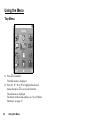
1. Press B in stand-by.
The Main menu is displayed.
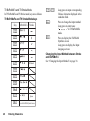
2. Press a, b, c or d to highlight the desired
menu, then press B to access the function.
The sub menu is displayed.
For details on the menu options, see “List of Menu
Functions” on page 35.
34
Using the Menu
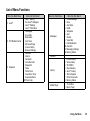
List of Menu Functions
Menu No./Main Menu
1 Java™
2 FET Mobile Internet
3 Organiser
1
2
3
4
1
2
3
4
5
6
7
1
2
3
4
5
6
7
8
9
10
Menu No./Sub Menu1
Java™ Gallery
Set Java™ Wallpaper
Java™ Settings
Java™ Information
Homepage
Go to URL
Bookmarks
Alert Inbox
My Saved Page
Access History
Browser Settings
Calendar
Alarms
Calculator
Voice Recorder
Stopwatch
Tasks
World Clock
Countdown Timer
Expenses Memo
Phone Help
Menu No./Main Menu
4 Messages
1
2
3
4
5
6
7
8
9
10
11
12
Menu No./Sub Menu1
Create Message
Inbox
Alert Inbox
Drafts
Templates
Sent
Outbox
Voice Mail
Cell Broadcasts
Area Info
Messaging Settings
Memory Status
1
2
3
4
5
6
7
8
1
2
Picture Gallery
Video Gallery
SD VIDEO
Sound Gallery
Java™ Gallery
Text Templates
Other Documents
Memory Status
TV & Video
Music Player
5 Camera
6 Gallery
7 Media Player
Using the Menu
35
Menu No./Main Menu
8 Call Manager
9 Settings
1
2
3
4
5
6
7
1
2
3
4
5
6
7
8
9
10
Menu No./Sub Menu1
Phonebook
Manage Group
Speed Dial List
My Card
Message Groups
Phonebook Settings
Advanced
Profiles
Display Settings
Sound Settings
Date & Time
Language
Call Settings
Video Calling Settings
Security Settings
Card Settings
Master Reset
1
2
3
4
5
6
7
1
2
3
4
5
All Calls
Dialled Numbers
Missed Calls
Received Calls
Call Timers
Call Costs
Data Counter
Bluetooth
Network Settings
Internet Settings
Off Line Mode
Backup/Restore
10 SIM Application
11 Call Log
12 Connectivity
36
Using the Menu
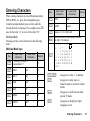
Entering Characters
When entering characters to create Phonebook entries,
SMS or MMS, etc., press the corresponding keys.
In multi-tap input method, press each key until the
desired character is displayed. For example, press H
once for the letter “A” or twice for the letter “B”.
Multi-tap Mode
Pressing each key scrolls characters in the following
order.
N
O
Q
P
Multi-tap Mode keys
Key
G
H
I
J
K
L
M
Upper Case
Characters
Lower Case
Characters
Upper Case
Characters
Key
Numeric
. (full-stop) , (comma) ? ! : ;
’ (apostrophe) " / 1
1
ABC2
abc2
2
DEF3
def3
3
GHI4
ghi4
4
JKL5
jkl5
5
MNO6
mno6
6
PQRS7
pqrs7
7
R
R:
Numeric
TUV8
tuv8
8
WXYZ9
wxyz9
9
(space)+ = < > € £ $ ¥ % & 0
0
Switches character case among four modes:
Abc, ABC, 123 and abc.
.
@
_
+
&
˜
%
,
/
(
)
{
}
∆
Ξ
G-O:
Q:
P:
Lower Case
Characters
?
\
<
>
å
ì
Φ
¤
!
#
[
]
ä
ñ
Γ
:
*
$
Å
æ
Ñ
Λ
;
=
£
Ä
à
Ö
Ω
'
|
¥
Æ
Ç
Ø
Π
''
^
€
Ü
É
ö
Ψ
SP
¿
§
ü
è
ø
Σ
↵
¡
ß
ù
é
ò
Θ
Long press to enter 1 - 9 numbers.
Long press to enter space in
Numeric mode or to enter 0 in other
modes.
Long press to shift between multitap and T9 mode.
Long press to display the Input
Language screen.
Entering Characters
37
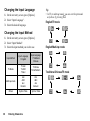
Changing the Input Language
1. On the text entry screen, press [Options].
2. Select “Input Language”.
3. Select the desired language.
Tip
• In T9 or multi-tap mode, you can switch input mode
as follows by pressing P.
English/T9 mode
Changing the Input Method
1. On the text entry screen, press [Options].
2. Select “Input Method”.
3. Select the input method you wish to use.
38
Input Method
Input Language
= English
Input Language
= Traditional
Chinese
T9 Mode
T9 Abc
T9 ABC
T9 abc
T9 Stroke
T9 BoPoMoFo
Multi-tap mode
Abc
ABC
abc
Numeric
Abc
ABC
abc
Numeric
Others
Symbol Table
Symbol Table
Entering Characters
English/Multi-tap mode
Traditional Chinese/T9 mode
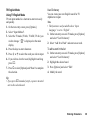
T9 English Mode
Using T9 English Mode
T9 text input method is a shortcut to enter text easily
and quickly.
1. On the text entry screen, press [Options].
2. Select “Input Method”.
3. Select the T9 mode (T9 Abc, T9 ABC, T9 abc) you
wish to change. “
display.
” is displayed on the main
4. Press the keys to enter characters.
5. Press a or b to select the word you wish to input.
6. If you wish to clear the word, highlight it and long
press U.
7. Press B or select [Options] and “Done” to complete
the selection.
User Dictionary
You can create your own English words for T9
Alphabet text input.
Note
• This function is only available when “Input
Language” is set to “English”.
1. On the text entry screen in T9 mode, press [Options]
and select “User Dictionary”.
2. Select “Add New Word” and enter a new word.
To edit a word in the list
1. On the text entry screen in T9 mode, press [Options]
and select “User Dictionary”.
2. Highlight the desired word.
3. Press [Options] and select “Edit”.
4. Modify the word.
Tip
• If you press Q instead of step 6, a space is inserted
next to the selected word.
Entering Characters
39
T9 BoPoMoFo and T9 Stroke Mode
In T9 BoPoMoFo and T9 Stroke mode, keys are as follows.
T9 BoPoMoFo and T9 Stroke Mode keys
Key
G
H
I
J
K
L
M
N
O
P
Q
R
40
BoPoMoFo
Stroke
G-O:
P:
R:
Wildcard
Space
Go to the FullWidth Symbols screen.
Entering Characters
Long press to input corresponding
Chinese character displayed in the
candidate field.
Press to change the input method.
Long press to enter tones
“
” in T9 BoPoMoFo
mode.
Press to display the FullWidth
Symbols screen.
Long press to display the Input
Language screen.
Changing the Input Method between Stroke
and BoPoMoFo
See “Changing the Input Method” on page 38.
Using BoPoMoFo Input Mode
Input field
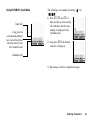
Long press the
corresponding numeric
key to select the desired
character directly from
the Candidate field.
The following is an example of entering “
“
”.
1. Press J, Q, and M (2
times quickly) to enter reading.
The candidates with the same
reading are displayed in the
Candidate field.
” for
2. Long press K if the desired
character is displayed.
Candidate field
3. Repeat steps 1 and 2 to complete messages.
Entering Characters
41
Tip
• When the cursor is placed after the first character,
the Candidate field displays characters most likely to
follow.
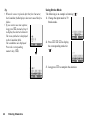
• If you want to use tone options,
long press P instead of step 2
to display the desired character.
The tone symbols are displayed
in the Candidate field.
The candidates are displayed.
Press the corresponding
numeric key (H).
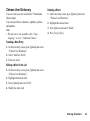
Using Stroke Mode
The following is an example of entering “
1. Change the input mode to T9
Stroke mode.
”.
2. Press I G J to display
the corresponding stroke for
“ ”.
3. Long press M to complete the selection.
42
Entering Characters
Chinese User Dictionary
Deleting a Word
You can create your own word list for T9 traditional
Chinese input.
You can enter Chinese characters, alphabet, symbols
and numbers.
Note
• This function is only available when “Input
Language” is set to “Traditional Chinese”.
Creating a New Entry
1. On the text entry screen, press [Options] and select
“Chinese User Dictionary”.
1. On the text entry screen, press [Options] and select
“Chinese User Dictionary”.
2. Highlight the desired word.
3. Press [Options] and select “Delete”.
4. Press [Yes] or [No].
2. Select “Add New Word”.
3. Enter new word.
Editing a Word in the List
1. On the text entry screen, press [Options] and select
“Chinese User Dictionary”.
2. Highlight the desired word.
3. Press [Options] and select “Edit”.
4. Modify the entry word.
Entering Characters
43
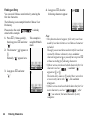
Finding an Entry
You can recall Chinese word entries by entering the
first few characters.
The following is an example from the Chinese User
Dictionary.
Please notice the word
is already
stored at this example.
1. Press L (3 times quickly),
This example is
then long press G and enter using BoPoMoFo
mode
“ ”.
2. The character “ ” appears at
.
Normally “ ” appears here.
3. Long press O and enter
“
44
”.
Entering Characters
4. Long press O, then the
following characters appear.
Note
• This function doesn’t appear, if the entry word was
made by less than 4 letters or no Chinese characters
included.
Though, you can use this as a shortcut if the word was
created by Chinese character, since candidate
character appears at so you only have to press O
without searching for following characters.
• If there were a stored word which shares the first 1-4
character such as “
”, candidate “ ”
appears at or .
The latest entry comes to , and if there were three
or more entry starts with “ ”, old candidate
disappears.
• If there were a stored word which shares the first 5 or
more characters, such as “
”, after
“ ” was entered, the latest character of entry
completes.
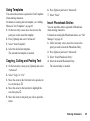
Using Templates
You can use the sentences registered in Text Templates
when entering characters.
For details on creating the text template, see “Adding
Phrases to Text Templates” on page 85.
1. On the text entry screen, move the cursor to the
point you wish to insert the template.
2. Press [Options] and select “Advanced”.
3. Select “Insert Template”.
4. Select the desired text template.
The selected text template is inserted.
Copying, Cutting and Pasting Text
1. On the text entry screen, press [Options] and select
6. Press [Options] and select “Advanced”.
7. Select “Paste”.
Insert Phonebook Entries
You can insert the entries registered in Phonebook
when entering characters.
For details on creating the Phonebook entries, see “Call
Manager” on page 46.
1. On the text entry screen, move the cursor to the
point you wish to insert the Phonebook Entry.
2. Press [Options] and select “Advanced”.
3. Select “Insert Phonebook Entry”.
4. Select the desired Phonebook Entry.
The selected entry is inserted.
“Advanced”.
2. Select “Copy” or “Cut”.
3. Move the cursor to the first letter to be copied or to
be cut, then press B.
4. Move the cursor to the last letter to highlight the
area, then press B.
5. Move the cursor to the point you wish to paste the
letters.
Entering Characters
45
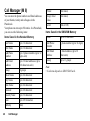
Call Manager (M 8)
You can store the phone numbers and Email addresses
of your friends, family and colleagues in the
Phonebook.
Your phone can store up to 500 entries. In a Phonebook,
you can save the following items:
Items Saved in the Handset Memory
46
Picture
(file name)
Assign Tone/
Video
(file name)
Secret
(On or Off)
Items Saved in the SIM/USIM Memory
Name
up to 12 characters
1 phone number (up to 32 digits)
up to 16 characters
Add Phone
Number
up to 3 phone numbers (up to 32
digits each)
Add Email
Address
1 Email address (up to 38
characters)
Add Email
Address
up to 3 Email addresses (up to
128 characters each)
Group
up to 11 groups
Group
16 groups
Street Name
up to 64 characters
Last Name
up to 16 characters
First Name
Add Phone
Number
City Name
up to 64 characters
State Name
up to 64 characters
Postcode
up to 20 characters
Country Name
up to 32 characters
Note
up to 256 characters
Birthday
(date)
Call Manager
Note
• Each item depends on SIM/USIM Cards.
Changing the List Displayed
Add New
“Call Manager” → “Phonebook Settings” →
“Source”
1. Select “Handset” or “SIM”.
You can choose either the phone or SIM/USIM card
memory locations to store the new entry. For switching
locations, see “Selecting the Storage Memory”.
The amount of phone numbers that you can store to the
SIM/USIM card is dependent on its capacity. Contact
your network operator for details.
“Call Manager” → “Phonebook” → “Add New”
If you select the “Choice” option for the memory to be
used, the selection is between “To Handset” and “To
SIM”.
1. Select the field you wish to fill in, and enter the
relevant information.
Selecting the Storage Memory
“Call Manager” → “Phonebook Settings” → “Save
to”
1. Select “Handset”, “SIM” or “Choice”.
Sorting the Phonebook List Order
You can change the listing order of the Phonebook
entries between by BoPoMoFo order or by group.
“Call Manager” → “Phonebook Settings” → “View
Phonebook”
1. Select “By BoPoMoFo” or “By Group”.
Selecting the Search Mode
“Call Manager” → “Phonebook Settings” → “Search
Mode”
1. Select “Character Search”, “BoPoMoFo Search” or
“English Search”.
2. Press [Save] when finished.
Tip
• To create an entry, at least one field must be filled
(“Last Name”, “First Name”, “Add Phone Number”
or “Add Email Address” for the handset memory;
“Name”, “Add Phone Number” or “Add Email
Address” for the SIM/USIM memory).
Call Manager
47
Adding a Thumbnail to Entries
“Call Manager” → “Phonebook”
1. Highlight the desired entry.
2.
3.
4.
5.
6.
Press [Options] and select “Edit”.
Select “Picture”.
Select “Assign Picture”.
Select the desired picture.
Press [Save] when finished.
Note
• If you delete a picture in the handset memory, the
corresponding thumbnail is also deleted.
Viewing My Card (M 8-4)
You can register and edit your own information in the
Phonebook as with other Phonebook entries.
“Call Manager” → “My Card”
Copying Phonebook Entries between
SIM/USIM Card and Handset
“Call Manager” → “Advanced” → “Copy All
Entries”
1. Select “From SIM to Handset” or “From Handset to
SIM”.
48
Call Manager
Note
• When you insert the SIM/USIM card into your phone
for the first time and start the Phonebook application,
the confirmation screen is displayed automatically,
asking you if you wish to copy or not. The number of
Phonebook entries to be copied varies depending on
the SIM/USIM capacity.
• If the memory space is not enough to save all entries,
you cannot complete copying.
Dialling from the Phonebook
“Call Manager” → “Phonebook”
1. Highlight the desired entry and press D.
Tip
• If more than one phone number is registered for the
entry, highlight the desired phone number after step
1 and press D.
• You can also dial from the details screen of the
Phonebook. On the details screen, select the desired
phone number and press D.
Editing Phonebook Entries
Deleting Phonebook Entries
“Call Manager” → “Phonebook”
1. Highlight the entry you wish to edit.
Deleting All Phonebook Entries
“Call Manager” → “Advanced” → “Delete All
Entries”
1. Select “Handset Entries” or “SIM Entries”.
2. Press [Options] and select “Edit”.
3. Modify the information.
4. Press [Save] when finished.
Assigning a Ringtone or a Ring Video
Clip File to Each Entry
“Call Manager” → “Phonebook”
1. Highlight the desired entry.
2. Press [Options] and select “Edit”, then select
“Assign Tone/Video”.
2. Enter your handset code.
The default handset code is “9999”. For details on
changing the handset code, see “To Change the
Handset Code” on page 117.
Deleting a Phonebook Entry
“Call Manager” → “Phonebook”
1. Highlight the desired entry.
2. Press [Options] and select “Delete”.
3. Select “For Voice Call”, “For Video Calling” or
“For New Message”.
4. Select “Assign Tone” or “Assign Video”.
When selecting “Assign Video”, go to step 6.
5. Select “Preset Sounds” or “Sound Gallery”.
6. Select the desired tone or video clip.
7. Press [Save] when finished.
Call Manager
49
Manage Group (M 8-2)
Different ringtones can be set for each group. If you do
not change a group ringtone, the ringtone assigned in
the Settings menu is used.
“Call Manager” → “Manage Group”
1. Highlight the desired group.
Editing the Group Name
You can edit group names to be assigned to the
Phonebook entries. First, change the Phonebook
displayed (p. 47).
“Call Manager” → “Manage Group”
1. Highlight the desired group name.
2. Press [Options] and select “Assign Tone/Video”.
3. Select “For Voice Call”, “For Video Calling” or
2. Press [Options] and select “Edit Name”.
3. Modify the name.
“For New Message”.
4. Select “Assign Tone” or “Assign Video”.
When selecting “Assign Video”, go to step 6.
5. Select “Preset Sounds” or “Sound Gallery”.
6. Select the desired tone or video clip.
For details on selecting a ringtone or a ring video
clip file in the Settings menu, see “Assigning a
Ringtone” or “Assigning a Ring Video Clip File” on
page 103.
Note
• You can only edit group names in the SIM/USIM
card. You cannot edit the ringtone or ring video
settings.
50
Call Manager
Message Groups (M 8-5)
You can create a mailing list to send the same message
to a group of recipients at once. Up to 5 groups can be
registered.
Creating a New Mailing List
“Call Manager” → “Message Groups” → “Add New
Group”
1. Enter the group name.
The new group name is displayed following the last
group on the Group List screen.
Adding Recipients to a Group
Up to 20 recipients can be registered in each list.
“Call Manager” → “Message Groups”
1. Select the desired group name.
2. Select “Assign New Entry”.
3. Select the desired entry.
The detailed screen is displayed.
4. Select the desired phone number or Email address.
Tip
• If you modify the entry assigned in the group, you
need to reassign it to the group. Press [Options] and
select “Re-assign Entry” in step 3.
• To remove an entry from the group, press [Options]
and select “Remove Entry” in step 3.
• To remove a group, highlight a group name and
press [Options] and then select “Delete” in step 1.
Sending a Message Using a Mailing List
“Call Manager” → “Message Groups”
1. Highlight the desired group name.
Memory Status
This function helps you to check the memory used in
the Phonebook.
“Call Manager” → “Advanced” → “Memory Status”
Speed Dial List (M 8-3)
You can set a maximum of 8 phone numbers in the
Speed Dial list (p. 26).
Setting Phonebook Entries in the Speed Dial
List
“Call Manager” → “Phonebook”
1. Select the desired entry.
2. Highlight the desired phone number.
3. Press [Options] and select “Add to Speed Dial”.
4. Select the desired location.
Tip
• The nine digit keys correspond to list numbers.
2. Press [Options] and select “Create Message”.
3. Select the desired type of messaging.
For further procedures, see “Creating a New
Message” on page 61.
Call Manager
51
To Edit the Speed Dial List
“Call Manager” → “Speed Dial List”
1. Highlight the entry you wish to edit.
2. Press [Options] and select “Re-Assign” (or
“Assign”).
Sending a Phonebook Entry
“Call Manager” → “Phonebook”
1. Highlight the desired entry.
2. Press [Options] and select “Send Phonebook”.
3. Select “As Message” or “Via Bluetooth”.
For “As Message”
For details, see “MMS” on page 61.
For “Via Bluetooth”
For details, see “Bluetooth” on page 121.
Receiving a Phonebook Entry
When the phone receives a Phonebook entry, a
confirmation message is displayed in stand-by.
1. Press [Yes].
The received entry is saved in the Phonebook. Press
[No] to reject.
Tip
• For details on entering Bluetooth wireless settings,
see “Connectivity” on page 121.
Sending a Voice Clip Message or
Video Clip Message Using an
Address from the Phonebook
“Call Manager” → “Phonebook”
1. Highlight the desired entry including the phone
number or Email address you wish to use.
2. Press [Options] and select “Create Message”.
3. Select “Voice Message” or “Video Message”.
For further procedures, see “Creating a New
Message” on page 61.
52
Call Manager
Camera (M 5)
Your phone has a built-in digital camera that allows you
to take pictures and record video clips wherever you
are. This section starts with basic functions and
operational procedures to take, save and send pictures
and video clips, followed by common and unique
functions to camera and video modes.
Taking Pictures
“Camera”
1. Press B to take the picture.
The shutter sounds and the still image of the taken
picture is displayed.
2. Press [Save].
The taken picture is saved in Gallery.
To cancel, press [Cancel].
To send the taken picture, press B in step 2.
Taking a Self-Portrait
You can take a self-portrait while looking at the main
display.
“Camera”
1. Press [Options] and select “Switch to Int. Camera”.
Or press H in the viewfinder mode.
2. Press B to take the picture.
3. Press [Save].
The taken picture is saved in Gallery.
To return to the external camera, press [Options]
and select “Switch to Ext. Camera” or press H in
the viewfinder mode.
Note
• When the video camera is launched, press [Options]
and select “Go to Photo Camera”, or press c to go
to the photo camera mode.
• When you try to send the picture that has too large a
file size, the picture size is resized for the message.
The original sized picture is saved in Gallery.
Camera
53
Recording Video Clips
You can record a video clip with your phone.
Recording Video Clips
“Camera”
The preview is displayed on the screen.
1. Press B.
2. To stop recording, press B.
3. Select “Save”.
The video clip is saved in Gallery.
To view the preview before saving, select “Preview”.
To send the video clip, select “Save and Send”.
Then select the desired way you wish to send. For
further procedures, see “Creating a New Message”
on page 61.
Note
• You can only send video clips when “For Message”
is selected for the recording time. For details, see
“Selecting the Recording Time” on page 59.
54
Camera
Common Functions in the Photo and
Video Camera Modes
Using the Digital Zoom Function
To Adjust the Zooming Ratio
1. In the viewfinder mode, press a or b.
Once the phone has returned to stand-by, the zoom
settings return to default.
Adjusting the Exposure
“Camera” → [Options] → “Exposure”
1. Press a (Bright) or b (Dark).
: (Bright → Normal → Dark)
Once the phone has returned to stand-by, the brightness
settings return to default.
Using the Self-Timer
Select the appropriate option.
“Camera” → [Options] → “Modes” → “Self-timer”
(Photo Camera Mode)
“Camera” → [Options] → “Self-timer”
(Video Camera Mode)
1. Select “On” or “Off ”.
“ ” is displayed on the screen when you select
“On”.
Selecting the Picture or Video Quality
Select the appropriate option.
“Camera” → [Options] → “Picture Quality”
“Camera” → [Options] → “Video Quality”
1. Select the desired picture or video quality.
: Super Fine
: Fine
: Normal
Switching between the Photo and Video
Camera Modes
You can switch between the camera and video camera
modes by pressing c or d.
Select the appropriate option.
“Camera” → [Options] → “Go to Video Camera”
“Camera” → [Options] → “Go to Photo Camera”
Note
• The better quality you select, the larger file size is
needed.
Selecting the Storage Memory
Select the appropriate option.
“Camera” → [Options] → “Settings” → “Save New
Pictures”
“Camera” → [Options] → “Settings” → “Save New
Videos”
1. Select the desired location from “To Handset
Memory”, “To Memory Card” or “Choice”.
Note
• If you select “Choice”, select the desired location
every time you save.
Camera
55
Auto Save
You can set the phone to save pictures and video clips
automatically.
“Camera” → [Options] → “Settings” → “Auto Save”
1. Select “On” or “Off ”.
Using the Help Function
“Camera” → [Options] → “Help”
Common Shortcut Keys
If multiple options exist, they switch each time you
press each following key.
Photo Camera
Video Camera
G
Max Zoom/Min Zoom
H
Change External Camera/Internal Camera
J
Save New Pictures
to
K
Save New Videos to
Picture Size
L
Scene
Microphone On/Off
M
Picture Quality
Video Quality
N
Self-Timer On/Off
P
Q
Exposure
Switches
Viewfinder
Switches Screen
Note
• The “Switch Screens” option is available in
“Preview” before you save a video clip. See
“Recording Video Clips” on page 54.
56
Camera
Functions in the Photo Camera Mode
Selecting the Picture Size
You can select the size of pictures. All taken pictures
are saved in the JPEG format.
“Camera” → [Options] → “Picture Size”
1. Select the desired size.
(External Camera) 1200 × 1600 dots/960 × 1280 dots/
768 × 1024 dots/480 × 640 dots/
240 × 320 dots/120 × 160 dots
(Internal Camera) 240 × 320 dots/120 × 160 dots
Selecting the Scene
You can select the appropriate mode by scene when you
take the picture.
“Camera” → [Options] → “Modes” → “Scene”
1. Select the desired scene.
The following four modes are available:
“Automatic” ( ): Automatically adjusted to
surroundings.
“Night” ( ):
Suited for night photography.
“Sports” ( ):
Suited for moving objects.
“Characters” ( ): Suited for high-contrast
subjects such as text.
Selecting the Picture Effects
You can take a picture with special effects.
“Camera” → [Options] → “Modes” → “Camera
Effects”
1. Select the desired effects.
The following five modes are available:
“Off”:
The camera effect is cancelled.
“Sepia”:
Creates a sepia-tone image.
“Monochrome”: Creates a black and white image.
“Negative”:
Creates a negative image.
“Sketch”:
Creates a sketch-like image with
contours of objects outlined.
Note
• You cannot use the Camera Effects function for
picture sizes larger than 480 × 640 dots.
Camera
57
Continuous Shoot
You can take continuous shoots in various options.
“Camera” → [Options] → “Modes” → “Continuous
Shoot”
1. Select the desired mode.
The following continuous shoot modes are
available:
The continuous shoots are
“Off ”:
cancelled.
“4 Pictures”/“9 Pictures” ( / ):
Takes 4 or 9 pictures
continuously.
After selecting this mode,
select from three types of
speed or “Manual”.
“Overlapped” ( ): Overlaps continuous pictures
into one picture and makes an
afterimage.
After selecting this mode,
select “Fast” or “Normal”.
Note
• When you select “Manual” to take continuous
pictures, press B manually in the desired speed.
• When the Timer and Continuous Shoot functions are
simultaneously set, “ ” (for “4 Pictures”, for
example) is displayed instead.
58
Camera
• “9 Pictures” and “Overlapped” are not available for
picture sizes larger than 240 × 320 dots.
Selecting a Frame
You can select the frame from preset patterns or Picture
Gallery.
“Camera” → [Options] → “Modes” → “Add Frame”
1. Select “Preset Frames” or “Picture Gallery”.
2. Select the desired frame.
The selected frame is confirmed on the display.
3. Press B.
Note
• Images larger than 240 × 320 dots cannot be used.
Using the Full Screen
You can display the preview on the full screen without
the soft key area and indicator area.
“Camera” → [Options] → “Settings”
1. Select “Full Viewfinder”.
To return to the normal viewfinder, select “Normal
Viewfinder”.
Selecting the Shutter Sound
“Camera” → [Options] → “Settings” → “Shutter
Sound”
1. Select the desired shutter sound from 3 preset
patterns.
Note
• Continuous Shoot uses the specialised shutter sound
that cannot be changed from the above settings.
• The shutter sound remains active even when “Ringer
Volume” (p. 102) is set to “Silent” to prevent
unauthorised use.
Functions in the Video Camera Mode
Selecting the Recording Time
“Camera” → [Options] → “Record Time”
1. Select “For Message” or “Extended Video”.
For Message (
):
Limits the size to send a message
depending on service providers.
Extended Video (
):
Less than 30 minutes (depending
on the memory).
2. Select “Large(QCIF)” or “Small(SubQCIF)”
picture size for “For Message” and “QVGA(3gp)”,
“QVGA(asf)”, “Large(QCIF)” or
“Small(SubQCIF)” picture size for “Extended
Video”.
Note
• If you select “For Message” for the recording time,
the file size is limited depending on the service
provider.
• “Save and Send” is not displayed after recording in
the Extended Video mode.
Camera
59
Recording Video Clips with the Sound
To record a video clip with the sound, the microphone
needs to be activated.
“Camera” → [Options] → “Settings” →
“Microphone”
1. Select “On” or “Off ”.
Note
• The microphone is already turned on in the default
setting. Select “Off ” to record a video clip without
the sound.
• The file size of a video clip can be reduced if the
sound is not recorded.
Video Encoding
“Camera” → [Options] → “Settings” → “Video
Encode”
1. Select the appropriate format.
60
Camera
Messages (M 4)
Creating a New Message (M 4-1)
Your phone allows you to send and receive text,
multimedia and Email, and receive WAP alerts as well.
(SMS/MMS)
A → “Create Message” → “Message”
(Email)
A → “Create Message” → “E-mail”
1. Select the address field.
SMS
SMS allows you to send text messages up to 70 Chinese
or 160 English characters. If you send a message of
more than 160 characters, it is split into several SMS.
Long SMS
The WX-T81 supports Long SMS to allow you to send
text messages up to 330 Chinese or 765 English
characters. If a message contains more than 765
characters, it is automatically delivered by MMS and the
charge for an MMS is applied. You can also manually
select SMS to send the message. For details, see page 64.
MMS
MMS allows you to send and receive multimedia messages
of up to 300 KB with images, sound, or video clips attached.
Email
Email allows you to send messages of up to 300 KB.
Note
• Some MMS functions may not always be available
depending on your network. Contact your network
operator for more information.
• Maximum message size varies depending on the
settings by the network operator.
2. Select the desired method to enter the address.
3. For MMS, enter or select the Email address or
phone number from the Phonebook list. For SMS,
enter or select a phone number. For Email, enter or
select an Email address.
• To add multiple Email addresses or phone
numbers, highlight the recipient field, press
[Options], select “Edit Recipients”, select “Add
recipient”, then select “Phonebook”. Enter or
select the Email address or phone number from
the existing Phonebook.
• To change the recipient types, press [Options],
select “Edit Recipients”, select a recipient, press
[Options], then select “Change to CC” or
“Change to BCC”.
• To add a subject, press [Options] and select “Add
Subject”.
4. Place the cursor in the message field.
Messages
61
5. Enter the message.
6. Highlight the “Send” indicator in the lower left of
Tip
• You can create messages up to 300 KB. Each slide
can contain one picture and/or one sound file or
video clip.
Tip
• To send the same message to a group of recipients,
select “Select Message Group” in step 2, then select
the desired group name. For details on creating a
mailing list, see “Creating a New Mailing List” on
page 50.
1. In step 5 in “Creating a New Message” on page 61,
the screen. Press B and select “Send Message”.
After the message is sent, the message is moved to
the Sent box.
To Add a Slide Show
1. In step 5 in “Creating a New Message” on page 61,
press [Options] and highlight the “Other” indicator
in the lower part of the screen, press B and select
“Add Slide”.
If you wish to add more slides, select “Add Slide
Before” or “Add Slide After”.
2. Enter the message.
If you wish to set the duration of each slide, press
[Options] and select “Slide Duration”, then select
the desired duration.
62
Messages
To Remove or Replace Attachments
press [Options] and select the corresponding
remove option for each attachment.
To Attach Gallery Data
1. In step 5 in “Creating a New Message” on page 61,
highlight the “Picture”, “Sound” or “Video”
indicator in the lower centre of the screen, and press
B.
2. Select “Saved Picture Gallery”, “Saved Sound
Gallery” or “Saved Video Gallery”.
3. Select the desired file.
If you wish to take new pictures, record sounds or
video clips, select “Take Picture”, “Record Sound”
or “Record Video”.
• For attached pictures, select the appropriate resize
option, as the maximum message size for sending
varies depending on the network operator.
To Attach a Phonebook Entry
1. In step 5 in “Creating a New Message” on page 61,
highlight the “Others” indicator in the lower right of
the screen. Press B and select “Attach Phonebook”.
2. Select the desired entry.
If you wish to select your own Phonebook entry,
select “My Card”.
3. Select the desired field.
The selected information is entered.
To Attach a Schedule Entry
1. In step 5 in “Creating a New Message” on page 61,
highlight the “Others” indicator in the lower right of
the screen. Press B and select “Attach
Appointment”.
2. Select the desired day including a schedule entry
you wish to add.
3. Select the desired schedule entry.
Using the Sending Options
You can use the message sending options for each type
of message.
1. Highlight the “Send” indicator in the lower left of the
screen. Press B and select “Messaging Settings”.
• “Read Report” (“On”, “Off ”) (MMS): Confirms
whether or not a report is sent notifying the sender
that the message has been read.
• “Delivery Report” (“On”, “Off ”) (SMS/MMS):
Enables or disables Delivery Report when the
message is successfully sent to the recipient.
• “Expiry Time” (“Maximum”, “30 minutes”, “1
hour”, “6 hours”, “1 day”, “1 week”) (SMS/
MMS): Sets Expiry Time for a message to be
saved in the server.
• “Priority” (“High”, “Normal”, “Low”):
Prioritises composed messages.
• “Delivery Time” (“No delay”, “30 minutes”, “1
hour”, “6 hours”, “1 day”, “1 week”) (MMS):
Sets the time the message is delivered after the
Send key is pressed.
Messages
63
2. Highlight the “Send” indicator in the lower left of
the screen. Press B and select “Send”.
After the message is sent, the message is moved to
the Sent box.
Note
• The current message size displayed while you are
creating the message is an approximation.
• If a message cannot be sent for some reason, the
message stays in the Outbox and the “ ” is
displayed in stand-by.
Tip
• To save the message without sending, press [Send]
and select “Save to Drafts” in step 5 in “Creating a
New Message” on page 61.
• You can send the following items attached to
multimedia messages. Details are given in the
following sections.
• Gallery data
• Phonebook entry
• File (Schedule entry created by Calendar,
Phonebook entry), etc.
• You can use the template option to help you compose
messages. For details on using this option, see
“Using Templates” on page 45.
• You can select the message type to send. Highlight
“Send” in the lower left of the screen, press B, select
“Message Type”, then select from “Automatic”,
“SMS” and “MMS”.
64
Messages
Sending a Message in the Drafts Box (M 4-4)
A → “Drafts”
1. Select the desired tab, SMS/MMS or Email.
2. Press [Options] and select “Edit & Send”.
3. Modify the message, if necessary.
4. Highlight the “Send” indicator in the lower left of
the screen. Press B and select “Send”.
Reading Message
Messages you receive are saved in the Inbox.
A → “Inbox”
1. Select the message you wish to view.
Storing the Phone Number of a Sender in the
Phonebook
A → “Inbox”
1. Highlight the message from which you wish to store
the phone number or Email address.
2. Press [Options] and select “Save Address”.
The new Phonebook entry screen including the
phone number is displayed. For details on creating
a new Phonebook entry, see “Add New” on
page 47.
Calling the Phone Number of a Sender
Embedded in the Message
A → “Inbox”
1. Highlight the message including the phone number
you wish to dial.
2. Press [Options] and select “Call Sender”.
Downloading a Single MMS
A → “Inbox”
1. Highlight the message alert (
download.
) you wish to
2. Press [Options] and select “Download”.
Tip
• You can download multiple messages at the same
time. See “Downloading Multiple MMS”.
Downloading Multiple MMS
A → “Inbox”
1. Press [Options] and select “Advanced”.
2. Select “Multiple Select”.
3. Select the desired message alert using the “Select”
or “Select All” option.
4. Select “Download”.
Replying to a Message or to All Addresses
A → “Inbox”
1. Highlight the message the sender of which you wish
to reply to.
2.
3.
4.
5.
Press [Options] and select “Reply” or “Reply all”.
Select “Reply” or “Reply with History”.
Enter the message.
Highlight the “Send” indicator in the lower left of
the screen. Press B and select “Send”.
Forwarding a Message
A → “Inbox”
1. Highlight the message you wish to forward.
2. Press [Options] and select “Forward”.
3. Perform steps 1 to 5 in “Creating a New Message”
on page 61.
Sorting the Messages in the List
A → “Inbox”
1. Press [Options] and select “Advanced”.
2. Select “Sort”.
3. Select the desired sort type.
The selected messages are downloaded at the same
time.
Messages
65
Locking or Unlocking the Messages
A → “Inbox”
1. Highlight the message you wish to lock or unlock.
2. Press [Options] and select “Advanced”.
3. Select “Lock” or “Unlock”.
Cell Broadcasts (M 4-9)
You can receive cell broadcast messages or general
messages such as weather forecasts and traffic reports.
This information is broadcast to subscribers in certain
network areas.
This function may not be available on all mobile phone
networks. Contact your network operator for more
information.
Enabling/Disabling Cell Broadcasts
A → “Cell Broadcasts” → “Switch On/Off ”
1. Select “On” or “Off ”.
Reading Cell Broadcast Messages
A → “Cell Broadcasts” → “Read Messages”
1. Select the desired subject.
2. Scroll the screen to read the message.
3. Press [Back].
66
Messages
Setting Languages for Cell Broadcast
Messages
A → “Cell Broadcasts” → “Settings” →
“Language”
The current language is displayed.
1. Press B.
2. Press B to check.
3. Press [Save].
Subscribing to Cell Broadcasts
Select the page of the cell broadcast message that you
want.
A → “Cell Broadcasts” → “Settings” → “Set Info
Subjects” → [Options]
1. Select the desired page.
2. Select “Options”.
3. Select “Add/Remove”.
4. Press [Back].
Tip
• If the desired page is not in the list that appears in
step 2, select “Create Subject” in step 1, then enter
the subject code to add a page. For details on the
subject code, contact your service provider.
Area Info (M 4-10)
Messaging Settings (M 4-11)
The Area Info is the message information that operators
send to subscribers in certain areas.
When you receive Area Info, the message (area code) is
displayed in stand-by.
General Settings
A → “Messaging Settings” → “General Settings”
1. Select the item you wish to set up.
• “Home Download”:
Controls message download timing inside your
network area.
“Always Download”: Downloads messages
immediately from the
server.
“Always Defer”:
Defers message
download.
• “Roaming Download”:
Controls message download timing when
roaming outside of your network.
“Always Download”: Downloads messages
immediately from the
server.
“Always Defer”:
Defers message
download.
• “Delivery Report”:
Enables or disables Delivery Report request.
• “Read Report”:
Enables or disables Read Report request.
Enabling/Disabling Area Info
A → “Area Info”
1. Select “On” or “Off ”.
Note
• This function may not be available on all mobile
phone networks. Contact your network operator for
more information.
• If Area Info is set to “On”, the stand-by time will
decrease.
Messages
67
• “Expiry Time”:
This indicates the number of days and hours for
which a message you send may remain
undelivered to the message recipient. During this
period, the message service centre will
continually try to deliver the message to the
recipient.
• “Delivery Report Allow”:
Confirms whether or not a report is sent notifying
the sender when you receive an MMS.
• “Read Report Allow”:
Enables or disables Read Report Allow when the
recipient is required to inform the sender that the
message has been read.
• “Edit Signature”:
Opens the screen to enter the signature.
• “Auto Delete”:
Deletes the oldest message automatically, when
the Inbox, Sent or both (Inbox and Sent) is full.
• “Automatic Resend”:
Tries to resend the failed SMS/MMS message up
to two times (“On” or “Off ” selection).
• “Message List View”:
Switches the mailbox listing between “One-line
View” and “Two-line View”.
68
Messages
SMS Settings
A → “Messaging Settings” → “SMS Settings”
1. Select the item you wish to set up.
• “Message Centre”:
Enter the message centre number.
If you wish to enter a country code for a message
to an international number, long press Q until a
+ sign is displayed.
• “Message Format”:
Select the message format to be used when
creating a new message.
• “Reply Path”:
Accepts or rejects the same reply path with the
send path when receiving the reply message for
your message.
MMS Settings
A → “Messaging Settings” → “MMS Settings”
1. Select the item you wish to set up.
• “MMS Accounts”:
Select the desired account or select “Create New”
to enter the following settings.
“Profile Name”:
MMS profile name
(Unique name)
“Proxy”:
Proxy setting for MMS
“Relay Server URL”: MMS relay server
• “Slide Duration”:
Sets the duration of the slide.
• “Max Message Size”:
Defines the maximum size of downloaded and
created MMS messages.
• “Creation Mode”:
When set to “Free”, you can attach files of any
format to the mail. When set to “Restricted”, only
certain formats and message sizes can be
attached. The “Restricted” setting has priority
over “Max Message Size”.
Email Settings
A → “Messaging Settings” → “Email Settings”
1. Select the item you wish to set up.
• “Email Accounts”:
Select the desired account or select “Create New”
to enter the following settings.
“Account Name”: Email account name (Unique
name)
“POP3 Server”:
Server name, user ID,
password and port number
for POP3 server
“SMTP Server”: Server name, user ID,
password, port number for
SMTP server and SMTP
Authentication
“Access Point”:
Access point for Email
“Email Address”: Email address
• “Download Interval”:
Sets the download interval.
• “Max Message Size”:
Defines the maximum size of downloaded and
created MMS messages.
Note
• The phone only supports text format Emails.
Characters displayed in HTML format may not
appear correctly.
Messages
69
FET Mobile Internet (M 2)
Your phone is already configured to access FET Mobile
Internet.
FET Mobile Internet is a new mobile internet portal
which is your gateway to a new world of information,
games, music and services.
Because your phone uses 3G (UMTS), it has a system
that is faster than previous ways of getting mobile
information. Also, the connection is ‘always on’ which
means there is no need to wait for dialling up. You only
have to pay for the data you send or receive, not how
long you’re connected.
Your phone contains a WAP browser used for surfing
on the Mobile Internet, where you can get a lot of useful
information. Normally, pages are designed for a mobile
phone.
Your phone is already setup to FET Mobile Internet site
for WAP/MMS Settings.
70
FET Mobile Internet
Main Menu
“FET Mobile Internet” → “Homepage”
The FET Mobile Internet service page is displayed.
“FET Mobile Internet” → “Go to URL”
The URL entry screen is displayed, allowing you to
jump to a site.
“FET Mobile Internet” → “Bookmarks”
See page 71.
“FET Mobile Internet” → “Alert Inbox”
WAP Push alerts are displayed.
“FET Mobile Internet” → “My Saved Page”
The saved screenshots are displayed.
“FET Mobile Internet” → “Access History”
The history of pages you have recently browsed is
displayed.
“FET Mobile Internet” → “Browser Settings”
See page 73.
Navigating a WAP Page
• a b c d:
Move the highlights around in the screen.
• B:
Executes the option displayed in the lower
centre of the screen.
• A:
Launches the browser option menu.
• C:
Selects an action displayed in the lower
right of the screen.
Used to access “FET Mobile Internet” by
opening the browser.
• F (short press):
Exits the browser.
(long press):
Turns off the phone.
Editing Bookmarks
“FET Mobile Internet” → “Bookmarks”
1. Select the desired URL, and press [Options].
You can edit the list of Bookmarks by the following
options:
“Open”:
Selects a bookmark.
“Details”:
Displays detailed
information of the WAP
page.
“Send page”:
Sends the URL address to
recipients.
“New”:
Creates new folders or
bookmarks.
“Rename”:
Renames bookmarks.
“Edit URL”:
Edits URL address of the
bookmark.
“Move”:
Moves bookmarks to
another location.
“Delete”:
Deletes bookmarks.
“Delete All”:
Deletes all bookmarks.
FET Mobile Internet
71
The Browser Options
You can use various options of the WAP browser.
C → [Options]
“Select”:
Selects a WAP page.
“Home”:
Goes to the homepage.
“Alert Inbox”:
Displays WAP Push alerts.
“Bookmarks”:
(see “Editing Bookmarks”
on page 71.)
“Mark Page”:
Marks the selected WAP
page.
“Save This Link”:
Save the selected link.
“Save Items”:
Saves items from WAP
pages.
“Go to URL”:
Goes to the WAP page that
you enter the URL address.
“Access History”:
Shows the history where
you have browsed.
“Reload Page”:
Reloads the WAP page
again to get new
information.
“Advanced”:
Displays the advanced
menus.
“Exit”:
Exits the browser.
72
FET Mobile Internet
The Advanced Options
C → [Options] → “Advanced”
“My Saved Page”:
Displays the saved
screenshots.
“Save This Page”:
Saves the WAP page as the
local file.
“Send Page”:
Sends the WAP page data.
“Details”:
Shows detailed information
of the WAP page.
“Browser Data”:
Edits the browser data. You
can clear the cache/cookies/
history.
“Search This Page”: Searches specific words in
the WAP page.
“Copy Text”:
Copies the text on the web
page.
“Browser Settings”: Displays the Settings
menus.
“Restart Browser”:
Restarts the browser.
“About”:
Displays the browser
information.
Browser Settings (M 2-7)
“FET Mobile Internet” → “Browser Settings”
“Font Size”:
Sets the size of the browsing
font.
“Scroll Step”:
Sets the speed of scrolling.
“Send Referrer”:
Enables or disables the
notification of the referrer.
“Cookies”:
Adjusts the setting of
cookies.
“Downloads”:
Disables downloading data
from the images/sounds/
objects.
“Security”:
Adjusts the security prompt
level.
“WAP Push”:
Sets whether you need
confirmation for push
message.
“Download to”:
Sets the download location.
FET Mobile Internet
73
Media Player (M 7)
Media Player can play sound files and video clip files.
TV & Video (M 7-1)
Playing Back Video Clip Files
“Media Player” → “TV & Video” → “Video Gallery”
1. Select “Handset Memory” or “Memory Card”.
2. Select the desired file.
To pause playback, press B.
To stop playback, press [Back].
Tip
• You can control the Video Player by using the
following keys:
a/b: Increases or decreases the volume.
b (long press): Mutes.
d: Jumps to the next file.
c: Returns to the top portion of the current file.
d (long press): Fast-forwards.
c (long press): Rewinds.
Searching a File to Be Played Back
“Media Player” → “TV & Video” → “Video Gallery”
1. Select “Handset Memory” or “Memory Card”.
2. Select “All Videos” or the desired playlist.
74
Media Player
3. Press [Options] and select “Search”.
4. Enter the first few letters of the title.
Search results are displayed and the matching file is
highlighted.
Adding a File to the Playlist
You can create a playlist registering desired files.
“Media Player” → “TV & Video” → “Video Gallery”
1. Select “Handset Memory” or “Memory Card”.
2. Select “All Videos” or the desired playlist.
3. Highlight the file you wish to add to the playlist.
4. Press [Options] and select “Add to Playlist”.
The playlists are displayed. For details on creating a
playlist, see “Adding a New Playlist” on page 75.
5. Select the desired playlist.
6. Press B.
The file highlighted in step 3 is saved.
To delete files from the playlist, highlight the
playlist and press [Options]. Then select “Delete
from Playlist”.
Adding a New Playlist
“Media Player” → “TV & Video” → “Video Gallery”
1. Select “Handset Memory” or “Memory Card”.
2. Press [Options] and select “Add New Playlist”.
3. Enter the desired playlist name.
4. Press B.
Note
• To delete the playlist, highlight the playlist and press
[Options]. Then select “Delete Playlist”.
Editing the Video Clip File
“Media Player” → “TV & Video” → “Video Gallery”
1. Select “Handset Memory” or “Memory Card”.
2.
3.
4.
5.
Select “All Videos” or the desired playlist.
Play the file you wish to edit.
Press [Options] and select “Edit”.
Select the desired option.
“Crop”:
Select the desired area to be cropped.
“Subtitle”: Create a subtitle to add to the file.
Settings
You can select a play mode for “Playback Pattern”,
“Backlight” and “Display Size” when playing back
video clip files.
“Media Player” → “TV & Video” → “Video Gallery”
1. Select “Handset Memory” or “Memory Card”.
2. Select “All Videos” or the desired playlist.
3. Play the file for which you wish to adjust the play
mode.
4. Press [Options] and select “Settings”.
5. Select “Playback Pattern”, “Backlight” or “Display
Size”.
6. Select from the following:
• “Playback Pattern”
“Normal”:
Plays back all files in the
selected folder once and stops
playback.
“Repeat”:
Continues playback in the
selected folder.
“Repeat All”:
Plays back all files in the
selected folder.
“Random”:
Plays back files in the selected
folder at random.
Media Player
75
• “Backlight”
“Always On”:
Lit while the file is played
back.
“Always Off ”: Unlit while the file is played
back even if a key is pressed.
“Normal Settings”:
Works with the main
backlight setting (p. 107).
• “Display Size”
“Original Size”: Displays the file in its original
size.
“Enlarge”:
Displays the file in an
enlarged size.
“Full Screen”:
Displays the file on the full
screen.
SD VIDEO
Video clips that are recorded by a video camera or
downloaded from mobile Internet sites can also be
managed with SD VIDEO.
“Media Player” → “TV & Video” → “SD VIDEO”
1. Select the desired file.
To pause playback, press B.
To stop playback, press C.
To delete files from the playlist, highlight the
playlist, press [Options] and select “Delete”.
76
Media Player
Downloading Video Clip Files
“Media Player” → “TV & Video” → “Download
Videos”
The video clip file download site is displayed.
Music Player (M 7-2)
You can play back MP3, AAC and AAC+ format sound
files with Music Player. While playing back sound files
in the background, you can use other menus.
Playing Back Sound Files
“Media Player” → “Music Player” → “My Music”
1. Select “All Music” or the desired playlist.
2. Select the desired file.
To pause playback, press B.
To stop playback, press F [End].
Note
• You are asked whether or not to play sounds when the
Silent mode is activated.
• To play the last played file, select “Last Played
Music”. “Currently Playing” is displayed when the
file is being played back.
• If the file names of your sound files include Chinese
characters, some characters may not appear
correctly in Music Player.
• MP3/AAC/AAC+ Specifications
MP3: Supports 48KHz/192kbps or less
AAC: Supports 48KHz/128kbps or less
AAC+: Supports 44.1KHz/48kbps or less
Due to the quality, some MP3 files may not be
successfully played back even if they are within the
specifications above.
• You can play back MP3, AAC and AAC+ format
sound files with Music Player but file formats other
than .mp3, .mp4, .3gp are not supported.
Tip
• You can return to the Main menu screen while
playing back the file in the background.
• You can create your playlist by selecting only the
desired files (p. 78).
• You can select the playback pattern in step 2. Press
[Options] and select “Playback Pattern”.
“Normal”:
Plays back all files in the selected
folder once and stops playback.
“Repeat”:
Continues playback in the selected
folder.
“Repeat All”: Plays back all files in the selected
folder.
“Random”:
Plays back files in the selected folder
at random.
• You can control the Music Player by using the
following keys:
a/b: Increases or decreases the volume.
b (long press): Mutes.
d: Jumps to the next file.
c: Returns to the top portion of the current file.
d (long press): Fast-forwards.
c (long press): Rewinds.
F: Plays back the file in the background.
Searching a File to Be Played Back
“Media Player” → “Music Player” → “My Music”
1. Select “All Music” or the desired playlist.
2. Press [Options] and select “Search”.
3. Enter the first few letters of the title.
Search results are displayed and the matching file is
highlighted.
Media Player
77
Adding a File to the Playlist
You can create a playlist registering desired files.
“Media Player” → “Music Player” → “My Music” →
“All Music”
1. Highlight the file you wish to add to the playlist.
2. Press [Options] and select “Add to Playlist”.
The playlists are displayed. For details on adding a
playlist, see “Adding a New Playlist”.
3. Select the desired playlist.
4. Press B.
The file highlighted in step 1 is saved.
To delete the playlist, highlight the playlist and
press [Options]. Then select “Delete Playlist”.
Adding a New Playlist
“Media Player” → “Music Player” → “My Music”
1. Press [Options] and select “Add New Playlist”.
2. Enter the desired playlist name.
3. Press B.
78
Media Player
Downloading Music Files
“Media Player” → “Music Player” → “Download
Music”
The music file download site is displayed.
Note
• This service is not available with some service
providers. Please contact your service provider for
more information.
Gallery (M 6)
Gallery contains several types of picture, sound and
video clip data. Also included in Gallery are frequently
used text message phrases and accessed WAP pages
(addresses) which you can use. You can also transmit
picture, sound and video clip data via Bluetooth
wireless technology to OBEX-enabled phones.
Picture Gallery (M 6-1)
Pictures that are taken by a digital camera or images
that are downloaded from mobile Internet sites can be
managed. You can register pictures in the following
formats: JPEG, PNG, WBMP and GIF.
Viewing Pictures
“Gallery” → “Picture Gallery”
1. Select the file you wish to view.
The selected picture is displayed.
Using Images as Wallpaper
“Gallery” → “Picture Gallery”
1. Highlight the file you wish to use as wallpaper.
2. Press [Options] and select “Set as Wallpaper”.
Saving an Image to Phonebook Entries
You can use this option only for pictures saved in the
handset memory.
“Gallery” → “Picture Gallery”
1. Highlight the file you wish to add to Phonebook.
2. Press [Options] and select “Save to phonebook”.
To overwrite, select the data you wish to save.
To save as a new entry, select “As New”.
For details on entering a name, see “Add New” on
page 47.
Switching the Memory Source
“Gallery” → “Picture Gallery”
1. Select the file you wish to view.
The selected picture is displayed.
To display the list from the memory card, press d.
To go back to the handset memory, press c.
Gallery
79
Editing Pictures
“Gallery” → “Picture Gallery”
1. Highlight the file you wish to edit.
Downloading Picture Files
“Gallery” → “Picture Gallery” → “Download More”
The picture file download site is displayed.
2. Press [Options] and select “Picture Editor”.
3. Select the desired option.
Video Gallery (M 6-2)
Note
• “Picture Editor” may not be available depending on
the original picture and copyright issued.
Adjusting the Size
You can adjust the picture to an appropriate size
depending on the scene.
“Gallery” → “Picture Gallery”
1. Highlight the file you wish to adjust the size of.
2. Press [Options] and select “Resize”.
3. Select the desired option.
Note
• “Resize” may not be available depending on the
original picture and copyright issued.
Tip
• For other option menus, see “Common Option
Menus” on page 82.
80
Gallery
Video clips that are recorded by a video camera or
video clips that are downloaded from mobile Internet
sites can be managed.
Playing Back Video Clip Files
“Gallery” → “Video Gallery”
1. Select the file you wish to play back.
2. Press B.
To pause playback, press B.
To resume, press B again.
To stop playback, press [Back].
To display the list from the memory card, press d.
To go back to the handset memory, press c.
Using a Video Clip as a Ring Video
You can set your video clip to play back when the
phone rings.
“Gallery” → “Video Gallery”
1. Highlight the desired video clip.
Note
• This option may not be available in all regions.
Tip
• For other option menus, see “Common Option
Menus” on page 82.
Switching the Memory Source
“Gallery” → “Sound Gallery”
1. Press d.
The tab switches and the list is displayed from the
memory card. To go back to the handset memory,
press c.
2. Select the desired sound file.
Downloading Video Clip Files
“Gallery” → “Video Gallery” → “Download More”
The video clip file download site is displayed.
Using the Sound Files as a Ringtone
“Gallery” → “Sound Gallery”
1. Highlight the file you wish to use as a ringtone.
2. Press [Options] and select “Set as Ring Video”.
Sound Gallery (M 6-4)
The downloaded sound files and the AMR data
recorded by Voice Recorder are managed in Sound
Gallery. The default ringtones are not contained within
Sound Gallery. Only the sound files you can play back
with the phone are stored in Sound Gallery.
Playing Back Sound Files
“Gallery” → “Sound Gallery”
1. Select the file you wish to play back.
To stop playback, press B.
2. Press [Options] and select “Set as Ringtone”.
Note
• AMR format music files cannot be used for ringtones.
• Non Secured or non-DRM supported MP3/AAC/
AAC+ files cannot be used for ringtones.
• Sound files stored in the memory card cannot be used
for ringtones.
Tip
• For other option menus, see “Common Option
Menus” on page 82.
Gallery
81
Other Documents (M 6-7)
Some types of files are stored in the Other Documents
folder of the phone. You can edit and use these files as
Gallery data.
Opening the Document File
“Gallery” → “Other Documents”
1. Select the desired file.
Tip
• For other option menus, see “Common Option
Menus”.
Common Option Menus
Activating Files with Copyright Protection
(DRM)
Some pictures, sound files, and video clips have a
digital copy protection program, which is called DRM
(Digital Rights Management). You need to activate the
digital licence permission to open the files. Files
protected with DRM are displayed with
.
Select the appropriate option.
“Gallery” → “Picture Gallery”
“Gallery” → “Video Gallery”
“Gallery” → “Sound Gallery”
“Gallery” → “Other Documents”
82
Gallery
1. Highlight the file you wish to activate.
2. Press [Options] and select “Activate”.
Note
• Some pictures with DRM may not open even when an
attempt is made to activate it.
Sending Gallery Data
Select the appropriate option.
“Gallery” → “Picture Gallery”
“Gallery” → “Video Gallery”
“Gallery” → “Sound Gallery”
“Gallery” → “Other Documents”
1. Highlight the desired file.
2. Press [Options] and select “Send”.
3. Select “As Message” or “Via Bluetooth”.
For details on creating a message, see “Creating a
New Message” on page 61.
For details on Bluetooth wireless settings, see
“Bluetooth” on page 121.
Note
• Pictures/Sounds/Video clips protected by copyright
cannot be sent attached to a message, with the
exception of Separate Delivery files.
• When pairing, you need to enter your passcode when
establishing contact with a Bluetooth wireless
technology enabled device for the first time.
Receiving Gallery Data
When the phone receives Gallery data, a confirmation
message is displayed in stand-by.
1. Press [Yes].
The received data is saved in the corresponding
Gallery folder.
Tip
• For details on Bluetooth wireless settings, see
“Connectivity” on page 121.
Using Gallery Data
You can copy, move, sort, rename, and delete the saved
Gallery data.
Select the appropriate option.
“Gallery” → “Picture Gallery”
“Gallery” → “Video Gallery”
“Gallery” → “Sound Gallery”
“Gallery” → “Other Documents”
1. Highlight the desired file.
2. Press [Options] and select “Advanced”.
3. Select the desired option.
“Move”:
Moves files to another folder.
Select the desired folder to
move to.
“Copy”:
Copies files. Select the desired
folder to copy to.
“Create Folder”:
Creates a new folder.
“Multiple Select”: Selects multiple files.
“Sort”:
Sorts the file. Select the desired
files to sort.
Gallery
83
To Rename the File
Select the appropriate option.
“Gallery” → “Picture Gallery”
“Gallery” → “Video Gallery”
“Gallery” → “Sound Gallery”
“Gallery” → “Other Documents”
1. Highlight the desired file.
2. Press [Options] and select “Rename”.
To Delete the File
“Gallery” → “Picture Gallery”
“Gallery” → “Video Gallery”
“Gallery” → “Sound Gallery”
“Gallery” → “Other Documents”
1. Highlight the desired file.
2. Press [Options] and select “Delete”.
To See the Gallery Details
Select the appropriate option.
“Gallery” → “Picture Gallery”
“Gallery” → “Video Gallery”
“Gallery” → “Sound Gallery”
“Gallery” → “Other Documents”
1. Highlight the file you wish to view the details of.
2. Press [Options] and select “Details”.
84
Gallery
Selecting Multiple Files
You can select more than one item from Gallery for
moving, copying and deleting.
Note
• The following procedure applies when the entries
other than “Download More” are highlighted.
Select the appropriate option.
“Gallery” → “Picture Gallery” → [Options]
“Gallery” → “Video Gallery” → [Options]
“Gallery” → “Sound Gallery” → [Options]
“Gallery” → “Other Documents” → [Options]
1. Select “Advanced”.
2. Select “Multiple Select”.
3. Press B to check the desired file names.
4. Press [Options] and select the desired option.
Tip
• To remove the check, select the file again or select
“Unselect” in step 4.
• If you wish to select all files, select “Select All” in
step 4. To unselect all, select “Unselect All”.
Text Templates (M 6-6)
You can register up to 50 text templates for use in text
messages and multimedia messages. The maximum
capacity of the text templates is 100 KB.
Adding Phrases to Text Templates
“Gallery” → “Text Templates” → “Add New
Template”
1. Enter the text and press B.
Editing Text Templates
“Gallery” → “Text Templates”
1. Highlight the text template you wish to edit.
2. Press [Options] and select “Edit”.
To view the text template, press [Options] and
select “View”.
To delete the text template, press [Options] and
select “Delete”.
3. Modify the text and press B.
Sending Text Templates
“Gallery” → “Text Templates”
1. Highlight the text template you wish to send.
2. Press [Options] and select “Send Template”.
Memory Status (M 6-8)
This function helps you to check the memory status of
the handset memory or memory card. Memory status
covers the following.
Handset Memory: Applications, Pictures, Videos,
Sounds, Others, Total and Free
Memory Card:
Pictures, Videos, Sounds, Others,
Total and Free
“Gallery” → “Memory Status”
1. Select “Handset Memory” or “Memory Card”.
Gallery
85
Java™ (M 1)
Java™ Gallery (M 1-1)
The list of Java™ applications is displayed.
Downloaded applications are displayed in order
starting from the latest one.
Executing Applications
“Java™” → “Java™ Gallery”
Downloaded applications are sequentially displayed
from the latest one.
1. Select the title of the application you wish to
execute.
The selected application is executed.
2. To end the application, press F and select “End”.
86
Java™
Setting a Screensaver Application
“Java™” → “Java™ Gallery”
1. Highlight the desired screensaver application.
2. Press B.
The confirmation screen to set a screensaver is
displayed.
3. Press [Yes].
Downloading Applications
“Java™” → “Java™ Gallery” → “Download More”
1. Select the application you wish to download.
The confirmation screen is displayed after various
WAP browser screens.
2. Press B to start downloading.
3. Press B when finished.
Viewing Application Information
You can check the information of Java™ applications.
“Java™” → “Java™ Gallery”
1. Highlight the desired Java™ application.
2. Press [Options] and select “Information”.
Deleting an Application
You can delete an application from the handset
memory.
“Java™” → “Java™ Gallery”
1. Highlight the desired Java™ application.
2. Press [Options] and select “Delete”.
Set Java™ Wallpaper (M 1-2)
You can set Java™ Wallpaper for the stand-by screen.
Switching the Java™ Wallpaper On or Off
“Java™” → “Set Java™ Wallpaper” → “Switch On/
Off ”
1. Select “On” or “Off ”.
Setting an Application
“Java™” → “Set Java™ Wallpaper” → “Set
Application”
The downloaded applications are displayed.
1. Select the desired Java™ Wallpaper.
Java™
87
Java™ Settings (M 1-3)
Application Volume
You can set the volume of the application such as the
sound effect to one of the five levels or silent. When
“Profiles” (p. 102) is set to “Silent”, the “Application
Volume” setting is overridden.
“Java™” → “Java™ Settings” → “Application
Volume”
The current volume level is displayed.
1. Press a (or d) to increase the volume or press b
(or c) to decrease the volume and then press B.
Backlight
“Java™” → “Java™ Settings” → “Backlight” →
“Switch On/Off ”
1. Select “Always On”, “Always Off ” or “Normal
Settings”.
“Always On”:
Lights while the application is
operated. Blinks when the
blink setting is on.
Turns off while the
“Always Off ”:
application is operated even if
a key is pressed. Blinks when
the blink setting is on.
88
Java™
“Normal Settings”: Works with the main
backlight setting (p. 107).
Blinks when the blink setting
is on.
To Set the Blinking Operation
This setting enables the backlight to be controlled by
the application. If set to “Off ”, the backlight cannot be
turned on from the application.
“Java™” → “Java™ Settings” → “Backlight” →
“Blink”
1. Select “On” or “Off ”.
Vibration
When the vibrator is set in the application, you can
choose whether the operation is enabled or not.
“Java™” → “Java™ Settings” → “Vibration”
1. Select “On” or “Off ”.
Calls & Alarms
You can set the priority of incoming calls and alarms
while an application is operating.
“Java™” → “Java™ Settings” → “Calls & Alarms”
1. Select “Voice Call”, “Video Calling”, “Incoming
Message” or “Alarm”.
Java™ Information (M 1-4)
The information about the licences belonging to Java™
is displayed.
2. Select the desired method.
• “Call Priority”, “Message Priority” or “Alarm
Priority”:
The application is suspended automatically, and you
can receive a call or a message, or the alarm will
sound. After finishing the call or the message, or the
alarm ends, the suspend indicator ( ) is displayed
letting you know there is a suspended application.
• “Call Notice”, “Message Notice” or “Alarm Notice”:
The marquee (character scrolls) is displayed on the
first line of the screen while the application
continues. If you press D, the application is
suspended, and you can receive a call or a message.
After finishing the call or the message, the suspend
indicator ( ) is displayed letting you know there is
a suspended application.
Java™
89
Organiser (M 3)
Calendar (M 3-1)
Calendar allows you to easily schedule appointments or
events at any given date or time.
These entries can also be sent via Bluetooth wireless
technology to a PC to share the same schedules. When
you exchange entries with other devices, the date and
time displayed may be different to that of the original
data depending on the data format of the receiving
device.
Creating a New Entry
“Organiser” → “Calendar”
1. Select the desired day to which you wish to add an
event.
2.
3.
4.
5.
6.
7.
90
Press [Options] and select “Add New Entry”.
Enter the subject.
Enter the location.
Select the desired category.
Enter the start date and then enter the start time.
Select the duration.
When selecting “Other”, enter the desired end date
and time.
Organiser
8. Select the reminder time.
When selecting “Other”, enter the desired reminder
date and time.
9. Press [Save].
Note
• If the date and time settings have not been entered,
the date and time entry screen is displayed (p. 109).
• The reminder will not sound when “Ringer Volume”
(p. 102) is set to “Silent”.
To Change the Type of the Reminder Tone or
Video
1. On the New Entry screen, select “Reminder”.
2. Select “Assign Tone/Video”.
3. Select “Assign Tone” and then select “Preset
Sounds” or “Sound Gallery”, or select “Assign
Video”.
4. Select the desired sound or video clip file.
For details on selecting a tone, see “Assigning a
Ringtone” on page 103.
To Change the Duration of the Reminder Tone or
Video
1. On the New Entry screen, select “Reminder”.
2. Select “Duration”.
3. Select the time period.
When you select “Other”, you can enter the desired
time in two digits using the keypad.
To Change the Repeat Option of the Reminder
1. On the New Entry screen, select “Repeat”.
2. Select the desired repeat option.
To Enter the Description
1. On the New Entry screen, select “Description”.
2. Enter a memo for the schedule entry.
To Make the Entry Secret
1. On the New Entry screen, select “Secret”.
2. Select “On” to make the data secret or select “Off ”
to leave it as it is.
Viewing a Schedule Entry
“Organiser” → “Calendar”
1. Select the day you wish to view.
To Search By Date
1. In any view, press [Options] and select “Go to”.
2. Select “Today” to display today or “Enter Date” to
enter the desired date.
Tip
• In the monthly or weekly view, you can control the
view by using the following:
Monthly view
P:
Displays the previous month.
R:
Displays the next month.
Q:
Displays the weekly view.
K:
Moves the cursor to today.
c/ d :
Moves the cursor to left (the previous day)
or to right (the next day).
a/ b :
Moves the cursor upward (last week) or
downward (next week).
Weekly view
P:
Displays the previous week.
R:
Displays the next week.
Q:
Displays the monthly view.
K:
Moves the cursor to today.
c/ d :
Moves the cursor to left (the previous day)
or to right (the next day).
a/ b :
Moves the weekly view up or down (the
previous hour or next hour).
Organiser
91
Editing a Schedule Entry
“Organiser” → “Calendar”
1. Select the day you wish to edit.
2.
3.
4.
5.
6.
Press [Options] and select “View Date”.
Select the desired item.
Press [Options] and select “Edit”.
Select the desired item and modify the entry.
Press [Save].
Deleting Schedule Entries
1. In any view, press [Options] and select “Delete”.
2. Select the desired option.
“This Appointment” (daily view):
Deletes the selected entry.
“All This Day”: Deletes all entries for the
selected day.
“All This Week” (weekly view):
Deletes all entries for the
selected week.
“Up to Last Week” (weekly view):
Deletes all entries before this week.
“All This Month” (monthly view):
Deletes all entries for the
selected month.
92
Organiser
“Up to Last Month” (monthly view):
Deletes all entries before this
month.
“All Appointments” (weekly and monthly view):
Deletes all entries in this
application.
Sending a Schedule Entry
“Organiser” → “Calendar”
1. Select the day including schedule entries you wish
to send.
2. Press [Options] and select “Send”.
3. Select “As Message” or “Via Bluetooth”.
For details on Bluetooth wireless technology, see
“Bluetooth” on page 121.
Note
• When pairing, you need to enter your passcode when
establishing contact with a Bluetooth wireless
technology enabled device for the first time.
Receiving a Schedule Entry
When the phone receives a schedule entry, a
confirmation message is displayed in stand-by.
1. Press [Yes].
The received entry is saved in the Calendar.
Press [No] to reject.
Tip
• For details on entering Bluetooth wireless settings,
see “Connectivity” on page 121.
Viewing the Memory Status
1. In any view, press [Options] and select “Memory
Status”.
Alarms (M 3-2)
“Organiser” → “Alarms”
1. Select the blank setting.
2. Enter the desired time.
3. Press [Save].
To Change the Type of Repeat Options
1. On the Set Alarm screen, select “Repeat”.
2. Select “Once Only”, “Every Day” or “Selected
Days”.
“Once Only”:
“Every Day”:
The alarm sounds once only.
The alarm sounds every day at
the specified time.
“Selected Days”: The alarm sounds on the
selected day of the week at the
specified time.
Setting the Alarms
The alarm function allows you to be alerted at a
specified time.
Note that you need to set the current date and time
before setting the alarm function if it has not been done
already.
Note
• The alarm will not ring when “Ringer Volume” is set
to “Silent”.
Organiser
93
To Change the Type of Alarm Tone or Video Clip
File
1. On the Set Alarm screen, select “Assign Tone/
Video”.
2. Select “Assign Tone” and then select “Preset
Sounds” or “Sound Gallery”, or select “Assign
Video”.
3. Select the desired tone or video clip file.
For details on selecting a tone, see “Assigning a
Ringtone” on page 103.
To Change the Snooze of the Alarm Tone
1. On the Set Alarm screen, select “Snooze”.
2. Select the desired snooze option.
To Change the Alarm Volume
1. On the Set Alarm screen, select “Alarm Volume”.
2. Press a (or d) to increase the volume or press b
(or c) to decrease the volume.
To Change the Vibration of Alarm Tone
1. On the Set Alarm screen, select “Vibration”.
2. Select “On”, “Link to Sound” or “Off ”.
For details on selecting a vibration, see “Vibration”
on page 104.
94
Organiser
To Change the Duration of the Alarm Tone
1. On the Set Alarm screen, select “Duration”.
2. Select the desired duration.
Resetting an Alarm Setting
“Organiser” → “Alarms”
1. Highlight the alarm you wish to reset.
2. Press [Options] and select “Reset Alarm”.
Resetting All Alarm Settings
“Organiser” → “Alarms” → “Clear All”
1. Press [Yes] or [No].
Calculator (M 3-3)
The calculator function performs the 4 arithmetic
calculations using up to 12 digits.
“Organiser” → “Calculator”
The calculator is displayed on the display.
Key operations for calculation are as follows:
Rate Conversion
You can also use the calculator as a currency calculator
to convert from/to a home currency using a conversion
rate that you enter.
To Set a Currency Conversion Rate
“Organiser” → “Calculator” → [Options] →
“Currency Converter” → “Exchange Rate”
1. Select “Domestic” or “Foreign”.
2. Enter the currency conversion rate.
To delete a digit, press U.
To Convert a Value
“Organiser” → “Calculator”
1. Enter the value to be converted.
2. Press [Options] and select “Currency Converter”.
3. Select “Convert to Domestic” or “Convert to
Foreign”.
To enter a decimal point, press P.
To clear the entered number or function, press U.
To do the calculations, press B.
To start a new calculation, press U.
Voice Recorder (M 3-4)
This allows you to record a voice clip, which can be
used to remind you of schedule entries or be sent within
a multimedia message. The recorded voice clip is saved
in Sound Gallery. Voice clips are saved in .amr format.
Organiser
95
Recording a Voice Clip
“Organiser” → “Voice Recorder”
1. Press B to start recording.
To stop recording before the recording time is over,
press B.
2. Select “Save” to save the voice clip.
Selecting the Storage Memory
“Organiser” → “Voice Recorder” → [Options] →
“Save Recording to”
1. Select the desired location.
When selecting “Choice”, you can select the
location when saving a voice clip.
Note
• Press a (or V) or b (or W) to adjust the sound
volume when playing back the recorded file.
• You can activate the Voice Recorder simply by
pressing the Voice Recorder key. See “Getting
Started” on page 13.
Sending Voice Clips
“Organiser” → “Voice Recorder”
1. Press B to start recording.
2. Press B to stop recording.
3. Select “Save and Send”.
For details on creating a message, see “Creating a
New Message” on page 61.
Selecting the Record Time
“Organiser” → “Voice Recorder” → [Options] →
“Record Time”
1. Select “For Message” or “Extended Voice”.
When selecting “Extended Voice”, you can save the
voice clip only in a memory card automatically.
Stopwatch (M 3-5)
96
Organiser
You can store 4 lap times when using the stopwatch
function.
“Organiser” → “Stopwatch”
1. Press B to start.
Press [LAP] to view the lap time before the
stopwatch stops. Last 4 lap times are saved.
2. Press B to stop.
Tip
• You can save a record of lap time and stop time in
Text Templates by pressing [Options] and selecting
“Save to Templates”.
Resetting Time
1. After stopping the stopwatch, press [Options] and
select “Reset”.
Tasks (M 3-6)
You can register your schedule as task entries for a
given date or time.
Creating a New Entry
“Organiser” → “Tasks”
1. Select “Add New Entry”.
2. Enter the subject.
3. Enter the due date and then due time.
4. Select the reminder time.
When selecting “Other”, enter the desired reminder
date and time.
5. Press [Save].
Note
• If the date and time settings have not been entered,
the date and time entry screen is displayed (p. 109).
To Change the Type of Alarm Tone or Video Clip File
1. On the Reminder screen, select “Assign Tone/
Video”.
3. Select the desired tone or video clip file.
For details on selecting a tone, see “Assigning a
Ringtone” on page 103.
To Change the Duration of Alarm Tone or Video
1. On the Reminder screen, select “Duration”.
2. Select the desired duration.
To Change the Description
1. On the New Entry screen, select “Description”.
2. Enter a memo for the task entry.
To Make the Entry Completed or Uncompleted
“Organiser” → “Tasks”
1. Highlight the desired entry.
2. Press B.
3. On the view screen, press [Options] and select
“Check”.
To make the entry uncompleted, select “Uncheck”.
2. Select “Assign Tone” and then select “Preset
Sounds” or “Sound Gallery”, or select “Assign
Video”.
Organiser
97
To Make the Entry Secret
1. On the New Entry screen, select “Secret”.
2. Select “On” to make the data secret or select “Off ”
to leave it as it is.
Sending a Task Entry
“Organiser” → “Tasks”
1. Highlight the task entry you wish to send.
2. Press [Options] and select “Send”.
3. Select “As Message” or “Via Bluetooth”.
For details on Bluetooth wireless technology, see
“Bluetooth” on page 121.
Note
• When pairing, you need to enter your passcode when
establishing contact with a Bluetooth wireless
technology enabled device for the first time.
Viewing the Memory Status
“Organiser” → “Tasks”
1. Press [Options] and select “Memory Status”.
98
Organiser
Deleting Entries
“Organiser” → “Tasks” → [Options] → “Delete”
1. Select the desired option.
“This Task”:
Deletes the selected
entry.
“All Completed Tasks”: Deletes all checked
entries.
“All Tasks”:
Deletes all entries.
World Clock (M 3-7)
Setting the Time Zone
“Organiser” → “World Clock”
1. Press [Edit].
2. Select “Set Time Zone”.
The current time zone is indicated on the world
map.
3. Press c or d to change the time zone.
4. Press B.
To Set the Custom Time Zone
“Organiser” → “World Clock”
1. Press [Edit].
Editing the Countdown Time
1. In the countdown start screen, press [Options] and
select “Edit”.
2. Select “Set Time Zone”.
2. Modify the desired time.
The current time zone is indicated on the world
map.
3. Press [Options] and select “Set Custom Zone”.
Expenses Memo (M 3-9)
4. Enter the desired city name and time.
Setting the Daylight Saving
“Organiser” → “World Clock”
1. Press [Edit].
2. Select “Daylight Saving”.
3. Select “On” or “Off ”.
You can record an expenses memo with predefined or
edited categories.
Recording in the Expenses Memo
“Organiser” → “Expenses Memo” → “Add New
Expense”
1. Enter the expenses using the digit keys.
2. Select the desired category.
Expenses memo is registered.
Countdown Timer (M 3-8)
“Organiser” → “Countdown Timer”
1. Enter the time to count.
You can set the time from 1 second to 60 minutes.
2. Press B to start counting.
3. Press B to pause.
Press B again to continue counting.
Organiser
99
Viewing Totals
“Organiser” → “Expenses Memo” → “Totals”
Recorded expenses are displayed on the screen.
To Change Amount
1. In the total view, select the desired item.
2. Press [Options] and select “Change Amount”.
3. Enter the desired amount using the digit keys.
To Delete a Recorded Item
1. In the total view, select the desired item.
2. Press [Options] and select “Delete Item”.
The selected item is deleted from the list.
To Delete All Items
1. In the total view, select the desired item.
2. Press [Options] and select “Delete All”.
100
Organiser
Editing the Category Name
“Organiser” → “Expenses Memo” → “Edit
Category”
1. Select the desired category name.
2. Modify the name.
Phone Help (M 3-10)
You can view the help list and use it to guide you in the
phone’s functions.
“Organiser” → “Phone Help”
1. Press a or b.
SIM Application (M 10)
You can enjoy applications on the SIM/USIM card.
Please contact your service provider for further details.
SIM Application
101
Settings (M 9)
Profiles (M 9-1)
The tone sound and vibration settings can be
customised for each profile according to your
environment.
There are 6 profiles: “Normal”, “Meeting”, “Activity”,
“Car”, “Headset” and “Silent”.
3. Enter your handset code.
The default handset code is “9999”. For details on
changing the handset code, see “To Change the
Handset Code” on page 117.
Ringer Volume
You can adjust the ringer and general volume.
“Settings” → “Profiles”
1. Highlight the profile you wish to customise.
Activating a Profile
“Settings” → “Profiles”
1. Select the desired profile.
2. Press [Options] and select “Personalise”.
3. Select “Volume”.
Note
• When a profile is set, the corresponding indicator
described on page 22 is displayed in stand-by.
4. Select “For Incoming Call”, “For New Message” or
Tip
• Long press R to switch Profiles settings between
the mode most recently activated and Silent mode in
stand-by.
Resetting Profile Settings
“Settings” → “Profiles”
1. Highlight the profile you wish to reset.
2. Press [Options] and select “Set to Default”.
102
Settings
Each current volume level is displayed.
“General Volume”.
5. Press a (or d) to increase the ringer volume or
press b (or c) to decrease the ringer volume and
then press B.
To select “Increasing Volume”, press a (or d) at
level 5.
To select “Silent”, press b (or c) at level 1.
Tip
• You can select from two levels or an increasing
volume, when selecting the “Silent” profile.
Note
• “Increasing Volume” may not be assigned for
“General Volume”.
Assigning a Ringtone
You can select the ringtone from 28 tones including 5
patterns, 13 sound effects and 10 melodies. You can
also select a sound in Sound Gallery as the default
ringtone excluding the AMR or WAVE format.
“Settings” → “Profiles”
1. Highlight the profile you wish to customise.
2.
3.
4.
5.
6.
7.
Press [Options] and select “Personalise”.
Select “Ringtone/Ringvideos”.
Select “For Voice Call” or “For Video Calling”.
Select “Assign Tone”.
Select “Preset Sounds” or “Sound Gallery”.
Highlight the ringtone you wish to use.
To hear the demo play, press [Options] and select
“Play”.
8. Press [Options] and select “Assign”.
Note
• Even if you delete a ringtone that uses a sound in
Sound Gallery, the setting remains the same and the
default ringtone sounds. If you delete a ringtone
assigned for the ringtone, the default ringtone is set.
• Non Secured MP3/AAC/AAC+ files cannot be used
for ringtones.
• Sound files stored in the memory card cannot be used
for ringtones.
Assigning a Ring Video Clip File
You can select a video clip file in Video Gallery as the
default ring video clip file.
“Settings” → “Profiles”
1. Highlight the profile you wish to customise.
2.
3.
4.
5.
6.
Press [Options] and select “Personalise”.
Select “Ringtone/Ringvideos”.
Select “For Voice Call” or “For Video Calling”.
Select “Assign Video”.
Highlight the ring video clip file you wish to use.
To preview the file, press [Options] and select
“Play”.
7. Press [Options] and select “Select”.
Settings
103
Message Notification
When receiving messages, your phone will notify you
of their arrival with the ringtone or ring video you
specify.
“Settings” → “Profiles”
1. Highlight the profile you wish to customise.
2.
3.
4.
5.
Press [Options] and select “Personalise”.
Select “Ringtone/Ringvideos”.
Select “For New Message”.
Select “Assign Tone” or “Assign Video”.
If “Assign Tone” is selected, select “Preset Sounds”
or “Sound Gallery”.
6. Highlight the desired ringtone or ring video clip file.
For details on selecting a ringtone or a ring video,
see “Assigning a Ringtone” or “Assigning a Ring
Video Clip File” on page 103.
7. Press [Options] and select “Assign” (for a ringtone)
or “Select” (for a video clip).
8. Select “For New Message” and select “Duration”.
9. Enter the desired duration.
104
Settings
Keypad Tones
When the keypad tone is set on, you will hear a
confirmation tone each time you press any keys.
“Settings” → “Profiles”
1. Highlight the profile you wish to customise.
2.
3.
4.
5.
6.
Press [Options] and select “Personalise”.
Select “System Sounds”.
Select “Keypad Tones”.
Highlight the desired tone pattern.
Press [Options] and select “Assign”.
Vibration
“Settings” → “Profiles”
1. Highlight the profile you wish to customise.
2. Press [Options] and select “Personalise”.
3. Select “Vibration”.
4. Select “On”, “Link to Sound” or “Off ”.
Tip
• When the “Link to Sound” option is selected in step
4, the vibrator synchronises with your selected
melody to pulse in time with the melody. Please note
that not all melodies support the “Link to Sound”
option.
• When you select “On” or “Link to Sound” in step 4,
“ ” is displayed in stand-by.
Event Light
When the light option is on, the small light blinks while
the phone receives a call or message.
“Settings” → “Profiles”
1. Highlight the profile you wish to customise.
2. Press [Options] and select “Personalise”.
3. Select “Event Light”.
4. Select “For Voice Call”, “For Video Calling” or
“For New Message”.
5. Select “On”, “Link to Sound” or “Off”.
Tip
• When the “Link to Sound” option is selected in step
5, the small light pulses in time with the selected
melody. Please note that not all melodies support the
“Link to Sound” option.
Status Light
When the light option is on, the small light blinks to let
you know when you have missed calls or new
messages.
“Settings” → “Profiles”
1. Highlight the profile you wish to customise.
2.
3.
4.
5.
Press [Options] and select “Personalise”.
Select “Status Light”.
Select “For Missed Call” or “For New Message”.
Select “On” or “Off”.
Any Key Answer
You can answer a call by pressing any key except F,
U and [Busy]. For details, see page 26.
“Settings” → “Profiles”
1. Highlight the profile you wish to customise.
2. Press [Options] and select “Personalise”.
3. Select “Any Key Answer”.
4. Select “On” or “Off ”
Settings
105
Setting the Display (M 9-2)
You can change the settings of the main and external
displays.
Setting the Main Display
Wallpaper
For the stand-by screen, 3 default pictures are provided.
Pictures taken with the digital camera or images
downloaded from a WAP site can be used for
wallpapers.
Setting from Picture Gallery
“Settings” → “Display Settings” → “Wallpaper”
1. Select “Picture Gallery”.
2. Select the desired picture.
3. After displaying the picture, press B.
Note
• Some pictures cannot be used because of their
picture and data types.
• If the picture in Picture Gallery is already set, it is
displayed in step 1. Press [Change] and select the
desired picture.
106
Settings
Assigning the Pictures
Pictures can be displayed when turning the power on or
off, when receiving an incoming call, or when
operating the alarm.
Pictures taken with the digital camera or images
downloaded from a WAP site can be used.
To Set Built-in Pictures
“Settings” → “Display Settings” → “Assign Pictures”
1. Select the desired scene to set the picture to.
Select “Pattern 1”, “Pattern 2” or “Pattern 3” when
you select “Incoming” or “Alarm”.
To Set Saved Pictures
“Settings” → “Display Settings” → “Assign Pictures”
1. Select the desired scene to set the picture to.
2.
3.
4.
5.
Select “Picture Gallery”.
Select the desired picture.
After displaying the picture, press B.
Specify the area you wish to display using the
navigation keys.
Note
• Some pictures cannot be used because of their
picture and data types.
• If the picture in Picture Gallery is already set, it is
displayed in step 2. Press [Change] and select the
desired picture.
Setting the Greeting Message
You can set the message which is displayed when the
phone is turned on.
“Settings” → “Display Settings” → “Greeting
Message” → “Switch On/Off ”
1. Select “On” or “Off ”.
2. Select “Edit Message” and enter the message when
you select “On” in step 1.
Up to 10 characters can be saved as a message.
Backlight
The backlight will shut off if you do not press the
keypad for a certain length of time. You can specify a
desired time to elapse before the backlight shuts off,
which will help conserve battery life.
Tip
• When you purchase this phone, Backlight is set to 15
seconds.
To Select the Backlight Time Out
“Settings” → “Display Settings” → “Backlight” →
“Time Out”
1. Select the desired time.
Select “Off ” to shut it off.
Adjusting the Brightness of the Backlight
You can adjust the brightness of the backlight of the
screen between 4 levels.
“Settings” → “Display Settings” → “Backlight” →
“Brightness”
1. Press a (Bright) and b (Dark) for maximum
clarity.
2. Press B.
Settings
107
Setting the Display Saving
The screen of this phone will automatically turn off
after a given amount of time. You can change the length
of time before the Display Saving goes into effect,
which will help conserve battery life.
Tip
• When you purchase this phone, Display Saving is set
to 2 minutes.
“Settings” → “Display Settings” → “Display Saving”
1. Select the desired time.
Note
• Display Saving does not work while you are making
a call, using WAP, or using an application.
• To cancel the Display Saving: The display saving
continues until either a key is pressed or there is an
incoming alert. The first key press only cancels this
function. You must press another key in order to enter
any numerical or text value.
Setting the External Display
To Turn On/Off the External Display
You can turn the external display on or off when the
phone is closed.
“Settings” → “Display Settings” → “Sub Display” →
“Switch On/Off”
108
Settings
1. Select “On” to turn external display on or “Off” to
turn external display off.
To Select the Backlight Time Out
“Settings” → “Display Settings” → “Sub Display” →
“Backlight”
1. Select the desired time out.
Select “Off” to shut the backlight off.
To Adjust the LCD Contrast
You can adjust the LCD contrast to suit certain lighting
conditions.
“Settings” → “Display Settings” → “Sub Display” →
“LCD Contrast”
1. Press a (Bright) or b (Dark) to adjust the contrast
and press B.
The LCD contrast can be adjusted to 9 levels.
To Set Incoming Indication
Caller number or registered caller name can be
displayed on the external display when receiving an
incoming call.
“Settings” → “Display Settings” → “Sub Display” →
“Caller Display”
1. Select “On” or “Off”.
Sound Settings (M 9-3)
You can use this menu to check or edit the current
Profiles settings (except “Any Key Answer”).
Date & Time (M 9-4)
You need to set the correct time and date in order for
your phone’s various time-based functions to work
correctly.
“Settings” → “Date & Time” → “Set Date/Time”
1. Enter the day, month and year using the digit keys.
Setting the Daylight Saving
“Settings” → “Date & Time” → “Daylight Saving”
1. Select “On” or “Off ”.
Setting the Time Zone
“Settings” → “Date & Time” → “Set Time Zone”
1. Press c or d to select the home city to set.
2. Press B.
Customising the Time Zone
“Settings” → “Date & Time” → “Set Time Zone” →
[Options] → “Set Custom Zone”
1. Enter the city name.
2. Enter the time-zone differences using the digit keys.
Press a or b to switch between – and +.
3. Press B.
2. Enter the time using the digit keys.
Settings
109
Display Date & Time
You can display the calendar or the current date and/or
time in stand-by.
To Set the Clock Display
“Settings” → “Date & Time” → “Display Date &
Time” → “Show Clock”
1. Select the desired clock type or “Off ” to set clock
display off.
To Set the Calendar Display
“Settings” → “Date & Time” → “Display Date &
Time” → “Show Calendar”
1. Select the desired calendar type or “Off ” to set
calendar display off.
World Clock
For details, see page 98.
Selecting the Time Format
“Settings” → “Date & Time” → “Time Format”
1. Select “24 Hour” or “12 Hour”.
Selecting the Date Format
“Settings” → “Date & Time” → “Date Format”
1. Select “D-M-Y”, “M-D-Y” or “Y-M-D”.
110
Settings
Setting the Calendar Format
“Settings” → “Date & Time” → “Calendar Format”
1. Select “Sunday-Saturday” or “Monday-Sunday”.
Language Setting (M 9-5)
You can change the language that the phone uses to
display messages.
“Settings” → “Language”
1. Select the desired language.
Note
• If you select “Automatic” in step 1, the language
preset on the SIM/USIM card is selected.
• If the language preset on the SIM/USIM card is not
supported, then the default language of the phone is
selected.
Tip
• You can also change the input language on the text
entry screen (p. 38).
Call Settings (M 9-6)
Set various types of functions and services for voice
calls.
Voicemail & Diverts
This service can be used to divert incoming calls that
you cannot answer. Calls can be diverted to another
phone number or to your Voice mail system.
Note
• This service may not be available on all mobile phone
networks. Contact your service provider for more
information.
To Set the Voice Mail Numbers
You can divert calls to the network Voice Mail service
centre. Depending on whether you are inside or outside
your network area, you can set two Voice Mail
numbers, a number for your home network area or for a
roaming network area.
Note
• This service depends on the SIM/USIM card. Contact
your SIM/USIM card vendor for more information.
“Settings” → “Call Settings” → “Voicemail &
Diverts” → “Voicemail” → “Settings” → “Voicemail
Centre Number”
1. Enter the desired phone number.
To Access the Voice Mail Centre
1. Long press G in stand-by.
To Activate the Voice Mail Service
“Settings” → “Call Settings” → “Voicemail &
Diverts” → “Voicemail” → “Activate”
1. Select one of the following options:
“Always”:
Diverts all calls without
ringing.
“When Busy”:
Diverts incoming calls while
you are talking on the phone.
“No Answer”:
Diverts incoming calls if you
do not answer a call within a
certain period of time.
“Not Reachable”: Diverts incoming calls when
your phone has no network
service or is switched off.
If you select “No Answer”, select the period of time
from 6 levels (05 to 30 seconds).
2. Press B.
Settings
111
To Activate the Diverts Service
Select the appropriate option.
“Settings” → “Call Settings” → “Voicemail &
Diverts” → “Diverts”
1. Select “Activate” or “By Service”.
If you select “By Service”, you can select further
divert options.
2. Select “Always”, “When Busy”, “No Answer” or
“Not Reachable”.
If you select “No Answer”, select the period of time
from 6 levels (05 to 30 seconds).
3. Enter a phone number to which you wish to divert
calls or search for it in the Phonebook (p. 48).
4. Press B.
Note
• When “Voice Calls” diverts are set to “Always”,
“ ” is displayed in stand-by.
To Check the Diverts Status
“Settings” → “Call Settings” → “Voicemail &
Diverts” → “Status”
1. Select the diverts option you wish to check.
112
Settings
To Deactivate the Diverts/Voice Mail Service
“Settings” → “Call Settings” → “Voicemail &
Diverts” → “Deactivate”
1. Select the desired option.
To Cancel the Diverts and Voice Mail Service
Once you have changed the diverts settings, you can
cancel them all with this service.
“Settings” → “Call Settings” → “Voicemail &
Diverts” → “Cancel All”
Call Waiting
Note
• This service may not be available on all mobile phone
networks. Contact your network operator for more
information.
If you wish to be able to receive another incoming call
while you have a call in progress, you must activate the
Call Waiting service.
“Settings” → “Call Settings” → “Call Waiting”
1. Select “On”, “Off ” or “Status”.
Restrict Calls
This function lets you place restrictions on incoming
and outgoing calls. To activate this option you will need
the specified password, which is available from your
service provider.
“Settings” → “Call Settings” → “Restrict Calls”
1. Select from one of the following options:
“Outgoing Calls”:
Restricts outgoing calls.
“Incoming Calls”:
Restricts incoming calls.
“Fixed Dialling No.”:
Restricts calls for fixed
dialling numbers in the
Phonebook.
“Rejected Numbers”:
You can register for
dialling numbers to be
restricted.
“Withheld Call”:
Restricts withheld calls.
“Change N/W Password”: Changes the network
password.
2. Select one of the following options:
(For “Outgoing Calls”)
“Bar All Outgoing Calls”: Restricts all outgoing
calls except emergency
calls.
“Bar International Calls”: Restricts all outgoing
international calls.
“Only Local & Home”:
Restricts all outgoing
international calls
except to your home
country.
(For “Incoming Calls”)
“Bar All Incoming Calls”: Restricts all incoming
calls.
“Bar if Abroad”:
Restricts all incoming
calls when you are
outside of the coverage
from your registered
network operator.
3. Select one of the following options:
(For “Outgoing Calls” and “Incoming Calls”)
“All Services”:
Restricts all services.
“Voice Calls”:
Restricts all voice calls.
“Video Callings”:
Restricts all video
callings.
“Fax”:
Restricts all fax calls.
“Messages”:
Restricts all messages.
4. Select “On”, “Off ” or “Status”.
5. Enter the network password.
Settings
113
To Cancel Settings
“Settings” → “Call Settings” → “Restrict Calls”
1. Select “Outgoing Calls” or “Incoming Calls”.
2. Select “Cancel All”.
3. Enter the network password.
Fixed Dialling No.
When the Fixed Dialling No. is enabled, you can only
call pre-registered numbers.
To Enable Fixed Dialling No.
“Settings” → “Call Settings” → “Restrict Calls” →
“Fixed Dialling Number” → “Switch On/Off ”
1. Select “On” to enable this function.
To Add a New Name
“Settings” → “Call Settings” → “Restrict Calls” →
“Fixed Dialling Number” → “Edit Dial List”
1. Highlight the blank entry, press [Options], then
select “Add New Dial”.
2. Enter your PIN2 code.
3. Add a name and a phone number.
For details on adding a name and a phone number,
see “Add New” on page 47.
4. Press [Save].
114
Settings
Rejecting an Incoming Call
You can register phone numbers you do not wish to
answer.
To Reject the Registered Number
“Settings” → “Call Settings” → “Restrict Calls” →
“Rejected Numbers” → “Switch On/Off ”
1. Select “On” or “Off ”.
To Register the Rejected Number
“Settings” → “Call Settings” → “Restrict Calls” →
“Rejected Numbers” → “Set Rejecting Number”
1. Select a blank field.
2. Enter the desired number.
Changing the Network Password
“Settings” → “Call Settings” → “Restrict Calls” →
“Change N/W Password”
1. Enter the old network password.
2. Enter a new network password.
3. Enter the new network password again.
If you enter the incorrect password, you are asked to
enter the password again.
4. Press B.
Minute Minder
Minute Minder function informs you of your talk time
by sounding a tone after every minute.
“Settings” → “Call Settings” → “Minute Minder”
1. Select “On” or “Off ”.
Turning On or Off the Speaker
“Settings” → “Video Calling Settings” →
“Loudspeaker”
1. Select “On” to turn on the loudspeaker on the back
of the phone, or select “Off ” to turn it off.
Displaying Call Timer
“Settings” → “Call Settings” → “Display Call Timer”
1. Select “On” or “Off ”.
Selecting the Picture Quality
Select the desired data format for your environment.
“Settings” → “Video Calling Settings” → “Incoming
Picture Quality”
“Settings” → “Video Calling Settings” → “Outgoing
Picture Quality”
1. Select “Normal”, “Quality Priority” or “Frame Rate
Priority”.
Select “Frame Rate Priority” to perform faster
communication.
Auto Redial
“Settings” → “Call Settings” → “Auto Redial”
1. Select “On” or “Off ”.
Video Calling Settings (M 9-7)
Set various types of functions and services for video
callings.
Selecting an Image for the Alternative Image
You can select your image to be sent through the
internal camera from the saved picture files.
Settings
115
Backlight
With this setting On, the phone’s backlight is on when
making a video calling.
“Settings” → “Video Calling Settings” →
“Backlight”
1. Select “Always On”, “Always Off ” or “As Normal
Setting”.
The “As Normal Setting” option depends on the
backlight setting of the main display (p. 107).
Mute
You can mute the microphone while making a video
calling.
“Settings” → “Video Calling Settings” → “Mute
Microphone”
1. Select “Off ” to cancel the mute.
Assigning Hold Guidance Picture
You can display an image saved in the phone on your
main display while you are putting a call on hold.
“Settings” → “Video Calling Settings” → “Hold
Guidance Picture”
1. Select “Preset Picture” or “Picture Gallery”.
2. Select the desired picture.
116
Settings
Security Settings (M 9-8)
Enabling/Disabling the PIN Code
If the PIN code is enabled you are asked to enter the
PIN code each time the phone is switched on. Your PIN
code is registered on the SIM/USIM card and you
should have been made aware of the code when you
purchased the SIM/USIM card. Contact your service
provider for further details.
“Settings” → “Security Settings” → “PIN Entry” →
“Switch On/Off ”
1. Select “On” to enable the PIN code or “Off ” to
disable.
2. Enter your PIN code.
Note
• If you enter the wrong PIN code three times in step 2,
the SIM/USIM card will lock. To remove the lock,
contact your service provider or SIM/USIM card
vendor.
To Change the PIN Code
This allows you to change the PIN code registered on
the SIM/USIM card. Before you change the PIN code,
select “On” in step 1 in “Enabling/Disabling the PIN
Code” on page 116.
“Settings” → “Security Settings” → “PIN Entry” →
“Change PIN”
1. Enter the existing PIN code.
2. Enter a new PIN code.
3. Enter the new PIN code again.
Handset Lock
The Handset Lock is an additional security feature
which prevents unauthorised use of the phone or certain
features.
“Settings” → “Security Settings” → “Handset Lock”
1. Select “On” or “Off ”.
2. Enter your handset code.
The default handset code is “9999”. For details on
changing the handset code, see “To Change the
Handset Code”.
Changing the PIN2 Code
The PIN2 code is used to protect certain functions in the
phone such as Fixed Dialling No. and call cost limits.
The following shows you how to change the PIN2 code.
“Settings” → “Security Settings” → “Change PIN2”
1. Enter the existing PIN2 code.
To Change the Handset Code
Before you change the handset code, select “On” in step
1 in “Handset Lock”.
“Settings” → “Security Settings” → “Change
Handset Code”
1. Enter the old handset code.
2. Enter a new PIN2 code.
3. Enter the new PIN2 code again.
2. Enter a new handset code.
3. Enter the new handset code again.
Settings
117
Function Lock
By setting this option on, all the functions of your
phone will be locked until the correct handset code is
entered.
“Settings” → “Security Setting” → “Function Lock”
1. Enter your handset code.
The default handset code is “9999”. For details on
changing the handset code, see “To Change the
Handset Code” on page 117.
1. Enter your handset code.
To Turn Off the Function Lock
Enter your handset code in stand-by to turn the
Function Lock off.
Resetting Some of the Settings
“Settings” → “Master Reset” → “Reset Settings”
1. Enter your handset code.
The default handset code is “9999”. For details on
changing the handset code, see “To Change the
Handset Code” on page 117.
Showing Secret Data
By setting this option on, the hidden data can be
displayed.
“Settings” → “Security Settings” → “Show Secret
Data”
1. Select “On” to display or “Off ” to hide.
Card Settings (M 9-9)
Formatting Memory Card
“Settings” → “Card Settings” → “Format Card”
118
Settings
The default handset code is “9999”. For details on
changing the handset code, see “To Change the
Handset Code” on page 117.
2. Press [Yes] to start formatting.
Master Reset (M 9-10)
You can reset some of the settings or all the settings
from M1 to M12.
Resetting All Settings from M1 to M12
“Settings” → “Master Reset” → “Reset All”
1. Enter your handset code.
The default handset code is “9999”. For details on
changing the handset code, see “To Change the
Handset Code” on page 117.
Call Log (M 11)
The phone will record the last 30 missed calls, received
calls and dialled numbers.
Deleting a Call Log
1. In the call log list, press [Options] and select
“Delete”.
Viewing Call Log
“Call Log”
1. Select “All Calls”, “Dialled Numbers”, “Missed
Calls” or “Received Calls”.
The selected call log list is displayed.
To switch logs, press c or d.
2. Select the phone number you wish to view.
If you wish to dial the number, press D.
Call Timers (M 11-5)
Tip
• You can also confirm call logs by pressing D in
stand-by.
Resetting Call Timers
“Call Log” → “Call Timers” → “Clear Timers”
1. Enter your handset code.
The default handset code is “9999”. For details on
changing the handset code, see “To Change the
Handset Code” on page 117.
Sending Messages
1. In the call log list, highlight the call log you wish to
send a message to.
This function lets you check the duration of your calls.
Checking the Duration of the Last Call and All
Calls
“Call Log” → “Call Timers”
1. Select “Received Calls” or “Dialled Calls”.
The duration of the last call and all calls is
displayed.
2. Press [Options] and select “Create Message”.
For details on creating a message, see “Creating a
New Message” on page 61.
Call Log
119
Data Counter (M 11-7)
You can confirm the number of bytes used in the 3G
(UMTS) and GSM transmission.
“Call Log” → “Data Counter”
1. Select “Last Data” or “All Data”.
Resetting All Data Counter
“Call Log” → “Data Counter” → “Clear Counter”
120
Call Log
Connectivity (M 12)
By configuring the settings in this menu, you can
connect to Bluetooth wireless technology enabled
phones or a PC via Bluetooth wireless technology.
Bluetooth (M 12-1)
For using the Bluetooth wireless function, you need to
search for other Bluetooth wireless technology enabled
devices to establish contact with your phone. Keep your
phone within a distance of 10 metres from the devices
before searching.
Using the Bluetooth Wireless Function
To Turn On or Off
“Connectivity” → “Bluetooth” → “Switch On/Off ”
1. Select “On” or “Off ”.
The Bluetooth wireless setting is activated, and
“ ” is displayed.
To Show or Hide Your Phone
“Connectivity” → “Bluetooth” → “Visibility”
1. Select the desired visibility settings.
“Show My Phone”: Allows other devices to
recognise your phone.
“Hide My Phone”:
Hides your phone from
other devices.
To Search for Devices to be Paired
“Connectivity” → “Bluetooth” → “Search for
Devices”
The phone starts searching for devices within 10
metres. A maximum of 16 devices can be searched for
and listed on the display.
1. Select the desired device for pairing.
2. Enter the device passcode.
Note
• If the Bluetooth wireless function is off before
searching, the phone turns the Bluetooth wireless
function on automatically and starts searching.
• You can only select one device for pairing. To change
the paired device, see “To Activate the Paired
Device” on page 122.
Tip
• You can save battery power by turning the Bluetooth
wireless function off while it is not in use. Turn the
Bluetooth wireless function off in “To Turn On or
Off” on this page or in “To Turn Off Automatically”
on page 123.
• During a call, you can divert voice calls to the paired
handsfree device. Press [Options], select “Transfer
Audio” and then “To Bluetooth” or “To Handset”.
If you wish to disconnect the paired device, select
“Off”.
Connectivity
121
To Activate the Paired Device
Paired devices are listed by tabs for all devices and for
handsfree devices.
“Connectivity” → “Bluetooth” → “Paired Devices”
1. Press d to switch to the list for handsfree devices.
2. Select the desired device you wish to activate.
To Rename or Delete the Paired Devices
“Connectivity” → “Bluetooth” → “Paired Devices”
1. Press c or d to switch between all devices and
handsfree devices.
2. Highlight the desired device.
3. Press [Options].
4. Select “Change Name” or “Delete”.
You can rename or delete by pressing B after
selecting desired device.
122
Connectivity
To Send All Data to Other Devices
You can send all the data for applications such as
Phonebook, Calendar, Tasks, etc. to selected devices.
“Connectivity” → “Bluetooth” → “Send All”
1. Select the desired device.
If a device is not specified, searching starts
automatically.
2. Enter your handset code.
The default handset code is “9999”. For details on
changing the handset code, see “To Change the
Handset Code” on page 117.
3. Enter the device passcode for unpaired devices.
4. Select the desired data to send.
Note
• If the handsfree device is connected, the confirmation
screen to deactivate the handsfree function is
displayed. Press [Yes] to deactivate.
Bluetooth Wireless Settings
With this setting you can rename your phone, prevent
other phones from recognising your phone, turn the
Bluetooth wireless function off automatically to save
battery power, etc.
To Rename Your Phone
You can rename your phone. The name is shown in
other devices when your phone is detected.
“Connectivity” → “Bluetooth” → “Bluetooth
Settings” → “Device Name”
1. Enter the new device name.
To Turn Off Automatically
“Connectivity” → “Bluetooth” → “Bluetooth
Settings” → “Bluetooth Timeout”
1. Select the desired time.
Your phone turns the function off automatically in
the specified time.
“Handsfree mode”: For talking with the handsfree kit
To Turn the Authentication Request On or Off
You can request the sender or receiver of the OBEX
data to authenticate the passcode (exchanging the
passcode) before pairing devices.
“Connectivity” → “Bluetooth” → “Bluetooth
Settings” → “Authentication”
1. Select “On” or “Off ”.
Note
• No authentication is required for the paired devices.
• Even if you select “Off ”, you may authenticate the
passcode when the sender requests it.
To See Your Phone Details
“Connectivity” → “Bluetooth” → “Bluetooth
Settings” → “My Phone Details”
To Switch the Handsfree Settings
You can switch modes of the handsfree kit between two
modes; talking with the handsfree kit or talking with the
phone.
“Connectivity” → “Bluetooth” → “Bluetooth
Settings” → “Handsfree Setting”
1. Select “Private mode” or “Handsfree mode”.
“Private mode”: For talking with the handset
Connectivity
123
Network Settings (M 12-2)
Selecting a Network Automatically
Each time the power is turned on, your phone always
tries to connect to the preferred network.
If your phone is not connected to the network, you can
perform the following immediately to establish the
preferred network connection.
“Connectivity” → “Network Settings” → “Select
Network” → “Automatic”
Setting the Network Manually
“Connectivity” → “Network Settings” → “Select
Network” → “Manual”
1. Select the desired network.
Adding a New Network
“Connectivity” → “Network Settings” → “Select
Network” → “Add New Network”
If there are no entries, press B and go to step 2.
If there is an entry, press B and perform the following
steps.
1. Select “Add”.
2. Enter the country code (up to 3 digits).
3. Enter the network code (up to 3 digits).
4. Enter a new network name (up to 25 characters).
124
Connectivity
5. Select “Select network type”.
6. Select the desired network.
Editing the Preferred List
“Connectivity” → “Network Settings” → “Select
Network” → “Set Preferred”
1. Select the name of the network you wish to edit.
2. Select “Insert” to insert over the selected position,
“Add to end” to insert at the end or “Delete” to
delete.
Showing the Network Information
“Connectivity” → “Network Settings” → “Network
Information”
Information about the operator name, package and
services are displayed.
Internet Settings (M 12-3)
Note
• In normal operations, you do not need to change the
settings.
• Internet settings have already been entered in your
phone depending on your network operator. You may
have restrictions on viewing, deleting, copying or
modifying the settings. Contact your network
operator for details.
WAP Settings
“Connectivity” → “Internet Settings” → “WAP
Settings” → “Create New”
“Profile Name”:
WAP profile name (Unique
name)
“Proxy”:
Proxy setting for WAP
(When “Use Proxy” is On)
“Access Point”:
Access point for WAP
(When “Use Proxy” is Off)
“Use Proxy”:
Setting to connect by proxy
or not
“Home”:
Home page URL (When
“Use Proxy” is Off)
Streaming Settings
“Connectivity” → “Internet Settings” → “Streaming
Settings” → “Create New”
“Profile Name”:
Profile name for streaming
(Unique name)
“Proxy Address”:
Proxy address
“Proxy Port Number”:
Port number (1-65535)
“Access Point”:
Access point
Proxy Settings
“Connectivity” → “Internet Settings” → “Proxy
Settings” → “Create New”
“Proxy Name”:
Proxy name (Unique name)
“Proxy Address”:
IP address
“Access Point”:
Access point
“Home”:
Home page URL
“Port Number”:
Port number (1-65535)
“Authentication Type”: Authentication Type
(“HTTP-BASIC” or
“HTTP-DIGEST”)
“User Name”:
User name for
authentication
“Password”:
Password for authentication
Connectivity
125
APN Settings
“Connectivity” → “Internet Settings” → “APN
Settings” → “Create New”
“Access Point Name”:
Access point name (Unique
name)
“APN”:
APN setting
“Authentication Type”: Authentication type
(“NONE”, “PAP” or
“CHAP”)
“User Name”:
User name for access point
“Password”:
Password for access point
“DNS”:
DNS (Domain Name
System)
“Linger Time”:
Linger Time (1-99999 sec.)
Re-Provisioning Settings
“Connectivity” → “Internet Settings” →
“Re-Provisioning Settings” → “Execute Pending”
Clearing DNS Cache
“Connectivity” → “Internet Settings” → “Clear DNS
Cache”
126
Connectivity
To Activate the WAP/Streaming Profile
“Connectivity” → “Internet Settings”
1. Select “WAP Settings” or “Streaming Settings”.
2. Select the desired profile you wish to activate.
WAP/Streaming Profile
“Connectivity” → “Internet Settings”
1. Select “WAP Settings” or “Streaming Settings”.
2. Highlight the desired profile.
3. Press [Options] and select the desired option.
“Activate”:
“Edit”:
“View”:
“Copy”:
“Delete”:
Activate the desired profile
Modify the desired profile (if the
profile was input by the user)
View the desired profile
Enter the new file name
Press [Yes] to delete (if the
profile was input by the user)
Off Line Mode (M 12-4)
When the Off Line Mode is set to “On”, the phone cuts
off the network connections and stops searching for
available networks to connect. With this mode, you can
play games or music even when you fly.
“Connectivity” → “Off Line Mode”
1. Select “On” or “Off ”.
Backup/Restore (M 12-5)
To Backup All Files
“Connectivity” → “Backup/Restore” → “Backup”
1. Enter your handset code.
2. Press [OK].
3. Select “Select All”.
Restoring a Backup File
“Connectivity” → “Backup/Restore” → “Restore”
1. Enter your handset code.
With a memory card inserted in your phone, you can
make backup files of Bookmarks, Text, Phonebook,
Calendar and Tasks in the handset memory to the
memory card. You can also restore the backup data
from the memory card.
2. Press [OK].
3. Select the desired item.
4. Select the desired file to restore.
Making a Backup File on the Memory Card
“Connectivity” → “Backup/Restore” → “Backup”
1. Enter your handset code.
The default handset code is “9999”. For details on
changing the handset code, see “To Change the
Handset Code” on page 117.
2. Press [OK].
To Restore All Files
“Connectivity” → “Backup/Restore” → “Restore”
1. Enter your handset code.
3. Select the desired item to backup.
A confirmation message indicating deletion from
the handset memory is displayed on the screen.
5. Press [Yes].
2. Press [OK].
3. Select “Select All”.
A confirmation message indicating deletion from
the handset memory is displayed on the screen.
4. Press [Yes].
Connectivity
127
To Delete a Backup File
“Connectivity” → “Backup/Restore” → “Restore”
1. Enter your handset code.
2.
3.
4.
5.
Press [OK].
Select the desired item.
Highlight the desired file.
Press [Options] and select “Delete”.
A confirmation message to delete the selected file is
displayed on the screen.
6. Press [Yes].
128
Connectivity
Connecting WX-T81 to Your
PC
You can use the following functions by connecting the
WX-T81 to your PC using a USB port* or Bluetooth
wireless technology port:
• 3G/GSM GPRS modem
• Handset Manager for WX-T81
* Requires an optional USB data cable for USB port
connection.
System Requirements
Operating System:
Windows® 2000*, Windows® XP**
* Service Pack 4 or later
** Service Pack 2 or later
Supported Software:
Microsoft® Outlook/Outlook Express
Interface:
USB port or Bluetooth wireless port
CD-ROM drive
3G/GSM GPRS Modem
You can use WX-T81 as a 3G/GSM GPRS modem to
access the Internet from your PC. Connect your phone
to your PC via Bluetooth wireless technology or USB
interface. Software installation on your PC is required.
For details, see “Software Installation” on page 130.
Modem via the USB Cable
To use the modem function using a USB cable, use the
cable mentioned above and see the instructions
accompanying the cable.
Modem via Bluetooth connection
To use the modem function via Bluetooth wireless
technology interface, see “Using the Bluetooth
Wireless Function” on page 121 and turn the modem
function on.
For details on software support, refer to the following
site:
http://www.sharp-mobile.com
Note
• Modem communication is not possible while
communicating with the Handset Manager via
Bluetooth wireless technology or USB interface.
• Your phone exhausts the battery when connected to a
PC, even when not communicating.
Connecting WX-T81 to Your PC
129
Handset Manager
Software Installation
You can transmit the following items between your
phone and your PC, and can use Phonebook entries on
your PC:
• Gallery files (pictures/sounds/video clips/Other
Documents data)
• Phonebook entries
• Schedule entries
For details on software support, refer to the following
site:
http://www.sharp-mobile.com
1. You can download the software for WX-T81 from
130
Connecting WX-T81 to Your PC
the FarEasTone website (http://www.fetnet.net/) by
accessing the Internet. Download and install the
software.
2. Press the buttons following the guidance.
The installation starts.
3. Follow the on-screen instructions to complete
installation.
Note
• The phone may not recognise the USB data cable if it
is connected while an application (Camera, Gallery,
etc.) is running. Connect the USB data cable in
stand-by.
3G/GSM GPRS modem
• It is not recommended that you make or answer calls
when you are using WX-T81 as a 3G/GSM GPRS
modem. The operation may be interrupted.
Handset Manager
• Some large files may not be able to be transmitted
from the PC to the phone.
• Applications (Camera, Gallery, etc.) do not run when
the phone is connected to the PC via Bluetooth
wireless technology interface or USB data cable.
Connecting WX-T81 to Your PC
131
Troubleshooting
Problem
The phone does not
turn on.
PIN code or PIN2
code is rejected.
The SIM/USIM card
becomes locked.
The display is difficult
to read.
132
Troubleshooting
Solution
• Make sure the battery is
properly inserted and
charged.
• Make sure you have
entered the correct code (4
to 8 digits).
• Your SIM/USIM card/
protected functions will
become locked after three
unsuccessful attempts.
• Contact your SIM/USIM
provider if you do not have
the correct PIN code.
• Enter the PUK code (8
digits) provided by your
service provider (if
supported).
• If the attempt is successful,
enter the new PIN code and
confirm your phone is
operational again.
Otherwise contact your
dealer.
• Adjust the backlight
brightness for the display.
Problem
Phone functions do
not work after the
phone is turned on.
Calls cannot be made
or received.
Solution
• Check the radio signal
strength indicator as you
may be outside the service
area.
• Check to see if any error
message is displayed when
you turn your phone on. If
so, contact your dealer.
• Make sure the SIM/USIM
card is correctly inserted.
• If the message “SIM card
error” is displayed when the
phone is switched on, you
cannot use your SIM/USIM
card or the SIM/USIM card
is damaged. Contact your
dealer or network service
provider.
• Check your call barring,
fixed dialling setting,
remaining battery and call
forwarding settings.
• Check if your phone is
currently performing data
communication using
Bluetooth wireless
technology interface or a
USB data cable.
Problem
Solution
• Check the remaining
Calls cannot be made
balance if you are using a
or received.
pre-paid SIM/USIM card.
• Your current location may
not provide good call quality
Call quality is poor.
(i.e., in a car or train). Move
to a location where radio
signal strength is stronger.
• Check where your account
Cannot access
has been registered and
network service.
where the service is
available.
• Make sure you are correctly
subscribed for the Short
Message Service, that the
Cannot send or
network supports this
receive text message.
service, and that the centre
number is set up correctly. If
not, contact your network
service provider.
• MMS settings and
configuration may be
missing or incorrect or the
network does not support it.
Cannot connect to
Check your service
Multimedia Messaging
provider’s access point
Service provider.
number.
Contact your service
provider to confirm the
correct settings.
Problem
Limited memory
available.
Call is terminated
unexpectedly.
No entries are
displayed in the
Phonebook.
Cannot receive OBEX
data.
Solution
• Delete any unnecessary
data.
• Magnetised objects such as
health necklaces placed
near the phone may
terminate the call. Keep
your phone away from such
objects.
• Confirm that the Source
setting (Handset or SIM/
USIM) is made correctly.
• The OBEX data can only be
received in stand-by.
Troubleshooting
133
Safety Precautions and
Conditions of Use
Your phone conforms to international regulations
insofar as it is used under normal conditions and in
accordance with the following instructions.
Conditions of Use
Electromagnetic waves
• Do not switch on your phone aboard an aircraft (as
your phone may interfere with the aircraft’s
electronic systems). Current legislation forbids this
use and legal action can be taken against the user.
• Do not switch on your phone in a hospital, except in
designated areas.
• Use of your phone’s function may affect the
performance of medical electronic units
(pacemakers, hearing aids, insulin pumps, etc.).
When the phone function is on, do not bring it near
medical equipment or into areas in which medical
equipment is being used. If you have a hearing aid or
a pacemaker, only use the phone on the opposite side
of your body from where it is located. The phone
should be kept at least 6 inches (15.24 cm) from a
pacemaker ANYTIME the phone is switched on.
134
Safety Precautions and Conditions of Use
• Do not switch on your phone near gas or flammable
substances.
• Observe the rules concerning the use of mobile
phones at gasoline stations, chemical plants and at all
sites where a risk of explosion exists.
Caring for your phone
• Do not allow children to use your phone without
supervision.
• Do not open or attempt to repair your phone yourself.
The product can only be repaired by authorised
service personnel.
• Do not drop your phone or subject it to severe
impacts. Bending the body and pushing the display or
keys with extreme force could damage the phone.
• Do not use solvents to clean your phone. Use only a
soft, dry cloth.
• Do not carry your phone in your back pocket as it
could break when you sit down. The display is made
of glass and is particularly fragile.
• Avoid touching the external connector on the left side
of the phone, since the delicate components within
can be damaged by static electricity.
Battery
• Use your phone only with batteries, chargers and
accessories recommended by the manufacturer. The
manufacturer disclaims any liability for damage
caused by the use of other chargers, batteries or
accessories.
• Network configuration and phone usage will
affect talk-time and stand-by time.
Using the games or camera will hasten battery
consumption.
• When the battery charging alert is displayed on
the screen, charge the battery as soon as possible.
If you continue using your phone ignoring the alert,
the phone may cease to function, and all data and
settings you have stored may be lost at any moment.
• Before removing the battery from the phone, make
sure the phone is switched off.
• Replace and charge the new battery as soon as
possible after removing the old one.
• Do not touch the battery terminals. Batteries can
cause damage, injury or burns if a conductive
material touches exposed terminals. When the battery
is detached from the phone, use a cover made of
non-conductive material for keeping and carrying the
battery safely.
• Recommended temperature for using and storing
batteries is approximately 20°C.
• The batteries’ performance is limited in low
temperatures, particularly below 0°C and the phone
may not work temporarily regardless of the amount
of remaining battery power.
• Exposing the phone to extreme temperatures will
shorten battery life.
• The battery can be charged and discharged hundreds
of times but it will eventually wear out. When the
operating time (talk-time and stand-by time) is
noticeably shorter than normal, it is time to buy a new
battery.
CAUTION
RISK OF EXPLOSION IF BATTERY IS REPLACED
BY AN INCORRECT TYPE,
DISPOSE OF USED BATTERIES ACCORDING
TO THE INSTRUCTIONS
See “Battery Disposal” on page 16.
Safety Precautions and Conditions of Use
135
Aerial Care
• Do not cover the lower part of the phone (p. 10,
No. 18) with your hand when in use as this may
interfere with the performance of the built-in aerial.
Call quality may deteriorate leading to shortened
talk-time and stand-by time because the mobile
phone has to operate on a higher power level than is
necessary.
• Use only the aerial supplied or one approved by
Sharp for your mobile phone. Using unauthorised or
modified aerials may damage the mobile phone.
Moreover, since the mobile phone may violate the
appropriate regulations, it may lose performance or
exceed the limitation of SAR levels.
• To avoid impaired performance, do not damage the
aerial of the mobile phone.
• To avoid interfering with blasting operations, please
turn off the mobile phone in a blasting area or in a
place where a “turn off two-way radio” sign is
posted.
136
Safety Precautions and Conditions of Use
Camera Operation
• Learn picture quality, file formats, etc. beforehand.
The taken pictures can be saved in JPEG format.
• Be careful not to move your hand while taking
pictures.
If the phone moves while taking a picture, the picture
can become blurred. When taking a picture, hold the
phone firmly to prevent it from moving, or use the
delay timer.
• Clean the lens cover before taking a picture.
Fingerprints, oils, etc. on the lens cover hinder clear
focusing. Wipe them off with a soft cloth before
taking a picture.
Others
• As with any electronic storage unit, data may be lost
or corrupted under various circumstances.
• Before connecting the phone with a PC or a
peripheral unit, read the operation manual for the
other unit carefully.
• If the phone’s battery has been removed for some
time, or the phone has been reset, the unit’s clock and
calendar may be reinitialised. The date and time
should be updated in this case.
Environment
• Keep your phone away from extreme heat. Do not
leave it on the dashboard of a car or near a heater. Do
not leave it in any place that is extremely damp or
dusty.
• Since this product is not waterproof, do not use it or
store it where fluids such as water can splash onto it.
Raindrops, water spray, juice, coffee, steam,
perspiration, etc. will also cause malfunctions.
Precautions Concerning Vehicle Use
• It is the user’s responsibility to check the local laws
governing the use of a mobile phone in vehicles. Pay
full attention to driving. Pull off to the side of the
road, park the car, and switch off the engine before
making or answering a call.
• Use of your phone’s function may interfere with the
vehicle’s electronic systems, such as the ABS
anti-lock brakes or the air-bag. To ensure no such
problem occurs, please check with your dealer or car
manufacturer before connecting your phone.
• Only allow qualified service maintenance personnel
to install the vehicle accessories.
The manufacturer disclaims any liability for damage
which may result as a consequence of improper use or
use contrary to the instructions contained herein.
SAR
Your Sharp mobile phone has been designed,
manufactured and tested so as not to exceed the limits
for exposure to electromagnetic fields as required by
the DGT. These limits are part of comprehensive
guidelines developed by independent scientific
organisations. The guidelines include a substantial
safety margin designed to assure the safety of the phone
user and others and to take into account variations in
age and health, individual sensitivities and
environmental conditions. The DGT rules provide for
the amount of radio frequency electromagnetic energy
absorbed by the body when using a mobile phone to be
measured by reference to the Specific Absorption Rate
(SAR). The SAR limit for the general public is
currently 2.0 watts per kilogram averaged over 10
grams of body tissue. Your Sharp mobile phone SAR
value is 1.228 W/kg. This has been tested to ensure that
this limit is not exceeded even when the phone is
operating at its highest certified power. In use however
your Sharp mobile phone may operate at less than full
power because it is designed to use only sufficient
power to communicate with the network.
Safety Precautions and Conditions of Use
137
FCC NOTICE
This device complies with part 15 of the FCC Rules.
Operation is subject to the following two conditions:
(1) This device may not cause harmful interference, and
(2) this device must accept any interference received,
including interference that may cause undesired operation.
Changes or modifications not expressly approved by
the manufacturer responsible for compliance could
void the user’s authority to operate the equipment.
Exposure to Radio Waves
THIS MODEL PHONE MEETS THE
GOVERNMENT’S REQUIREMENTS FOR
EXPOSURE TO RADIO WAVES.
Your wireless phone is a radio transmitter and receiver.
It is designed and manufactured not to exceed the
emission limits for exposure to radio frequency (RF)
energy set by the Federal Communications
Commission of the U.S. Government. These limits are
part of comprehensive guidelines and establish
permitted levels of RF energy for the general
population. The guidelines are based on standards that
were developed by independent scientific organizations
through periodic and thorough evaluation of scientific
studies. The standards include a substantial safety
margin designed to assure the safety of all persons,
regardless of age and health.
138
Safety Precautions and Conditions of Use
The exposure standard for wireless mobile phones
employs a unit of measurement known as the Specific
Absorption Rate, or SAR. The SAR limit set by the
FCC is 1.6 W/kg.* Tests for SAR are conducted using
standard operating positions specified by the FCC with
the phone transmitting at its highest certified power
level in all tested frequency bands. Although the SAR
is determined at the highest certified power level, the
actual SAR level of the phone while operating can be
well below the maximum value. This is because the
phone is designed to operate at multiple power levels so
as to use only the power required to reach the network.
In general, the closer you are to a wireless base station
antenna, the lower the power output.
Before a phone model is available for sale to the public,
it must be tested and certified to the FCC that it does not
exceed the limit established by the government-adopted
requirement for safe exposure. The tests are performed
in positions and locations (e.g., at the ear and worn on
the body) as required by the FCC for each model. The
highest SAR value for this model phone when tested for
use at the ear is 0.280 W/kg and when worn on the
body, as described in this user guide, is 0.741 W/kg.
Body-worn Operation; This device was tested for
typical body-worn operations with the back of the
phone kept 1.5 cm from the body. To maintain
compliance with FCC RF exposure requirements, use
accessories that maintain a 1.5 cm separation distance
between the user’s body and the back of the phone. The
use of belt-clips, holsters and similar accessories should
not contain metallic components in its assembly.
The use of accessories that do not satisfy these
requirements may not comply with FCC RF exposure
requirements, and should be avoided. While there may
be differences between the SAR levels of various
phones and at various positions, they all meet the
government requirement for safe exposure.
The FCC has granted an Equipment Authorization for
this model phone with all reported SAR levels
evaluated as in compliance with the FCC RF emission
guidelines. SAR information on this model phone is on
file with the FCC and can be found under the Display
Grant section of http://www.fcc.gov/oet/fccid after
searching on FCC ID APYHRO00048.
Additional information on Specific Absorption Rates
(SAR) can be found on the Cellular
Telecommunications & Internet Association (CTIA)
web-site at http://www.phonefacts.net.
* In the United States and Canada, the SAR limit for
mobile phones used by the public is 1.6 watts/kg (W/
kg) averaged over one gram of tissue. The standard
incorporates a substantial margin of safety to give
additional protection for the public and to account for
any variations in measurements.
Safety Precautions and Conditions of Use
139
Out of Warranty List
This limited warranty shall not apply in respect of the
following:
(i) Any deterioration due to normal wear and tear
including all plastic surfaces and all other
externally exposed parts that are scratched or
damaged due to normal customer use.
(ii) Defects caused by the Product being subjected to
any of the following: use in contradiction with the
user guide, rough handling, exposure to moisture,
dampness or extreme thermal or environmental
conditions or rapid changes in such conditions,
corrosion, oxidation, unauthorised modifications
or connections, unauthorised opening or repair,
repair by use of unauthorised spare parts, misuse,
improper installation, accident, forces of nature,
spillage of food or liquid, influence from chemical
products or other acts beyond Sharp’s reasonable
control (including but not limited to lifetime, and
breakage of or damage to antennae) unless the
defect was caused directly by defects in materials
or workmanship.
(iii) Products in respect of which the product serial
number or the IMEI number has been removed,
erased, defaced, altered or made illegible.
140
Out of Warranty List
(iv) Defects caused by the fact that the Product was
used with or connected to a product or an
accessory not manufactured or supplied by Sharp
or was used other than for its intended use.
(v) Defects caused by a defective function of the
cellular network.
(vi) Defects caused by the fact that the battery was
short-circuited or seals of the battery enclosure or
cells were broken or show evidence of tampering
or the battery was used in equipment other than
for which it has been specified.
(vii) Defects caused by the need to upgrade Products
software due to changes in cellular network
parameters.
(viii) Products operated outside published maximum
ratings.
(ix) Products rented on a monthly basis.
Charger Plug:
Do not use the AC Charger if the plug does not fit the
socket.
Index
Symbols
#/Silent Key 12
* /Shift Key 12
A
Alarms 93
Resetting 94
Setting 93
Area Info 67
Enabling/Disabling 67
B
Battery
Charging 16
Disposal 16
Inserting 14
Removing 15
Battery Cover 13
Battery Level Indicator 17
Bluetooth 121
Bluetooth Wireless Function
121
Bluetooth Wireless Settings 123
Built-in Aerial 12
C
Calculator 95
Calendar 90
Creating 90
Deleting 92
Editing 92
Receiving 93
Sending 92
Viewing a Schedule Entry 91
Viewing the Memory Status 93
Call Log 119
Deleting 119
Sending 119
Viewing 119
Call Manager 46
Assigning a Ringtone or a Ring
Video Clip File 49
Changing the List 47
Copying 48
Creating 47
Deleting 49
Dialling 48
Editing 49
Finding 47
Manage Group 50
Memory Status 51
Message Groups 50
Receiving 52
Saving 47
Sending a Voice Clip Message
or Video Clip Message 52
Sending an Entry 52
Sorting the List Order 47
Speed Dial List 51
Viewing My Card 48
Call Settings 111
Auto Redial 115
Call Waiting 112
Changing the Network
Password 114
Displaying Call Timer 115
Fixed Dialling No. 114
Minute Minder 115
Rejecting 114
Restrict Calls 113
Voicemail & Diverts 111
Call Timers 119
Checking the Duration 119
Resetting 119
Camera (photo/video)
Adjusting the Exposure 54
Auto Save 56
Continuous Shoot 58
Picture Effects 57
Index
141
Recording Video Clips 54
Recording with Sound 60
Saving 55
Selecting a Frame 58
Selecting the Picture or Video
Quality 55
Selecting the Picture Size 57
Selecting the Recording Time
59
Selecting the Scene 57
Selecting the Shutter Sound 59
Shortcut 56
Switching between the Photo
and Video Camera Modes
55
Taking Pictures 53
Using the Full Screen 59
Using the Timer 55
Using the Zoom Function 54
Card Settings 118
Formatting Memory Card 118
Cell Broadcasts 66
Enabling/Disabling 66
Reading 66
Setting Languages 66
Subscribing 66
Centre Key 11, 21
Characters 37
Changing the Input Language 38
142
Index
Changing the Input Method 38
Chinese User Dictionary 43
Copying, Cutting and Pasting
Text 45
Insert Phonebook Entries 45
Stroke mode 42
Using Templates 45
Chinese User Dictionary 43
Creating 43
Deleting 43
Editing 43
Clear/Back Key 12
Conditions of Use 134
Connectivity 121
Backup/Restore 127
Bluetooth 121
Internet Settings 125
Network Settings 124
Off Line Mode 127
Countdown Timer 99
Editing 99
D
Data Counter 120
Resetting 120
Date & Time 109
Customising the Time Zone 109
Displaying Date & Time 110
Selecting the Date Format 110
Selecting the Time Format 110
Setting the Calendar Format 110
Setting the Daylight Saving 109
Setting the Time Zone 109
Display
Adjusting the Brightness 107
Assigning the Pictures 106
Backlight 107
Setting from Picture Gallery 106
Setting the Display Saving 108
Setting the Greeting Message
107
Wallpaper 106
Display Indicators 21
E
Earpiece 11
Earpiece Volume 27
Emergency Calls 25
End/Power Key 12
Expenses Memo 99
Editing 100
Recording 99
Viewing Totals 100
External Camera 12
External Connector 13
F
FET Mobile Internet 70
Functions
Navigating 24
G
Gallery 79
Common Option Menus 82
Memory Status 85
Other Documents 82
Picture Gallery 79
Sound Gallery 81
Text Templates 85
Video Gallery 80
H
Handset Code 117
Handset Lock 117
I
Incall Menu (Video Calling) 31
Changing the Image of Yourself
31
Muting 31
Switching Images 31
Turning the Speakers On and
Off 32
Video Calling Settings 32
Incall Menu (Voice Call) 27
Accessing SMS/MMS Menu 28
Call Waiting 28
Conference Call 28
Earpiece Volume 27
Muting 30
Putting a Call on Hold 27
Turning the Speakers On and
Off 27
International Calls 25
J
Java™ Gallery 86
Deleting 87
Downloading 86
Executing 86
Setting a Screensaver
Application 86
Viewing Application
Information 87
Java™ Information 89
Java™ Settings 88
Application Volume 88
Backlight 88
Calls & Alarms 89
Vibration 88
K
Keypad 12
Keypad Lock 20
L
Language Setting 110
Left Soft Key 11
M
Main Display 12
Master Reset 118
Media Player 74
Music Player 76
TV & Video 74
Memory Card
Inserting 18
Menu 34
Messages (MMS/SMS/Email)
Calling the Phone Number 65
Creating 61
Downloading 65
Email Settings 69
Forwarding 65
General Settings 67
Locking or Unlocking 66
MMS Settings 69
Reading 64
Replying 65
Sending 64
Sending Options 63
SMS Settings 68
Sorting 65
Storing the Phone Number 64
Microphone 12
Music Key 12
Index
143
Music Player 76
Adding a File to the Playlist 78
Adding a New Playlist 78
Downloading 78
Finding 77
Playing Back 76
N
Navigation Keys 11
O
Organiser 90
Alarms 93
Calculator 95
Calendar 90
Countdown Timer 99
Expenses Memo 99
Phone Help 100
Stopwatch 96
Tasks 97
Voice Recorder 95
World Clock 98
P
PC Connection 129
3G/GSM GPRS Modem 129
Handset Manager 130
Software Installation 130
System Requirements 129
Picture Gallery 79
Adjusting the Size 80
144
Index
Downloading 80
Editing 80
Saving 79
Switching the Memory Source
79
Using Images as Wallpaper 79
Viewing 79
Power On and Off 20
Profiles 102
Activating 102
Assigning a Ring Video Clip
File 103
Assigning a Ringtone 103
Keypad Tones 104
Message Notification 104
Resetting 102
Ringer Volume 102
Vibration 104
R
Redialling 26
Right Soft Key 12
S
Safety Precautions 134
Security Settings 116
Changing the PIN2 Code 117
Enabling/Disabling the PIN
Code 116
Function Lock 118
Handset Lock 117
Showing Secret Data 118
Send/Redial Key 11
Set Java™ Wallpaper 87
Setting Applications 87
Switching On or Off 87
Side Keys 13
SIM Application 101
SIM/USIM Card
Inserting 14
Removing 15
Small Light 13
Sound Gallery 81
Playing Back 81
Switching the Memory Source
81
Using the Sound Files as a
Ringtone 81
Speed Dialling 26
Stereo Headset Connecting 19
Stereo Headset Connector 13
Stopwatch 96
Sub Camera (Internal Camera) 12
T
T9 Text Input
Using BoPoMoFo input mode
41
Using Stroke mode 42
Using T9 English Mode 39
Tasks
Creating 97
Deleting 98
Sending 98
Viewing the Memory Status 98
Troubleshooting 132
TV & Video 74
Adding a File to the Playlist 74
Adding a New Playlist 75
Downloading 76
Editing 75
Finding 74
Playing Back 74
SD VIDEO 76
Settings 75
V
Video Calling 30
Answering 30
Incall Menu 31
Making 30
Video Calling Key 11
Video Calling Settings 115
Assigning Hold Guidance
Picture 116
Backlight 116
Muting 116
Selecting Picture Quality 115
Selecting the Camera Picture
115
Turning On or Off the Speakers
115
Video Gallery 80
Downloading 81
Playing Back 80
Using a Video Clip as a Ring
Video 81
Voice Call 25
Answering 26
Incall Menu 27
Making 25
Redialling 26
Speed Dialling 26
Voice Mail Key 11
Voice Recorder 95
Recording 96
Saving 96
Selecting the Record Time 96
Sending 96
World Clock 98
Setting the Daylight Saving 99
Setting the Time Zone 98
W
WAP Browser
Browser Options 72
Editing Bookmarks 71
Main Menu 70
Navigating a WAP Page 71
Settings 73
Index
145
146
Index
Messages
Quick Reference
WX-T81
Press A during stand-by.
Press a or b to scroll.
Press B.
Create Message
Function Key Shortcuts
To display the Main
B
menu.
To mute and unmute the C [Mute]
microphone during a call.
To turn Silent mode on. Long press R.
Message
E-mail
Special Features
1. Press the side-up or
side-down key.
2. Press the side-up key
To adjust earpiece
and then a, press the
volume during a call
side-down key and then
b, then press B.
B QK, then select
To display:
“Received
Calls” and
Individual Call Timer
“Dialled Calls.”
B QK, then select
“Clear Timers”.
Reset Call Timer
Cell Broadcasts
Switch On/Off
Read Messages
Settings
On
Off
Messaging Settings
Up
General Settings
SMS Settings
MMS Settings
Email Settings
Right
Down
Call Voicemail
Voicemail Settings
A
1.
2.
3.
4.
1.
2.
3.
1.
Area Info
Navigating Menus
Press B to display the Main menu.
Left
Inbox
Alert Inbox
Drafts
Templates
Sent
Outbox
Voice Mail
C
Basic Operation
Long press F.
Enter number, press D.
Press D.
Press F.
Phonebook
Storing name and number
Enter the mobile number in stand-by.
Press A [Options], select “Save Number” & “As
New”.
Fill each field.
Press C [Save].
Camera/Video
Taking pictures/Recording video clips
Press B, select “Camera”.
Press dc to switch between photo and video
camera modes.
Press B or the side keys to take a picture or
video.
Voice Recorder
Long press the Voice Recorder key (see page
13). Alternatively, press B, select “Organiser” &
“Voice Recorder”.
Voice Mail
Long press G (FET Voice Mail as default
setting). Alternatively, direct dial HHH (FET
Voice Mail as default setting).
Power On/Off
Make a call
Answer a call
End a call
1.
Memory Status
Quick Reference
147
148
Quick Reference
10 SIM Application
a b
7-1 TV & Video
7-2 Music Player
d
c
d
c
Picture Gallery
Video Gallery
SD VIDEO
Sound Gallery
Java™ Gallery
Text Templates
Other Documents
Memory Status
11-1
11-2
11-3
11-4
11-5
11-6
11-7
All Calls
Dialled Numbers
Missed Calls
Received Calls
c
Call Timers
Call Costs
Data Counter
d
12-1
12-2
12-3
12-4
12-5
Bluetooth
Network Settings
Internet Settings
Off Line Mode
Backup/Restore
12 Connectivity
a b
11 Call Log
a b
Profiles
Display Settings
Sound Settings
Date & Time
Language
Call Settings
Video Calling Settings
Security Settings
Card Settings
Master Reset
9 Settings
a b
6-1
6-2
6-3
6-4
6-5
6-6
6-7
6-8
6 Gallery
9-1
9-2
9-3
9-4
9-5
9-6
9-7
9-8
9-9
9-10
d
c
Calendar
Alarms
Calculator
Voice Recorder
Stopwatch
Tasks
World Clock
Countdown Timer
Expenses Memo
Phone Help
a b
3-1
3-2
3-3
3-4
3-5
3-6
3-7
3-8
3-9
3-10
3 Organizer
Phonebook
Manage Group
Speed Dial List
My Card
Message Groups c
Phonebook
Settings
d
8-7 Advanced
8-1
8-2
8-3
8-4
8-5
8-6
a b
8 Call Manager
5 Camera
a b
Homepage
Go to URL
Bookmarks
Alert Inbox
My Saved Page c
Access History
Browser Settings d
a b
Create Message
Inbox
Alert Inbox
Drafts
c
Templates
Sent
Outbox
d
Voice Mail
Cell Broadcasts
Area Info
Messaging Settings
Memory Status
d
c
2-1
2-2
2-3
2-4
2-5
2-6
2-7
2 FET Mobile Internet
7 Media Player
4-1
4-2
4-3
4-4
4-5
4-6
4-7
4-8
4-9
4-10
4-11
4-12
4 Messages
a b
1-1 Java™ Gallery
1-2 Set Java™
Wallpaper
1-3 Java™ Settings
1-4 Java™
Information
1 Java™
WX-T81 Quick Reference Menu
Press B during stand-by mode.
Press a, b, c or d to navigate to required location.
English user manual:
Maker: SHARP CORPORATION
Importer: FarEasTone Telecommunications Co., Ltd.
Address: 468, Ruei Guang Rd., Nei Hu, Taipei Taiwan
Tel: +886 2 8793 5000
www.fetnet.net
FarEasTone mobile customers please dial 888 for customer services