1
Chapter 11 Creating Virtual Machines
2
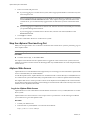
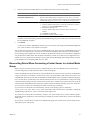
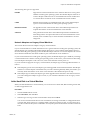
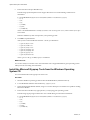
In the virtual machine, select Start > Settings > Control Panel > Add or Remove Programs.
3
In the list of programs, select VMware Tools and click Change.
4
Click Next.
5
Select Modify and click Next.
6
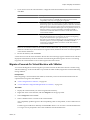
Click the red X next to WYSE Multimedia Redirector and select This feature will be installed on local
hard drive.
7
Click Next.
8
Click Modify to begin the installation.
9
Click Finish.
For virtual machines on ESX Server 3.0.1 or later hosts managed by vCenter Server 2.0.1 or later, WYSE
Multimedia Support can be installed as part of a VMware Tools upgrade started from the vSphere Client.
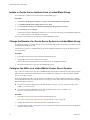
Install WYSE Multimedia Support as Part of a VMware Tools Upgrade
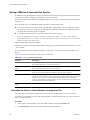
For virtual machines on ESX Server 3.0.1 or later hosts managed by vCenter Server 2.0.1 or later, WYSE
Multimedia Support can be installed as part of a VMware Tools upgrade started from the vSphere Client.
Procedure
1
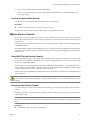
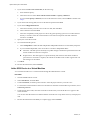
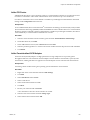
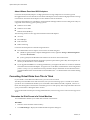
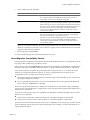
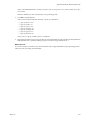
Right-click a powered-on virtual machine and select Upgrade VMware Tools.
2
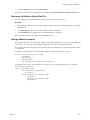
In the Advanced text box, type setup.exe /s /v”INSTALL_WYSE=1”.
3
Click OK.
VMware, Inc.
133