1
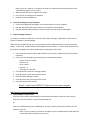
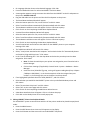
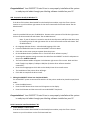
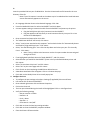
Step 1 – Remove existing IDXPERT® Printer Driver from your computer (if applicable) If you DO have an existing IDXPERT® printer driver on your computer ‐ you will need to complete this step. If you DO NOT have an existing IDXPERT® printer driver on your computer ‐ skip this step & go directly to step 3. If you DO NOT KNOW if you have an existing IDXPERT® Printer Driver on your computer – here is how you can check your PC: Verifying if there is currently a driver installed Windows XP ‐ Select Start >Settings (if applicable)>Printer and Faxes. If the IDXPERT® driver is installed it will appear in the list. Windows 7 ‐ Select the Windows Logo Start button >Devices and Printers. If the IDXPERT® driver is installed it will appear in the list. For Windows® XP: 1. Remove existing IDXPERT® Printer Driver: Select Start >Settings (if applicable)>Printer and Faxes. Left mouse click to select the IDXPERT®. Right mouse click and select <Delete> In Printers and Faxes click on File located in the top menu bar and then select “Server Properties”. Click on the “Driver tab” Highlight the IDXPERT® and click on <Remove> If prompted, confirm the removal of that driver. Click on the <Close> button to close the Printer Server Properties window. Close the Printer and Faxes window. 2. Remove Support Files: Select Start>Run Type in “net stop spooler” Click the <OK> button. Open Windows Explorer. To do this right mouse click on the Start button and select “Explore”. In the left column click on the + icon to the left of “My Computer” to expand it. Click on the + icon to the left of the main drive. This is usually the “C” drive. Locate the “WINDOWS” folder and click on the + icon to the left of the folder to expand the folder. Locate the “inf” folder and left mouse click to select the folder. ‐ Note if the “inf” folder isn’t displayed in the title bar menu click on “Tools” and then “Folder Options” ‐ Click on the “View” tab and in the “Hidden files and folders” select “Show hidden files and folders” ‐ Click OK to close the Folder Options window In the right column scroll to the OEM files and locate the OEM file with the highest number. Double click on the OEM.INF file. In the “Manufacturer “section look for “Brady IDXPERT®”.