1
ENGLISH
LC-22AA1H
LC-22AA1H
LCD COLOUR TELEVISION
OPERATION MANUAL
SHARP CORPORATION
Printed in Japan
TINS-B067WJZZ
04P01-JKG
Printed on 100% post-consumer recycled paper.
LCD COLOUR TELEVISION
ENGLISH
OPERATION MANUAL
Contents
Dear SHARP customer .......................................................................................... 2
Important Safety Precautions .............................................................................. 2
Supplied accessories ............................................................................................ 4
Trademarks ............................................................................................................ 4
Preparation ............................................................................................................. 5
Inserting the batteries ...................................................................................... 5
Using remote control ........................................................................................ 5
Power connection ............................................................................................. 6
Antenna connection ......................................................................................... 6
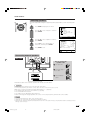
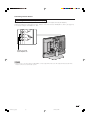
Part names – Main unit ......................................................................................... 7
Removing the terminal covers ......................................................................... 8
How to fix the cables ........................................................................................ 8
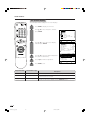
Part names – Remote control unit ...................................................................... 9
Basic operation .................................................................................................... 10
First installation ............................................................................................... 10
Turning the main power on and off ................................................................ 11
ON/OFF Standby ............................................................................................ 11
Switching the TV/VIDEO (TV/AV1/AV2/AV3/COMPONENT) mode ............... 11
Listening with headphones ............................................................................ 11
Sound volume ................................................................................................. 12
Changing channels ........................................................................................ 12
Useful features ..................................................................................................... 13
Selecting menu items ..................................................................................... 13
Booster ............................................................................................................ 15
Sleep timer ...................................................................................................... 15
Picture ............................................................................................................. 16
Audio ............................................................................................................... 17
Hi-fi sound ....................................................................................................... 17
Dolby Virtual ................................................................................................... 18
Features .......................................................................................................... 19
Quick shoot ..................................................................................................... 20
V.Position ........................................................................................................ 20
Selecting speakers ......................................................................................... 21
Connecting external speakers ....................................................................... 21
On-screen display .......................................................................................... 22
Wide mode ...................................................................................................... 23
AV connections ............................................................................................... 24
Preset .............................................................................................................. 25
Using FREEZE setting .................................................................................... 28
NICAM broadcast selection ........................................................................... 29
A2 stereo broadcasts ..................................................................................... 30
Connecting external devices ............................................................................. 31
Examples of external devices that can be connected .................................. 31
Connecting a VCR, DVD player or a camcorder
(AV-IN1/2/3/COMPONENT) .............................................................................. 32
Outputting video and audio (video output) ................................................... 33
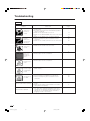
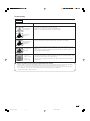
Troubleshooting .................................................................................................. 34
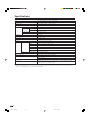
Specifications ...................................................................................................... 36
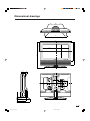
Dimensional drawings ........................................................................................ 37
lc22aa1h_en_p01_10
1
04.2.25, 2:53 PM
ENGLISH
LC-22AA1H
Dear SHARP customer
Thank you for your purchase of the SHARP LCD colour TV product. To ensure safety and many years of troublefree operation of your product, please read the Important Safety Precautions carefully before using this product.
Important Safety Precautions
Electricity is used to perform many useful functions, but it can also cause personal injuries and property
damage if improperly handled. This product has been engineered and manufactured with the highest
priority on safety. However, improper use can result in electric shock and/or fire. In order to prevent potential
danger, please observe the following instructions when installing, operating and cleaning the product. To
ensure your safety and prolong the service life of your LCD colour TV product, please read the following
precautions carefully before using the product.
1.
Read instructions—All operating instructions must be read and understood before the product is operated.
2.
Keep this manual in a safe place—These safety and operating instructions must be kept in a safe place for
future reference.
3.
Observe warnings—All warnings on the product and in the instructions must be observed closely.
4.
Follow instructions—All operating instructions must be followed.
5.
Attachments—Do not use attachments not recommended by the manufacturer. Use of inadequate attachments
can result in accidents.
6.
Power source—This product must operate on a power source specified on the specification label. If you are
not sure of the type of power supply used in your home, consult your dealer or local power company.
7.
AC cord protection—The AC cords must be routed properly to prevent people from stepping on them or
objects from resting on them. Check the cords at the plugs and product.
8.
Overloading—Do not overload AC outlets or extension cords. Overloading can cause fire or electric shock.
9.
Entering of objects and liquids—Never insert an object into the product through vents or openings. High
voltage flows in the product, and inserting an object can cause electric shock and/or short internal parts. For
the same reason, do not spill water or liquid on the product.
10. Servicing—Do not attempt to service the product yourself. Removing covers can expose you to high voltage
and other dangerous conditions. Request a qualified service person to perform servicing.
11. Repair—If any of the following conditions occur, unplug the AC cord from the AC outlet, and request a qualified
service person to perform repairs.
a.
b.
c.
d.
When the AC cord or plug is damaged.
When a liquid was spilled on the product or when objects have fallen into the product.
When the product has been exposed to rain or water.
When the product does not operate properly as described in the operating instructions.
Do not touch the controls other than those described in the operating instructions. Improper adjustment
of controls not described in the instructions can cause damage, which often requires extensive adjustment
work by a qualified technician.
e. When the product has been dropped or damaged.
f. When the product displays an abnormal condition. Any noticeable abnormality in the product indicates
that the product needs servicing.
12. Replacement parts—In case the product needs replacement parts, make sure that the service person uses
replacement parts specified by the manufacturer, or those with the same characteristics and performance as
the original parts. Use of unauthorized parts can result in fire, electric shock and/or other danger.
13. Safety checks—Upon completion of service or repair work, request the service technician to perform safety
checks to ensure that the product is in proper operating condition.
14. Wall or ceiling mounting—When mounting the product on a wall or ceiling, be sure to install the product
according to the method recommended by the manufacturer.
2
lc22aa1h_en_p01_10
2
04.2.25, 2:53 PM
Important Safety Precautions
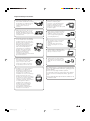
• Cleaning—Unplug the AC cord
from the AC outlet before cleaning
the product. Use a damp cloth to
clean the product. Do not use
liquid cleaners or aerosol
cleaners.
• Water and moisture—Do not use
the product near water, such as
bathtub, washbasin, kitchen sink,
laundry tub, swimming pool and in
a wet basement.
• Stand—Do not place the product
on an unstable cart, stand, tripod
or table. Doing so can cause the
product to fall, resulting in serious
personal injuries as well as
damage to the product. Use only
a cart, stand, tripod, bracket or
table recommended by the
manufacturer or sold with the
product. When mounting the
product on a wall, be sure to
follow the manufacturer’s
instructions. Use only the
mounting hardware recommended
by the manufacturer.
• When relocating the product
placed on a cart, it must be
moved with utmost care. Sudden
stops, excessive force and
uneven floor surface can cause
the product to fall from the cart.
• Ventilation—The vents and other
openings in the cabinet are
designed for ventilation. Do not
cover or block these vents and
openings since insufficient
ventilation can cause overheating
and/or shorten the life of the
product. Do not place the product
on a bed, sofa, rug or other similar
surface, since they can block
ventilation openings. This product
is not designed for built-in
installation; do not place the
product in an enclosed place
such as a bookcase or rack,
unless proper ventilation is
provided or the manufacturer’s
instructions are followed.
• The LCD panel used in this
product is made of glass.
Therefore, it can break when the
product is dropped or impact
applied. If the LCD panel is
broken be careful not to be injured
by broken glass.
• Heat sources—Keep the product
away from heat sources such as
radiators, heaters, stoves and
other heat-generating products
(including amplifiers).
• Do not place vases or any other
water-filled containers on this
product.
The water may spill onto the
product causing fire or electric
shock.
• To prevent fire, never place any
type of candle or naked flames on
the top or near the TV set.
• To prevent fire or shock hazard,
do not place the AC power cord
under the TV set or other heavy
items.
The LCD panel is a very high technology product
with 1,229,760 thin film transistors, giving you fine
picture details.
Due to the very large number of pixels,
occasionally a few non-active pixels may appear
on the screen as a fixed point of blue, green or
red.
This is within product specifications and does not
constitute a fault.
3
lc22aa1h_en_p01_10
3
04.2.25, 2:53 PM
Supplied accessories
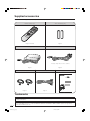
Make sure the following accessories are provided with the product.
Remote control unit
“AA” size battery (×2)
Pages 5 and 10
Page 5
AC adapter
AC cord
*Product shape varies in some countries.
Page 6
Cable clamp (×2)
Page 6
Antenna cable
Operation manual
LC-22AA1H
Page 8
Page 6
Trademarks
Manufactured under license from Dolby Laboratories. “Dolby”, “Pro Logic” and the double-D symbol are trademarks
of Dolby Laboratories.
Manufactured under license from BBE Sound, Inc.
Licensed by BBE Sound, Inc. under USP4638258, 5510752 and 5736897. BBE and BBE symbol are registered
trademarks of BBE Sound, Inc.
4
lc22aa1h_en_p01_10
4
04.2.25, 2:53 PM
Preparation
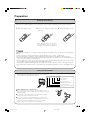
Inserting the batteries
Before using the System for the first time, insert two “AA” size batteries (supplied) into the remote control. When the
batteries become depleted and the remote control fails to operate, replace the batteries with new “AA” size batteries.
1
Open the battery cover.
2
Insert two supplied “AA” size
batteries.
3
Close the battery cover.
+
_
_
+
• Place batteries with their terminals
corresponding to the (e) and (f)
indications in the battery compartment.
CAUTION
Improper use of batteries can result in chemical leakage or explosion. Be sure to follow the instructions
below.
• Place the batteries with their terminals corresponding to the (e) and (f) indications.
• Do not mix batteries of different types. Different types of batteries have different characteristics.
• Do not mix old and new batteries. Mixing old and new batteries can shorten the life of new batteries or
cause chemical leakage in old batteries.
• Remove batteries as soon as they have worn out. Chemicals that leak from batteries can cause a rash.
If you find any chemical leakage, wipe thoroughly with a cloth.
• The batteries supplied with this product may have a shorter life expectancy due to storage conditions.
• If you will not be using the remote control unit for an extended period of time, remove the batteries from
it.
Using remote control
■ Use the remote control by pointing it towards the remote sensor
window of the main unit. Objects between the remote control and
sensor window may prevent proper operation.
POWER
SLEEP
OPC HEADPHONE
HEADPHONE jack
OPC indicator
SLEEP timer indicator
POWER/Standby indicator
OPC sensor window
Remote control sensor window
Cautions regarding use of remote control
■ Do not expose the remote control to shock. In addition, do not
expose the remote control to liquids, and do not place it in an area
with high humidity.
■ Do not install or place the remote control under direct sunlight.
The heat may cause deformation of the unit.
■ The remote control may not work properly if the remote sensor
window is under direct sunlight or strong lighting. In such a case,
change the angle of the lighting or main unit, or operate the
remote control closer to the remote sensor window.
5
lc22aa1h_en_p01_10
5
04.2.25, 2:53 PM
Preparation
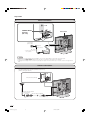
Power connection
POWER INPUT
terminal
(DC 13V)
MAIN POWER
Household
power outlet
To POWER
INPUT terminal
Plug into
power outlet.
AC cord*
* Product shape varies in
some countries.
AC adapter
NOTE teote:
• Use a commercially available AC plug adapter, if necessary, depending on the design of the wall outlet.
• Always turn the MAIN POWER switch of the LCD TV set to off when connecting the AC adapter.
• Unplug the AC adapter from the LCD TV set and power outlet when the LCD TV set is not to be used for a long period of
time.
Antenna connection
• Using the supplied antenna cable, connect the room
antenna terminal to the antenna terminal on the TV set.
(Refer to the figure below.)
ANT. (Antenna terminal)
Room antenna terminal
(75-ohm type)
Antenna cable (supplied)
To antenna terminal
6
lc22aa1h_en_p01_10
6
04.2.25, 2:53 PM
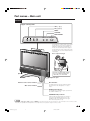
Part names – Main unit
Controls
Upper control panel
VOL (l)/(k)
CH (s)/(r)
MENU
TV/VIDEO
MAIN POWER
VOL
CH
MENU TV/VIDEO
MAIN POWER
To change the vertical angle of the LCD
TV set, tilt the screen up to 5 degrees
forward or 10 degrees backward. The
TV set can also be rotated 25 degrees
to right and left. Please adjust the angle
so that the TV set can be watched most
comfortably.
How to adjust the angle
Hold the carrying handle and tilt
the screen while steadying the
stand with your other hand.
Speaker
Headphone jack
Remote control sensor window
OPC sensor window
OPC indicator
The Optical Picture Control indicator lights
up green when the “Brightness” is set to
“auto”.
SLEEP timer indicator
The SLEEP timer indicator lights up red when
the SLEEP TIMER is set.
POWER/Standby indicator
A green indicator lights when the power is
on and a red indicator lights when in the
standby mode (the indicator will not light
when the main power is off).
NOTE tes:Note:
• TV/VIDEO, CH(s)/(r), VOL (l)/(k) and MENU on the main unit have the same functions as the same buttons on the remote control.
Basically, this operation manual provides a description based on operation using the remote control.
7
lc22aa1h_en_p01_10
7
04.2.25, 2:54 PM
Part Names – Main Unit
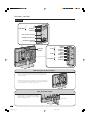
Terminals
Y
PB
PR
AUDIO (L)
AUDIO (R)
COMPONENT
ANT. (Antenna terminal)
POWER INPUT (DC 13V)
EXTERNAL SPEAKER
(4q, 5W)
AV-IN1
Carrying
handle
AV-IN2
AV-IN3/OUT
S-VIDEO
VIDEO
AUDIO (L)
AUDIO (R)
VIDEO
AUDIO (L)
AUDIO (R)
VIDEO
AUDIO (L)
AUDIO (R)
Removing the terminal covers
• Before connecting cables and cords into the rear terminals,
remove the terminal covers. Push in the tabs and pull out the
covers carefully.
• To mount the terminal cover, insert the 2 hooks on the bottom
of the cover into the cabinet and press on the upper part of the
cover until the tab locks in place with a click.
How to fix the cables
• Secure cables and cords with the supplied
cable clamps so that they do not get caught
when mounting the cover.
Cable clamps
8
lc22aa1h_en_p01_10
8
04.2.25, 2:54 PM
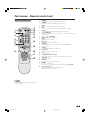
Part names – Remote control unit
Remote control unit
1
2
3
9
10
11
12
1
2
3
13
4
5
6
7
14
4
5
6
7
8
9
10
15
11
12
8
16
17
18
13
14
15
16
17
18
POWER
To switch the power on and off. (See page 11.)
FREEZE
Change the still image mode. (See page 28.)
WIDE
Change the wide image mode. (See page 23.)
MPX
Select the sound multiplex mode. (See pages 29 and 30.)
Dolby V
Select Virtual Dolby Surround settings. (See page 18.)
A (FLASHBACK)
Press to return to the previous channel in normal viewing mode.
(See page 12.)
il/ik (VOLUME)
Set the volume. (See page 12.)
MENU
Display the menu screen.
DISPLAY
Display the channel information.
TV/VIDEO
Select an input source. (TV, AV1, AV2, AV3, COMPONENT)
(See page 11.)
SLEEP
Set the SLEEP TIMER. (See page 15.)
e (MUTE)
Mute the sound. (See page 12.)
0–9
Set the channel.
o (Digit for channel select)
Change the digits of the selected TV channel. (See page 12.)
CHa/CHb
Select the channel.
RETURN
Return to the previous menu screen.
ENTER
Execute a command.
Return to the initial image position after moving with a/b/c/d.
a/b/c/d (Cursor)
Select a desired item on the setting screen.
Move the picture on the screen.
NOTE
• When using the remote control unit, point it
at the Display.
9
lc22aa1h_en_p01_10
9
04.2.25, 2:54 PM
Basic operation
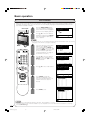
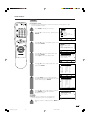
First installation
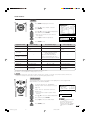
When you turn on the LCD TV set for the first time, the First installation routine, which makes installation easier, is
activated. Using this routine, you can select the on-screen display language, and automatically search for and
store all the receivable channels.
MAIN POWER
VOL
CH
MENU TV/VIDEO
1
Press the MAIN POWER switch.
The “First installation (Language)”
screen with a list of the languages
for the on-screen display appears.
2
Press a/b to select the desired
language, and then press ENTER.
The “First installation (Message)”
screen appears.
MAIN POWER
First installation
(Language)
English
M
End
NOTE t
• You can change the on-screen display language after the First installation routine by selecting
“Language” on the TV menu (see pages 13 and 14).
3
4
If you have already connected the
antenna, press a/b to select
“Yes”, and then press ENTER. If
not, press a/b to select “No”, and
then press MENU to exit. (You can
try First installation again after
connecting antenna. See page 6
for antenna connection.)
Press a/b to select the desired
adjustment item, and then press
ENTER. Then press c/d to select
the desired item.
First installation
(Message)
Connect antenna?
Yes:ENTER
No :MENU
R
Press a/b to select “Start search”.
Press ENTER to begin the
automatic programme search.
The screen shows whatever is on
channel 1 when the search is
finished.
Back
Back
Press MENU to exit.
End
End
PAL]
I]
M
End
Start search
759.25MHz PAL-I
0
1
2
3
4
5
6
7
E 02
E 04
U 02
U 04
E 05
E 08
E10
8 SHARP 16
9
17
10
18
11
19
12
21
13
22
14
23
15
24
R
7
M
First installation
(Automatic search)
Colour system
[
Sound system
[
Start search
R
6
M
First installation
(Automatic search)
Colour system
[ PAL]
Sound system
[
I]
Start search
R
5
Back
Cancel
Start search
Search is completed
0
1
2
3
4
5
6
7
E 02
E 04
U 02
U 04
E 05
E 08
E10
8 SHARP 16
9
17
10
18
11
19
12
21
13
22
14
23
15
24
M
End
NOTE tes:
• The input mode is automatically switched to AV1 when “First installation” is selected.
• While performing the steps in the first installation, you can skip back to the screen before the first installation is selected by
pressing Flashback (A).
10
lc22aa1h_en_p01_10
10
04.2.25, 2:54 PM
Basic operation
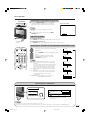
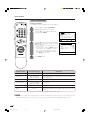
Turning the main power on and off
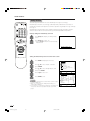
MAIN POWER
VOL
CH
MENU TV/VIDEO
| Press the MAIN POWER switch. The POWER/
Standby indicator instantaneously changes
from red to green and the main unit is turned
on.
MAIN POWER
On-screen display
NOTE
• The On-screen indicator disappears after a few
seconds.
| To turn off the main power, press the MAIN
POWER switch.
1 S06
ON/OFF Standby
To turn off the LCD TV
Press POWER. The POWER/Standby indicator will turn red.
To turn the LCD TV back on
Press POWER again. The POWER/Standby indicator will turn green.
POWER/Standby
indicator
Switching the TV/VIDEO (TV/AV1/AV2/AV3/COMPONENT) mode
1
2
TV mode
Turn on the power of the connected video
equipment.
1 S06
Press TV/VIDEO to select the applicable input
source.
The screen displays AV1, AV2, AV3,
COMPONENT or TV mode each time
TV/VIDEO is pressed.
AV1 mode
AV1
NOTE
AV2 mode
• The AV input mode indication remains for 6 seconds.
• AV1: Video equipment connected to the AV-IN1 input
terminals.
An S-video input terminal is additionally provided
for the AV-IN1 input. If both the S-video terminal
and normal video terminals are connected with
cables, the S-video input terminal takes priority.
• AV2: Video equipment connected to the AV-IN2 input
terminals.
• AV3: AV3 mode is used to adjust the preset settings
and IN3 or OUT can be selected. AV3 indication
is not displayed when OUT is selected.
(See page 19.)
• COMPONENT: Video equipment connected to the
COMPONENT input terminals.
AV2
AV3 mode
AV3
COMPONENT mode
COMPONENT
Listening with headphones
■ Plug the headphone mini-plug into the HEADPHONE jack located on the front of the TV set.
0
Headph.vol.30
R
Headphones
Back
M
End
Please refer to page 17 to adjust the
sound volume.
NOTE
• Headphones are not included in the supplied accessories.
• No sound is heard from the main unit speakers when a headphone mini-plug is connected into the HEADPHONE jack.
11
lc22aa1h_en_p11_12
11
04.2.25, 2:55 PM
Basic operation
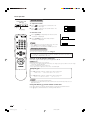
Sound volume
Control panel of the
main unit
VOL
CH
MENU TV/VIDEO
To adjust the volume
MAIN POWER
VOL
(l)/(k)
CH (s)/(r)
| Press ik to increase the sound volume. The
bar indicator shifts right.
Volume
42
| Press il to decrease the sound volume. The
bar indicator shifts left.
Volume
5
To mute the sound
| Press e (Mute) to temporarily turn off the sound.
“Sound off” is displayed.
| Press e (Mute) to turn off the Mute function.
“Sound on” is displayed.
NOTE
Sound off
Sound on
• When i (k/l) is pressed in the Mute mode, the sound
turns on and the volume indicator is displayed.
• The Mute function is cancelled when POWER is pressed.
Changing channels
You can select channels using 0 – 9 or CH a/b.
• To handle the increasing number of channels available, this LCD TV set allows you
to select up to 100 channels (0 to 99).
Using 0 – 9 on the remote control unit
Select the channels directly by pressing buttons 0 – 9.
a
To select a 1-digit channel (e.g. channel 2):
• Press 2. If “2” is indicated and the picture does not change, press o to switch over to the 1-digit
select mode and press 2 again.
To select a 2-digit channel (e.g. channel 12):
• Press o to set the 2-digit select mode. Press 1, followed by 2.
Using CH a/b
Press CH a and the channels change in the order shown below:
1 → 2 → 3 → . . . → 98 → 99 → 0 → 1 → 2 → 3 → . . .
Press CH b and the channels change in the order shown below:
3 → 2 → 1 → 0 → 99 → 98 → . . . → 3 → 2 → 1 → . . .
NOTE
• Channel “0” is reserved for RF output of VCR.
• Complete this procedure within 3 seconds, otherwise the selection will not be made on the 2digit channel mode.
Using Flashback (A) on the remote control unit
Press A to switch the currently tuned channel to the previously tuned channel.
Press A again to switch back to the currently tuned channel.
12
lc22aa1h_en_p11_12
12
04.2.25, 2:55 PM
Useful features
Selecting menu items
• The menus can be used to adjust the various settings of your LCD TV set.
Select the desired menu item by following the steps below.
■ Using TV Menus
1
2
Press MENU on the remote control to display
the TV menu.
Press a/b to select the desired menu item.
• The cursor moves up or down.
• The cursor indicates the selected menu item.
3
Press ENTER to display the setting screen for
the selected menu item.
TV menu
Picture
Audio
Preset
Features
AV connections
First installation
Language
R
Back
M
End
• Press ENTER again to adjust the selected item.
• See the next page for a table of the setting
screens.
4
5
Control panel of the
main unit
VOL
VOL
(l)/(k)
CH
MENU TV/VIDEO
MAIN POWER
Press c/d to adjust the selected item.
Press RETURN to return to the previous
screen or MENU to return to the normal
screen.
■ Using Direct Control Menu
1
Press MENU on the main unit to display the
TV menu.
MENU
CH
TV/VIDEO
(s)/(r)
2
Press CH (s)/(r) to select the desired
menu item.
• The cursor moves up or down.
• The cursor indicates the selected menu item.
3
Press TV/VIDEO to display the setting screen
for the selected menu item.
TV menu
Picture
Audio
Preset
Features
AV connections
First installation
Language
R
Back
M
End
• Press TV/VIDEO again to adjust the selected
item.
4
Press VOL (l)/(k) to make the adjustment.
5
Press MENU to return to the previous screen.
• Each time MENU is pressed, you will return to
the previous screen.
NOTE te:
• The items displayed differ depending on the setting conditions.
• The item selected is displayed in yellow.
• Settings most recently adjusted will be saved in memory.
13
lc22aa1h_en_p13_18
13
04.2.25, 2:56 PM
Useful features
Selecting menu items (Continued)
■ TV Menu Setting Screens
For details on using each setting screen, refer to the page number indicated.
(Page 16)
Picture menu
Contrast
Colour
Black level
Sharpness
Red-Blue
Green
Tint
Reset
R
Back
[ 3 0]
[ 0]
[ 0]
[ 0]
[ 0]
[ 0]
[ 0]
M
End
(Pages 17 and 18)
Audio menu
Sound via
[
TV]
Headph. vol. [
30]
TV sound
[ Stereo]
Headph. sound[ Stereo]
Audio output [Sound1+2]
Dolby Virtual[
off]
Treble
[
0]
Bass
[
0]
Balance
[
0]
R
TV menu
Picture
Audio
Preset
Features
AV connections
First installation
Language
Back
M
End
M
End
(Pages 25 – 28)
Preset
Automatic search
Manual adjustment
Sort
Erase programme range
Enter/Change name
(Page 10)
R
Back
R
First installation
(Language)
English
Back
M
End
(Pages 15, 19 – 22)
R
Back
M
Features
Brightness
[bright]
Quick shoot
[ off]
V.Position
[
0]
AV-IN3/OUT
[ IN3]
Booster
[auto]
Auto power off
[ off]
Speaker
[Detachable]
On-screen display
End
(Page 10)
Language)
English
R
R
Back
M
Back
M
End
M
End
(Page 24)
End
AV connections
AV1
AV2
AV3
COMPONENT
R
Back
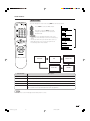
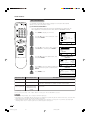
NOTE
• The illustrations and on-screen displays in this manual are for explanation purposes and may vary slightly from the actual
operations.
14
lc22aa1h_en_p13_18
14
04.2.25, 2:56 PM
Useful features
Booster
When set to “auto”, picture noise is reduced for TV broadcast signal strength from
moderate regions.
Automatically sets to “off” for a strong electrolytic signal that has a constant level.
1
2
Press MENU to display the TV menu.
Press a/b to select “Features”, and then
press ENTER.
TV menu
Picture
Audio
Preset
Features
AV connections
First installation
Language
R
3
4
5
Press a/b to select “Booster”, and then
press ENTER.
Press c/d to select “auto” or “off”, and then
press ENTER.
Press MENU to exit.
Back
M
End
Features
Brightness
[bright]
Quick shoot
[ off]
V.Position
[
0]
AV-IN3/OUT
[ IN3]
Booster
[auto]
Auto power off
[ off]
Speaker
[Detachable]
On-screen display
NOTE te:
R
Back
M
End
• In regions with pronounced changes in TV signal strength or very strong signal strength,
the effect is negligible and may produce instability. In such case, turn the setting “off”.
The built-in TV booster cannot handle regions with extremely weak signal strength. After
consulting with the store of purchase, please attach an external booster antenna.
Sleep timer
Allows you to set a time when the TV automatically switches to standby.
1
Press SLEEP.
• Remaining time displays when sleep timer has
been set.
Sleep Timer 30
2
Each time you press SLEEP, the remaining
time switches as shown below.
• When the time has been set, countdown
automatically starts.
• Five minutes before the preset of time expires,
the remaining time displays each minute.
off
30
60
90
120
(minutes)
NOTE te:
• Select “off” by pressing SLEEP to cancel the sleep timer.
• When the sleep timer is working, its indicator on the Display lights red.
15
lc22aa1h_en_p13_18
15
04.2.25, 2:56 PM
Useful features
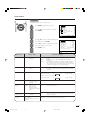
Picture
1
2
3
Press MENU to display the TV menu.
Press a/b to select “Picture”, and then
press ENTER.
Press a/b to select the desired adjustment
item, and then press ENTER.
Picture menu
Contrast
Colour
Black level
Sharpness
Red-Blue
Green
Tint
Reset
• The next menu appears.
4
R
Adjustment item
M
End
M
End
Press c/d to make the adjustment.
Contrast
5
Back
0
[ 30]
0
[ 0]
[ 0]
0
[ 0]
0
0
[ 0]
[ 0]
0
[ 0]
0
Press MENU to exit.
Press Left (c)
0
30
R
Choice/Value range
0.....30.....60
Back
Press Right (d)
Contrast
Decrease contrast
Colour
Lower colour intensity
-30.....0.....+30
Higher colour intensity
Black level
Less brightness
-30.....0.....+30
More brightness
Sharpness
Soft picture
-30.....0.....+30
Sharp picture
Red-Blue
More red
-30.....0.....+30
More blue
Green
Less green
-30.....0.....+30
More green
Tint *
Towards purple
-30.....0.....+30
Towards green
Reset
Reset value (Press ENTER.)
* “Tint” is only visible when “N358” or “N443” signal has been input into the unit.
16
lc22aa1h_en_p13_18
16
04.2.25, 2:56 PM
Increase contrast
Useful features
Audio
1
Press MENU to display the TV menu.
2
Audio menu
Sound via
[
TV]
Headph. vol. [
30]
TV sound
[ Stereo]
Headph. sound[ Stereo]
Audio output [Sound1+2]
Dolby Virtual[
off]
Treble
[
0]
Bass
[
0]
Balance
[
0]
Press a/b to select “Audio”, and then
press ENTER.
3
Press a/b to select the desired adjustment
item, and then press ENTER.
R
• Each item can now be selected or the next
menu appears.
4
Press c/d to make the adjustment.
Adjustment item
Choice/Value range
Back
M
End
Press Right (d)
–
TV↔Hi-fi
Decrease headphones
volume
Headph. vol. (*1)
End
Press MENU to exit.
Press Left (c)
–
Sound via
M
0
Headph.vol.30
R
5
Back
Increase headphones
volume
0.....30.....60
Stereo↔Mono/Sound1↔
Sound2↔Sound1+2↔Mono
Nicam↔Mono/Mono
TV sound
–
–
(* The choices differ depending on
whether or not a NICAM or A2 stereo
signal is received.) See pages 29 and 30.
Audio output
–
Sound1↔Sound2↔Sound1+2
–
Dolby Virtual (*1)
–
off↔on
–
Headph. sound (*1)
Treble (*1)
For weaker treble
-30.....0.....+30
For stronger treble
Bass (*1)
For weaker bass
-30.....0.....+30
For stronger bass
Balance (*1), (*2)
Increase the volume of
the left speaker
-30.....0.....+30
Increase the volume of the
right speaker
(*1) These items are not displayed when the “Sound via” item is set to “Hi-fi”.
(*2) “Balance” is not selectable when “Dolby Virtual” is set to “on”.
NOTE
• In the “Audio output” item, mono-video recorders should select “Sound1” or “Sound2”. Stereo-video recorders should select
“Sound1+2” so that the desired sound can be selected when playing back the video.
Hi-fi sound
This function allows you to enjoy higher sound quality when connecting AV-IN3/
OUT terminals to an external amplifier.
1
2
To use this function, set “AV-IN3/OUT”
setting to “OUT” in the Features menu (see
page 19).
Audio menu
Sound via
TV sound
Audio output
Select “Hi-fi” for “Sound via” item in the
Audio menu.
R
[
Hi-fi]
[ Stereo]
[Sound1+2]
Back
M
End
• The sound from the built-in speakers will be
turned off.
3
Hi-fi Volume
50
Press a/b to select the desired adjustment
item, and then press ENTER.
NOTE te:e:
4
Press c/d to select the Audio mode.
5
Press MENU to exit.
• Pressing i (+/–) will display
the volume indicator shown
above. You can adjust the
volume by pressing i (+) or
i (–) on the same button.
17
lc22aa1h_en_p13_18
17
04.2.25, 2:57 PM
Useful features
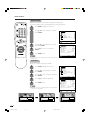
Dolby Virtual
You can enjoy the Surround 2ch stereo with Dolby Pro Logic II technology.
Virtual Dolby Surround is a technology certified by Dolby Laboratories that creates a
virtualised surround sound experience from two speakers using Dolby Pro Logic or Dolby
Pro Logic II.
Virtual Dolby Surround retains all the original multichannel audio information and provides the listener with the sensation of being surrounded by additional speakers.
Directly setting the Virtual Dolby Surround
1
Press Dolby V to display the Dolby Virtual
screen.
2
Press Dolby V to select “on”.
• Pressing Dolby V will turn on and off the Dolby
Virtual function.
Dolby Virtual on
Setting the Virtual Dolby Surround on the menu screen
1
2
3
4
5
Press MENU to display the TV menu.
Press a/b to select “Audio”, and then
press ENTER.
Press a/b to select “Dolby Virtual”, and
then press ENTER.
R
Press MENU to exit.
NOTE te:e:
18
18
Back
M
End
Press c/d to select “on”.
• Virtual Dolby Surround does not work when sound is output
from the headphones.
• When “on” is selected in the Dolby Virtual setting, you
cannot adjust “Balance”.
• For some discs, setup may be required on your DVD. In this
case, please refer to the operation manual of your DVD
player.
lc22aa1h_en_p13_18
TV menu
Picture
Audio
Preset
Features
AV connections
First installation
Language
04.2.25, 2:57 PM
Audio menu
Sound via
[
TV]
Headph. vol. [
30]
TV sound
[ Stereo]
Headph. sound[ Stereo]
Audio output [Sound1+2]
Dolby Virtual[
on]
Treble
[
0]
Bass
[
0]
Balance
[
0]
R
Back
M
End
Useful features
Features
The Features items can be set by the user.
1
2
Press MENU to display the TV menu.
Press a/b to select “Features”, and then
press ENTER.
TV menu
Picture
Audio
Preset
Features
AV connections
First installation
Language
R
3
4
5
Press a/b to select the desired adjustment
item, and then press ENTER.
Press c/d to make the adjustment. (Except
“On-screen display” menu item)
Press MENU to exit.
Brightness
End
Back
M
End
Adjustable item/range
Factory setting
[bright] Maximum
brightness
M
Features
Brightness
[bright]
Quick shoot
[ off]
V.Position
[
0]
AV-IN3/OUT
[ IN3]
Booster
[auto]
Auto power off
[ off]
Speaker
[Detachable]
On-screen display
R
Selected item
Back
[normal]
[dark]
[auto]
Brightness 60% → Suitable for viewing in well-lit areas. Saves
energy.
Brightness 20% → Sufficiently bright when viewing in
dim areas.
Screen brightness adjusts according to the ambient light of
the room to conserve power consumption. When setting to
“auto”, make sure no object obstructs the OPC sensor, which
could affect its ability to sense surrounding light.
Quick shoot
[off]
This feature is
inactive.
[on]
Improves LCD response when viewing fast-moving images.
The effect is greater at low room temperatures (at or below
15˚C/59˚F).
V.Position
[0]
Normal image
When screen size is Zoom 14:9, Panorama or Cinema 16:9:
Image shifts down.
f30
30
Image shifts up.
15
Image shifts up.
When screen size is Normal or Full:
Image shifts down.
AV-IN3/OUT
[IN3]
AV-IN3 terminals are
selected as input
terminals.
[OUT]
Booster
[auto]
Picture noise is
[off]
reduced for TV
broadcast signal
strength from moderate
regions.
Auto power off
(only TV mode)
[off]
This feature
is inactive.
Speaker
[Detachable]
Select this when using internal
speaker.
f15
Line Output is selected. AV-OUT is available.
This feature is inactive.
[on]
The power of the LCD TV set is turned off when there is no
signal for 5 minutes.
[External]
Select this when using external speaker.
19
lc22aa1h_en_p19_28
19
04.2.25, 2:59 PM
Useful features
Quick shoot
Improves the response of LCD when viewing fast-moving image.
The effect is greater at low room temperatures (at or below 15˚C/59˚F).
1
2
Press MENU to display the TV menu.
Press a/b to select “Features”, and then
press ENTER.
TV menu
Picture
Audio
Preset
Features
AV connections
First installation
Language
R
3
4
Press a/b to select “Quick shoot”, and
then press ENTER.
Press c/d to select “on”, and press
ENTER.
5
Back
M
End
Features
Brightness
[bright]
Quick shoot
[ off]
V.Position
[
0]
AV-IN3/OUT
[ IN3]
Booster
[auto]
Auto power off
[ off]
Speaker
[Detachable]
On-screen display
Press MENU to exit.
NOTE te:
R
Back
M
End
• Quick shoot may cause image noise. If this occurs turn the
function “off”.
V.Position
Allows you to shift the image up and down.
1
2
3
Press MENU to display the TV menu.
Press a/b to select “Features” and then
press ENTER.
TV menu
Picture
Audio
Preset
Features
AV connections
First installation
Language
Press a/b to select “V.Position” and then
press ENTER.
R
4
5
Press MENU to exit.
NOTE te:
• When the screen size is Normal or Full, the value between
-15 and +15 is adjustable.
R
Back
V.Position
M
End
20
End
Back
Back
M
End
V.Position +300
00
R
M
End
R
20
lc22aa1h_en_p19_28
M
Features
Brightness
[bright]
Quick shoot
[ off]
V.Position
[
0]
AV-IN3/OUT
[ IN3]
Booster
[auto]
Auto power off
[ off]
Speaker
[Detachable]
On-screen display
R
V.Position -300
Back
Press c/d to make the adjustment.
04.2.25, 2:59 PM
Back
M
End
Useful features
Selecting speakers
You can output audio using the supplied speakers (detachable) or other external speakers.
1
2
Press MENU to display the TV menu.
Press a/b to select “Features”, and then
press ENTER.
TV menu
Picture
Audio
Preset
Features
AV connections
First installation
Language
R
3
4
5
Press a/b to select “Speaker”, and then
press ENTER.
Press c/d to select “Detachable” or
“External”, and then press ENTER.
Press MENU to exit.
Back
M
End
Features
Brightness
[bright]
Quick shoot
[ off]
V.Position
[
0]
AV-IN3/OUT
[ IN3]
Booster
[auto]
Auto power off
[ off]
Speaker
[Detachable]
On-screen display
R
Back
M
End
Connecting external speakers
Rear view
How to connect the
speaker cable
1 Pull up the lid.
2 Insert the edge of
the cable.
3 Put the lid back
down.
• Bundle the cables of the external speakers with clamps as shown above.
CAUTION
• Make sure external speakers have 4 ohm and 5 watt specifications.
• Connect the plus/minus jacks with the correct cables. Incorrect connection may cause a short.
Make sure to connect the speaker jack and cable polarity (L, +) properly
• The speaker jacks have plus (L) and minus (+) polarity.
• Plus is red and minus is black.
• The cables are also divided into plus and minus.
• When connecting the left/right speakers, be sure to connect the plus/minus jacks with the correct cables.
NOTE N
• See page 8 for bundling the cables of the external speakers.
• Unplug the AC cord from the AC outlet before installing the speakers.
• When using the TV with the supplied stand attached, do not remove the speaker. Doing so may disturb the balance leading to product
damage or personal injury.
21
lc22aa1h_en_p19_28
21
04.2.25, 2:59 PM
Useful features
On-screen display
You can adjust various settings for on-screen displays.
1
2
Press MENU to display the TV menu.
Press a/b to select “Features”, and then
press ENTER.
TV menu
Picture
Audio
Preset
Features
AV connections
First installation
Language
R
3
Press a/b to select “On-screen display”,
and then press ENTER.
5
Press a/b to select the desired adjustment
item. (See the table below.)
Press c/d to make the adjustment.
Adjustment item
Back
M
End
Back
M
End
Press MENU to exit.
Choice/Value range
bottom ↔ top
Position
End
On-screen display
Position
[bottom]
Sound info
[
yes]
Sleep Timer
[
no]
R
6
M
Features
Brightness
[bright]
Quick shoot
[ off]
V.Position
[
0]
AV-IN3/OUT
[ IN3]
Booster
[auto]
Auto power off
[ off]
Speaker
[Detachable]
On-screen display
R
4
Back
Description
To select the position of the On-screen display.
Sound info
yes ↔ no
To select whether or not sound information is to be displayed, when a
channel has been selected.
Sleep Timer
no ↔ yes
To select information to be displayed in the On-screen display. To
activate the On-screen display, use the DISPLAY button.
22
lc22aa1h_en_p19_28
22
04.2.25, 2:59 PM
Useful features
Wide mode
You can change the screen size using WIDE on the remote control.
1
Press WIDE to select the Wide mode.
Panorama
2
Each time you press WIDE, the mode
changes as follows. You can select the
desired mode.
Full
NOTE Note:
• WSS (Wide Screen Signalling) information refers to the
original wide mode information sent from the broadcasting
station.
• This function works when your external device such as a
DVD supports WSS or you receive the signal from the
broadcasting station where available.
Cinema 16:9
Normal
Zoom 14:9
Panorama
Selected item
Full
Cinema 16:9
Zoom 14:9
Normal
Description
Panorama
In this mode the picture is progressively stretched toward each side of the screen.
Full
For 16:9 squeeze pictures.
Cinema 16:9
For 16:9 letterbox pictures. Bars may appear on the top and bottom with some programmes.
Normal
For 4:3 “standard” pictures. A side bar appears on each side.
Zoom 14:9
For 14:9 letterbox pictures. A thin side bar appears on each side, and you may
also see bars on the top and bottom with some programmes.
NOTE te:
• The Wide mode screen will disappear automatically after 4 seconds.
23
lc22aa1h_en_p19_28
23
04.2.25, 2:59 PM
Useful features
AV Connections
It is possible to manually adjust various settings for connections with external
devices on the “AV connections” screen.
[1] AV1/AV2/AV3/COMPONENT
Select the appropriate signal type and colour standard for the signals from the
video equipment connected to the AV1, AV2, AV3 or COMPONENT terminal.
1
2
Press MENU to display the TV menu.
Press a/b to select “AV connections”, and
then press ENTER.
TV menu
Picture
Audio
Preset
Features
AV connections
First installation
Language
R
3
Press a/b to select “AV1”, “AV2”, “AV3”, or
“COMPONENT”, and then press ENTER.
Press a/b to select the desired item, and
then press ENTER.
Back
R
6
Press c/d to select the desired “Signal type”,
“AFC” and “Colour system”, and then press
ENTER.
Press MENU to exit.
Auto, CVBS, Y/C
AFC
Mode1, Mode2
Auto, PAL, SECAM,
N358 (NTSC 3.58),
N443 (NTSC 4.43),
PAL60
Colour system(*2)
End
Back
[ CVBS]
[Mode1]
[ Auto]
M
End
AV2
AFC
Colour system
Back
[Mode1]
[ Auto]
M
End
Description
Choice/Input value
Signal type(*1)
M
Example when AV2 is
selected:
R
Adjustment item
End
Example when AV1 is
selected:
AV1
Signal type
AFC
Colour system
5
M
AV connections
AV1
AV2
AV3
COMPONENT
R
4
Back
To select the signal type of external equipment.
To select frequency control modes. Mode1 is suitable for DVD players
or decoders, and Mode2 is suitable for VCRs or Camcorders.
Colour norm
(*1) “Signal type” is only visible when the AV1 is selected.
(*2) You can only select “Auto”, “PAL”, “N358”, “N443” in “Colour system” when COMPONENT is selected.
NOTE Note:
• If no (colour) image displays, try to change to a different signal type.
• Depending on the compatibility with the various types of equipment, the picture may become skewed. In this case, select the “AFC”
(Automatic Frequency Control) mode that will improve the picture.
• Switching between AV input signals may be slow, depending on the settings in “Colour system”. If you want to speed up signal
switching, switch “Auto” in “Colour System” to the current reception colour system.
24
lc22aa1h_en_p19_28
24
04.2.25, 3:00 PM
Useful features
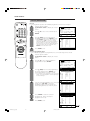
Preset
[1] Automatic search
Perform the procedure below to search for and store new programmes after
the First installation routine.
1
2
Press MENU to display the TV menu.
Press a/b to select “Preset”, and then press
ENTER.
TV menu
Picture
Audio
Preset
Features
AV connections
First installation
Language
R
3
Press a/b to select “Automatic search”, and
then press ENTER.
Press a/b to select the desired item, and
then press ENTER.
Press c/d to select the desired item.
Press a/b to select “Store progr. from”, and
then press ENTER.
E 02
E 04
U 02
U 04
E 05
E 08
E10
8
9
10
11
12
13
14
15
Press a/b to select “Start search”, and then
press ENTER to begin the automatic
programme search.
NOTE Note:
• When the search is completed, the new programmes
found are displayed in yellow on the programme list.
8
M
End
PAL]
I]
M
End
M
End
M
End
16
17
18
19
21
22
23
24
Back
Store progr. from
0
1
2
3
4
5
6
7
E 02
E 04
U 02
U 04
E 05
E 08
E10
8
9
10
11
12
13
14
15
SHARP
ZDF
ARD
RTL
SAT1
Pro7
R
7
Back
SHARP
ZDF
ARD
RTL
SAT1
Pro7
R
Press a/b/c/d to select the programme
position from which the programmes are to be
stored, and then press ENTER.
End
Store progr. from
0
1
2
3
4
5
6
7
6
Back
Automatic search
Colour system
[
Sound system
[
Store progr.from
Start search
R
5
M
Preset
Automatic search
Manual adjustment
Sort
Erase programme range
Enter/Change name
R
4
Back
16
17
18
19
21
22
23
24
Back
Automatic search
Colour system
[
Sound system
[
Store progr. from
Start search
R
Back
PAL]
I]
M
End
After the search is completed, press MENU to
exit.
25
lc22aa1h_en_p19_28
25
04.2.25, 3:00 PM
Useful features
Preset (Continued)
[2] Manual adjustment
Individual settings of programmes can be adjusted.
1
2
Perform steps 1 and 2 in [1] Automatic
search to display the “Preset” screen.
Press a/b to select “Manual adjustment”,
and then press ENTER.
Preset
Automatic search
Manual adjustment
Sort
Erase programme range
Enter/Change name
R
3
Press a/b to select the item, and then press
c/d to make the adjustment. (See the table
below for details.)
• You can also use 0 – 9 to adjust the “Frequency” items.
• To adjust “Name”, first press ENTER to activate
the text input mode. Press c/d to select the
input position and press a/b to select the
desired character. When you finish inputting,
press ENTER to set the name.
4
Adjustment item
0–99
Frequency
044 – 859 (MHz)
041.10 – 871.10
Name
A – Z, 0 – 9, +, -, ., /, !, _
End
Manual adjustment
Channel
[
1]
0
Frequency
[055.25MHz]
Name
[SHARP]
Colour system
[ PAL]
Sound system
[
I]
Skip
[ off]
R
Back
M
End
Description
The channel changes to the higher or lower channel.
Receivable frequencies depending on TV norm, installation
site, and range.
Programme name (up to five characters).
Colour system
Auto, PAL, SECAM
N358, N443, PAL60
Colour norm
Sound system
B/G, I, D/K, M, Auto*
TV norm
Skip
M
Press MENU to exit.
Choice/Value range
Channel
Back
off↔on
Channel numbers with a “(•) (RED)” mark on the left are set to
Skip.
* You can select “Auto” in sound system only during first installation and automatic search.
NOTE Note:
• Depending on the settings in the colour system of the channels, switching between channels may be slow. If you want to speed up
channel switching, switch “Auto” in “Colour system” to the current reception system (PAL, SECAM, N358, N443, or PAL60).
26
lc22aa1h_en_p19_28
26
04.2.25, 3:00 PM
Useful features
Preset (Continued)
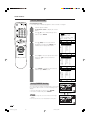
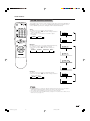
[3] Sort
The programme positions for individual programmes can be freely changed.
1
2
Perform steps 1 and 2 in
[1] Automatic search to display the “Preset”
screen.
Press a/b to select “Sort,” and then press
ENTER.
Preset
Automatic search
Manual adjustment
Sort
Erase programme range
Enter/Change name
R
3
4
Press a/b/c/d to select the desired
programme, and then press ENTER to sort.
Sort
• When ENTER is pressed, the Move mode is
activated. Press a/b to move the currently
marked programme to the desired programme
position. When the channel has moved to the
desired position, all the preceding/subsequent
channel positions will move up/down. Press
ENTER to leave the Move mode.
0
1
2
3
4
5
6
7
E 02
E 04
U 02
U 04
E 05
E 08
E10
8
9
10
11
12
13
14
15
SHARP
ZDF
ARD
RTL
SAT1
Pro7
R
Press MENU to exit.
Back
M
End
M
End
16
17
18
19
21
22
23
24
Back
[4] Erase programme range
The individual programme or programmes in a connected range can be erased.
1
2
Perform steps 1 and 2 in
[1] Automatic search to display the “Preset”
screen.
Press a/b to select “Erase programme
range”, and then press ENTER.
Preset
Automatic search
Manual adjustment
Sort
Erase programme range
Enter/Change name
R
3
Press a/b/c/d to select the programme to
be erased, and then press ENTER. The
selected programme is shown in yellow.
• If you want to erase programmes in a connected
range, select the programme at the beginning of
the desired range.
If you are erasing programmes in a connected
range, press a/b/c/d to select the
programme at the end of the range. The
selected programmes are shown in yellow.
0
1
2
3
4
5
6
7
E 02
E 04
U 02
U 04
E 05
E 08
E10
8
9
10
11
12
13
14
15
SHARP
ZDF
ARD
RTL
SAT1
Pro7
Press ENTER to erase the selected
programme(s). All the subsequent
programmes move up.
0
1
2
3
4
5
6
7
0
1
2
3
4
5
6
7
Press MENU to exit.
E 02
E 04
U 02
U 04
E 05
E 08
E10
8
9
10
11
12
13
14
15
Back
SHARP
ZDF
ARD
RTL
SAT1
Pro7
E 08
E 10
SHARP
ZDF
ARD
RTL
SAT1
M
End
16
17
18
19
21
22
23
24
Back
8 Pro7
9
10
11
12
13
14
15
R
27
16
17
18
19
21
22
23
24
M
End
Erase programme range
6
lc22aa1h_en_p19_28
End
Erase programme range
R
5
M
Erase programme range
R
4
Back
04.2.25, 3:00 PM
16
17
18
19
21
22
23
24
Back
M
End
27
Useful features
Preset (Continued)
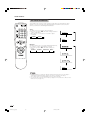
[5] Enter/Change name
The name of an individual programme can be entered or changed.
1
2
Perform steps 1 and 2 in
[1] Automatic search to display the “Preset”
screen.
Press a/b to select “Enter/Change name”,
and then press ENTER.
Preset
Automatic search
Manual adjustment
Sort
Erase programme range
Enter/Change name
R
3
Press a/b/c/d to select the desired
programme, and then press ENTER. The
character at the input position blinks.
Press c/d to select the input position, and
then press a/b to select the desired
character.
0
1
2
3
4
5
6
7
_ 02
E 04
U 02
U 04
E 05
E 08
E10
8
9
10
11
12
13
14
15
SHARP
ZDF
ARD
RTL
SAT1
Pro7
Press ENTER to accept the name entered,
and then press MENU to exit.
End
M
End
M
End
M
End
16
17
18
19
21
22
23
24
Back
Enter/Change name
0
1
2
3
4
5
6
7
E 02
E 04
U 02
U 04
E 05
E 08
E10
8
9
10
11
12
13
14
15
SHARP
ZDF
ARD
RTL
SAT1
Pro7
R
5
M
Enter/Change name
R
4
Back
16
17
18
19
21
22
23
24
Back
Enter/Change name
0
1
2
3
4
5
6
7
E 02
E 04
U 02
U 04
E 05
E 08
E10
8
9
10
11
12
13
14
15
SHARP
ZDF
ARD
RTL
SAT1
Pro7
R
16
17
18
19
21
22
23
24
Back
Using FREEZE Setting
You can freeze the image. Freezing image is convenient
if you want to take a memo or check something on the
display.
• To freeze an image on screen, press FREEZE.
• To return to normal view, press FREEZE.
NOTE Note:
• You cannot change the screen size when a frozen image
displays.
• Do not let the Freeze screen unattended for a long time.
28
lc22aa1h_en_p19_28
28
04.2.25, 3:00 PM
Normal to
still image
Still to normal
image
Useful features
NICAM broadcast selection
This enables the selection of the reception mode when receiving a NICAM-I or
NICAM-B/G signal. To let you enjoy NICAM broadcasting, this LCD TV set receives NICAM system stereo, bilingual, and monaural broadcasts.
Stereo
The LCD TV set is receiving a stereo broadcast.
• Each time you press MPX, the mode changes between
“Stereo” and “Mono”.
• When “Mono” is selected, the TV sound is output
monaurally.
Stereo
Stereo
Mono
Mo n o
Bilingual
When the LCD TV set is receiving a bilingual programme,
the “Sound 1” mode is automatically selected.
• Each time you press MPX, the mode changes as
follows:
Sound 1
Sound 2
Sound 1+2
Sound 1
Mono
Sound 2
Sound 1+2
Mo n o
Monaural
The LCD TV set is receiving a monaural broadcast.
• Each time you press MPX, the mode changes between
“Nicam” and “Mono”.
Nicam
Nicam
Mono
Mo n o
NOTE Note:
• If approximately 3 seconds pass without a button being pressed, the mode setting is
automatically terminated and the LCD TV set returns to the normal mode.
• The setting can be individually selected for each channel number.
• You can also turn off the NICAM mode by setting the “TV sound” item to “Mono” in the
Audio screen (see page 17).
29
lc22aa1h_en_p29_32
29
04.2.25, 3:01 PM
Useful features
A2 stereo broadcasts
This enables the selection of the reception mode when receiving an A2 stereo
signal. To let you enjoy A2 stereo broadcasting, this LCD TV set receives A2
stereo system stereo and bilingual broadcasts.
Stereo
The LCD TV set is receiving a stereo broadcast.
• Each time you press MPX, the mode changes between
“Stereo” and “Mono”.
• When “Mono” is selected, the TV sound is output
monaurally.
Stereo
Stereo
Mono
Mo n o
Bilingual
When the LCD TV set is receiving a bilingual programme,
the “Sound 1” mode is automatically selected.
• Each time you press MPX, the mode changes as
follows:
Sound 1
Sound 2
Sound 1+2
Sound 1
Mono
Sound 2
Sound 1+2
Mo n o
NOTE Note:
• If approximately 3 seconds pass without a button being pressed, the mode setting is
automatically terminated and the LCD TV set returns to normal mode setting.
• The setting can be selected individually for each channel number.
• You can also turn off the A2 stereo mode by setting the “TV sound” item to “Mono” in the
Audio screen (see page 17).
30
lc22aa1h_en_p29_32
30
04.2.25, 3:01 PM
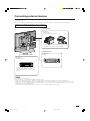
Connecting external devices
You can enjoy picture and sound by connecting a VCR or a home video game system to the terminals located on the
rear of the TV set.
When connecting an external device, turn off the power of the main unit first to prevent any possible damage.
Examples of external devices that can be connected
To AV-IN1 terminal
<Example>
• Camcorder
• Home video game system
* If your external device has an S-video terminal,
S-VIDEO connection is recommended.
To AV-IN2/3 terminal
To COMPONENT terminal
<Example>
• VCR
<Example>
• DVD Player, etc.
* If your external device has a component
terminal, COMPONENT connection is
recommended (you can view high-quality
pictures).
NOTE Note:
•
•
•
•
PC connection is not possible.
For the cable, use a commercially available audio/video cable.
Only connect audio/video signals to AV-IN1, 2 and 3 terminals. Connecting other signals may result in a malfunction.
AV-IN1 has 2 video input terminals: VIDEO and S-VIDEO. When you connect external devices to both terminals (and if you select
AV-IN1), you can only view pictures from the S-VIDEO terminal. To view the picture from the VIDEO terminal, do not connect any
external device to the S-VIDEO terminal.
• For more information about external device connections, see the manuals of your external devices.
31
lc22aa1h_en_p29_32
31
04.2.25, 3:01 PM
Connecting external devices
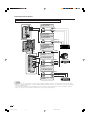
Connecting a VCR, DVD player or a camcorder (AV-IN1/2/3/COMPONENT)
To COMPONENT input
(Video) terminal
Y
PB
PR
To COMPONENT output
(Video) terminal
To COMPONENT input
(Audio) terminal
Audio (L)
Audio (R)
To COMPONENT output
(Audio) terminal
To S-VIDEO input
terminal
DVD Player
S-video
To S-video output
terminal
To AV-IN1 terminal
Video
Audio (L)
Audio (R)
Camcorder
VCR
To audio/video output
terminal
To AV-IN2/3 terminal
Video
Audio (L)
Audio (R)
To audio/video output
terminal
VCR
NOTE Note:
• If your VCR (or other external devices) has an S-video terminal, S-VIDEO connection is recommended. (Use an S-video cable.)
• When you connect external devices to both S-VIDEO and VIDEO terminals (and if you select AV-IN1), you can only view pictures
from the S-VIDEO terminal.
• You cannot view multiple or synthesized pictures by connecting two or more external devices. When connecting an external
device, use care to connect the video and audio cables to the corresponding terminals.
32
lc22aa1h_en_p29_32
32
04.2.25, 3:01 PM
Connecting external devices
Outputting video and audio (video output)
You can output video and audio signals from the TV set through the AV output terminals (AV-IN3/OUT).
• When using AV3 as an output terminal, select “Features” in the menu and set “AV-IN3/OUT” to “OUT”. (See page 19.)
• The factory setting for “AV-IN3/OUT” is “IN3”.
Connect to a VCR,
audio amplifier, etc.
NOTE Note:
• When using the Y, PB and PR input for COMPONENT, no video output will be made to the AV output terminal, but audio will be
made for connection to external audio systems.
33
lc22aa1h_en_p33_37
33
04.2.25, 3:02 PM
Troubleshooting
■ Before calling for repair service, check the following items for possible remedies to the encountered symptoms.
TV set
Problem
Sound
Picture
Picture
There is no
picture or
sound.
There is no
picture.
There is no
picture from
AV-IN 1/2.
Reference
Pages
Check item
• Make sure the AC adapter is properly inserted in the
power outlet.
• Reception other than those of broadcasting stations
can be considered.
• Make sure the input mode is set to TV.
• Make sure the MAIN POWER switch of the main unit is
on.
6
–
11
11
• Make sure the “Black level” is properly adjusted.
• Fluorescent lamp may have reached the end of
service life.
• Make sure the S-Video terminal is free of connections.
16
36
• Make sure the volume is not set to minimum.
• Make sure the sound is not set to mute.
12
12
• Make sure the antenna cable is properly connected.
• Bad reception can be considered.
6
–
• Make sure the antenna cable is properly connected.
• Bad reception can be considered.
6
–
• Check colour adjustment.
(NTSC mode)
16
• Check if “Brightness” is set to “Dark”.
• Check “Contrast” and “Black level” adjustment.
• Fluorescent lamp may have reached the end of
service life.
19
16
36
• Check if batteries in the remote control have sufficient
power.
• Make sure the remote sensor window is not under
strong fluorescent lighting.
• External influences such as lightning, static electricity,
etc., may cause improper operation. In this case,
operate the unit after first turning the power off the
LCD TV unit, or unplugging the AC cord and replugging it in after 1 or 2 minutes.
5
32
There is no
sound.
There is no
picture or
sound, just
noise.
Picture is not
clear.
Picture is light
or improperly
tinted.
The picture is
too dark.
Remote control does not work.
Unit cannot be operated.
34
lc22aa1h_en_p33_37
34
04.2.25, 3:02 PM
5
–
Troubleshooting
Antenna
Problem
The picture is
not sharp.
Check item
•
•
•
•
The reception may be weak.
The state of the broadcast may also be bad.
Make sure the antenna is facing the right direction.
Make sure the outside antenna is not disconnected.
The picture
moves.
The picture is
doubled or
tripled.
• Make sure the antenna is facing the right direction.
• There may be reflected electric waves from mountains or buildings.
The picture is
spotted.
• There may be interference from automobiles, trains, high voltage lines, neon
lights, etc.
• There may be interference between the antenna cable and power cable. Try
positioning them further apart.
There are
stripes on the
screen or
colours fade.
• Is the unit receiving interference from other devices?
Transmission antennas of radio broadcasting stations or amateur radios, and
cellular phones may also cause interference.
• Use the unit as far apart as possible from devices that may cause possible
interference.
■ Cautions regarding use in high and low temperature environments
• When the unit is used in a low temperature space (e.g. room, office), the picture may leave trails or appear slightly
delayed. This is not a malfunction, and the unit will recover when the temperature returns to normal.
• Do not leave the unit in a hot or cold location. Also, do not leave the unit in a location exposed to direct sunlight or
near a heater, as this may cause the cabinet to deform and the LCD panel to malfunction.
(Storage temperature: –20°C to +60°C)
35
lc22aa1h_en_p33_37
35
04.2.25, 3:02 PM
Specifications
Item
22" LCD COLOUR TV, Model: LC-22AA1H
LCD panel
22" Advanced Super View & BLACK TFT LCD
Number of dots
1,229,760 dots (854 g 480 g 3 dots)
Video colour system
PAL/SECAM/NTSC 3.58/NTSC 4.43/PAL 60
TV Function TV-Standard
CCIR (PAL: B/G, D/K, I SECAM: B/G, D/K NTSC: M)
Received
UHF
431.25 MHz - 863.25 MHz
Freq. range
VHF
45.25 MHz - 140.25 MHz, 147.25 MHz - 423.25 MHz
TV-Tuning System
STEREO/BILINGUAL
Auto Preset 99 ch
NICAM/A2 stereo
Brightness
430 cd/m2
Lamp life
60,000 hours
Viewing angles
H: 170° V: 170°
Audio amplifier
5.0 W g 2
Speakers
Terminals
ø 6 cm 2 pcs, ø 2.5 cm 2 pcs
Rear
Front
ANTENNA IN
UHF/VHF 75 q Din type
AV-IN 1
Composite video, S-video, Audio
AV-IN 2
Composite video, Audio
AV-IN 3/OUT
Composite video, Audio IN/Composite Video, Audio OUT
COMPONENT
Y, PB, PR/Audio
SP OUTPUT
External speaker (L and R)
Headphones
ø 3.5 mm jack (Front)
OSD language
English/Chinese/Arabic
Power requirement
DC 13 V, AC 110 V – 240 V, (50/60 Hz)
Power Consumption
59 W (1.4 W at Standby) : AC 110 – 240 V (with AC Adapter)
47 W : DC 13 V
Weight
10.0 kg w/o accessories
Accessories
Operation manual, Remote control, Battery (g 2), AC adapter, AC cord,
Cable clamps (g 2), Antenna cable
■ As a part of policy of continuous improvement, SHARP reserves the right to make design and specification changes for product
improvement without prior notice. The performance specification figures indicated are nominal values of production units. There
may be some deviations from these values in individual units.
36
lc22aa1h_en_p33_37
36
04.2.25, 3:02 PM
Dimensional drawings
Unit: mm
420
492.6
510
270.2
462
367
180.7
582
110
75.7
100
44
100
69
84
182.4
250
37
lc22aa1h_en_p33_37
37
04.2.25, 3:03 PM