1
Useful features
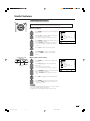
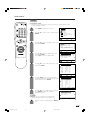
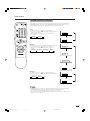
Selecting menu items
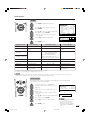
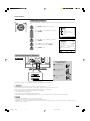
• The menus can be used to adjust the various settings of your LCD TV set.
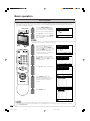
Select the desired menu item by following the steps below.
■ Using TV Menus
1
2
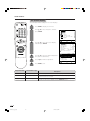
Press MENU on the remote control to display
the TV menu.
Press a/b to select the desired menu item.
• The cursor moves up or down.
• The cursor indicates the selected menu item.
3
Press ENTER to display the setting screen for
the selected menu item.
TV menu
Picture
Audio
Preset
Features
AV connections
First installation
Language
R
Back
M
End
• Press ENTER again to adjust the selected item.
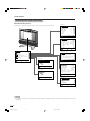
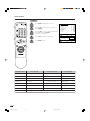
• See the next page for a table of the setting
screens.
4
5
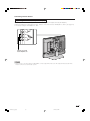
Control panel of the
main unit
VOL
VOL
(l)/(k)
CH
MENU TV/VIDEO
MAIN POWER
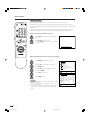
Press c/d to adjust the selected item.
Press RETURN to return to the previous
screen or MENU to return to the normal
screen.
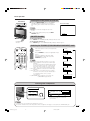
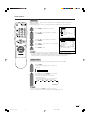
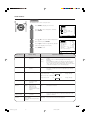
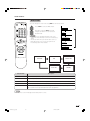
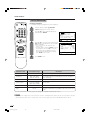
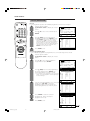
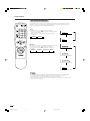
■ Using Direct Control Menu
1
Press MENU on the main unit to display the
TV menu.
MENU
CH
TV/VIDEO
(s)/(r)
2
Press CH (s)/(r) to select the desired
menu item.
• The cursor moves up or down.
• The cursor indicates the selected menu item.
3
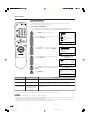
Press TV/VIDEO to display the setting screen
for the selected menu item.
TV menu
Picture
Audio
Preset
Features
AV connections
First installation
Language
R
Back
M
End
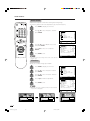
• Press TV/VIDEO again to adjust the selected
item.
4
Press VOL (l)/(k) to make the adjustment.
5
Press MENU to return to the previous screen.
• Each time MENU is pressed, you will return to
the previous screen.
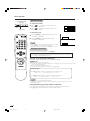
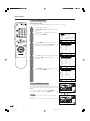
NOTE te:
• The items displayed differ depending on the setting conditions.
• The item selected is displayed in yellow.
• Settings most recently adjusted will be saved in memory.
13
lc22aa1h_en_p13_18
13
04.2.25, 2:56 PM