1
Designing Elements
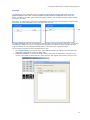
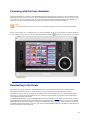
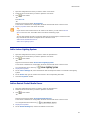
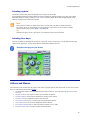
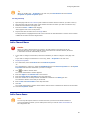
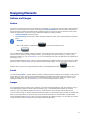
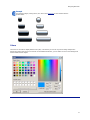
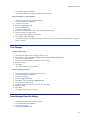
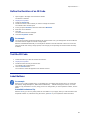
Display the Gallery
•
In the toolbar, click
-Or-
.
•
In the Tools menu, select Gallery.
-Or-
•
On the keyboard, press CTRL + L.
-Or-
•
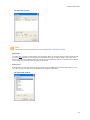
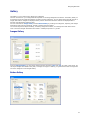
In the Button Properties, click the Gallery button on the Appearance tab.
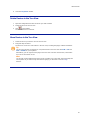
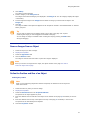
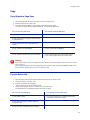
Use Transparancy
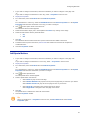
1.
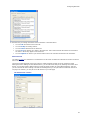
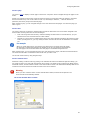
Display the properties.
2.
In the Properties window, select the Appearance tab.
3.
Insert a .PNG file.
4.
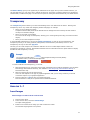
Select the Use Image Transparancy (PNG) radio button.
The image is automatically adjusted in the configuration file
Warning
You can only use Image transparency with Portable Network Graphics (extension .png).
Windows images (.bmp) do not support this feature and will show a white background in the
configuration file.
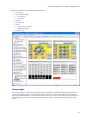
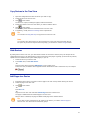
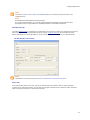
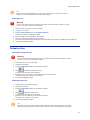
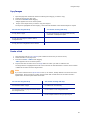
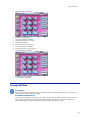
Design the System Page
1.
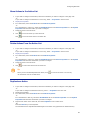
Open the System folder in the tree view.
2.
Double-click the System Page.
The System Page with the system items appears in the page view.
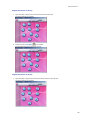
3.
Select the System Items on the System Page you want to delete and tap the Delete button on your
keyboard.
4.
In the Insert menu, select the Systems Items you want to add to the system page.
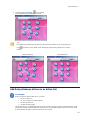
5.
Position the System Items on the System Page.
Note
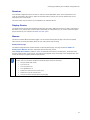
By default the top area of the pages of Pronto is reserved for the objects, e.g. buttons and
icons of the System page. If you place the system items elsewhere on the page, you might not
be able to see them. The buttons and icons of the system page might be hidden behind a
panel.
80