1
Tips & Tricks for ....
is still performing an action it will not receive the next IR code.
ProntoEdit Professional Tip
It is better that a macro contains delays between the different actions. In this case the TV and DVD
player then have the time to start up and to perform their actions.
1.
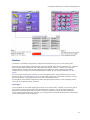
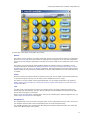
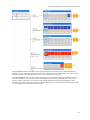
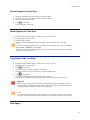
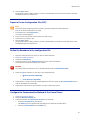
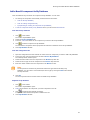
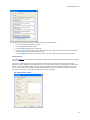
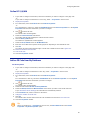
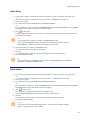
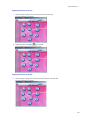
Open the Macros page in Page View and select the Watch DVD button.
The 'Watch DVD' button is selected.
2.
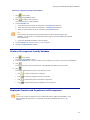
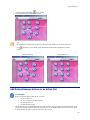
Display the Properties.
3.
Select the Actions tab.
4.
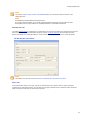
Select the IR code you want to add a delay to.
5.
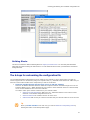
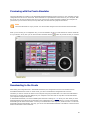
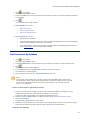
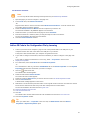
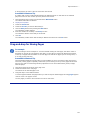
Click the Delay button while pressing the Shift button.
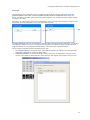
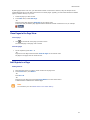
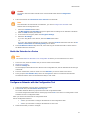
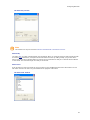
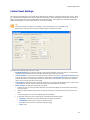
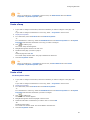
The 'Add Delay' window appears.
6.
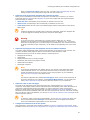
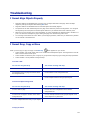
Enter the duration for the delay in the Delay text box.
The maximum duration of the delay is 32 seconds.
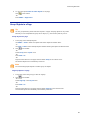
7.
Click OK.
The 'Add Delay' window closes and the delay is added to the action list of the On button.
Drag-and-drop for Moving Pages
For example
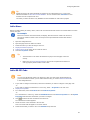
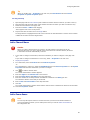
You are creating a XCF for a Philips TV. You have finished creating the code page, with all the codes of
the Philips TV, and the lay-out pages are also ready. You are about to create links between the buttons
on the lay-out pages and the buttons on the code page. But with all the pages open in the Page View, it
is not easy to drag-and-drop.`
ProntoEdit Professional Tip
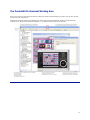
The ProntoEdit Professional now also offers you the possibility to move your pages in Page View (and in
Tree View). Moving pages is especially useful when you are working on two (or more) pages at the same
time and you want to execute drag-and-drop operations to move and create buttons, panels, images,
links and jumps.
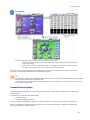
1.
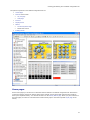
Open all the pages of the device in the page view.
2.
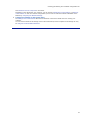
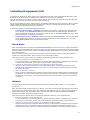
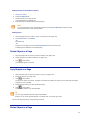
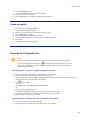
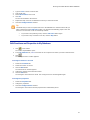
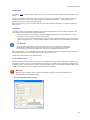
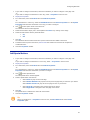
Select the title bar of the code page.
The title bar of the selected page is red.
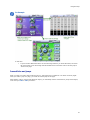
3.
Drag and drop it to the desired location.
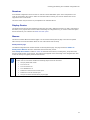
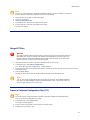
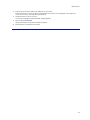
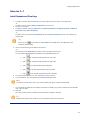
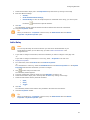
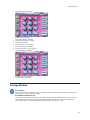
A red line appears between the pages where you want to drop the selected page and a tag pages appears
near the cursor. The page is moved.
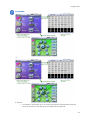
The two pages you want to work with are now next to each other.
102