1
O p e r a t i o n
v i a
D i s p l a y
a n d
4.2
K e y p a d
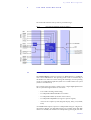
Working with the MAGIC TH2plus
In the following paragraphs basic functions like call out, dropping a connection, accepting a call etc. are described in detail.
4.2.1
Call out
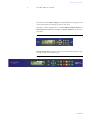
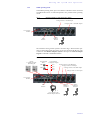
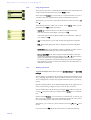
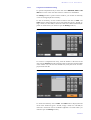
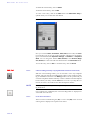
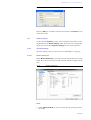
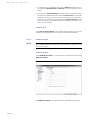
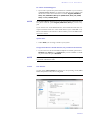
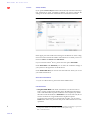
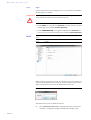
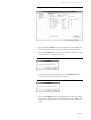
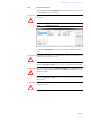
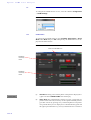
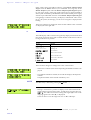
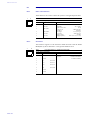
From the main menu just enter the phone number using the keys 0...9. After
the first numeral the input field for the phone number is displayed automatically.
Via the Delete softkey wrong entries can be corrected.
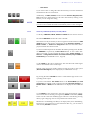
With the use of the cursor keys
and
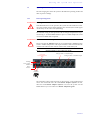
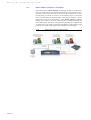
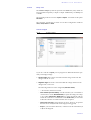
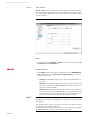
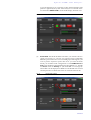
the Audio line ON AIR, HOLD and if configured - PRETALK can be selected. As soon as the called partner accepts
the call, the incoming signal is available on the selected Audio line.
After entering the number the connection is established by pressing the telephone receiver button .
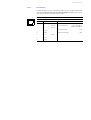
Via the OPTS (Options) softkey the dialled number can be saved in the phone
book or stored as Quick dial number.
4.2.2
Status display - Operation during a connection
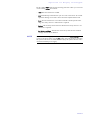
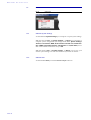
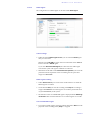
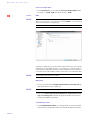
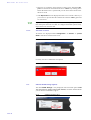
After pressing the telephone receiver button the subscriber is called and the
status window is displayed.
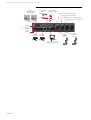
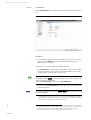
If you have more than one connection, the displayed window is split in two one for each available caller line.
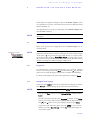
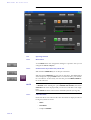
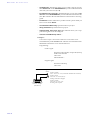
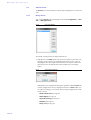
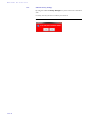
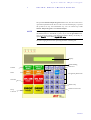
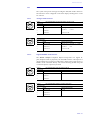
An outgoing call is signalised by CALL SETUP. The dialled number (respectively
the name if a phone book entry is selected) is displayed in the top line.
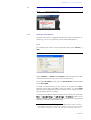
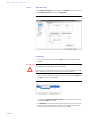
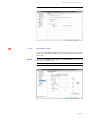
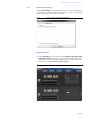
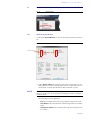
If the connection has been established, the level indication for the incoming
signal (RX) and the outgoing signal (TX) is displayed.
The currently selected Audio line (in our example >ON AIR) is displayed above
the level indication. The Audio line can be switched over by the use of the Line
softkey. You just need to press the Line softkey several times until the desired
Audio line is marked.
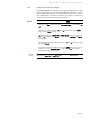
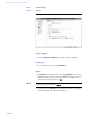
During the connection the volume of the caller signal can also be adjusted
manually. Via the cursor keys
and
the level can be increased or decreased. The current level is displayed in dB for a few seconds. Additionally,
a small arrow on the display for the received level (RX) marks the current level
for received calls.
TIP
Alternatively, you can activate the implemented Automatic Gain Control.
You reach the settings for the AGC activation directly via the key sequence:
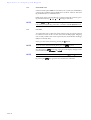
Menu 2 4 1.
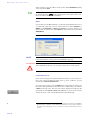
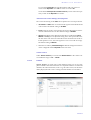
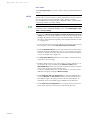
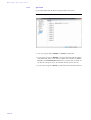
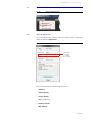
With the help of the OPTS (Options) softkey it is possible to save the displayed
number and to switch directly to the phone book.
PAGE 30