1
The following instructions will show you how to open a text file and a video file, format the text
into individual captions, and then time stamp each caption to synchronize the captions with the
video. After you are done, you should be able to produce a project file like demo.cca.
The Captioning Process
This section concentrates on formatting, positioning, and timing. We also discuss the three
display modes for captioning: Pop-on, Paint-on and Roll-up.
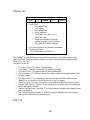
Caption Display Modes
There are three display modes for closed captions: Pop-on, Paint-on and Roll-up.
Roll-up captioning is the easiest to learn. Plus it takes less time to caption a video in the Roll-up
mode than in the Pop-on or Paint-On modes. If you want to caption a video quickly, use the Rollup mode. Roll-up captions are typically used for videos involving one person on the screen –
such as a lecture and training videos.
The Pop-on mode is normally used for movies, sit-coms, and videos when several people are on
the screen simultaneously. Pop-on captions will pop on the screen one caption at a time.
The Paint-on mode is rarely used. It is similar to the Roll-up mode. All three modes can be used
within the same captioning job.
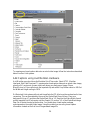
The Edit Window
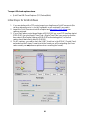
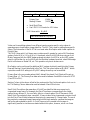
The Edit Window is the focal point of the activity in MacCaption. The Edit Window contains the
Movie Area and the Caption Text Area plus control and status information about the captions
currently being edited.
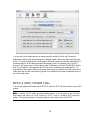
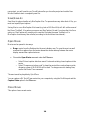
The Movie Area
The large rectangle on the left side of the edit window is the Movie Area. You can open a movie
by dragging it into the Movie Area and can edit captions by directly typing into the Movie Area.
You can drag various sized movies into the Movie Area but they must be capable of being
played back with a QuickTime software codec. MacCaption does not support hardware video
playback. The current movie time is displayed just above the right corner of the Movie Area. In
order to create a DV movie with closed captions the Movie Area must contain a standard DV
720x480 movie.
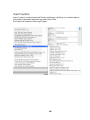
The buttons below the movie area can be used to play the movie at continuous play, at 1, 10 or
30 frames (= to 1 second) at a time (forward or reverse).
23