1
How to use your remote control
6
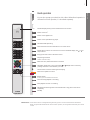
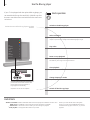
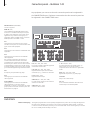
Beo5 operation
Your television can be operated with the Beo5 remote control.
TV
1
Soft button, touch screen to select*
Switch on a source or select a function
Back up through Beo5 displays
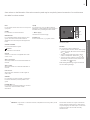
Bring up SCENE buttons, such as Zones or Speaker
Press again to return
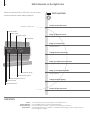
Living Room
TV
V.MEM
DTV
N.MUSIC
PC
DVD
RADIO
+
N.RADIO
CD
Bring up digits to select channel
Press again to return
STOP
Pause and stop playback or recording
PLAY
Start playback of a disc or recording
BACK
Move backwards through menus. Long press to exit menus completely
ST
AY
O
P
PL
2
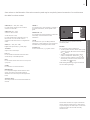
Select colour specific functions*
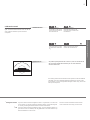
Press volume wheel next to the colour
Turn to adjust volume
To mute, turn quickly counter-clockwise
BA
CK
Centre button is used for selecting and accepting
Navigation button left, right, up and down – move in menus by pressing the
button in the direction you need
Rewind or wind, search backwards or forwards
Step through channels or recordings
Hold for continuous step
Standby
Important – for more information: www.bang-olufsen.com
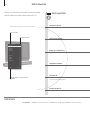
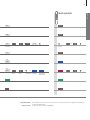
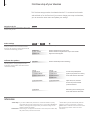
About buttons Light grey buttons indicate that you have to press a text in the display. Dark grey buttons indicate that you have to
press a hard button.
2*
Coloured buttons Press the wheel next to the colour to activate a coloured button.
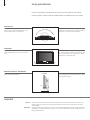
Actual zone Indicates the actual zone on Beo5 as it was named during the setup process.
Soft buttons on Beo5 Depending on the activated source, different soft buttons appear on the screen. Touch the screen to activate the
function.
1*