1
Giga-tronics 2400/2500 Microwave Synthesizer Series
Table 41
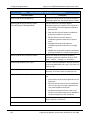
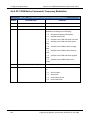
5. Automation Xpress
Install and Uninstall Automation Xpress , Continued
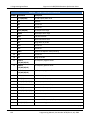
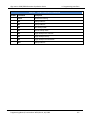
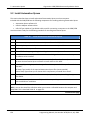
Step
Action
10.
Click Install USB.
11.
Follow the instructions on the computer display
12.
You must restart your computer for the USB driver to function. You can restart the computer
now, or later.
NOTE: The computer MUST be restarted before using the USB port and cable with the
2400/2500.
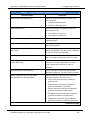
As an alternative, you can install the USB driver from the Automation Xpress directory on the computer:
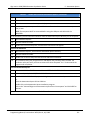
13.
Open Windows Explorer.
14.
Open the USB Driver folder.
15.
Double click on the file Setup.exe, and follow the instructions that appear.
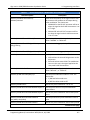
Remove the USB driver
16.
Open Windows Explorer, and locate the Automation Xpress directory.
17.
Open the USB Driver folder.
18.
Double-click on the file Setup.exe and start the USB Driver installation.
19.
The installation utility will recognize that a USB adapter has previously been installed. The
installation utility will ask if you want to remove the driver. Respond “Yes.” Continue with the
program until completion.
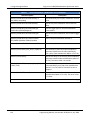
Uninstall Automation Xpress
20.
Click the WINDOWS > START button and choose SETTING > CONTROL PANEL.
21.
In the control panel, click ADD/REMOVE PROGRAMS.
22.
From the REMOVE PROGRAMS properties dialog box, select Automation Xpress and REMOVE.
Or:
Insert the Automation Xpress CD into CD drive.
Double click on the Automation Xpress Installation program.
Click on the "Uninstall Giga-tronics Automation Xpress from this computer" and click NEXT to
continue.
End of Procedure
Programming Manual, Part Number 34783, Rev A, July 2009
151