1
EMS 5000 FIREPOINT
16
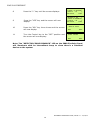
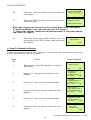
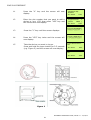
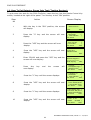
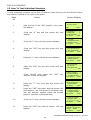
Press the “YES” key twice and the screen will
now display:
17
Press the “NO” key three times and the screen
will now display:
| Slot is
:IN USE |
>Logon is DISABLED<
| /\/\/\/\/\/\/\/\/\/\ |
01 FAULT
TOT 02
Default Device 125
ZONE 01 DEVICE 125
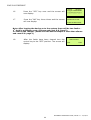
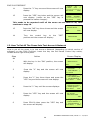
Note: After logging the device on to the system there will be two faults:1st fault is processor reset. (Silence and reset E.G. Page 5)
2nd fault is the Tamper. (Make sure the device tamper is clear then silence
and reset E.G. page 5)
18
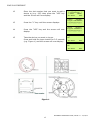
After the faults have been cleared, turn the
control key to the “OFF” position and the screen
will display:
Status Normal
Date
Time
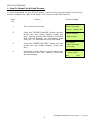
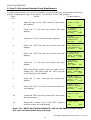
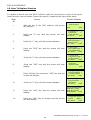
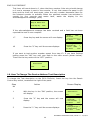
9. How To Remove A Device
To remove a device from the 5000 FirePoint, insert the key into the Panels Control Key
switch, located at the right of the panel.
Step
Action
Screen Display
No
1
2
3
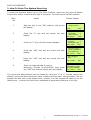
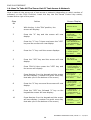
With the key in the “ON” position, the screen
will display:
Date
Time
Press the “0” key and the screen will now
display:
|***Options ****
|
>Passwords
<
| Time and Date
|
Yes =Select
Time
Press the “∇” key until the screen displays:
| Logging
|
> Fire System Opts <
| Remote Access
|
Yes = select
Time
4
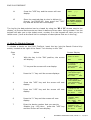
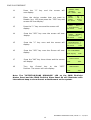
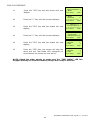
Press the “YES” key and the screen will now
display:
5
Press the “∇” key until the screen displays:
6
Panel in Access
Press the “YES” key and the screen will now
display:
|** Fire system **
|
> Dev. Disable /Test <
| Net. Disable /Test |
Yes= Select
Time
| System Mode
|
> Engineers Config <
| Printer Options
|
Yes= Select
Time
Enter Your PIN
For Access>
Then Press YES
Time
ENGINEERS OPERATING GUIDE, ISSUE 3.0 – 16/08/10
18