1
n
n
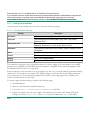
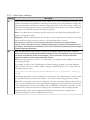
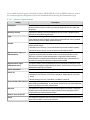
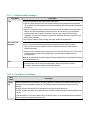
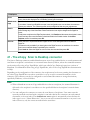
Enhancing security: If you want to keep track of the documents sent by each user, select the
Logon at runtime option on the Authentication tab when you configure the destination for your
connector profile. This forces users to log on each time they use the connector and allows the system
to keep a record of the documents sent by each user in the log file.
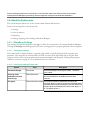
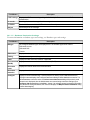
Controlling access: depending on the individual connectors, you can limit the accessible
destinations in a number of ways, including
n Configure connector profiles that allow access to a single destination, or to a limited set of
destinations.
n
n
n
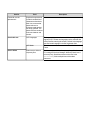
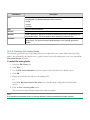
Disable the Allow subfolder navigation option if you do not want your users to have access
to the folders and sub-folders of the configured destination.
Disable the Enable navigation option if you do not want your users to have access to the
locations below the configured destination.
Select the Logon at runtime option at the Authentication tab when you configure the
destination for your connector profile.
n
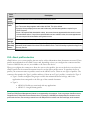
Configure connector profiles that only allow access to a single profile.
n
Configure connector profiles that allow access to a limited set of libraries.
n
Select Session logon and Runtime as the Authentication type when you configure the
scanning destination for your connector profile.
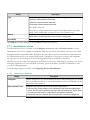
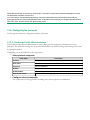
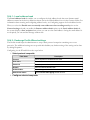
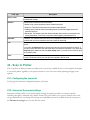
7.4- Configuring connectors
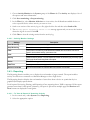
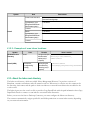
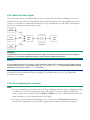
After installing and activating a connector, it must be configured for use. The instructions below provide a
general guideline for configuring the various connector profiles:
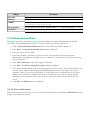
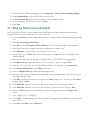
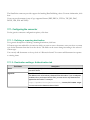
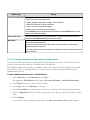
1. In the Administration Console, select the Connectors tab. The Configure connectors pane
displays a list of the installed connectors.
2. Select the connector name. The Configure connector and the Settings panes open.
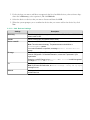
3. To create a new profile, click Save current profile as, enter a name for the profile, and then click
Save. To modify an existing profile, select the profile name from the list.
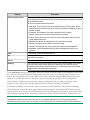
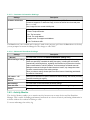
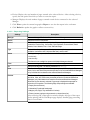
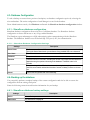
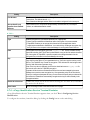
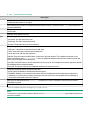
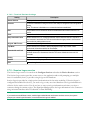
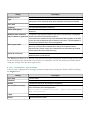
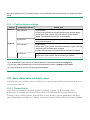
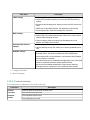
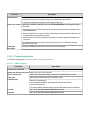
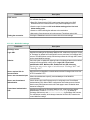
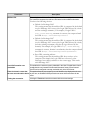
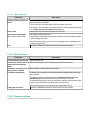
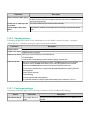
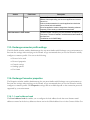
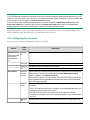
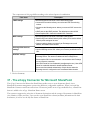
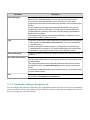
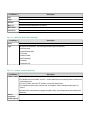
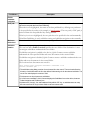
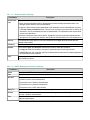
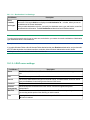
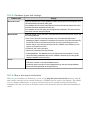
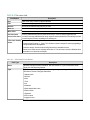
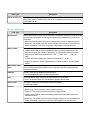
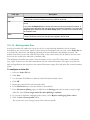
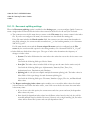
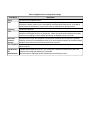
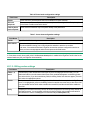
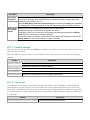
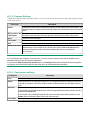
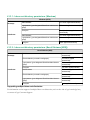
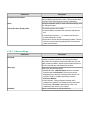
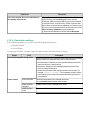
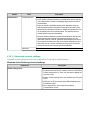
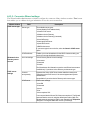
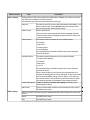
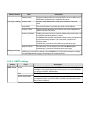
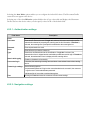
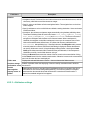
4. Use the Settings pane to specify the following settings:
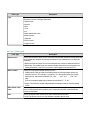
n Display settings
n
Document settings
n
Services settings
n
Scanner settings
n
Offline processing settings
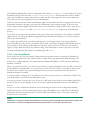
Note: