1
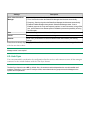
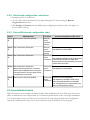
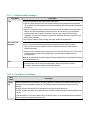
The ShareScan Manager has a built-in configuration file called RotationAngles.xml (and a similar one for the
ScanStation devices with the name ScanStationRotationAngles.xml). This describes the “factory default”
values for the different vendors and models to ensure that the output pages have the correct orientation.
These files are not to be changed by the user (administrator).
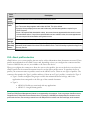
However, there can be new models and firmware updates that interfere with these settings and result in an
unexpected rotation of the page(s) with specific combinations of the scanner settings. To resolve these
issues without product updates and hotfixes, there is an override file to define rules for these special cases,
called UserRotationAngles.xml (and UserScanStationRotationAngles.xml, respectively for ScanStation
devices) .
If you have any issue with the orientation of the pages of the output document, contact Nuance technical
support where you will be provided with appropriate documentation and support to set up the exception
rules in the mentioned files.
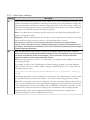
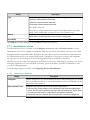
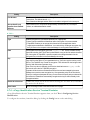
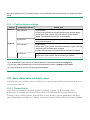
To enable some model/device specific control features, a model name needs to be assigned after the
successful addition of the device is completed. This is done on a dialog that appears automatically after the
device addition. In this dialog, model names are offered to select from, but you also have the option to
specify a unique name that can be any character string. This model name is used to properly set up some
model-specific behaviors like rotation of scanned pages and so on.
3.2.2 - Licensing Wizard
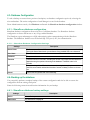
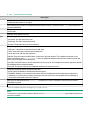
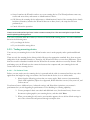
Every device that you use with Nuance Communications software requires a valid license. ShareScan 5.1
uses a digitally signed license file, which contains a unique license key generated by Manufacturing. The
license key is a unique ID that is associated with the hardware ID (HID) of the PC where the ShareScan
database is installed.
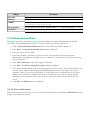
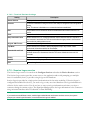
When you install a license key, you can activate the device’s license immediately after you add it to the local
license database (recommended), or you can activate it later. You have 30 days to activate the license after
the first device is added to the system. During activation, a license is associated with a PC where the
ShareScan database is installed.
It is also possible to designate a PC as a failover server that can be used in case of the failure of the PC that
runs the database server used for the ShareScan system.
You need to activate a license only once. If you try to add more devices than the total number specified in
the license file, the system displays an error. You need to purchase additional licenses for the additional
devices.
In case you need to reinstall the ShareScan system including the creation of the configuration database,
import the licenses you have activated previously on the same database server, and after the add/import,
perform the activation for these licenses. Until the HID of the database server is the same, activate the
licenses in case of a reinstall.
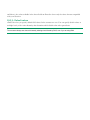
Notes:
ShareScan 5.1 licensing is different from ShareScan 4.x licensing, which was based on the association of a product key
with a device. Licensing is no longer associated with a particular device, but the HID of the SQL server.