1
[7]
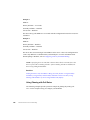
Save and exit the SCU.
[8]
Start or restart FIX/iFIX.
[9]
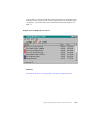
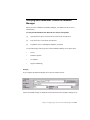
Start the SI7 Power Tool:
[a]
Select Programs from the Start menu.
[b]
Select Intellution FIX or iFIX from the Programs menu.
[c]
Select SI7 Power Tool from the pop-up menu that appears.
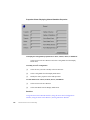
To configure a device with the SI7 I/O Driver Power Tool
[1]
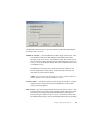
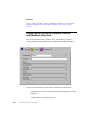
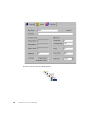
With the SI7 I/O Driver Power Tool open, select Add Channel from the Edit
menu.
[2]
Select a communication processor and a virtual field device from the
Communication Processor and Virtual Field Device fields, respectively.
[3]
Select the Enable check box to activate the channel.
[4]
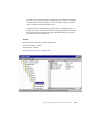
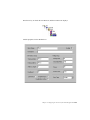
Select the channel that you added from the Tree Browser, and select Add
Device from the Edit menu.
[5]
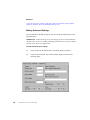
Enter the connection name of the device you want to communicate with and
change the device’s name to TESTPOINT.
[6]
Select the Enable check box to activate the device.
[7]
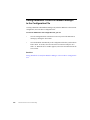
Select the device TESTPOINT from the Tree Browser and select Add
Datablock from the Edit menu.
[8]
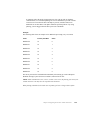
Enter the address M15 in the Starting Address field.
[9]
Select the Enable check box to activate the datablock.
[10]
Select Save from the File menu to save your driver configuration.
To add a link that accesses the configured device from the Intellution WorkSpace
208
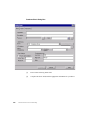
[1]
Start Database Manager.
[2]
Select Add from the Blocks menu.
Siemens Simatic S7 Driver Online Help