1
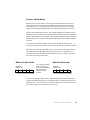
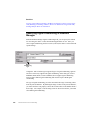
Welcome to the Siemens Simatic S7 (SI7) Power Tool. This program is your main
tool for configuring and troubleshooting the SI7 7.x driver.
This Online Help system provides conceptual information and instructions about the
SI7 Power Tool and is intended for use by anyone who wants to configure the driver
or use the Power Tool. This information system contains:
•
Supported hardware, software, and Siemens commands
•
Configuring the driver
•
Passing data from the driver to FIX
•
Accessing driver statistics
•
Troubleshooting the driver
•
Using the Power Tool
•
Optimizing the driver
To start using the SI7 information system, click the arrow button at the top of the
screen or make a selection from the contents or index.
Copyright
Proprietary Notice
The manual and software contain confidential information which represents trade secrets of GE Fanuc
International, Inc. and/or its suppliers, and may not be copied or disclosed except as provided in the license with
GE Fanuc International, Inc. The information in this manual is subject to change without notice and should not
be construed as a commitment by GE Fanuc International, Inc. GE Fanuc International, Inc. assumes no
responsibility for any errors that may be in this document.
©2003 GE Fanuc International, Inc. ALL RIGHTS RESERVED.
Trademarks
©2003 GE Fanuc International, Inc. All rights reserved. Microsoft is a registered trademark of Microsoft
Corporation. All other brands or names are property of their respective holders.
Version 7.21 – 10.02
Contents
1. First-time Users ............................................................................................................................... 1
What is an I/O Driver? .............................................................................................................. 1
What is a Channel? .................................................................................................................. 2
What is a Device?..................................................................................................................... 3
What is a Datablock?................................................................................................................ 3
What is a Timeout?................................................................................................................... 4
How Do Retries Work? ............................................................................................................. 5
What is Signal Conditioning?.................................................................................................... 6
What is an Overrun?................................................................................................................. 7
2. First-time 7.x Driver Users ............................................................................................................. 9
3. Accessing Information.................................................................................................................. 11
Using the Online Help Index ................................................................................................... 12
Using the Online Help Full-Text Search ................................................................................. 12
Using the Online Help Table of Contents ............................................................................... 15
Navigating the Online Help ..................................................................................................... 16
Using Online Help Buttons ..................................................................................................... 18
Determining Your Location within the Online Help ................................................................. 19
Printing from the Online Help ................................................................................................. 20
Copying and Pasting Text from the Online Help to Another Application .............................. 21
Using the Favorites Tab
...................................................................................................... 22
© 2002 Intellution®, Inc. All Rights Reserved.
Contents
iii
4. How Do I? ....................................................................................................................................... 23
Choosing Poll Rates ............................................................................................................... 24
Eliminating Excess Datablocks............................................................................................... 24
Setting up for Remote Configuration and Control................................................................... 26
Preventing the Driver from Writing to the Hardware ............................................................... 26
Creating Reports of my Driver Configuration Files ................................................................. 28
Saving Datablocks Created from Database Manager to the I/O Driver Configuration File..... 28
Opening the SI7 I/O Driver Power Tool from Database Manager .......................................... 28
Configuring a Driver for Demand Polling ................................................................................ 29
Polling the Device only when Data is Being Accessed........................................................... 30
Setting up Security to use the I/O Server Remotely ............................................................... 30
Setting up Security When the Driver Runs as a Service ........................................................ 32
Forcing a Switch Between Primary and Back-up Channels or Devices using FIX or iFIX .... 34
Enabling or Disabling Channels, Devices or Datablocks using FIX or iFIX ............................ 34
Sending Multiple Writes to a Datablock .................................................................................. 35
Running the Driver in Simulation Mode ................................................................................. 36
5. About the SI7 I/O Driver ................................................................................................................ 37
How the I/O Driver Works ....................................................................................................... 38
The SI7 I/O Driver Features ................................................................................................... 43
Feature: Using OLE for Process Control (OPC) ...................................................... 44
Feature: Creating Datablocks Automatically in Database Manager ....................... 46
Feature: Configuring the Driver from Custom COM/OLE Automation Applications . 47
Feature: Using the SI7 I/O Driver Graphical User Interface ..................................... 48
Feature: Remote Control and Configuration............................................................. 49
Feature: Using Exception-Based Processing ........................................................... 51
Feature: Using Secondary Poll Rates ...................................................................... 52
Feature: Phasing Poll Rates ..................................................................................... 52
Feature: Enabling or Disabling Individual Channels, Devices, and Datablocks ...... 52
Feature: QuickFail Logic........................................................................................... 53
iv
Siemens Simatic S7 Driver Online Help
© 2002 Intellution®, Inc. All Rights Reserved.
Feature: Using Simulation Mode .............................................................................. 55
Feature: Using Latched Data.................................................................................... 56
Feature: Time/Date Stamp for Data and Alarms ...................................................... 57
Feature: Running as a Windows Service.................................................................. 57
Feature: Block Writes ............................................................................................... 61
Feature: Advanced Diagnostics................................................................................ 62
Feature: Digital Pictures of Sample Configurations .................................................. 63
Supported Hardware ............................................................................................................ 64
Supported Communication Modules ...................................................................................... 65
Supported Interface Cards ..................................................................................................... 66
Supported Protocols ............................................................................................................... 66
Required Software .................................................................................................................. 66
6. Hardware Setup ............................................................................................................................. 69
Overview: Configuring the SI7 Driver .................................................................................... 70
Setting up Your Network Interface Cards ............................................................................... 71
Cabling ................................................................................................................................... 71
Configuring the Hardware....................................................................................................... 74
Programming the Hardware ................................................................................................... 75
Upgrading to SI7 7.x from S_7. 6.x ........................................................................................ 75
Differences Between 6.x and 7.x Drivers................................................................... 77
Exporting a S_7 6.x Driver Configuration ................................................................. 79
Importing an S_7 6.x Driver Configuration into the SI7 Power Tool ........................ 79
Modifying the Process Database ............................................................................... 80
Migrating from SL4 7.x to SI7 7.x ........................................................................................... 81
Choosing a Method for Configuring Your Driver..................................................................... 82
7. Sample Configurations ................................................................................................................. 83
Profibus to S7 300 .................................................................................................................. 83
Profibus to S7 400 .................................................................................................................. 88
Industrial Ethernet to S7 300 .................................................................................................. 93
© 2002 Intellution®, Inc. All Rights Reserved.
Contents
v
Industrial Ethernet to S7 400 .................................................................................................. 97
Using the MPI Port ............................................................................................................... 101
Using SIMATIC NET v6.0..................................................................................................... 106
8. Using the Power Tool.................................................................................................................. 109
Understanding the Power Tool’s Graphic Interface.............................................................. 111
Using the Power Tool’s Browser ............................................................................. 111
Using the Power Tool’s Properties Viewer ............................................................. 113
Using the Power Tool’s Main Toolbar ..................................................................... 115
Using the Power Tool’s Run-time Toolbar .............................................................. 115
Using the Power Tool’s Configuration Toolbar ....................................................... 117
Using Shortcut Keys ................................................................................................ 118
The Status Bar ........................................................................................................ 119
Setting up the Power Tool’s Environment ............................................................................ 119
Setting the Statistics Refresh Rate ......................................................................... 120
Setting Defaults for I/O Driver Configuration File Name and Path .......................... 121
Making Advanced Settings ..................................................................................... 122
Setting Up the SI7 I/O Server Connection ........................................................................... 123
Setting the I/O Server for Automatic Connection.................................................................. 125
Editing the Power Tool’s INI File ......................................................................................... 126
9. Configuring the I/O Driver with the Power Tool........................................................................ 129
Adding and Modifying Channels ........................................................................................... 130
Adding and Modifying Devices ............................................................................................. 130
Understanding Device Timing Properties: Reply Timeout, Retry, and Delay Time 131
Adding and Modifying Datablocks ........................................................................................ 133
Setting Datablock Address Properties: Start, End, and Length .............................. 134
Reading and Writing Text Strings ............................................................................ 137
Reading and Writing Digital Values ......................................................................... 139
Understanding S7 Hardware Memory Organization ................................................ 139
Understanding Data Types .................................................................................... 142
vi
Siemens Simatic S7 Driver Online Help
© 2002 Intellution®, Inc. All Rights Reserved.
Understanding Datablock Timing Properties: Rate, Phase, and Access Time....... 144
Using Primary and Secondary Poll Rates with Access Time................................... 146
Using Phasing with Poll Rates................................................................................. 148
Setting Default Values for Channels, Devices, and Datablock Properties ........................... 150
Using I/O Driver Report Files................................................................................................ 152
10. Configuring the I/O Driver from FIX/iFIX Applications ........................................................... 157
Overview: Creating Datablocks Inside FIX/iFIX Applications ............................................. 157
Entering Driver Information in Database Manager ............................................................... 159
Specifying the I/O Driver in Database Manager .................................................................. 161
Specifying I/O Addresses in Database Manager ................................................................. 162
Specifying Signal Conditioning in Database Manager ......................................................... 166
NONE Signal Conditioning ..................................................................................... 167
12BN Signal Conditioning........................................................................................ 168
12AL Signal Conditioning ........................................................................................ 169
15BN Signal Conditioning ....................................................................................... 171
15AL Signal Conditioning ....................................................................................... 172
LIN Signal Conditioning .......................................................................................... 174
3BCD Signal Conditioning ...................................................................................... 176
4BCD Signal Conditioning ...................................................................................... 178
13BN Signal Conditioning ....................................................................................... 179
13AL Signal Conditioning ....................................................................................... 181
8BN Signal Conditioning ......................................................................................... 182
8AL Signal Conditioning ......................................................................................... 183
S5TI and TBCD Signal Conditioning ...................................................................... 185
S5CO Signal Conditioning ....................................................................................... 187
Specifying Hardware Options in Database Manager ........................................................... 188
Opening the Power Tool from Database Manager ............................................................... 190
Preparing to Create Datablocks Automatically in Database Manager.................................. 190
Verifying New Datablocks Created in Database Manager ................................................... 191
© 2002 Intellution®, Inc. All Rights Reserved.
Contents
vii
Saving Datablocks Created in Database Manager to the Configuration File ....................... 194
11. Running the I/O Driver .............................................................................................................. 195
Starting and Stopping the I/O Driver..................................................................................... 195
Starting the I/O Driver from the Power Tool............................................................. 195
Starting the I/O Driver from the SCU ....................................................................... 196
Setting the I/O Driver for Automatic Startup in FIX/iFIX .......................................... 198
Starting the I/O Driver Manually from Mission Control............................................. 200
Stopping the I/O Driver ............................................................................................ 201
Viewing Statistics.................................................................................................................. 202
Viewing I/O Driver Statistics .................................................................................... 202
Viewing Channel Statistics ...................................................................................... 202
Viewing Device Statistics......................................................................................... 203
Viewing Datablock Statistics.................................................................................... 203
Understanding Overruns ....................................................................................... 204
Understanding Data Quality .................................................................................... 206
12. Checking Communication ........................................................................................................ 207
13. Optimizing Your System ........................................................................................................... 211
Optimizing Message Lengths ............................................................................................... 211
Decreasing unnecessary stress on your system .................................................................. 213
14. Troubleshooting ........................................................................................................................ 215
The Most Common I/O Driver Problems .............................................................................. 216
Tools for Troubleshooting the SI7 I/O Driver ....................................................................... 216
Answers to Common Questions ........................................................................................... 220
The driver does not load .......................................................................................... 221
The driver loads but does not start polling............................................................... 222
The driver does not communicate to any device ..................................................... 223
The driver is not transmitting messages .................................................................. 224
The driver transmits messages but does not receive messages............................. 225
viii
Siemens Simatic S7 Driver Online Help
© 2002 Intellution®, Inc. All Rights Reserved.
The driver communicates to some but not all of my devices ................................... 226
The driver communicates to some but not all the datablocks for a device .............. 226
I cannot connect to a remote server ........................................................................ 227
I am receiving old data in my display....................................................................... 228
I cannot see the driver in the Database Manager.................................................... 229
I am receiving overruns .......................................................................................... 230
My message rate is slow ......................................................................................... 230
My driver stops running after a period of time ......................................................... 231
I do not receive driver messages in Alarm History .................................................. 231
Automatic driver startup does not work ................................................................... 232
I have a high timeout count .................................................................................... 234
Why am I receiving the error Invalid Address when I create a block in
Database Manager? ................................................................................................ 234
Why do I receive the message Ran Out of Memory when I try to select
a new virtual field device? ....................................................................................... 235
Using the Datascope ........................................................................................................... 235
Using the Event Viewer ........................................................................................................ 236
Error Codes ......................................................................................................................... 238
Getting Technical Support .................................................................................................... 239
15. Creating Custom Client Applications ...................................................................................... 241
Creating a Custom Application Using Microsoft Visual Basic............................................... 242
Creating a Custom Application Using C or C++ ................................................................... 242
Accessing SI7 Server Data Using an OPC Client ................................................................ 243
16. Glossary ..................................................................................................................................... 245
© 2002 Intellution®, Inc. All Rights Reserved.
Contents
ix
x
Siemens Simatic S7 Driver Online Help
© 2002 Intellution®, Inc. All Rights Reserved.
1. First-time Users
Welcome! This section of the SI7 manual provides an introduction to 7.x drivers and
OPC servers. It is designed to teach you the basic concepts of Intellution drivers and
OPC servers. When you finish learning about these concepts, you can learn how to
get started with the SI7 7.x driver.
Use the following links to learn about driver concepts:
•
What is an I/O Driver?
•
What is a Channel?
•
What is a Device?
•
What is a Datablock?
•
What is a Timeout?
•
How Do Retries Work?
•
What is Signal Conditioning?
•
What is an Overrun?
What is an I/O Driver?
An I/O driver is software that reads data from your process hardware and makes it
available to your Human-Machine Interface (HMI) software, your historical data
collection software, or your OPC client. By accomplishing this task, I/O drivers
enable you to display process data to your operators.
In order for the driver to communicate properly, you must configure it. Typically,
you configure a driver with a configuration program that allows you to define
information about how your process hardware communicates and the specific data
you want to display to your operators.
Chapter 1. First-time Users
1
For example, if your process hardware communicates using Industrial Ethernet or
Profibus, you may need to specify the device’s IP address and the specific location
(address) in the device you want to read data from.
Once you configure the driver with this information, it reads the data from the device
and stores it so that your HMI software can access it.
The term I/O Server is sometimes used in place of I/O driver because 7.x drivers
consists of a server and a client. The server does the polling, loading, saving, and
manipulating of driver data.
See Also
Accessing Information | About the SI7 I/O Driver | The SI7 I/O Driver Features |
Overview: Configuring the SI7 Driver
What is a Channel?
A channel is a communication mechanism between your I/O driver and your process
hardware. You define a channel by entering communication settings such as the
network interface card (for an Ethernet driver), the baud rate, parity, stop bits, data
bits, and flow control values (for a serial driver), or vendor-specific information (for
drivers that send data to a third-party API) in your driver configuration program. The
driver uses these settings to determine how to communicate with your process
hardware.
For example, if your process hardware communicates using Profibus, you must select
the communication processor (CP) and the virtual field device (VFD) from your
driver configuration program. If you accidentally select the wrong interface card, the
driver will not communicate with your process hardware.
Intellution drivers allow you to configure multiple channels (paths) to your process
hardware. This feature allows you to set up different communication paths for your
hardware. For example, suppose your SCADA server has multiple network interface
cards. You can configure one channel to use one interface card and the second
channel to communicate through a second card.
2
Siemens Simatic S7 Driver Online Help
What is a Device?
A device is a programmable logic controller (PLC), a remote terminal unit (RTU), or
some other hardware that monitors, collects, or controls a portion of your
manufacturing process. For example, a device might be a S7-400 PLC.
In order for a driver to communicate with a device, you must enter device information
in your driver configuration. Typically, this information includes the connection you
want to use for the specified communication processor and virtual field device.
What is a Datablock?
A datablock is the specific data you want to access in a device. You can define the
data you want to access by entering the range of memory addresses the device uses to
store the data and the type of data you want to read, (for example, integer, ASCII, or
float). The driver needs the data type to store incoming data correctly for your
human-machine interface (HMI) software.
The driver also needs the following time values:
Poll rate — how frequently to read data.
Access time — how long the driver reads the data from the device and updates the
poll record/datablock when there is no new request from your HMI software.
Chapter 1. First-time Users
3
Example
Suppose you want to read eight integer values from an S7 300 PLC. The device stores these
values starting with address DB3,1. You want to read the data every 5 seconds and update the
datablock for 15 seconds after requests stop.
Using this information, you specify the following for your datablock:
Start address: DB3,1
End address: DB3,8
Data type: BYTE
Poll rate: 5 seconds
Access time: 15 seconds
The datablock reads the following location in the device:
DB3,0
DB3,1
DB3,2
DB3,3
DB3,4
DB3,5
DB3,6
DB3,7
DB3,8
DB3,9
What is a Timeout?
A timeout is the length of time the driver waits for a response from the process
hardware. When the driver does not receive a response within this interval, it times
out (gives up) and re-sends the data request.
You specify the driver’s timeout in the Reply Timeout field. Be sure you enter a time
that is adequate for the process hardware to respond.
For example, if it takes your hardware 1 second to receive data, 1 second to process it,
and 1 second to send the response, set the driver’s timeout value to 3 seconds or more.
Likewise, if you find that the driver frequently times out, increase the timeout interval
to allow your hardware more time to process its data requests.
In most 7.x drivers, the reply timeout is a device property.
4
Siemens Simatic S7 Driver Online Help
In the SI7 driver, you also need to configure a SIMATIC NET API timeout value
called the global timeout. Like the driver’s reply timeout, the global timeout expires
whenever the process hardware has not responded to a request.
The difference between the two timeouts is that the reply timeout is used by the SI7
driver and the global timeout is not. The global timeout is SIMATIC NET’s message
timeout. For more information about global timeouts, refer to your Siemens
documentation.
NOTE: Global timeouts for Profibus and Industrial Ethernet do not behave
consistently. For this reason, we recommend that you configure the reply timeout to
be longer than the global timeout.
See Also
Understanding Device Timing Properties: Reply Timeout, Retry, and Delay Time
How Do Retries Work?
Whenever a driver times out, it re-sends its request to the process hardware if it can.
The Siemens’ communication software, SIMATIC NET, determines whether or not it
is able to send another request. If it is, the retry is sent. The process of timing out and
re-sending a request for data continues until the driver receives the data or the number
of retries is exhausted.
The number of retries defines the number of times you want to re-send (retry) a
request for data before assuming the device is unavailable. The driver re-sends data
after each timeout unless:
•
The driver exhausts all retries.
•
SIMATIC NET determines it is not able to re-send data.
Once either of these conditions occurs, the driver does not send another request for
that datablock’s data until the delay time expires. This time interval defines how long
the driver waits before requesting data again.
You can specify the number of retries in the Retries field of your driver configuration
program. In most 7.x drivers, it is a device property.
Chapter 1. First-time Users
5
See Also
Understanding Device Timing Properties: Reply Timeout, Retry, and Delay Time
What is Signal Conditioning?
Signal conditioning is a method of scaling raw data into a range that is meaningful to
your operators. For example, a 4 to 20 milliampere sensor that returns a value of 819
to 4095 is typically meaningless to operators. However, scaling the value to a
percentage or a milliampere range is much more useful.
You can select the type of signal conditioning to use when you configure a database
block. Once specified, the driver scales (converts) the data to a value within the
specified range.
Example
Suppose you want to scale a pressure to a percentage. The pressure ranges from 0 to 500
pounds per square inch (psi). These values are transmitted as voltage ranging from 0 to 10 and
then digitized to a range of 0 to 4095.
To scale the pressure, you select the following values in your database block:
•
Signal conditioning: 12BN (12-bit binary)
•
EGU range: 0 to 100
12BN is selected because this type of signal conditioning accepts values in the range of 0 to
4095. By matching the range of values in the process hardware, you ensure the driver can
properly convert the raw data values to the database block’s EGU range. By entering a range
of 0 to 100, you ensure the driver scales the incoming value to a percentage you can display.
If you select a type of signal conditioning that does not have the same range of values as your
process hardware, the driver erroneously scales the data. For example, if you select 8BN,
values over 255 are scaled incorrectly because the most significant bit is ignored.
Consequently, a value of 256 is treated as 0.
However, you can always select no signal conditioning. This option lets you display the raw
values to your operators. To use this feature, the database block’s EGU range must match the
incoming range of values in the process hardware, which is 0 to 4095 in this example.
6
Siemens Simatic S7 Driver Online Help
Signal conditioning is driver-dependent. Consequently, one driver may support one
type of scaling, but not another.
See Also
Specifying Signal Conditioning in Database Manager
What is an Overrun?
In 7.x drivers, an overrun occurs when the driver attempts to read more data from the
process hardware than it can update within the specified poll rate. A high number of
overruns indicates your driver is poorly configured for its environment and, as a
result, your data is not updating at the specified poll rate.
Any of the following conditions can cause overruns:
•
Bandwidth saturation on your network.
•
Turnaround delays in the PLC.
•
Overflowing message queues in the process hardware.
To understand how overruns occur, you need a some knowledge about how the driver
reads data. When a 7.x driver requires data for a datablock, it places a read request
into its read queue. When the driver processes this request, it sends a message to the
process hardware for data.
The driver reads (polls) each datablock according to its poll rate. Each time the poll
rate expires, the driver creates a read request for that datablock. If a read request for a
datablock is still pending in the read queue or the datablock is waiting for a response
when the driver issues another read request, an overrun occurs. The driver discards
the second message since a request for the same data is already pending.
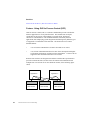
Example
Poll Rate = 1 second
Assume that at this setting, the driver can poll 5 datablocks per second. If you configure 10
datablocks, all 10 try to poll at the same time. In the first second, the first 5 datablocks poll,
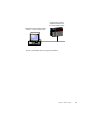
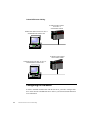
leaving 6 to 10 still pending. The following figure shows what happens next.
Chapter 1. First-time Users
7
Datablocks 1 to 10
Sent to process hardware
1 second
2 seconds
Discarded and
marked as overruns
Sent to process hardware
Placed in the read queue
3 seconds
Sent to process hardware
Placed in the read queue
Discarded and
marked as overruns
4 seconds
Discarded and
marked as overruns
Sent to process hardware
Placed in the read queue
8
Siemens Simatic S7 Driver Online Help
2. First-time 7.x Driver Users
The following links provide an introduction to 7.x I/O drivers and are intended for
users migrating from the S_7 version 6.x driver and first-time Intellution driver users.
To learn about the SI7 7.x driver, we provide seven lessons that give you an overview
of driver architecture and features. In addition, there is one lesson specifically for
upgrading from a version 6.x driver. Using these lessons, you can become familiar
with 7.x drivers and OPC servers before you start using them.
[1]
Accessing Information
[2]
Using Shortcut Keys
[3]
About the SI7 I/O Driver
[4]
Upgrading to SI7 7.x from S_7. 6.x
[5]
Overview: Configuring the SI7 Driver
[6]
Tools for Troubleshooting the SI7 I/O Driver
[7]
Optimizing Your System
To display a lesson, click its link.
See Also
The SI7 I/O Driver Features | Differences Between 6.x and 7.x Drivers
Chapter 2. First-time 7.x Driver Users
9
10
Siemens Simatic S7 Driver Online Help
3. Accessing Information
You can access the information system using one of the following methods:
•
Selecting Help Topics from the Power Tool’s Help menu.
•
Selecting SI7 Help from the Start menu as follows:
[1]
Select Programs from the Start menu.
[2]
Select Intellution FIX or iFIX from the Programs menu.
[3]
Select SI7 Help from the pop-up menu that appears.
To access the online Help, select the field or control you want information on and
press the F1 key. The topic that appears is specific to the selected field or control and
typically explains what happens when you enter information in the field, which
entries are valid, and provides examples of valid entries when applicable.
To learn more about how to use the SI7 information system, click one of the
following links:
•
Using the Online Help Index
•
Using the Online Help Full-Text Search
•
Using the Online Help Table of Contents
•
Navigating the Online Help
•
Using Online Help Buttons
•
Determining Your Location within the Online Help
•
Printing from the Online Help
•
Copying and Pasting Text from the Online Help to Another Application
•
Using the Favorites Tab
Chapter 3. Accessing Information
11
Using the Online Help Index
The SI7 Online Help provides an index to all conceptual and reference topics. This
index is similar to the index in a printed book. You can access the index from the
Index tab. From this tab, you can enter a keyword and display index entries that
match or begin with the keyword. Double-click an index entry to view a topic or list
of topics from which to choose.
To find a topic using the index
[1]
Select the Index tab.
[2]
Type or select the keyword you want information on. As you enter the word,
the keyword list scrolls to display the index entry that begins with or matches
the keyword you entered.
[3]
Double-click the index entry to display the associated topic.
If the index entry is associated with more than one topic, a list box appears
displaying all the topics indexed under the word you entered. Double-click a
topic from the list box to display it.
See Also
Using the Online Help Full-Text Search | Using the Online Help Table of Contents |
Navigating the Online Help | Determining Your Location within the Online Help
Using the Online Help Full-Text Search
If you can’t find the information you’re looking for in the index, you can use the fulltext search capability. A full-text search finds every occurrence of a selected word or
phrase anywhere within the SI7 Online Help. You can access the full-text search
from the Search tab. Using this tab, you can enter a search string. A list of all topics
that contain that search string appears.
12
Siemens Simatic S7 Driver Online Help
To find a topic using the full-text search
[1]
Select Help Topics from the Power Tool’s Help menu to display the SI7
Online Help.
[2]
Select the Search tab.
[3]
Enter the word or phrase you want to locate. For more information, refer to
Narrowing Your Search.
Once you enter a search string, a list of topics appears in the list box
underneath the Search field.
[4]
Double-click the topic you want to display.
Narrowing Your Search
You can search for a word in the SI7 Online Help and obtain a list of all topics in
which that word appears. If you enter more than one word, every topic that includes
all of the search words appears in the topics list. Enclosing multiple words in quotes
generates a list of topics in which that phrase appears.
For example, if you enter the search string:
database blocks
in the Search tab, the topics list includes all topics in which both words appear. The
words can appear in any order anywhere in the topic text.
If you enter:
“database blocks”
enclosed in quotes, the topics list only includes those topics in which the exact phrase
(or slight variations, such as database block) appears in the topic text.
Searching with Wildcard Expressions
You can use the * symbol to search for multiple unknown characters in a word or
phrase. You can also use the ? symbol for a single unknown character in a search.
For example, the entry data* would display database and datablock. The entry ??BN
would display topics for 12BN, 13BN, and 15BN signal conditioning.
Chapter 3. Accessing Information
13
Defining Search Terms
The AND, OR, NOT, and NEAR operators enable you to precisely define your search
by creating a relationship between search terms.
Using Nested Expressions
A nested expression is an expression included inside another expression. For
example, in the query “control AND (address OR system)”, the phrase “address OR
system” is nested (included inside of) the larger set of search terms.
Nested expressions allow you to create complex searches for information. For
example, “control AND ((address OR system) NEAR software)” finds topics
containing the word “control” along with the words “address” and “software” close
together, or containing “control” along with the words “system” and “software” close
together.
The basic rules for searching Help topics using nested expressions are:
•
You can use parentheses to nest expressions within a query. The expressions
in parentheses are evaluated before the rest of the query.
•
If a query does not contain a nested expression, it is evaluated from left to
right. For example: “Control NOT address OR system” finds topics
containing the word “control” without the word “address,” or topics
containing the word “system.” Conversely, “control NOT (address OR
system)” finds topics containing the word “control” without either of the
words “address” or “system.”
•
You cannot nest expressions more than five levels deep.
Using Other Searching Methods
The following options available for searches at the bottom of the search window:
Search titles only – Allows you to search for words in the titles of HTML files.
14
Siemens Simatic S7 Driver Online Help
Match similar words – Enables you to include minor grammatical variations for the
phrase you search. For example, a search on the word “add” will find “add,”
“adds,” and “added.” This feature only locates variations of the word with
common suffixes. For example, a search on the word “add” will find “added,”
but it will not find “additive.”
Search previous results – Enables you to narrow a search that results in too many
topics found. You can search through your results list from a previous search
by using this option. If you want to search through all the files in a help
system, this check box must be cleared.
See Also
Using the Online Help Index | Using the Online Help Table of Contents | Navigating
the Online Help | Determining Your Location within the Online Help
Using the Online Help Table of Contents
The table of contents provides an overview of what’s available in the SI7 Online
Help. It displays the titles of each topic and lets you navigate through the book. You
can access the table of contents from the Contents tab. Using this tab, you can:
•
Double-click the book title to expand the table of contents and display section
titles in the book. The closed book icon changes to an open book icon.
•
Click the plus (+) icon to the left of a section title to display subsection titles
within that section. A chapter or section is completely expanded when the
minus (-) icon appears to the left of the title.
•
Click a topic title to display that topic in the right frame.
You can fully expand the table of contents by right-clicking anywhere within the left
frame and selecting Open All from the menu. Likewise, you can fully collapse the
table of contents by right-clicking the left frame and selecting Close All from the
menu.
Chapter 3. Accessing Information
15
To use the Table of Contents
[1]
Select Help Topics from the Power Tool’s Help menu to display the SI7
Online Help.
[2]
Select the Contents tab.
[3]
To open a book, double-click it.
[4]
Click the topic you want to read.
[5]
To close a book, double-click it again.
TIP: You can use the arrow keys to navigate the table of contents. The right arrow
opens a book; the left arrow closes it. The up arrow moves up through the list of
topics; the down arrow moves down through the list.
See Also
Using the Online Help Index | Using the Online Help Full-Text Search | Navigating
the Online Help | Determining Your Location within the Online Help
Navigating the Online Help
When you access a context-sensitive topic, it may not provide all the information you
need. To learn more about a topic, you can:
•
Use the embedded help.
•
Use help links.
•
Select from the See Also list.
•
Use the Click to Learn More link.
Using the Embedded Help
At the bottom of the Properties Viewer is a window that displays Help for the
currently-selected field or button. This Help provides a brief description of the
selected control. If this text is not sufficient for you to complete the field or select the
16
Siemens Simatic S7 Driver Online Help
appropriate option, you can press F1 to display a more complete description in a popup window. This window includes default values, a valid range of values for the
field, and an example for the selected field or button, as appropriate.
Using Help Links
Blue underlined words or phrases are links. Clicking a link either displays another
topic or a pop-up window on top of the current topic. If you are using the keyboard,
press the Tab key to move to the next link in the topic and press the Enter key to
activate the link.
Links to other topics are called jumps. Jumps take you out of viewing the current
topic to viewing a new topic. Links that display pop-up windows are called pop-ups.
Pop-ups display over the current window and are usually definitions of terms.
Using the See Also List
Most topics have a list of related (See Also) links listed at the bottom of the page.
Clicking one of these links displays that topic. To get back to your original topic,
click the Back button on the button bar.
Click to Learn More Links
Some context-sensitive topics allow you to display more information so that you
understand the bigger picture and how this field or option affects the driver overall.
Typically, the links take you to related conceptual topics in the SI7 Online Help.
See Also
Using the Online Help Index | Using the Online Help Full-Text Search | Using the
Online Help Table of Contents | Determining Your Location within the Online Help
Chapter 3. Accessing Information
17
Using Online Help Buttons
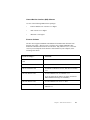
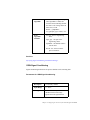
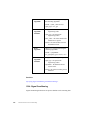
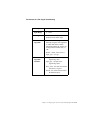
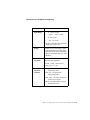
The following buttons are displayed at the top of the Online Help window:
18
The button...
Lets you...
Hide/Show
Toggle the display of the
frame that contains the
Contents, Index, and Search
tabs.
Locate
Find the current topic in the
Contents tab.
Back
Display the last topic that
you accessed.
Forward
Display the next topic in a
previously viewed sequence.
Stop
Stop downloading file
information if you are
connected to the Internet.
Refresh
Reload the current file, if you
are connected to the Internet.
Home
Display the cover of the SI7
Online Help.
Print
Print individual pages. To
print entire sections of the
SI7 Online Help, download
the PDF version of the
documentation from the
Intellution web site.
Siemens Simatic S7 Driver Online Help
The button...
Lets you...
Options
Display menu commands
that correspond to the SI7
information system toolbar
buttons. It also allows you to
toggle highlighting of search
strings in topics. After you
select Highlighting Off, the
next topic you select or
search for will not highlight
the search string. (This
feature is supported in
Internet Explorer v4.0 or
higher.)
Fact Sheet
Display the SI7 fact sheet
from the Intellution web site.
Intellution.com
Open the Intellution Support
web site
(support.intellution.com), if
an Internet connection is
available.
See Also
Navigating the Online Help | Determining Your Location within the Online Help |
Printing from the Online Help | Copying and Pasting Text from the Online Help to
Another Application
Determining Your Location within the Online
Help
When you select a topic from the Search tab or from the Index tab, the selected topic
appears in the right frame. You can see the relative position of the topic within the
Contents tab by clicking the Locate button from the electronic books toolbar.
If you have the Contents tab displayed, the title of the current topic is highlighted as
you browse through the book.
Chapter 3. Accessing Information
19
See Also
Using the Online Help Table of Contents | Navigating the Online Help | Using Online
Help Buttons
Printing from the Online Help
Use the following procedures to print one or more topics from the SI7 Online Help.
To print a single page from the Contents tab
[1]
Select the topic you want to print.
[2]
Click Print. A dialog box appears prompting you to print the selected topic or
all the topics in the current book.
[3]
Select Print the Selected Topic to print only the topic currently selected.
[4]
Select the printer and printer options, if necessary.
To print a topic from the Search or Index tab
[1]
Select the topic or sub-topic from the list.
[2]
Click Print.
[3]
Select the printer and printer options, if necessary.
To print a section or the entire Online Help system
20
[1]
Download and install the Adobe Acrobat Reader if it is not already installed
on your computer. For instructions, visit
http://www.adobe.com/products/acrobat/readstep.html.
[2]
Start your web browser.
Siemens Simatic S7 Driver Online Help
[3]
Go to
http://www.intellution.com/products/fixiodrivers/showdrivers.asp?objid=866.
[4]
Click the link Download PDF version. A PDF version of the SI7 Online Help
downloads to your computer.
[5]
Double-click the PDF file once the download completes and use the Print
command in the Acrobat Reader to print the pages you require.
See Also
Using Online Help Buttons
Copying and Pasting Text from the Online Help
to Another Application
You can copy all or part of any topic in the SI7 Online Help and paste it into any
application that accepts text from the clipboard.
To copy selected text in a topic
[1]
Display the topic from which you want to copy text.
[2]
Highlight the text you want to copy.
[3]
Press Ctrl + C, or right-click the highlighted text and select Copy.
[4]
Paste the text into another application, such as Word.
To copy all the text in a topic
[1]
Display the topic from which you want to copy text.
[2]
Press Ctrl + A, or right-click anywhere within the right frame and select Select
All.
[3]
Press Ctrl + C, or right-click the highlighted text and select Copy.
[4]
Paste the text into another application, such as Word.
Chapter 3. Accessing Information
21
NOTE: You cannot copy graphics from the SI7 Online Help.
Using the Favorites Tab
You can create a list of the topics you repeatedly refer to using the Favorites tab.
To create a list of favorite Help topics
[1]
Locate the Help topic you want to mark as a favorite topic.
[2]
Click the Favorites tab, and then click Add.
NOTE: To return to a favorite topic, click the Favorites tab, select the topic, and
then click Display.
If you want to rename a topic, select the topic, and then type a new name in the
Current topic field.
To remove a favorite topic, select the topic and then click Remove.
22
Siemens Simatic S7 Driver Online Help
4. How Do I?
Use the following links to learn how to:
•
Choose poll rates.
•
Eliminate excess datablocks.
•
Set up for remote configuration and control.
•
Prevent the driver from writing to the hardware.
•
Create reports of my driver configuration files.
•
Save datablocks created in Database Manager to the I/O driver configuration
file.
•
Open the SI7 I/O Driver Power Tool in Database Manager.
•
Configure my driver for demand polling.
•
Poll the device only when data is being accessed.
•
Set up security to use the I/O Server remotely.
•
Set up security when the driver runs as a service.
•
Force a switch between primary and back-up channels or devices using FIX
or iFIX.
•
Enable or disable channels, devices or datablocks using FIX or iFIX.
•
Send multiple writes to a datablock.
•
View my driver statistics.
•
Run the driver in simulation mode.
Chapter 4. How Do I?
23
Choosing Poll Rates
Make the datablock’s poll rate faster than the scan time. For example, if you have a
database block with a 5-second scan time, set the poll rate of the datablock it accesses
to 2 or 3 seconds.
Keep in mind that if you set datablock poll rates to values that are faster than needed,
you impose unnecessary stress on your system.
Zero and Subsecond Poll Rates
You can set the poll rate to zero or to a subsecond value from 0.1 and 0.9. For
example, you could set the poll rate to 0.5. Setting the poll rate to zero or a subsecond
value disables overruns. Entering a zero poll rate also forces the driver to run at its
maximum rate. In general, you should set the poll rate to less than 1, if it is more
important to run the driver at a fast speed than to detect overruns. If you plan to use a
poll rate less than 1, make sure your process hardware supports subsecond values.
See Also
Understanding Datablock Timing Properties: Rate, Phase, and Access Time | Using
Primary and Secondary Poll Rates with Access Time
Eliminating Excess Datablocks
If you enabled the Auto Create option in your driver configuration and created new
datablocks from Database Manager, you may have excess datablocks that you want to
remove. Use the following procedure to eliminate any incorrectly configured or
unused (excess) datablocks.
Using the Auto Create option also adds datablocks with default values. If you have
modified the poll rate or access time of one or more datablocks, use the procedure at
the end of this topic.
NOTE: You may not be able to delete datablocks from the driver configuration
because another computer may start accessing them.
24
Siemens Simatic S7 Driver Online Help
To eliminate excess datablocks
[1]
Export the current driver configuration file by saving it as a .CSV file. The
CSV file serves as a backup in case you accidentally delete a channel or a
device.
[2]
With FIX/iFIX running, open Mission Control and click the SAC tab.
[3]
Click Stop, to stop SAC.
[4]
Open the I/O Driver Power Tool and delete all the datablocks. Do not delete
the channels and devices.
[5]
Return to Mission Control and the SAC tab. Click Start. The driver
automatically adds the necessary datablocks with the default settings defined
in the Power Tool.
This procedure guarantees that the I/O driver configuration in the Power Tool
matches what you are accessing in your process database.
If you made specific modifications to one or more datablocks, such as a different poll
rate for each datablock on a device, use the following procedure.
To eliminate excess datablocks for specialized configuration files
[1]
Export the current driver configuration file by saving it as a .CSV file.
[2]
Perform the steps above for removing excess datablocks.
[3]
Compare the export file to the new configuration. Note any differences.
[4]
Modify your driver configuration as needed, using the .CSV file as a guide.
See Also
Using the Power Tool’s Properties Viewer | Using the Power Tool’s Browser | Feature:
Creating Datablocks Automatically in Database Manager | Adding and Modifying
Datablocks
Chapter 4. How Do I?
25
Setting up for Remote Configuration and Control
The SI7 I/O Server (driver) configures the necessary remote settings when it is
installed. However, before you can access the server remotely, your network
administrator must set up security for remote access. Refer to Setting up Security to
use the I/O Server Remotely for more information.
Once security is configured, you can select a remote server using the I/O Driver
Power Tool. Refer to Setting Up the SI7 I/O Server Connection to learn more.
If you cannot connect remotely, refer to the topic, I cannot connect to a remote server.
See Also
Feature: Remote Control and Configuration
Preventing the Driver from Writing to the
Hardware
You can use one of the following methods to stop output to the hardware:
•
Use the Disable Outputs option.
•
Use the Enable option.
•
Stop the I/O driver.
•
Use Simulation Mode.
To use the Disable Outputs option
26
[1]
From the I/O Driver Power Tool Tree Browser, select the datablock that you
want to disable.
[2]
Select Config Mode from the Display Mode menu. The properties for the
selected datablock appear in the Properties Viewer.
[3]
Select the Disable Outputs check box for the datablock.
Siemens Simatic S7 Driver Online Help
To use the Enable option
[1]
In the I/O Driver Power Tool Tree Browser, select the channel, device, or
datablock you want to disable.
[2]
Select Config Mode from the Display Mode menu. The properties for the
selected datablock appear in the Properties Viewer.
[3]
Clear the Enable check box for the channel, device, or datablock.
In FIX/iFIX, you can also create a link to a Digital Output block whose I/O
address is !MODE:NAME, where NAME is the channel, device, or datablock
name you want to disable. Write a value of 0 to disable the channel, device, or
datablock.
This approach stops communication for the selected channel, device, or
datablock.
To stop the I/O driver
[1]
Select Stop from the Display Mode menu in the Power Tool or in FIX Mission
Control.
[2]
Highlight your driver.
[3]
Click Stop.
This approach stops all driver communication.
To use Simulation Mode
[1]
Select Setup from the Options menu. The Setup dialog box appears.
[2]
Click the Advanced tab.
[3]
Click the Simulation Mode On option from the Nio area.
[4]
Close all connections to the server and restart it.
This approach stops all writes to the process hardware.
Chapter 4. How Do I?
27
See Also
Feature: Enabling or Disabling Individual Channels, Devices, and Datablocks
Creating Reports of my Driver Configuration
Files
You can create reports from your driver configuration files by saving them as Comma
Separated Value (CSV) files. Once you create .CSV files, you can edit them in any
third-party application that supports .CSV files, such as Microsoft® Excel™ or a text
editor. You can also create .CSV files in a third-party application and open them with
the I/O Driver Power Tool.
Refer to Using I/O Driver Report Files for details on creating reports.
Saving Datablocks Created from Database
Manager to the I/O Driver Configuration File
You can save datablocks that you create in FIX/iFIX by opening the Power Tool and
select Save from the File menu.
See Also
Feature: Creating Datablocks Automatically in Database Manager | Saving
Datablocks Created in Database Manager to the Configuration File
Opening the SI7 I/O Driver Power Tool from
Database Manager
To open the SI7 I/O Driver Power Tool from FIX/iFIX Database Manager
28
[1]
Select SI7 from the Drivers menu in Database Manager. When the SI7 I/O
Driver Power Tool opens, any devices or datablocks that you added appear in
the Tree Browser.
[2]
Modify and add channels, devices, and datablocks as needed.
Siemens Simatic S7 Driver Online Help
See Also
Overview: Creating Datablocks Inside FIX/iFIX Applications
Configuring a Driver for Demand Polling
By entering a special I/O address in a Digital Output or Analog Output block, you can
poll:
•
Individual datablocks.
•
Devices and all their datablocks.
•
Channels and all their devices and datablocks.
This one-shot poll is called a demand poll. You may want to set your driver up for
demand polling if:
•
The driver’s poll time is slow and you want to get data without having to wait
for the next update.
•
You want to poll a device after opening a FIX/iFIX operator display.
•
You want to poll a device just before generating a report.
The poll occurs when you write a value to the block.
The I/O address syntax is: !POLL: NAME
where NAME is the name of the datablock, device, or channel you want to demand
poll.
Using demand polling does not affect the configured poll rate of the datablock. For
example, if you demand poll a datablock 15 minutes into a 30-minute scan cycle, the
driver polls the datablock again 15 minutes, as originally scheduled.
See Also
Specifying I/O Addresses in Database Manager
Chapter 4. How Do I?
29
Polling the Device only when Data is Being
Accessed
To poll the device only when data is being accessed
[1]
From the I/O Driver Power Tool Tree Browser, select the datablock that you
want to modify.
[2]
Enter DISABLED in the Secondary Rate field or clear the Secondary Rate
check box.
[3]
Enter a value in the Access Time field. Do not enter DISABLED in the field.
[4]
In the Primary Rate field, enter a value that is close to the data’s update rate in
the device.
Also, set the access time to be longer than the phase time or the datablock will not be
polled and the access time will expire before the phase begins.
See Also
Understanding Datablock Timing Properties: Rate, Phase, and Access Time | Using
Primary and Secondary Poll Rates with Access Time
Setting up Security to use the I/O Server
Remotely
The I/O Server supports DCOM (Distributed Component Object Model). If you want
to grant only certain users permission to launch or access the SI7 I/O Server, you can
use the Windows NT utility, DCOMCNFG.EXE, for configuring DCOM
applications. DCOMCNFG.EXE is usually located in your Windows \system32
directory. Under Windows 2000, you can use the Component Services in the
Administrative Tools folder. This folder resides in Control Panel.
IMPORTANT: We recommend that you allow client applications such as the
FIX/iFIX or the I/O Driver Power Tool to automatically start the I/O Server rather
than opening the Server independently from the Windows environment. This is the
intended method for Server start-up.
30
Siemens Simatic S7 Driver Online Help
The I/O Server re-registers every time you double-click the I/O Server icon or use a
shortcut to open it from the desktop or the Windows Start menu. By re-registering,
you reset the server’s registry settings. When the I/O Server starts automatically from
a client application, the registry settings do not change.
If you start the I/O Server independently by selecting its icon or shortcut while the
server is already running, you overwrite the current custom security settings.
Example
The following procedures describe how to configure your system for the following conditions:
•
Only administrators of the I/O Server host computer can access the server.
•
Only the user that is logged on to the computer where the I/O Server resides can launch
the Server.
Use these procedures as a guide to implement security for your needs.
To allow only Administrators access to the I/O Server
[1] Start DCOMCNFG.EXE and double-click the SI7Drv I/O Server from the list in the
Applications tab.
[2] Click the Security tab to display the three modes of DCOM security.
[3] Select the Use Custom Access Permissions option, and click the Edit button for access
permissions.
[4] If Administrators and SYSTEM appears in the list on the Registry Value Permissions
dialog box, proceed to step 8.
If Administrators or SYSTEM is not in the list, click Add.
[5] Select the local computer name in the List Names From field.
[6] Double-click Administrators and SYSTEM in the Names list box to add it to the Add
Names list at the bottom of the dialog box.
[7] Click OK to accept the selection and close the dialog box.
[8] Select Administrators from the Name list box and Allow Access from the Type of Access
field. Repeat this step for SYSTEM. For the other entries in the Name list, select Deny
Access from the Type of Access field.
Chapter 4. How Do I?
31
To allow only the local user to launch the I/O Server
[1] Follow steps 1 and 2 in the previous procedure.
[2] Select the Use Custom Launch Permissions option and click the Edit button for launch
permissions.
[3] If INTERACTIVE and SYSTEM appear in the list on the Registry Value Permissions
dialog box, proceed to step 7.
If INTERACTIVE or SYSTEM is not in the list, click Add.
[4] Select the local computer name in the List Names From field.
[5] Double-click INTERACTIVE or SYSTEM in the Names list box to add it to the Add
Names list at the bottom of the dialog box.
[6] Click OK to accept the selection and close the dialog box.
[7] Select INTERACTIVE from the Name list box and Allow Access from the Type of
Access field to allow launch access to the local user only. Repeat this step for SYSTEM
as well. For the other entries in the Name list, select Deny Launch from the Type of
Access field to deny launch access on the network.
After completing these steps, only users who have Administrator rights to the driver server
host computer can access the server. You can assign administrator rights with the User
Manager (Windows NT) or the User and Passwords applet in Control Panel (Windows 2000).
See Also
Feature: Remote Control and Configuration | Setting Up the SI7 I/O Server
Connection
Setting up Security When the Driver Runs as a
Service
To set up security for the SI7 driver, you must configure DCOM (Distributed
Component Object Model). Configuring DCOM can be difficult. To simplify the
process, we recommend that you grant access to everyone to get started. Later, when
security is configured correctly, you can reconfigure DCOM and restrict access.
32
Siemens Simatic S7 Driver Online Help
You can grant everyone access to the SI7 Server using the Windows utility,
DCOMCNFG.EXE, for configuring DCOM applications. DCOMCNFG.EXE is
usually located in your Windows \system32 directory.
To configure DCOM when the SI7 driver runs as a service
[1]
Start DCOMCNFG.EXE and double-click the SI7Drv I/O Server from the list
in the Applications tab.
[2]
Click the Security tab to display the three modes of DCOM security.
[3]
Select the Use Custom Access Permissions option, and click the Edit button
for access permissions. The Registry Value Permissions dialog box appears.
[4]
Click Add. The Add Users and Groups dialog box appears.
[5]
Select the local computer name in the List Names From field.
[6]
Double-click Everyone (All Users) in the Names list box to add it to the Add
Names list at the bottom of the dialog box.
[7]
Click OK to accept the selection and return the Registry Value Permission
dialog box.
[8]
Click OK to accept the changes to the access permission properties.
[9]
Select the Use Custom Launch Permissions option and click the Edit button
for launch permissions. The Registry Value Permissions dialog box appears.
[10]
Repeat steps 4 through 9 for launch permission properties.
[11]
Click OK to accept your changes to SI7 Server properties and return to the
Applications tab.
[12]
Click OK to close the DCOMCNFG.EXE utility.
To learn more about configuring DCOM for specific users, refer to Setting up Security
to use the I/O Server Remotely.
See Also
Feature: Running as a Windows Service
Chapter 4. How Do I?
33
Forcing a Switch Between Primary and Back-up
Channels or Devices using FIX or iFIX
You can force the driver to toggle between the current and backup device when any
value is written to a Digital Output or Analog Output block. If the backup device is
only configured for use on the backup channel, the channel also switches. The driver
switches devices when you write a value to the block.
I/O address syntax: !SWITCH:NAME
where NAME is the name of the device you want to switch. You cannot switch only
from one channel to another.
See Also
Specifying I/O Addresses in Database Manager
Enabling or Disabling Channels, Devices or
Datablocks using FIX or iFIX
You can enable or disable a channel, device, or datablock by entering a special I/O
address into a Digital Output block. Write a value of 1 to the block to enable it, or
write a value of 0 to disable it.
I/O address syntax: !MODE:NAME
where NAME is the name of the channel, device, or datablock you want to enable or
disable.
See Also
Specifying I/O Addresses in Database Manager
34
Siemens Simatic S7 Driver Online Help
Sending Multiple Writes to a Datablock
You can write data to various registers in the hardware at one time using the Block
Writes option. This option provides a special “send” command that instructs the
driver to send all outstanding writes in a single protocol message.
When the driver sends its outstanding writes, it also sends any unmodified values in
the datablocks that are changing using the last known value, as the following figure
shows. Consequently, we recommend relatively short poll times for datablocks you
are writing to so that the driver will have the most up-to-date data.
Before the block write
Datablock 1
Address: M0
10
20
30
40
50
After the block write
If you write 60 to address
M0 and 70 to M2, the
driver sends the datablock
at the right when the
!SEND command
executes.
Datablock 1
Address: M0
60
20
70
40
50
To send block writes through FIX
[1]
Enable block writes in the datablock you want to use.
[2]
Create a Digital Output block with the following address:
!Send:DataBlockName
Note that only datablock names are valid with the !Send control address. You cannot
trigger block writes using any of the following items:
•
Channel and device names in place of a datablock name.
•
Analog Output blocks in place of a Digital Output block.
See Also
Specifying I/O Addresses in Database Manager | Feature: Block Writes
Chapter 4. How Do I?
35
Running the Driver in Simulation Mode
You can run the driver in simulation mode by enabling the option in the Power Tool
and restarting the server.
To enable simulation mode in the Power Tool
[1]
Start the Power Tool.
[2]
Select Setup from the Options menu. The Setup dialog box appears.
[3]
Select the Advanced tab.
[4]
Click the Simulation Mode On option.
To restart the server
[1]
Shut down all server clients, including FIX/iFIX. This action shuts down the
server.
[2]
Restart FIX/iFIX.
Once the server restarts, you can create your operator displays and process databases
with real I/O addresses. Later, when you want to switch to real process hardware,
turn off simulation mode and restart the server again. You can do this without
changing your configured I/O addresses.
See Also
Feature: Using Simulation Mode
36
Siemens Simatic S7 Driver Online Help
5. About the SI7 I/O Driver
The Intellution SI7 I/O version 7.x I/O driver provides the interface and
communications protocol between Siemens SIMATIC S7 hardware and your process
control software. Intellution version 7.x drivers incorporate the following attributes
to provide flexibility and ease-of-use:
•
OLE Automation technology
•
FIX/iFIX integration
•
Event-driven architecture
•
OLE for Process Control compliance
OLE Automation Technology
Version 7.x drivers incorporate OLE Automation technology and expose their
features to scripting tools and other applications. Because the drivers are OLE
Automation applications, you can:
•
Create and manipulate objects exposed in the I/O Server from another
application.
•
Create tools that access and manipulate driver objects. These tools can include
embedded macro languages or external programming tools.
The I/O driver consists of the following OLE components:
The I/O Server — The core executable program. The I/O Server maintains the
driver's channel, device, and datablock objects, performs all required functions
for communicating with the process hardware, and exposes its methods and
properties to other applications.
The I/O Driver Power Tool — A client application to the I/O Server with a
graphical user interface. The Power Tool accesses the I/O Server and lets you
view and modify channel, device, and datablock properties.
Chapter 5. About the SI7 I/O Driver
37
You can also view and modify driver properties with a custom client application
developed specifically for your system. Refer to Creating Custom Client
Applications to learn more about creating your own client application.
Integration with FIX/iFIX
Intellution version 7.x drivers let you automatically add addresses to the driver
configuration while you are configuring your process database. When you add a
block to the database that accesses a point in the hardware that you have not
configured, the point is automatically added to the I/O Server and polled for data.
Refer to Feature: Creating Datablocks Automatically in Database Manager to learn
more about this feature.
Event-Driven Architecture
Version 7.x drivers are event-based rather than time-based, reducing CPU time and
increasing performance.
OPC Compliance
Version 7.x drivers also comply with the OLE for Process Control (OPC) Data
Access v1.0a specification. Any 1.0a OPC client application can access process
hardware data through the I/O Server. The SI7 I/O Server is also compliant with the
v2.0 Data Access specification and with the OPC Alarm and Events v1.0
specification. Refer to Feature: Using OLE for Process Control (OPC) to learn more
about the advantages of OPC.
See Also
The SI7 I/O Driver Features | Supported Hardware | Required Software | Supported
Protocols | How the I/O Driver Works
How the I/O Driver Works
The following figure shows how the SI7 driver works. Each of the numbered items in
the figure are described below.
38
Siemens Simatic S7 Driver Online Help
FIX Tasks
Process
Control
Software
Automation Controller/
COM Client
OPC Client
10
DBB/SAC
11
Client App
12
Custom App
I/O Driver
6
9
OPC
Server
DLL
NIO
DLL
8
I/O Driver
Power
Tool
5
Common
Memory
DLL
3
OLE
Interface
Signal
7
Conditional
DLL
I/O Driver Server
Driver Object
3
OLE
Interface
1
2
Channel Object
Device Object
DataBlock Object
4
I/O Library
Simatic Net
Process
Hardware
14
13
Chapter 5. About the SI7 I/O Driver
39
[1]
I/O Server
Is the I/O driver core. The I/O Server contains objects and interfaces that
perform the following tasks:
[2]
•
Maintain the I/O driver configuration.
•
Read and write process hardware data.
•
Expose the driver functionality through OLE Automation.
Server Objects
Consist of the following objects:
[3]
•
Driver Object to manage channel objects and the overall state of the
driver.
•
Channel Object to define the properties and methods that govern the
behavior of a channel. A channel is an I/O driver’s communication
path.
•
Device Object to define the properties and methods that govern the
behavior of a device. A device is a hardware device or station that
exists on a channel.
•
Datablock Object to define the properties and methods that manage the
behavior of a datablock. The datablock object is an addressable portion
of a device and contains datablocks in the Server’s local memory
corresponding to data areas in the Common Memory DLL. When you
add new datablocks to the Server’s local memory, you also add new
data areas to the Common Memory DLL.
OLE Interfaces
Expose the data and functionality of the Server to other applications.
[4]
I/O Library
Translates generic driver requests into API-specific calls to the process
hardware.
40
Siemens Simatic S7 Driver Online Help
[5]
Common Memory DLL
Builds common memory, exposes its functionality to the Server and the NIO
DLL, and stores and maintains process data.
[6]
NIO DLL
Contains the I/O driver’s data access API. The NIO DLL has direct access to
the Common Memory DLL, providing fast and efficient read/write capability.
[7]
Signal Conditioning DLL
Contains the API that scales raw data to the specified engineering units.
[8]
I/O Driver Power Tool
Serves as a high-performance client to the I/O Server. The Power Tool has a
graphical user interface for configuring and monitoring the driver.
[9]
OPC Server DLL
Accesses configuration data through the Server’s OLE interfaces and reads or
writes data through the NIO DLL. The OPC Server DLL is a fully compliant
OLE for Process Control v1.0a in-process server and is also OPC Data Access
v2.0 compliant.
[10]
FIX Applications
Communicate with the I/O driver through the NIO DLL. Because the NIO
DLL accesses the Common Memory DLL directly, reading data from and
writing data to FIX/iFIX applications is fast and efficient.
[11]
OPC Client Applications
Communicate with the I/O driver through the OPC Server DLL. Because the
OPC Server DLL communicates with the NIO DLL, OPC Client applications
can take advantage of the high-performance read/write capability that the NIO
DLL provides.
[12]
Automation Controller and COM Client Applications
Communicate with the I/O driver through the OLE Interfaces. You can design
custom applications with COM/OLE Automation programming software such
as Visual Basic, Power Builder, or Visual C++.
Chapter 5. About the SI7 I/O Driver
41
[13]
Process Hardware
Includes any type of supported I/O device that controls a process.
[14]
SIMATIC NET
Provides communication to and from the process hardware. SIMATIC NET is
available from Siemens Automation. Contact them at 1-800-743-6367
42
Siemens Simatic S7 Driver Online Help
The SI7 I/O Driver Features
In addition to performance improvements, the SI7 driver:
•
Supports OLE for Process Control (OPC).
•
Lets you automatically create Datablocks from FIX Database Manager.
•
Lets you configure custom COM/OLE automation applications.
•
Supplies a new, easy-to-use graphical user interface.
•
Provides remote configuration and control.
•
Provides exception-based processing.
•
Incorporates secondary poll rates.
•
Provides phasing.
•
Lets you enable or disable individual channels, devices, and datablocks.
•
Provides QuickFail logic.
•
Provides simulation mode.
•
Provides latched data.
•
Provides a time/date stamp for data and alarms.
•
Supports running as a Windows service.
•
Supports block writes.
•
Provides advanced diagnostics.
•
Provides digital pictures of sample configurations.
Chapter 5. About the SI7 I/O Driver
43
See Also
About the SI7 I/O Driver | How the I/O Driver Works
Feature: Using OLE for Process Control (OPC)
OLE for Process Control (OPC) is a software standard that provides a method for
business applications to access plant floor data. The standard was developed
specifically for the process control industry to provide robust, high speed,
client/server communication. The standard establishes consistency between
applications, thus simplifying system integration and allowing many different types
of equipment to communicate with each other. The OLE for Process Control
Standard defines:
•
A set of custom COM interfaces for OPC client and server writers.
•
A set of OLE Automation Interfaces for OPC clients developed with higherlevel business applications, such as Excel and Visual Basic. 7.x drivers do not
support the OPC Automation Interface to access data.
Because OPC interfaces are designed in accordance with the OPC specification to
provide a common interface, an OPC client can connect and communicate with
multiple OPC servers from one or more different vendors, as the following figure
shows.
Application
Application X
X
44
Application
ApplicationYY
OPC Interface
OPC Interface
OPC Interface
OPC Server A
OPC Server B
OPC Server C
Siemens Simatic S7 Driver Online Help
The code that your vendor writes defines the difference between servers and specifies
the following server information:
•
The devices and data that the server has access to.
•
The names of data items.
•
The details about how the server physically accesses the data.
The SI7 I/O driver supplies an OPC v1.0a Server DLL that provides the OPC
Interface between OPC-aware client applications and all Intellution 7.x drivers. The
SI7 I/O Server has interfaces that let the OPC Server DLL access SI7 I/O Server data.
The following figure illustrates how OPC clients work with Intellution I/O Servers
and the OPC Server DLL.
OPC
Client X
Application
OPC
Client YY
Application
OPC Server DLL
OPC Server DLL
OPC Server DLL
OPC Server A
OPC Server B
OPC Server C
The SI7 Server is also compliant with OPC Data Access v2.0 and supports the OPC
Alarms and Events 1.0 specification. For more information on these standards, refer
to the OPC foundation web site at www.opcfoundation.org.
See Also
The SI7 I/O Driver Features | Creating Custom Client Applications
Chapter 5. About the SI7 I/O Driver
45
Feature: Creating Datablocks Automatically in Database
Manager
By enabling the Auto Create option in the I/O Driver Power Tool, you can
automatically create datablocks from your HMI process control software by
specifying an undefined I/O address for a database block. Once you enter the address,
the SI7 I/O driver automatically creates a datablock for it and adds the new datablock
to your driver configuration. As a result, you do not have to start the I/O Driver
Power Tool and create your datablocks before you design your process database; you
only need to create the required channels and devices.
Example
[1] Start the I/O Driver Power Tool and select Setup from the Options menu. The Setup
dialog box appears.
[2] Click the Advanced tab and select Auto Create On in the Server area.
[3] Close the Setup dialog box and select Templates from the Options menu. The Templates
dialog box appears.
[4] Enter the default values you want to use for your channels, devices, and datablocks in the
Templates dialog box.
[5] Select Add Channel from the Edit menu to add Channel0.
[6] Select a primary communications processor and virtual field device for Channel0.
[7] Select Add Device from the Edit menu to add Device0 and select a primary connection
from the Connection field. Do not create any datablocks.
[8] Exit from the Power Tool and close all remote connections to the I/O Server.
46
Siemens Simatic S7 Driver Online Help
[9] Open Database Manager and create five database blocks with valid I/O points, using
Device0 as the device name.
[10] Open the Power Tool. The Tree Browser displays the following:
IMPORTANT: Intellution does not recommend the use of the Auto Create option
when the Hardware Options field in Database Manager is used to override default
datablock data types. If you require Database Manager to create new datablocks
automatically, verify that all database blocks that use the Hardware Options field
reference valid datablock ranges.
See Also
The SI7 I/O Driver Features | Preparing to Create Datablocks Automatically in
Database Manager | Saving Datablocks Created from Database Manager to the I/O
Driver Configuration File
Feature: Configuring the Driver from Custom COM/OLE
Automation Applications
In concert with the growing trend towards using custom programs to access plant
floor data, Intellution version 7.x drivers enable you to connect easily with custom
applications. You do not have to use the SI7 I/O Driver Power Tool to configure the
driver. Instead, you can create your own COM or OLE application or use an existing
OLE application (such as Microsoft's Excel) to configure the driver and access data.
Chapter 5. About the SI7 I/O Driver
47
Your driver may include a custom Visual Basic application. You can use this
application in place of the Power Tool to configure your driver. You can also refer to
it when creating your own custom application. Typically, custom Visual Basic
applications are created for specific needs such as:
•
Customizing the way you gather and view statistics.
•
Automatically building a project.
•
Creating applications that control the way the driver operates.
See Also
The SI7 I/O Driver Features | Creating Custom Client Applications
Feature: Using the SI7 I/O Driver Graphical User Interface
The SI7 I/O Driver Power Tool is an OLE application that functions as a client to the
SI7 server and lets you configure the driver using a graphical user interface (GUI).
Features of the Power Tool
48
•
Runs as a stand-alone program or can be launched from FIX/iFIX.
•
Lets you view channels, devices, and datablocks graphically from the Tree
Browser.
•
Displays run-time statistical and diagnostic information for the driver and its
channels, devices, and datablocks.
•
Provides templates for configuring default channel, device, and datablock
settings.
•
Provides options for customizing the Power Tool’s appearance.
•
Supports remote configuration.
Siemens Simatic S7 Driver Online Help
Refer to the following topics for a description of the Power Tool and how to use it to
configure your driver:
•
About the SI7 I/O Driver
•
Setting Up the SI7 I/O Server Connection
•
Adding and Modifying Channels
•
Adding and Modifying Devices
•
Adding and Modifying Datablocks
Feature: Remote Control and Configuration
You can control and configure the SI7 I/O Server remotely using the Power Tool or
any other client application. To set up remote control of the I/O Server, you can
install the Power Tool or your client application on a computer that does not have the
server software installed. However, you must install the I/O Server on the computer
used to communicate with the process hardware. The following graphic shows where
to install software when communicating remotely to the I/O Server:
Chapter 5. About the SI7 I/O Driver
49
I/O Driver Server
I/O Driver
Power Tool
Custom Client
Application that
communicates
with the I/O
Driver Server
I/O Driver
Power Tool
I/O Driver
Power Tool
To install the Power Tool for remote communication
[1]
Insert the I/O Drivers and OPC Server CD into the remote computer’s CDROM drive.
[2]
When the start-up screen appears, click the Install Driver button.
[3]
Select the SI7 7.x Driver from the list and click the Install Now button.
[4]
Click the I Agree button to accept the user license and continue with the
installation.
[5]
Follow the instructions on the screen to complete the installation. When the
Install program prompts you for the node type, select Client.
[6]
After installation is complete, open the Power Tool and connect to the I/O
Server using the Network list box. Refer to Setting Up the SI7 I/O Server
Connection to learn more about establishing a connection to the SI7 I/O
Server.
See Also
How the I/O Driver Works | Setting up Security to use the I/O Server Remotely |
Setting up for Remote Configuration and Control
50
Siemens Simatic S7 Driver Online Help
Feature: Using Exception-Based Processing
Intellution version 7.x drivers support exception-based processing when used with
FIX/iFIX products for process control. With exception-based processing, the
software application only processes data when the data changes beyond a datablock’s
dead band.
Exception-based processing also applies to database blocks. You can enable
exception-based processing for many blocks in the process database. Once you
enable this feature, the I/O driver reports any data change that exceeds a datablock’s
dead band to the FIX/iFIX Scan, Alarm, and Control (SAC) program. This program
resides in the background and works to maintain the process database continuously.
Upon receiving notification of an exception, SAC polls for information on the
affected database block and updates that block’s value.
IMPORTANT: Do not configure an exception-based database block and time-based
database block to reference the same I/O address. If you do, the time-based block is
updated when the exception deadband is exceeded and is not updated based on the
block's scan time
To configure a database block for exception-based processing
[1]
Start the Power Tool and select the datablock you want to modify.
[2]
Enter a value in the Deadband field. For a digital block, enter a dead band of
0.
[3]
Start Database Manager.
[4]
Double-click the block you want to modify from the program’s spreadsheet or
select Add from the Blocks menu and select the type of block you want to
create.
[5]
Enter the datablock’s address in the I/O Address field of the database block.
[6]
Enter E in the Scan Time field of the database block.
If you have many database blocks, exception-based processing can help reduce the
demand on SAC.
NOTE: Analog Register and Digital Register blocks in process databases do not
support exception-based processing. In addition, the SI7 7.x driver does not support
using the Text block with exception-based processing, S7 Timers, or S7 Counters.
Chapter 5. About the SI7 I/O Driver
51
Feature: Using Secondary Poll Rates
With the SI7 I/O driver, you can specify a secondary poll rate. The driver polls a
datablock at its secondary poll rate once its access time expires. The driver remains
polling at the secondary poll rate until there is another request for data from
FIX/iFIX.
Using this feature, you can enter a secondary poll rate that is longer than the primary
poll rate. This configuration lets you reduce CPU time and communication requests
to the process hardware, while ensuring that the datablock is always polled.
Feature: Phasing Poll Rates
Phasing staggers the times at which the I/O driver scans your datablocks. This feature
prevents overruns that may occur when the I/O driver cannot collect all the data at the
specified poll rate. Use phasing to maximize the efficiency of your driver.
How It Works
By specifying a phase, you delay the driver’s first attempt to read data from the
datablock. When the phase time expires, the driver resumes reading the datablock at
the specified primary or secondary poll rate. Make sure the phase you enter is shorter
than the primary or secondary poll rate of the datablock.
See Also
The SI7 I/O Driver Features | Using Primary and Secondary Poll Rates with Access
Time | Understanding Datablock Timing Properties: Rate, Phase, and Access Time |
Using Phasing with Poll Rates
Feature: Enabling or Disabling Individual Channels, Devices,
and Datablocks
You can enable or disable messaging to channels, devices, or datablocks at any time.
This is a very useful feature for debugging, maintenance, and for making preliminary
configurations.
52
Siemens Simatic S7 Driver Online Help
Disable a channel if:
You remove devices on a channel for repair or maintenance and do not want to
display errors.
Disable a device if:
•
You remove a device for repair or maintenance and do not want to display
errors.
•
You want to reduce the communications load when you do not need to collect
data from that device.
•
You want to isolate the device for debugging.
Disable a datablock if:
•
You only want to intermittently view data for a datablock.
•
You are experiencing a problem with a datablock.
See Also
The SI7 I/O Driver Features | Enabling or Disabling Channels, Devices or
Datablocks using FIX or iFIX
Feature: QuickFail Logic
QuickFail Logic is inherent to Intellution's version 7.x I/O drivers. Drivers with
QuickFail do exactly that – quickly determine if there is a communication problem
with a device and, if detected, bypass all datablocks on the device. The driver
intermittently attempts to read or write to the device but does not linger on the device
if it still has a communication failure. The QuickFail feature significantly increases
the efficiency of your process, especially if you have many datablocks configured on
one device.
Chapter 5. About the SI7 I/O Driver
53
How It Works
The driver polls a datablock on the device and experiences a communication timeout.
The driver attempts to re-send the request to the process hardware. If SIMATIC NET
cannot send a message, the driver marks the datablock as failed and sends a message
to the next datablock in the queue.
If SIMATIC NET can send a message, the retry proceeds, and the driver continues to
send retry message until:
•
The driver poll (retries) the datablock the number of times configured for the
Retries property and still experiences a communication timeout.
•
SIMATIC NET becomes unable to send a message to the device.
In either case, the driver marks the datablock as failed and sends a message to the
next datablock in the queue. Any outstanding messages for the bad device are failed
immediately. Likewise, the driver sends any messages in the queue intended for the
bad device, and all new messages, once without retries. The driver continues this
process until the communication problem with the device is resolved.
The SI7 driver also executes its QuickFail logic if SIMATIC NET cannot send a retry
message. This happens when the connection or a transaction is bad.
54
Siemens Simatic S7 Driver Online Help
Purpose
Typically, when a message fails because of a timeout, the cause is a communication
problem with the device. QuickFail lets the driver bypass the problem device to
quickly handle other device messages. Because the driver is not spending
unnecessary time on a failed device, it performs more efficiently.
Example
Reply Timeout
Retries
Delay Time
Backup Device
Global timeout
= 15 (15 seconds)
=5
= 5:00 (5 minutes)
= none
= 10 (10 seconds)
The driver attempts to send a message to the process hardware. After 15 seconds, the device
still has not responded so the driver re-sends the message.
SIMATIC NET determines it is able to send another message. The driver tries to send the
message again. Assuming that it is able to send data for all retries, the driver sends the request
6 times (the first time and then the 5 retries) with 15-second intervals between each attempt.
Each attempt fails; consequently, the driver marks the datablock as failed. If the driver has
messages for other datablocks on the same device, it sends them only once without retries.
The driver waits 5 minutes before attempting to re-establish communication with the failed
device.
See Also
The SI7 I/O Driver Features | Understanding Device Timing Properties: Reply
Timeout, Retry, and Delay Time
Feature: Using Simulation Mode
Simulation mode lets you simulate the connection of the SI7 server to the process
hardware. This allows you to develop a process database that reads and writes values
to the datablock addresses that you configure in the Power Tool without using actual
process hardware. Later, when you want to switch to real process hardware, you can
do so without changing your datablocks or process database.
Chapter 5. About the SI7 I/O Driver
55
Simulating a connection to the process hardware is accomplished by writing values
directly to the datablocks themselves instead of sending a request to the SI7 server to
write the data to the process hardware. Likewise, values are read directly from each
datablock and do not require a read request sent to the SI7 server. These reads always
return good data quality.
NOTE: Whenever you enable or disable simulation mode, close all connections to
the I/O Server and restart the Power Tool in order for your changes to take effect.
See Also
Making Advanced Settings | Running the Driver in Simulation Mode
Feature: Using Latched Data
You can preserve a datablock’s last value by enabling the Latch Data option. Should
a communication failure occur, data links to unlatched datablocks display a series of
question marks (?????) while data links to latched datablocks display the last data
polled. This feature is very useful when you need to create reports about your process
and require data at all times. You can also use this option to preserve the last values
on the screen after a communication failure occurs.
Example
Your control system communicates with remote devices by radio transmission. You know that
radio transmission is not always reliable (particularly during inclement weather). However,
you must provide daily reports from your process hardware.
By enabling the Latch Data option for your datablocks, you ensure data is always available for
reports.
NOTE: FIX 6.15 does not support latched data. However, you can add support for
latched data by downloading the SAC Software Improvement Module (SIM) from
Intellution’s web site.
Analog Register and Digital Register blocks do not support latched data.
Consequently, we do not recommend using these blocks with the Latch Data option.
Question marks appear in the latched data links until data is received from the
process hardware.
56
Siemens Simatic S7 Driver Online Help
Feature: Time/Date Stamp for Data and Alarms
Intellution version 7.x I/O drivers record the time and date when any of the following
events occur:
•
The driver reads data from the process hardware.
•
The driver writes data to the process hardware.
•
An error occurs.
The driver time-stamps the data and errors at the datablock level. To view time and
date stamps in the SI7 I/O Driver Power Tool:
[1]
Select a datablock from the Tree Browser.
[2]
Select Stats Mode from the Display Mode menu.
See Also
Viewing Datablock Statistics
Feature: Running as a Windows Service
Version 7.x drivers can run as a service under Windows NT or Windows 2000.
Running your driver as a service lets users log on and off the operating system
without shutting down the driver.
NOTE: The SI7 driver does not support running as a service when using SIMATIC
NET 6.0.
By default, an I/O Server does not run as a service. To set up the I/O Server to run as
a Windows service, you must register it as a service. During installation, the Setup
wizard automatically registers the server as a regular server process. To register it to
run as a Windows service, you must run the server on the command line, specifying
that you want to register it. Once the server is running as a service, you may need to
re-register it in certain situations, such as when you need to change the logon account.
Chapter 5. About the SI7 I/O Driver
57
Before you register the I/O Server to run as a service, follow these steps to ensure that
it is not currently running:
•
If the driver is currently running as a regular server, you must stop the process
by shutting down all clients to the server, such as the PowerTool or iFIX.
•
If the driver is currently running as a service, you must stop the process by
shutting down all clients to the server, and you must also perform these tasks
on your operating system:
Windows 2000 — from Control Panel, select Administrative Tools, then
select Services. A list of all services configured on the machine
displays. Locate SI7 Server. If the status is Started, right click and
Stop the server.
Windows NT — from Control Panel, select the Services icon. A list of all
services configured on the machine displays. Locate SI7 Server. If the
status is Started, click the Stop button.
Once you stop the server from running, select the Process tab from the Task Manager
and verify that the SI7DRV.exe process is no longer listed.
Registering the I/O Server as a Service
To register the I/O Server as a service:
[1]
Select Run from the Windows Start menu.
[2]
Enter the following command and click OK:
SI7Drv
REGSERVICE
The registration process now allows the user to specify a logon account. This
provides flexibility with the user’s choice of security settings.
The Logon Account for Running As A Service dialog box appears after the user
enters the command and clicks OK:
58
Siemens Simatic S7 Driver Online Help
The dialog box allows the user to select one of these accounts when registering the
SI7 driver to run as a service:
FIXIOUser Account — uses the FIXIOUser account to log on the I/O Server. This
conventional account uses a hard-coded password and has the necessary
privileges to log on as a service. You should not modify this account if one or
more 7.x drivers use this as the logon account when running the I/O Server as
a service. If you do modify this account, those drivers will not be able to start
as a Windows service.
The FIXIOUser account may not be created if it does not conform to your
local IT department’s security policies. If this account does not exist, you
must select one of the other two options.
NOTE: If you previously ran the I/O Server as a service without incident, you
should continue to run it using the FIXIOUser account.
System Account — uses the local system account to log on the I/O Server. This predefined account is useful when your local IT department’s security policy
requires password expiration.
This Account — uses an account specified by the user to log on the I/O Server. This
account is useful if you need to specify a domain account. The account used
here must be an existing account with both Administrator and Logon as a
Service privileges to run the server as a service. To determine if the account
has Administrator privileges, refer to the manual provided with your operating
Chapter 5. About the SI7 I/O Driver
59
system. For example, to determine Administrator privileges in Windows
2000, select Administrative Tools from Control panel, and then select Users
and Passwords. Use the Local Security Policy Setting tool to grant the
account Logon as a Service privilege.
NOTE: In earlier versions of the SI7 driver, the I/O Server was automatically logged
on with the FIXIOUser account. This logon was transparent to the user.
Once you re-register the driver, complete these steps:
[1]
Start the Power Tool and make sure the Auto Start option is enabled. Refer to
Starting the I/O Driver from the Power Tool to learn how.
[2]
Configure DCOM (Distributed Component Object Model). Refer to Setting
up Security When the Driver Runs as a Service to learn more.
[3]
If your Human-Machine Interface (HMI) software is FIX or iFIX, start it.
When either program runs, it will start the SI7 Server as a service.
If your HMI is a third-party package, then complete these steps instead:
[a]
Open the Services icon in Control Panel and change the SI7 Server
startup from Manual to Automatic.
[b]
Start your HMI software.
You can reset the server to be a regular server process again by re-registering it:
SI7Drv
REGSERVER
NOTE: Before you register the I/O Server to run as a regular server, you must
ensure that it is not currently running.
When registering the server this way, it will run, perform the necessary registration
work, and then exit. You can then start the server by using more conventional
methods such as starting FIX/iFIX, starting the Power Tool, or any client program
capable of communicating with the server.
NOTE: You cannot display the SI7 server window using Alt + Shift + S when the
server is running as a service.
60
Siemens Simatic S7 Driver Online Help
Feature: Block Writes
Block writes let you send data to various registers in the hardware at one time by
using a special “send” command. This command instructs the driver to send all
outstanding writes in a single protocol message. Block writes are useful in batch
situations where multiple setup parameters are required by the hardware at one time.
The SI7 driver supports block writes. The maximum length of a datablock with the
Block Write option enabled is 10 bytes less than the maximum length of the datablock
with the option disabled. For example, if the maximum datablock length without the
Block Writes option is 119 bytes, then the maximum length with the option enabled is
109 bytes.
If more than the maximum number of bytes need to be written, the write fails. To
correct this, configure the datablock to be 10 bytes less than the maximum or smaller.
When the driver sends its outstanding writes, it also sends any unmodified values in
the datablocks that are changing using the last known value. Consequently, we
recommend relatively short poll times for datablocks you are writing to so that the
driver uses the most up-to-date data.
Before the block write
Datablock 1
Address: M0
10
20
30
40
50
After the block write
If you write 60 to address
M0 and 70 to M2, the
driver sends the datablock
at the right when the
!SEND command
executes.
Datablock 1
Address: M0
60
20
70
40
50
You can write analog or digital values. When writing digital values use datablocks
configured with BYTE data types. Each digital register is interpreted by the PLC as
eight data items. The bits are written out with the last known values of the other bits
in the same register, just as analog values are written.
Chapter 5. About the SI7 I/O Driver
61
To send block writes through FIX/iFIX
[1]
Enable block writes in the datablock you want to use.
[2]
Create a Digital Output block with the following address:
!Send:DataBlockName
Note that only datablock names are valid with the !Send control address. You cannot
trigger block writes using either of the following items:
•
Channel and device names in place of a datablock name.
•
Analog Output blocks in place of a Digital Output block.
See Also
Sending Multiple Writes to a Datablock
Feature: Advanced Diagnostics
The SI7 I/O driver supports statistics, a datascope, and a data monitor to help you
troubleshoot any errors or problems you may encounter. The statistics provide the
number of timeouts, retries, and overruns for the driver and each defined channel,
device, and datablock. The datascope lets you see a portion of the characters being
transmitted and each message received. To display the datascope, select Datascope
from the Options menu.
You can enable the datascope for individual channels, devices, or datablocks.
To enable the datascope for a channel, device, or datablock
[1]
Right-click the channel, device, or datablock you want to enable in the Tree
Browser.
[2]
Select Datascope On from the pop-up menu that appears.
IMPORTANT: You can only access the datascope from the local server. Accessing
the datascope from a remote node is not supported.
The datascope is a troubleshooting utility. Do not leave it running during production.
62
Siemens Simatic S7 Driver Online Help
Using the Data Monitor
The SI7 I/O driver also supports a data monitor. This tool lets you view the contents
of individual datablocks.
To view datablock contents with the Data Monitor
[1]
Select a datablock from the Tree Browser. The properties of the selected
datablock appear in the Properties Viewer.
[2]
Click the Data Monitor button. The Data Monitor dialog box appears.
See Also
Troubleshooting | Tools for Troubleshooting the SI7 I/O Driver
Feature: Digital Pictures of Sample Configurations
The SI7 7.x driver provides digital pictures of sample configurations to help you
setup your hardware. These pictures show where to connect your cables and the
accompanying descriptions explain how to configure SIMATIC NET and the SI7
Power Tool so you can begin receiving data.
The sample configurations provided include:
•
Profibus to S7 300
•
Profibus to S7 400
•
Industrial Ethernet to S7 300
•
Industrial Ethernet to S7 400
•
Using the MPI Port
Chapter 5. About the SI7 I/O Driver
63
Supported Hardware
The SI7 I/O driver works with the following PLCs:
•
•
•
S7-300 PLC
•
CPU 312 IFM
•
CPU 313
•
CPU 314
•
CPU315 or 315-2 DP
•
CPU 316-2 DP
•
CPU 318-2 DP
S7-400 PLC
•
CPU 412-1 or 412-2
•
CPU 414-2 or CPU 414-3
•
CPU 416-2 or 416-3
•
CPU 417-4
S7-400-H PLC
•
CPU 417-4H
See Also
How the I/O Driver Works | Supported Protocols | Required Software | Cabling
64
Siemens Simatic S7 Driver Online Help
Supported Communication Modules
The SI7 driver supports the following communication modules in an S7-300 or S7400 PLC:
•
•
•
•
For Profibus communication on an S7-300 PLC:
•
A CP342-5 communication module
•
A CP343-5 communication module
•
The Integrated Profibus-DP port on the CPU
For Profibus communication on an S7-400 PLC:
•
A CP443-5 Basic communication module
•
A CP443-4 Extended communication module
•
The Integrated Profibus-DP port on the CPU
For Industrial Ethernet communication on an S7-300 PLC:
•
A CP343-1 communication module
•
A CP343-1 IT communication module
For Industrial Ethernet communication on an S7-400 PLC or S7-400-H:
•
•
A CP443-1 communication module (two modules are required for
redundancy on the S7-400-H)
For an MPI node on a Profibus network using an S7-300 or S7-400 PLC:
•
The MPI port on the CPU
Chapter 5. About the SI7 I/O Driver
65
Supported Interface Cards
The SI7 driver supports the following interface cards installed in your SCADA
server:
•
•
For Profibus communication:
•
CP5613 or CP 5614 (PCI card)
•
CP 5412 (ISA card) (SIMATIC NET 5.x only)
•
CP 5611 (PCI card)
For Industrial Ethernet communication:
•
CP1613 (PCI card)
•
CP1413 (ISA card) (SIMATIC NET 5.x only)
•
Standard Ethernet Adapter (for example, a 3COM PCI interface card)
Supported Protocols
The SI7 driver supports the Siemens Simple Application Programmer’s Interface
(SAPI) for S7. This API handles all data exchange between the PLC and the SCADA
server and uses the S7 protocol to communicate with the S7-300 and S7-400 PLCs.
Required Software
Operating System
66
•
Windows NT 4.0, with Service Pack 6.0a or higher.
•
Windows 2000, SP2 or higher.
Siemens Simatic S7 Driver Online Help
Human-Machine Interface (HMI) Software
Use one of the following HMI software packages:
•
FIX for Windows NT version 6.15 or higher.
•
iFIX version 2.21 or higher.
•
iHistorian 1.0 or higher.
Siemens Software
The SI7 driver supports SIMATIC NET Industrial Communication Software from
Siemens’ July, 2001 + SP4 CD (v6.0). The driver also supports SIMATIC NET
Industrial Communication Software from Siemens’ May, 2000 CD (v5.x). The exact
version you need depends on the interface card installed on your computer, as the
following table shows:
If you are using a...
You need...
CP5613 or CP 5614 interface
card
S7-5613/Windows NT 4.0, 2000 Pro v2.1
CP 5412 interface card
S7-5412/Windows NT 4.0 v5.2 + SP2
CP 5611 interface card
SOFTNET-S7/Windows NT 4.0, 2000 Pro for Profibus
v5.3
CP1613 interface card
S7-1613/Windows NT 4.0, 2000 Pro v2.1.
If you are using the S7-400-H, you’ll also need the S7
REDCONNECT Package for redundancy.
CP1413 interface card
S7-1413/Windows NT 4.0 v5.2 + SP2
Standard Ethernet Adapter
SOFTNET-S7/Windows NT 4.0, 2000 Pro for Industrial
Ethernet v3.3
Chapter 5. About the SI7 I/O Driver
67
Programming Software
You can program your process hardware to execute programs with your process
hardware's programming software, STEP7 v5.1 Service Pack 2 or higher. This
software is not required for the driver to run, but is required to set up your PLC.
68
Siemens Simatic S7 Driver Online Help
6. Hardware Setup
Use the following links to guide you in setting up your process hardware:
•
Overview: Configuring the SI7 Driver
•
Cabling
•
Configuring the Hardware
•
Programming the Hardware
•
Upgrading to SI7 7.x from S_7. 6.x
•
Migrating from SL4 7.x to SI7 7.x
•
Choosing a Method for Configuring Your Driver
Chapter 6. Hardware Setup
69
Overview: Configuring the SI7 Driver
The following is a general overview of the steps necessary for setting up your I/O
driver. If you are upgrading from a 6.x driver, refer to Upgrading to SI7 7.x from S_7.
6.x.
[1]
[2]
Know your process hardware.
•
What devices does the driver communicate with? What connection
names, communication processors, and virtual field devices will the
driver be accessing?
•
What type of cable are you using?
•
How does the driver communicate with the device? Profibus?
Industrial Ethernet?
•
What addresses do you want to access? What data do you want to
retrieve?
•
Are you using backup channels and devices?
Choose the method of configuration.
Choosing a Method for Configuring Your Driver
[3]
[4]
Configure the I/O driver.
•
Adding and Modifying Channels
•
Adding and Modifying Devices
•
Adding and Modifying Datablocks
•
Setting Default Values for Channels, Devices, and Datablock Properties
Test driver communication with the process hardware.
Checking Communication
70
Siemens Simatic S7 Driver Online Help
See Also
How the I/O Driver Works | Supported Hardware | Supported Protocols | Required
Software | Cabling
Setting up Your Network Interface Cards
The SI7 driver requires you to install SIMATIC NET software on your SCADA
server in order to communicate with the network interface card. Once the software is
installed, use SIMATIC NET to configure the interface card to communicate with
your process hardware. Refer to the SIMATIC NET documentation for instructions
on installing the software and configuring the interface card.
Be sure your network cards are working properly before proceeding. You can
determine the interface cards are installed properly by examining the Device Manager
of the computer’s operating system. To ensure the interface cards are communicating
properly, connect them to your PLC and use the SIMATIC NET PG/PC Interface
program and run the diagnostics Siemens supplies. For more information on using
these diagnostics, refer to your Siemens documentation.
Cabling
The SI7 I/O driver communicates to the process hardware over a Profibus or an
Industrial Ethernet network, as the following figures show:
Chapter 6. Hardware Setup
71
Profibus Cabling
S7 300 CPU with a CP342-5
or CP 343-5 communication
module
SCADA server with a Profibus CP 5613,
CP 5611, or CP 5412 interface card
Be sure your Profibus cables are properly terminated.
S7 400 CPU with a CP443-5
communication module
SCADA server with a Profibus CP 5613,
CP 5611, or CP 5412 interface card
Be sure your Profibus cables are properly terminated.
72
Siemens Simatic S7 Driver Online Help
S7 300 or 400 PLC with an
integrated Profibus DP port
(no communication module)
SCADA server with a Profibus CP 5613,
CP 5611, or CP 5412 interface card
Be sure your Profibus cables are properly terminated.
Chapter 6. Hardware Setup
73
Industrial Ethernet Cabling
S7 300 CPU with a CP343-1
or CP 343-1 IT
communication module
SCADA server with a CP1613, CP 1413, or
standard Ethernet interface card
S7 400 CPU with a CP443-1
communication module
SCADA server with a CP1613, CP 1413, or
standard Ethernet interface card
Configuring the Hardware
In order to establish communication with the SI7 driver, you need to configure each
PLC on the network with SIMATIC NET. Refer to your Siemens documentation for
more information.
74
Siemens Simatic S7 Driver Online Help
Programming the Hardware
You can program your process hardware to execute programs with your process
hardware's programming software, STEP 7. To learn more about your process
hardware’s programming tools, refer to your process hardware programming
documentation.
Upgrading to SI7 7.x from S_7. 6.x
If you are upgrading from a 6.x S_7 driver, you can re-use your 6.x driver
configuration by exporting it to a CSV file and importing it into the SI7 Power Tool.
When you import the CSV file, the Power Tool does the following:
[1]
Creates a channel for each device listed in the 6.x CSV file. Each channel is
named using the Power Tool defaults you assigned in the Templates dialog
box.
[2]
Each device created retains its original name. For example, D11 in the 6.x
driver configuration remains D11 in the 7.x configuration.
[3]
For each poll record listed in the CSV file, the Power Tool creates a datablock.
All the datablocks are enabled, but none of the devices or channels are
enabled. To establish communications, you must enable each channel and
device yourself.
The Power Tool names each datablock as "Datablock," followed by the
sequence number of the corresponding poll record from the 6.x configuration.
For best results, use the following procedure as a guide. Also refer to Differences
Between 6.x and 7.x Drivers to learn what has changed.
[1]
Export your 6.x S_7 driver configuration to a .CSV file.
[2]
Import the .CSV file into the SI7 Power Tool.
[3]
Reconfigure the SIMATIC NET configuration, so connections share virtual
field devices. This is especially useful if your configuration is low on these
resources. Refer to your Siemens documentation for more information on
configuring SIMATIC NET.
Chapter 6. Hardware Setup
75
Modifying the Process Database
You must also modify the process database because, with the SI7 driver, digital tags
are restricted to accessing datablocks with a data type of BYTE. In the 6.x S_7
driver, this was not the case. Consequently, you may need to re-evaluate and
reconfigure some portion of the digital blocks in your database. For example,
suppose you have digital blocks configured to access the addresses M0, bit 0 to 15 in
your old database. With the SI7 driver, you must reconfigure these addresses as the
following figure shows.
Most Significant Byte
bit 7
bit 0
Least Significant Byte
bit 7
bit 0
Byte 0
Byte 1
in the S_7 6.x driver
M0:15 ... M0:8
M0:7 ... M0:0
map to
in the SI7 7.x driver
M0:7 ... M0:0
M1:7 ... M1:0
Word 0
Digital addresses
For more information about how to access S7 hardware memory, refer to
Understanding S7 Hardware Memory Organization.
You cannot only change the data type of misconfigured datablocks however. If
analog blocks are accessing the same points as digital blocks, changing the data type
of these datablocks will alter the range of values the analog tags receive. For
example, if a datablock is configured as a WORD and you change it to a BYTE, the
range of values will change from 0 to 65535 to 0 to 255. This can seriously impact
your application unless you know the configuration was changed.
To correct this situation, set the Hardware Options of your analog blocks to the data
type they require. The hardware option overrides the default data type of the
datablock and provides the range of values you require.
Once you reconfigure the datablocks in your driver configuration and the analog and
digital tags, you must reconfigure your pictures. Modify any data links that reference
Digital Register tags that you changed.
For instructions on changing your process database, refer to Modifying the Process
Database.
76
Siemens Simatic S7 Driver Online Help
Differences Between 6.x and 7.x Drivers
Many of the differences between 6.x and 7.x drivers are new features. To learn more
about these features, refer to The SI7 I/O Driver Features.
The architecture of 6.x and 7.x drivers is also different. With 6.x drivers, the driver
consists of two parts: a polling portion and a configuration portion. The polling
portion only polls. The configuration portion can load, manipulate, and save
configurations. When FIX or iFIX is running, the configuration portion can load
(open) configurations without affecting which configuration the polling portion is
using. You can also reload a driver configuration. This action replaces the
configuration in the polling portion with the currently-open configuration.
With 7.x drivers, the driver also consists of two parts: a server portion and a client
portion (the Power Tool). The server portion handles polling as well as loading,
manipulating, and saving configurations. The client is simply a graphical interface
that tells the server portion when to load, manipulate, save, run, and stop. With FIX
or iFIX running, the client (Power Tool) can load (open) a new configuration. This
action replaces the configuration in the server with the configuration just loaded. In
effect, the 7.x driver can only work with one configuration at a time. As a result, if
you load a different configuration into the Power Tool than the one currently running,
the current configuration being polled is replaced, and your database tags may
become invalid.
Other differences include:
•
7.x drivers no longer require the configuration to be called nodename.SI7.
Instead, the default file name is configurable. To learn how to set the default
configuration file name and change the default path, refer to Setting Defaults
for I/O Driver Configuration File Name and Path.
Chapter 6. Hardware Setup
77
NOTE: A configuration file named nodename.SI7 is saved in the root
Dynamics directory when you install the driver. If you are using FIX, the file
resides in the Database path (C:\FIX32\PDB, by default). Do not delete,
rename, or move this file. FIX and iFIX use this file to load the driver.
If you do not enter anything in Default File Name field, then FIX or iFIX loads
a configuration called Untitled.SI7.
•
If you specify a driver configuration file in the Power Tool and run the driver
with FIX 6 or later, FIX uses the configuration you have loaded, and NOT
nodename.SI7 or Default.SI7.
•
The way you disable a poll record has changed. In a 6.x driver, you enter
DISABLED as the poll time. In a 7.x driver, you clear the datablock’s Enable
check box or enter DISABLED in the Primary Rate field.
•
The datascope in a 6.x driver is either on or off for all channels, devices, and
poll records. In a 7.x driver, you can enable and disable the datascope for
individual channels, devices, and datablocks.
•
With the S_7 6.x you can assign one connection to only one communication
processor-virtual field device pair. For example, if you assign the CP-VFD
pair, CP_443_1:VFD5, to the connection Device1, you cannot assign it to any
other connection, such as Device5 or Device10.
However, in the SI7 7.x driver, you can assign any connection to any
combination of communication processors and virtual field devices defined in
your SIMATIC NET configuration. For example, if you assign the CP-VFD
pair, CP_443_1:VFD5, to the connection Device1 you can also assign it to
Device5 and Device10.
To enable the datascope for a channel, device, or datablock
[1]
Right-click the channel, device, or datablock you want to modify from the
Tree Browser.
[2]
Select Datascope On from the pop-up menu that appears.
See Also
Setting the I/O Driver for Automatic Startup in FIX/iFIX | Upgrading to SI7 7.x from
S_7. 6.x
78
Siemens Simatic S7 Driver Online Help
Exporting a S_7 6.x Driver Configuration
If you are upgrading from the S_7 6.x driver, you can export your 6.x driver
configuration and import it into the SI7 driver.
To export your S_7 6.x configuration:
[1]
Open your 6.x driver configuration.
[2]
Select Save As from the File menu to export it.
[3]
Select Text Files (*.CSV files) as the file type and click OK.
Once the driver configuration is created, shut down the 6.x driver.
Importing an S_7 6.x Driver Configuration into the SI7 Power
Tool
Once you export your 6.x S_7 driver configuration, you can import it into the SI7
Power Tool. Using this method of configuring the SI7 driver saves time and
preserves your existing configuration.
To import your S_7 6.x driver configuration:
[1]
Start the SI7 Power Tool.
[2]
Select New from the File menu and save any driver configuration that
automatically loads on startup.
[3]
Select Open from the File menu. The Open dialog box appears.
[4]
Select Text Files (*.CSV files) as the file type and click Open. The Power
Tool reads your 6.x driver configuration and displays the text:
path\filename.csv is in a S_7 6.x CSV format.
wish to import it?
Do you
[5]
Click OK to import the driver configuration into the Power Tool and proceed
to step 6. Click Cancel to abort the procedure.
[6]
Select Save from the File menu to save the driver configuration in SI7 format.
Chapter 6. Hardware Setup
79
Modifying the Process Database
Once your 7.x driver configuration is imported and communicating with the process
hardware, you are ready to modify your process database. Modifying the process
database is required because the driver acronym is SI7, not S_7.
To modify the database:
[1]
Export your process database. For instructions on exporting a process
database, refer to your Database Manager documentation.
[2]
Edit the export file with a text editor. Change all references of S_7 to SI7.
[3]
Save the changes you’ve made and import the file into Database Manager to
recreate the process database.
When you import the process database, any invalid database blocks are recorded in
the error file IMPORT.ERR. Examine this file to ensure all your database blocks
imported successfully.
Depending on your configuration you may receive errors because the SI7 driver does
not allow digital tags to access datablocks with a data type other than BYTE. If you
have such a configuration, you need to revisit your driver configuration and modify
any datablocks that are misconfigured.
However, before you modify your driver configuration, examine your process
database for analog blocks that access any of the datablocks you plan to change. If
you have these types of analog blocks, set the Hardware Options of the analog blocks
so that they receive the correct value.
For example, suppose you have a datablock, Datablock1, configured as an INT. The
database blocks AI1 and DI1 access it. DI1 accesses M0:8 and AI1 access M0. To
configure the driver and the database correctly for this object:
80
[1]
Change the data type of Datablock1 to BYTE.
[2]
Set the Hardware Option of AI1 to INT.
[3]
Change the address of DI1 from M0:8 to M1:0.
Siemens Simatic S7 Driver Online Help
Once you modify all driver and database configurations, be sure to also correct links
to any Digital Register blocks you changed and re-validate your entire application
once all your changes are complete.
Migrating from SL4 7.x to SI7 7.x
You can migrate from the SL4 7.x driver to the SI7 7.x driver using the following
procedure:
[1]
Export your process database and SL4 driver configuration.
[2]
Using the Power Tool, recreate the channels and devices you require. For
more information on completing these tasks, refer to the sections Adding and
Modifying Channels and Adding and Modifying Devices.
[3]
If you do not want to create datablocks automatically from Database Manager,
create the datablocks you need. Refer to the section Adding and Modifying
Datablocks for more information.
If you want to create datablocks automatically from Database Manager, enable
the Auto Create option. Refer to the section Feature: Creating Datablocks
Automatically in Database Manager for more information.
[4]
Edit the exported database, changing the device/driver name of each block
from SL4 to SI7 and changing the I/O address of each block to match an
address in your PLC.
[5]
Import your process database. If the Auto Create option is enabled, any nonexistent I/O address causes Database Manager to create a datablock for you
automatically.
Chapter 6. Hardware Setup
81
Choosing a Method for Configuring Your Driver
If you are not upgrading from the S_7 6.x driver or migrating from the SL4 driver,
you can start configuring the SI7 driver by selecting a configuration method. The SI7
I/O driver can be configured in several ways. The best method for you depends on
how you decide to configure your process control system. The following table lists
the driver configuration methods to choose from:
Method
When to use
Using the Power Tool
If you are familiar with your
process hardware and want to
make a detailed configuration.
Creating Datablocks
from Database
Manager
If you are using FIX/iFIX for
process control and you know:
Using a Visual Basic
Client Application
82
Siemens Simatic S7 Driver Online Help
•
The names of the devices
that have been configured.
•
The registers and
addresses in the devices
that you want to access.
If you are using a custom
automation application built
with a scripting language such
as Microsoft® Visual Basic®
to configure the driver and
access data.
7. Sample Configurations
The sample configurations provided in this document are for informational purposes
only. Intellution does not warrant the accuracy of the information and assumes no
responsibility for errors or omissions to the instructions provided.
Intellution recommends that you contact the manufacturer of the hardware to answer
any specific questions or to clarify possible inconsistencies.
Profibus to S7 300
The SI7 7.x driver can communicate with an S7 300 PLC on a Profibus network. To
establish communication with the PLC, install one of the following network interface
cards in your SCADA server:
•
CP5613
•
CP5614
•
CP5412
•
CP5611
Next, cable the SCADA server to the PLC, as the following photograph shows. Make
sure the cable is properly terminated.
Chapter 7. Sample Configurations
83
SCADA Server
S7 300 PLC
Profibus port
on network
interface card
Profibus
port
Profibus
cable
After cabling the hardware, install one of the following versions of SIMATIC NET if
you are using SIMATIC NET v5.x. If you are using SIMATIC NET 6.0, refer to the
section Using SIMATIC NET v6.0 for instructions on establishing communication
with your process hardware.
84
If you install a...
Install the following version of SIMATIC NET...
CP5613 or CP 5614 interface card
S7-5613/Windows NT 4.0, 2000 Pro
CP 5412 interface card
S7-5412/Windows NT 4.0
CP 5611 interface card
SOFTNET-S7/Windows NT 4.0, 2000 Pro for
Profibus
Siemens Simatic S7 Driver Online Help
Once the SIMATIC NET is installed, your first step is to create a database of
connections to use with your process hardware. This database defines the virtual field
devices and the connection names you want to use.
To create the database
[1]
Start the COML S7 application:
[a]
Select Simatic. A context menu appears.
[b]
Select SIMATIC NET. A context menu appears.
[c]
Select COML S7. The application’s startup screen appears.
[2]
Click OK to proceed to the next screen.
[3]
From the Network Type field, select Profibus.
[4]
Complete the fields on the right side of the screen and click the Insert button to
add the definition to your list box on the left. Consult your Siemens
documentation for details on how to complete each field and what these fields
are used for.
Example
Name
S7-300
VFD Name
VFD5
Remote Addr
25
Local TSAP
01.00
Remote TSAP
03.02
[5]
Repeat step 4 until you define all the connection names and virtual field
devices you require.
[6]
Select Save Text DB from the File menu.
[7]
Enter a name for the database source file in the dialog box that appears.
Chapter 7. Sample Configurations
85
[8]
Select Generate Binary DB As from the File menu.
[9]
Enter a name for the binary database file you want to create and note the
location of the file for later use.
After creating a connection database, define the communication processor you want
to use and assign a connection database to it:
[1]
[2]
Start the PG/PC Interface program:
[a]
Select Simatic. A context menu appears.
[b]
Select SIMATIC NET. A context menu appears.
[c]
Select Setting the PG/PC Interface. The Set PG/PC Interface dialog box
appears.
Select a communication processor from the Access Point of the Application
field and proceed to step 3.
If the communication processor you want to use is not listed, add the
communication processor names you require:
[3]
86
[a]
Select <Add/Delete>. The Add/Delete Access Points dialog box
appears.
[b]
Enter the name of the communication processor you want to use in the
New Access Point field.
[c]
Enter a description for the communication processor in the Description
field and click Add.
[d]
Repeat steps b and c until you have added all the communication
processor names you require.
[e]
Click Close to return to the Set PG/PC Interface dialog box and select a
communication processor from the Access Point of the Application
field.
Select the communication path you want to use from the Interface Parameter
Assignment Used field.
Siemens Simatic S7 Driver Online Help
[4]
Click the Properties button. When the Properties dialog box appears, click the
Profibus tab.
[5]
Clear the PG/PC is the only master on the bus check box.
[6]
Record the value listed in the Timeout field. You will need this value for
configuring the Power Tool.
[7]
Click the SAPI S7 tab and select the Search button. The Search Database
dialog box appears.
[8]
Locate the binary connection database you created earlier and click OK to
save your database selection.
[9]
Repeat steps 3 to 8 until all your communication processors are defined.
Once SIMATIC NET is configured, you are ready to configure the SI7 driver with the
Power Tool.
[1]
Start the Power Tool and select Setup from the Options menu. When the
Power Tool dialog box appears, select the Advanced tab.
[2]
Enter the timeout value you recorded earlier in the Global Timeout field. If
you need to change this value in the Power Tool, make sure you adjust the
timeout value in the PG/PC Interface program to match.
[3]
Add a channel and select one of the communication processors you listed from
the Communication Processor field.
[4]
Select a virtual field device for the selected communication processor from the
Virtual Field Device field.
[5]
Enable the channel and add a device.
[6]
Select a connection for the device from the Connection field.
[7]
Enable the device and add the datablocks you need. Remember to enable each
datablock so that it can communicate with the process hardware.
Chapter 7. Sample Configurations
87
Profibus to S7 400
You can establish a Profibus connection between your SCADA server and an S7 400
PLC. To begin, install one of the following network interface cards in your SCADA
server:
•
CP5613
•
CP5614
•
CP5611
•
CP5412
Next, cable the SCADA server to the PLC as the following photograph shows. Make
sure the cable is properly terminated.
88
Siemens Simatic S7 Driver Online Help
SCADA Server
S7 400 PLC
Profibus port
on network
interface card
Profibus
port
Profibus
cable
After cabling the hardware, install one of the following versions of SIMATIC NET if
you are using SIMATIC NET v5.x. If you are using SIMATIC NET 6.0, refer to the
section Using SIMATIC NET v6.0 for instructions on establishing communcation with
your process hardware.
If you install a...
Install the following version of SIMATIC NET...
CP5613 or CP 5614 interface card
S7-5613/Windows NT 4.0, 2000 Pro
CP 5611 interface card
SOFTNET-S7/Windows NT 4.0, 2000 Pro for
Profibus
CP 5412 interface card
S7-5412/Windows NT 4.0
Chapter 7. Sample Configurations
89
Once the SIMATIC NET is installed, your first step is to create a database of
connections to use with your process hardware. This database defines the virtual field
devices and the connection names you want to use.
To create the database
[1]
Start the COML S7 application:
[a]
Select Simatic. A context menu appears.
[b]
Select SIMATIC NET. A context menu appears.
[c]
Select COML S7. The application’s startup screen appears.
[2]
Click OK to proceed to the next screen.
[3]
From the Network Type field, select Profibus.
[4]
Complete the fields on the right side of the screen and click the Insert button to
add the definition to your list box on the left. Consult your Siemens
documentation for details on how to complete each field and what these fields
are used for.
Example
90
Name
S7-400
VFD Name
VFD15
Remote Addr
35
Local TSAP
01.00
Remote TSAP
03.02
[5]
Repeat step 4 until you have defined all the connection names and virtual field
devices you require.
[6]
Select Save Text DB from the File menu.
[7]
Enter a name for the database source file in the dialog box that appears.
Siemens Simatic S7 Driver Online Help
[8]
Select Generate Binary DB As from the File menu.
[9]
Enter a name for the binary database file you want to create and note the
location of the file for later use.
After creating a connection database, define the communication processor you want
to use and assign a connection database to it:
[1]
[2]
Start the PG/PC Interface program:
[a]
Select Simatic. A context menu appears.
[b]
Select SIMATIC NET. A context menu appears.
[c]
Select Setting the PG/PC Interface. The Set PG/PC Interface dialog box
appears.
Select a communication processor from the Access Point of the Application
field and proceed to step 3.
If the communication processor you want to use is not listed, add the
communication processor names you require:
[3]
[a]
Select <Add/Delete>. The Add/Delete Access Points dialog box
appears.
[b]
Enter the name of the communication processor you want to use in the
New Access Point field.
[c]
Enter a description for the communication processor in the Description
field and click Add.
[d]
Repeat steps b and c until you have added all the communication
processor names you require.
[e]
Click Close to return to the Set PG/PC Interface dialog box and select a
communication processor from the Access Point of the Application
field.
Select the communication path you want to use from the Interface Parameter
Assignment Used field.
Chapter 7. Sample Configurations
91
[4]
Click the Properties button. When the Properties dialog box appears, click the
Profibus tab.
[5]
Clear the PG/PC is the only master on the bus checkbox.
[6]
Record the value listed in the Timeout field. You will need this value for
configuring the Power Tool.
[7]
Click the SAPI S7 tab and select the Search button. The Search Database
dialog box appears.
[8]
Locate the binary connection database you created earlier and click OK to
save your database selection.
[9]
Repeat steps 3 to 8 until all your communication processors are defined.
Once SIMATIC NET is configured, you are ready to configure the SI7 driver with the
Power Tool.
92
[1]
Start the Power Tool and select Setup from the Options menu. When the
Power Tool dialog box appears, select the Advanced tab.
[2]
Enter the timeout value you recorded earlier in the Global Timeout field. If
you need to change this value in the Power Tool, make sure you adjust the
timeout value in the PG/PC Interface program to match.
[3]
Add a channel and select one of the communication processors you listed from
the Communication Processor field.
[4]
Select a virtual field device for the selected communication processor from the
Virtual Field Device field.
[5]
Enable the channel and add a device.
[6]
Select a connection for the device from the Connection field.
[7]
Enable the device and add the datablocks you need. Remember to enable each
datablock so that it can communicate with the process hardware.
Siemens Simatic S7 Driver Online Help
Industrial Ethernet to S7 300
You can establish an Industrial Ethernet connection between your SCADA server and
an S7 300 PLC by installing a CP1413 network card, a CP1613 network card, or a
standard Ethernet interface card in your SCADA server.
NOTE: If you are using a standard Ethernet card, install the interface card driver
required by your operating system. Typically these drivers accompany the interface
card. Refer to your Ethernet card documentation for more information.
Next, cable the SCADA server to the PLC as the following photograph shows:
Chapter 7. Sample Configurations
93
SCADA Server
Ethernet port
S7 300 PLC
Ethernet port
on network
interface card
Ethernet hub
Ethernet
cables
Once you have connected the hardware together, install one of the following versions
of SIMATIC NET if you are using SIMATIC NET v5.x. If you are using SIMATIC
NET 6.0, refer to the section Using SIMATIC NET v6.0 for instructions on
establishing communcation with your process hardware.
94
If you install a...
Install the following version of SIMATIC NET...
CP1613 interface card
S7-1613/Windows NT 4.0, 2000 Pro
Standard Ethernet card
SOFTNET-S7/Windows NT 4.0, 2000 Pro for Industrial Ethernet
CP1413 interface card
S7-1413/Windows NT 4.0
Siemens Simatic S7 Driver Online Help
Once the SIMATIC NET is installed, your first step is to create a database of
connections for use with your process hardware. This database defines the virtual
field devices and the connection names you want to use.
To create the database
[1]
Start the COML S7 application:
[a]
Select Simatic. A context menu appears.
[b]
Select SIMATIC NET. A context menu appears.
[c]
Select COML S7. The application’s startup screen appears.
[2]
Click OK to proceed to the next screen.
[3]
From the Network Type field, select Ethernet if you are configuring an
Industrial Ethernet network. Select TCP/IP if you are using a TCP/IP
connection.
[4]
Complete the fields on the right side of the screen and click the Insert button to
add the definition to your list box on the left. Consult your Siemens
documentation for details on how to complete each field and what these fields
are used for.
Example
Name
CP343_IT_TCP
VFD Name
VFD20
Remote Addr
223.23.12.5
Local TSAP
01.00
Remote TSAP
03.02
[5]
Repeat step 4 until you have defined all the connection names and virtual field
devices you require.
[6]
Select Save Text DB from the File menu.
Chapter 7. Sample Configurations
95
[7]
Enter a name for the database source file in the dialog box that appears.
[8]
Select Generate Binary DB As from the File menu.
[9]
Enter a name for the binary database file you want to create.
After creating a connection database, define the communication processor you want
to use and assign a connection database to it:
[1]
[2]
Start the PG/PC Interface program:
[a]
Select Simatic. A context menu appears.
[b]
Select SIMATIC NET. A context menu appears.
[c]
Select Setting the PG/PC Interface. The Set PG/PC Interface dialog box
appears.
Select a communication processor from the Access Point of the Application
field and proceed to step 3.
If the communication processor you want to use is not listed, add the
communication processor names you require:
[3]
96
[a]
Select <Add/Delete>. The Add/Delete Access Points dialog box
appears.
[b]
Enter the name of the communication processor you want to use in the
New Access Point field.
[c]
Enter a description for the communication processor in the Description
field and click Add.
[d]
Repeat steps b and c until you have added all the communication
processor names you require.
[e]
Click Close to return to the Set PG/PC Interface dialog box and select a
communication processor from the Access Point of the Application
field.
Select the communication path you want to use from the Interface Parameter
Assignment Used field.
Siemens Simatic S7 Driver Online Help
[4]
Click the Properties button. The Properties dialog box appears.
[5]
Click the S7 Protocol tab and select the Search button. The Search Database
dialog box appears.
[6]
Locate the binary connection database you created earlier.
[7]
Click OK to save your database selection.
[8]
Repeat steps 3 to 7 until all your communication processors are defined.
Once SIMATIC NET is configured, you are ready to configure the SI7 driver with the
Power Tool.
[1]
Start the Power Tool and add a channel.
[2]
Select one of the communication processors you added from the
Communication Processor field.
[3]
Select a virtual field device for the selected communication processor from the
Virtual Field Device field.
[4]
Enable the channel and add a device.
[5]
Select a connection for the device from the Connection field.
[6]
Enable the device and add the datablocks you need. Remember to enable each
datablock so it can communicate with the process hardware.
Industrial Ethernet to S7 400
The SI7 7.x driver can communicate with an S7 400 PLC on an Industrial Ethernet
network using a CP1413 network card, a CP1613 network card, or a standard
Ethernet interface card installed in your SCADA server.
NOTE: If you are using a standard Ethernet card, install the interface card driver
required by your operating system. Typically these drivers accompany the interface
card. Refer to your Ethernet card documentation for more information.
Chapter 7. Sample Configurations
97
Once you install an interface card in your computer, you can begin to set up
communication by cabling the SCADA server to the PLC as the following
photograph shows:
SCADA Server
S7 400 PLC
Ethernet
port
Ethernet port
on network
interface card
Ethernet hub
Ethernet
cables
Once you have connected the hardware together, install one of the following versions
of SIMATIC NET if you are using SIMATIC NET v5.x. If you are using SIMATIC
NET 6.0, refer to the section Using SIMATIC NET v6.0 for instructions on
establishing communcation with your process hardware.
98
If you install a...
Install the following version of SIMATIC NET...
CP1613 interface card
S7-1613/Windows NT 4.0, 2000 Pro
Standard Ethernet card
SOFTNET-S7/Windows NT 4.0, 2000 Pro for Industrial Ethernet
CP1413 interface card
S7-1413/Windows NT 4.0
Siemens Simatic S7 Driver Online Help
Once the SIMATIC NET is installed, your first step is to create a database of
connections to use with your process hardware. This database defines the virtual field
devices and the connection names you want to use.
To create the database
[1]
Start the COML S7 application:
[a]
Select Simatic. A context menu appears.
[b]
Select SIMATIC NET. A context menu appears.
[c]
Select COML S7. The application’s startup screen appears.
[2]
Click OK to proceed to the next screen.
[3]
From the Network Type field, select Ethernet if you are configuring an
Industrial Ethernet network. Select TCP/IP if you are using a TCP/IP
connection.
[4]
Complete the fields on the right side of the screen and click the Insert button to
add the definition to your list box on the left. Consult your Siemens
documentation for details on how to complete each field and what these fields
are used for.
Example
Name
CP443_1
VFD Name
VFD30
Remote Addr
08.00.06.6d.c4.45
Local TSAP
01.00
Remote TSAP
03.02
[5]
Repeat step 4 until you have defined all the connection names and virtual field
devices you require.
[6]
Select Save Text DB from the File menu.
Chapter 7. Sample Configurations
99
[7]
Enter a name for the database source file in the dialog box that appears.
[8]
Select Generate Binary DB As from the File menu.
[9]
Enter a name for the binary database file you want to create and note the
location of the file for later use.
After creating a connection database, define the communication processor you want
to use and assign a connection database to it:
[1]
[2]
Start the PG/PC Interface program:
[a]
Select Simatic. A context menu appears.
[b]
Select SIMATIC NET. A context menu appears.
[c]
Select Setting the PG/PC Interface. The Set PG/PC Interface dialog box
appears.
Select a communication processor from the Access Point of the Application
field and proceed to step 3.
If the communication processor you want to use is not listed, add the
communication processor names you require:
[3]
100
[a]
Select <Add/Delete>. The Add/Delete Access Points dialog box
appears.
[b]
Enter the name of the communication processor you want to use in the
New Access Point field.
[c]
Enter a description for the communication processor in the Description
field and click Add.
[d]
Repeat steps b and c until you have added all the communication
processor names you require.
[e]
Click Close to return to the Set PG/PC Interface dialog box and select a
communication processor from the Access Point of the Application
field.
Select the communication path you want to use from the Interface Parameter
Assignment Used field.
Siemens Simatic S7 Driver Online Help
[4]
Click the Properties button. The Properties dialog box appears.
[5]
Click the S7 Protocol tab and select the Search button. The Search Database
dialog box appears.
[6]
Locate the binary connection database you created earlier.
[7]
Click OK to save your database selection.
[8]
Repeat steps 3 to 7 until all your communication processors are defined.
Once SIMATIC NET is configured, you are ready to configure the SI7 driver with the
Power Tool.
[1]
Start the Power Tool and add a channel.
[2]
Select one of the communication processors you added from the
Communication Processor field.
[3]
Select a virtual field device for the selected communication processor from the
Virtual Field Device field.
[4]
Enable the channel and add a device.
[5]
Select a connection for the device from the Connection field.
[6]
Enable the device and add the datablocks you need. Remember to enable each
datablock so it can communicate with the process hardware.
Using the MPI Port
You can establish communication between the SCADA server and an S7 300 or S7
400 using the Multi-Port interface (MPI) connection on the PLC. This configuration
requires you to install a CP 5611 interface card in your SCADA server. Once you
install the interface card, cable the SCADA server to your PLC using one of the
following photographs:
Chapter 7. Sample Configurations
101
Cabling to the MPI Port on an S7 300
SCADA Server
S7 300 PLC
MPI Port
Profibus cable
102
Siemens Simatic S7 Driver Online Help
Cabling to the MPI Port on an S7 400
SCADA Server
S7 400 PLC
MPI
Port
Profibus cable
NOTE: Do not cable more than one PLC to your computer when communicating
through the MPI port.
If you are using SIMATIC NET 5.x, install the SOFTNET-S7/Windows NT 4.0, 2000
Pro for Profibus version of SIMATIC NET after connecting the hardware. Next,
create a database of connections for use with your process hardware. This database
defines the virtual field devices and the connection names you want to use.
If you are using SIMATIC NET 6.0, refer to the section Using SIMATIC NET v6.0 for
instructions on establishing communcation with your process hardware.
Chapter 7. Sample Configurations
103
To create the database for SIMATIC NET 5.x
[1]
Start the COML S7 application:
[a]
Select Simatic. A context menu appears.
[b]
Select SIMATIC NET. A context menu appears.
[c]
Select COML S7. The application’s startup screen appears.
[2]
Click OK to proceed to the next screen.
[3]
From the Network Type field, select Profibus.
[4]
Complete the fields on the right side of the screen and click the Insert button to
add the definition to your list box on the left. Consult your Siemens
documentation for details on how to complete each field and what these fields
are used for.
Example
104
Name
S7-300
VFD Name
VFD5
Remote Addr
5
Local TSAP
01.00
Remote TSAP
03.02
[5]
Repeat step 4 until you have defined all the connection names and virtual field
devices you require.
[6]
Select Save Text DB from the File menu.
[7]
Enter a name for the database source file in the dialog box that appears.
[8]
Select Generate Binary DB As from the File menu.
Siemens Simatic S7 Driver Online Help
[9]
Enter a name for the binary database file you want to create and note the
location of the file for later use.
After creating a connection database, define the communication processor you want
to use and assign a connection database to it:
[1]
[2]
Start the PG/PC Interface program:
[a]
Select Simatic. A context menu appears.
[b]
Select SIMATIC NET. A context menu appears.
[c]
Select Setting the PG/PC Interface. The Set PG/PC Interface dialog box
appears.
Select a communication processor from the Access Point of the Application
field and proceed to step 3.
If the communication processor you want to use is not listed, add the
communication processor names you require:
[a]
Select <Add/Delete>. The Add/Delete Access Points dialog box
appears.
[b]
Enter the name of the communication processor you want to use in the
New Access Point field.
[c]
Enter a description for the communication processor in the Description
field and click Add.
[d]
Repeat steps b and c until you have added all the communication
processor names you require.
[e]
Click Close to return to the Set PG/PC Interface dialog box and select a
communication processor from the Access Point of the Application
field.
[3]
Select the communication path you want to use from the Interface Parameter
Assignment Used field.
[4]
Click the Properties button. When the Properties dialog box appears, click the
Profibus tab.
Chapter 7. Sample Configurations
105
[5]
Select the PG/PC is the only master on the bus checkbox.
[6]
Record the value listed in the Timeout field. You will need this value for
configuring the Power Tool.
[7]
Click the SAPI S7 tab and select the Search button. The Search Database
dialog box appears.
[8]
Locate the binary connection database you created earlier and click OK to
save your database selection.
[9]
Repeat steps 3 to 7 until all your communication processors are defined.
Once SIMATIC NET is configured, you are ready to configure the SI7 driver with the
Power Tool.
[1]
Start the Power Tool and select Setup from the Options menu. When the
Power Tool dialog box appears, select the Advanced tab.
[2]
Enter the timeout value you recorded earlier in the Global Timeout field. If
you need to change this value in the Power Tool, make sure you adjust the
timeout value in the PG/PC Interface program to match.
[3]
Add a channel and select one of the communication processors you listed from
the Communication Processor field.
[4]
Select a virtual field device for the selected communication processor from the
Virtual Field Device field.
[5]
Enable the channel and add a device.
[6]
Select a connection for the device from the Connection field.
[7]
Enable the device and add the datablocks you need. Remember to enable each
datablock so that it can communicate with the process hardware.
Using SIMATIC NET v6.0
If you are using SIMATIC NET v6.0, use the following steps to establish
communication with your PLC. When you finish, refer to one of the other topics in
this chapter to configure the SI7 driver.
106
Siemens Simatic S7 Driver Online Help
To configure your local computer to communicate with SIMATIC NET v6.0
[1]
Program your PLC with Step 7. Save your Step 7 project files. You will need
them later.
[2]
Use the Commissioning Wizard to set up your communication processors
(interface cards) and the OPC server.
[3]
Use the HW Config-PC Station program to configure the virtual field devices
and modify any communication processors you created.
[4]
Save and compile your settings to create a hardware configuration for the
computer you are configuring.
[5]
Use the Station Configuration Editor to map the hardware configuration you
create to the destination computer.
NOTE: The module names and indexes in the hardware configuration must
match the names and indexes in the Station Configuration Editor.
[6]
Download the hardware configuration to the destination computer.
[7]
Use the Configuration Console to define the access points and interface
(network) assignments you need.
[8]
Use the Simatic Manager to merge Step 7 projects into your current hardware
configuration and configure the network.
[9]
Save and compile the configuration.
[10]
Download the resulting file to the computer you are configuring.
For more information on these steps, refer to the Siemens manual Configuring PC
Stations with SIMATIC NCM PC or contact Siemens support at 1-800-964-4114
(Monday through Friday during regular business hours).
Chapter 7. Sample Configurations
107
108
Siemens Simatic S7 Driver Online Help
8. Using the Power Tool
The SI7 I/O Driver Power Tool is your main configuration utility for setting up and
maintaining the SI7 I/O driver. It provides fields for specifying the properties of
channels, devices, and datablocks.
Features
The Power Tool provides:
•
The Template dialog box for specifying channel, device, and datablock
defaults.
•
The Setup dialog box for defining the default name and default path for
configuration files.
•
The Server Connection dialog box for connecting to a remote or local I/O
Server.
•
The Tree Browser for an overall view of your system configuration.
•
A statistics mode for displaying the statistics of your I/O driver while it is
running. Statistics are provided for all levels: driver, channel, device, and
datablock.
•
A configuration mode for displaying and modifying driver, channel, device,
and datablock properties.
Access Methods
From the Windows Start menu
[1]
Select Programs.
[2]
Select Intellution FIX or iFIX from the Programs menu.
[3]
Select SI7 Power Tool from the pop-up menu that appears.
Chapter 8. Using the Power Tool
109
From Database Manager
Select SI7 from the Drivers menu.
From the System Configuration Utility (SCU)
[1]
Select SCADA from the Configure menu.
[2]
Double-click your driver from the Configured I/O Drivers list box.
When you first start the Power Tool, the Server Connection dialog box appears. This
dialog box lets you choose the server that the Power Tool communicates with. You
can choose either the Local Server (on your computer) or a Remote Server (on the
network).
Once you choose a server, the I/O Driver Power Tool attempts to connect to the
server. If the connection is successful, a message appears stating that the connection
is established. The main window of the Power Tool appears subsequently. This
window is comprised of:
•
The Properties Viewer
•
The Menu bar
By default, the following additional components also appear:
•
Tree Browser
•
Main toolbar
•
Configuration toolbar
•
Run-time toolbar
•
Status bar
You can show or hide any of the components by selecting a command from the View
menu. You can also customize the Power Tool’s appearance by dragging the toolbars
or the Tree Browser to the location you want. For example, you can make the
toolbars or the Tree Browser float above the Power Tool by dragging them to the
center of the screen. Later, you can dock them or resize them, as needed.
110
Siemens Simatic S7 Driver Online Help
See Also
Configuring the I/O Driver with the Power Tool | Adding and Modifying Channels |
Adding and Modifying Devices | Adding and Modifying Datablocks
Understanding the Power Tool’s Graphic
Interface
Use the following links to learn more about using the Power Tool’s graphic interface:
•
Using the Power Tool’s Browser
•
Using the Power Tool’s Properties Viewer
•
Using the Power Tool’s Main Toolbar
•
Using the Power Tool’s Run-time Toolbar
•
Using the Power Tool’s Configuration Toolbar
•
Using Shortcut Keys
•
The Status Bar
Using the Power Tool’s Browser
The Tree Browser displays a hierarchical list of the I/O driver and its channels,
devices, and datablocks. The I/O driver appears at the top of the tree.
Chapter 8. Using the Power Tool
111
Power Tool Tree Browser
When you select an item in the Tree Browser, its properties display in the Properties
Viewer. You can choose to view the item's configuration or statistics properties by
clicking buttons on the Run-time toolbar.
Changing Items in the Tree Browser
When you add or modify channels, devices, or datablocks in the Power Tool, or when
you add or modify datablocks in Database Manager, changes are made immediately
to the I/O Server. Changes you make to the driver configuration while working with
the I/O Driver Power Tool automatically display in the Tree Browser. For changes
from Database Manager to take effect, enable the Auto Create option first.
Refreshing the Tree Browser
To view changes made from another client application (such as Database Manager,
another I/O Driver Power Tool accessing the server, or a custom client application
accessing the server), refresh the Tree Browser by selecting an item in the Tree
Browser and pressing the F5 key.
Collapsing and Expanding the Tree Browser
You can collapse or expand the tree under an item by double-clicking it. You can
also use the right arrow key to expand an item and the left arrow key to collapse it.
Collapsing and expanding the Tree Browser refreshes the browser’s contents.
112
Siemens Simatic S7 Driver Online Help
Navigating in the Tree Browser
You can navigate through the Tree Browser by selecting items with a mouse or by
using the keyboard. Use the up or left arrow keys to move up in the Tree Browser.
Similarly, use the down or right arrow keys to move down in the Tree Browser. You
can also press a letter key to jump to the nearest item that begins with that letter.
Additional Tree Browser Features
Connection lines show the relationship between channels, devices, and datablocks by
displaying which devices are on a channel and which datablocks belong to a device.
The plus and minus buttons indicate whether items are fully expanded or collapsed.
The plus button shows the item is collapsed and the minus buttons indicates that the
item is expanded. For example, a channel with a plus sign next to it means that there
are devices and possibly datablocks configured on that channel.
See Also
Adding and Modifying Channels | Adding and Modifying Devices | Adding and
Modifying Datablocks
Using the Power Tool’s Properties Viewer
The Properties Viewer displays the statistics or configuration properties of the
selected item in the Tree Browser.
Chapter 8. Using the Power Tool
113
Properties Viewer Displaying Channel Statistics Properties
To display the configuration properties for a driver, channel, device, or datablock
Select an item in the Tree Browser and select Config Mode from the Display
Mode menu.
To modify an item’s configuration
[1]
Select the item you want to modify in the Tree Browser.
[2]
Select Config Mode from the Display Mode menu.
[3]
Modify the item’s properties in the fields provided.
To view statistics for a driver, channel, device, or datablock
[1]
Select an item in the Tree Browser.
[2]
Select Stats Mode from the Display Mode menu.
See Also
Using the Power Tool’s Run-time Toolbar | Using the Power Tool’s Configuration
Toolbar | Using the Power Tool’s Browser | Viewing I/O Driver Statistics
114
Siemens Simatic S7 Driver Online Help
Using the Power Tool’s Main Toolbar
The Power Tool’s Main toolbar is shown in the following figure:
Open
Save As
New
Help Topics
Save
The Main toolbar buttons are shortcuts to some commonly-used menu items.
New — creates a new I/O driver configuration file. This button also configures the
channel to use the first network interface card in your computer automatically.
Open — opens an existing SI7 driver configuration file or a 6.x S_7 .CSV file.
Save — saves the current I/O driver configuration file to the path specified in the title
bar of the Power Tool. The Power Tool saves the driver configuration in SI7
format even if you imported a 6.x S_7 .CSV file.
Save As — saves the current configuration file in SI7 format:
•
With a different file name.
•
In a different path.
•
As a configuration file.
•
As a comma separated value (CSV) file.
Help Topics — displays the SI7 I/O driver Online Help.
Using the Power Tool’s Run-time Toolbar
The Run-time toolbar is shown in the following figure:
Chapter 8. Using the Power Tool
115
Stop
Start
Statistics
Configuration
Template
Reset
OLE Server
Setup
Datascope
The Run-time toolbar contains buttons that are shortcuts to dialog boxes for viewing
driver configurations and statistics.
Start — Starts the driver. Enabled only when the driver is not running.
Stop — Stops the driver. Enabled only when the driver is running.
Configuration — Displays the properties of the item selected in the Power Tool’s
browser. These properties appear in the Properties Viewer.
Statistics — Displays the statistics of the item selected in the Power Tool’s browser.
The statistics appear in the Properties Viewer and are read-only.
Reset — Resets the statistics of the item currently selected in the Tree Browser. This
button is only accessible when the Power Tool is in Statistics mode. Click the
Statistics button to enable Statistics mode.
Template — Lets you enter defaults for the driver’s channels, devices, and
datablocks. These defaults are used when you create a channel, device, or
datablock.
Setup — Lets you select the statistics refresh rate, enter defaults for the I/O driver
configuration file name and path, and make advanced settings.
OLE Server — Lets you select a local or remote OLE server.
Datascope — Displays the datascope for this server. Any item in the Tree Browser
that has the datascope enabled sends messages to this window. For more
information about the datascope, refer to Using the Datascope.
116
Siemens Simatic S7 Driver Online Help
See Also
Starting and Stopping the I/O Driver | Viewing Statistics | Setting up the Power Tool’s
Environment | Setting Up the SI7 I/O Server Connection
Using the Power Tool’s Configuration Toolbar
The Configuration toolbar is shown in the following figure:
Add Channel
Add Device
Add Datablock
Delete
The Configuration toolbar buttons are shortcuts to the driver configuration dialog
boxes.
Add Channel — Lets you enter a new channel and define its properties.
Add Device — Lets you enter a new device and define its properties.
Add Datablock — Lets you enter a new datablock and define its properties.
Delete — Deletes the channel, device, or datablock currently selected in the Tree
Browser.
See Also
Configuring the I/O Driver with the Power Tool | Using the Power Tool’s Properties
Viewer | Using the Power Tool’s Run-time Toolbar | Using the Power Tool’s Browser
Chapter 8. Using the Power Tool
117
Using Shortcut Keys
The following list shows the shortcut keys for working with the Power Tool:
F1 key
Displays context-sensitive Help.
F5 key
Refreshes the Tree Browser.
Ctrl + N
Opens a new I/O driver configuration
file.
Ctrl + O
Allows you to open an existing SI7
driver configuration file or a 6.x S_7
.CSV file. If you are connecting to
the SI7 server remotely, specify a
local drive on the server (for example,
C:) when opening a file.
Ctrl + S
Saves the current file to the path
specified in the title bar of the Power
Tool. The Power Tool saves the
driver configuration in SI7 format,
even if you imported a 6.x S_7 .CSV
file.
Alt + Shift + S
Opens and closes the server window
when an item in the Tree Browser is
selected. Use the server window for
troubleshooting. When you are not
debugging a problem, leave the server
window closed.
See Also
Using the Power Tool | Using the Power Tool’s Properties Viewer | Using the Power
Tool’s Browser
118
Siemens Simatic S7 Driver Online Help
The Status Bar
The status bar displays Power Tool status messages. It is located under the Properties
Viewer.
Example
See Also
Using the Power Tool’s Run-time Toolbar | Using the Power Tool’s Configuration
Toolbar | Using the Power Tool’s Main Toolbar
Setting up the Power Tool’s Environment
You can set up the Power Tool’s environment by displaying the Setup dialog box and
completing each tab. The Setup dialog box lets you:
•
Set the statistics refresh rate.
•
Set the default configuration file name and default path for the configuration
file.
•
Make advanced settings for your I/O driver.
To open the Setup dialog box
Select Setup from the Options menu.
See Also
Using the Power Tool
Chapter 8. Using the Power Tool
119
Setting the Statistics Refresh Rate
The refresh rate determines how frequently the driver statistics update.
To set the refresh rate
[1]
Select Setup from the Options menu. The Setup dialog box appears.
[2]
Select the Display Setup tab.
[3]
Enter the refresh rate in the field provided.
See Also
Using the Power Tool | Setting up the Power Tool’s Environment | Viewing Statistics
120
Siemens Simatic S7 Driver Online Help
Setting Defaults for I/O Driver Configuration File Name and
Path
The default path for the configuration file is the same path where you installed the I/O
Server. The SI7 driver requires you to specify the default path and file name when
you automatically start the driver.
To set the default configuration file name and change the default path
[1]
Select Setup from the Options menu. The Setup dialog box appears.
[2]
Select the Default Path tab.
[3]
Enter the configuration file’s default name and default path in the fields
provided.
IMPORTANT: A configuration file named nodename.SI7 is saved in the root
Dynamics directory when you install the driver. If you are using FIX the file resides
in the Database path (C:\FIX32\PDB, by default). Do not move, rename, or delete
this file. FIX and iFIX use this file to load the driver.
If you change the name of your SCADA server after installing the SI7 driver,
FIX/iFIX cannot automatically start the driver because the name of the node does not
match the name of the configuration file. To correct this, rename the configuration
file to match the name of your SCADA server. For example, if you change the name
of the SCADA server from SCADA1 to SCADA9, rename the configuration file from
SCADA1.SI7 to SCADA9.SI7.
Chapter 8. Using the Power Tool
121
See Also
Using the Power Tool | Setting up the Power Tool’s Environment | Setting Default
Values for Channels, Devices, and Datablock Properties
Making Advanced Settings
You can make more detailed settings for your driver using the Advanced tab in the
Setup dialog box.
IMPORTANT: Advanced settings are for fine-tuning your driver and should not be
changed unless you have an intimate knowledge of how the driver operates and know
that you need to make some adjustments.
To make advanced driver settings
122
[1]
Select Setup from the Options menu. The Setup dialog box appears.
[2]
Select the Advanced tab. The Advanced fields display, as shown in the
following figure.
Siemens Simatic S7 Driver Online Help
[3]
Complete the Advanced fields by making selections for the following fields:
•
Simulation Mode
•
Auto Create
•
Auto Start
See Also
Setting up the Power Tool’s Environment
Setting Up the SI7 I/O Server Connection
The Power Tool is a client of the SI7 I/O Server. The Server maintains the driver's
channel, device, and datablock objects and performs all required functions for
communicating with the process hardware. The Power Tool accesses the Server and
lets you view and modify channel, device, and datablock properties.
The SI7 I/O Server Connection dialog box displays when you first start the Power
Tool. This dialog box lets you choose whether to set up the Power Tool to
communicate with a Local I/O Server (on your computer) or a Remote I/O Server (a
computer on the network). If you choose a remote I/O Server, you must enter or
select the remote machine name or address.
To change the SI7 I/O Server connection
You can display the SI7 I/O Driver Server Connection dialog box and change
the settings at any time by selecting OLE Server from the Options menu.
Chapter 8. Using the Power Tool
123
To connect to the server on the local machine
[1]
Start the SI7 I/O Driver Power Tool or select OLE Server from the Options
menu. The SI7 I/O Server Connection dialog box appears.
[2]
Select the Use Local Server option and click Connect.
The Power Tool attempts to connect to the local server. If the connection is
successful, the Connection dialog box displays the message Connection
Established and then the main window of the Power Tool displays. If the
connection is not successful, the Connection dialog box displays the message
Connection Not Established and the following message appears:
Connection to the selected server has failed.
want to select another server?
[3]
Do you
Click Yes if you want to try connecting to a remote server. If you cannot
connect to the local server, there is a problem with the server start-up. Refer to
Using the Event Viewer for details on how to display any errors the server may
have generated.
To connect the server on a remote machine
[1]
Start the SI7 I/O Driver Power Tool or select OLE Server from the Options
menu. The SI7 I/O Server Connection dialog box appears.
[2]
Select the Use Remote Server option and enter the remote machine name or
TCP/IP address in the Remote Machine Name or TCP/IP Address field
respectively.
You must enter the machine name or address exactly. If you do not know the
exact machine name, select it using the Network list box. If the connection is
successful, the Connection dialog displays the message Connection
Established and then the main window of the Power Tool displays. If the
connection is not successful, the Connection dialog box displays the message
Connection Not Established and the following message appears:
Connection to the selected server has failed.
want to select another server?
124
Siemens Simatic S7 Driver Online Help
Do you
[3]
Click Yes if you want to try another server.
If you cannot connect to the machine that the server is on and the server
resides in a Windows NT domain, verify that the local computer is logged into
the same domain as the remote computer. Also verify that you have an
account to that machine. If neither of these tasks resolves the problem, your
DCOM settings may be incorrect. Refer to Setting up Security to use the I/O
Server Remotely for more information.
Use the Show this Dialog on Startup check box to select whether to display the SI7
I/O Driver Server dialog box every time you start the Power Tool.
See Also
Feature: Remote Control and Configuration | Using the Power Tool’s Run-time
Toolbar | Setting the I/O Server for Automatic Connection | I cannot connect to a
remote server
Setting the I/O Server for Automatic Connection
When you start the Power Tool, it prompts you to connect to the I/O Server.
However, you can suppress this method of starting and configure the Power Tool to
connect automatically to the I/O Server. This is a good practice if you plan to always
use the same server on the same computer.
To set your I/O Driver Power Tool to connect automatically to the I/O Server on either
a local or remote machine
[1]
From Windows Explorer, open your FIX/iFIX folder and select
SI7DIDW.EXE.
[2]
Create a shortcut by right-clicking the mouse and selecting Create Shortcut
from the menu displayed.
[3]
Select the Shortcut to the SI7 Power Tool.
[4]
Right-click the mouse and select Properties from the menu displayed.
[5]
Select the Shortcut tab.
Chapter 8. Using the Power Tool
125
[6]
In the Target field, add one of the following command line parameters after
SI7didw.exe, as shown in the examples:
Remote Connection
Example
/N remote_machine_name
SI7DIDW.EXE /N Jake
/N remote_ip_address
SI7DIDW.EXE /N
199.103.251.114
Local Connection
Example
/L
SI7DIDW.EXE /L
See Also
Feature: Remote Control and Configuration
Editing the Power Tool’s INI File
If you clear the Show Dialog on Startup check box in the I/O Driver Server
Connection dialog box and then change your mind, you can configure the Power Tool
to display the I/O Driver Server Connection dialog box by editing its .INI file. This
file resides in your Windows directory and is called SI7Didw.INI.
To edit the Power Tool’s INI file
126
[1]
Exit from the Power Tool.
[2]
Open the .INI file with a text editor.
Siemens Simatic S7 Driver Online Help
[3]
Change the line:
From...
ShowOnStartup=FALSE
[4]
To...
ShowOnStartup=TRUE
Save the file.
The next time you start the Power Tool, the dialog box appears.
Chapter 8. Using the Power Tool
127
128
Siemens Simatic S7 Driver Online Help
9. Configuring the I/O Driver with the Power
Tool
Once you start the Power Tool, you can use it to configure the SI7 driver.
To configure the SI7 I/O driver with the Power Tool
[1]
Select Add Channel from the Edit menu to add a channel to the Tree Browser.
[2]
Select a communication processor and a virtual field device from the
Communication Processor and Virtual Field Device fields, respectively.
[3]
Select Add Device from the Edit menu to add a device.
[4]
Enter the primary device’s connection name in the Connection field.
[5]
Select Add Datablock from the Edit menu to add a datablock.
[6]
Enter the correct I/O addresses in the Address fields.
[7]
Add channels, devices, and datablocks as needed.
[8]
Modify the fields in the Properties Viewer as needed. Edits to a field do not
take effect until you remove focus (the cursor) from that field.
To modify the fields in the Properties Viewer
[1]
Select a channel, device, or datablock from the Tree Browser. The fields for
the selected item appear in the Properties Viewer.
[2]
Edit the fields you want to change. Edits to a field do not take effect until you
remove focus (the cursor) from the field.
See Also
Using the Power Tool | Adding and Modifying Channels | Adding and Modifying
Devices | Adding and Modifying Datablocks
Chapter 9. Configuring the I/O Driver with the Power Tool
129
Adding and Modifying Channels
Channels define communication paths between the process hardware and the SI7
driver.
To add a new channel to your driver configuration
[1]
Select Add Channel from the Edit menu. The new channel appears in the Tree
Browser and the fields for entering channel properties appear in the Properties
Viewer.
[2]
Enter the properties for the new channel. Edits to a field do not take effect
until you remove focus (the cursor) from the field.
[3]
Select the Enable check box to enable communication for the new channel.
To modify an existing channel
[1]
Select the channel you want to modify from the Tree Browser.
[2]
Edit the channel’s fields as needed. If the Enable check box is selected, the
new channel settings take effect immediately once you remove focus (the
cursor) from the current field.
See Also
Adding and Modifying Devices | Adding and Modifying Datablocks | Viewing
Channel Statistics | Setting Default Values for Channels, Devices, and Datablock
Properties
Adding and Modifying Devices
Devices define specific PLCs you want the SI7 driver to communicate with.
130
Siemens Simatic S7 Driver Online Help
To add a new device to your driver configuration
[1]
From the Tree Browser, select the channel you want to add the device to.
[2]
Select Add Device from the Edit menu. The new device appears in the Tree
Browser and the fields for entering device properties appear in the Properties
Viewer.
[3]
Enter the properties for the new device. Edits to a field do not take effect until
you remove focus (the cursor) from the field.
[4]
Select the Enable check box to enable communication for the new device.
To modify an existing device
[1]
Select the device you want to modify from the Tree Browser.
[2]
Edit the device’s fields as needed. The device updates automatically once you
remove the focus (the cursor) from the current field.
See Also
Adding and Modifying Channels | Adding and Modifying Datablocks | Viewing
Device Statistics | Setting Default Values for Channels, Devices, and Datablock
Properties
Understanding Device Timing Properties: Reply Timeout,
Retry, and Delay Time
Reply Timeout, Retries, and Delay Time are the timing properties of the driver and
are set for each device.
The timing sequence is as follows:
[1]
The I/O driver sends a message to the process hardware and waits the length of
time specified in the Reply Timeout field for a response.
[2]
If the device does not respond and SIMATIC NET can send another request,
the driver re-sends the message and waits for a response again.
Chapter 9. Configuring the I/O Driver with the Power Tool
131
[3]
If the device does not respond, the driver repeats step 2 until it receives a
response or it has exhausted all retry attempts. If SIMATIC NET cannot send
a message at any point while attempting to re-send the message, the driver
stops sending retry messages and proceeds to step 4.
[4]
The driver marks the datablock as failed and waits the length of the delay time.
Once the delay time expires, the driver completes one of the following steps:
[5]
132
[a]
If a back-up channel and device are specified, the driver switches to the
back-up device on the back-up channel. The driver sends the message
once to the new device without retries. If the back-up device on the
back-up channel does not respond, the driver switches back to the
primary device on the primary channel and the cycle repeats until a
device responds.
[b]
If a back-up device is specified but a back-up channel is not specified,
the driver switches to the back-up device on the primary channel. The
driver sends the message once to the new device without retries. If the
back-up device does not respond, the driver switches back to the
primary device and the cycle repeats until a device responds.
[c]
If a back-up channel and a back-up device are not specified, or if a backup channel is defined but a back-up device is not specified, the driver
waits the delay time and re-initiates the polling process with the primary
device on the primary channel.
The device may have multiple datablocks. In this situation, the driver uses its
QuickFail logic and marks all datablocks on that device as failed and moves
on to the next device. The next time the driver attempts to send the message to
Siemens Simatic S7 Driver Online Help
the failed device, it ignores the Retries and only makes one attempt. If the
attempt is successful, the driver recovers all datablocks on the device and
marks them ready for messages.
By using QuickFail, the driver saves time and bypasses the problem device,
thereby increasing its efficiency.
Example
Reply Timeout
Retries
Delay Time
Backup Device
Global timeout
= 15 (15 seconds)
=5
= 5:00 (5 minutes)
= none
= 10 (10 seconds)
The driver attempts to send a message to the process hardware. After 15 seconds, the device
still has not responded so the driver re-sends the message.
SIMATIC NET determines it is able to send another message. Consequently, the driver tries
to send the message again. Assuming that it is able to send data for all retries, the driver sends
the request 6 times (the first time and then the 5 retries) with 15-second intervals between each
attempt.
Each attempt fails; consequently, the driver marks the datablock as failed. If the driver has
messages for other datablocks on the same device, it sends them only once without retries.
The driver waits 5 minutes before attempting to re-establish communication with the failed
device.
See Also
Adding and Modifying Devices | Feature: QuickFail Logic
Adding and Modifying Datablocks
Datablocks define areas in PLC memory you want the SI7 driver to access.
Chapter 9. Configuring the I/O Driver with the Power Tool
133
To add a new datablock to your driver configuration
[1]
From the Tree Browser, select the device you want to add a datablock to.
[2]
Select Add Datablock from the Edit menu. The new datablock appears in the
Tree Browser and the fields for entering datablock properties appear in the
Properties Viewer.
[3]
Enter the properties for the new datablock. Edits to a field do not take effect
until you remove focus (the cursor) from the field.
[4]
Select the Enable check box to enable communication for the new datablock.
To modify an existing datablock
[1]
Select the datablock you want to modify from the Tree Browser.
[2]
Edit the datablock’s fields as needed. If the Enable check box is selected, your
changes take effect as soon as you remove focus (the cursor) from the field.
See Also
Adding and Modifying Channels | Adding and Modifying Devices | Viewing
Datablock Statistics | Setting Default Values for Channels, Devices, and Datablock
Properties
Setting Datablock Address Properties: Start, End, and Length
The Starting Address, Ending Address, and Address Length fields define the memory
location in the device that the datablock represents.
You must always enter a starting address. This is the point in the device that the
datablock starts from. You can then enter either an ending address or an address
length to complete the entire block.
134
Siemens Simatic S7 Driver Online Help
Example
You want to create a datablock named DATABLOCK-C that starts at address DB3,1 and has a
length of 8.
To do this, enter DB3,1 in the Starting Address field and 8 in the Address Length field. The
Power Tool automatically completes the Ending Address field with the value DB3,8.
DATABLOCK-C reads the following addresses in the device:
DB3,0
DB3,1
DB3,2
DB3,3
DB3,4
DB3,5
DB3,6
DB3,7
DB3,8
DB3,9
Specific address ranges depend on your process hardware. The following table lists
address ranges for the Siemens SIMATIC S7 hardware supported by the SI7 driver.
For other devices, consult your hardware documentation.
Chapter 9. Configuring the I/O Driver with the Power Tool
135
Valid Datablock Addresses
Memory
Type
Description
Address Range
Maximum
Length on
S7 400*
Maximum
Length on
S7 300*
Default
Data Type
Example
A or Q
Output
0-32767
238 bytes
128 bytes
Byte
A5
C or Z
Counter
0-32767
119 words
111 words
Counter
C10
DB
Global Data
Block
0-8191 (DB
number)
238 bytes
222 bytes
Byte
DB3,21
238 bytes
222 bytes
Byte
DI22,256
0-32767(address)
DI
Instance
Data Blocks
0-8191 (DI
number)
0-32767(address)
E or I
Input
0-32767
238 bytes
128 bytes
Byte
E3456
M
Bit Memory
0-32767
238 bytes
222 bytes
Byte
M1200
PA or
PQ
Peripheral
Output
0-32767
238 bytes
222 bytes
Byte
PA32
PE or PI
Peripheral
Input
0-32767
238 bytes
222 bytes
Byte
PE98
T
Timer
0-32767
119 words
111 words
Timer
T11
*The amount of physical I/O installed in the PLC determines the maximum length of
A, E, I, Q, PA, PE, PI, and PQ memory types. The maximum length of all other
memory types depends on the PLC model and RAM installed in the process
hardware. Consult your PLC documentation for specific information.
As the previous table shows, each memory type defaults to the Byte data type, except
for Counters and Timers. To learn more about other supported data types, refer to
Understanding Data Types.
136
Siemens Simatic S7 Driver Online Help
See Also
Adding and Modifying Datablocks
Reading and Writing Text Strings
The SI7 driver requires you to use the ASCII or STRING data type when accessing
text values. When reading an ASCII datablock, the following guidelines also apply:
•
The text must be null terminated. It is your responsibility to ensure the text is
terminated properly.
•
The whole string is copied into the Text database block associated with the
ASCII datablock. If the text is too big in the Text block, the string is truncated
and the last byte of the text is set to zero.
•
Each byte in a datablock is assumed to be one ASCII character.
•
You can write ASCII data over multiple Text blocks. For example, if you
define the length of an ASCII datablock to be 100 bytes, you can store the data
in two 50-character Text blocks.
•
The driver pads zeroes at the end of ASCII data.
ASCII Data Type Examples
The length of the datablock is 10 bytes and the length of the associated Text block is 6 bytes.
The following text shows the values read and written by the SI7 driver.
Value Read by Driver...
Text Read by iFIX...
Fred\0
Fred\00 (terminated with a null character and padded
with a zero)
Alarms
Alarms
ABCDEFGHI\0
ABCDE\0
NOTE: Database Manager does not prompt you to add nonexistent datablocks referenced by
Text blocks.
Chapter 9. Configuring the I/O Driver with the Power Tool
137
When reading a STRING datablock, the following guidelines apply:
•
You cannot split a STRING datablock over multiple TEXT blocks.
•
Wide characters and UNICODE text are not supported.
•
Add two bytes at the start of each STRING datablock. These bytes are needed
to store information about the string. For example, if you want to store a 10character piece of text, create a datablock that is 12 bytes long.
•
The Text block you create to store STRING values cannot be greater than the
string in the datablock. For example, if you want to store a 10-character
string, create a Text block with a length of 10.
STRING Data Type Examples
The length of the datablock is 8 bytes and the length of the associated Text block is 6 bytes.
The following text shows the values read and written by the SI7 driver.
Value Read by Driver...
Text Read by iFIX...
Fred\0
Fred\0 (terminated with a null character)
Alarms
Alarms
ABCDEFGHI\0
ABCDE\0
NOTE: Database Manager does not prompt you to add nonexistent datablocks referenced by
Text blocks.
When writing text the driver does not pad zeroes at the end of the string.
Writing Text Examples
The length of the datablock is 12 bytes and the length of the associated Text block is 10 bytes.
The following text shows the values read and written by the SI7 driver.
138
Text Written by iFIX...
Text Written to Hardware...
Fred
Fred
Siemens Simatic S7 Driver Online Help
Alarms
Alarms
ABCDEFGHIJ
ABCDEFGHIJ
Reading and Writing Digital Values
The SI7 driver requires you to use the BYTE data type when accessing digital values.
When reading a digital datablock, you can access the bit offset 0 to 7 within a BYTE
using a Digital Input or Digital Output block. Using this technique assumes the driver
is accessing an unsigned 8-bit value.
NOTE: S7 hardware uses a different method for organizing memory compared to S5
hardware. Refer to the section Understanding S7 Hardware Memory Organization
for more information.
Understanding S7 Hardware Memory Organization
S7 hardware uses a different memory organization from other Siemens hardware,
such as S5 hardware. In S5 hardware, words are single items with bit 15 first and bit
0 last as shown in the following figure:
bit 15
bit 0
Word 0
Word 1
Word 2
With S7 hardware, words consist of two bytes, as shown in the following figure.
Chapter 9. Configuring the I/O Driver with the Power Tool
139
Most Significant Byte
bit 7
bit 0
Least Significant Byte
bit 7
bit 0
Byte 0
Byte 1
Word 0
Byte 2
Byte 3
Word 2
Byte 4
Byte 5
Word 4
Double Word and REAL memory uses a similar structure:
Double Word/Double Integer Memory
Most Significant Byte
bit 7
bit 0
140
Least Significant Byte
bit 7
bit 0
Byte 0
Byte 1
Byte 2
Byte 3
Double Word 0
Byte 4
Byte 5
Byte 6
Byte 7
Double Word 4
Byte 8
Byte 9
Byte 10
Byte 11
Double Word 8
Siemens Simatic S7 Driver Online Help
Real/Float Memory
Most Significant Byte
bit 7
bit 0
Least Significant Byte
bit 7
bit 0
Byte 0
Byte 1
Byte 2
Byte 3
Real 0
Byte 4
Byte 5
Byte 6
Byte 7
Real 4
Byte 8
Byte 9
Byte 10
Byte 11
Real 8
Timer Memory
Timer memory is structured as follows:
Bit
15
14
13
12
11
10
9
8
7
6
5
4
3
2
1
0
Not
Not Time Time 3BCD 3BCD 3BCD 3BCD 3BCD 3BCD 3BCD 3BCD 3BCD 3BCD 3BCD 3BCD
Value Used Used Factor Factor value value value value value value value value value value value value
0-9
0-9
0-9
Possible values for bits 12 and 13 are:
Bit 12
Bit 13
Time Resolution in seconds
0
0
0.01
1
0
0.1
0
1
1
1
1
10
Chapter 9. Configuring the I/O Driver with the Power Tool
141
These values are used by multiplying the time resolution to the Binary Coded
Decimal (BCD) value in bits 0-11. For example, if the BCD value is 345 and the time
resolution is 0.1, the value in timer memory is 34.5 seconds.
To read and write timer values correctly, use TBCD signal conditioning.
Counter Memory
Counter memory is structured as follows:
15
Bit
14
Not
Not
Value Used Used
13
Not
Used
12
11
9
10
8
7
5
6
4
3
1
2
0
Not 3BCD 3BCD 3BCD 3BCD 3BCD 3BCD 3BCD 3BCD 3BCD 3BCD 3BCD 3BCD
Used value value value value value value value value value value value value
0-9
0-9
0-9
To read and write counter values correctly, use 3BCD signal conditioning. If you
receive data in S5 Counter format, use S5CO signal conditioning instead.
Understanding Data Types
The SI7 driver uses the data type specified in the Data Type field for the datablock, if
you do not specify a database block hardware option. When a hardware option is
specified, it overrides the data type.
NOTE: You can override only BYTE and CHAR data types.
142
Siemens Simatic S7 Driver Online Help
Valid Entries
Data Type
Description
Uses...
Range of
Values
Use with...
INT
Signed 16-bit integer
2 bytes
-32768 to
32767
Analog datablocks
WORD
Unsigned 16-bit integer
2 bytes
0 to 65535
Analog datablocks
REAL
32-bit floating-point
value (IEEE)
4 bytes
-231 -1to 231
Analog datablocks
TIMER
Timer
2 bytes
0 to 9990
Analog datablocks
and TBCD signal
conditioning
DWORD
Unsigned 32-bit integer
4 bytes
0 to
4294967296
Analog datablocks
DINT
Signed 32-bit integer
4 bytes
-16777216 to
16777215
Analog datablocks
COUNTER
Counter
2 bytes
0 to 999
Analog datablocks
and 3BCD signal
conditioning
ASCII
Text
1 byte
N/A
Text datablocks
BYTE
8-bit unsigned value
1 byte
0 to 255
Analog or digital
datablocks
STRING
Multiple ASCII
characters in a complex
structure.
1 byte for each
character in the string
plus two bytes for
internal use.
up to 80
characters.
Text datablocks
CHAR
Signed 8-bit value
1 byte
-128 to 127
Analog datablocks
When using the ASCII or STRING data type to read and write text, specific rules
apply. Refer to Reading and Writing Text Strings for more information.
Chapter 9. Configuring the I/O Driver with the Power Tool
143
Analog Register blocks can be configured to use driver datablocks with the following
data types: INT, WORD, DINT, DWORD, TIMER, COUNTER, BYTE, CHAR, and
REAL.
Digital Register blocks can be configured to use driver datablocks with the BYTE
data type.
You cannot use exception-based processing with datablocks configured as
COUNTER, TIMER, ASCII, or STRING.
To learn more about S7 memory, refer to Understanding S7 Hardware Memory
Organization.
Understanding Datablock Timing Properties: Rate, Phase, and
Access Time
The Primary Rate, Secondary Rate, Phase, and Access Time fields determine the
timing of the driver's polling process. The primary and secondary poll rates
determine how often the driver polls a datablock for data. The access time determines
which poll rate is used. By default, the primary poll rate is used. When the access
time expires, the secondary poll rate is used. If no secondary poll rate is specified, the
driver stops polling.
144
Siemens Simatic S7 Driver Online Help
The access time in the driver is typically used with register blocks in the process
database.
Example 1
Datablock1
Primary poll rate = 10 seconds
Access time = 5 minutes
Analog Register block that references Datablock1 in its I/O address.
A FIX/iFIX picture with a data link to the Analog Register block.
When that picture is open and the WorkSpace is in the run-time environment, the Analog
Register block continually polls the driver for data. In this case, the driver does not stop
polling that datablock. Once the picture is closed, then 5 minutes later the datablock in the
driver stops polling. When the picture is opened again, the Analog Register block starts
requesting data from the driver and the datablock starts polling again. In this scenario, the
access time is used so that only the datablocks that have pertinent data to the open pictures are
polling, and the other datablock have either stopped polling or switched to a slower
(secondary) poll rate, whichever is configured.
Example 2
Datablock2
Primary poll rate = 10 seconds
Access time = 5 minutes
Analog Input that references Datablock2 in its I/O address
Scan time = 20 seconds
In this example, as long as the Analog Input block is on scan, it requests data from the driver
every 20 seconds. The access time never expires, since 20 seconds is less than 5 minutes.
Once the Analog Input block goes off scan, then after 5 minutes the driver’s datablock stops
polling. Once the Analog Input block goes back on scan, the driver’s datablock starts polling
again.
NOTE: If you set the access time to Disabled, the driver does not switch to the
secondary poll rate nor stops polling if no one is requesting data.
Chapter 9. Configuring the I/O Driver with the Power Tool
145
Refer to Using Primary and Secondary Poll Rates with Access Time for additional
examples of primary and secondary poll rates with access times.
Typically, you phase datablocks when you are collecting information from many
points on a single device. Phasing means staggering the first time at which the driver
polls its datablocks. When the phase time expires, the driver resumes reading its
datablocks at the specified primary or secondary poll rate. Refer to Using Phasing
with Poll Rates for an example of phasing datablocks.
IMPORTANT: Set the access time to be longer than the phase time or the datablock
will not be polled and the access time will expire before the phase begins.
See Also
Polling the Device only when Data is Being Accessed | Feature: Using Secondary
Poll Rates | Feature: Phasing Poll Rates | Using Primary and Secondary Poll Rates
with Access Time | I am receiving old data in my display
Using Primary and Secondary Poll Rates with Access Time
The following examples provide practical examples for combining your primary poll
rates, secondary poll rates, and access times. Use the examples to help you configure
your datablocks.
146
Siemens Simatic S7 Driver Online Help
Example 1
PollRec1
Primary Poll Rate = 10 seconds
Secondary Poll Rate = Disabled
Access Time = 5 minutes
In this datablock, when the access time expires, the driver attempts to poll with the secondary
poll rate, but stops because this poll rate is disabled.
Example 2
PollRec2
Primary Poll Rate = 10 seconds
Secondary Poll Rate = 1 minute
Access Time = 5 minutes
In PollRec2, when the access time expires, the driver switches to the secondary poll rate and
then polls the datablock every minute.
Chapter 9. Configuring the I/O Driver with the Power Tool
147
Example 3
PollRec3
Primary Poll Rate = 10 seconds
Secondary Poll Rate = Disabled
Access Time = Disabled
The driver always polls PollRec3 at 10 seconds with this configuration because the access time
is disabled.
Example 4
PollRec4
Primary Poll Rate = Disabled
Secondary Poll Rate = Disabled
Access Time = Disabled
The driver does not read messages from PollRec4 on the device. This is the configuration for
a write-only datablock or a datablock that you demand poll. For more information about
demand polling a datablock, refer to Configuring a Driver for Demand Polling.
NOTE: Specifying an access time that is shorter than a block’s scan time forces the
driver to poll at the secondary poll time. If the secondary poll time is disabled, the
driver stops polling the datablock.
See Also
Polling the Device only when Data is Being Accessed | Feature: Using Secondary
Poll Rates | Using Primary and Secondary Poll Rates with Access Time | Using
Phasing with Poll Rates | I am receiving old data in my display
Using Phasing with Poll Rates
The following examples provide a practical example for phasing the primary poll
rate. Use the example to help you configure your datablocks
148
Siemens Simatic S7 Driver Online Help
In situations where the mode of transmission is slow, such as radio or telephone
communication, we recommend phasing one or more datablocks to prevent overruns.
Overruns can occur when the driver attempts to process (read data from) more
datablocks at one time than it can update within the specified poll rate. By using
phasing, you can stagger when the driver processes a datablock.
Example
The following table shows an example of 10 datablocks processing every 10 seconds.
Name
Primary Poll Rate
Phase
Datablock0
10
0
Datablock1
10
1
Datablock2
10
2
Datablock3
10
3
Datablock4
10
4
Datablock5
10
5
Datablock6
10
6
Datablock7
10
7
Datablock8
10
8
Datablock9
10
9
The driver processes the first datablock immediately after starting up. Each subsequent
datablock message is processed one second later, instead of all at once.
NOTE: When transmission errors, retries, or other errors occur, the phasing you set may not
remain consistent. You may have to stop and restart the driver.
When phasing a datablock, also make sure its primary poll rate is longer than its phase.
Chapter 9. Configuring the I/O Driver with the Power Tool
149
See Also
Feature: Phasing Poll Rates | Adding and Modifying Datablocks | Understanding
Datablock Timing Properties: Rate, Phase, and Access Time | I am receiving
overruns
Setting Default Values for Channels, Devices,
and Datablock Properties
You can enter defaults for driver, channel, device, and datablock properties by
selecting Templates from the Options menu and displaying the Templates dialog box.
The driver uses the defaults you enter when you complete one of these tasks:
150
•
Add addresses to the driver configuration from Database Manager or an OLE
application.
•
Configure the driver from the Power Tool.
Siemens Simatic S7 Driver Online Help
The Power Tool stores the default driver, channel, device, and datablock properties in
the registry of the computer on which you installed the SI7 I/O Server. For example,
if you run the Power Tool and connect to a server on another computer, the default
values you enter are written to the remote server.
Setting default values can significantly decrease I/O driver configuration time. For
example, if you have 100 devices that have the same property settings except for the
device name and connection name, you can use the default settings for each device
and modify only the two unique fields.
Example
When you enter the following as channel default values:
Channel Description: Channel1
Channel Name: Channel1
Sets the registry on the server, as shown below:
Chapter 9. Configuring the I/O Driver with the Power Tool
151
NOTE: Certain fields and controls cannot be set in the Templates dialog box. These
fields/controls are either grayed out or ignored. Consequently, if you attempt to
select a grayed out field, the Power Tool does not allow you to select it. Likewise, if
select a field that the Power Tool ignores, the default value you entered is not used.
See Also
Feature: Creating Datablocks Automatically in Database Manager | Adding and
Modifying Channels | Adding and Modifying Devices | Adding and Modifying
Datablocks
Using I/O Driver Report Files
You can use I/O driver report files (.CSV files) to document, create, or upgrade I/O
driver configuration binary files. All files with the .CSV extension are Comma
Separated Value files that you can view and edit in a text editor or Microsoft Excel.
Driver .CSV files have the following sections:
•
Report header
•
Driver header
•
Driver data
•
Channel header
•
Channel data
•
Device header
•
Device data
•
Datablock header
•
Datablock data
Report Header — is informational and contains the driver name and the date of the
report.
152
Siemens Simatic S7 Driver Online Help
Channel Header — contains a list of all the channel properties. The channel header
must start with an exclamation point (!).
Channel Data — contains the values of the channel properties for your driver
configuration. The number of data values must match the number of channel
properties listed in the channel header. If you do not specify a value for a
property, the Power Tool uses the property’s default value.
Device Header — contains a list of all the device properties. The device header must
start with an at sign (@).
Device Data — contains the values of the device properties for your driver
configuration. The number of data values must match the number of device
properties listed in the device header. If you do not specify a value for a
property, the Power Tool uses the property’s default value.
Datablock Header — contains a list of all the datablock properties. The datablock
header must start with a pound sign (#).
Datablock Data — contains the values of the datablock properties for your driver
configuration. The number of data values must match the number of
datablock properties listed in the datablock header. If you do not specify a
value for a property, the Power Tool uses the property’s default value.
Chapter 9. Configuring the I/O Driver with the Power Tool
153
Sample .CSV file displayed in a text editor
Report
Header
[SI7 7.20 I/O Driver Configuration Report, Friday June 14 2002, 11:26 AM]
Channel
Header
!Name,Description,PrimaryCPName,PrimaryVFDName,BackupCPName,Bac
kupVFDName,Enabled
Channel
Data
Channel0,"This,Is,The,Description A",CP_H1_1:,VFD10,,,0
Device
Header
@Channel,Name,Description,PrimaryConnName,PrimaryReplyTimeout,Prim
aryRetries,PrimaryDelay,
BackupConnName,BackupReplyTimeout,BackupRetries,BackupDelay,Enabl
ed
Device
Data
Channel0,Device2,S7_343_1_IT,10,3,10,,10,3,10,1
Channel14,"This,Is,The,Description B"CP_H1_1:,VFD14,,,1
Channel0,Device6,S7_343_2_IT,10,3,10,,10,3,10,1
Channel14,Device8,S7_412_ETH,10,3,10,,10,3,10,1
Datablock
Header
#Device,Name,Description,StartAddress,Length,PrimaryPollTime,Secondary
PollTime,Phase,AccessTime,
DeadBand,Enabled,LatchData,OutputDisabled,BlockWritesEnabled,DataTyp
e
Datablock
Data
Device2,Block13,,M0,10,01,,00,5:00,1,1,0,0,0,9
Device2,Block14,,M10,10,01,,00,5:00,1,1,0,0,0,9
Device2,Block15,,M20,10,01,,00,5:00,1,1,0,0,0,9
Device2,Block16,,M30,10,01,,00,5:00,1,1,0,0,0,9
Device2,Block17,,M40,10,01,,00,5:00,1,1,0,0,0,9
Device2,Block18,,M50,10,01,,00,5:00,1,1,0,0,0,9
Device2,Block19,,M60,10,01,,00,5:00,1,1,0,0,0,9
Device2,Block20,,M70,10,01,,00,5:00,1,1,0,0,0,9
154
Siemens Simatic S7 Driver Online Help
You can import a .CSV file from the Power Tool or the I/O Server. Regardless of the
method you select, any errors in the .CSV file appear in the I/O Server window when
you import it. To view the errors, click an item in the Tree Browser and press Alt +
Shift + S.
Example of Errors Displayed in I/O Server
See Also
About the SI7 I/O Driver | Creating Reports of my Driver Configuration Files
Chapter 9. Configuring the I/O Driver with the Power Tool
155
156
Siemens Simatic S7 Driver Online Help
10. Configuring the I/O Driver from FIX/iFIX
Applications
Use the following links to configure process database blocks to reference SI7 I/O
addresses:
•
Overview: Creating Datablocks Inside FIX/iFIX Applications
•
Entering Driver Information in Database Manager
•
Specifying the I/O Driver in Database Manager
•
Specifying I/O Addresses in Database Manager
•
Specifying Signal Conditioning in Database Manager
•
Specifying Hardware Options in Database Manager
•
Opening the Power Tool from Database Manager
•
Preparing to Create Datablocks Automatically in Database Manager
•
Verifying New Datablocks Created in Database Manager
•
Saving Datablocks Created in Database Manager to the Configuration File
Overview: Creating Datablocks Inside FIX/iFIX
Applications
You do not have to use the SI7 I/O Driver Power Tool to create all of the driver
datablocks. If you have the correct information, you can add datablocks while
configuring your database in Database Manager.
Chapter 10. Configuring the I/O Driver from FIX/iFIX Applications 157
To configure the driver from Database Manager, you must know the following
information about the driver:
•
The three-letter acronym for the driver. For the SI7 driver, the acronym is SI7.
•
The names of the field devices or process hardware that you want to collect
data from, as defined in the driver configuration.
•
The registers in the device that you want to collect data from.
•
The type of signal conditioning you want to apply to the data.
•
The specific digital point in the register you want to access. This information
is only necessary for digital database blocks configured with the BYTE data
type. The SI7 driver accepts bit values from 0 to 7.
Datablocks are automatically created for devices that already exist in the Power Tool
when the Auto Create option is enabled. Devices are not automatically created.
Remember that the Driver field in Database Manager accepts the three-letter driver
acronym. The I/O Address field uses the device name assigned in the Power Tool
followed by the location in the device.
Refer to Entering Driver Information in Database Manager for details on entering
driver data in Database Manager for automatic datablock creation.
IMPORTANT: Always stop any 7.x driver you have running before you import a
database, reload a database, or create multiple database blocks with the Generate
command. If you leave the driver running while you complete any of these tasks, the
database may not load or import properly, or you may have to restart FIX/iFIX or
Database Manager.
See Also
Specifying the I/O Driver in Database Manager | Specifying I/O Addresses in
Database Manager | Specifying Signal Conditioning in Database Manager |
Specifying Hardware Options in Database Manager
158
Siemens Simatic S7 Driver Online Help
Entering Driver Information in Database Manager
You can configure one or more database blocks to use the SI7 driver when you add
the block to the process database.
To enter driver specifications for a database block in Database Manager
[1]
Select Add from the Blocks menu in Database Manager to add a database
block. Database Manager prompts you to select the type of database block.
[2]
Select the type of block and click OK. The block's dialog box appears as
shown in the following figure.
Chapter 10. Configuring the I/O Driver from FIX/iFIX Applications 159
Database Block Dialog Box
160
[3]
Enter a name in the Tag Name field.
[4]
Complete the driver fields with the appropriate information for your driver.
Siemens Simatic S7 Driver Online Help
I/O Driver Fields
Refer to the following topics for valid entries for each field:
•
Specifying I/O Drivers
•
Specifying Hardware Options
•
Specifying I/O Addresses
•
Specifying Signal Conditioning
See Also
Feature: Creating Datablocks Automatically in Database Manager | Choosing a
Method for Configuring Your Driver | Preparing to Create Datablocks Automatically
in Database Manager
Specifying the I/O Driver in Database Manager
The Device field in Database Manager identifies the I/O driver that the database block
accesses. This field accepts your driver’s three-letter acronym. The default for this
field is the first driver listed in the Configured I/O Driver list box in the SCADA
Configuration dialog box of the System Configuration Utility (SCU). For the SI7
driver, enter SI7 in this field.
Chapter 10. Configuring the I/O Driver from FIX/iFIX Applications 161
Three-letter
Driver Acronym
NOTE: The SI7 driver must appear in the SCU’s Configured I/O Driver list box for
Database Manager to recognize the acronym you enter.
See Also
Entering Driver Information in Database Manager | Specifying I/O Addresses in
Database Manager | Specifying Signal Conditioning in Database Manager |
Specifying Hardware Options in Database Manager
Specifying I/O Addresses in Database Manager
You can specify the datablock address that the database block accesses in the
Database Manager I/O Address field. SI7 I/O addresses typically consist of the
device name and the I/O address; however, you can include a specific bit value for
digital blocks configured with the BYTE data type. The I/O address is specific to the
driver. This field is not case sensitive.
Device Name
and Register
SI7 I/O addresses have the following format:
162
Siemens Simatic S7 Driver Online Help
DEVICE_NAME:ADDRESS[:BIT]
Where:
DEVICE_NAME
Is the name of the field device or process hardware that you
want to collect data from. This name must match the device
name in the driver configuration file.
ADDRESS
Is a register in the device. For example, to access register
DB3,2, enter DB3,2 as the address.
BIT
Is a specific digital point in the register. This entry is only
necessary for digital database blocks configured with the
BYTE data type. The SI7 driver accepts bit values from 0
to 7. You cannot access bits of digital database blocks
using any other data type.
If you enter an I/O address not defined by a datablock, the driver performs one of the
following operations, if you enabled the Auto Create option:
•
Adds a new datablock to the specified device.
•
Extends an existing datablock to include the new address.
If you have not enabled the Auto Create option, Database Manager prompts you to
start the Power Tool so that you can add the nonexistent datablock to your driver
configuration. You can then continue configuring the database block.
NOTE: You are also prompted to start the Power Tool whenever you enter the name
of an undefined device.
Make sure the data type and the register size match. If they do not, the address is
rejected because the datablock being referenced does not align with an entire
register.
The driver optimizes the building of datablocks by automatically determining
whether to extend an existing datablock or add a new one. If you want to modify the
datablock default values, open the SI7 I/O Driver Power Tool and make the changes
to the configuration file.
Chapter 10. Configuring the I/O Driver from FIX/iFIX Applications 163
You can enter the following special addresses into the I/O Address field of a Digital
Output or Analog Output block to perform certain events:
!SWITCH:DEVICE
!MODE:NAME
!POLL:NAME
!SEND:DATABLOCK
Where NAME is the name of the channel, device, or datablock you want to perform
the event on.
164
Siemens Simatic S7 Driver Online Help
Special Address Events
!SWITCH:DEVICE
Toggles the communication path between the current and backup
device when any value is written to a Digital Output or Analog Output
block.
!MODE
Enables polling to the channel, device, or datablock specified when a
value of 1 is written to a Digital Output block (Analog Output blocks
are not supported). Disabling a specified object occurs when a value
of 0 is written to a Digital Output block.
!POLL
Triggers a demand (one-shot) poll of one of the following when any
value is written to a Digital Output or Analog Output block:
•
A channel and all of its devices and datablocks
•
A device and all of its datablocks
•
A specified datablock
Using demand polling does not affect the configured poll rate of the
datablock. For example, if you demand poll a datablock 15 minutes
into a 30-minute scan cycle, the driver polls the datablock again in 15
minutes, as originally scheduled.
!SEND
Sends a special command to the specified datablock when any value is
written to a Digital Output block. The command is sent only if the
Block Writes option is enabled in the datablock. The command
instructs the driver to send all outstanding writes for the specified
datablock to the process hardware in a single message.
When the driver sends its outstanding writes, it also sends the last
known values of any unmodified data in the datablocks that are
changing. Consequently, we recommend relatively short poll times
for datablocks you write to so that the driver will have the most up-todate data.
You cannot use an Analog Output block to trigger block writes.
For more information about using Block Writes, refer to Feature:
Block Writes.
Chapter 10. Configuring the I/O Driver from FIX/iFIX Applications 165
See Also
Forcing a Switch Between Primary and Back-up Channels or Devices using FIX or
iFIX | Enabling or Disabling Channels, Devices or Datablocks using FIX or iFIX |
Sending Multiple Writes to a Datablock
Specifying Signal Conditioning in Database
Manager
With the Database Manager Signal Conditioning field, you can specify the method
for converting raw data to a value that FIX/iFIX applications can use. Once you
select a signal conditioning, the driver scales (converts) the data to a value within the
specified range.
Signal
Conditioning
Type
Unsigned 8- and 16-bit data types support all types of signal conditioning; signed 8and 16-bit values only support LIN signal conditioning. Other data types, such as
DWORD, DINT, REAL, ASCII or STRING, do not support signal conditioning.
Timers requires TBCD signal conditioning and counters require 3BCD signal
conditioning.
The type of signal conditioning you select must match the range of incoming values
from the process hardware. By matching the range of values in the process hardware,
you ensure the driver can properly convert the raw data values to the database block’s
EGU range. For example, if the incoming values are between 0 and 255, you would
select 8BN signal conditioning.
166
Siemens Simatic S7 Driver Online Help
SI7 Supported Signal Conditioning Types
•
NONE
•
4BCD Signal Conditioning
•
12BN Signal Conditioning
•
13BN Signal Conditioning
•
12AL Signal Conditioning
•
•
15BN Signal Conditioning
13AL Signal Conditioning (with
alarming)
•
15AL Signal Conditioning (with alarming)
•
8BN Signal Conditioning
•
LIN Signal Conditioning
•
8AL Signal Conditioning (with alarming)
•
3BCD Signal Conditioning
•
S5TI and TBCD Signal Conditioning
•
S5CO Signal Conditioning
IMPORTANT: Most signal conditioning types with alarming return values with all
16 bits and generate an OVER or UNDER range alarm if the value is outside the
EGU range of the database block. For example, if a database block using 8AL signal
conditioning receives a value of 300, an OVER range alarm is generated and the
value 300 is displayed.
When 3BCD or 4BCD signal conditioning is used, out of range values are not
displayed. For example, if a database block using 3BCD signal conditioning receives
a value of 1000, an OVER range alarm is generated and question marks are displayed
instead of the out of range value.
See Also
Specifying the I/O Driver in Database Manager | Specifying I/O Addresses in
Database Manager | Specifying Hardware Options in Database Manager
NONE Signal Conditioning
Signal conditioning defines how the process database scales incoming data. If you do
not want to scale your process data, select NONE as the signal conditioning.
Chapter 10. Configuring the I/O Driver from FIX/iFIX Applications 167
Parameters for No Signal Conditioning
Description
No signal conditioning
Input Range
No scaling
Scaling
Ignores EGU range in database block
See Also
Specifying Signal Conditioning in Database Manager
12BN Signal Conditioning
Signal conditioning defines how the process database scales incoming data.
Parameters for 12BN Signal Conditioning
Description
12-bit binary number.
Input Range
0 – 4095.
Scaling
Scales 12-bit binary values to the
database block’s EGU range.
Ignores the most significant nibble
(4-bits). Out of range values are
treated as 12-bit values. For
example, 4096 is treated as 0
because the four most significant
bits are ignored.
Read
Algorithm
Reads from a 16-bit register using
the following algorithm:
Result = ((Raw_value/4095) *
Span_egu) + Lo_egu
168
Siemens Simatic S7 Driver Online Help
Read
Algorithm
Variables
Lo_egu – the database block’s low
engineering value.
Span_egu – the span of the
engineering values.
Raw_value – the value stored in the
field device’s register.
Result – the scaled value stored in
the database block.
Write
Algorithm
Writes to a 16-bit register using the
following algorithm:
Result = (((InputData –
Lo_egu)/Span_egu) * 4095) + 0.5.
Write
Algorithm
Variables
Lo_egu – the low engineering
value.
Span_egu – the span of the
engineering values.
InputData – the database block’s
current value.
Result – the value sent to the
process hardware.
See Also
Specifying Signal Conditioning in Database Manager
12AL Signal Conditioning
Signal conditioning defines how the process database scales incoming data.
Chapter 10. Configuring the I/O Driver from FIX/iFIX Applications 169
Parameters for 12AL Signal Conditioning
Description
12-bit binary number.
Input Range
0 – 4095.
Scaling
Scales 12-bit binary values to the
database block’s EGU range.
Read
Algorithm
Reads from a 16-bit register using
the same algorithm as 12BN, and
returns a status indicating whether
the value is out of range and in an
alarm state, or OK.
Result = ((Raw_value/4095) *
Span_egu) + Lo_egu.
Read
Algorithm
Variables
Lo_egu – the database block’s low
engineering value.
Span_egu – the span of the
engineering values.
Raw_value – the value stored in the
field device’s register.
Result – the scaled value stored in
the database block.
170
Siemens Simatic S7 Driver Online Help
Write
Algorithm
Writes to a 16-bit register using the
same algorithm as 12BN, and
returns a status indicating whether
the value is out of range and in an
alarm state, or OK.
Result = (((InputData –
Lo_egu)/Span_egu) * 4095) + 0.5.
Write
Algorithm
Variables
Lo_egu – the low engineering
value.
Span_egu – the span of the
engineering values.
InputData – the database block’s
current value.
Result – the value sent to the
process hardware.
See Also
Specifying Signal Conditioning in Database Manager
15BN Signal Conditioning
Signal conditioning defines how the process database scales incoming data.
Parameters for 15BN Signal Conditioning
Description
15-bit binary number.
Input Range
0 – 32767.
Scaling
Scales 15-bit binary values to the
database block’s EGU range.
Ignores the most significant bit.
Chapter 10. Configuring the I/O Driver from FIX/iFIX Applications 171
Read
Algorithm
Reads from a 16-bit register using
the following algorithm:
Result = ((Raw_value/32767) *
Span_egu) + Lo_egu.
Read
Algorithm
Variables
Lo_egu – the database block’s low
engineering value.
Span_egu – the span of the
engineering values.
Raw_value – the value stored in the
field device’s register.
Result – the scaled value stored in
the database block.
Write
Algorithm
Writes to a 16-bit register using the
following algorithm:
Result = (((InputData –
Lo_egu)/Span_egu) * 32767) + 0.5.
Write
Algorithm
Variables
Lo_egu – the low engineering value.
Span_egu – the span of the
engineering values.
InputData – the database block’s
current value.
Result – the value sent to the process
hardware.
See Also
Specifying Signal Conditioning in Database Manager
15AL Signal Conditioning
Signal conditioning defines how the process database scales incoming data.
172
Siemens Simatic S7 Driver Online Help
Parameters for 15AL Signal Conditioning
Description
15-bit binary number.
Input Range
0 – 32767.
Scaling
Scales 15-bit binary values to the
database block’s EGU range.
Read
Algorithm
Reads from a 16-bit register with
alarming using the same algorithm
as 15BN, and returns a status
indicating whether the value is out
of range and in an alarm state, or
OK.
Result = ((Raw_value/32767) *
Span_egu) + Lo_egu.
Read
Algorithm
Variables
Lo_egu – the database block’s low
engineering value.
Span_egu – the span of the
engineering values.
Raw_value – the value stored in the
field device’s register.
Result – the scaled value stored in
the database block.
Chapter 10. Configuring the I/O Driver from FIX/iFIX Applications 173
Write
Algorithm
Writes to a 16-bit register with
alarming using the same algorithm
as 15BN, and returns a status
indicating whether the value is out
of range and in an alarm state, or
OK.
Result = (((InputData –
Lo_egu)/Span_egu) * 32767) + 0.5.
Write
Algorithm
Variables
Lo_egu – the low engineering
value.
Span_egu – the span of the
engineering values.
InputData – the database block’s
current value.
Result – the value sent to the
process hardware.
See Also
Specifying Signal Conditioning in Database Manager
LIN Signal Conditioning
Signal conditioning defines how the process database scales incoming data.
174
Siemens Simatic S7 Driver Online Help
Parameters for LIN Signal Conditioning
Description
8-bit or 16-bit binary number.
Input Range
•
0 – 65535 (16-bit)
•
–32768 - +32767 (16-bit)
•
0 - 255 (8-bit)
•
-128 - 127 (8-bit)
The driver automatically determines
which input range to use.
Scaling
Scales 8-bit or 16-bit binary values
to the database block’s EGU range,
depending on the selected hardware
option or the default data type of the
datablock.
Read
Algorithm
Reads from a 16-bit register using
the following algorithm:
Result = ((Raw_value/65535) *
Span_egu) + Lo_egu
Read
Algorithm
Variables
Lo_egu – the database block’s low
engineering value.
Span_egu – the span of the
engineering values.
Raw_value – the value stored in the
field device’s register.
Result – the scaled value stored in
the database block.
Chapter 10. Configuring the I/O Driver from FIX/iFIX Applications 175
Write
Algorithm
Writes to a 16-bit register using the
following algorithm:
Result = (((InputData –
Lo_egu)/Span_egu) * 65535) + 0.5.
Write
Algorithm
Variables
Lo_egu – the low engineering value.
Span_egu – the span of the
engineering values.
InputData – the database block’s
current value.
Result – the value sent to the process
hardware.
See Also
Specifying Signal Conditioning in Database Manager
3BCD Signal Conditioning
Signal conditioning defines how the process database scales incoming data. Use
3BCD signal conditioning with counters.
Parameters for 3BCD Signal Conditioning
176
Description
3-digit Binary Coded Decimal
(BCD) value.
Input Range
0 – 999.
Scaling
Scales 3-digit Binary Coded Decimal
values to the database block’s EGU
range.
Siemens Simatic S7 Driver Online Help
Read
Algorithm
Reads from a 3-digit BCD register.
The Raw_value is then separated
into three nibbles (4 bits) prior to
scaling the value. Each nibble is
examined for a value greater than 9
(A-F hex). If a hexadecimal value
between A and F is found, a range
alarm is generated, indicating the
value is not within BCD range. Each
hexadecimal nibble between 0 and 9
is converted to a decimal value and
the resulting BCD value is scaled
with the following algorithm:
Result = ((BCD_value/999) *
Span_egu) + Lo_egu
Read
Algorithm
Variables
Lo_egu – the database block’s low
engineering value.
Span_egu – the span of the
engineering values.
BCD_value – the BCD value
converted from the raw value.
Result – the scaled value stored in
the database block.
Write
Algorithm
Writes to a 3-digit BCD register
using the following algorithm:
Result = (((InputData – Lo_egu) /
Span_egu) * 999) + 0.5
and then converts the resulting value
back to a 3BCD value prior to
sending it to the process hardware.
Write
Algorithm
Variables
Lo_egu – the low engineering value.
Span_egu – the span of the
engineering values.
InputData – the database block’s
current value.
Result – the unscaled value.
Chapter 10. Configuring the I/O Driver from FIX/iFIX Applications 177
See Also
Specifying Signal Conditioning in Database Manager
4BCD Signal Conditioning
Signal conditioning defines how the process database scales incoming data.
Parameters for 4BCD Signal Conditioning
Description
4-digit Binary Coded Decimal
(BCD) value.
Input Range
0 – 9999.
Scaling
Scales 4-digit Binary Coded Decimal
values to the database block’s EGU
range.
Read
Algorithm
Reads from a 4-digit BCD register.
The Raw_value is then separated
into four nibbles (4 bits) prior to
scaling the value. Each nibble is
examined for a value greater than 9
(A-F hex). If a hexadecimal value
between A and F is found, a range
alarm is generated, indicating the
value is not within BCD range. Each
hexadecimal nibble between 0 and 9
is converted to a decimal value and
the resulting BCD value is scaled
with the following algorithm:
Result = ((BCD_value/9999) *
Span_egu) + Lo_egu.
178
Siemens Simatic S7 Driver Online Help
Read
Algorithm
Variables
Lo_egu – the database block’s low
engineering value.
Span_egu – the span of the
engineering values.
BCD_value – the BCD value
converted from the raw value.
Result – the scaled value stored in
the database block.
Write
Algorithm
Writes to a 4-digit BCD register
using the following algorithm:
Result = (((InputData – Lo_egu) /
Span_egu) * 9999) + 0.5
and then converts the resulting value
back to a 4BCD value prior to
sending it to the process hardware.
Write
Algorithm
Variables
Lo_egu – the low engineering value.
Span_egu – the span of the
engineering values.
InputData – the database block’s
current value.
Result – the unscaled value.
See Also
Specifying Signal Conditioning in Database Manager
13BN Signal Conditioning
Signal conditioning defines how the process database scales incoming data.
Chapter 10. Configuring the I/O Driver from FIX/iFIX Applications 179
Parameters for 13BN Signal Conditioning
Description
13-bit binary number.
Input Range
0 – 8191.
Scaling
Scales 13-bit binary values to the
database block’s EGU range.
Ignores the most significant 3 bits.
Read
Algorithm
Reads from a 16-bit register using
the following algorithm:
Result = ((Raw_value/8191) *
Span_egu) + Lo_egu.
Read
Algorithm
Variables
Lo_egu – the database block’s low
engineering value.
Span_egu – the span of the
engineering values.
Raw_value – the value stored in the
field device’s register.
Result – the scaled value stored in
the database block.
Write
Algorithm
Writes to a 16-bit register using the
following algorithm:
Result = (((InputData –
Lo_egu)/Span_egu) * 8191) + 0.5.
Write
Algorithm
Variables
Lo_egu – the low engineering value.
Span_egu – the span of the
engineering values.
InputData – the database block’s
current value.
Result – the value sent to the process
hardware.
180
Siemens Simatic S7 Driver Online Help
See Also
Specifying Signal Conditioning in Database Manager
13AL Signal Conditioning
Signal conditioning defines how the process database scales incoming data.
Parameters for 13AL Signal Conditioning
Description
13-bit binary number.
Input Range
0 – 8191.
Scaling
Scales 13-bit binary values to the
database block’s EGU range.
Read
Algorithm
Reads from a 16-bit register using
the same algorithm as 13BN, and
returns a status indicating whether
the value is out of range and in an
alarm state, or OK.
Result = ((Raw_value/8191) *
Span_egu) + Lo_egu
Read
Algorithm
Variables
Lo_egu – the database block’s low
engineering value.
Span_egu – the span of the
engineering values.
Raw_value – the value stored in the
field device’s register.
Result – the scaled value stored in
the database block.
Chapter 10. Configuring the I/O Driver from FIX/iFIX Applications 181
Write
Algorithm
Writes to a 16-bit register using the
same algorithm as 13BN, and returns
a status indicating whether the value
is out of range and in an alarm state,
or OK.
Result = (((InputData –
Lo_egu)/Span_egu) * 8191) + 0.5
Write
Algorithm
Variables
Lo_egu – the low engineering value.
Span_egu – the span of the
engineering values.
InputData – the database block’s
current value.
Result – the value sent to the process
hardware.
See Also
Specifying Signal Conditioning in Database Manager
8BN Signal Conditioning
Signal conditioning defines how the process database scales incoming data.
Parameters for 8BN Signal Conditioning
182
Description
8-bit binary number.
Input Range
0 – 255.
Scaling
Scales 8-bit binary values to the
database block’s EGU range.
Ignores the most significant byte.
Siemens Simatic S7 Driver Online Help
Read
Algorithm
Reads from a 16-bit register using
the following algorithm:
Result = ((Raw_value/255) *
Span_egu) + Lo_egu.
Read
Algorithm
Variables
Lo_egu – the database block’s low
engineering value.
Span_egu – the span of the
engineering values.
Raw_value – the value stored in the
field device’s register.
Result – the scaled value stored in
the database block.
Write
Algorithm
Writes to an 8-bit register using the
following algorithm:
Result = (((InputData –
Lo_egu)/Span_egu) * 255) + 0.5.
Write
Algorithm
Variables
Lo_egu – the low engineering value.
Span_egu – the span of the
engineering values.
InputData – the database block’s
current value.
Result – the value sent to the process
hardware.
See Also
Specifying Signal Conditioning in Database Manager
8AL Signal Conditioning
Signal conditioning defines how the process database scales incoming data.
Chapter 10. Configuring the I/O Driver from FIX/iFIX Applications 183
Parameters for 8AL Signal Conditioning
Description
8-bit binary number.
Input Range
0 – 255.
Scaling
Scales 8-bit binary values to the
database block’s EGU range.
Read
Algorithm
Reads from a 16-bit register using
the same algorithm as 8BN, and
returns a status indicating whether
the value is out of range and in an
alarm state, or OK.
Result = ((Raw_value/255) *
Span_egu) + Lo_egu
Read
Algorithm
Variables
Lo_egu – the database block’s low
engineering value.
Span_egu – the span of the
engineering values.
Raw_value – the value stored in the
field device’s register.
Result – the scaled value stored in
the database block.
184
Siemens Simatic S7 Driver Online Help
Write
Algorithm
Writes to a 16-bit register using the
same algorithm as 8BN, and returns
a status indicating whether the value
is out of range and in an alarm state,
or OK.
Result = (((InputData –
Lo_egu)/Span_egu) * 255) + 0.5
Write
Algorithm
Variables
Lo_egu – the low engineering value.
Span_egu – the span of the
engineering values.
InputData – the database block’s
current value.
Result – the value sent to the process
hardware.
See Also
Specifying Signal Conditioning in Database Manager
S5TI and TBCD Signal Conditioning
Signal conditioning defines how the process database scales incoming data. S5TI
signal conditioning is provided for backwards capability with the S_7 6.x driver.
TBCD signal conditioning is provided for users migrating from the SL4 7.x driver.
Both types of signal conditioning are identical. Use TBCD signal conditioning with
timers.
Parameters for S5TI and TBCD Signal Conditioning
Description
S5 Time to Seconds.
Input Range
0 - 999 (raw value).
Scaling
No Scaling.
Chapter 10. Configuring the I/O Driver from FIX/iFIX Applications 185
Read
Algorithm
Reads from an S5 Time register.
Bits 11 to 0 of the Raw_value are
then separated into three nibbles (4
bits) prior to converting the value to
BCD. Each nibble is examined for a
value greater than 9 (A-F hex). If a
hexadecimal value between A and F
is found, a range alarm is generated,
indicating the value is not within
BCD range. Otherwise, the BCD
value is converted to seconds using
the following algorithm:
Result = (BCD_value *
Time_Resolution)
Read
Algorithm
Variables
Raw_value – the value stored in the
field device’s register.
Time_Resolution – the value stored
in bits 13 and 12 of the register
converted as follows:
00 – yields a resolution of 0.01
01 – yields a resolution of 0.1
10 – yields a resolution of 1
11 – yields a resolution of 10
BCD_Value – bit 11 to 0 of the
Raw_value converted into a
3BCD value.
Result – the scaled value stored in
the database block.
186
Siemens Simatic S7 Driver Online Help
Write
Algorithm
Writes to an S5 Time register after
converting a 3BCD value, using the
following algorithm:
Result =
(InputData/Time_Resolution)
Write
Algorithm
Variables
InputData – the database block’s
current value.
Time_Resolution – the value stored
in bits 13 and 12 of the register
converted as follows:
00 – yields a resolution of 0.01
01 – yields a resolution of 0.1
10 – yields a resolution of 1
11 – yields a resolution of 10
Result – the value sent to the process
hardware.
See Also
Specifying Signal Conditioning in Database Manager
S5CO Signal Conditioning
Signal conditioning defines how the process database scales incoming data. S5CO
signal conditioning converts an S5 counter value into an integer from 0 to 8191.
Parameters for S5CO Signal Conditioning
Description
S5 Counters to integers.
Input Range
0 to 8191.
Scaling
No Scaling.
Chapter 10. Configuring the I/O Driver from FIX/iFIX Applications 187
Read
Algorithm
The driver rotates the value to the
right three bits, as shown in the
following figure.
Write
Algorithm
The driver shifts the value to the left
three bits.
Raw counter values and values after a write
Bit
15
14
13
12
11
10
9
8
7
6
5
4
3
2
1
0
value value value value value value value value value value value value value activity fault over
bit
bit flow bit
Value
Counter values after read
Bit
15
Value
14
13
12
11
10
9
8
7
6
5
4
3
2
1
activity fault over value value value value value value value value value value value value
bit
bit flow bit
0
value
On a read, values for the activity bit, the fault bit, and the overflow bit can be 0 or 1.
Typically, the value of each bit is 1 if a counter is active (activity bit), a fault occurred
(fault bit), or an overflow occurred (overflow bit). On a write, all three bits are set to
0.
See Also
Specifying Signal Conditioning in Database Manager
Specifying Hardware Options in Database
Manager
Using the Hardware Options field in Database Manager, you can select a data type for
the process data stored by FIX/iFIX. The data type you select overrides the data type
of the associated datablock. If you do not select a data type, FIX/iFIX uses the
datablock’s data type. Similarly, you can only override the datablock’s data type
when it is BYTE or CHAR.
188
Siemens Simatic S7 Driver Online Help
For example, if you configure a datablock with a BYTE data type and then select INT
as the hardware option in Database Manager, the data type for the datablock is INT
because FIX/iFIX overrides the datablock setting.
IMPORTANT: Make sure the data type you select in Database Manager is correct
for the information you are requesting.
Data Type
Refer to the following table for a list of valid data types.
Supported Hardware Options
Hardware Option
Description
WORD
Unsigned 16-bit integer.
INT
Signed 16-bit integer.
DWORD
Unsigned 32-bit integer.
DINT
Signed 32-bit integer.
REAL
32-bit floating-point value (IEEE).
NOTE: Intellution does not recommend the use of the Hardware Options field when
the Auto Create option is used to create datablocks automatically. If you require
Database Manager to override default datablock data types, verify that all database
blocks that use the Hardware Options field reference valid datablock ranges.
Chapter 10. Configuring the I/O Driver from FIX/iFIX Applications 189
See Also
Specifying Signal Conditioning in Database Manager | Specifying I/O Addresses in
Database Manager | Specifying the I/O Driver in Database Manager
Opening the Power Tool from Database Manager
You can configure the SI7 driver from Database Manager by opening the Power Tool.
To open the SI7 I/O Driver Power Tool from Database Manager
Select SI7 from the Drivers menu. Any devices or datablocks that you added
appear in the Tree Browser.
See Also
Verifying New Datablocks Created in Database Manager | Saving Datablocks
Created in Database Manager to the Configuration File
Preparing to Create Datablocks Automatically in
Database Manager
Database Manager uses the default settings for datablocks when you add a new
database block that refers to an undefined address. Default values may already be set
for your application. To determine the default values, open the SI7 I/O Driver Power
Tool and select Templates from the Options menu. When the Templates dialog box
appears, you can display the default channel, device, and datablock values by
selecting a tab. To change a value, refer to Setting Default Values for Channels,
Devices, and Datablock Properties.
See Also
Feature: Creating Datablocks Automatically in Database Manager | Verifying New
Datablocks Created in Database Manager | Saving Datablocks Created in Database
Manager to the Configuration File
190
Siemens Simatic S7 Driver Online Help
Verifying New Datablocks Created in Database
Manager
When you create a datablock in Database Manager, it is added to the driver server
automatically.
To verify that the datablock was added to the run-time configuration
[1]
Open the driver's Power Tool and select an item in the Tree Browser.
[2]
Press the F5 key to refresh the Tree Browser.
[3]
Expand the device containing the datablock you added.
Use the following I/O driver-specific fields in Database Manager to set up the driver:
•
Device
•
Hardware Options
•
I/O Address
•
Signal Conditioning
Example
If you complete the Database Manager driver-specific fields as shown:
Assume the default settings for datablocks entered in Power Tool's Templates dialog box are:
Chapter 10. Configuring the I/O Driver from FIX/iFIX Applications 191
The Power Tool Tree Browser initially displays:
192
Siemens Simatic S7 Driver Online Help
Press the F5 key to refresh the Tree Browser, and the Tree Browser displays:
And the properties for the datablock are:
Chapter 10. Configuring the I/O Driver from FIX/iFIX Applications 193
Saving Datablocks Created in Database Manager
to the Configuration File
Creating a datablock with Database Manager only adds the datablock to the run-time
configuration, not to the driver configuration file.
To save the datablock to the configuration file, you can
•
Save the configuration file in the Power Tool at any time while FIX/iFIX is
running by clicking the Save button.
•
Save the datablock automatically to the configuration file when you shut down
FIX or iFIX. To do this, select an item in the Tree Browser and press Alt +
Shift + S. When the Server window appears, select Save on FIX Exit from the
Server menu.
See Also
Saving Datablocks Created from Database Manager to the I/O Driver Configuration
File
194
Siemens Simatic S7 Driver Online Help
11. Running the I/O Driver
Once you configure the driver, you can start it running. Running the driver helps you
determine if the datablocks are configured as you intend. When you are satisfied that
the driver is configured correctly, you can configure FIX/iFIX to start the driver for
you automatically.
While the SI7 I/O driver runs you can view its statistics from the Power Tool. These
statistics can help you troubleshoot any difficulties you may encounter.
Use the following links to learn how to start the driver and view statistics while the
driver is running:
•
Starting and Stopping the I/O Driver
•
Viewing Statistics
Starting and Stopping the I/O Driver
Use the following links to learn how to start and stop the SI7 driver:
•
Starting the I/O Driver from the Power Tool
•
Starting the I/O Driver from the SCU
•
Setting the I/O Driver for Automatic Startup in FIX/iFIX
•
Starting the I/O Driver Manually from Mission Control
•
Stopping the I/O Driver
Starting the I/O Driver from the Power Tool
You can start the SI7 driver manually from the Power Tool or automatically.
Chapter 11. Running the I/O Driver
195
To start the I/O driver from the I/O Driver Power Tool
[1]
Specify a default path and configuration file name for the driver:
[a]
Select Setup from the Options menu. The Setup dialog box appears.
[b]
Select the Default Path tab.
[c]
Enter the configuration file’s default name and default path in the fields
provided.
[2]
Configure your channels, devices, and datablocks. Select the Enable check
box for each channel, device, and datablock you want to start.
[3]
Select Start from the Display Mode menu. The driver starts running and
processes all enabled channels, devices, and datablocks.
If you want to start the driver automatically, you should also turn on the Auto Start
option.
To start the I/O driver automatically with the Auto Start option
[1]
Select Setup from the Options menu. The Setup dialog box appears.
[2]
Select the Advanced tab in the Setup dialog box.
[3]
Click the Auto Start On option button from the Server area.
See Also
Stopping the I/O Driver | Starting the I/O Driver from the SCU | Setting the I/O Driver
for Automatic Startup in FIX/iFIX | Starting the I/O Driver Manually from Mission
Control
Starting the I/O Driver from the SCU
IMPORTANT: You must install the SI7 driver in your root FIX or iFIX directory to
start it from the SCU. If you have not installed the driver in this directory, uninstall it
and then re-install it in the proper path.
196
Siemens Simatic S7 Driver Online Help
To start the SI7 I/O driver from SCU
[1]
Start the System Configuration Utility (SCU):
[a]
Select Programs from the Start menu.
[b]
Select Intellution FIX or iFIX from the Programs menu.
[c]
Select System Configuration from the pop-up menu that appears.
[2]
Select SCADA from the Configure menu. The SCADA Configuration dialog
box appears.
[3]
Click the ? button next to the I/O Driver Name field for a list of available
drivers.
[4]
Select the SI7 I/O driver.
[5]
Click the Add button.
[6]
Click the Configure button.
[7]
Click the Start button from the Power Tool.
NOTE: You must have an SI7 configuration file in your root Dynamics directory
named nodename.SI7. This file is necessary for iFIX to load the driver and is created
by the installation program when you install the SI7 driver. You also need a
configuration file that defines your channels, devices, and datablocks. This file can
be nodename.SI7 or can be a different file.
If you are using FIX, nodename.SI7 resides in your Database path (C:\FIX32\PDB,
by default). Do not delete this file. FIX uses this file to load the driver. Use
nodename.SI7 to define your channels, devices, and datablocks.
See Also
Starting the I/O Driver from the Power Tool | Setting the I/O Driver for Automatic
Startup in FIX/iFIX | Starting the I/O Driver Manually from Mission Control |
Stopping the I/O Driver
Chapter 11. Running the I/O Driver
197
Setting the I/O Driver for Automatic Startup in FIX/iFIX
You can configure a driver to start automatically by adding the I/O Control program
to the list of programs defined in the System Configuration Utility (SCU) to start
automatically. FIX or iFIX may have already added this program to the list if you had
one or more drivers installed when you installed your HMI software. However, if you
do not have any drivers installed, or I/O Control is not listed, add the program to the
Configured Tasks list in the SCU. When you add the program, make sure I/O Control
is the first program in the Configured Tasks list.
IMPORTANT: You must install the SI7 driver in your root FIX or iFIX directory to
start it automatically from the SCU. If you have not installed the driver in this
directory, uninstall it and then re-install it in the proper path.
To set the I/O driver for automatic startup
[1]
Start the Power Tool.
[2]
Specify a default path and configuration file name for the driver:
[3]
198
[a]
Select Setup from the Options menu. The Setup dialog box appears.
[b]
Select the Default Path tab.
[c]
Enter the configuration file’s default name and default path in the fields
provided.
Start the System Configuration Utility (SCU):
[a]
Select Programs from the Start menu.
[b]
Select Intellution FIX or iFIX from the Programs menu.
[c]
Select System Configuration from the pop-up menu that appears.
[4]
Select Tasks from the Configure menu. The Task Configuration dialog box
appears.
[5]
Enter the Base path and IOCNTRL.EXE in the Filename field.
Siemens Simatic S7 Driver Online Help
[6]
[7]
Enter the following command lines as needed, separated by a space:
Parameter
Description
/A
Starts all I/O drivers identified in
the SCADA configuration.
/Sxxx
Starts one I/O driver where xxx is
the three-letter I/O driver
acronym.
Select the Background option button and click Add.
If you are connecting datablocks to one or more database blocks and need to access
data with SAC, add the SI7 I/O driver to the SCADA Configuration dialog box:
[1]
Select SCADA from the Configure menu. The SCADA Configuration dialog
box appears.
[2]
Select the ? button next to the I/O Driver Name field.
[3]
Select the SI7 driver from the dialog box and click OK. The following text
appears in the I/O Driver Name field:
SI7 - Siemens Simatic S7 7.x
[4]
Click Add to add the selected I/O driver to the Configured I/O Drivers list box.
NOTE: You must have an SI7 configuration file in your root Dynamics directory
named nodename.SI7. This file is necessary for iFIX to load the driver and is created
by the installation program when you install the SI7 driver. You also need a
configuration file that defines your channels, devices, and datablocks. This file can
be nodename.SI7 or can be a different file.
If you are using FIX, nodename.SI7 resides in your Database path (C:\FIX32\PDB,
by default). Do not delete, rename, or move this file. FIX uses this file to load the
driver. Use nodename.SI7 to define your channels, devices, and datablocks.
If you subsequently change the name of your SCADA server after installing the SI7
driver, FIX/iFIX cannot automatically start the driver because the name of the node
does not match the name of the configuration file. To correct this, rename the
Chapter 11. Running the I/O Driver
199
configuration file to match the name of your SCADA server. For example, if you
change the name of the SCADA server from SCADA1 to SCADA9, rename the
configuration file from SCADA1.SI7 to SCADA9.SI7.
See Also
Starting the I/O Driver from the Power Tool | Starting the I/O Driver from the SCU |
Starting the I/O Driver Manually from Mission Control | Stopping the I/O Driver
Starting the I/O Driver Manually from Mission Control
You can start the SI7 driver from FIX or iFIX using Mission Control.
To start the I/O driver manually from Mission Control
[1]
Start FIX or iFIX.
[2]
Start Mission Control.
[3]
Click the I/O Control tab in Mission Control. This tab displays a list of each
driver installed on your system, along with the driver’s status (ACTIVE or
STOPPED).
[4]
Select the driver you want to start from the Drivers list box.
[5]
Click Start. If the selected I/O driver is already running, the Start button
becomes a Stop button.
NOTE: You must have an SI7 configuration file in your root Dynamics directory
with a name of nodename.SI7. This file is necessary for iFIX to load the driver and is
created by the installation program when you install the SI7 driver. You also need a
configuration file that defines your channels, devices, and datablocks. This file can
be nodename.SI7 or can be a different file.
If you are using FIX, nodename.SI7 resides in your Database path (C:\FIX32\PDB,
by default). Do not delete this file. FIX uses this file to load the driver. Use
nodename.SI7 to define your channels, devices, and datablocks.
See Also
Starting the I/O Driver from the Power Tool | Setting the I/O Driver for Automatic
Startup in FIX/iFIX | Starting the I/O Driver from the SCU | Stopping the I/O Driver
200
Siemens Simatic S7 Driver Online Help
Stopping the I/O Driver
You can stop the SI7 driver in several different ways.
To stop the I/O driver manually from Mission Control
[1]
Start FIX or iFIX.
[2]
Start Mission Control.
[3]
Click the I/O Control tab in Mission Control. This tab displays a list of each
driver installed on your computer, along with the driver’s status (ACTIVE or
STOPPED).
[4]
Select the driver you want to stop from the Drivers list box.
[5]
Click Stop.
To stop the I/O driver from the SI7 I/O Driver Power Tool
Select Stop from the Display Mode menu.
To stop the driver from Database Manager
[1]
Open the SI7 I/O Driver Power Tool by selecting SI7 from the Drivers menu.
The SI7 Power Tool appears.
[2]
Select Stop from the Display Mode menu.
See Also
Starting the I/O Driver from the Power Tool | Setting the I/O Driver for Automatic
Startup in FIX/iFIX | Starting the I/O Driver Manually from Mission Control | Starting
the I/O Driver from the SCU
Chapter 11. Running the I/O Driver
201
Viewing Statistics
Use the following links to display information about SI7 driver statistics:
•
Viewing I/O Driver Statistics
•
Viewing Channel Statistics
•
Viewing Device Statistics
•
Viewing Datablock Statistics
Viewing I/O Driver Statistics
The I/O Driver Statistics display shows statistics for the I/O driver and provides
information about the entire system. The number of transmits, receives, timeouts,
retries, errors, and overruns are displayed for all channels, devices, and datablocks in
the current configuration.
To display the driver’s statistics, select the I/O driver icon from the Tree Browser and
then select Stats Mode from the Display Mode menu.
See Also
Using the Power Tool | Understanding the Power Tool’s Graphic Interface | Viewing
Statistics | Tools for Troubleshooting the SI7 I/O Driver
Viewing Channel Statistics
The Channel Statistics display shows statistics for the selected channel. These
statistics include the number of transmits, receives, timeouts, retries, errors, and
overruns for all devices and datablocks configured for the channel. You can also see
the number of messages waiting for a response and the number of messages waiting
to be parsed for the channel.
To display a channel’s statistics, select the channel from the Tree Browser and then
select Stats Mode from the Display Mode menu.
202
Siemens Simatic S7 Driver Online Help
See Also
Understanding the Power Tool’s Graphic Interface | Adding and Modifying Channels
| Tools for Troubleshooting the SI7 I/O Driver | Viewing Statistics
Viewing Device Statistics
The Device Statistics display shows statistics for the selected device. These statistics
include the number of transmits, receives, timeouts, retries, errors, and overruns for
all datablocks configured for the device. You can also see the number of read and
write requests the device has pending, and the communication processor, virtual field
device, and connection name associated with the device.
To display a device’s statistics, select the device from the Tree Browser and then
select Stats Mode from the Display Mode menu.
See Also
Understanding the Power Tool’s Graphic Interface | Adding and Modifying Devices |
Tools for Troubleshooting the SI7 I/O Driver | Viewing Statistics
Viewing Datablock Statistics
The Datablock Statistics display shows statistics for the selected datablock. The
number of transmits, receives, timeouts, retries, errors, and overruns are displayed.
Other available statistics include the last time the driver successfully read data from
and wrote data to the datablock, the OPC quality of the datablock, the last time an
error occurred, specific error numbers from SIMATIC NET, and the I/O Server and a
description of the errors received.
To display a datablock’s statistics, select the datablock from the Tree Browser and
then select Stats Mode from the Display Mode menu.
See Also
Understanding the Power Tool’s Graphic Interface | Adding and Modifying
Datablocks | Tools for Troubleshooting the SI7 I/O Driver | Viewing Statistics
Chapter 11. Running the I/O Driver
203
Understanding Overruns
An overrun occurs when the driver attempts to read more data from the process
hardware than it can update within the specified poll rate. A high number of overruns
indicates that your driver is poorly configured for its environment and, as a result,
your data is not updating at the specified poll rate.
To understand how overruns occur requires some knowledge of how the driver reads
data. When a 7.x driver requires data for a datablock, it places a read request into its
read queue. When the driver processes this request, it sends a message to the process
hardware for data.
The driver reads (polls) each datablock according to its poll rate. Each time the poll
rate expires, the driver creates a read request for that datablock. If a read request for a
datablock is still pending in the read queue, or the datablock is waiting for a response
when the driver issues another read request, an overrun occurs. The driver discards
the second message, since a request for the same data is already pending.
Example
Poll Rate = 1 second
204
Siemens Simatic S7 Driver Online Help
Assume that at this setting, the driver can poll 5 datablocks on the device per second. If you
configure 10 datablocks for the device, all 10 try to poll at the same time. In the first second,
the first 5 poll, leaving 6 to 10 to be marked as overrun, as shown in the following figure.
Datablocks 1 to 10
Sent to process hardware
1 second
2 seconds
Discarded and
marked as overruns
Sent to process hardware
Placed in the read queue
3 seconds
Placed in the read queue
Sent to process hardware
Discarded and
marked as overruns
4 seconds
Discarded and
marked as overruns
Sent to process hardware
Placed in the read queue
Chapter 11. Running the I/O Driver
205
You may be able to prevent overruns by phasing datablocks. Refer to Using Phasing
with Poll Rates for details on phasing datablocks.
You can set the poll rate to zero or to a subsecond value from 0.1 and 0.9. For
example, you could set the poll rate to 0.5. Setting the poll rate to zero or a subsecond
value disables overruns. Entering a zero poll rate also forces the driver to run at its
maximum rate. In general, you should set the poll rate to less than 1, if it is more
important to run the driver at a fast speed than to detect overruns. If you plan to use a
poll rate less than 1, make sure your process hardware supports subsecond values.
Understanding Data Quality
The SI7 driver displays the quality of the data in the selected datablock as part of its
statistics. Data quality can be good, bad, or uncertain. Each quality type can also
have the following additional text (substring) to further explain the quality:
The data quality...
Can include the text...
Good
Local Override
Bad
•
Config Error
•
Input not Connected
•
Device Failure
•
Sensor Failure
•
Data Latched
•
Communication Failure
•
Out of Service
•
Last Usable Value
•
Sensor not Accurate
•
EGU units exceeded
•
Sub-normal
Uncertain
The OPC Foundation defines each quality type and substring. For more information
on the definition of each item, visit the OPC Foundation’s web site at
www.opcfoundation.org.
206
Siemens Simatic S7 Driver Online Help
12. Checking Communication
You can verify that communication between FIX/iFIX software and the process
hardware is correct by using the following step-by-step procedure for setting up a
single data link and configuring the SI7 driver. The procedure consists of the
following three tasks:
[1]
Adding the SI7 driver to your SCADA configuration and launching the SI7
Power Tool.
[2]
Configuring a device with the Power Tool.
[3]
Adding a data link to an operator display in the Intellution WorkSpace to
ensure you can send and receive data between the process hardware and the
SI7 driver.
To add the SI7 I/O driver to a SCADA configuration and launch the SI7 I/O Driver
Power Tool
[1]
Start the System Configuration Utility (SCU):
[a]
Select Programs from the Start menu.
[b]
Select Intellution FIX or iFIX from the Programs menu.
[c]
Select System Configuration from the pop-up menu that appears.
[2]
Select SCADA from the Configure menu. The SCADA Configuration dialog
box appears.
[3]
Click the question mark (?) next to the I/O Driver Name field. A list of drivers
installed on the local node appears.
[4]
Select the SI7 I/O driver and click Add. The SI7 I/O driver adds to the
Configured I/O Drivers list.
[5]
Click OK to close the SCADA Configuration dialog box and select Tasks
from the Configure menu. The Task Configuration dialog box appears.
[6]
Verify that I/O Control appears in the Configured Task list box.
Chapter 12. Checking Communication
207
[7]
Save and exit the SCU.
[8]
Start or restart FIX/iFIX.
[9]
Start the SI7 Power Tool:
[a]
Select Programs from the Start menu.
[b]
Select Intellution FIX or iFIX from the Programs menu.
[c]
Select SI7 Power Tool from the pop-up menu that appears.
To configure a device with the SI7 I/O Driver Power Tool
[1]
With the SI7 I/O Driver Power Tool open, select Add Channel from the Edit
menu.
[2]
Select a communication processor and a virtual field device from the
Communication Processor and Virtual Field Device fields, respectively.
[3]
Select the Enable check box to activate the channel.
[4]
Select the channel that you added from the Tree Browser, and select Add
Device from the Edit menu.
[5]
Enter the connection name of the device you want to communicate with and
change the device’s name to TESTPOINT.
[6]
Select the Enable check box to activate the device.
[7]
Select the device TESTPOINT from the Tree Browser and select Add
Datablock from the Edit menu.
[8]
Enter the address M15 in the Starting Address field.
[9]
Select the Enable check box to activate the datablock.
[10]
Select Save from the File menu to save your driver configuration.
To add a link that accesses the configured device from the Intellution WorkSpace
208
[1]
Start Database Manager.
[2]
Select Add from the Blocks menu.
Siemens Simatic S7 Driver Online Help
[3]
Select Analog Input from the dialog box that appears and click OK.
[4]
Enter a name for the database block and enter SI7 in the Device field.
[5]
Enter TESTPOINT:M15 in the I/O Address field.
TESTPOINT is the device name you entered in the Power Tool, and M15 is
the address of the datablock you created.
[6]
Select OK and return to the Intellution WorkSpace.
[7]
Click the Data Link button, shown below, on the Toolbox. The cursor
changes to a plus sign.
[8]
Click and drag the mouse to draw the data link on the screen. Release the
mouse when you are finished. The Datalink dialog box appears.
[9]
Enter a tagname that references the datablock you created. For example, if
your SCADA server is SCADA1 and the block’s name is AI1 you would enter
the tagname SCADA1:AI1.F_CV.
[10]
Select In-Place from the Type field in the Data Entry area of the dialog box.
[11]
Click OK to create the data link.
[12]
Select Switch to Run from the WorkSpace menu to preview the link. Data
from the hardware appears in the link. If it does not, refer to the
Troubleshooting section.
See Also
Cabling | The Most Common I/O Driver Problems | Error Codes
Chapter 12. Checking Communication
209
210
Siemens Simatic S7 Driver Online Help
13. Optimizing Your System
Select from the following topics for tips on optimizing your process.
•
Optimizing Message Lengths.
•
Cleaning up datablocks while using the Auto Create option in FIX/iFIX
applications.
•
Using the secondary poll rate with access time.
•
Decreasing unnecessary stress on your system.
See Also
Checking Communication | Troubleshooting
Optimizing Message Lengths
Automatically creating datablocks from Database Manager is an easy way to
reference device addresses without having to use both an I/O driver configuration
program (Power Tool, VB Client application, or other) and iFIX software. When you
use this feature, you may find it necessary to modify the datablock address properties
to optimize throughput. By using this approach, you ensure that all of the requested
data can be retrieved from the process hardware with the fewest number of
datablocks. Since each datablock represents a message request, the more data that the
driver can retrieve with the fewest requests, the more bandwidth that will be available
on your network for other uses, such as peer-to-peer communications or additional
PLCs and SCADA servers.
Chapter 13. Optimizing Your System
211
Example
The following example assumes that the selected memory type has a limit of 238 bytes per
datablock, and the SI7 driver configuration has not been loaded.
[1] Create a tag referencing address M230.
Once this tag is added, the driver configuration has a datablock (we will call it
DataBlock1 in this example) with a start address of M230, an end address of M230,
and a length of 1.
[2] Create a tag referencing address M5.
When this tag is added, the driver configuration has another datablock (we will call it
DataBlock2 in this example) with a start address of M5, end address of M5, and a
length of 1.
[3] Create a tag referencing address M220.
When this tag is added, DataBlock2 in the driver configuration starts at register M5,
ends at register M220, and has a length of 216.
This method of extending the datablock may not have a major impact on small
configurations. However, for large configurations, it is more efficient to extend
DataBlock1 to start at M220 and end at M230 and change DataBlock2 to start at M5 and
end at M5 because the first scenario generates the following messages:
•
Message 1: M5, length 216
•
Message 2: M230, length 1
The second scenario, by comparison, generates these messages:
•
Message 1: M5, length 1
•
Message 2: M220, length 11
In both cases, the same three registers of data are polled. However, by requesting smaller
groups of contiguous data, as in the second scenario, the driver configuration uses less
bandwidth.
You should periodically start the I/O Driver Tool, examine the driver configuration
datablock address properties, and modify them for optimization.
212
Siemens Simatic S7 Driver Online Help
Decreasing unnecessary stress on your system
Clean up datablocks that you are not using for your process control system
when possible. Refer to Eliminating Excess Datablocks for more information.
See Also
Optimizing Your System | Troubleshooting | My message rate is slow
Chapter 13. Optimizing Your System
213
214
Siemens Simatic S7 Driver Online Help
14. Troubleshooting
Use the following links to troubleshoot any difficulties you may encounter:
•
The Most Common I/O Driver Problems
•
Tools for Troubleshooting the SI7 I/O Driver
•
Answers to Common Questions
•
Using the Datascope
•
Using the Event Viewer
•
Error Codes
•
Getting Technical Support
Chapter 14. Troubleshooting
215
The Most Common I/O Driver Problems
Some of the most common problems people encounter when setting up and using I/O
drivers result from one or more of the following:
•
Using incorrect or faulty cable connections. To verify your connections, refer
to the cable diagram in your hardware documentation. Another test that
usually verifies the cable’s wiring is correct is to attempt to communicate to
the hardware with the programming software through the same cable.
•
Specifying an incorrect communication processor, virtual field device, or
connection name for the process hardware in your driver configuration.
Review the driver configuration and your process hardware.
•
Failing to run SAC. You cannot access data from your I/O driver in a picture
or operator display until SAC is running.
•
Setting the write protect switch on the hardware. If the I/O driver reads values
but does not write values, make sure the switch is not set. Also, start the
Power Tool and verify that the Disable Output and Enable Block Writes
options are not enabled for the datablock.
•
Attempting to communicate to areas of memory not defined in the controller.
Verify that each datablock’s address is valid.
See Also
Getting Technical Support | Checking Communication
Tools for Troubleshooting the SI7 I/O Driver
The Statistics View in the SI7 I/O Driver Power Tool
The Power Tool displays communication statistics for each datablock, device,
channel, and the entire driver. Displaying these statistics is useful for narrowing
down which part of the driver is not functioning. To view the statistics, select a
datablock, device, or channel from the Tree Browser and select Stats Mode from the
Display Mode menu.
216
Siemens Simatic S7 Driver Online Help
The Statistics in Mission Control
Mission Control is the main FIX/iFIX tool for monitoring background tasks, such as
SAC, Historical Collect, and I/O drivers. Using Mission Control, you can start and
stop a driver, and view driver statistics. This is useful for quickly determining if the
driver is having a problem. Driver errors are not displayed to DRVST fields in
Mission Control. Use the Power Tool to view error text.
Mission Control also provides a summary of driver-level statistics. To see the
statistics for each channel, use the SI7 Power Tool.
NOTE: The Next Channel and Prev Channel buttons are not supported by 7.x
drivers. Do not use them.
The Datascope
The SI7 I/O driver provides a datascope to help you troubleshoot any errors or
problems you may encounter. The datascope lets you see the characters being
transmitted and received in each message. To display the datascope, select Datascope
from the Options menu.
The Data Monitor
In addition to a datascope, the SI7 driver provides a data monitor so you can examine
the contents of individual datablocks. To use this tool, select the datablock you want
to examine and click the Data Monitor button.
The Windows Event Viewer
The driver reports any major errors to the Windows Event Viewer. To learn more
about using this application, refer to Using the Event Viewer.
Chapter 14. Troubleshooting
217
The Alarm History Window
Because the I/O driver reports event messages to the Alarm History application in
FIX or iFIX, you can use this program for debugging your driver. The event
messages sent to the Alarm History window indicate when the driver:
•
Starts and stops.
•
Connects and disconnects.
•
Switches channels and devices.
•
Fails to communicate and subsequently recovers.
Refer to the FIX/iFIX documentation for details on enabling alarm services.
The Message Log in the I/O Server program
The message log in the I/O Server program tracks the following events:
•
The date and time a configuration file loads.
•
Which configuration file loads. If the driver is not loading the configuration
file you want, you can change the default file name and location in the Power
Tool’s Setup dialog box.
•
The date and time other applications attach to the server. This data can help
you determine if someone is attached and making changes to the server you
are working on.
•
Import errors from .CSV files.
To view the I/O Server program
218
[1]
Open the Power Tool.
[2]
Select an item from the Tree Browser.
[3]
Press Alt + Shift + S.
Siemens Simatic S7 Driver Online Help
The options in the program’s View menu let you choose the types of messages to
display. The message priority is:
[1]
Errors
[2]
Warnings
[3]
Information
[4]
Debug1
[5]
Debug2
[6]
Debug3
The default setting for the Server is to display errors, warnings, and informational
messages. This driver does not report Debug 1 or Debug 3 messages. Debug 2
messages provide datablock troubleshooting information.
Once you select the messages you want to display, you must restart the Power Tool to
save your selections.
To close the I/O Server program
[1]
Select an item from the Tree Browser.
[2]
Press Alt + Shift + S.
See Also
Feature: Advanced Diagnostics | Viewing Statistics | Troubleshooting | Setting Up the
SI7 I/O Server Connection
Chapter 14. Troubleshooting
219
Answers to Common Questions
Use the following links to receive answers to common questions and problems:
220
•
What program or tools can I use to troubleshoot my driver when I experience
problems?
•
My driver doesn’t load.
•
My driver loads but does not start polling.
•
My driver doesn’t communicate to any device or I receive ????? in my
operator display links.
•
The driver is not transmitting messages.
•
The driver is transmitting messages but not receiving any messages.
•
My driver communicates to some but not all of my devices or I receive ?????
in some of my operator display links.
•
The driver communicates to some but not all the datablocks for a device.
•
I can’t connect to a remote server.
•
I can’t see the driver in Database Manager.
•
I am receiving old data in my HMI display.
•
What do the numbers in the Errors field of the Power Tool’s statistic display
mean?
•
I am receiving overruns.
•
My message rate is slow.
•
My driver stops running after a period of time.
•
I do not receive driver messages in Alarm History.
Siemens Simatic S7 Driver Online Help
•
Automatic driver startup does not work.
•
I have a high timeout count.
•
Why am I receiving the error Invalid Address when I create a block in
Database Manager?
•
Why do I receive the message Ran Out of Memory when I try to select a new
virtual field device?
The driver does not load
If you think the driver didn’t load
Start the Windows Event Viewer. The Event Viewer displays specific
messages regarding loading and starting the driver. Problems loading the
driver are logged to this file. To learn more about using this application, refer
to Using the Event Viewer.
If you have been loading the driver from a FIX/iFIX application
Shut down the FIX/iFIX application and try starting the driver without FIX or
iFIX running. This removes problems associated with applications other than
the I/O driver.
If you are starting a driver on a remote computer and it does not load
Try starting the driver on your local node. If it loads correctly on the local
computer, you may be experiencing network problems or security issues. To
correct these issues:
•
Verify that the local computer is logged into the same domain as the
remote computer, if the remote machine resides in a Windows domain.
•
Configure DCOM (Distributed Component Object Model) to provide
access to a remote server. Also refer to Setting up Security to use the
I/O Server Remotely for more information.
Chapter 14. Troubleshooting
221
If the driver still does not load
Rename the default configuration file so the driver loads a blank
configuration. If the configuration file is corrupt, it may prevent the driver
from loading. You can retrieve a corrupted configuration file if you save it as
a .CSV file; otherwise, you have to rebuild the driver configuration.
See Also
The driver loads but does not start polling | Tools for Troubleshooting the SI7 I/O
Driver
The driver loads but does not start polling
If the driver loads but does not start polling
[1]
Verify that the channels, devices, and datablocks are enabled. You can
examine these properties in the SI7 I/O Driver Power Tool.
[2]
If FIX or iFIX is not your Human-Machine Interface (HMI) software, make
sure the Auto Start option is turned on:
[a]
Select Setup from the Options menu. The Setup dialog box appears.
[b]
Select the Advanced tab.
[c]
Click the Auto Start On option from the Server area.
If you are starting the driver from FIX/iFIX
222
[1]
Verify that IOCNTRL starts from the SCU. You should have a /a on the
command line for IOCNTRL to start the driver automatically.
[2]
Specify a default path and configuration file name for the driver:
[a]
Click Setup from the Options menu. The Setup dialog box appears.
[b]
Select the Default Path tab.
[c]
Enter the configuration file’s default name and default path in the fields
provided.
Siemens Simatic S7 Driver Online Help
See Also
Automatic driver startup does not work | The driver does not load | Setting the I/O
Driver for Automatic Startup in FIX/iFIX
The driver does not communicate to any device
If the driver loads and starts polling but you are not getting any information from your
devices, examine the statistics in the SI7 I/O Driver Power Tool for information about
the driver’s current state. Start at the highest level of the driver statistics:
To display driver statistics
[1]
Select the I/O driver icon from the SI7 I/O Driver Power Tool’s Tree Browser
and select Stats Mode from the Display Mode menu. The I/O driver’s
statistics display in the Power Tool.
[2]
If you see errors, examine the channel statistics to determine which channel(s)
has the problem device(s).
[3]
Examine the device(s) statistics as well. The device statistics may help to
narrow your search.
If you have multiple devices and the driver is not communicating with any of them,
you probably have a problem with your cable, network card, or SIMATIC NET
installation/configuration.
Chapter 14. Troubleshooting
223
If you are receiving error numbers in the device statistics Errors field
•
Examine the network interface card for the device’s channel and verify that
the computer detected the card. If you see a description for the selected
interface card, then the Power Tool has detected it.
•
If you are communicating over Profibus, use SIMATIC NET diagnostics for
your interface card, to ensure it is working correctly.
•
Use the Last Error field to determine if any of the device’s datablocks are
experiencing an error. If you see text in the field, use the topic Error Codes for
a description of this error and how to resolve the problem.
•
Use the Last Simatic Error field to determine if SIMATIC NET is reporting an
error. If it is, use the text underneath the field to correct the problem. If the
error text does not provide enough information to help you resolve the issue,
contact Siemens support at 1-800-964-4114 Monday through Friday during
regular business hours or 1-800-241-4453 for emergency after hours service.
See Also
Checking Communication | Viewing Statistics | Adding and Modifying Channels |
Adding and Modifying Devices | Adding and Modifying Datablocks
The driver is not transmitting messages
If the driver is not transmitting messages
224
[1]
Examine the cable to ensure it is plugged in.
[2]
Make sure the appropriate channels, devices, and datablocks are enabled.
[3]
Examine the green arrow in the SI7 I/O Driver Power Tool to ensure the driver
is running; the arrow should be selected. If it is, select Stop from the Display
Mode and then select Start from the same menu.
[4]
Select an item in the Tree Browser and press Alt + Shift + S to display the
Server window. Make sure the window contains a message that the driver has
started.
[5]
Monitor the server’s display window or start the Alarm History application to
ensure the driver connects to the device.
Siemens Simatic S7 Driver Online Help
[6]
If you are running the driver with FIX or iFIX, make sure you have a
configuration file named nodename.SI7, where nodename is the name of your
FIX node, in the Database path (C:\FIX32\PDB, by default). If you are using
iFIX, the file resides in the root Dynamics directory. This file is needed for
FIX and iFIX to load the driver; do not delete, rename, or move it.
See Also
Using the Power Tool’s Run-time Toolbar | Tools for Troubleshooting the SI7 I/O
Driver | Checking Communication | The driver transmits messages but does not
receive messages
The driver transmits messages but does not receive messages
To find out why your driver is transmitting but not receiving messages
Examine your process hardware. See if any diagnostic lights on the device
indicate what the problem is.
At this point, we strongly recommend reducing the configuration to one channel, one
device, and one datablock. This makes it easier to focus on the problem.
To reduce the configuration to one channel, one device, and one datablock
[1]
Disable all but one channel.
[2]
On the enabled channel, disable all but one device.
[3]
On the enabled device, disable all but one datablock.
[4]
Verify that the communication processor, virtual field device, and connection
name for the device are correct. Hardware devices do not reply if any of these
values are wrong.
See Also
Tools for Troubleshooting the SI7 I/O Driver | Using the Power Tool’s Run-time
Toolbar
Chapter 14. Troubleshooting
225
The driver communicates to some but not all of my devices
If you are receiving errors in the device statistics Errors field
Verify that the communication processor, virtual field device, and connection
name for the device are correct.
To examine datablock statistics
[1]
Select the device that is not communicating from the SI7 I/O Driver Power
Tool’s Tree Browser and select Stats Mode from the Display Mode menu.
The device’s statistics display in the Power Tool Properties Viewer.
[2]
Examine the Errors field. If you are receiving values in this field, select the
datablocks of the device one at a time.
[3]
Use the Last Error field to determine if any of the selected datablock is
experiencing an error. If you see text in the field, use the topic Error Codes for
a description of this error and how to resolve the problem.
[4]
Use the Last Simatic Error field to determine if SIMATIC NET is reporting an
error. If it is, use the text underneath the field to correct the problem. If the
error text does not provide enough information to help you resolve the issue,
contact Siemens support at 1-800-964-4114 Monday through Friday during
regular business hours or 1-800-241-4453 for emergency after hours service.
See Also
Checking Communication | The driver communicates to some but not all the
datablocks for a device
The driver communicates to some but not all the datablocks for
a device
If you are receiving errors for datablocks in the statistics section of the SI7 I/O Driver
226
Siemens Simatic S7 Driver Online Help
Power Tool
[1]
Verify that each datablock address is valid and exists. The most common error
for datablocks is requesting memory locations that are not configured in the
hardware.
[2]
Use the Last Error field in the datablock statistics to determine which
datablocks are experiencing an error. If you see text in the field, use the topic
Error Codes for a description of this error and how to resolve the problem.
[3]
Use the Last Simatic Error field to determine if SIMATIC NET is reporting an
error. If it is, use the text underneath the field to correct the problem. If the
error text does not provide enough information to help you resolve the issue,
contact Siemens support at 1-800-964-4114 Monday through Friday during
regular business hours or 1-800-241-4453 for emergency after hours service.
If you are not receiving errors in the statistics section
Refer to Using Primary and Secondary Poll Rates with Access Time to ensure
the datablock’s access time is set correctly.
See Also
Checking Communication | The driver communicates to some but not all of my
devices
I cannot connect to a remote server
If you cannot connect to a remote server
•
Verify that you have entered the correct name or IP address for the remote
server.
•
Verify that you have an account on the remote computer.
•
If the server resides in a Windows domain, verify that the local computer is
logged into the same domain as the remote computer.
•
Confirm that the security for using the server remotely has been set up. Refer
to Setting up Security to use the I/O Server Remotely for more information.
Chapter 14. Troubleshooting
227
If you cannot see the remote server from Microsoft Explorer or by using the Ping
program
You have a networking problem. You may want to speak to your network
administrator.
If you were running the Power Tool and you changed the server location
[1]
Exit the Power Tool and restart it. If this is not the problem, proceed with the
following steps.
[2]
Physically go to the server and verify that it started successfully.
[3]
If the server does not start, refer to My driver does not load.
[4]
If the server does start, leave the server running and try to connect to it from
another computer.
See Also
Troubleshooting
I am receiving old data in my display
Data returned from a datablock read comes directly from I/O driver memory. The
data in memory updates when the driver polls. A read from SAC or a picture does not
prompt the I/O driver to poll for data. If you enter a scan time that is longer than the
datablock’s access time, the I/O driver always returns old data and the driver flags the
data quality as NO_DATA.
To resolve this problem, select a scan time that is shorter than the access time and
enter an access time that is longer than the phase and the primary or secondary poll
rate.
Example
To receive up-to-date data, you could set the poll rate, access time, and scan time as follows:
228
Poll rate:
5 seconds
Access time:
15 seconds
Siemens Simatic S7 Driver Online Help
Scan time:
10 seconds
Phase
1 second
If this is not the problem, you may have the Latch Data option enabled while
experiencing a communication failure. To determine if this is the problem, turn off
the Latch Data option. If the links on the screen change to question marks, you are
experiencing a communication failure. Refer to the topic Answers to Common
Questions to resolve this issue.
You also receive old data if your exception deadband is larger than the change in data.
For example, if your deadband is 20 but data fluctuates between 5 and 15, the
deadband is never exceeded and no new data is sent. To correct this problem, reduce
the deadband value.
See Also
Feature: Using Latched Data | Using Primary and Secondary Poll Rates with Access
Time | The driver does not communicate to any device
I cannot see the driver in the Database Manager
If you cannot see the driver, FIX or iFIX has not loaded it.
To configure FIX/iFIX to load the driver on startup
[1]
Make sure you have installed the driver in the root FIX or Dynamics directory.
[2]
If the driver is installed in a different path, uninstall it and then re-install it in
the root FIX or iFIX directory.
[3]
Start the System Configuration Utility (SCU) and select SCADA from the
Configure menu. The SCADA Configuration dialog box appears.
[4]
Verify that the driver is listed in the SCADA Configuration dialog box. If it is
not listed, add it.
[5]
Select Tasks from the Configure menu. The Task Configuration dialog box
appears.
Chapter 14. Troubleshooting
229
[6]
Verify that the SCU is configured to start the IOCNTRL program with the
command line parameter /a in the Task Configuration dialog box.
See Also
Automatic driver startup does not work
I am receiving overruns
Overruns do not necessarily indicate an error condition. They merely indicate that the
driver is trying to read more data than the process hardware or the network can
handle. You can minimize the number of overruns you receive by changing the
driver configuration.
To reduce overruns
[1]
Try increasing the poll times for the individual datablocks.
[2]
If the overruns are sporadic or only occur when the driver starts, try phasing
the datablocks so that the driver does not attempt to poll all the datablocks at
the same time.
[3]
If your datablocks are phased, try stopping and restarting the driver, since
phasing only happens when the driver starts.
See Also
Understanding Overruns | Understanding Datablock Timing Properties: Rate, Phase,
and Access Time | Using Primary and Secondary Poll Rates with Access Time | Using
Phasing with Poll Rates | Feature: Phasing Poll Rates
My message rate is slow
If you have a slow message rate
Examine your devices for the incorrect communication processors, virtual
field devices, and connection names. If the driver is sending messages to
devices that are offline or do not exist, the driver performs a series of timeouts
and retries reducing message throughput. If you plan to have a device offline
for a period of time, disable the device until it is back online.
230
Siemens Simatic S7 Driver Online Help
See Also
Understanding Device Timing Properties: Reply Timeout, Retry, and Delay Time |
Viewing Device Statistics | Adding and Modifying Devices
My driver stops running after a period of time
You may have a power-saving option enabled in your computer’s BIOS. Powersaving utilities may put the hard drive in sleep mode and turn off the monitor to save
power. If you do have a power-saving utility, disable it.
Likewise, screen savers can stop your driver from running, depending on the screen
saver. If you have a screen saver enabled, disable it and turn off your monitor when
no operators are actively using your SCADA server.
The driver will also stop running when the access time expires, if the secondary poll
time is disabled. If this is the problem:
[1]
Enable the datablock’s secondary poll time.
[2]
Configure the secondary poll time to be longer than the primary poll time.
[3]
Save the driver configuration.
[4]
Restart the Power Tool.
See Also
Troubleshooting
I do not receive driver messages in Alarm History
You may have started the I/O Server before starting FIX or iFIX. Typically, the I/O
Server starts when you start a driver configuration program, such as the I/O Driver
Power Tool or a Visual Basic client application.
Chapter 14. Troubleshooting
231
To make sure you receive driver messages in Alarm History
[1]
Shut down FIX/iFIX and the I/O Driver Power Tool.
[2]
Start the System Configuration Utility (SCU) and select Tasks from the
Configure menu. The Task Configuration dialog box appears.
[3]
Enter the Base path and IOCNTRL.EXE in the Filename field.
[4]
Enter the /a command line parameter in the Command Line field.
[5]
Select the Background option button and click Add.
[6]
Save the SCU configuration and start FIX/iFIX. The SI7 Server automatically
starts and you should see a message that the driver started.
See Also
Tools for Troubleshooting the SI7 I/O Driver
Automatic driver startup does not work
To automatically start the driver, install it in your root FIX or iFIX directory. If you
have not installed the driver in this directory, uninstall it and then re-install it in the
proper path.
To start the Power Tool and verify that it is configured correctly
232
[1]
Verify that the channels, devices, and datablocks are enabled.
[2]
Make sure the Auto Start option is turned on:
[a]
Select Setup from the Options menu. The Setup dialog box appears.
[b]
Select the Advanced tab.
[c]
Click the Auto Start On option from the I/O Server area.
Siemens Simatic S7 Driver Online Help
[3]
Specify a default path and configuration file name for the driver:
[a]
Select Setup from the Options menu. The Setup dialog box appears.
[b]
Select the Default Path tab.
[c]
Enter the configuration file’s default name and default path in the fields
provided.
To start the System Configuration Utility (SCU) and verify it is configured correctly
[1]
Select SCADA from the Configure menu. The SCADA Configuration dialog
box appears. You should see the following text in the Configured Drivers list
box:
SI7 – Siemens Simatic S7 v7.20
[2]
If you do not see this text, Select the ? button next to the I/O Driver Name
field.
[3]
Select the SI7 driver from the dialog box and click OK.
[4]
Click Add to add the selected I/O driver to the Configured I/O Drivers list box.
[5]
Click OK again to close the SCADA Configuration dialog box.
[6]
Select Tasks from the Configure menu. When the Task Configuration dialog
box appears, you should see IOCNTRL.EXE /a listed in the Configured Tasks
list box.
[7]
If you do not see this text, enter the Base path and IOCNTRL.EXE /a in the
Filename field.
[8]
Click OK to save your changes and save your SCU configuration.
[9]
Restart FIX or iFIX. The driver should automatically start.
See Also
Troubleshooting | Setting the I/O Driver for Automatic Startup in FIX/iFIX
Chapter 14. Troubleshooting
233
I have a high timeout count
You can perform several steps to determine what is causing a high timeout count in
the driver’s statistics.
[1]
Examine your cable. You may have a bad connection.
[2]
Try increasing the value for the Reply Timeout or the Global Timeout
property.
[3]
Verify that the communication processor, virtual field device, and connection
name match those defined in your SIMATIC NET configuration.
[4]
Examine your network interface cards. Make sure they are working correctly.
[5]
Examine the load on your process hardware. If the load is high, decrease the
PLC scan time and increase the values for the reply timeout and the SAPI
timeout.
Why am I receiving the error Invalid Address when I create a
block in Database Manager?
If you are receiving the error ‘Invalid Address’ when you create a database block that
references a datablock in the Power Tool, verify that the address exists and is defined
in your driver configuration.
If the address is valid, examine the data type of the datablock you are accessing. If it
is a multi-byte data type, such as an integer, a word, or a real, you can access the data
on two-byte or four-byte boundary, depending on your data type. For example, if you
define a datablock with a starting address of M0 and length of 100, you can access
this memory using the following address when the data type is INT:
M0, M2, M4, M6, etc.
Notice that these addresses occur on two-byte boundaries because INT requires two
bytes. Accessing M1 is invalid because you are requesting the high byte from one
word and the low byte from another.
Likewise, when the data type is REAL, you can access the data with these addresses:
M0, M4, M8, M12, M16, etc.
234
Siemens Simatic S7 Driver Online Help
With this data type, valid addresses occur on four-byte boundaries because REALs
require four bytes for each value.
NOTE: If you change the data type to BYTE, then you can access each byte in the
datablock.
See Also
Understanding Data Types
Why do I receive the message Ran Out of Memory when I try to
select a new virtual field device?
Make sure the virtual field device you are selecting from the Power Tool exists in the
SIMATIC NET configuration you are using. If it is missing, add it to the database of
connections with the COML S7 program and assign a communication processor to it
with the PC/PC Interface program.
Using the Datascope
The datascope lets you see the contents of the data being transmitted to SIMATIC
NET and the full text of each message received. Error messages are not shown in the
datascope, however. The driver intercepts each messages for display in the datablock
statistics.
Any datablock that has the datascope enabled sends messages to the Datascope
window. You can only access the Datascope window from the local server.
Accessing the Datascope window from a remote node is not supported.
To interpret the data displayed, refer to your Siemens protocol documentation.
The datascope is a troubleshooting utility. Do not leave it running during production.
To enable the datascope for an object
[1]
Right-click an object in the Tree Browser.
[2]
Select Datascope On from the pop-up menu that appears.
Chapter 14. Troubleshooting
235
To print data from the datascope
[1]
Select Pause from the Run menu.
[2]
Press Alt + Shift + Print Scrn to copy the information on the screen to your
computer’s clipboard.
[3]
Start any graphics program, such as Microsoft Paint or Paint Shop Pro.
[4]
Select Paste from the Edit menu to copy the clipboard into the graphics
program.
[5]
Select Print from the File menu.
See Also
Tools for Troubleshooting the SI7 I/O Driver | The Most Common I/O Driver
Problems | Feature: Advanced Diagnostics
Using the Event Viewer
Intellution’s Version 7.x drivers take advantage of a Windows feature known as the
Event Viewer. This feature allows software to write messages and data to the
Windows Event Log. You can view these messages using the Event Viewer
application. Version 7.x drivers use this ability primarily to log information about
problems that arise during execution, particularly in the lowest layers of the driver
where reporting the problem to users is more difficult. It also allows the messages
logged to include specific information about the error. For instance, if the memory
object encounters a problem while mapping an area of global memory with the
“CreateFileMapping()” Win32 function, it not only reports that the error happened,
but it can also translate the error code returned by Windows NT and include that text
as well.
The Event Viewer contains three different categories of messages: System, Security,
and Application. The SI7 I/O driver writes its messages to the Application log.
236
Siemens Simatic S7 Driver Online Help
To view messages that might be generated by the driver
[1]
[2]
Start the Event Viewer:
[a]
Select Programs from the Start menu.
[b]
Select Administrative Tools from the Programs menu.
[c]
Select Event Viewer from the Administrative Tools menu.
Select the Application log from the Log menu. All the log messages
associated with the Application log appear. Any message specific to your
driver contains the driver’s acronym (SI7) in the Source column.
To view the message, use one of the following techniques
•
Select a message and press the Enter key.
•
Highlight a message and select Detail from the View menu.
•
Double-click the message.
Information that may be helpful for troubleshooting your I/O driver includes:
Time — the time that the message was logged.
Computer — the name of the computer that the message was logged on.
Type — the severity of the message. Options include: Error, Information, and
Warning.
Description — the actual message logged.
Data — the specific data associated with the message. The SI7 driver rarely uses this
information.
See Also
Tools for Troubleshooting the SI7 I/O Driver
Chapter 14. Troubleshooting
237
Error Codes
SI7 error codes display in the Last Error field of the Power Tool’s datablock statistics.
The driver does not display any errors to DRVST fields in Mission Control.
SIMATIC NET errors appear in the Last Simatic Error field of the Power Tool’s
datablock statistics. The field underneath this field provides a description of the error.
If this error number and text are not enough for you to correct the problem, contact
Siemens support at 1-800-964-4114 Monday through Friday during regular business
hours or 1-800-241-4453 for emergency after hours service.
When you see the error code...
Then...
1
An error occurred. Consult the datablock statistics and examine
the Last Simatic Error field and the text field underneath it to
learn more about the specific error that occurred.
If the data quality is bad, the number in the Receives field stops
incrementing while the number of timeouts is increasing, then
you may have a communication error. You can confirm this
diagnosis by opening the Server window and looking for a
communication failed message.
Similarly, if the Timeouts, Retries, and Last Simatic Error fields
show zero the datablock may have been marked bad using the
driver’s QuickFail logic. To determine if this is the case, look for
another datablock that is reporting errors in the Last Simatic Error
field.
238
Siemens Simatic S7 Driver Online Help
When you see the error code...
Then...
101
A parse error occurred. Parse errors include data sent to the PLC
or data received from the PLC. These errors occur if the actual
length of the message does not match the expected length. The
driver can also encounter parse errors when data type of the
message does not match the data type of the datablock. To correct
the problem, make sure the length of the message matches the
length of the datablock that received it. Also make sure the data
type of the message matches the data type of the datablock.
102
An internal memory buffer overflowed while parsing data being
sent to the PLC or while parsing data received from the PLC.
These errors occur if the actual length of the message is larger
than the size allocated for the internal buffer. To correct the
problem, make sure the PLC is not sending more than 238 bytes
per message.
See Also
Tools for Troubleshooting the SI7 I/O Driver | Getting Technical Support | Supported
Protocols | Supported Hardware
Getting Technical Support
Support for the SI7 I/O driver
By World Wide Web
•
To enter new support issues, go to Intellution’s WWW support site.
•
To search for an updated version of your driver, go to Intellution’s WWW SIM
site.
By Phone
Intellution Technical Support: (800) 876-5951
(Monday through Friday, 8:00 a.m. to 8:00 p.m. Eastern Time).
Chapter 14. Troubleshooting
239
By Email
[email protected]
Support for the process hardware
By World Wide Web
Visit Siemens Energy & Automation web site.
By Email
http://www.sea.siemens.com/contact/
By Phone
1-800-964-4114 (Monday through Friday during regular business hours.
1-800-241-4453 (for emergency after hours service).
See Also
Troubleshooting | How Do I? | Tools for Troubleshooting the SI7 I/O Driver
240
Siemens Simatic S7 Driver Online Help
15. Creating Custom Client Applications
The SI7 I/O Server is an OLE application you can control programmatically. It
exposes its functionality to other OLE applications through its interfaces, which
means you can create custom OLE applications to access or control the driver.
Depending on your needs, you may want your application to configure and/or access
data from the SI7 server. To configure the server programmatically, use the OLE
Automation interface. In order to access server data, your client can use the OLE
Automation interface or the OPC Custom Interface to communicate with the SI7 OPC
server. The SI7 OPC server does not support the OPC Automation Interface for data
access.
For example:
•
You can use Visual Basic to programmatically enable channels, devices, or
datablocks, depending on user input.
•
You can use VBA in Excel to create a program that generates reports
comparing device statistics within a driver.
•
You can write programs that control the driver with higher performance using
C or C++.
•
You can write C++ program to access data from the SI7 OPC server, calculate
driver statistics, and then store them in a relational database, such as Oracle or
SQL Server.
Refer to the following topics for steps on getting started with creating custom
applications:
•
Creating a Custom Application Using Microsoft Visual Basic
•
Creating a Custom Application Using C or C++
•
Accessing SI7 Server Data Using an OPC Client
Chapter 15. Creating Custom Client Applications
241
See Also
Feature: Configuring the Driver from Custom COM/OLE Automation Applications
Creating a Custom Application Using Microsoft
Visual Basic
Microsoft Visual Basic is one of many applications that you can use to develop
custom OLE configuration applications for use with the SI7 I/O driver.
To start designing a Visual Basic application that accesses the SI7 I/O driver objects
[1]
Start Visual Basic and select References from the Projects menu. The
Intellution SI7DRV OPC Server Toolkit 7.20 Library should display in the
Available References list box. If it does, select it. If it does not, browse your
directories for .TLB files and add SI7DRV.TLB to the Available References
list box.
[2]
Select Object Browser from the View menu and select SI7DRV from the
Libraries/Projects drop-down list at the top of the browser.
[3]
Select a property or method and press F1 to learn how to use it.
The type library, SI7DRV.TLB, is installed in the same path that you installed the SI7
I/O Server.
NOTE: To use Visual Basic for Applications (VBA) instead of the VB Compiler,
select References from the Tools menu in step 1 and follow steps 2 and 3 above.
See Also
Feature: Configuring the Driver from Custom COM/OLE Automation Applications |
Accessing SI7 Server Data Using an OPC Client | Creating a Custom Application
Using C or C++ | Creating Custom Client Applications
Creating a Custom Application Using C or C++
You can create a custom configuration application for use with an I/O Server using
Microsoft Visual C or C++.
242
Siemens Simatic S7 Driver Online Help
To get started creating a configuration application with C or C++
[1]
Import the type library by adding the following text to the beginning of your
source file:
#import “path\SI7Drv.tlb” no-namespace
where path is the directory you installed the driver. By default, this path is
C:\Dynamics.
[2]
Use the following keyword to locate the GUIDs that are associated with
interfaces and COM objects. The ProgID for the server is Intellution.SI7Drv.
__uuidof()
[3]
Call CoCreateInstance() or use a wrapper class to load the server and obtain a
pointer to the driver interface.
See Also
Feature: Configuring the Driver from Custom COM/OLE Automation Applications |
Creating a Custom Application Using Microsoft Visual Basic | Accessing SI7 Server
Data Using an OPC Client | Creating Custom Client Applications
Accessing SI7 Server Data Using an OPC Client
You can use any v1.0a or 2.0 OPC-compliant client to access data from your process
hardware through the SI7 OPC server using the SI7 driver. In order to access this
data, your client must use the OPC Custom Interface to communicate with the SI7
OPC server. The SI7 OPC server does not support the OPC Automation Interface.
Before you begin accessing OPC data from the SI7 OPC server, load your driver
configuration file. Once the file is loaded, you can use the following syntax for the
OPC ItemID:
devicename:address
(analog values)
devicename:address:bit
(digital values)
Chapter 15. Creating Custom Client Applications
243
For an explanation of this syntax, refer to Specifying I/O Addresses in Database
Manager.
If your OPC client supports browsing, you can also browse the SI7 OPC server.
See Also
Feature: Configuring the Driver from Custom COM/OLE Automation Applications |
Creating a Custom Application Using Microsoft Visual Basic | Creating a Custom
Application Using C or C++ | Creating Custom Client Applications
244
Siemens Simatic S7 Driver Online Help
16. Glossary
The following terms are used in the I/O Driver Power Tool. Use these definitions to
help understand the explanations in this online Help system.
CSV file — a comma separated file that the I/O driver creates when it exports a
configuration file. Comma separated files can be edited in any third-party
application that supports .CSV files, such as Microsoft® Excel™ or a text
editor. Comma separated value files can also be created in a third-party
application and read by the I/O driver.
Exception-based processing — a method of processing only data that changes.
When exception-based processing is not used, all driver data is read at regular
intervals.
SAC can perform exception-based processing on datablock changes in
common memory, operator actions, and instructions from software
applications.
I/O address — a location in the process hardware (for example, a register, address, or
point) that the driver reads from and writes data to.
I/O driver — the software component responsible for sending data to and acquiring
data from the process hardware. The term, I/O Server, is sometimes used in
place of I/O driver.
Primary database blocks — the components within the process database that
communicate with field devices using an I/O driver.
Process database — a representation of your process stored in memory. The process
database is made up of process database blocks (tags). Database blocks are
units of instruction assigned to perform process functions.
Examples of process functions are: comparing process values against alarm
limits, performing calculations based on process values, and writing values to
the process hardware.
Chapter 16. Glossary
245
Process database block — individual units of instructions that receive, verify,
manipulate, and output process values. Process database blocks can also
compare a process value against an alarm limit and perform calculations based
on a specific process value.
SAC — the Scan, Alarm, and Control program (SAC) is a FIX/iFIX system task that
runs on a SCADA server. The primary task of SAC is to transmit and receive
data between the process database and the I/O driver’s common memory.
However, SAC also translates the data into the format expected by the process
database, examines the data against the alarm limits and generates alarm
messages, executes control logic, and detects exceptions.
Signal conditioning — the method by which a raw process data value is scaled.
Time-based scan time — a method of processing data that instructs SAC to retrieve
data at set time intervals. Use time-based scanning when your data changes
frequently.
246
Siemens Simatic S7 Driver Online Help
Index
Symbols
!MODE 164
!POLL 164
!SEND 35, 61, 164
!SWITCH 164
Numerics
12AL signal conditioning 170
12BN signal conditioning 168
13AL signal conditioning 181
13BN signal conditioning 180
15AL signal conditioning 173
15BN signal conditioning 171
3BCD signal conditioning 176
4BCD signal conditioning 178
8AL signal conditioning 184
8BN signal conditioning 182
A
access time 30
driver stops unexpectedly 231
overview 144
receiving old data 228
using with poll rates 146
accessing counters in S7 hardware 142
accessing datablocks 234
accessing documentation 11
accessing double integers in S7 hardware 140
accessing double words in S7 hardware 140
accessing floats in S7 hardware 140
accessing reals in S7 hardware 140
accessing SI7 data 243
accessing the Power Tool 109
accessing timers in S7 hardware 141
accessing words in S7 hardware 139
active queue count statistics 202
adding channels 117, 130
adding datablocks 117, 134
adding devices 117, 131
address lengths 134, 211
address ranges 135
addressing format in Database Manager 162, 234
addressing formats in the Power Tool 134
advanced settings 122
Alarm History 231
Analog Register blocks
exception-based processing 51
latched data 56
ASCII data type 137
auto create 122
automatic datablock creation 46
automatic server connections 126
automatic startup
configuring default file name and file path 121
configuring in Power Tool 122
configuring in SCU 198
troubleshooting 232
B
backup channels 34
backup devices 34
delay time 131
retries 131
timeouts 131
© 2002 Intellution®, Inc. All Rights Reserved
Index
247
backup reply timeout 131
bad data 228
binary files 152
block writes 35, 61
browsing the Power Tool 111
BYTE data type 139
C
C++ custom client applications 243
cabling 71
changing servers 123
channels 2, 130
active queue count 202
adding 117, 130
deleting 117
demand polling 29
disabling 34, 52, 130
displaying statistics 202
enabling 34, 52, 130
errors 202
modifying 130
overruns 202
parse queue count 202
pending write requests 203
polling 29
properties 130
received messages 202
retries 202
statistics 202
switching 34, 162
timeouts 202
transmitted messages 202
viewing statistics 202
checking communication 207
command line parameters 126
communicating locally
configuring 123
communicating remotely 26
configuring 123
248
Siemens Simatic S7 Driver Online Help
communication errors 53
communication modules 65
conditioning data 166
configuration file default settings 150
configuration file name 121
configuration file path 121
configuration methods 82
configuration mode 109
Configuration toolbar 117
configuring channels 130
configuring datablocks 134
configuring datablocks automatically 46
configuring DCOM 26, 30
when running as a service 33
configuring devices 131
configuring drivers 70, 190
choosing a method 82
from custom applications 48
inside FIX applications 158
remotely 26, 49, 125
with Configuration toolbar 117
with Database Manager 160
with Power Tool 129
with Run-time toolbar 115
configuring interface cards 71
configuring local communication 123
configuring remote communication 26, 123
configuring SCADA servers 71
configuring the hardware 74
configuring the Power Tool 129
choosing method 82
setting file name and file path defaults 121
with Configuration toolbar 117
with Run-time toolbar 115
configuring the Power Tool environment 119
connecting to local servers 123
with the Run-time toolbar 115
connecting to remote servers 26, 123
with the Run-time toolbar 115
copying and pasting text
online help 21
copyright 2
counters
accessing from hardware 142
exception-based processing 51
signal conditioning 166
creating a driver configuration 129
creating custom applications using C or C++ 243
creating custom applications with Visual Basic 242
creating custom client applications 241
creating datablocks automatically from client
applications 46
© 2002 Intellution®, Inc. All Rights Reserved
creating datablocks in FIX Database Manager
190
creating datablocks with FIX 158
creating new files 115
creating reports 28, 152
CSV files 28, 152
custom applications 48
custom client applications 241, 243
customizing the Power Tool 48
28,
D
data fluctuations 51
data monitor 62, 216
data quality 203
data types 143, 234
database block links 56
database blocks 51, 160
Database Manager
upgrading from S_7 6.x 80
datablocks 3, 35, 134
accessing 234
adding 117, 134
addresses 134
block writes 61
communicating with 227
configuring as digital 139
configuring as text strings 137
configuring automatically 46
creating automatically in Database Manager
190
creating in Database Manager 28
creating with FIX applications 158
data quality 203
data types 143
debugging 52
deleting 117
demand polling 29
disabling 34, 52, 134
displaying statistics 203
eliminating extra ones 24
enabling 34, 52, 134
errors 203
last error received 203
last error time 203
last successful read time 203
last successful write time 203
modifying 134
overruns 203
polling 29
properties 134, 143, 144, 146, 149
© 2002 Intellution®, Inc. All Rights Reserved
46,
datablocks (continued)
received messages 203
retries 203
saving 28, 190, 194
statistics 203
timeouts 203
transmitted messages 203
verifying 191
viewing 191
viewing statistics 203
datascope 62, 216, 235
date stamp for data and alarms 57
DCOM 26, 30, 123
configuring when running as service 33
troubleshooting 222
deadband 51
debugging
devices 52
debugging datablocks 52
decreasing unnecessary stress 213
default configuration file name 109, 121
default configuration file path 109, 121
default settings 121, 150, 190
delay time property 131
deleting channels 117
deleting datablocks 117
deleting devices 117
demand polling 29
devices 3, 131
adding 117, 131
communicating with 226
configuring the hardware 74
debugging 52
deleting 117
demand polling 29
disabling 34, 52, 131
displaying 203
enabling 34, 52, 131
errors 203
modifying 131
overruns 203
polling on demand 29
polling when accessing data 30
properties 131
read queue count 203
received messages 203
retries 203
statistics 203
switching 34, 162
timeouts 203
transmitted messages 203
viewing statistics 203
write queue count 203
Index
249
diagnostics 62
differences between 6.x and 7.x drivers 77
Digital blocks 139
Digital Register blocks
exception-based processing 51
latched data 56
digital values
reading and writing 139
disabling block writes 61
disabling channel outputs 130
disabling channels 34, 52, 130
disabling datablock outputs 134
disabling datablocks 34, 52, 134
disabling device outputs 131
disabling devices 34, 52, 131
disabling outputs 26, 52
disabling writes 26
displaying statistics 115, 202
channels 202
datablocks 203
devices 203
documentation 11, 12, 15
double integers
accessing from hardware 140
double words
accessing from hardware 140
driver messages 26
driver not communicating 223
driver stops unexpectedly 231
drivers 1, 37, 40
accessing from Database Manager 230
alarms 57, 231
architecture 37, 40
automatic startup 198
communicating with datablocks 227
communicating with devices 226
configuration overview 70, 158
configuring 48, 82
configuring for remote access 26, 49
configuring remotely 26, 125
configuring with Configuration toolbar 117
configuring with custom applications 48
configuring with Database Manager 160
configuring with Power Tool 129
configuring with Run-time toolbar 115
decreasing unnecessary stress 213
default configuration file name 121
default configuration file path 121
differences between 6.x and 7.x 77
displaying statistics 202
error numbers 223, 238
errors 202
features 43
250
Siemens Simatic S7 Driver Online Help
drivers (continued)
fine-tuning 122
first-time users 9
how they work 40
manual startup from Mission Control 200
manual startup from SCU 197
memory growth increment 122
memory size 122
messages not receiving in Alarm History 231
messages not transmitted 225
messages transmitted but not received 225
optimizing 211
optimizing system stress 213
overrun buffer 122
overruns 202, 204
poll rates 144
polling 222
received messages 202
remote configuration 49
retries 202
running as a service 32, 57
selecting an account to run as a service 58
selecting from Database Manager 161
setting up 70
starting automatically 198
starting manually 122
starting manually from Mission Control 200
starting manually from SCU 197
starting with Auto Start option 196
starting with Run-time toolbar 115
starting with the default start-up screen 127
starting without FIX 222
statistics 216, 234
statistics overview 202
statistics refresh rate 120
stopping 201
stopping with Mission Control 216
stopping with Run-time toolbar 115
timeouts 202, 234
transmitted messages 202
troubleshooting startup 222
troubleshooting stopping 222
troubleshooting tools 216
upgrading 75
viewing statistics 202
DRVST 238
E
editing configurations
EGU range 166
electronic books
printing 20
28
© 2002 Intellution®, Inc. All Rights Reserved
eliminating extra datablocks 24
enabling block writes 61
enabling channel outputs 130
enabling channels 34, 52, 130
enabling datablock outputs 134
enabling datablocks 34, 52, 134
enabling device outputs 131
enabling devices 34, 52, 131
enabling outputs 26, 52
end address 211
ending addresses 134
entering driver information in FIX Database Manager
160
error numbers 238
receiving when devices do not communicate 223
receiving when some datablocks do not
communicate 227
using as troubleshooting tool 216
error resource DLL 122
error statistics 202
channels 202
datablocks 203
devices 203
errors
from SIMATIC NET 203
ran out of memory 235
Event Viewer 236
as troubleshooting tool 216
determining if the driver loaded 222
exception handling 51
exception-based database blocks 51
exception-based processing 51, 143
excess datablocks 24
exporting 6.x driver configuration 79
FIX applications
creating datablocks automatically 190
entering driver information 160
opening the Power Tool 190
overview 46
saving datablocks 194
specifying hardware options 189
specifying I/O addresses 162
specifying the driver 161
starting driver from Mission Control 200
stopping the driver 201
using Database Manager 158
using exception-based processing 51
verifying datablocks 191
FIX Database Manager 46, 158
accessing drivers 230
addressing format 162
checking communication 207
creating datablocks automatically 190
entering driver information 160
opening the Power Tool 190
saving datablocks 194
specifying hardware options 189
specifying I/O addresses 162
specifying signal conditioning 166
specifying the driver 161
verifying datablocks 191
verifying datablocks created from 191
FIXIOUser Account 58
floats
accessing from hardware 140
fluctuations in data 51
format for I/O addresses 162
full text search 12
F
F1 help 11
features 43
file path 121
finding information
in the contents 15
in the index 12
overview 11
with the full-text search
fine-tuning drivers 122
FIX 34
G
getting technical support 239
global timeouts 4, 131, 234
glossary 245
graphical user interface 48
H
12
© 2002 Intellution®, Inc. All Rights Reserved
handling exceptions 51
hardware
cabling 71
configuring 74
programming 75
supported 64
Index
251
hardware errors 203
hardware options 143, 189
help 11, 215
how the driver works 40
how to use the driver 23
I
I/O address format 162
I/O Server 40
automatic connections 126
connection setup 123
importing a 6.x driver configuration
index 12
information 11, 15
interface cards 66
configuring 71
invalid addresses 234
IOCNTRL 222
79
L
last error statistics 203, 238
last error time statistics 203
last read time statistics 203
last write time statistics 203
latched data 56
LIN signal conditioning 175
loading drivers 222, 230
local communication
configuring 123
local connections 123
local servers
configuring 123
locating related topics 17
logging messages 216, 222
M
Main toolbar 115
making new files 115
manual startup
from Mission Control
from SCU 197
252
maximum memory size 122
maximum outstanding messages 122
memory 235
memory buffers 122
memory growth increment 122
memory organization 139
memory overrun buffers 122
memory types 135
message lengths 211
message log
as a troubleshooting tool 216
determining if the driver loaded 222
message rate 230
messages 26
not receiving in Alarm History 231
receiving 225
transmitting 225
waiting for a response statistics 202
waiting to be parsed statistics 202
messages not being transmitted 225
migrating from SL4 7.x 81
Mission Control
as a troubleshooting tool 216
starting drivers 200
stopping drivers 201
modifying channels 130
modifying configurations 211
modifying datablocks 134
modifying devices 131
N
naming channels 130
naming datablocks 134
naming devices 131
navigating in the SI7 Online Help system
new files 115
nodename.SI7 121
NONE signal conditioning 168
not receiving messages 225
16
O
200
Siemens Simatic S7 Driver Online Help
old data 228
OLE Automation 37
OLE for Process Control
compliance 37
definition of standard 44
online help 11
button bar 18
contents tab 15
copying and pasting text 21
© 2002 Intellution®, Inc. All Rights Reserved
online help (continued)
display options 18
favorites tab 22
index 12
locating related topics 17
searching 12
using embedded help 17
using See Also list 17
OPC
compliance 37
definition of standard 44
OPC client 243
OPC servers
compliance 37
supported standards 44
opening files 115
opening the Power Tool
from Database Manager 28, 190
from Run-time toolbar 115
from SCU 197
optimization techniques 211
decreasing system stress 213
message lengths 211
optimizing the driver 211
decreasing system stress 213
overrun buffer 122
overrun statistics 202
channels 202
datablocks 203
devices 203
overruns 7, 204
troubleshooting 230
overview
about the Power Tool 109
creating datablocks with FIX applications
drivers 40
getting started with the SI7 Driver 70
P
parse queue count statistics 202
path to configuration files 121
path to error resource DLL 122
path to signal conditioning DLL 122
pending write requests 203
performance 211
decreasing system stress 213
phasing 52, 230
overview 144
poll rates 149
© 2002 Intellution®, Inc. All Rights Reserved
158
poll rates
choosing 24
overview 144
phasing 52
using phasing 149
using primary poll times 231
using secondary poll times 52, 231
using when accessing data 30
using with access time 146
polling devices
on demand 29
when accessing data 30
Power Tool 40
addressing formats 134
browsing 111
Configuration toolbar 117
configuring environment 119
configuring file name and file path defaults 121
configuring with 82, 129
configuring with Configuration toolbar 117
configuring with Run-time toolbar 115
creating new files 115
customizing 48
fine-tuning 122
how it works 40
Main toolbar 115
opening files 115
opening from Database Manager 28
opening from SCU 197
overview 109
refreshing 111
Run-time toolbar 115
saving files 115
setting up file name and file path defaults 121
setup overview 119
starting 109
starting from Database Manager 28
using the driver’s GUI 48
using the Properties Viewer 113
primary poll rates
driver stops unexpectedly 231
overview 144
using with access time 146
when accessing data 30
printing online help 20
printing SI7 documentation 20
process hardware
cabling 71
configuring 74
programming 75
supported 64
Index
253
programming hardware
protocols 66
75
reply timeouts 4
report files
overview 28
using 152
required software 67
requirements 67
resetting statistics 115
retries 5
retries property 131
retry statistics
channels 202
datablocks 203
devices 203
driver-level 202
running the driver as a service
overview 57
setting up security 32
Run-time toolbar 115
Q
quality statistics 203
QuickFail logic 53
R
read queue count statistics 203
reading digital values 139
reading text 137
reals
accessing from hardware 140
received message statistics 202
channels 202
datablocks 203
devices 203
receiving messages 225
receiving old data 228
receiving overruns 230
reducing data fluctuations 51
refresh rate 120
refreshing statistics 120
refreshing the browser 111
remote communication
configuring 26
connecting 123
troubleshooting 228
remote configuration 49
remote connections
configuring 123
troubleshooting 228
remote control 49
remote machine 125
name 125
TCP/IP address 125
remote servers 26
configuring 123
setting up security 30
setting up security for a service 32
troubleshooting 228
reply timeout property 131
reply timeout statistics
channels 202
datablocks 203
devices 203
driver-level 202
troubleshooting a high timeout count
254
S
234
Siemens Simatic S7 Driver Online Help
S5 memory 139
S5CO signal conditioning 187
S5TI signal conditioning 185
S7 hardware
counters 142
double integers 140
double words 140
floats 140
reals 140
timers 141
words 139
S7 memory 139
SAC
exception-based processing 51
sample configurations
Industrial Ethernet to S7 300 93
Industrial Ethernet to S7 400 98
MPI port 101
Profibus to S7 300 83
Profibus to S7 400 88
saving configuration changes 28
after creating datablocks with Database Manager
194
saving datablocks 28
after creating them with Database Manager 194
saving files
default save path 121
with the Main toolbar 115
SCADA configuration
automatic driver startup 198
manual driver startup 197
© 2002 Intellution®, Inc. All Rights Reserved
scaling data 166
scan times
receiving old data 228
using with poll rates 24
SCU
automatic driver startup 198
manual driver startup 197
searching online help 12
secondary poll rates 52
driver stops unexpectedly 231
overview 144
using with access time 146
when accessing data 30
security
configuring for remote server access 30
configuring when running as a service 32
selecting drivers in FIX Database Manager 161
server connections 126
configuring 123
servers 40
access to 32
remote access to 30
remote connections 26
security for remote access 30
security when running as a service 33
troubleshooting remote connections 228
service under Windows, running the driver as
configuring security 32
overview 57
setting default values 150
setting up drivers 70
setting up security 30, 32
setting up the default configuration file path 121
setting up the Power Tool 119
Setup dialog box 109
shortcut keys 118
SI7 I/O driver 37
SI7 I/O driver features 43
signal conditioning 6
12AL 170
12BN 168
13AL 181
13BN 180
15AL 173
15BN 171
3BCD 176
4BCD 178
8AL 184
8BN 182
counters 142
LIN 175
NONE 168
path to DLL 122
S5CO 187
© 2002 Intellution®, Inc. All Rights Reserved
signal conditioning (continued)
S5TI 185
selecting one 166
TBCD 185
timers 141
SIMATIC NET 71, 106
SIMATIC NET errors 203
simulation mode
enabling 36
overview 55
slow message rate 230
software 67
specifying hardware options in FIX Database Manager
189
specifying I/O addresses in FIX Database Manager
162
specifying signal conditioning in FIX Database
Manager 166
specifying the I/O driver in FIX Database Manager
161
start address 211
start channel polling 130
start datablock polling 134
start device polling 131
starting addresses 134
starting drivers
automatically in FIX 198
showing the default start-up screen 127
troubleshooting 222
troubleshooting automatic startup 232
with Auto Start option 196
with Mission Control 200
with Run-time toolbar 115
starting drivers automatically 198
starting drivers from SCU 197
starting drivers manually 122
from SCU 197
with Mission Control 200
starting the Power Tool 109
from Database Manager 28
start-up screen 127
statistics 62
as troubleshooting tool 216
channel error totals 202
channel overruns 202
channel retries 202
channel timeouts 202
channels 202
data quality 203
datablock error totals 203
datablock overruns 203
datablock retries 203
datablock timeouts 203
device error totals 203
Index
255
statistics (continued)
device overruns 203
device retries 203
device timeouts 203
devices 203
displaying 115, 202
displaying channels 202
displaying datablocks 203
displaying devices 203
error totals 202
last error received 203
last error time 203
last successful read 203
last successful write 203
overruns 202
read queue count 203
received channel messages 202
received datablock messages 203
received device messages 203
received messages 202
refreshing 120
retries 202
setting the refresh rate 120
timeouts 202, 234
transmitted channel messages 202
transmitted datablock messages 203
transmitted device messages 203
transmitted messages 202
viewing 115, 202
viewing channels 202
viewing datablocks 203
viewing devices 203
viewing driver-level 202
write queue count 203
statistics mode 109
statistics refresh rate 120
stop channel polling 130
stop datablock polling 134
stop device polling 131
stopping drivers 201
with Mission Control 216
with Run-time toolbar 115
STRING data type 137
strings
reading and writing 137
256
Siemens Simatic S7 Driver Online Help
subsecond poll rates 24
support 239
supported address ranges 135
supported communication modules 65
supported data types 135
supported hardware 64
supported interface cards 66
supported protocols 66
supported signal conditioning 166
switching channels 34, 164
switching devices 34, 164
system account 58
system optimization 211
T
table of contents tab 15
TBCD signal conditioning 185
technical support 239
Templates dialog box
displaying with Run-time toolbar 116
overview 109
using 150
Text blocks 137
exception-based processing 51
time stamp for data and alarms 57
timeouts 4
channels 202
datablocks 203
devices 203
driver-level 202
reply timeout property 131
troubleshooting a high count 234
timers
accessing from hardware 141
exception-based processing 51
signal conditioning 166
timing properties 131
transmitted message statistics 202
channels 202
datablocks 203
devices 203
transmitting messages 225
Tree Browser
overview 109
using 111
troubleshooting 215
answers to common questions 220
automatic startup 232
common problems 216
connections to remote servers 228
datablock communication 227
device communication 223, 226
© 2002 Intellution®, Inc. All Rights Reserved
troubleshooting (continued)
error numbers 238
loading drivers 222
loading drivers with FIX 230
overruns 230
polling 222
ran out of memory 235
receiving driver messages in Alarm History
receiving messages 225
receiving old data 228
slow message rate 230
tools for 216
transmitting messages 225
unexpected stops 231
with advanced diagnostics 62
with the datascope 235
with the Event Viewer 236
U
unused datablocks 24
upgrading the driver from S_7 6.x 75
exporting 6.x driver configuration 79
importing 6.x driver configuration 79
modifying the process database 80
user interface 48
231
using a logon account when running the driver as a
service 58
using an OPC client 243
using default driver settings 190
using drivers remotely 49
using help 16
using local servers 123
using phasing with poll rates 149
using remote servers 123
using the Power Tool 113
using the table of contents 15
V
valid ranges 135
verifying datablocks 191
viewing datablocks created from FIX 191
viewing error messages 236
viewing statistics
channels 202
datablocks 203
devices 203
driver-level 202
with the Run-time toolbar 115
Visual Basic custom applications 242
W
Windows service, running the driver as one
setting up security 32
WORD data type 139
words
accessing from hardware 139
write messages 26, 203
write queue count statistics 203
writing digital values 139
writing text 137
writing to datablocks 35, 61
57
Z
zero poll rates
© 2002 Intellution®, Inc. All Rights Reserved
24
Index
257
258
Siemens Simatic S7 Driver Online Help
© 2002 Intellution®, Inc. All Rights Reserved